Legal User Guide for Microsoft Dynamics 365
Business Central Integration with Legal CRM
Introduction
The Dynamics 365 Legal Solution is integrated with Microsoft Dynamics 365 Business Central (a part of Sales Integration CRM) to support the exchange of customer, financial, and transaction information between the two systems. Dynamics 365 Legal is used to manage client and matter-related activities, including invoicing and disbursement expenses, while Business Central supports the related financial and accounting processes.
Through the integration, selected master records are synchronised between Dynamics 365 and Business Central. Financial transactions such as sales invoices, credit memos, customer payments, and eligible matter-related disbursement expenses can also be processed between the systems, helping reduce duplicate data entry and maintain consistency across legal and financial operations.
IMPORTANT: In order to run the processes, a valid Business Central license is required. Please acquire the valid license before proceeding with integration.
Purpose
The purpose of the Business Central integration is to connect the financial processes managed in Dynamics 365 Legal with the accounting and financial management capabilities available in Business Central.
Customer interactions and legal billing activities are managed in Dynamics 365 Legal, including the creation of invoices for products and services. These invoices are then transferred to Business Central through the configured integration for further financial processing.
The integration also supports matter-related disbursement expenses. Where an invoiced amount relates to a payment or expense being recharged to a client, the integration can also support the creation of the related purchase transaction in Business Central.
With the integration enabled, relevant master records are synchronised between Dynamics 365 and Business Central, while invoices and credit-related transactions can be processed automatically through the configured integration.
Feature Overview
The integration between Dynamics 365 Legal and Business Central has been configured to support the following key functions:
- Couple and synchronise master records, including Customers, Vendors, Contact, and Products or Items.
- Synchronise Business Central dimensions with relevant information from Dynamics 365 Legal, such as Matters and Practice Areas.
- Transfer Dynamics 365 invoices into Business Central for further financial processing.
- Process invoice cancellations and credit-related transactions from Dynamics 365 into Business Central.
These features help ensure that key client, matter, product, and financial information remains aligned between the two systems and that financial transactions can move through the required accounting process with reduced manual re-entry.
Integration Overview
The integration between Dynamics 365 Legal and Business Central consists of two main areas:
- Master Data Integration — Synchronises key records such as Customers, Vendors, Contacts, Products/Items, and selected reporting dimensions between the two systems.
- Sales Transaction Integration — Transfers financial transactions, including invoices and related credit transactions, from Dynamics 365 Legal into Business Central for financial processing.
The integration uses configured Integration Table Mappings to define how records and fields are matched between Dynamics 365 and Business Central. These mappings help ensure that information is transferred to the appropriate corresponding records and fields in each system.
The following sections explain the mapping and synchronisation of master records, followed by the processing of sales transactions.
Integration Mapping of Master Files
Master records are mapped between Dynamics 365 Legal and Business Central so that key customer, vendor, contact, product, and reporting information can be synchronised between the two systems.
The direction of synchronisation depends on the type of master record and which system is treated as the primary source for that information.
The main master records included in the integration are:
-
Customer Master
-
Vendor Master
-
Item Master
-
Contact Master
-
Dimensions
Each of these master records is explained in the following sections, including how the record is represented in Dynamics 365 Legal, how it is mapped in Business Central, and the direction in which the information is synchronised.
Customer Master
In Dynamics 365 Legal, customers are represented as Organization Account records with the Relationship Type set to Customer.
The integration synchronises each customer account in Dynamics 365 with the corresponding customer record in Business Central. When a new customer account is created in Dynamics 365, the background integration process creates the corresponding customer record in Business Central.
For customer records, Dynamics 365 is treated as the primary source of customer information.
The Customer Posting Group assigned to the Business Central customer determines the relevant receivable General Ledger posting. Integration configuration templates may be used to apply default Customer Posting Groups based on the configured criteria.
Synchronisation Direction: Dynamics 365 Legal ↔ Business Central.
Vendor Master
In Dynamics 365 Legal, vendors are represented as Organization Account records with the Relationship Type set to Vendor.
As vendors may require separate onboarding and approval processes, Business Central is generally treated as the primary source for vendor records. New vendor records are created in Business Central and then synchronised with Dynamics 365 Legal.
The integration also maintains the link between the Dynamics 365 vendor account and the corresponding Business Central vendor code.
The Vendor Posting Group assigned to the Business Central vendor determines the relevant payable General Ledger posting. Integration configuration templates may also be used to apply the appropriate default Vendor Posting Group.
Synchronisation Direction: Business Central ↔ Dynamics 365 Legal.
Item Master
In Dynamics 365 Legal, items are represented as Products with the relevant sales inventory type. These products are used on invoice lines to identify the products or services being billed.
The integration synchronises and couples the relevant Dynamics 365 products with corresponding Item records in Business Central.
When an Item is used on an invoice line, the General Ledger account used for posting is determined by the combination of the General Product Posting Group assigned to the Item and the General Business Posting Group assigned to the Customer or Vendor. This combination is configured in the Business Central General Posting Setup.
Synchronisation Direction: Dynamics 365 Legal → Business Central.
Contact Master
In Dynamics 365 Legal, People records associated with a Customer or Vendor are synchronised with Contact records in Business Central.
Business Central supports two main Contact types:
-
Company Contact — Linked to the relevant Customer or Vendor record.
-
Person Contact — Represents an individual associated with the Company Contact.
When a People record from Dynamics 365 Legal is synchronised to Business Central as a Person Contact, the relationship between that person and the associated company is also maintained.
Synchronisation Direction: Dynamics 365 Legal → Business Central.
Dimensions
Dimensions in Business Central are used to support segmented financial reporting and analysis.
The integration can map relevant Dynamics 365 Legal information to Business Central dimensions. This may include information such as:
-
Client
-
Matter
-
Practice Area
This allows financial transactions processed in Business Central to retain important legal and operational context from Dynamics 365 Legal and supports more detailed financial reporting.
Synchronisation Direction: Dynamics 365 Legal → Business Central.
Integration of Sales Transactions
Sales invoices created in Dynamics 365 Legal are integrated with Business Central through the standard Dataverse integration staging process.
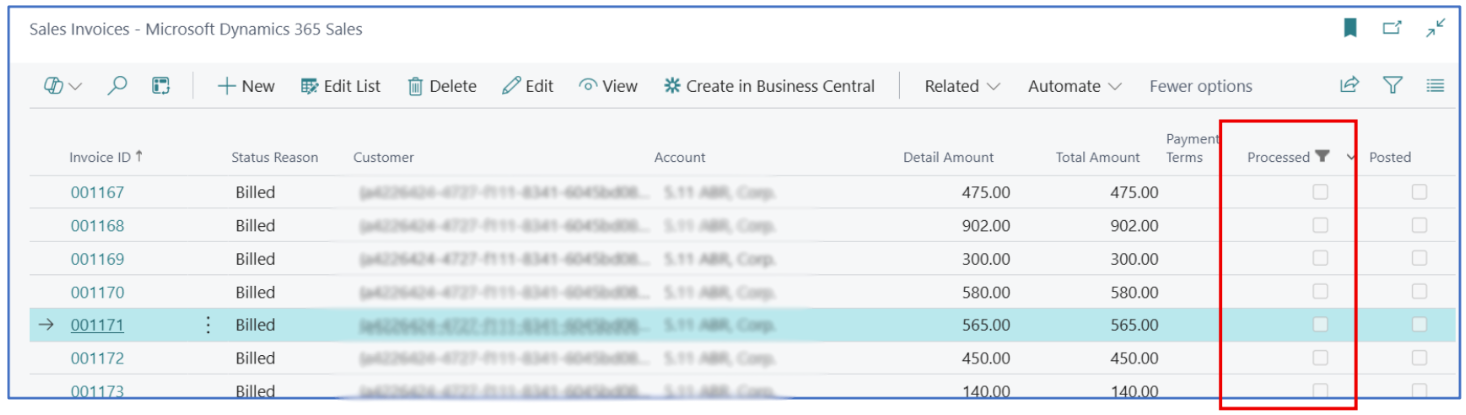
When an invoice is ready for integration, the invoice information is transferred into the Business Central staging area. These staged invoice records can be accessed from the Sales Invoices — Microsoft Dynamics 365 Sales page in Business Central.
From this page, users can review the invoice records received from Dynamics 365 before creating the corresponding sales invoice in Business Central.
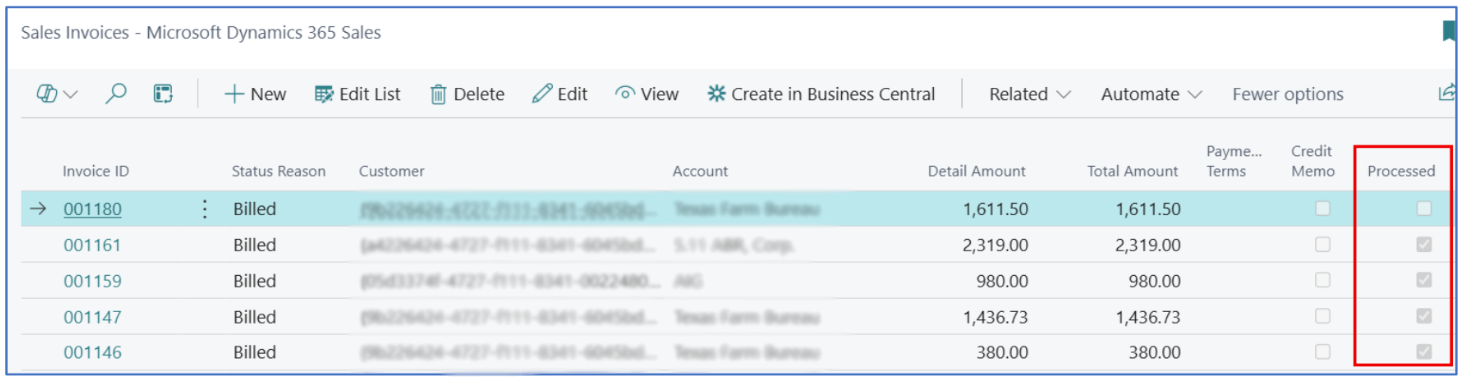
To create the Business Central sales invoice, users can select the relevant transaction and use the Create in Business Central action.
Once the Business Central sales invoice has been created successfully, the integration updates the Processed indicator for the corresponding Dynamics 365 invoice record. This confirms that an equivalent sales invoice has been created in Business Central.
The creation of sales invoices in Business Central can also be automated through a background job queue, depending on the integration configuration.
The detailed processing of sales invoices, including invoice status changes, amendments, credit memos, and payments, is explained in the following sections.
Synchronisation of Master Files
Master records between Dynamics 365 Legal and Business Central are synchronised through scheduled background integration jobs.
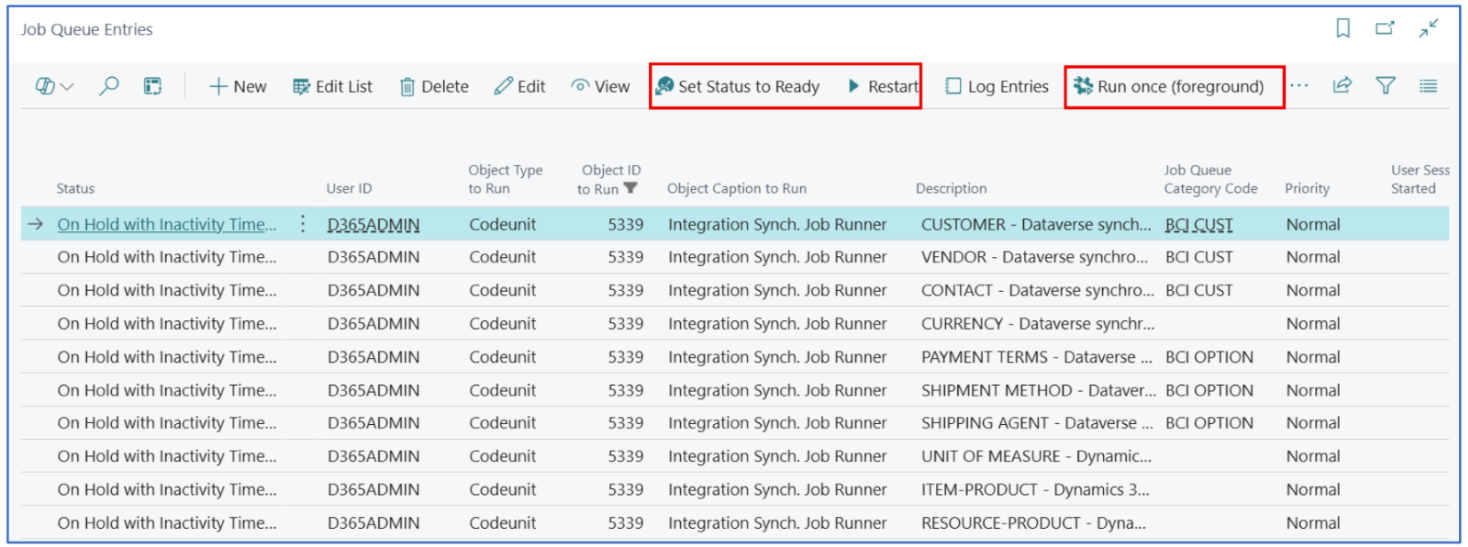
In Business Central, these synchronisation processes can be monitored from the Job Queue Entries page. The integration job used for master data synchronisation is associated with Job Queue Object ID 5339.
Example:
The Job Queue automatically processes the configured synchronisation of master records such as:
-
Customers
-
Vendors
-
Contacts
-
Products or Items
-
Relevant integration data required between Dynamics 365 Legal and Business Central
Under normal operation, these jobs run automatically in the background based on the configured schedule.
Monitoring Synchronisation Jobs
If a master record does not appear to have synchronised successfully, authorised users can check the relevant job from the Job Queue Entries page in Business Central.
The job status can help identify whether the synchronisation process is operating correctly.
If an integration job fails or stops running, its status may display as:
-
Error — Indicates that an issue occurred while the job was being processed.
-
On Hold — Indicates that the job is currently paused and will not continue processing automatically.
Depending on the job status, users with the appropriate permissions can use the following actions:
-
Restart — Restarts a job that has encountered an error.
-
Set Status to Ready — Returns the job to a ready state so that it can continue running according to its configured schedule.
-
Run once (background) — Runs the synchronisation job immediately as a one-off background process.
These options can be used when an immediate synchronisation is required or when an integration job needs to be restarted following an error.
Note: Job Queue monitoring and troubleshooting should generally be performed by authorised Business Central administrators or users responsible for managing the integration.
Sales Transaction Processing
Sales invoices are created and managed in Dynamics 365 Legal and then synchronised with Business Central for financial processing.
Once an invoice reaches the required billing status in Dynamics 365, the integration transfers the invoice information to Business Central. The transaction is first received through the integration staging process and is then used to create the corresponding Business Central Sales Invoice.
A unique invoice number helps prevent the same invoice from being duplicated in Business Central. In Dynamics 365 Legal, an invoice with a Billed status is considered ready for processing through the Business Central integration.
The following sections explain how invoices, amendments, credit memos, and customer payments are processed between Dynamics 365 Legal and Business Central.
Sales Invoices
When the Status Reason of an invoice in Dynamics 365 Legal changes from New or Approved to Billed, the invoice header and invoice line information is transferred to the Business Central integration staging table.
Search for and navigate to Sales Invoices — Microsoft Dynamics 365 Sales to view Dynamics 365 invoices that have been processed as Billed. Depending on the integration configuration, this process may also be automated through a background process.
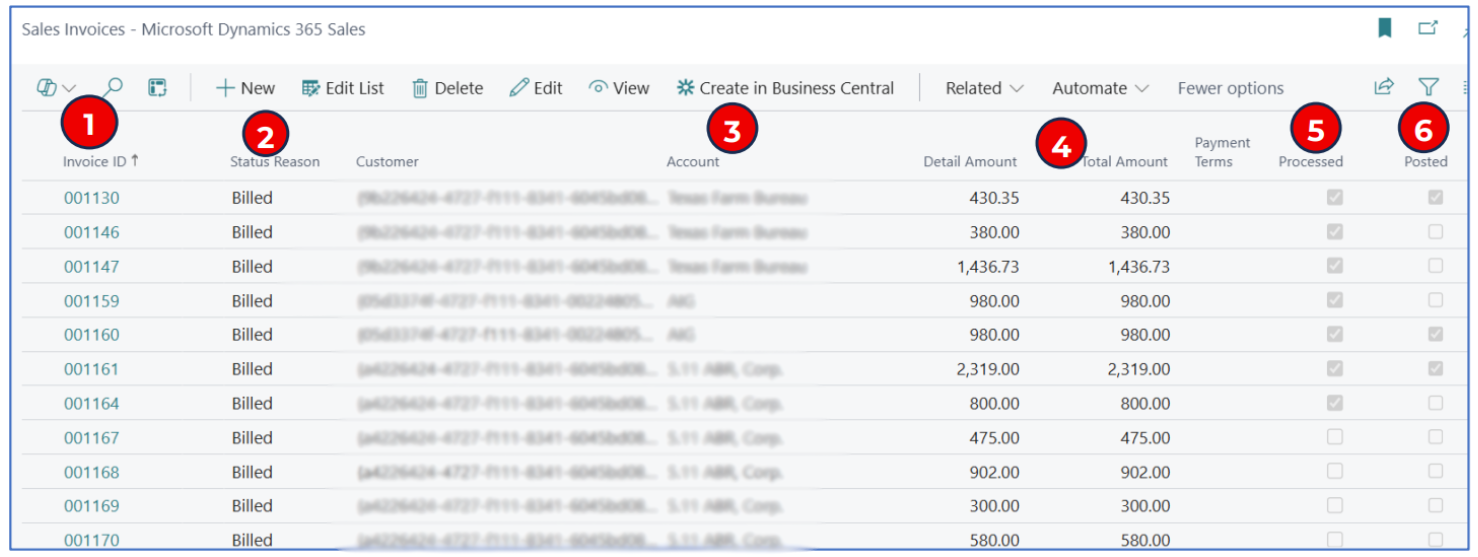
The main information displayed on this page includes:
-
Invoice ID — Displays the Dynamics 365 Legal invoice number.
-
Status Reason — Displays the Billed status of the Dynamics 365 invoice.
-
Account — Displays the customer associated with the invoice.
-
Debit Amount and Total Amount — Displays the financial value of the invoice.
-
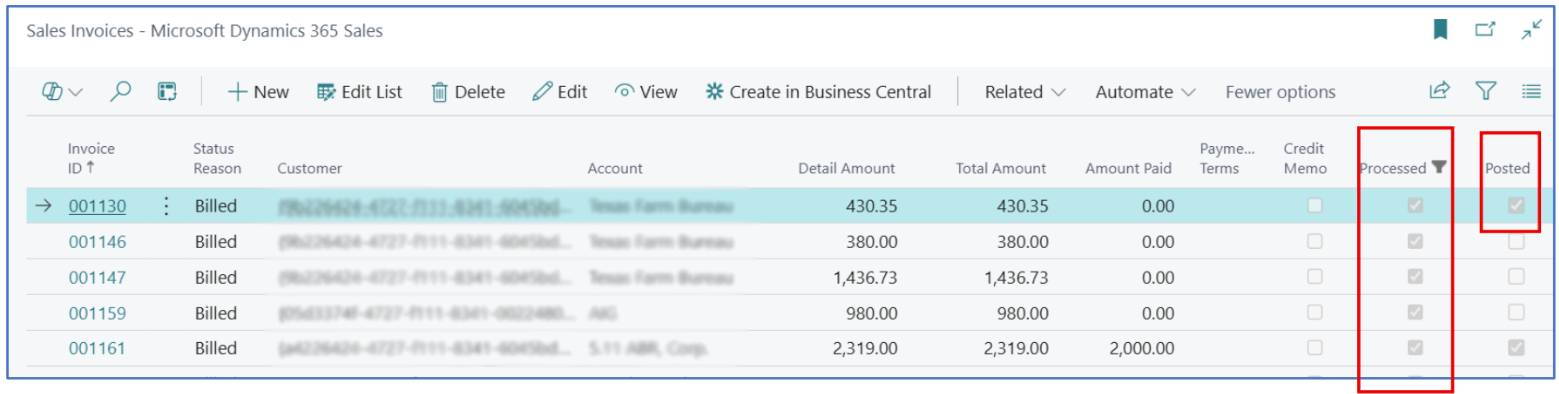
Processed — Indicates whether the invoice has been integrated into Business Central and a corresponding Sales Invoice has been created. If this option is not selected, the invoice has not yet been created in Business Central.
-
Posted — Indicates whether the resulting Sales Invoice has been posted in Business Central.
Amendments & Credit Memos
The default Status Reason for a new Dynamics 365 Legal invoice is New. While the invoice remains in this draft status, users can make any required amendments.
If an approval workflow is configured, the invoice may need to be approved before it can be changed to Billed.
Once the invoice is marked as Billed, the integration sends the invoice record to the Business Central staging table, where it remains until the corresponding Business Central Sales Invoice is created.
Amending an Unprocessed Invoice
If the invoice is available in the Business Central staging table but has not yet been marked as Processed, it can still be amended in Dynamics 365 Legal.
To amend the invoice:
-
Change the invoice status from Billed back to New.
-
Make the required amendments.
-
Save the invoice.
-
Change the invoice status back to Billed.
The updated information will then update the corresponding invoice record in the Business Central staging table.
Correcting a Processed Invoice
Once the invoice is marked as Processed, a corresponding Sales Invoice has already been created in Business Central.
At this stage, the invoice should not be directly edited in Dynamics 365 Legal, as doing so may result in an integration error.
Instead:
-
Cancel the original Dynamics 365 Legal invoice.
-
Create a Credit Note against the original invoice.
-
The Credit Note is transferred to the Business Central staging table as a negative-value transaction.
-
The transaction is processed in Business Central as a Sales Credit Memo.
-
The Sales Credit Memo can then be applied against the original Sales Invoice to offset or cancel the invoice.
Both the Sales Invoice and Sales Credit Memo are initially created in Business Central as unposted documents and must be posted before they are reflected in the customer ledger.
Customer Payments
Customer invoice payments are processed in Business Central using:
-
Cash Receipt Journals
-
Payment Reconciliation Journals, where bank feed functionality is being used.
An optional process is also available to create Cash Receipt Journal lines using Dynamics 365 Legal invoices that have already been Processed and Posted in Business Central.
Search for and navigate to Sales Invoices — Microsoft Dynamics 365 Sales. Invoices where both the Processed and Posted indicators are selected are included in the integration process for customer payment handling.

Search for and navigate to D365 BC Invoice Details to view the relevant invoice and payment information.
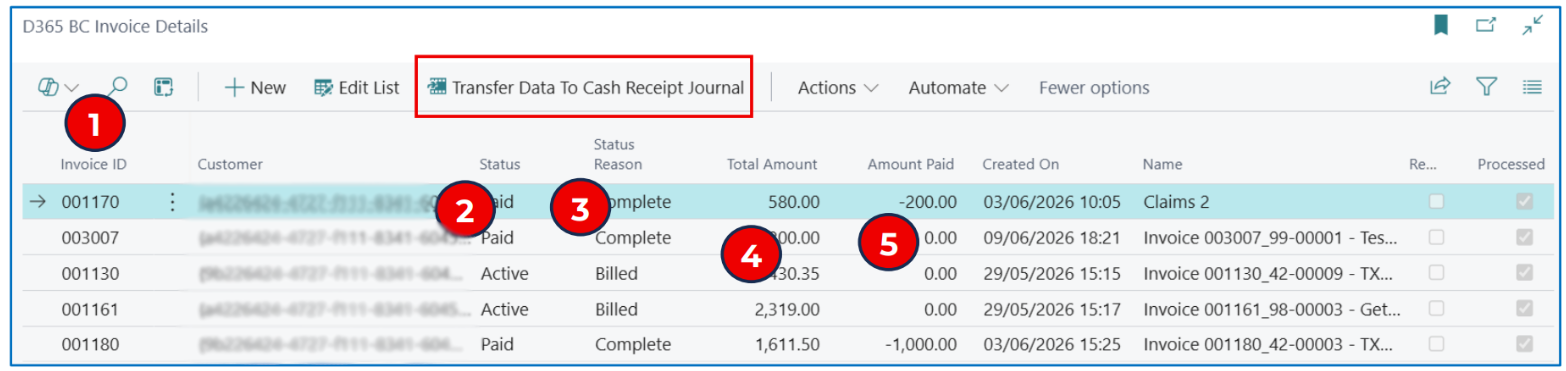
The main information displayed includes:
-
Invoice ID — Displays the Dynamics 365 Legal invoice number.
-
Status:
a. Active indicates that the invoice has been billed but has not been fully paid.
b. Paid indicates that payment has been recorded against the invoice.
-
Status Reason:
a. Billed — The invoice has been posted in Business Central but has not been fully paid.
b. Complete — The invoice has been fully paid.
c. Partial — The invoice has been partially paid.
-
Total Amount — Displays the original total value of the invoice.
-
Amount Paid — Displays the total posted payment amount applied to the invoice.
For invoices where the payment processing Processed flag is not selected, use the Transfer Data to Cash Receipt Journal action to create a Cash Receipt Journal line for the selected invoice.
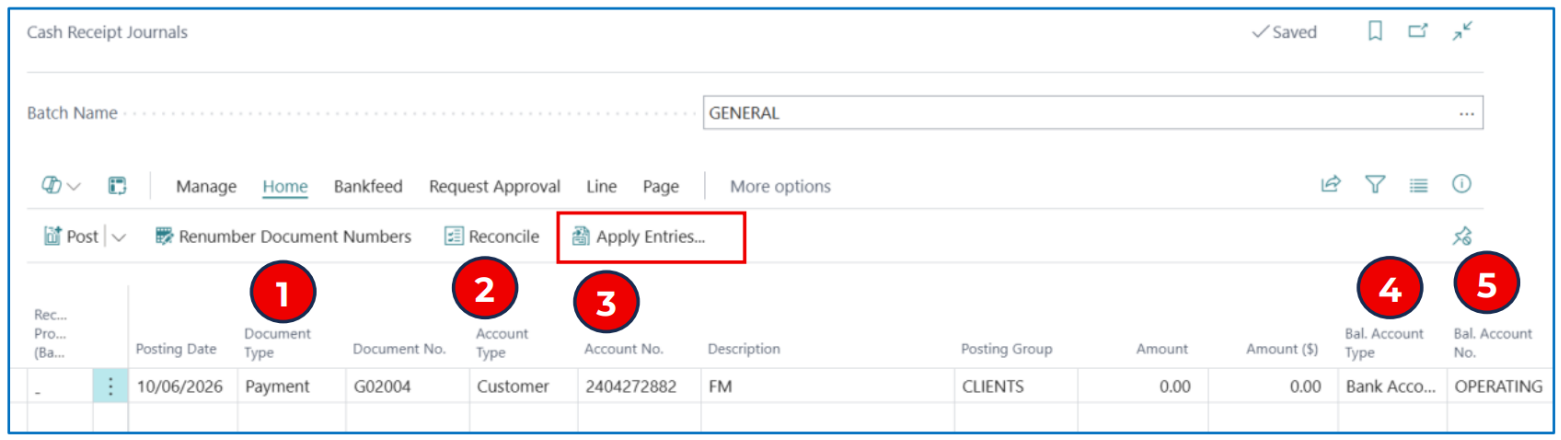
The main fields in the Cash Receipt Journal are:
-
Document Type — Select Payment.
-
Account Type — Select Customer.
-
Account No. — Select the customer who made the payment.
-
Bal. Account Type — Select Bank Account where the payment has been deposited into a bank account.
-
Bal. Account No. — Select the relevant Business Central bank account where the payment was received.
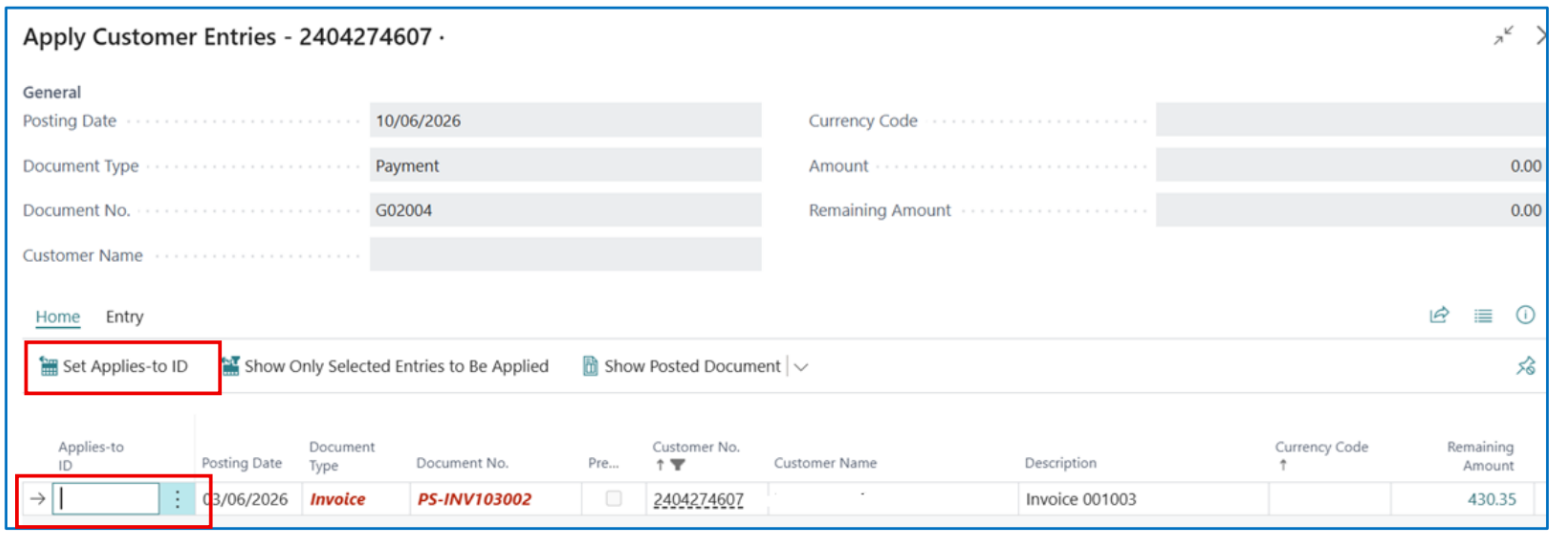
To apply the payment against an invoice:
-
Select Home > Apply Entries.
-
Select one or more posted invoices.
-
Select Set Applies-to ID.
-
The system calculates the total amount of the selected invoices and applies it to the Cash Receipt Journal line.
-
Review the payment and invoice details before posting the journal.
The External Document No. displays the corresponding invoice number from Dynamics 365 Legal.
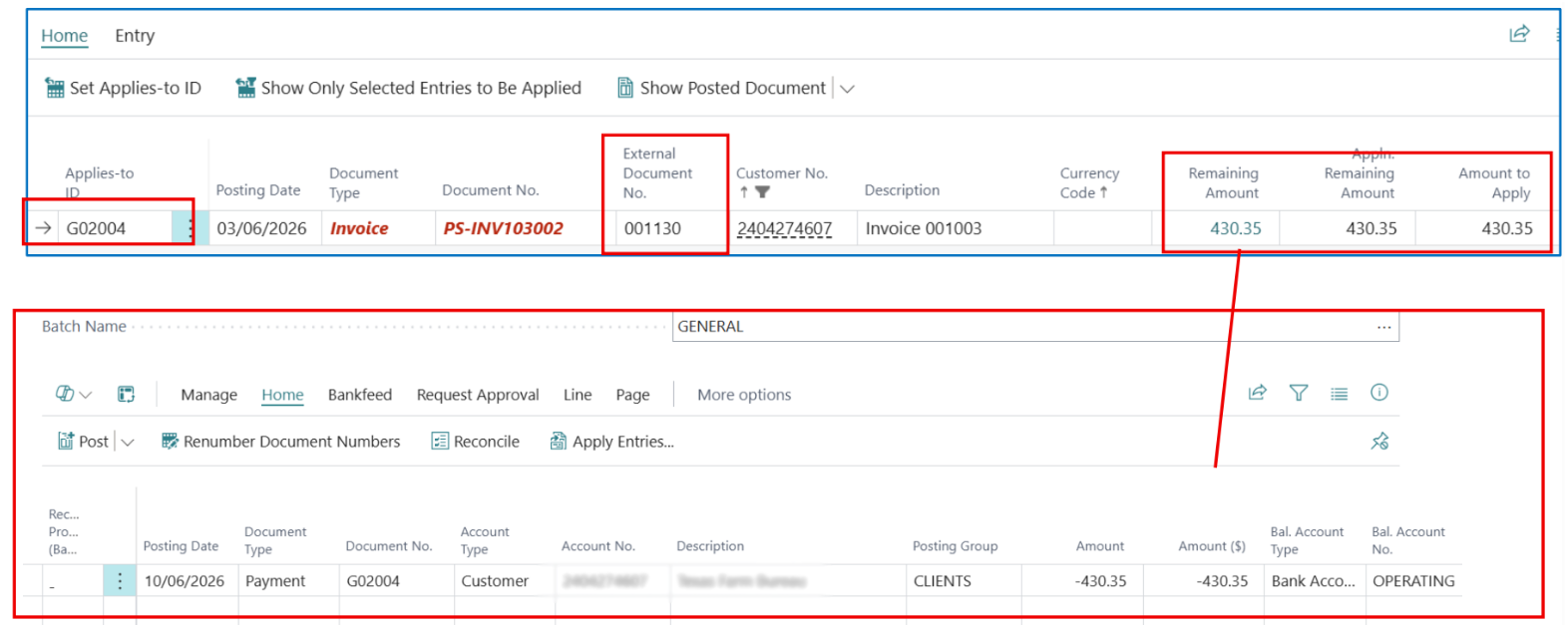
Once the Cash Receipt Journal is posted and the full invoice balance has been paid, the integration updates the Dynamics 365 Legal invoice to:
-
Status: Paid
-
Status Reason: Complete
Partial Payments
If a customer makes a partial payment against an invoice, the payment can be applied to the invoice in Business Central while leaving a remaining outstanding amount.
The integration then updates the corresponding Dynamics 365 Legal invoice to:
-
Status: Paid
-
Status Reason: Partial

The following examples illustrate the different payment states:
-
An invoice with Status = Active and Status Reason = Billed has not yet been fully paid and may still need to be transferred for Cash Receipt Journal processing.
-
An invoice with Status = Paid and Status Reason = Partial has received a payment, but the amount paid is less than the total invoice amount.
-
An invoice with Status = Paid and Status Reason = Complete has been fully paid, with the amount paid equal to the total invoice amount.
Customer Underpayment with Write-off
When applying customer payments to sales invoices in Business Central, there may be occasions when underpayment is encountered and this amount is written off.
This is done through Payment Tolerance — the write-off limit being defined in General Ledger Setup.
Example:
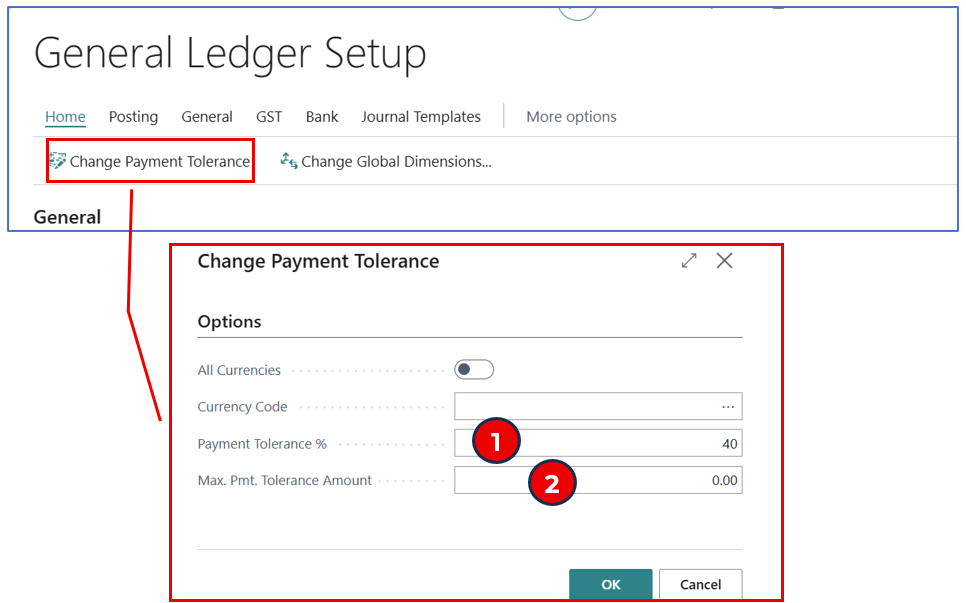
The limit for write-off amounts during the invoice application is either:
-
A defined % of the sales invoice.
-
A maximum defined amount for the write-off.
Write-off underpayment during Invoice Payments
When applying a customer payment against a sales invoice (e.g. Cash Receipt Journal), the system will prompt for the decision on the underpayment.
Example:
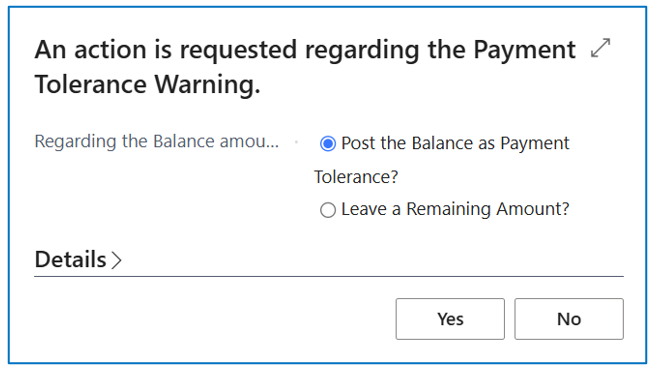
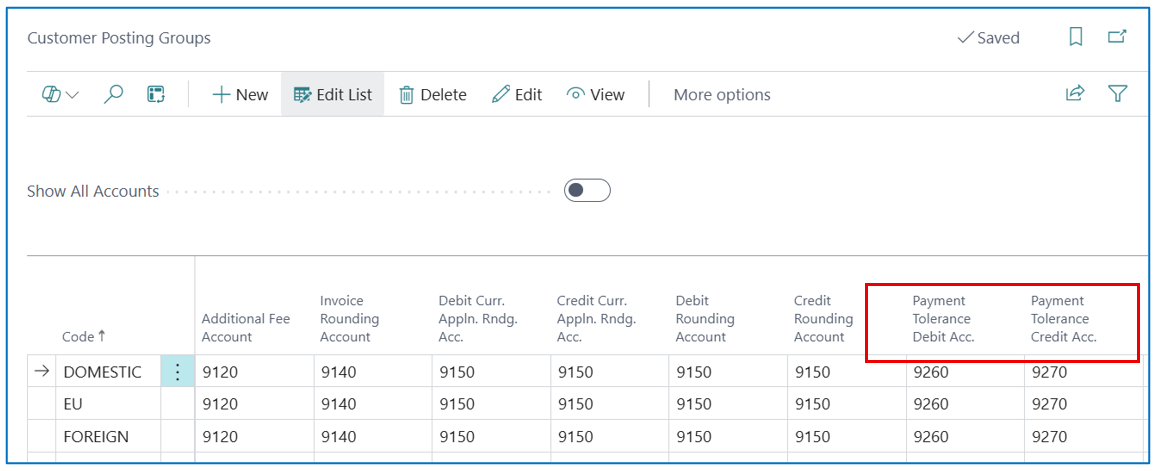
Select Post the Balance as Payment Tolerance to post the underpayment to the Payment Tolerance account defined in Customer Posting Group setup.
NB: This account can be the write-off account.
Example:
Disbursement Expense Processing
When a disbursement expense is created against a Matter in Dynamics 365 Legal, the expense can be integrated with Business Central for vendor and purchase invoice processing.
The expense must be linked to an existing Vendor that has already been synchronised between Dynamics 365 Legal and Business Central.
When the Matter expense transaction is saved, the integration process creates a corresponding Purchase Invoice against the coupled Vendor in Business Central.
The process is as follows:
-
Create the disbursement expense against the relevant Matter in Dynamics 365 Legal.
-
Select the appropriate Vendor associated with the expense.
-
Save the expense record.
-
The background integration process identifies the coupled Business Central Vendor.
-
A corresponding Purchase Invoice is created in Business Central.
-
The Purchase Invoice is created as an unposted document for review and processing.
The unposted Purchase Invoice in Business Central uses the Vendor invoice number as the External Reference.
Once the Purchase Invoice has been reviewed, it can be posted in Business Central. Posting the invoice updates:
-
The Vendor Ledger.
-
The relevant purchase account based on the configured General Posting Setup.
Important: The Vendor selected on the disbursement expense must already be correctly synchronised and coupled with the corresponding Vendor record in Business Central for the integration to process successfully.
For further information, contact:
AU: 1 Sussex St, Sydney NSW 2000
SG: 59 Ubi Avenue 1# 03-11, Singapore 408938
UK: 71-75 Shelton St, London, WC2H 9JQ
USA: 8 The Green # 20058, Dover DE 19901
AU +61 2 9037 2385 | SG +65 3 1251534 | UK +44 2036 953042 | USA +1
646 652 0780