Amazon Punchout Integration for Dynamics 365 Business Central User Guide
Installation Guide
Pre-Requisites
Here are the prerequisites required to get started. Use the listed information for reference during installation.
- The version of the Business Central Environment must be 25.0 and above.
- We will need Client ID, Client Secret ID, Tenant ID, which we will get when we register Business Central on portal (there are steps below to get client id, client secret id).
- We will need the Identity and the shared secret from Amazon Business.
- We will need Punchout URL for test and production from Amazon Business.
- No. Series for Punchout Requisition.
- Amazon as a Vendor in Business Central (all posting setup on vendor card must be filled in).
- Item Template – This will be used for any items which is not in item master but is procured for the first time, system will generate the new item based on the setups mentioned in the item template.
- The Gen. Prod. Posting group used on item must have a valid Gen. Posting Setup.
- Location Code where the orders are received (all inventory posting setup must be completed for the location code).
- The punchout works for type = item. If we want to expense out everything then the item template must be setup as type = non – inventory.
Getting Started
Here is how to perform the installation of the Amazon Punchout extension in Business Central.
- In Business Central, search for Microsoft AppSource App (i.e. Microsoft Marketplace).
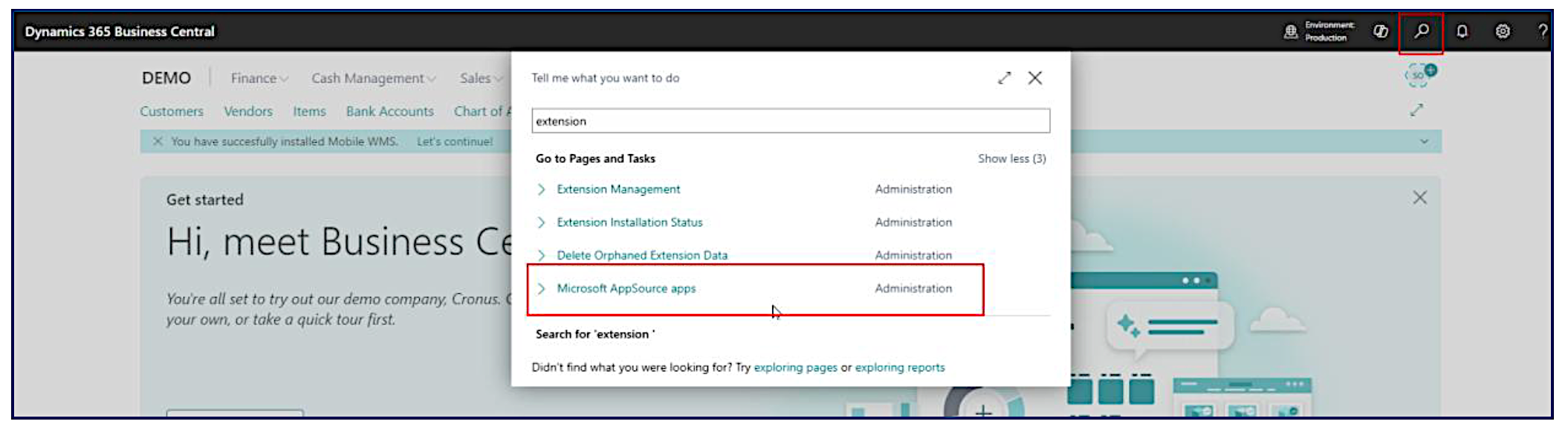
- Search for Amazon Punchout Integration for Business Central.

Click on View on AppSource and on that page click on Get it Now. This will install the extension in the selected environment of Business Central.
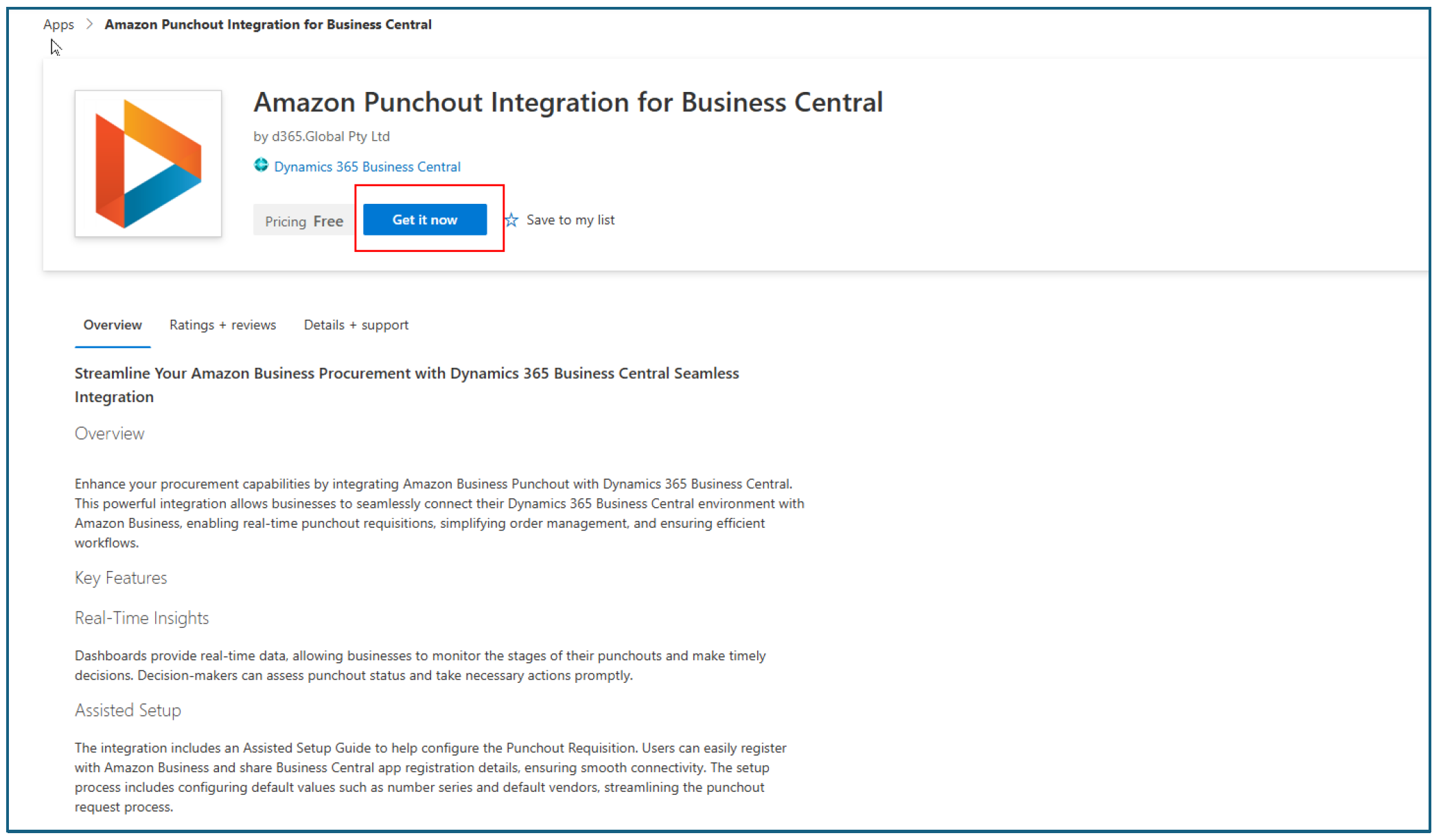
Note: Microsoft AppSource has been rebranded to Microsoft Marketplace.
Registering the Business Central Application on Azure
Registering the Business Central application on Azure is required when configuring OAuth authentication. Follow the steps below to register the Dynamics 365 Business Central app in the Azure Portal.
- Log in to the Azure Portal and select App registrations under Azure services.
- Click on the New registration button.
- On the Register an application page enter the following details and click on the Register button.
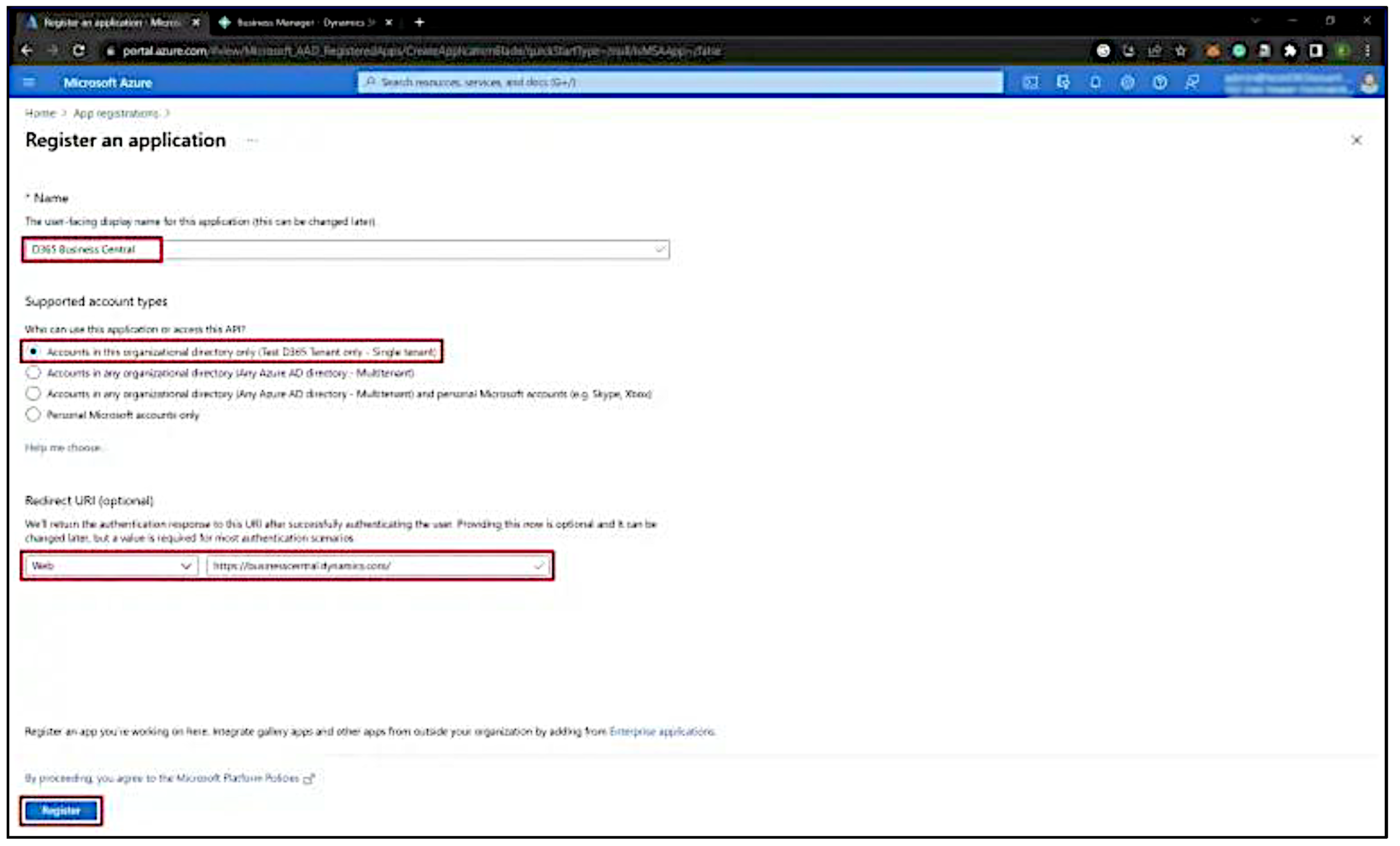
- Name: Name of your application.
- Supported account types: Select Accounts in any organizational directory (Any Azure AD directory – Multitenant) if you want to allow access to your app from any Azure AD tenant, or Accounts in this organizational directory only (Single tenant) if you want to limit access to your app to a specific Azure AD tenant.
- Redirect URI (optional). Select Web and enter the redirect URL for your BC app. This is the URL where your app will receive the authentication response. Add the URL as: https://businesscentral.dynamics.com/ for the Business Central Cloud version.
- Under Certificates & secrets click the New client secret button to create a new secret.
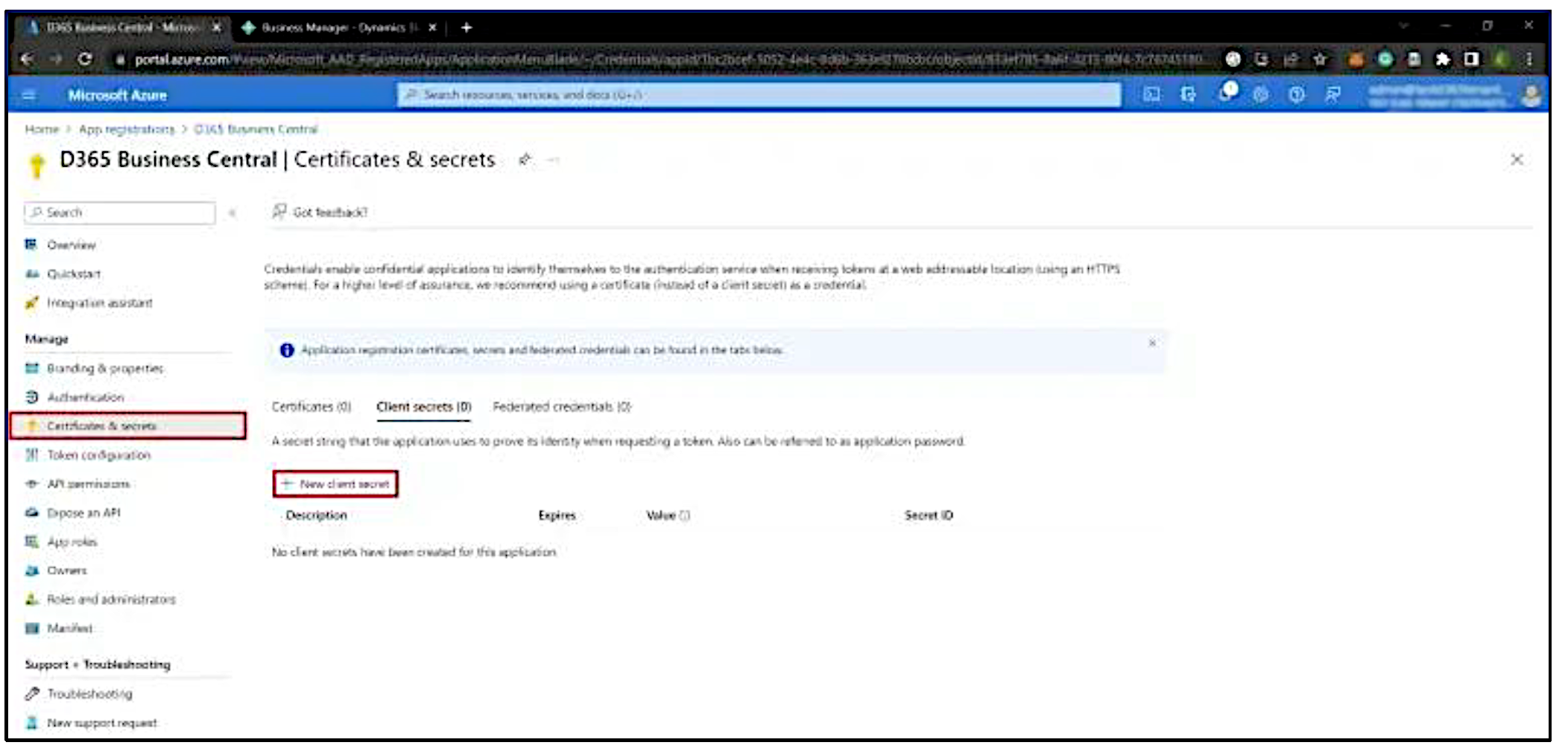
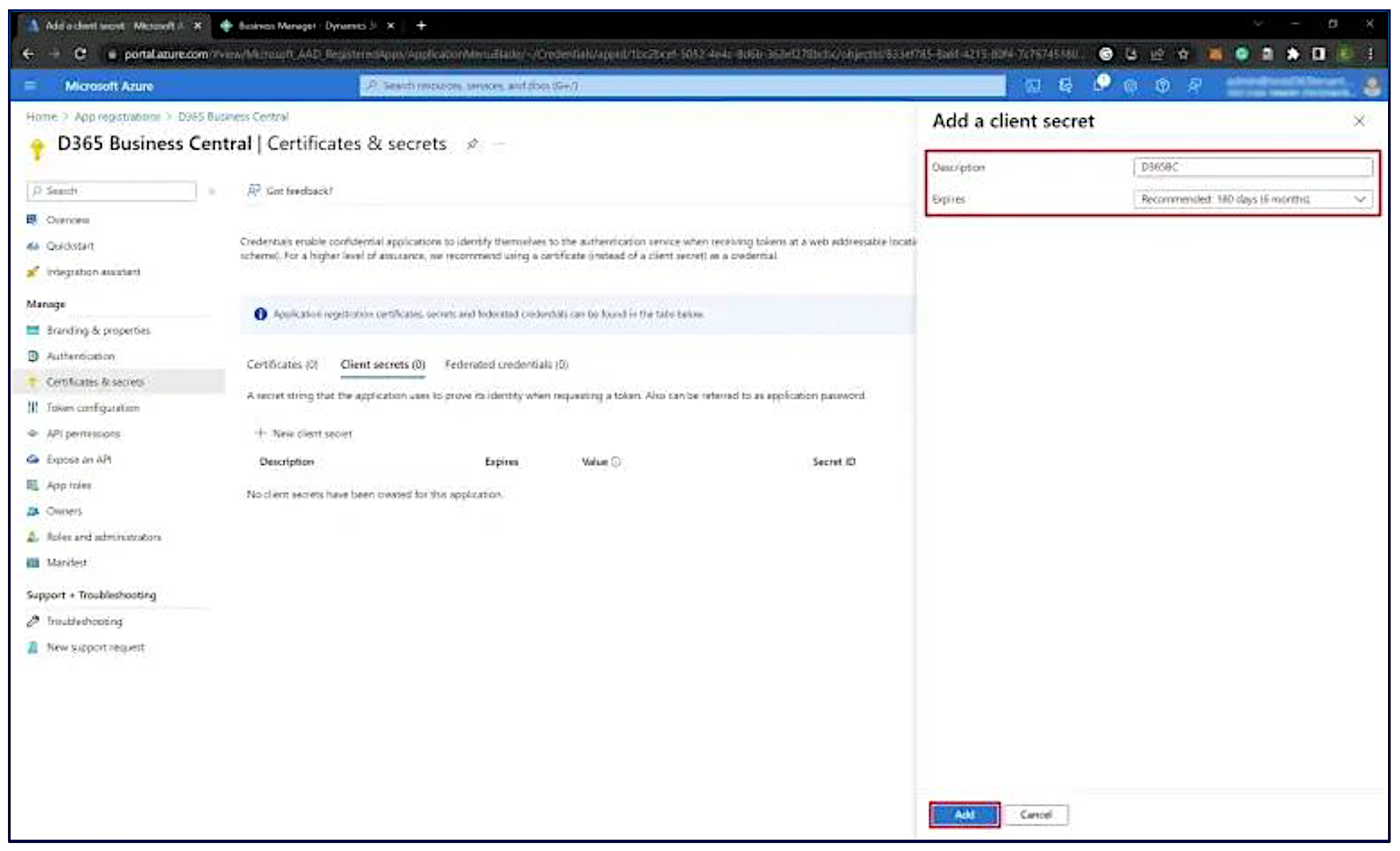
- Enter a description for the secret, select an expiration period, and click the Add button.
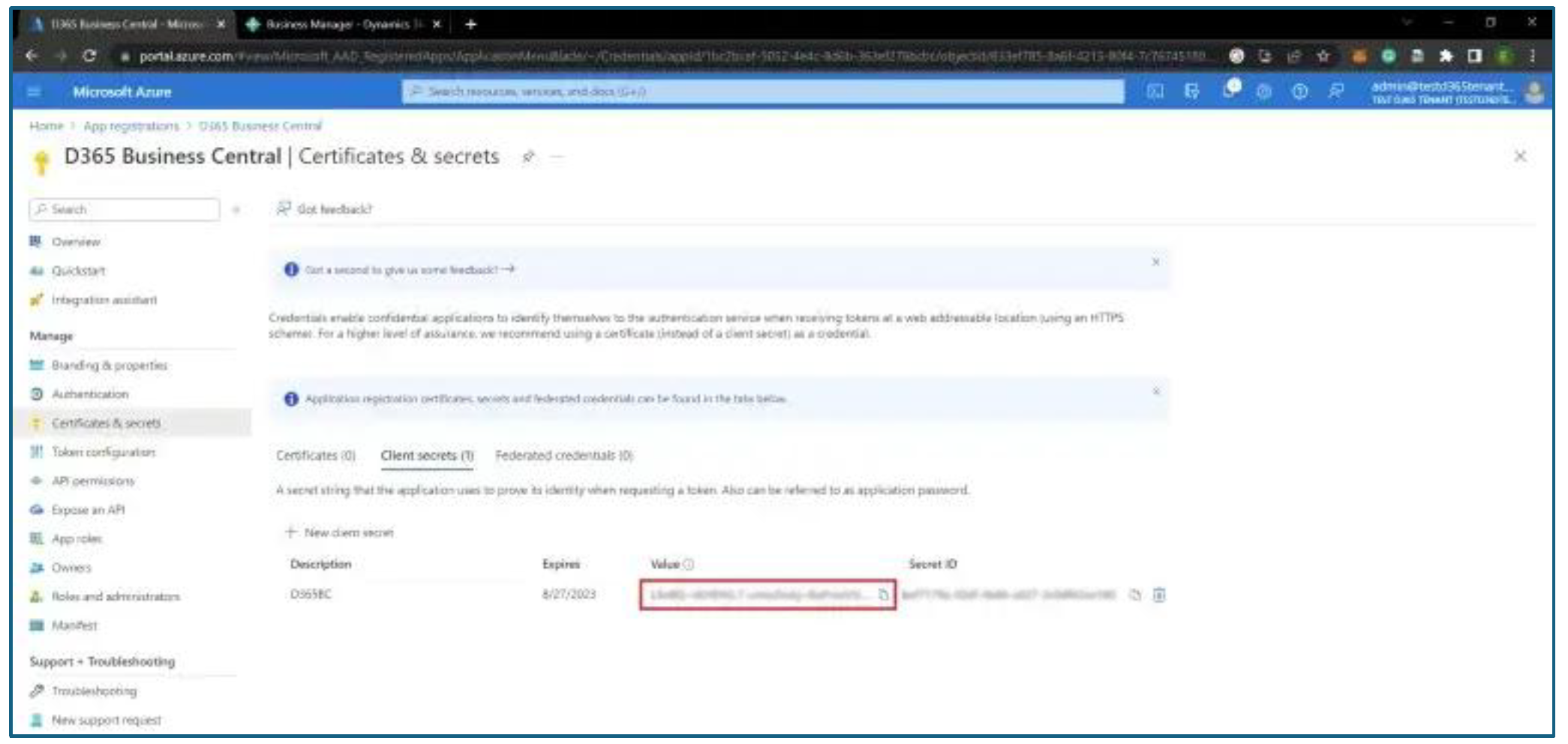
- Note down the value of the client secret, as you will need it later and it is visible only for the first time.
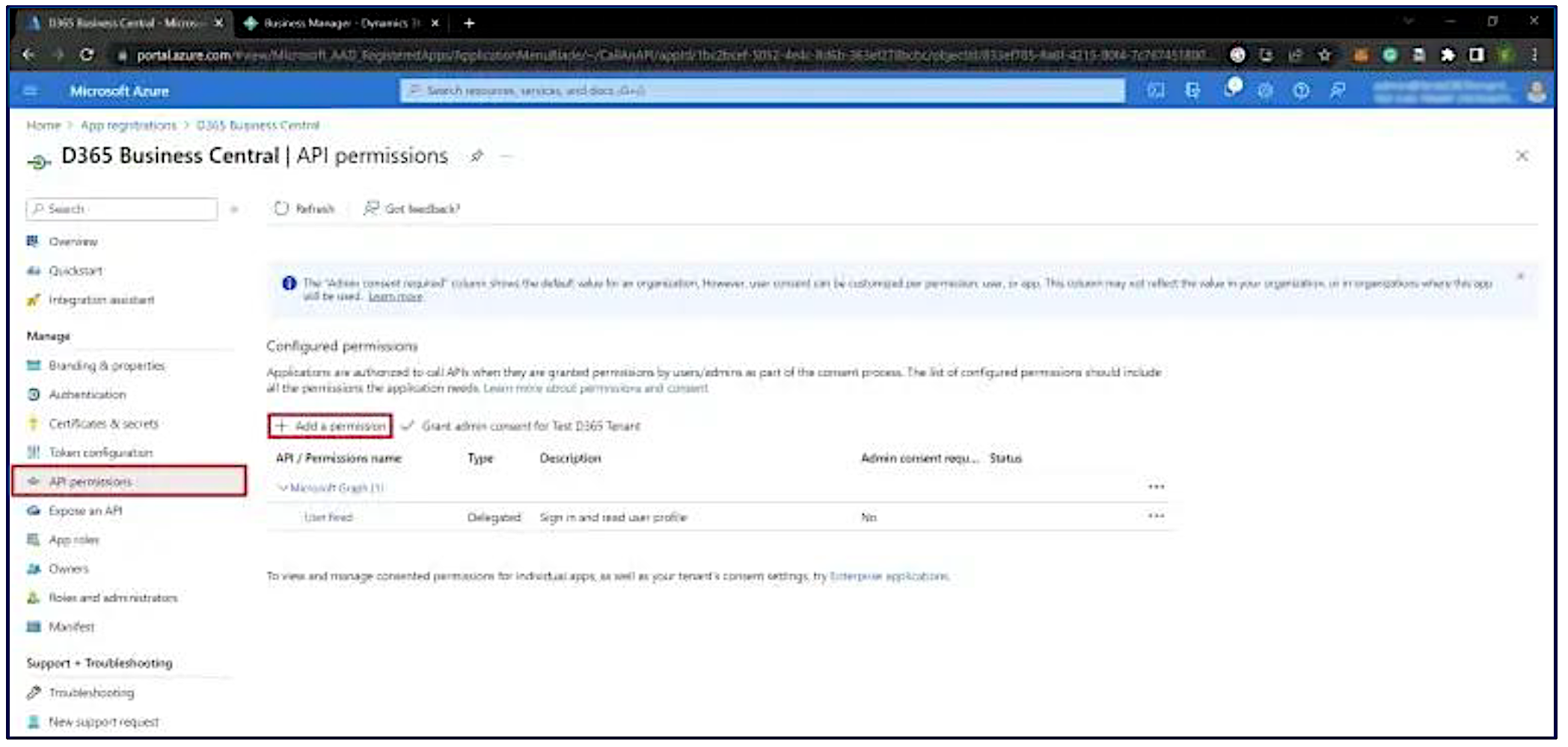
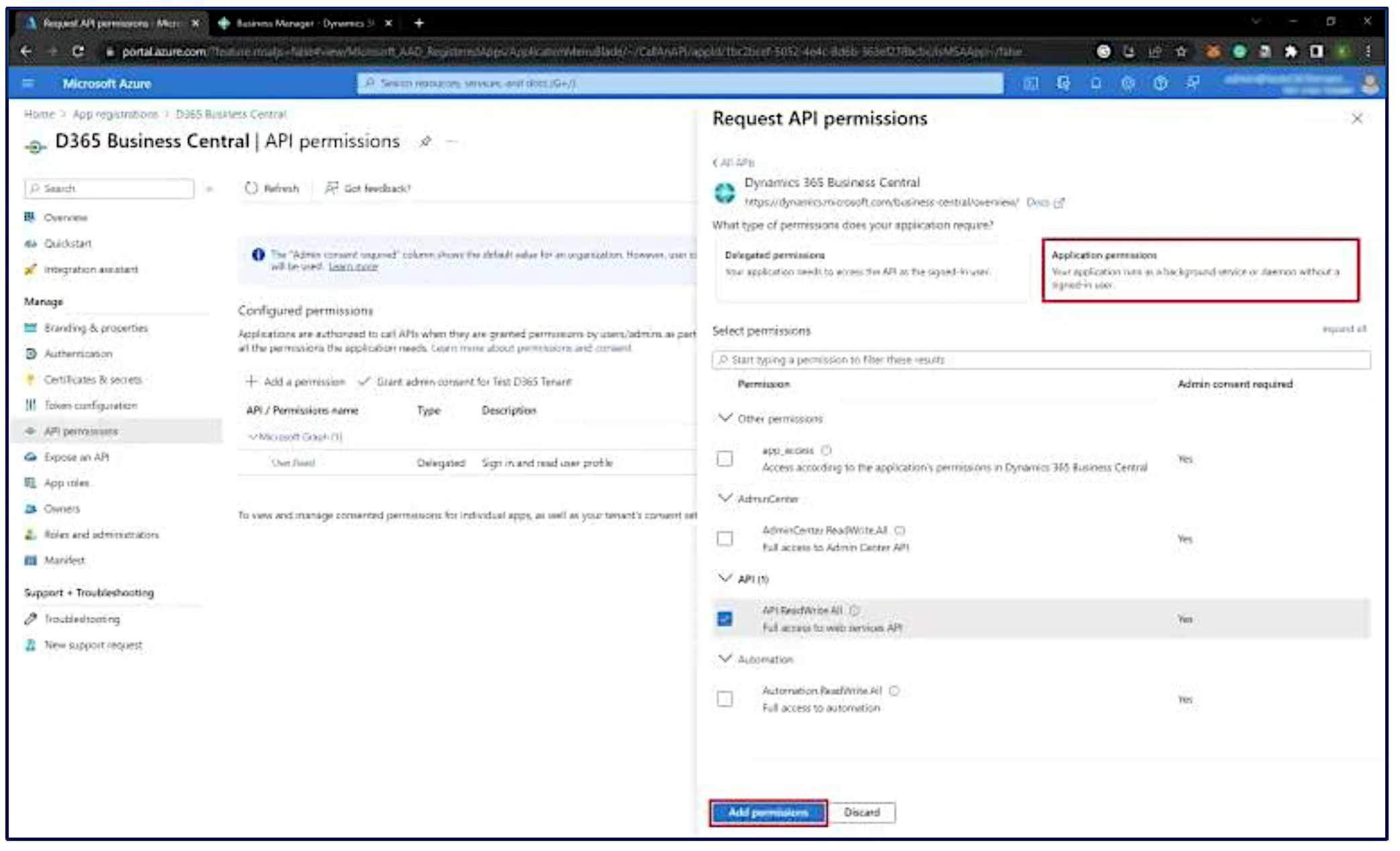
- Click on the API permissions tab, then click the Add a permission button to add permission to the registered Business Central app.
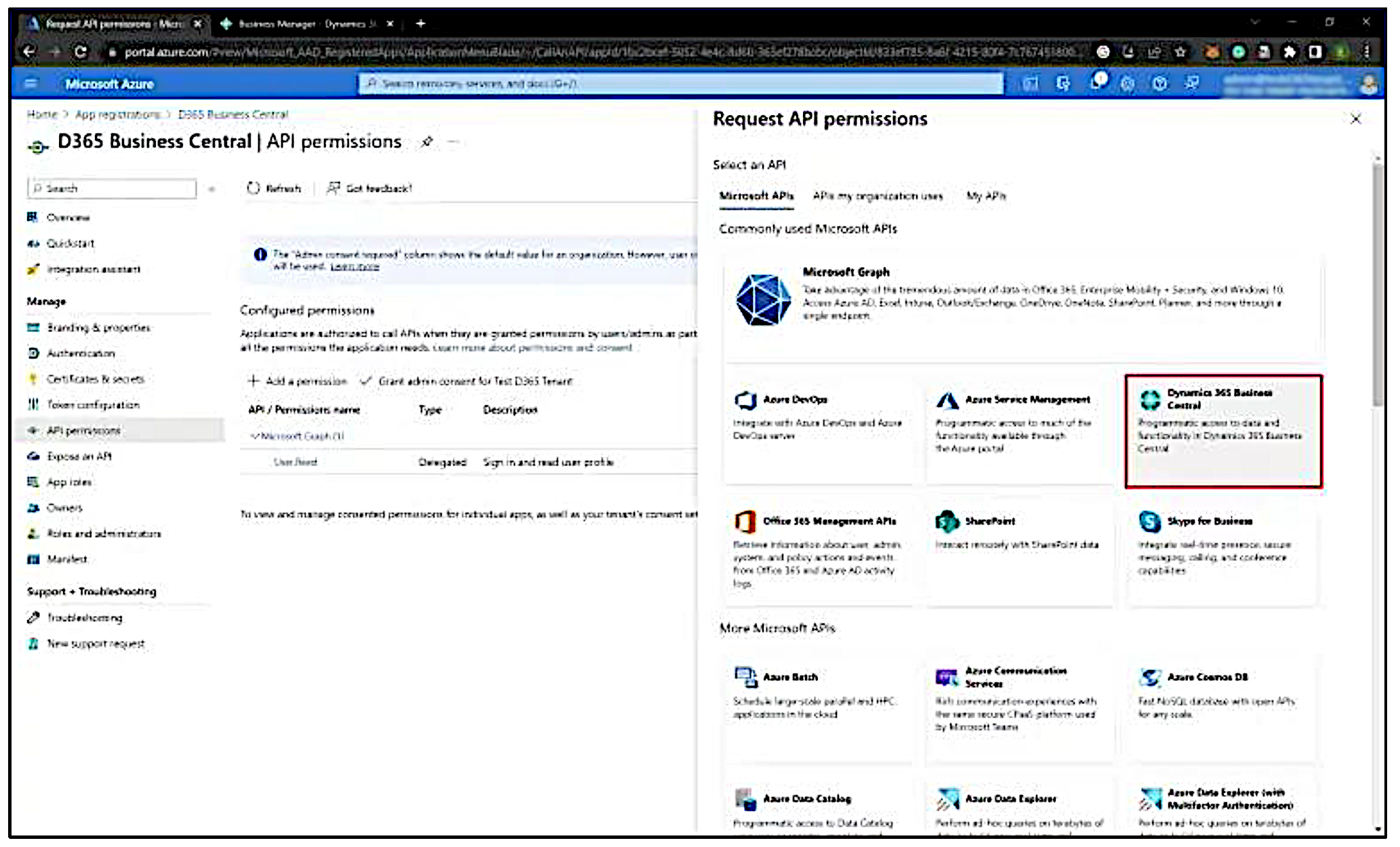
- Select Dynamics 365 Business Central from the list of available APIs:
- Here you can select two types of permission (Delegated permissions and Application permissions). Check the required permissions and click on Add permissions.
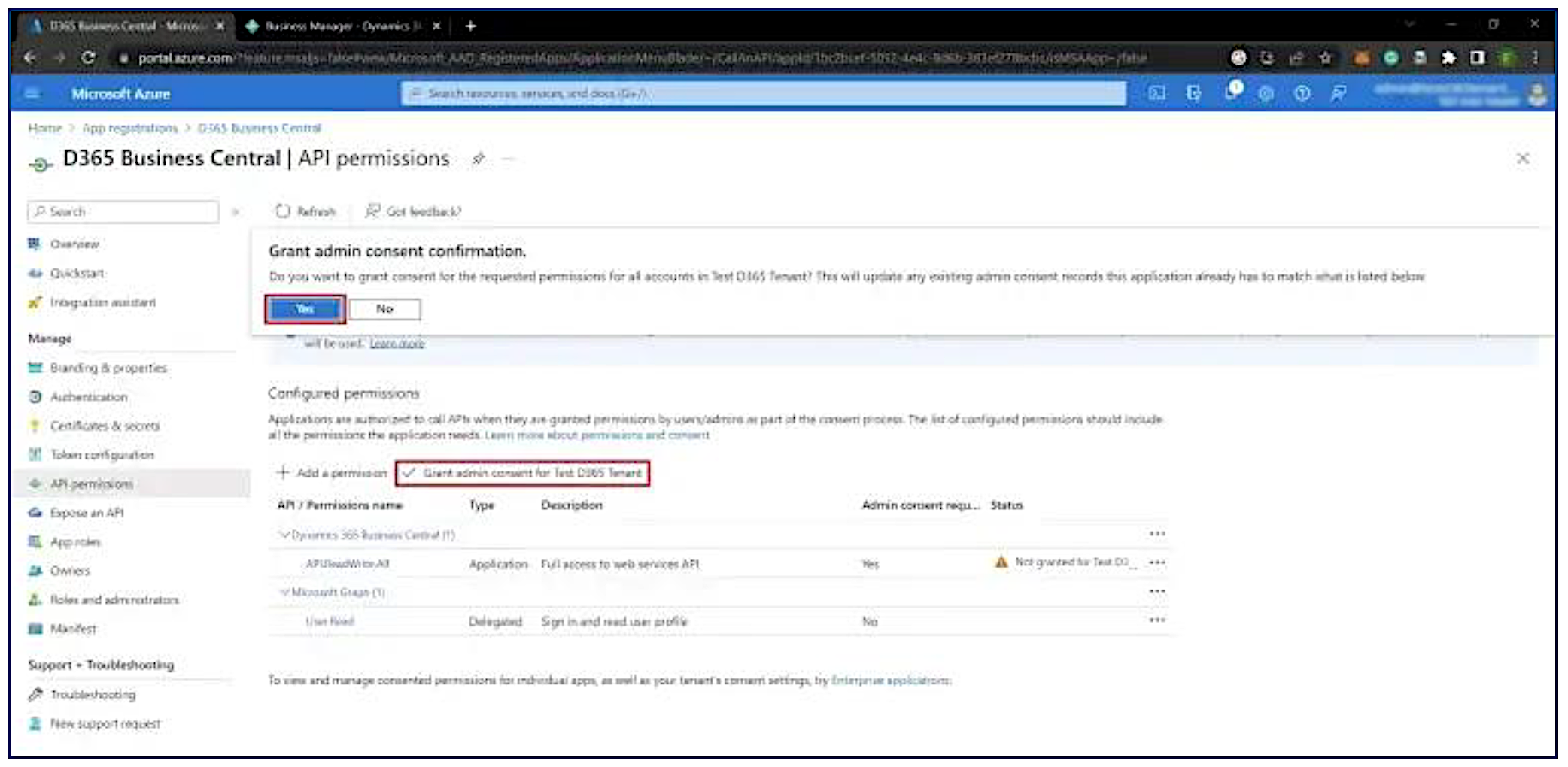
- Click on Grant admin consent and click on Yes.
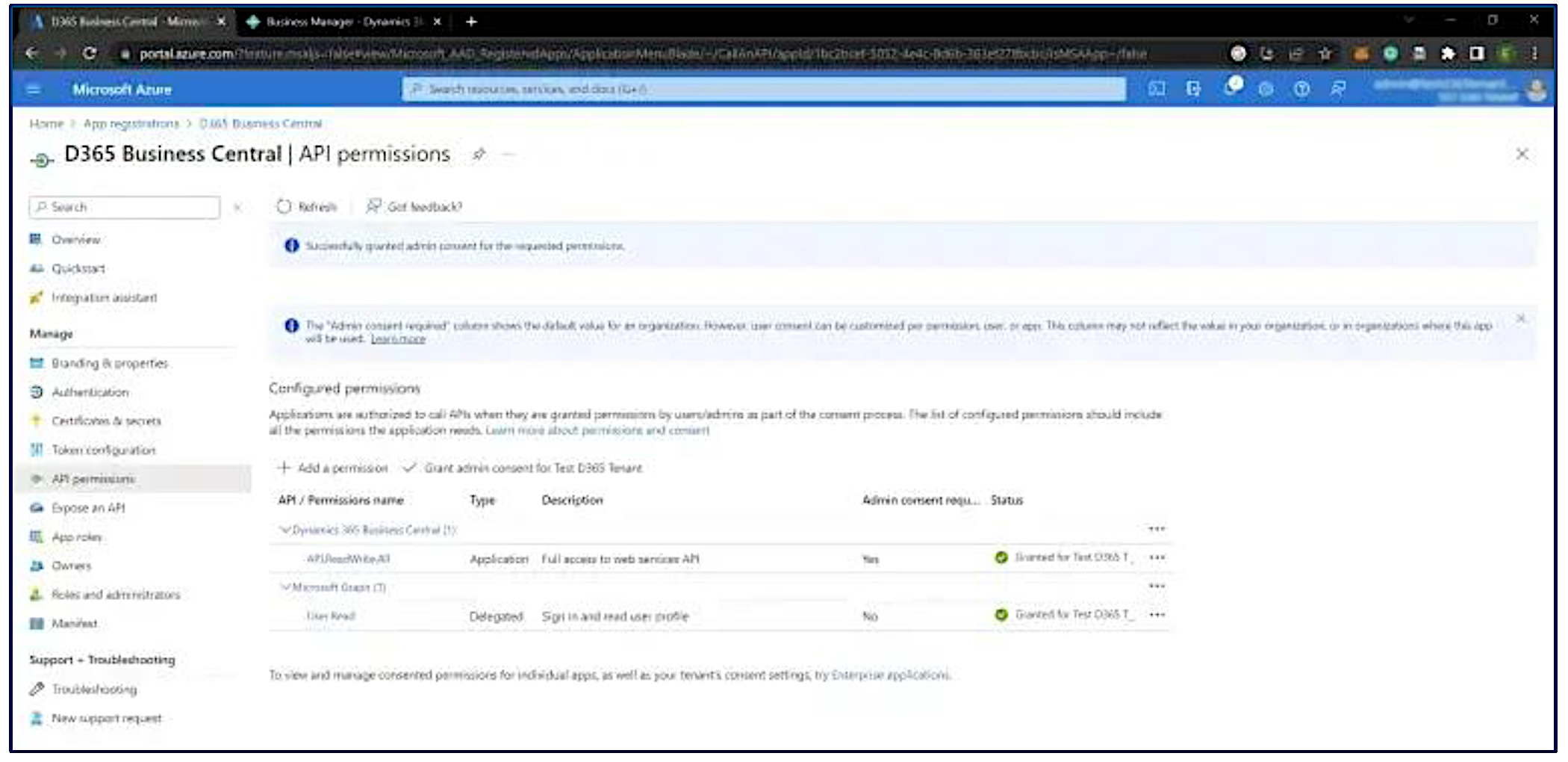
The Business Central app is now registered in the Azure Portal and you can use it when accessing web services with OAuth authentication.