Dynamics 365 App for Outlook Installation Guide
Introduction
The Dynamics 365 App for Outlook is a modern, lightweight way to bridge your CRM and your inbox. Unlike the legacy Dynamics 365 for Outlook (the heavy COM add-in), the App for Outlook uses server-side synchronization and doesn’t require a local installation on every machine. This guide will cover the setup from the User perspective.
Core Capabilities
The app acts as a side pane within your email or calendar, providing a bridge between your communications and your business database.
-
View CRM Context: When you open an email, the app automatically shows you the sender’s Dynamics 365 record, including their account details, recent activities, and open opportunities.
-
Track Emails and Appointments: With one click, you can “Track” an email. This saves a copy of the message into Dynamics 365 and links it to a specific record (like a Lead, Account, or Project).
-
Create New Records: If you receive an email from someone not yet in your system, you can create a new Contact, Lead, or Case directly from the Outlook pane without switching tabs.
-
Use CRM Templates: You can pull professional email templates, knowledge base articles, or sales literature from Dynamics 365 and insert them directly into your Outlook reply.
Key Differences: App vs. Legacy Add-in
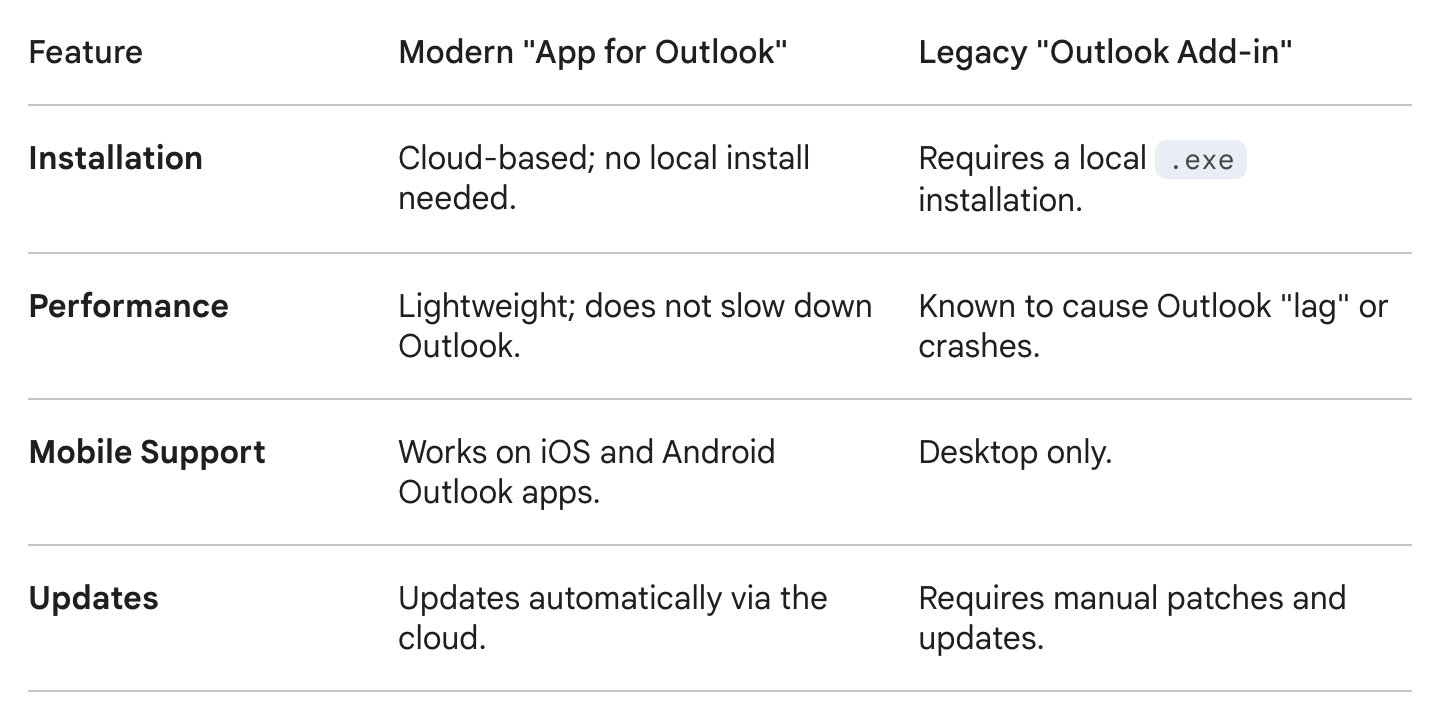
If you have used Dynamics for many years, you might remember the Dynamics 365 for Outlook. Here is how the modern App differs:
Getting Started
To ensure the Dynamics 365 App for Outlook functions correctly, users must be aware of the specific browser engines that power the app’s side pane. Because the app is an Office Add-in, it uses a browser component installed on your system to render, even when you are using the desktop version of Outlook.
1. Windows Requirements
For the best experience on Windows 10 and Windows 11, the app relies on the Microsoft Edge WebView2 runtime.
-
Recommended Browsers: Microsoft Edge (Chromium-based), Google Chrome, or Mozilla Firefox.
-
Key Detail: Even if you use Chrome as your default browser, Outlook Desktop uses the Edge (WebView2) component to display the Dynamics 365 pane.
-
Legacy Warning: Support for Internet Explorer 11 and “Legacy” Edge (non-Chromium) has been discontinued. If your Windows version is older than 1903 or your Office version is outdated, the app may fail to load.
2. macOS Requirements
On Mac, the app’s performance is tied directly to the version of Safari installed on the OS.
-
Required Browser: Apple Safari version 16 or higher must be installed.
-
Supported Browsers: Microsoft Edge, Google Chrome, and Mozilla Firefox (latest versions).
-
Note: While you can use Chrome or Edge to access “Outlook on the Web,” the Outlook Desktop for Mac client specifically uses WebKit (Safari’s engine) to render the Dynamics 365 App for Outlook pane.
3. Linux Requirements
For users accessing Dynamics 365 through Outlook on Linux:
-
Supported Browsers: The latest versions of Mozilla Firefox or Google Chrome.
-
Constraint: While most features are functional, some advanced UI elements or “Compose Mode” features may have limited compatibility compared to Windows or macOS.
4. Mobile Requirements (iOS & Android)
The “App for Outlook” is accessed within the Outlook Mobile App rather than a standalone mobile browser.
-
iOS: Requires the latest three major versions of iOS/iPadOS and the Safari engine.
-
Android: Requires the latest three major versions of Android and the Google Chrome engine.
-
Restriction: The Dynamics 365 App for Outlook is not supported when opening Outlook.com through a mobile web browser (like mobile Safari or mobile Chrome). You must use the official Outlook app from the App Store or Play Store.
User Installation (Self-Service)
You will need a Dynamics 365 account (provided by a system administrator). Ask your local system admin if your account has already been created on the system. The system admin will “push” the app to you, and you can add it yourself.
Here are the steps to begin a cloud-based installation of Dynamics 365 App for Outlook.
-
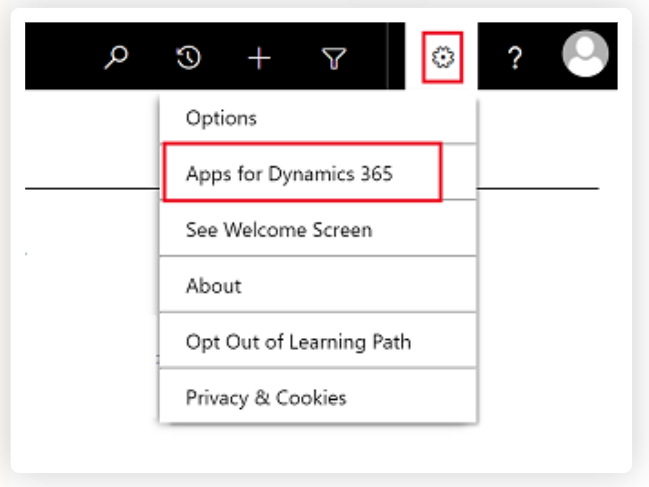
Sign in to your Dynamics 365 instance.
-
Click the Settings (gear icon) in the top-right corner.
-
Select Apps for Dynamics 365.
Accessing the App in Outlook
Once installed, the app will appear in your Outlook interface (provided by your IT or system admin). The quickest way to access Outlook is from the Microsoft 365 suite of applications under Apps. You can access this on your web browser from Microsoft Teams (https://teams.cloud.microsoft/ ) after you sign in to your Dynamics 365 account.
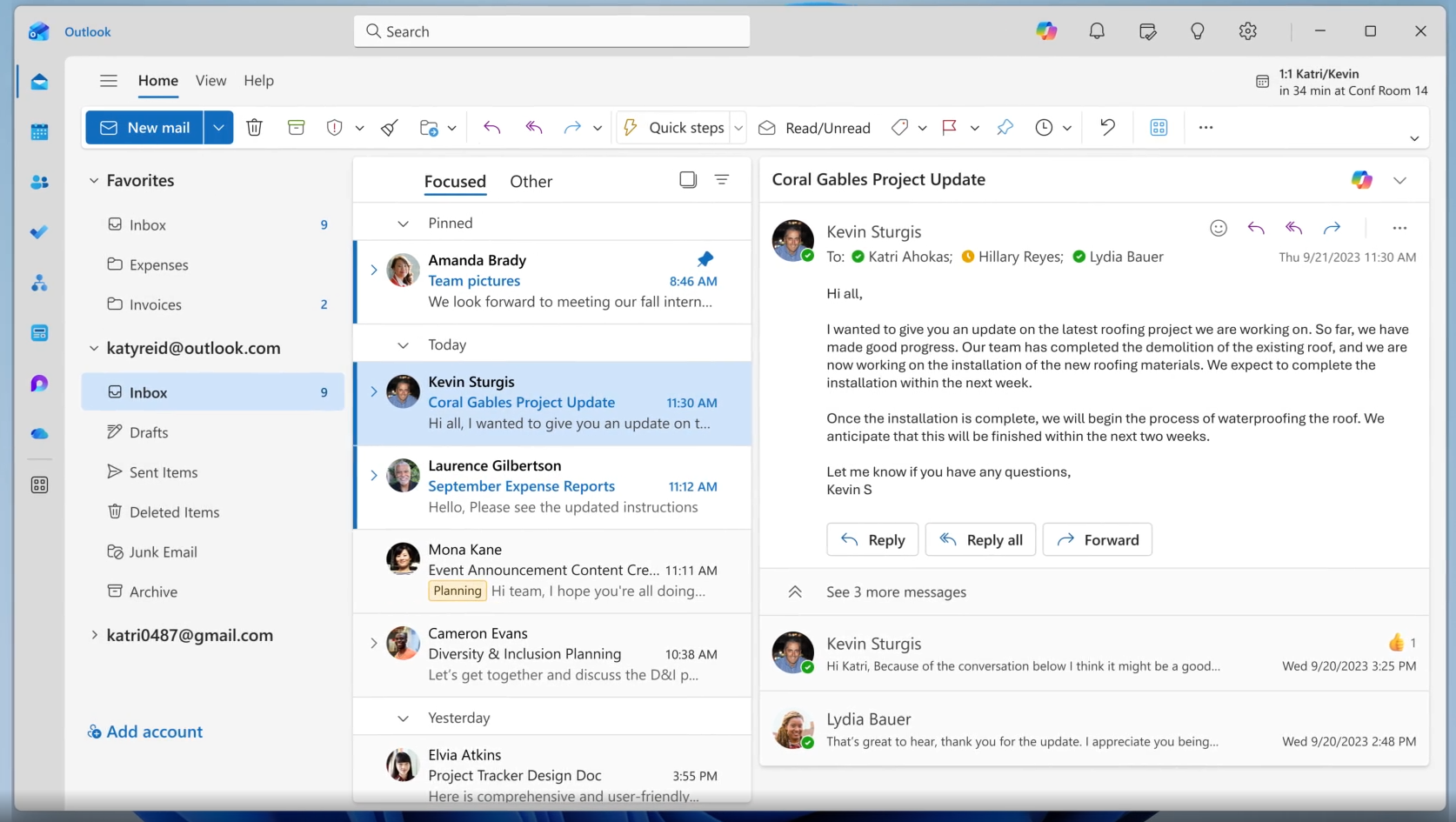
Note that it may take some time (a few minutes) to appear after being added. If it does not appear, request help from your local IT department or system admin.
In Outlook Desktop (Windows/Mac)
-
Open an email.
-
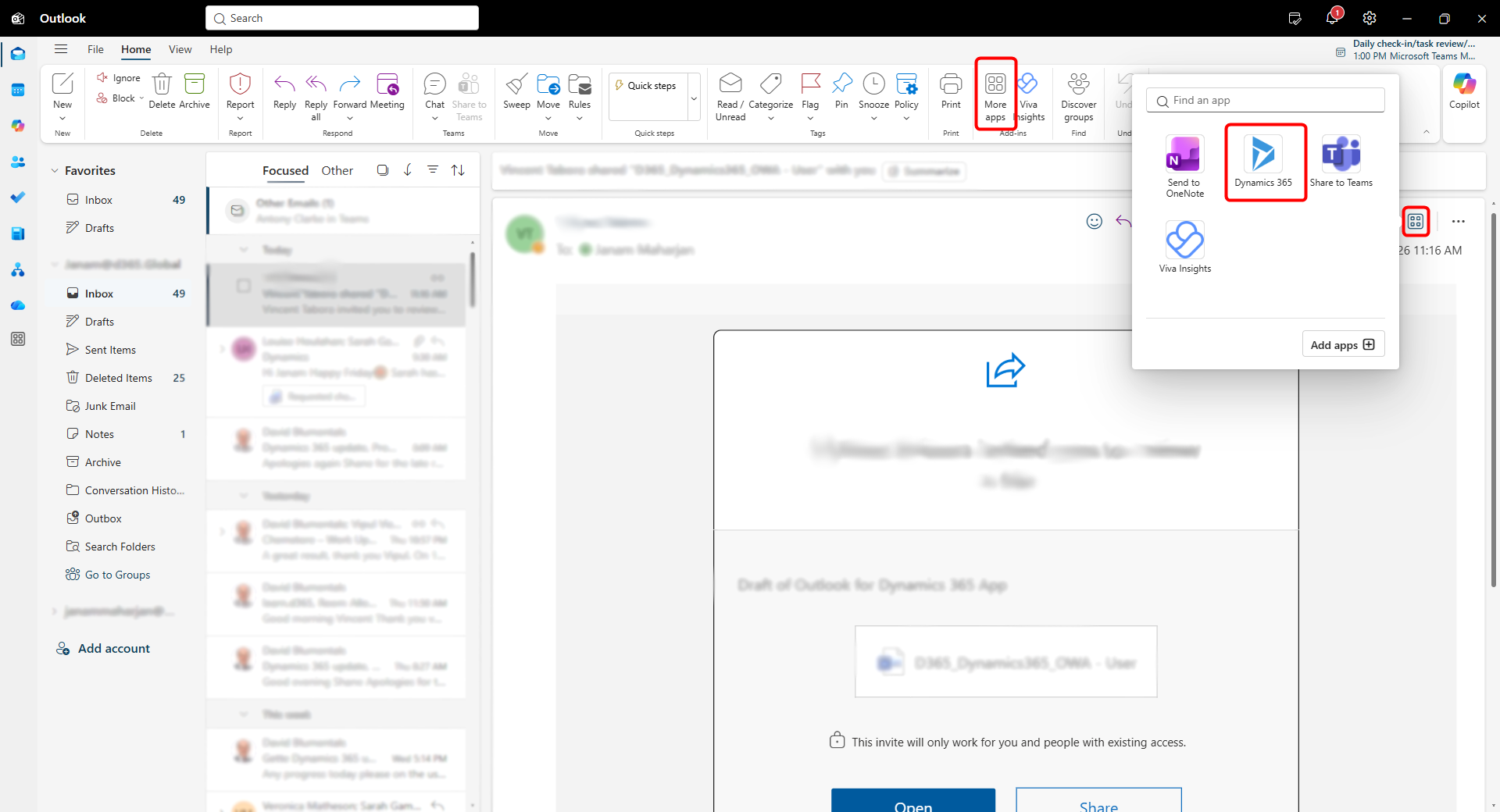
Look for the Dynamics 365 icon in the Ribbon (Home tab).
-
If you don’t see it, click the three dots (…) or “More Apps” on the far right of the message header.
In Outlook on the Web (OWA)
-
Open an email.
-
Click the Apps icon or the three dots (…) in the top-right corner of the email message.
-
Select Dynamics 365.
Appendix
For further information visit Install Dynamics 365 for Outlook
For quick installation reference, visit Community Blog Post