Track and Analyse Asset Maintenance Guide for Dynamics 365 Business Central
Introduction
Purpose
This guide explains how to set up and use Asset Maintenance in Microsoft Dynamics 365 Business Central to record asset service history and track service costs, keeping all relevant corporate asset data in one system. It covers what the feature does, where it is used in practice, how to configure it, and how to record maintenance and related costs for the asset.
Feature Overview
In Business Central, the Fixed Asset Maintenance feature is used to record the ongoing operating costs of keeping an asset in working condition, such as service visits or repairs. These costs are treated as maintenance rather than capital improvements and do not increase the asset’s value. Business Central lets you store the maintenance history, next service date, vendor details, and related (maintenance) costs for each asset, then report on them for budgeting and replacement decisions.
Typical Corporate Use
Maintenance costs are meant to track the expense of preserving an asset’s condition, distinguishing maintenance from capital improvements and notes that tracking these costs helps with budgeting and deciding when to replace an asset.
The feature also supports operational follow-up. You can record who serviced the asset, when it was serviced, and when it is due next, so the fixed asset record becomes a practical maintenance log as well as a financial record. This applies to assets such as Company Car, Transport Vehicles, and Factory Machines.
Prerequisites
Before you start, confirm that the Fixed Assets Module is enabled in your environment and that users have permission to access fixed asset setup, maintenance card, and posting journals.
-
Fixed Asset Card — To record maintenance related information.
-
Maintenance — Allows you to define different maintenance categories/types.
-
Fixed Asset G/L Journal — Posts maintenance costs to the asset.
Configuration
Within Business Central, asset maintenance can be registered in the Asset card or through Fixed Asset G/L Journals. The following configuration needs to be completed.
Fixed Asset Posting Setup
Search and navigate to FA Posting Groups and complete the Maintenance Expense Account for each Posting Group code.
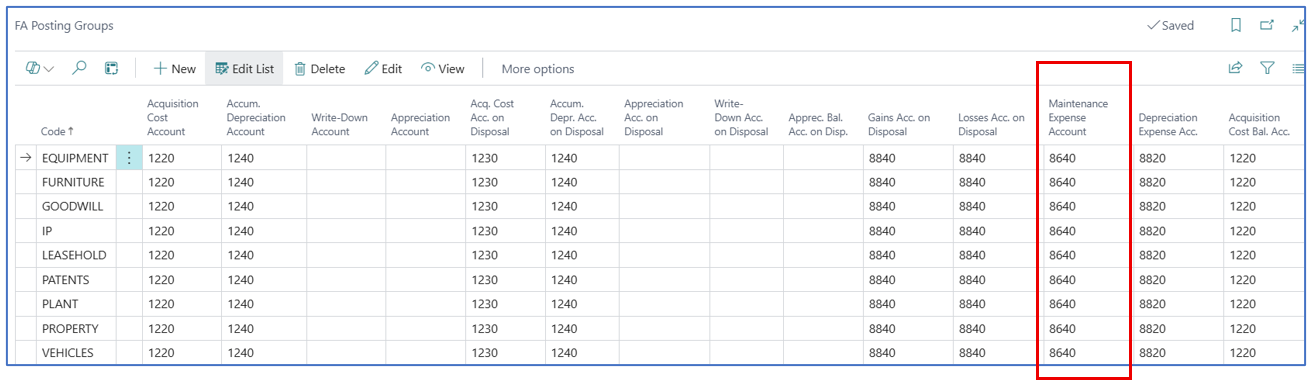
Maintenance Type
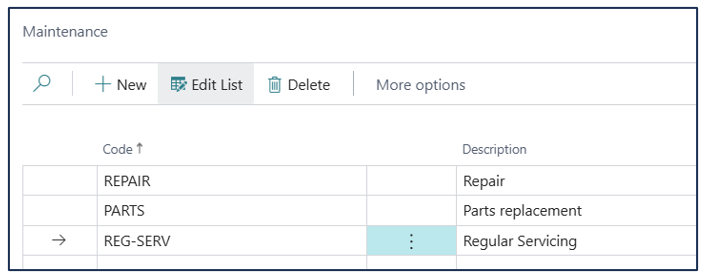
Search and navigate to Maintenance and create maintenance code for the type of maintenance work performed, such as routine service or repair.
Example:
Set Up Journal Templates and Batches
Maintenance costs are sometimes recorded through Fixed Asset G/L Journal. A specific template can be created to record maintenance costs.
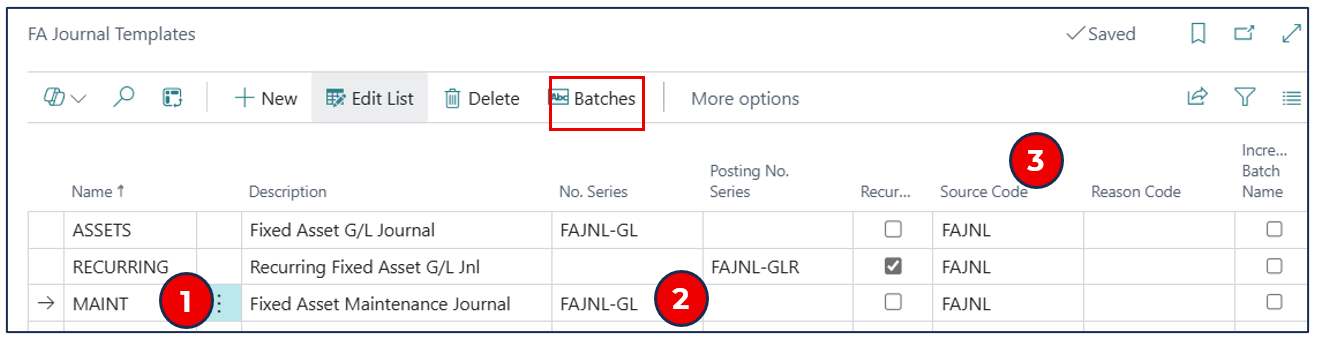
Search and navigate to FA Journal Templates.
Example:
-
Name — Enter a code name for the Maintenance Journal Template.
-
No. Series — Select the default number series for Fixed Asset G/L Journals.
-
Source Code — The default source code for Fixed Asset Journals is INSJNL.
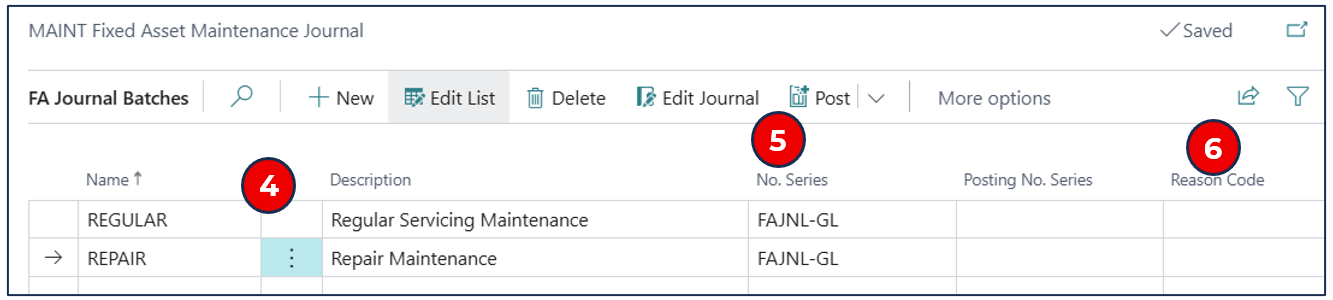
Click Batches to create journal batches.
-
Name and Description — Enter a batch name and the description to identify the journal batch.
-
No. Series — The default number series is taken from the Insurance Journal Template.
-
Reason Code — (optional) If additional identifier is needed for the journal batch, create and use Reason codes.
Recording Asset Maintenance
The key insurance feature is to track insurance coverage for important corporate assets. Insurance Coverage (insured value) is assigned to one or more assets through Fixed Asset Insurance Journals. These journals can be automatically created and posted concurrently when the asset acquisition is posted, or it can be created manually.
Service Log Method
If there is a service visit or similar event for the asset, these can be entered in the Maintenance Registration page. In the Asset card, select menu option Related > Fixed Asset > Other > Maintenance Registration.
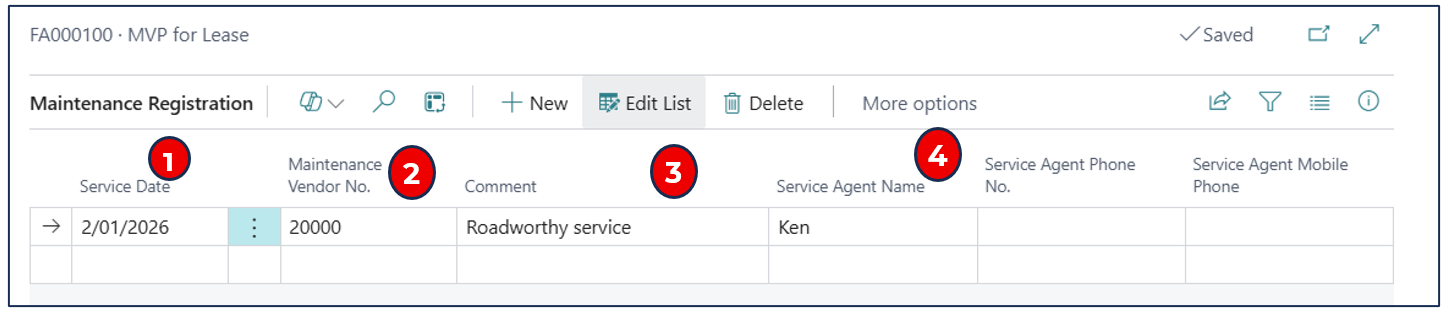
Entries here are like service log entries (the service cost is captured separately in journal lines or through Purchase documents)
-
Service Date — Select the date of the service.
-
Maintenance Vendor No. — (optional) If there was a vendor for the maintenance.
-
Comment — Enter a description of the service carried out.
-
Service Agent Name, Phone No, Mobile Phone — These fields are to record the service agent for subsequent follow-up.
Internal Maintenance Costs
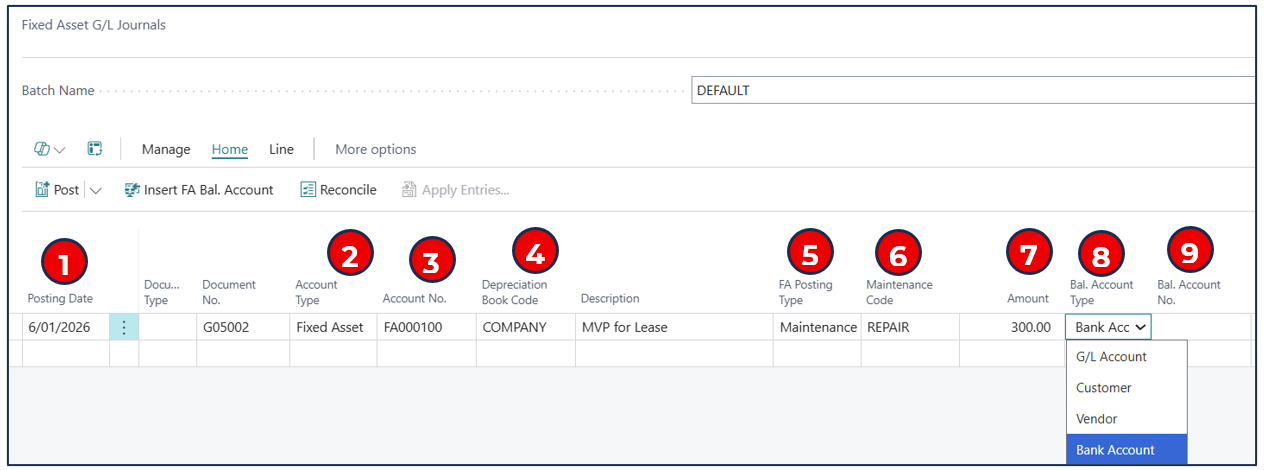
If your company has performed asset servicing and incurred service costs or paid through the bank, a Fixed Asset G/L Journal can be used to record the costs and post to the Maintenance Ledger.
Example:
-
Posting Date — Select the posting date for the transaction.
-
Account Type — Select Fixed Asset to record the maintenance cost transaction.
-
Account No. — Select the asset to record the maintenance cost.
-
Depreciation Book Code — This is the default depreciation book from the asset card.
-
FA Posting Type — It is important that Maintenance be selected to record the cost.
-
Maintenance Code — Select the maintenance code to classify the maintenance cost.
-
Amount — Enter the maintenance cost.
-
Bal. Account Type — Select Bank if the service is paid out, or G/L Account if the cost is to be offset.
NB: The maintenance expense account is defaulted in the FA Posting Group linked to the asset.
-
Bal. Account No. — Select the bank account code or the G/L Account (offset account).
External Maintenance/Service Costs
If asset servicing was performed externally by a vendor, the Vendor Invoice (purchase order or purchase invoice) can be recorded as maintenance cost.
(The treatment for Purchase Order and Purchase Invoice is the same, except that PO has Receipt Posting).
Purchase Invoice Example
Navigate to Purchase Invoice and create a new invoice. Complete the necessary fields in the General tab.
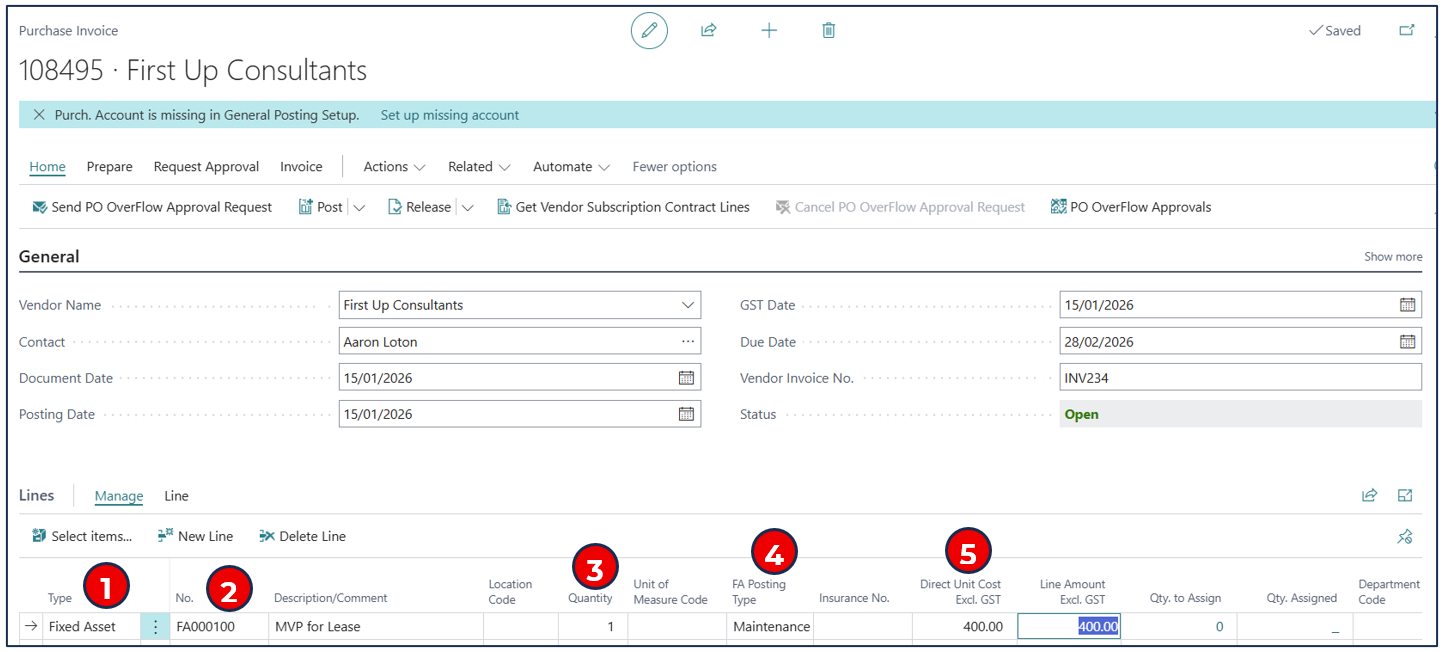
Lines:
-
Type — Select Fixed Asset.
-
No. — Select the asset code for the maintenance cost.
-
Quantity — enter the quantity.
-
FA Posting Type — Select Maintenance to record the vendor’s invoice as maintenance cost.
-
Direct Unit Cost — Enter the service cost to be recorded.
Posting the invoice will update the Maintenance Ledger with the invoice cost as well as updating the General Ledger.
Asset Maintenance Reporting
Business Central provides several ways to review maintenance activities and provide the information needed for planned maintenance.
Asset Card and Maintenance
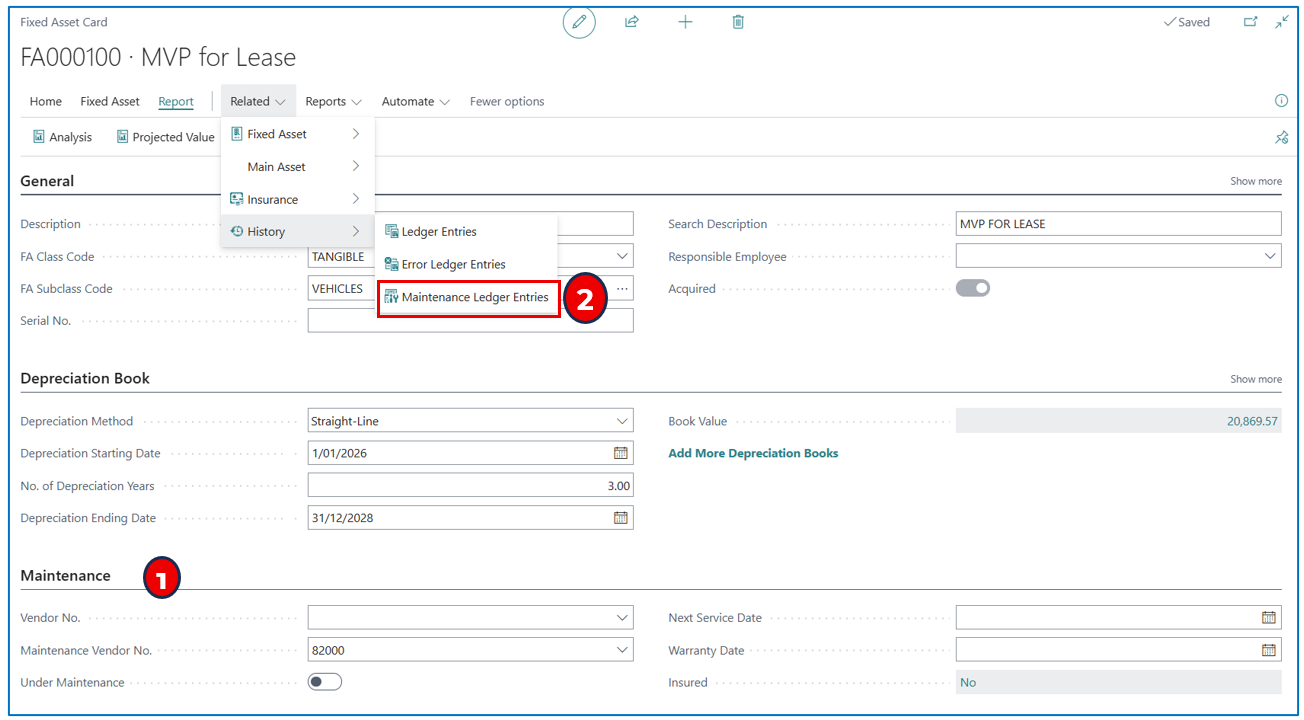
Search and navigate to Fixed Assets listing page and select the asset to review. Open the asset card.
Example:
-
Maintenance — The fields in the Maintenance tab are used to record default information for maintenance journals and planned maintenance.
-
Vendor No. — (optional) This field is to record the asset vendor.
-
Maintenance Vendor No. — Select a default vendor code for Maintenance journals.
-
Under Maintenance — Enable this flag as a reporting filter for assets under maintenance.
-
Next Service Date — Select the date for the next service.
-
Warranty Date — Select the asset warranty date.
-
Insured — This flag is updated when insurance coverage is applied to the asset.
-
-
Select menu option Related > History > Maintenance Ledger Entries to view the Maintenance Ledger page.
Example:

Fixed Asset Maintenance Analysis
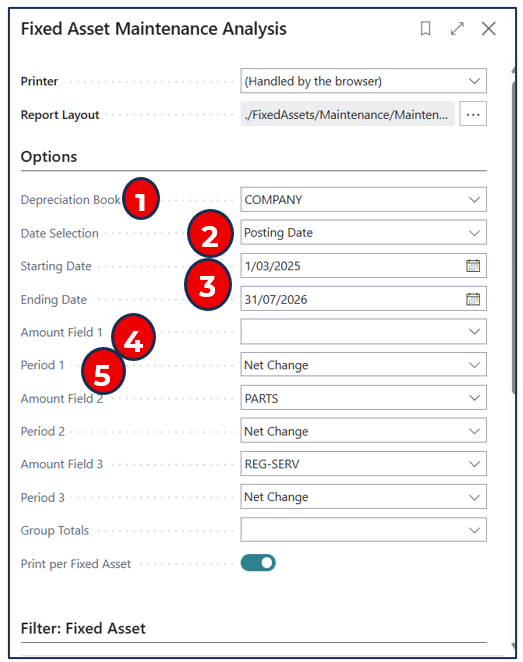
Search and navigate to Fixed Asset Maintenance Analysis report.
-
Depreciation Book — Select the depreciation book.
-
Date Selection — Select either the FA posting date or the posting date.
-
Starting Date and Ending Date — Select the date range for selection of the posted maintenance entries.
-
Amount Field 1, 2, 3 — For these amount fields, leave blank to report on Maintenance Ledger Entries without the Maintenance code. Otherwise, select a Maintenance code for the amount field.
-
Period 1, 2, 3 — Select the display of the maintenance entries.
-
Before Starting Date — Opening balance.
-
Net Change — The maintenance entries for the period.
-
At Ending Date — Closing balance.
-
Fixed Asset Maintenance Details
Search and navigate to Fixed Asset Maintenance Details report.
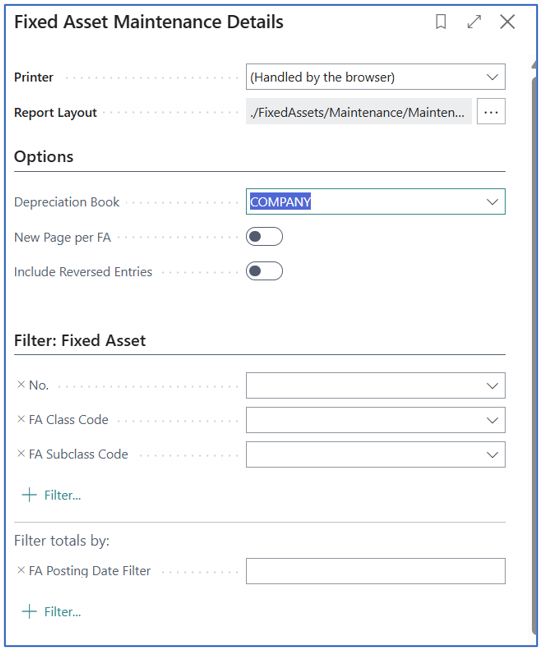
Run this report for assets in the specified Depreciation Book. Enable Include Reversed Entries if reversal entries are to be included.
Fixed Asset Maintenance Next Service
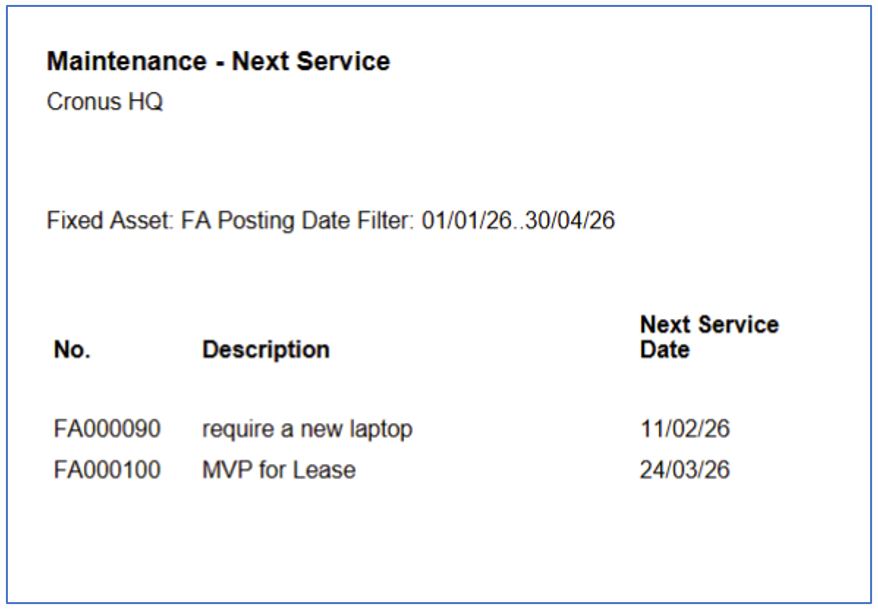
Search and navigate to Maintenance Next Service report to view the next service dates of all assets (the next service date must be indicated in the Asset card).
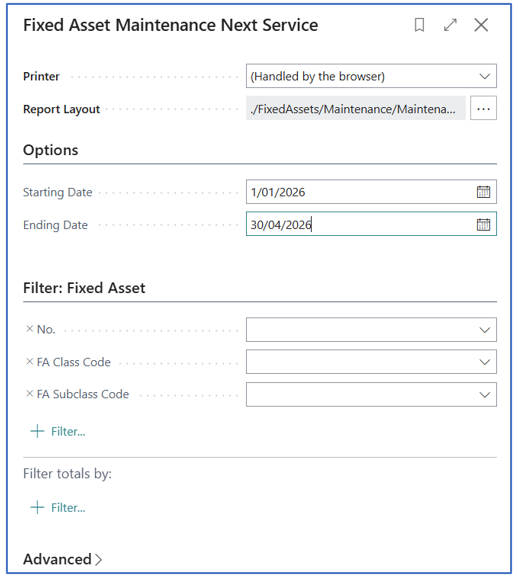
Enter the Starting Date and Ending Date range to select assets with Maintenance Service Dates within this range. This will provide a listing of assets due for the next maintenance.
Example:
Written By:
Peter Loo
Team Leader, Business Central
Connect on LinkedIn