Risk Solution Guide for Dynamics 365
Risk Hub Overview
The Risk Hub holds everything the risk solution needs all packaged into a single modal app.
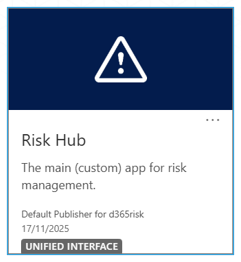
This includes:
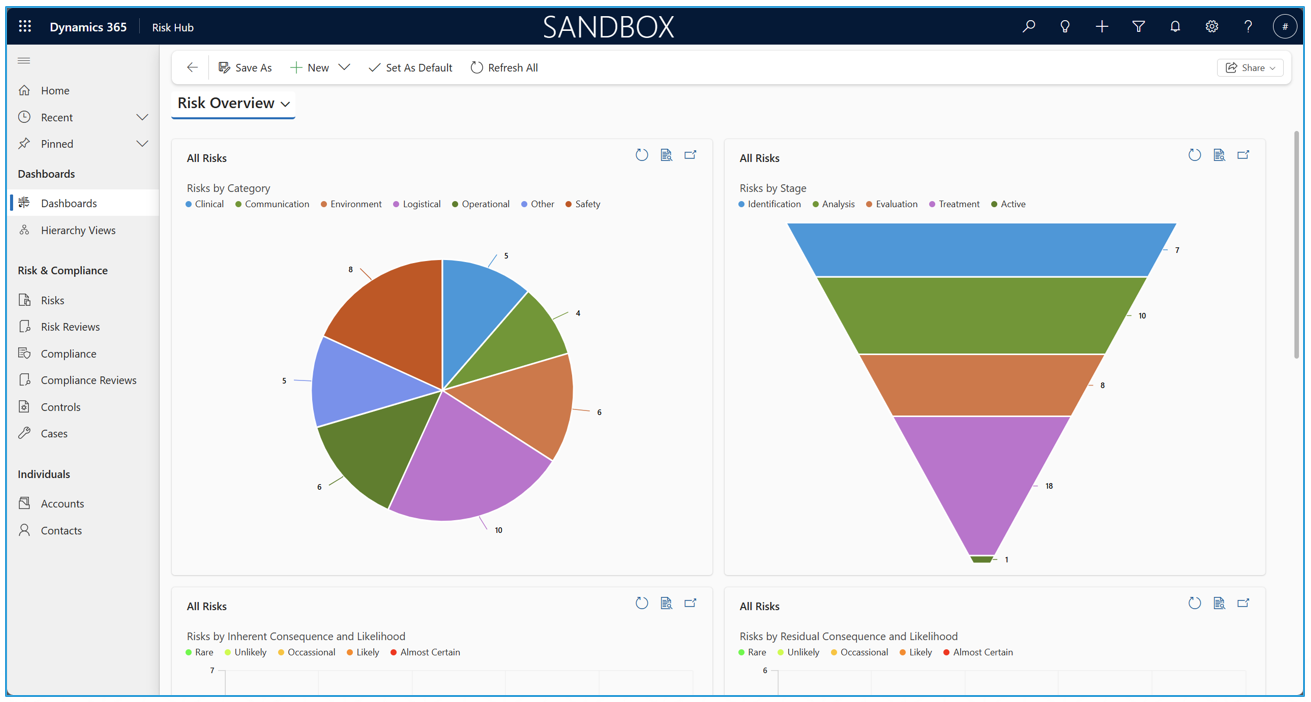
- Dashboards — Holds dashboards for incidents, risks, and compliance.
- Hierarchy Views — Shows the children records for tables as a hierarchy, esp. compliance.
- Risks — Represents a possible risk that may need to be observed or treated.
- Risk Reviews — A repeatable review of a given risk.
- Compliance — Compliance which must be adhered to.
- Compliance Review — A repeatable review of a given compliance.
- Controls — Preventive, detective, and corrective controls.
- Cases — Any kind of incident that needs to be marked down.
- Accounts
- Contacts — Unmodified but used by the other tables.
Risks
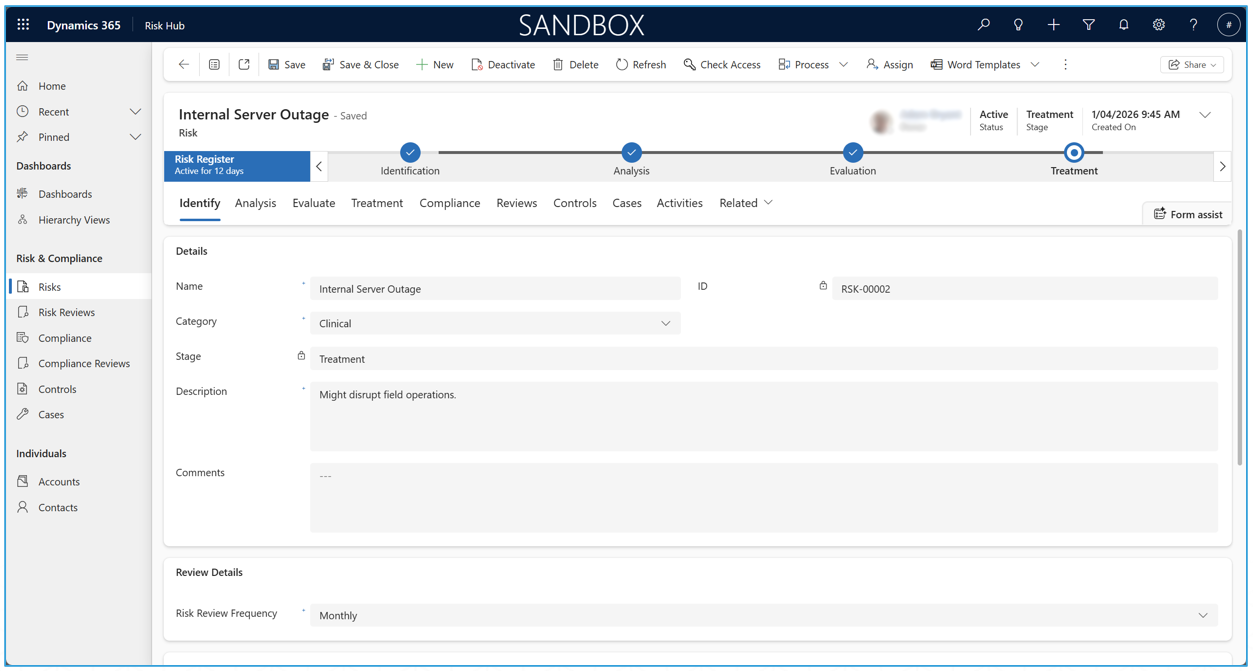
The Risk Table holds a list of all possible risks, their details (treatments, analyses, categories, etc.), and their statuses.
Risks come with a Business Process Flow (BPF; the risk register) which guides users through the risk-creation process. All risks have a “stage” field, which matches whichever BPF stage the risk is in. Completing the BPF marks the risk as “active” (indicating it has been fully detailed and is now a simple on-going risk). Deactivating an existing risk marks it as “retired” (implying the risk is no longer a real consideration).
Each BPF stage is represented by a tab as well, along with a few additional tabs for related tables (compliances, reviews, incidents, and the timeline). Accounts, compliance, and controls can also be linked (N:N) via their respective sub-grids in their tabs.
Review Setup
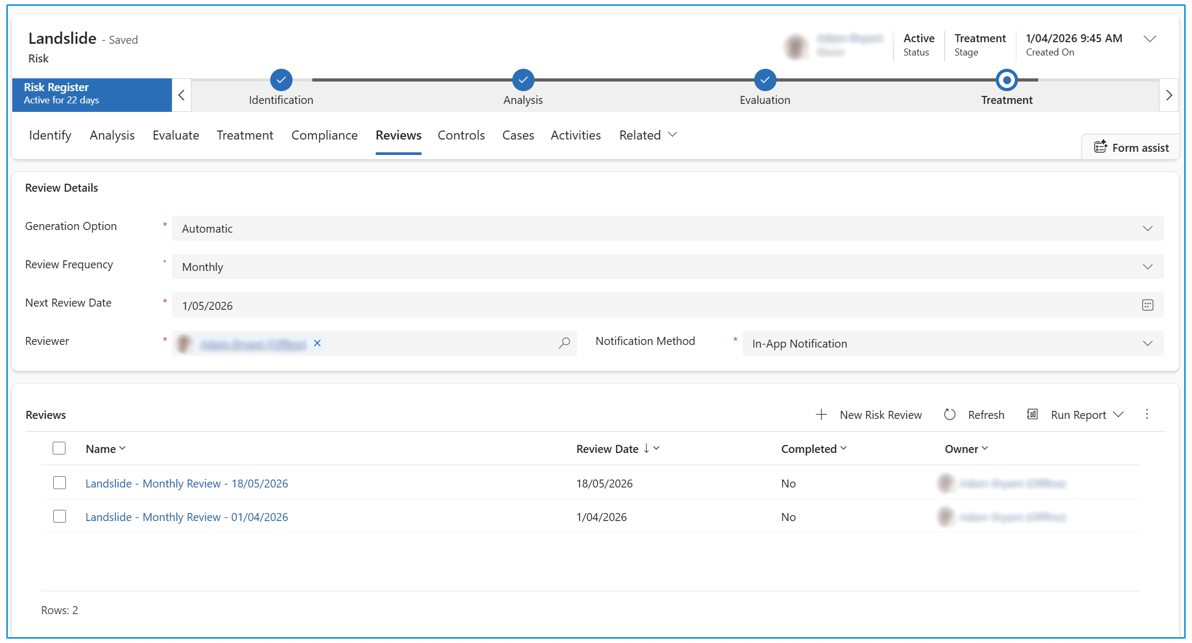
Under the Reviews tab, you can specify how often the risk should be reviewed. An option to automatically generate reviews is available, where the next review date specifies the date for the next (to-be-generated) risk review. If automatic generation is selected, a review will be generated for this date in advance (daily: one day, weekly/monthly: one week, quarterly/yearly: one month). The next review date will be automatically updated based on the frequency as well. If notification is required, it will be done when the review is created.
The notification options are:
- None — No notification.
- Email — Sends an email to the reviewer.
- In-App Notification — Creates a notification within the Risk Hub to the reviewer.
Review Flow
By default, the frequencies create reviews in advance depending on the frequency type:
- Daily — Create a review every day, 1 day in advance.
- Weekly — Create a review every matching day-of-the-week, 7 days in advance.
- Monthly — Create a review on the same date every month, 7 days in advance.
- Quarterly — Creates a review on the same date every 3 months, 30 days in advance.
- Yearly — Create a review on the same date every year, 30 days in advance.
When checking if a risk should create a review (via a daily scheduled flow), the system checks the specified date in the risk and if the current day is within the “advance” period before it (it will also create it on the day or even after the specified date if applicable). It also checks if the risk is not retired.
Risk Reviews
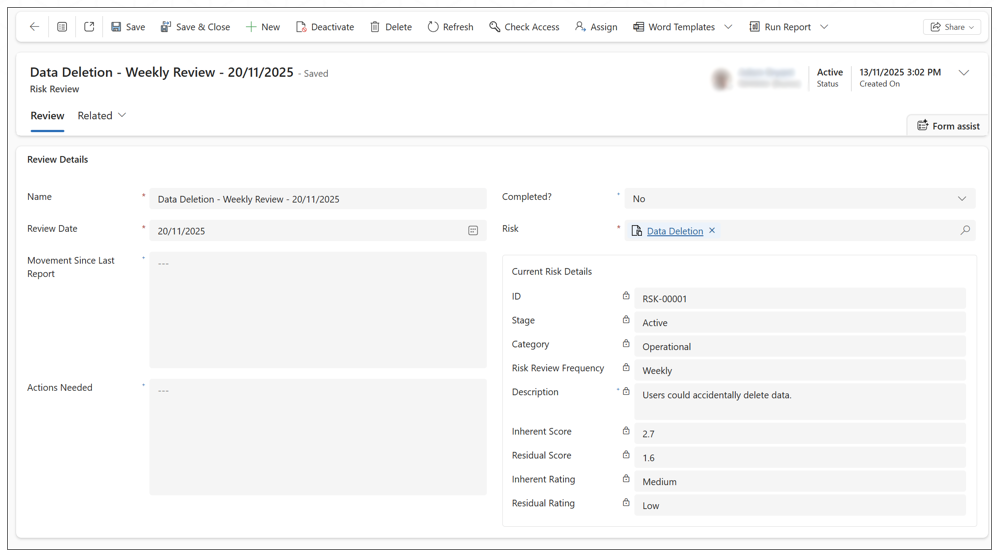
Risk reviews are intended to be filled out by a reviewer (the owner) to detail what movement has happened since last time and what further actions are needed.
When the reviewer has found that the review is completed, the “Completed?” field should be marked as “Yes”. Upon saving, this will de-activate the record (marking it as read-only).
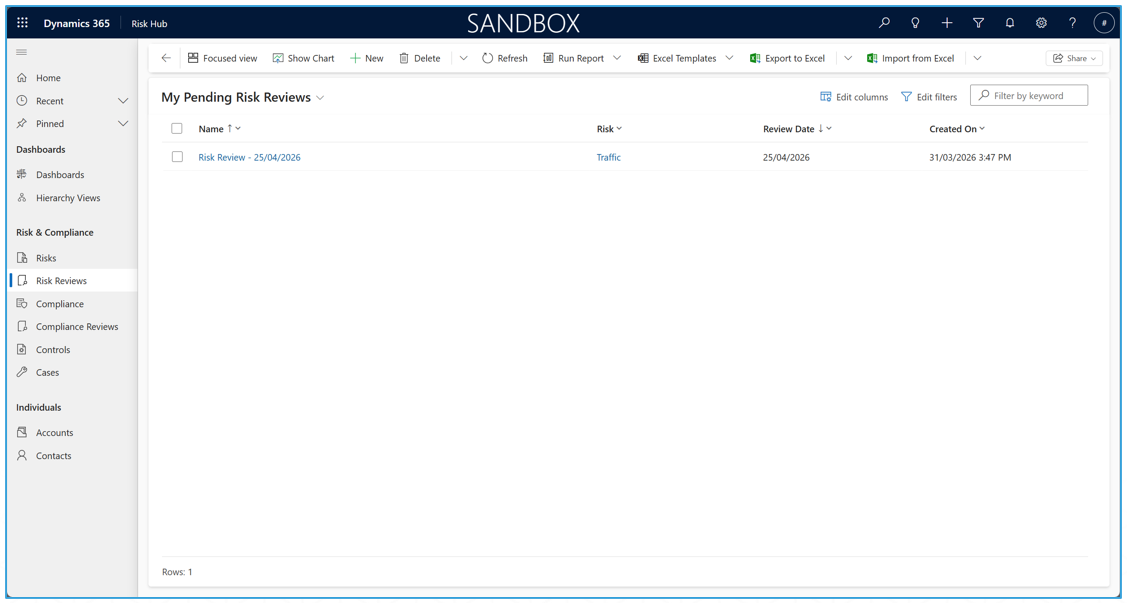
Risk reviews can be accessed via the sent email or in-app notification (if either are applicable), but they can also be accessed via the left menu in the Risk Hub. A few views are available to show which reviews are still pending (including those to be reviewed by the current user).
Compliance
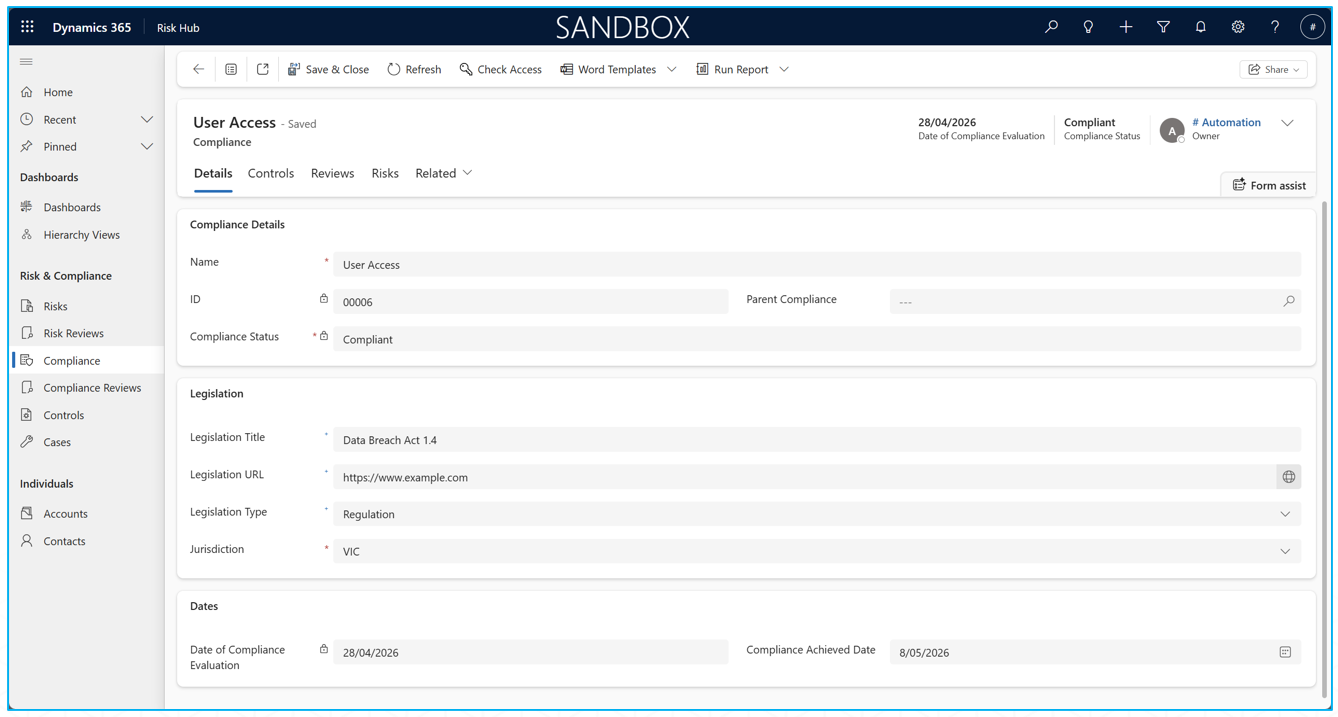
Compliance records certain details which must be complied to, such as acts, bills, laws, etc., along with compliant statuses, legislation details, and dates for the current/next evaluation.
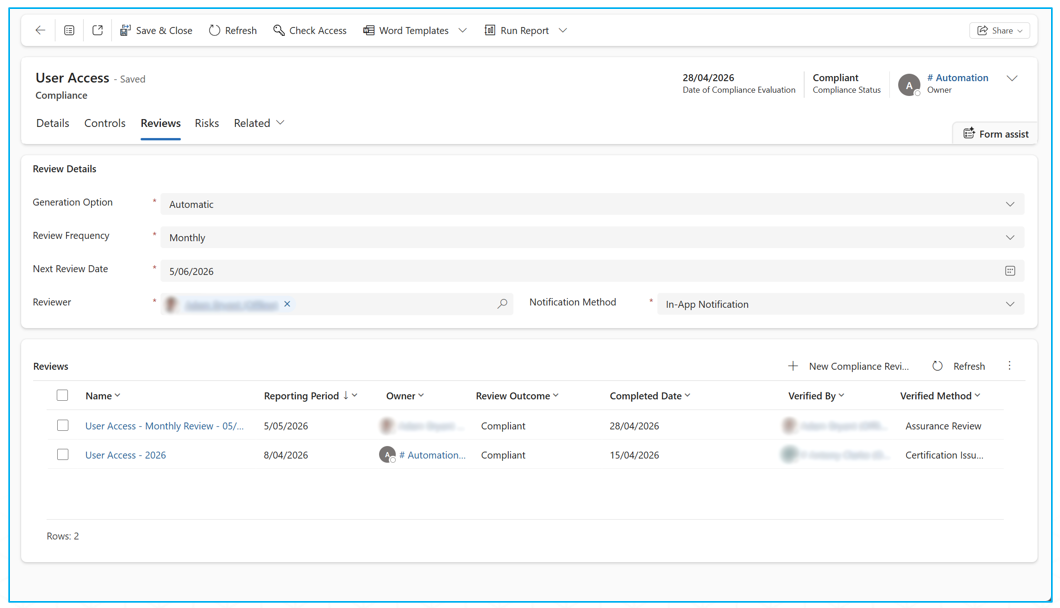
Compliance records can be linked to any number of risks and controls (and vice-versa) via their respective tabs. Additionally, compliance review settings and the actual compliance reviews themselves, can be viewed from the “Reviews” tab.
Compliance records can also be another compliance as a parent to form a hierarchy, but a compliance cannot be set to itself or to one of its own children. Each compliance can have multiple children, and though there is no limit to the number of children a compliance can have, the maximum depth of compliances within a chain is limited to 7 (note: adjustable via admin settings).
Compliance Reviews
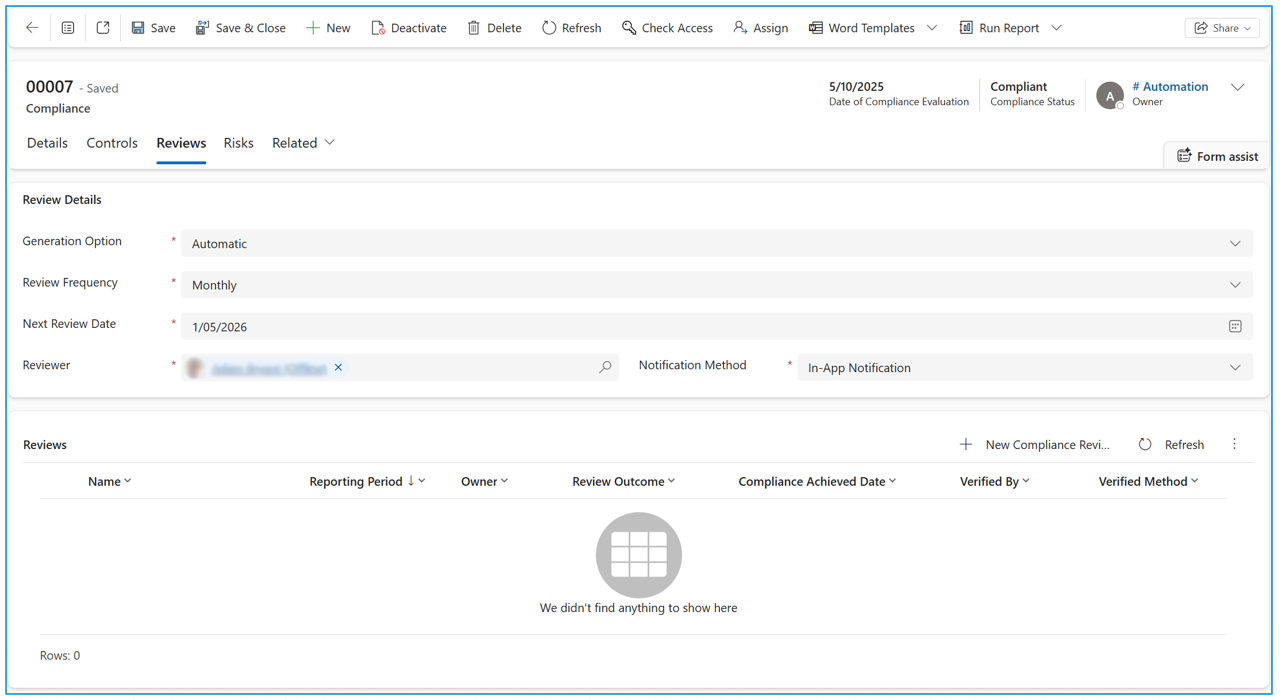
Like risk reviews, compliances have a setup to allow for manual or automatic review creation which can be adjusted on the “Reviews” tab. You can select if the reviews should be automatically generated or not (i.e., manual). The reviewer, frequency, and notification method can be set, with notification options including email and in-app notifications and frequency including daily, weekly, monthly, quarterly, and yearly.
The next review date specifies the date for the next (to-be-generated) compliance review. If automatic generation is selected, a compliance review will be generated for this date in advance (daily: one day, weekly/monthly: one week, quarterly/yearly: one month). The next review date will be automatically updated based on the frequency as well. If notification is required, it will be done when the review is created.
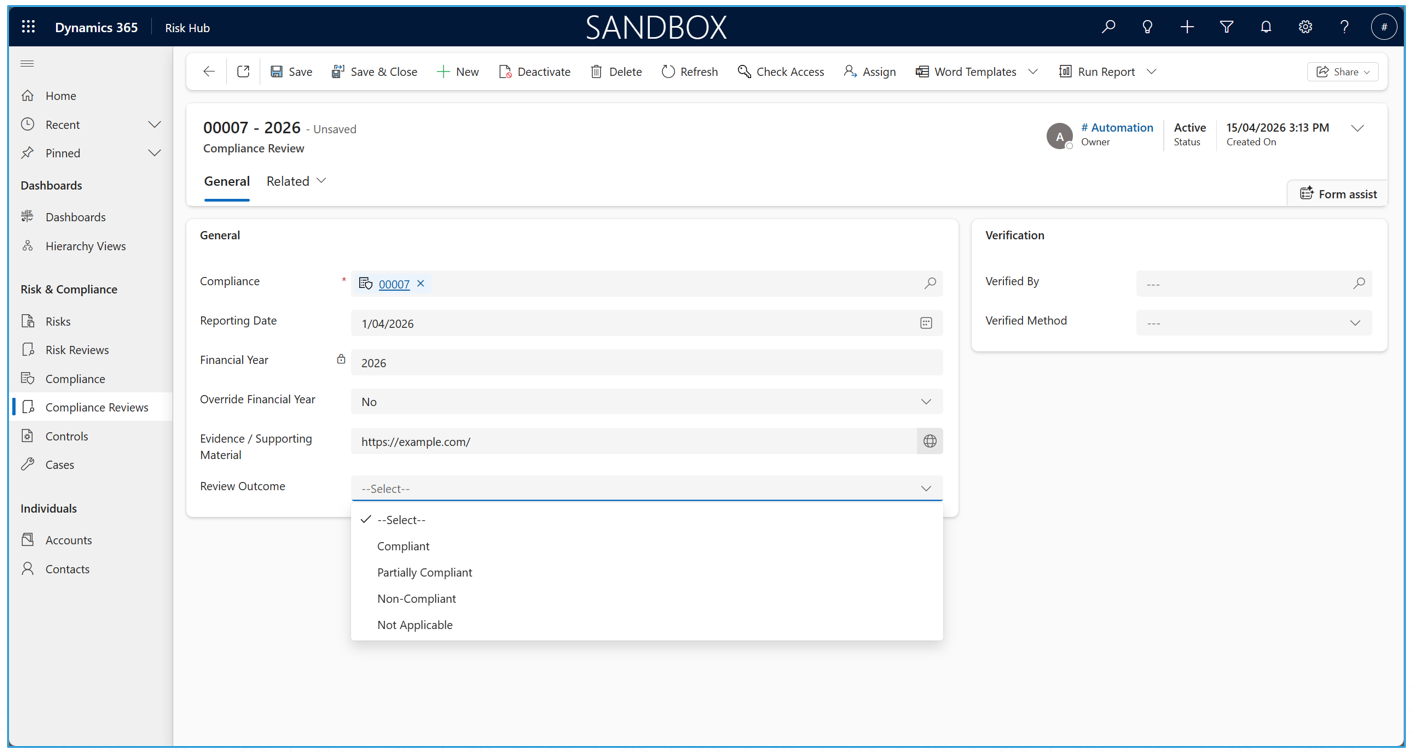
The compliance review hold fields for the date (and the financial year based on this date), a URL for evidence or supporting material, the review outcome, and verification details.
The financial year field can be overridden via the Override Financial Year field, which will open the financial year field for manual setting (e.g., to include the month).
Compliance Dates
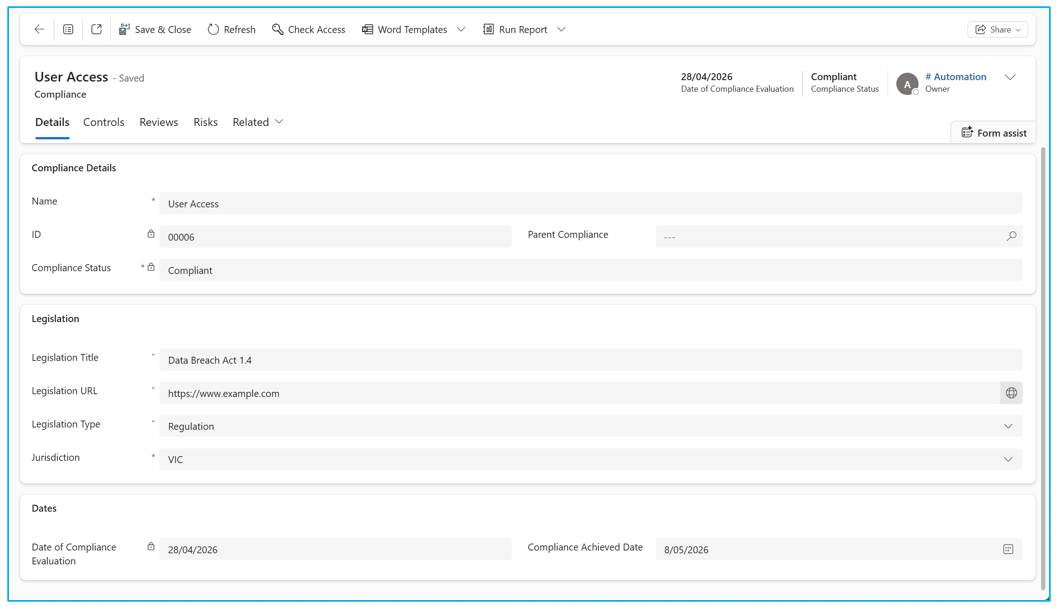
Compliance also has a Date of Compliance Evaluation and Compliance Status field which are automatically updated when a related review is created, modified, or deleted. Note these fields will get re-evaluated regardless of if the review was manually or automatically created.
The Date of Compliance Evaluation is set to the most recent Completed Date of the reviews. If there are no completed reviews, then it is blank.
The Compliance Achieved Date is an open date field which can be optionally set and will not get set automatically.
The Compliant Status is “Non-Compliant” by default (no reviews), but when a non-completed review is available is becomes “Under Review”. When all reviews are completed, the compliance’s status matches the most recent review’s status.
Controls
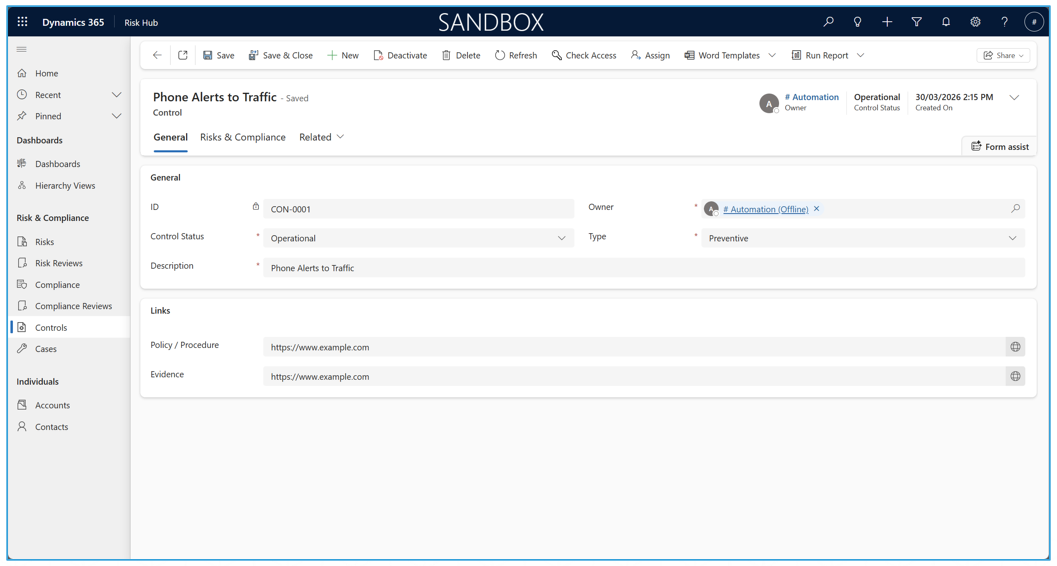
Controls are records which describe the corrective, detective, and preventive controls for compliances and risks. Controls have a N:N relationship with compliances and risks, and URLs to supporting policy or procedures and evidence.
When the control’s status is marked as Retired, the control is automatically deactivated. If needed, it can be re-activated via the Activate button on the command bar and the status can be changed.
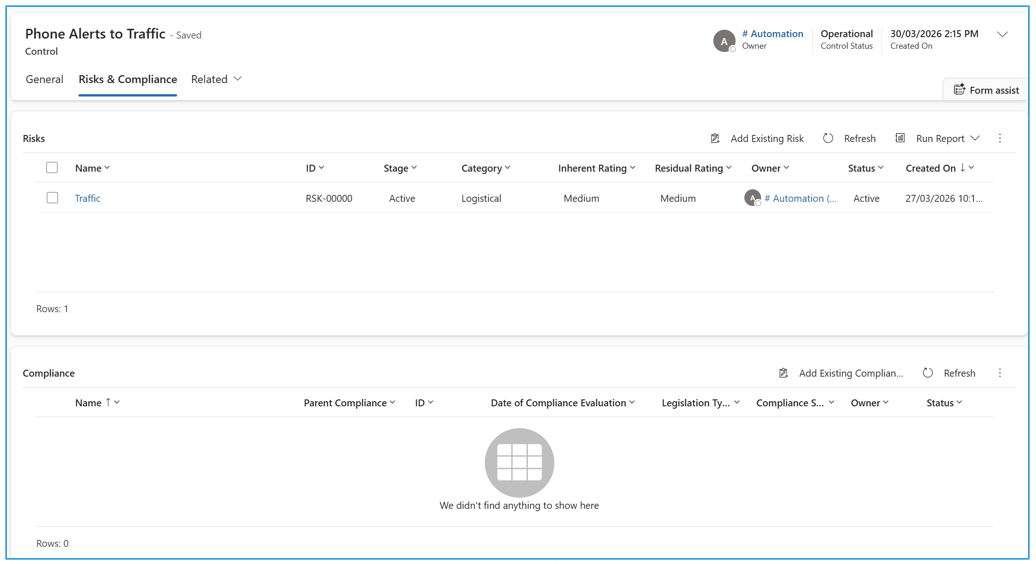
Controls and risks/compliances can be mapped on either side using the Add Existing Risk/Compliance/Control button on the relevant sub-grid.
Incidents
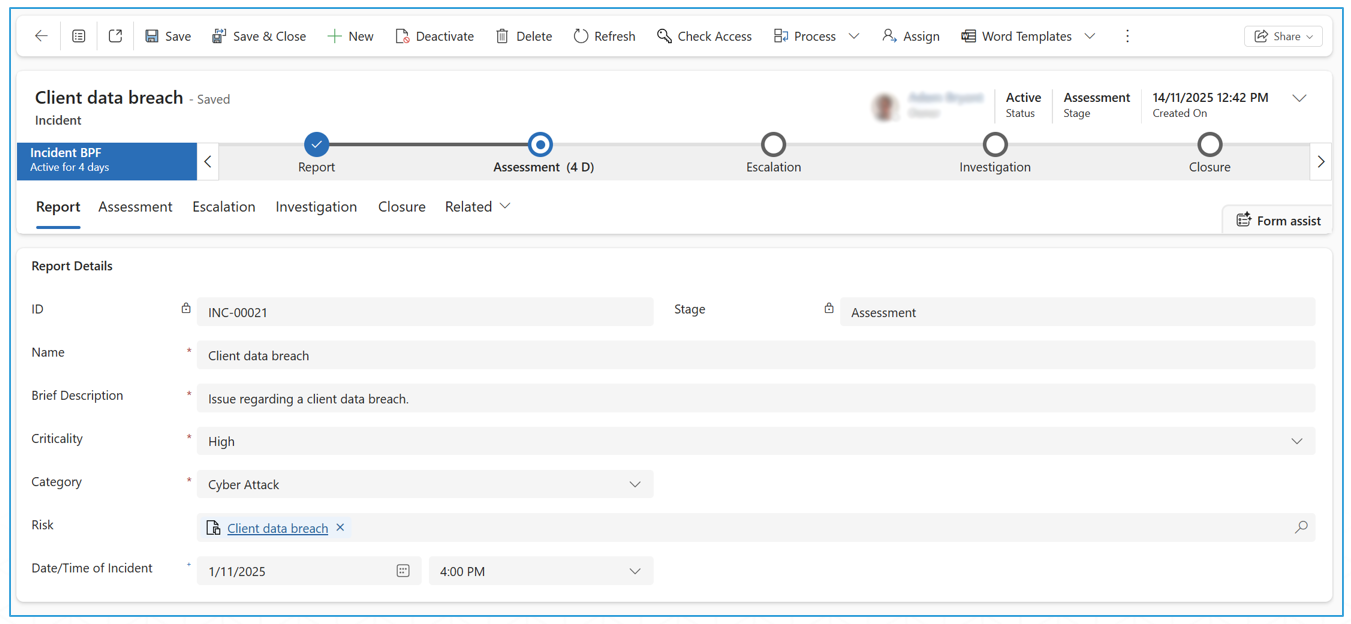
The Incident Table holds accounts of any reportable incidents. Much like the risk table, it comes with a Business Process Flow (BPF) which guides users through the incident reporting process. All incidents have a Stage field, which matches whichever BPF stage the incident is in. Completing the BPF marks the incident as closed (note that this is different to the “closure” stage) indicating it has been fully completed. Fully closing the incident (i.e., completing the BPF) will deactivate it automatically.
Each BPF stage is represented by a tab as well. Contacts and accounts can be linked in the Assessment tab, and each incident can be directly assigned to a single risk (optional).
Escalation
The escalation stage is special in that it allows the incident to be escalated to another user, sending an email and re-assigning the incident owner to them. The original owner of the incident will be CC’d in as well.
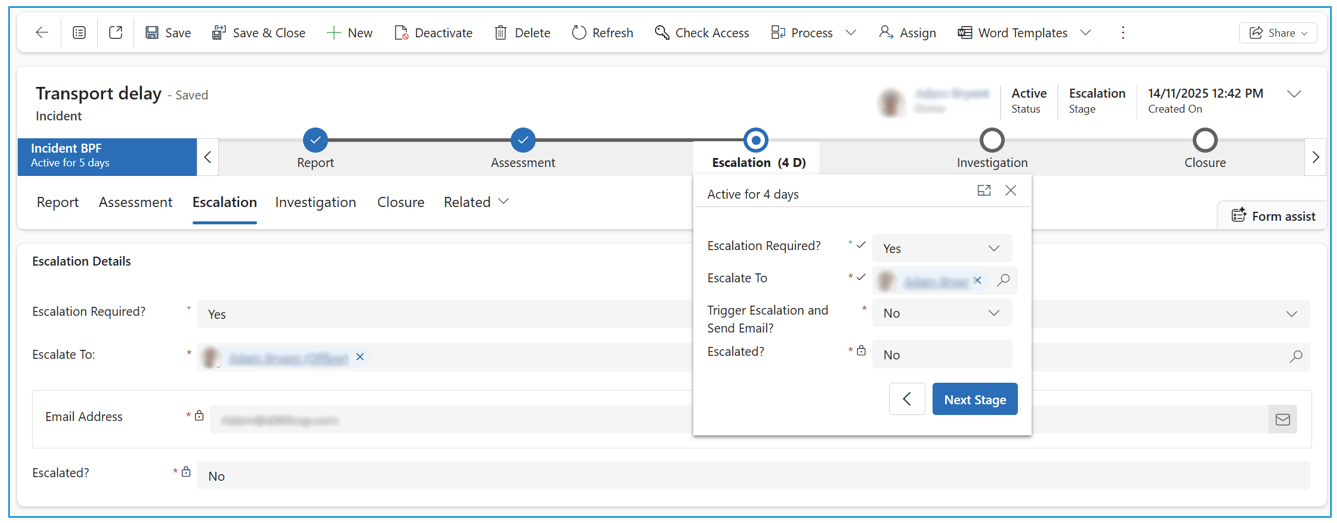
Once the Trigger Escalation and Send Email? field in the BPF is set to Yes, the escalation will trigger.
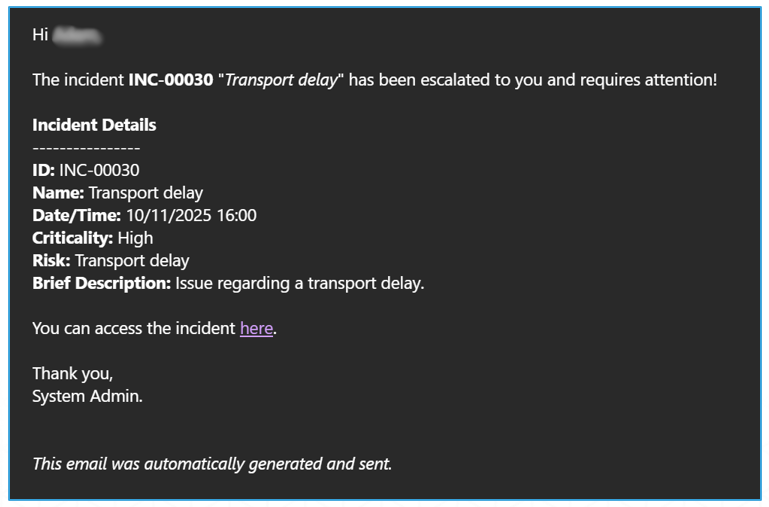
Once the email has been sent by the system and the owner field has changed, the Escalated field will change to Yes and will allow the BPF to be moved to the next stage. If an issue occurs during this process, the Trigger field will move back to No.
If the Escalation Required? field is set to No, the BPF can be immediately moved to the next stage with no email or owner change.
Hierarchy Views
Hierarchy Views can be used to show relationships between records in a hierarchical grid. Records that appear in the grid can be opened in a side-tab for more details.
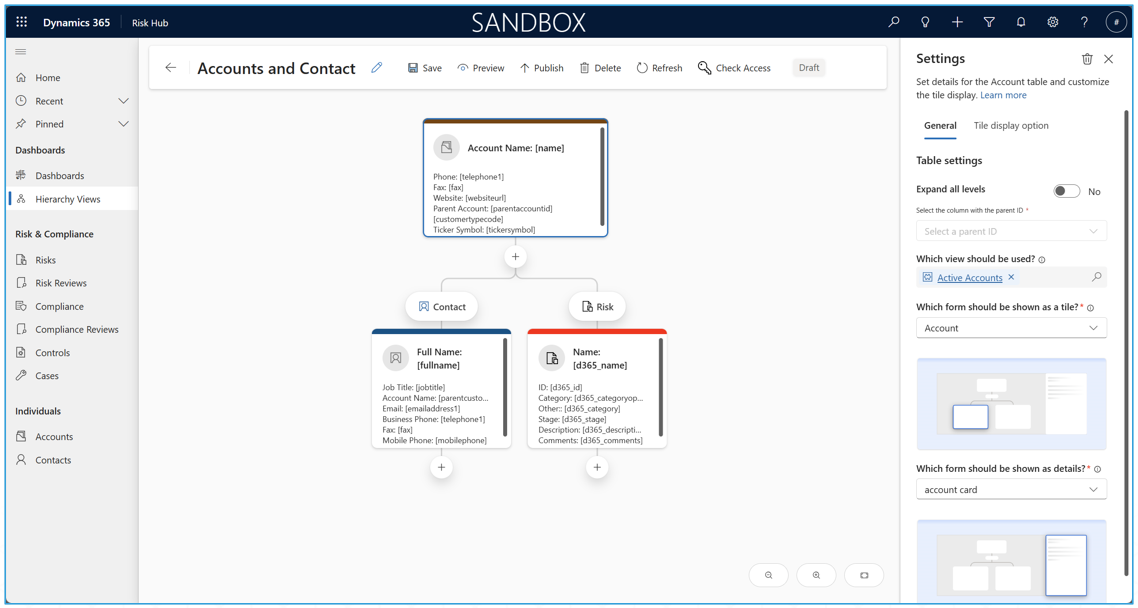
The setup, including relationships, forms, and other settings, can be setup for each hierarchy view tile.
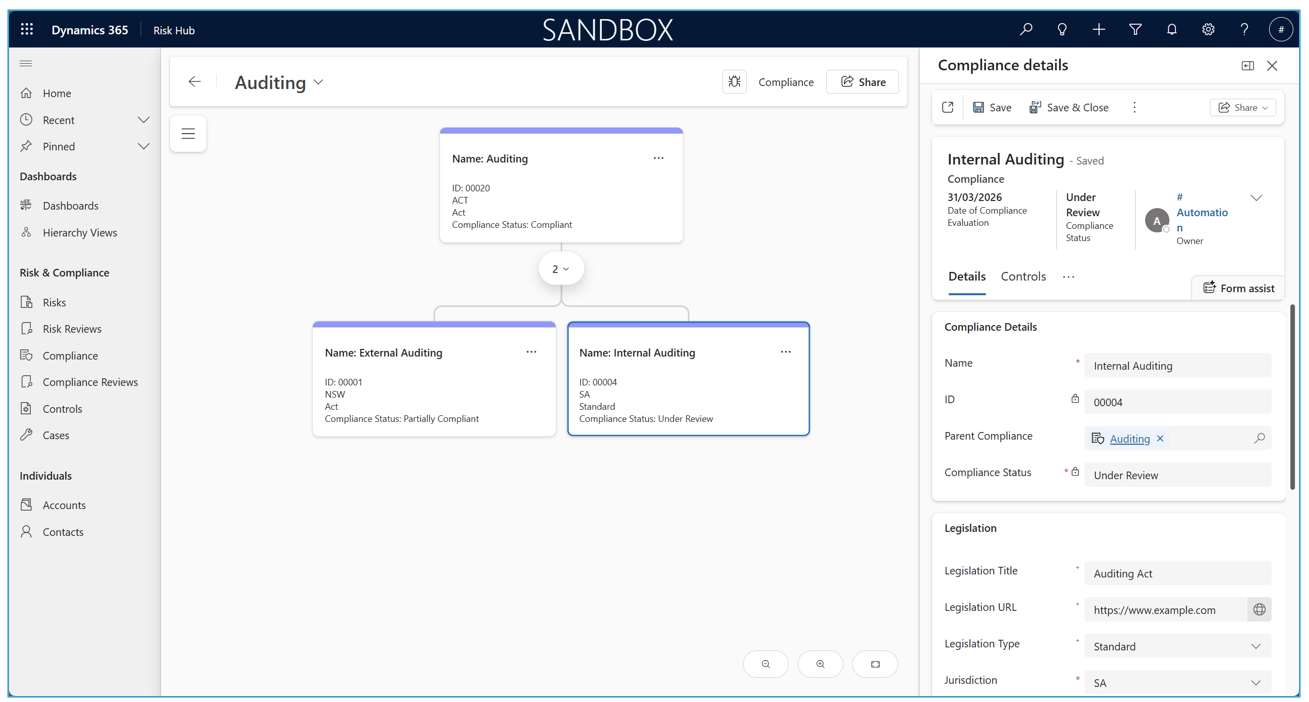
Hierarchy views are created by specifying a table and then one or more related tables (this can be self-referential or it can include multiple other tables). For each specified child table, you must select the specific relationship (i.e., the specific lookup or relationship which ties it to its parent).
You must also select a form to be used as the tile (which specifies which fields will show on the tile) and what form should show when you select the tile. You can also change other options in the “Tile display option” such as the tile width/height, colour and the primary image of the record. It is recommended to create and use a dedicated “hierarchy” form for the tile so changes to the other forms don’t affect the tile.
Once completed, the record can simply be published. Published records can be unpublished if required.
For further information, contact:
David Blumentals
David@d365.Global
+61 409 245 354