Audit Trail for Dynamics 365 Business Central User Guide
Introduction
The Audit Trail App for Microsoft Dynamics 365 Business Central enables organizations to track, monitor, and report on changes made to key data records. It enhances transparency, supports regulatory compliance, and ensures internal control over data changes.
Audit Trail is a feature in Microsoft Dynamics 365 Business Central that allows users to track changes made to data within the system. This guide will provide an overview of how to use the Audit Trail feature effectively.
To get the app, visit the Microsoft Marketplace at Audit Trail for Business Central
Audit Log Setup
Navigate to Audit Log Setup.
The purpose is to specify which tables and types of changes (Insert, Modify, Delete) are to be audited.
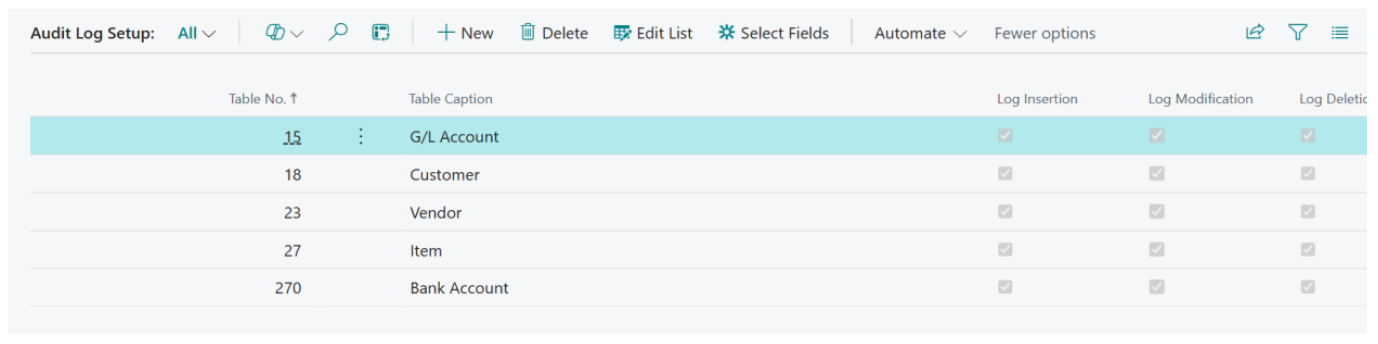
Tip: Use the checkboxes to determine which type of activity should be logged per table.
Audit Log Entries
Navigate to Audit Log Entries.
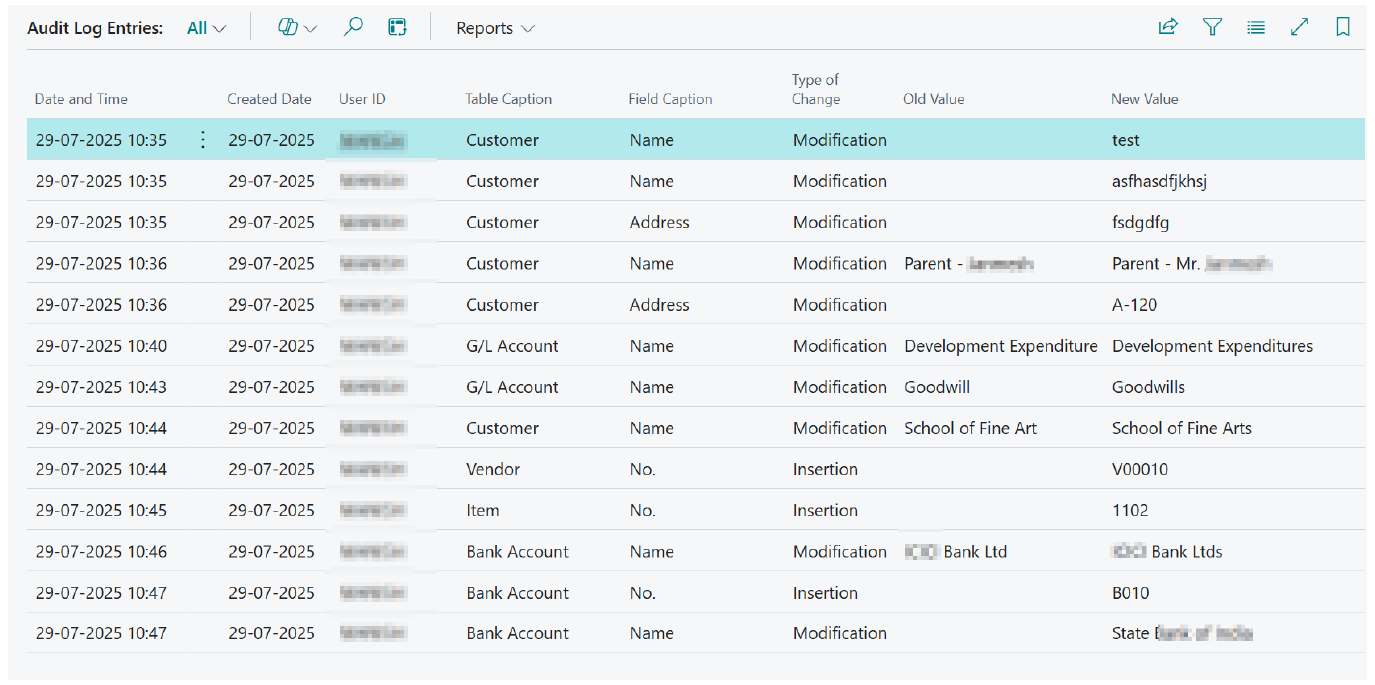
This allows users to review all logged changes made to the records across the selected tables.
Audit Log Table Fields
| Field Name | Description |
|---|---|
| Created Date | Date the audit record was created |
| User ID | The user who made the change |
| Table Caption | The name of the table where the change occurred |
| Field Caption | The specific field changed |
| Type of Change | Indicates whether it’s Insertion, Modification, or Deletion |
| Old Value | Value before the change |
| New Value | Value after the change |
Audit Reporting
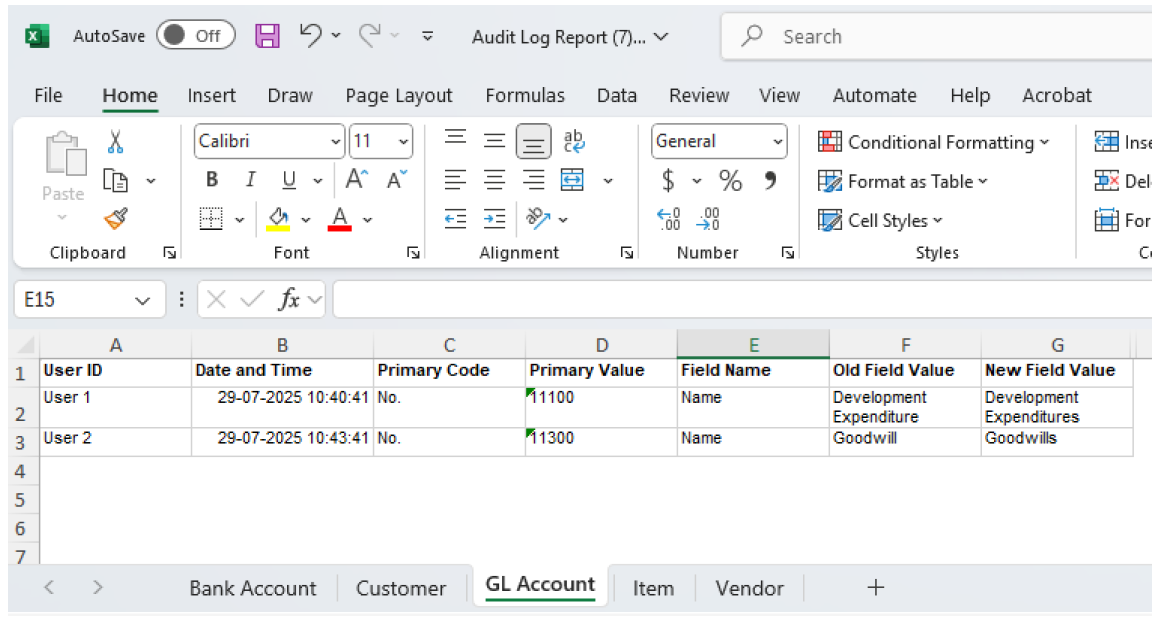
Navigate to Audit Log Entries > Reports > Audit Report.
This generates and exports detailed audit reports based on the log entries for internal or external auditing. The report is grouped based on the tables and separate sheets are created in a single spreadsheet.
Steps to Generate Report
- Go to Audit Log Entries.
- Click Reports in the ribbon.
- Select Audit Report.
- Apply filters (e.g., date, user, table) if needed, export or print the report.
Retention Policies
A Retention Policy allows you to define how long to keep the audit log entries for specific periods. This helps manage storage and ensures compliance with data retention regulations.
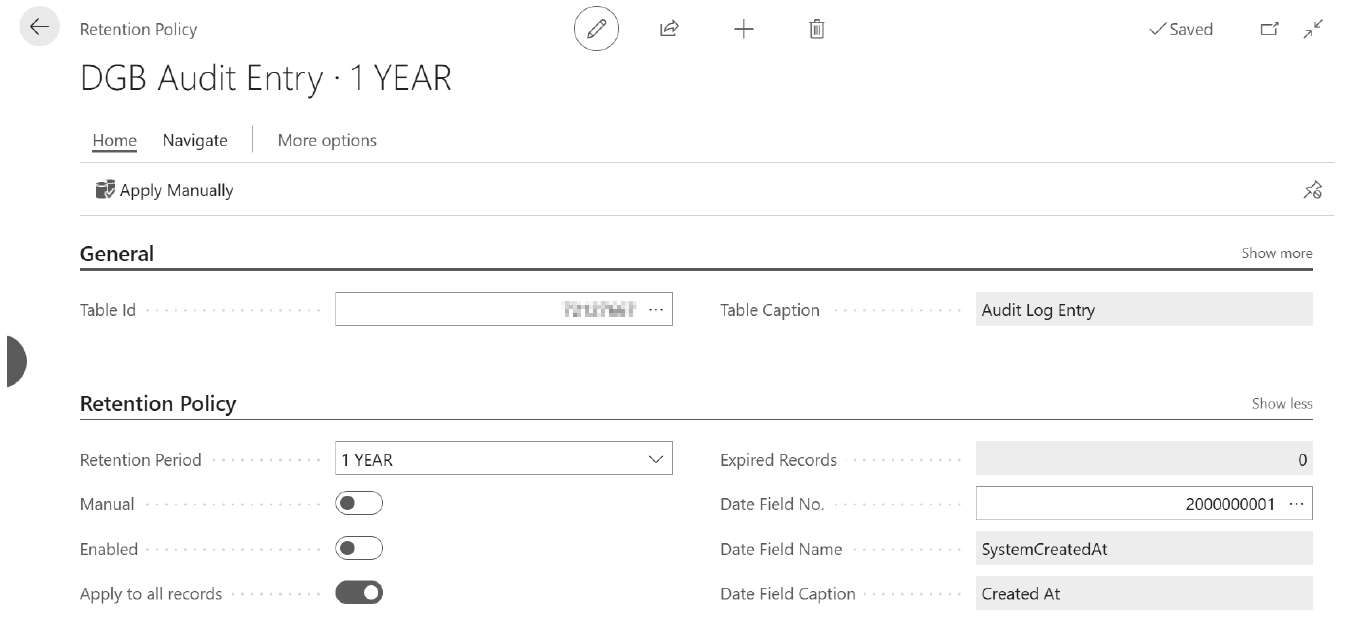
We create policies based on the age of the log entries. For example, you can set a policy to delete entries older than 2 years. It can also be based on requirements for compliance with laws and regulations.
Best Practices
Here some best practice recommendations.
| Practice | Recommendation |
|---|---|
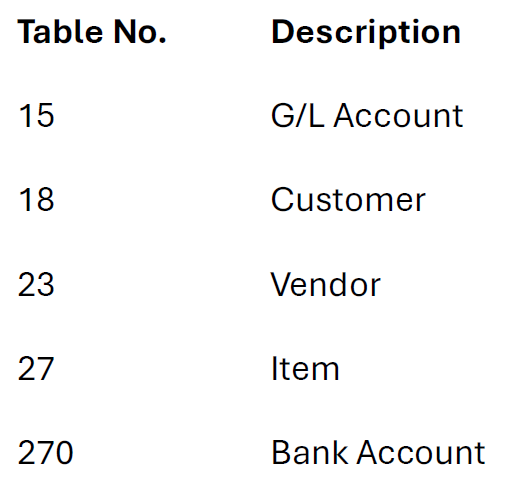
| Audit only key tables | Include critical areas such as G/L Account, Customer, Vendor, and Bank Accounts |
| Enable all action types | Use Log Insertion, Modification, and Deletion for comprehensive tracking |
| Regular review of logs | Schedule periodic reviews, especially after month-end or system changes |
| Use filters for investigations | Quickly isolate changes by date, user, or table |
| Archive audit reports | Maintain offline backups for audit or compliance purposes |
Who Should Use the Audit Trail App?
The following users will benefit:
- Finance Managers – To monitor changes to accounts and financial data
- Compliance Officers – To ensure adherence to audit and regulatory standards
- IT/System Admins – To track and investigate user activity
- Auditors – For reviewing historical data changes and verifying accuracy
Integration and Notes
Here are some additional notes on the Audit Trail app:
- The Audit Trail App integrates natively with Business Central tables.
- Once configured, changes are tracked in real-time.
- Audit entries are read-only for data integrity.
Troubleshooting
Here is a common issue and how to resolve it:
| Issue | Solution |
|---|---|
| Logs not appearing | Verify if the specific table and action are enabled in the Audit Log Setup. |
| Too many logs clutter view | Apply filters for specific users, tables, or date ranges. |
| Performance impact suspected | Reduce the number of audited tables or disable unnecessary actions. |
Appendix
Default Key Table Numbers
These are the default table numbers that are setup.