Legal User Guide for Microsoft Dynamics 365
Legal Portals
Introduction
The Legal Portal is a web-based interface connected to the D365 Legal Solution. It allows clients, prospective clients, and internal staff to interact with the legal firm without needing to access Microsoft Dynamics 365 directly.
The portal is designed to function as the firm’s public-facing legal website while also providing secure access for clients and staff. In addition to general website pages such as Home, Services, About Us, and Contact, it includes dedicated portal areas for clients and internal staff.
The main area of the portals are:
| Area | Purpose |
|---|---|
| Free Consultation | Allows prospective clients to submit their details and legal enquiry through a public enquiry form. |
| Client Portal | Allows existing clients to securely sign in and view their matters, messages, documents, invoices, profile information, and submit enquiries. |
| Staff Portal | Allows internal legal staff to securely sign in and manage matters, billing events, costs, tasks, deadlines, documents, receipts, and other practice activities through a simplified web interface. |
The Legal Portal is integrated with Dynamics 365, meaning information submitted or updated through the portal can be reflected in the relevant Dynamics records such as enquiries, potential new clients, matters, invoices, billing events, costs, tasks, and deadlines.
Portal Home Page and Navigation
The portal home page provides the firm’s public landing page and includes navigation to both public information and secure portal areas.
The main navigation includes:
- Home
- Services
- About Us
- Contact
- Client Portal
- Staff Login
- Free Consultation
The general pages such as Services, About Us, and Contact provide information about the firm and its legal services. The main functional areas are accessed through the following buttons in the navigation bar menu:
- Client Portal
- Staff Login
- Free Consultation

For more about Client and Staff Portal, visit their respective tutorial guide:
Free Consultation
The Free Consultation feature allows prospective clients to submit a legal enquiry through the public portal.
This feature is intended for individuals who do not yet have access to the Client Portal. Users can provide their personal information, details of their legal enquiry, practice area, address information, and supporting documents.
Accessing the Free Consultation Form
To access the Free Consultation form:
-
Open the Legal Portal home page.
-
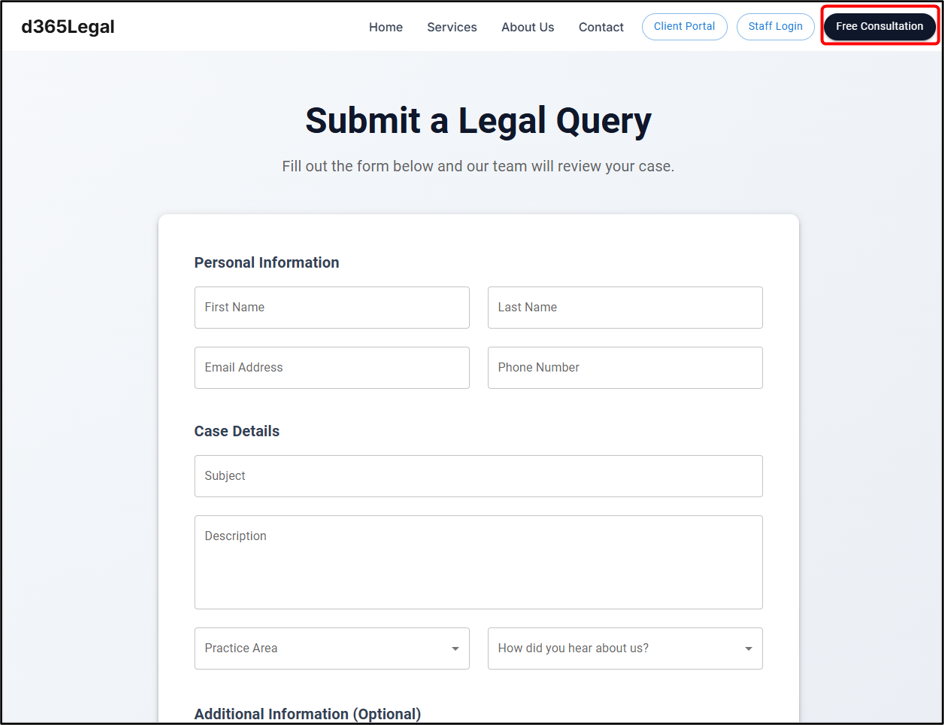
Click Free Consultation from the top navigation bar.
-
The Submit a Legal Query form will open.
The form allows the potential client to provide their personal information and details of their legal enquiry.
Information Captured in the Form
The Free Consultation form may include the following sections:
| Section | Description |
|---|---|
| Personal Information | Captures the client’s name, email address, and phone number. |
| Case Details | Captures the subject, description, practice area, and how the client heard about the firm. |
| Additional Information | Captures address or other supporting details where required. |
| Documents | Allows the client to upload supporting files such as PDF, DOCX, JPG, or PNG documents. |
The document upload area supports file selection and may display upload limits, such as maximum file size per file and total upload size.
reCAPTCHA Verification
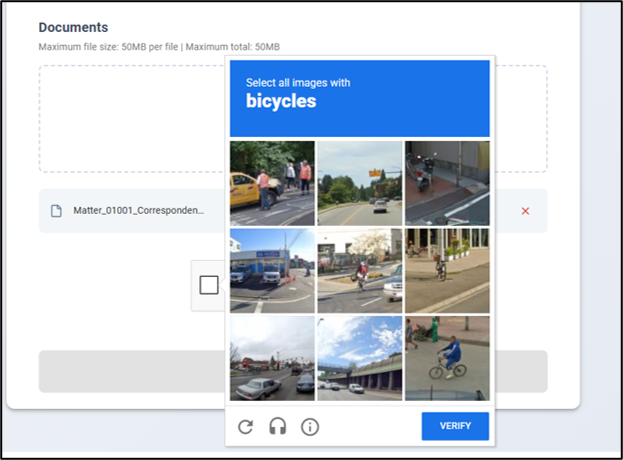
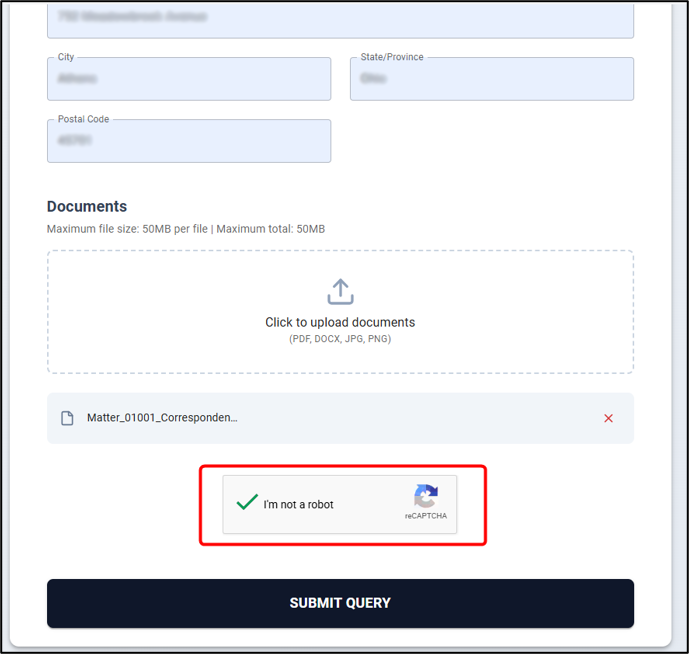
The Free Consultation form includes reCAPTCHA Verification.
This helps ensure that enquiries are submitted by real users and reduces spam or automated robot submissions. The user must complete the reCAPTCHA check before submitting the enquiry.
Submitting the Enquiry
Once the form is completed:
-
The user completes the required fields.
-
The user uploads any supporting documents, if required.
-
The user completes the reCAPTCHA verification.
-
The user clicks Submit Query.
After submission, the enquiry is passed into Dynamics 365 and can be created as an Enquiry/Potential New Client record for internal review and follow-up.