VAT e-Filing (Taiwan) User Guide in Dynamics 365 Business Central
Are you ready to try the solution or have questions?

Introduction
This extension is a solution for tax compliance made for Dynamics 365 Business Central. The Taiwan E-filing and Tax Payment Extension automates localized tax calculations, reporting, and statutory electronic filing, ensuring total compliance with Taiwan’s Ministry of Finance regulations.
To get the extension visit in Microsoft Marketplace - e-Filing VAT for Taiwan
e-Filing Setup
Process Overview
In Taiwan, the e-filing process for VAT (Value Added Tax) is carried out through the Taxation Administration of the Ministry of Finance (MOF), and businesses are required to submit VAT returns electronically, using a fixed-length text file format.
Sale and Purchase invoices and credit notes attract VAT charges according to the location of the customer/vendor, the type of sale/purchase item, and the tax category. These parameters are tracked to the transaction for categorizing the VAT into the specific reporting format.
Registering for e-Filing
For a business that is subject to VAT, it must first register for the e-filing system. This registration is typically done through the e-Filing system on the official website of Taiwan’s Ministry of Finance. The registration requires the Unified Business Number (UBN) of the business.
Preparation of VAT Documents
Taiwan businesses need to maintain proper VAT records, including invoices, receipts, and supporting documents related to purchases and sales. The VAT return should detail the amount of tax owed (output tax) and any tax credits or refunds entitlement (input tax). These documents need to use the numbering system provided by the Taxation Administration.
Mandatory Document Numbering
The need to ensure that there are no numbering gaps for the VAT documents submitted, there is a separate no. series used for sales and purchases. The mandatory numbering series would only be used when the sales and purchase documents are posted.
The standard no. series will continue to be used for unposted and posted invoice/credit notes. A new no. series will be configured to capture the VAT.
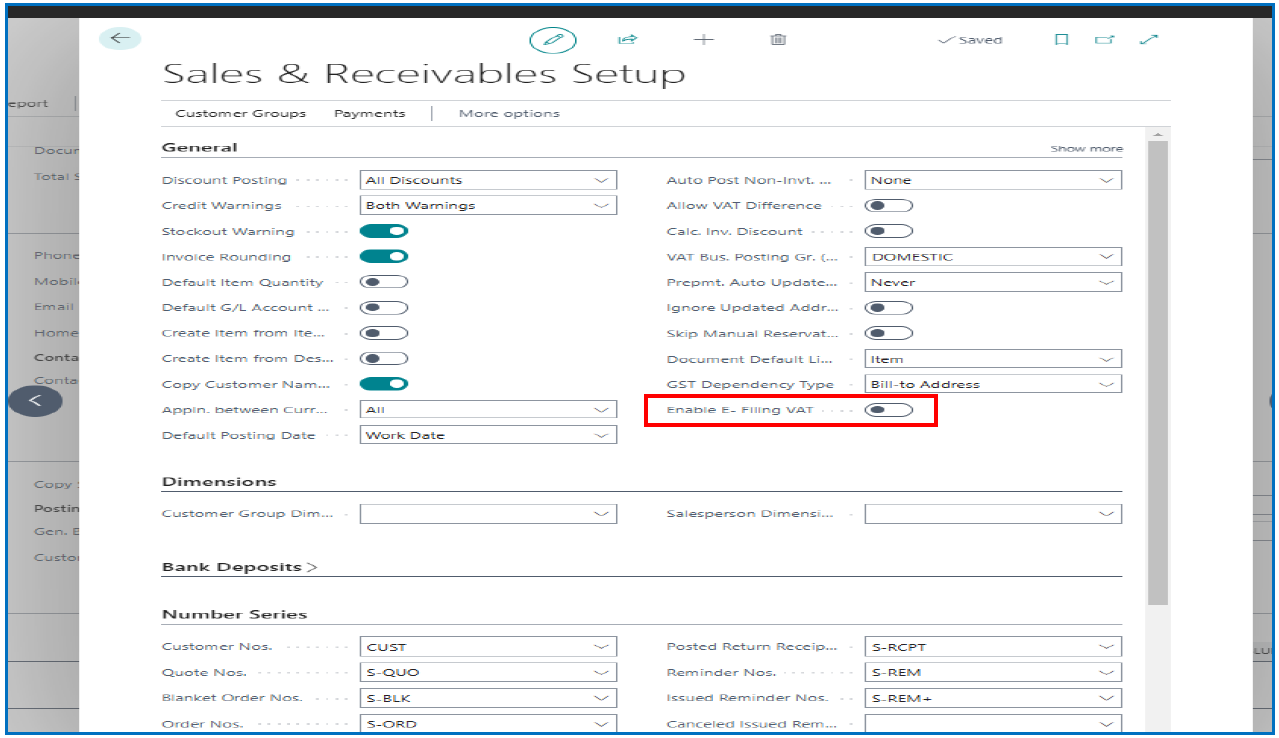
Sales & Receivables Setup
In the Sales & Receivables setup page, General FastTab, enable the flag E-Filing VAT.
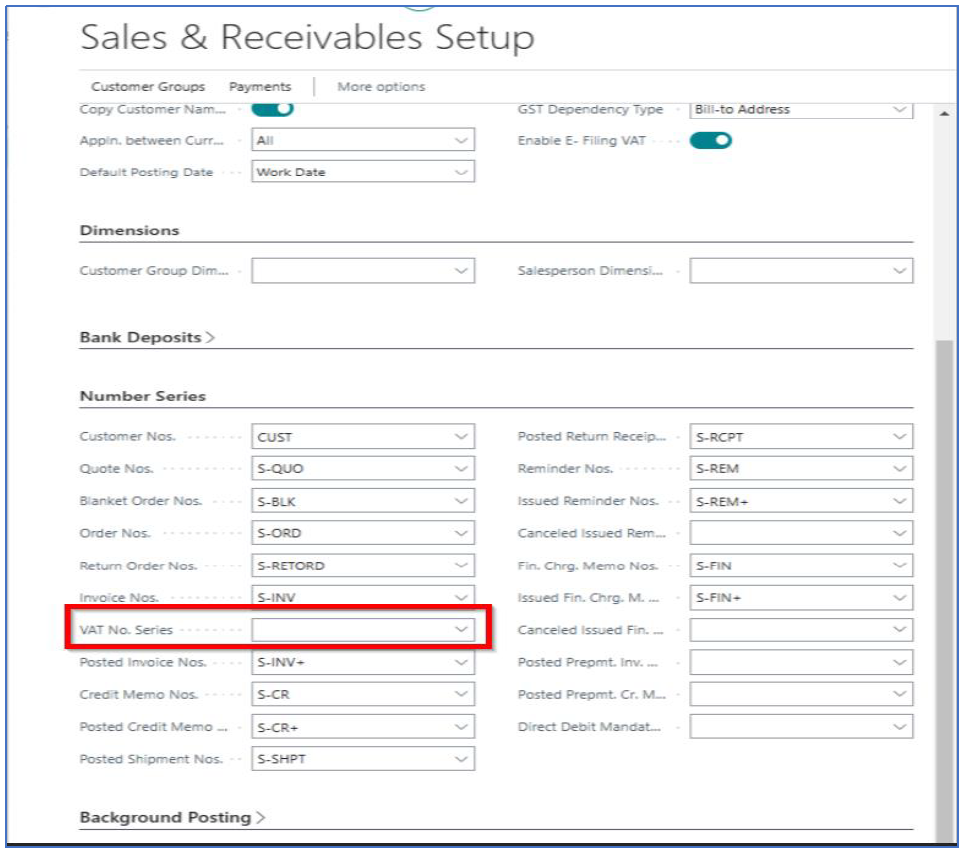
In the Number Series FastTab section, select the new number range for VAT No. Series.
Customer Sales & Vendor Purchases
Customer sales and vendor purchases can be documented either manually (non-system generated) or electronically (system generated). These different methods of documentation require identification of Format Code for VAT reporting.
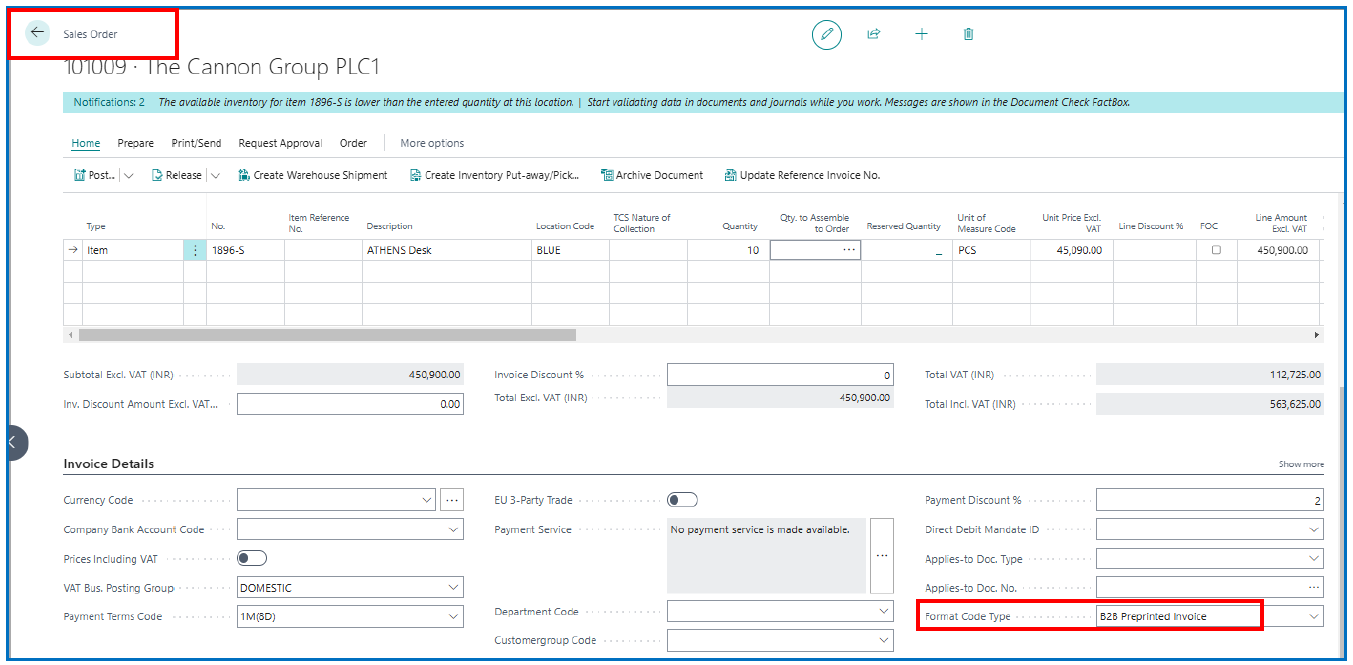
To identify the Format Code used in sales transactions, there is a custom field in the Customer Card to define the default Format Code used.
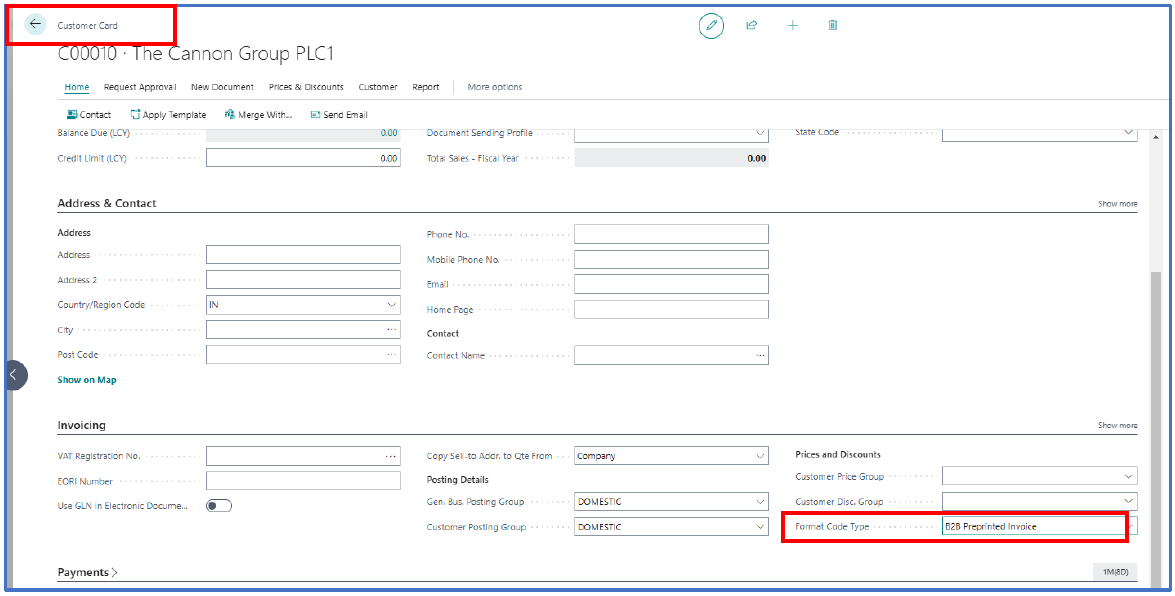
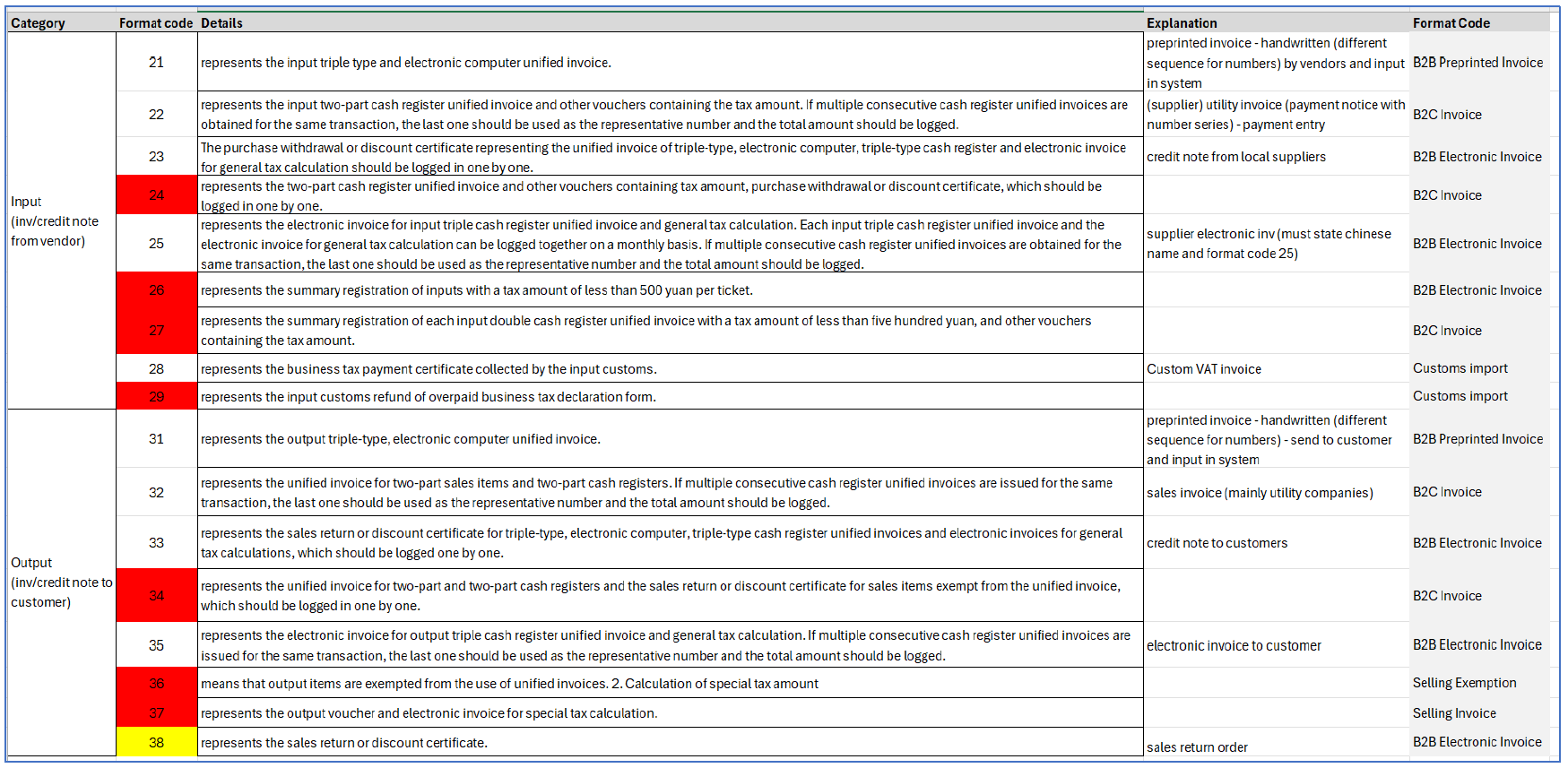
The allowed format codes are provided in Appendix A – Tax Document Format Code When entering Sales transaction, the Customer Card Format Code value will default in the invoice/credit note header. This can be amended at the transaction level if necessary.
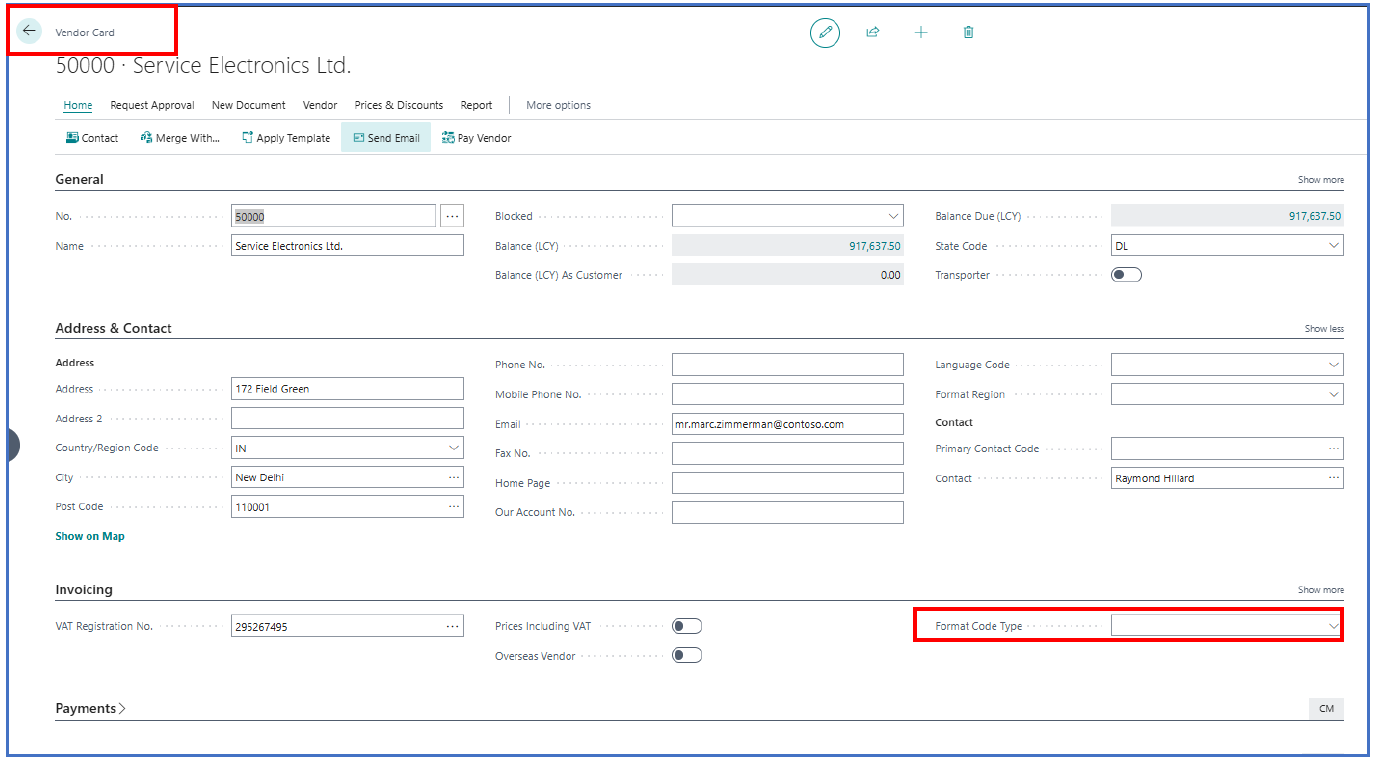
In the vendor card, the VAT Format Code field is available to define the default purchase document format code.
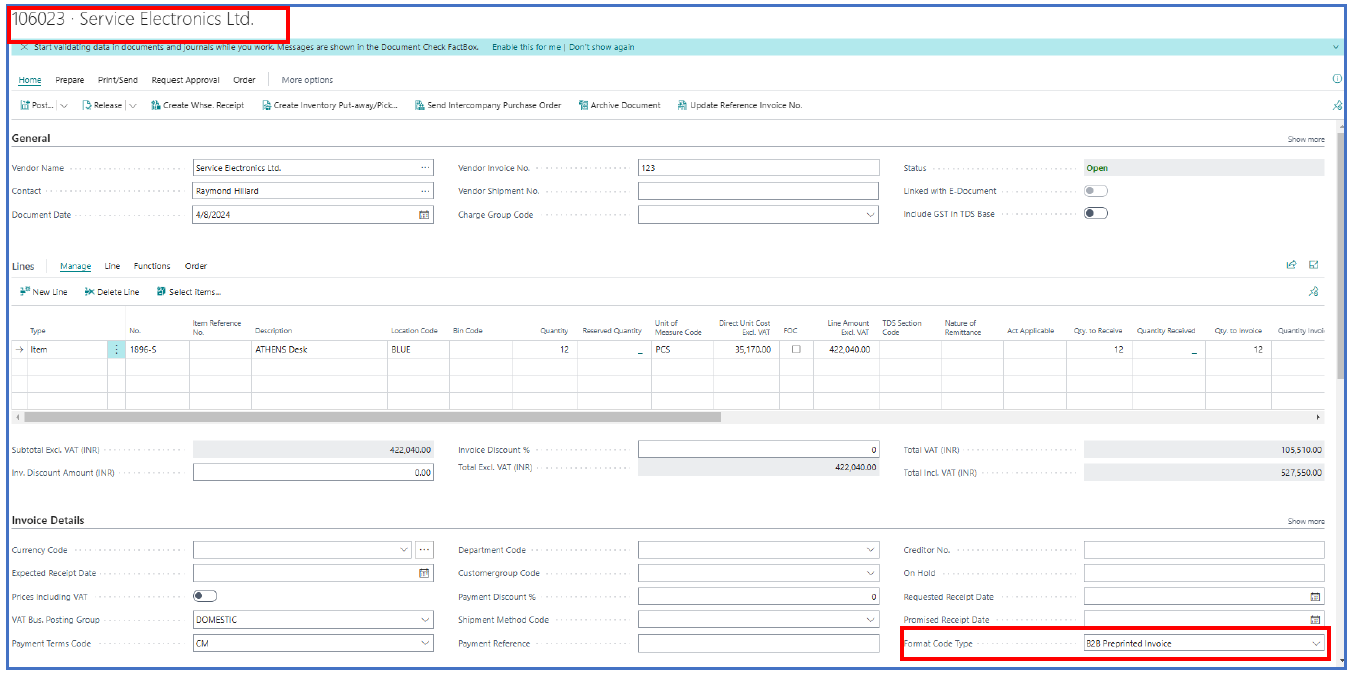
When purchasing documents are used, the default VAT Format Code appears in the purchasing document header.
Electronic Filing of VAT Report
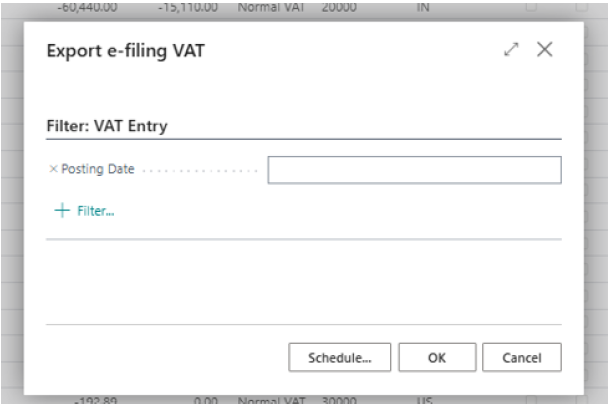
For sales and purchase transactions incurring VAT, these values are captured in the VAT Entries page. From this page, the menu option Export e-filing VAT can be used to extract the relevant VAT entries into the e-filing output file.
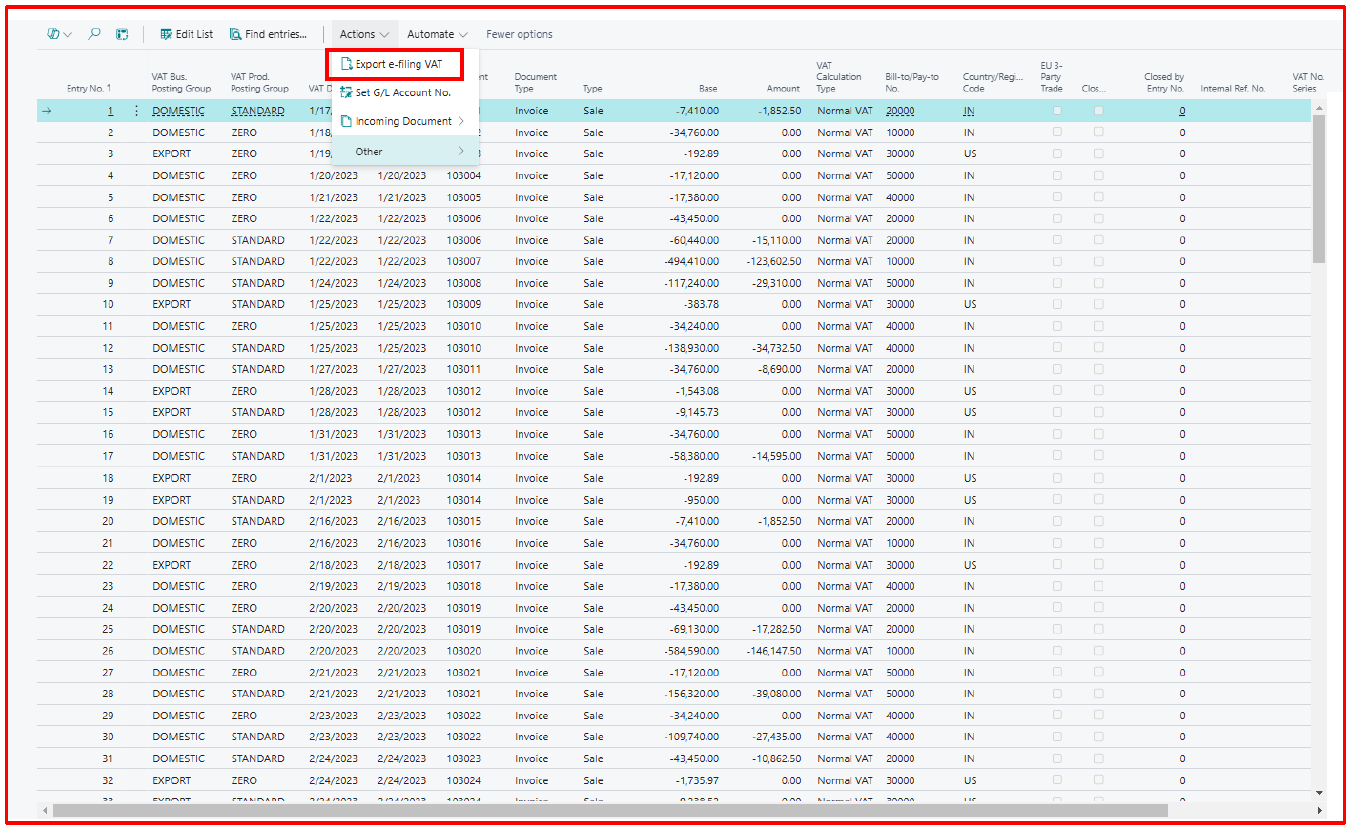
At the prompt, define the VAT entries posting date range to extract the data for the output file.
Save the output file in .csv format. This format has a fixed length of 57 characters. For example:

Appendix A – Tax Document Format Code