Legal User Guide for Microsoft Dynamics 365
Client Portal
The Client Portal is a secure self-service web portal that allows clients to access information related to their legal matters without needing direct access to Microsoft Dynamics 365.
Through the Client Portal, clients can view their matters, track progress, communicate with the legal team, upload and access documents, review invoices, submit new enquiries, and manage their profile details. The portal provides a simplified and client-friendly interface while Dynamics 365 remains the central system of record in the background.
The Client Portal is intended to improve transparency and communication between the legal firm and its clients. Instead of relying only on emails or phone calls for updates, clients can log in to the portal and view relevant information about their cases at any time.
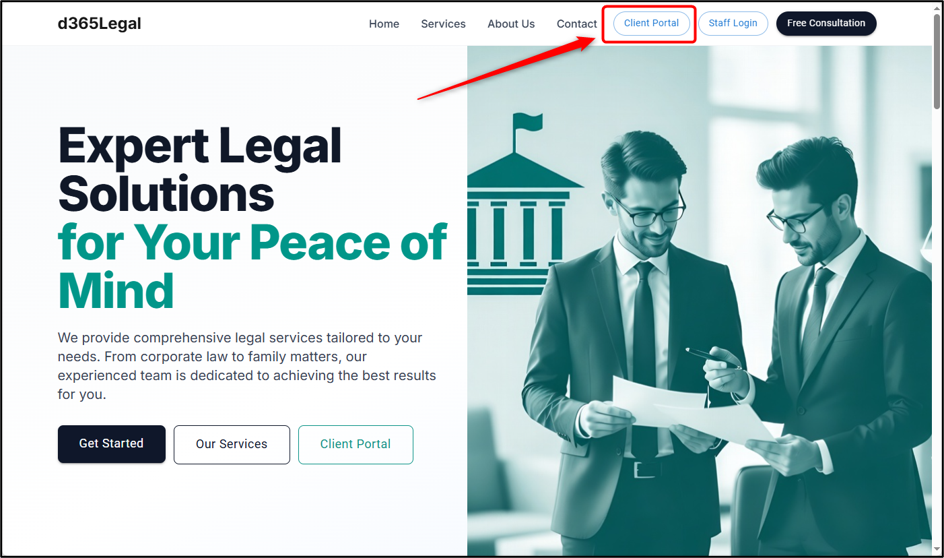
Signing In to the Client Portal
Clients can access the portal using the portal URL provided by the legal team.
To sign in:
-
Open the Client Portal URL.
-
Click Sign In.
-
Authenticate using the Microsoft sign-in page.
-
After successful login, the client is directed to the Dashboard.
Client accounts use Microsoft’s Secure Identity Service. Passwords are managed by Microsoft and are not stored directly in the portal. If a client needs to reset their password, they can use the Forgot Password option on the Microsoft sign-in page.
Client Portal Navigation
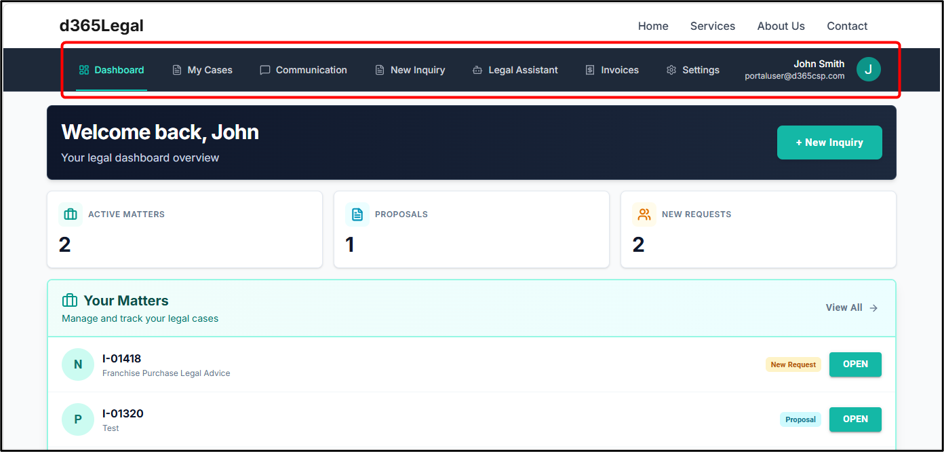
The Client Portal includes a persistent navigation bar at the top of the page. This allows clients to move between the main areas of the portal from any page.
The main navigation options are:
| Navigation Item | Description |
|---|---|
| Dashboard | Opens the main overview page showing matter summaries, deadlines, and recent activity. |
| My Cases | Displays all legal cases, proposals, and requests linked to the client. |
| Communication | Opens the messaging area for matter-related communication with the legal team. |
| New Inquiry | Allows the client to submit a new legal enquiry or request. |
| Legal Assistant | Opens the AI-powered legal assistant. |
| Invoices | Displays invoices and payment-related information. |
| Settings | Allows the client to manage account preferences. |
The client’s name and avatar are displayed in the top-right corner. From this area, the client can access their Profile or Sign Out of the portal.
Dashboard
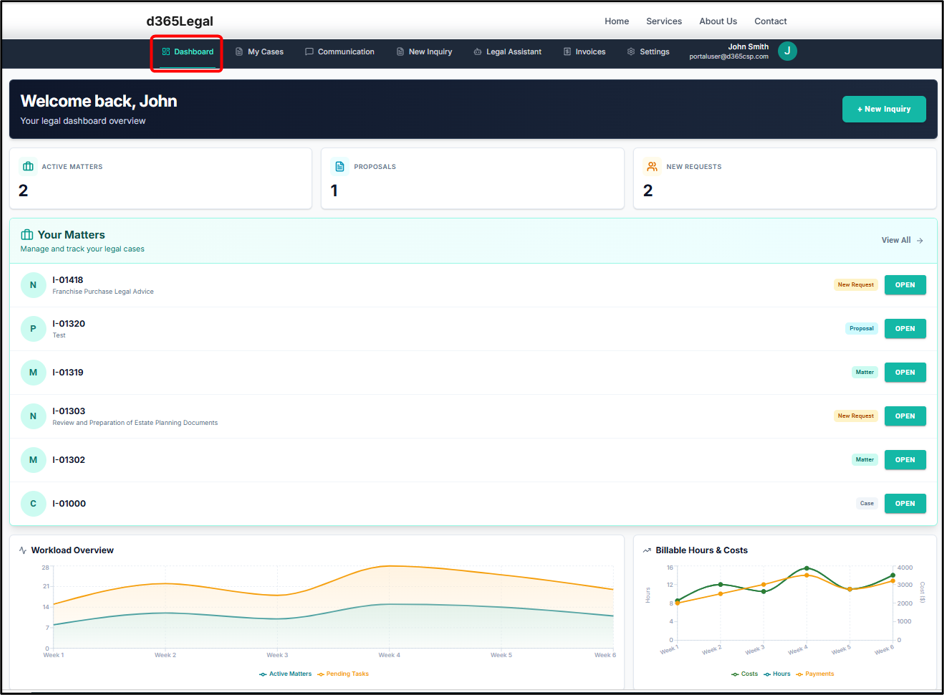
The Dashboard is the client’s home screen after logging in. It provides a summary of the client’s matters, upcoming deadlines, and recent activity.
The dashboard is designed to give clients a quick overview of what is happening across their matters without needing to open each matter individually.
Welcome Banner
At the top of the dashboard, the portal displays a welcome banner showing the client’s name. The banner also includes a + New Inquiry button, which provides a quick shortcut for submitting a new legal request.
Summary Cards
The dashboard includes summary cards that show matter counts by stage.
| Summary Card | Description |
|---|---|
| Active Matters | Shows the number of cases currently being worked on. |
| Proposals | Shows matters that are currently in the proposal or pitch stage. |
| New Requests | Shows new enquiries or initial requests currently being assessed. |
Your Matters
The Your Matters section displays the client’s most recent matters. Each matter entry includes the matter name, current stage, and an Open button.
Clicking Open takes the client directly to the relevant case detail page.
Matter Distribution
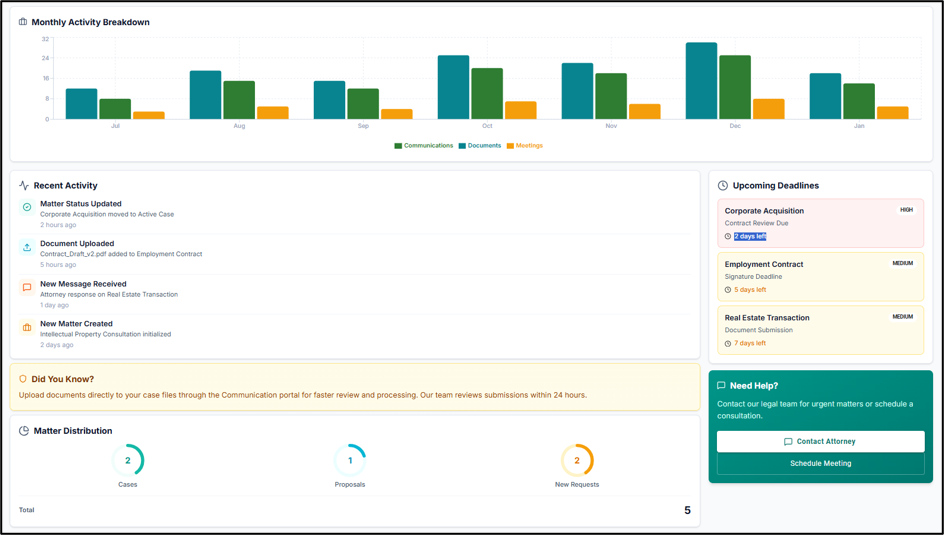
The dashboard also includes visual indicators showing how the client’s matters are distributed across different categories, such as Active Matters, Proposals, and New Requests.
Upcoming Deadlines
The Upcoming Deadlines panel shows the next upcoming deadlines across the client’s matters.
Each deadline entry may include:
| Field | Description |
|---|---|
| Matter Name | The matter linked to the deadline. |
| Deadline Description | A short description of the deadline. |
| Days Remaining | Shows how many days are left before the deadline. |
| Priority | Indicates whether the deadline is High, Medium, or Low priority. |
Recent Activity
The Recent Activity section displays recent updates across the client’s matters. This may include status changes, document uploads, messages received, or newly created cases.
My Cases
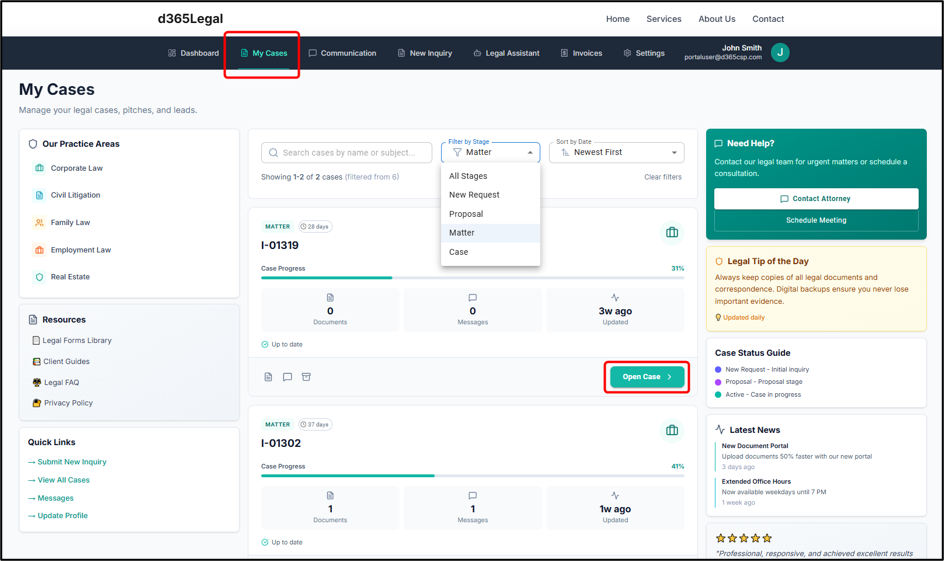
The My Cases page displays all legal matters linked to the client.
This includes:
| Case Type | Description |
|---|---|
| New Requests | Initial enquiries submitted by the client that are being reviewed. |
| Proposals | Matters where the legal team is preparing or negotiating a proposal. |
| Active Cases | Matters currently being worked on by the legal team. |
Each case is displayed as a card. The card provides a summary of important information about the case.
The case card may show:
| Detail | Description |
|---|---|
| Stage Badge | Shows the current stage of the matter. |
| Days Active | Shows how long the matter has been open. |
| Case Name | Displays the title of the matter. |
| Progress Bar | Shows an estimated progress indicator for active matters. |
| Documents | Shows the number of documents attached to the case. |
| Messages | Shows the number of messages exchanged. |
| Updated Date | Shows when the matter was last updated. |
Matter Stages
The following stages may be shown in the Client Portal:
| Stage | Description |
|---|---|
| New Request | The client’s initial enquiry is being reviewed. |
| Proposal | The legal team is preparing or progressing a proposal. |
| Active | The matter is actively being worked on. |
Searching and Filtering Cases
The toolbar above the case list allows clients to search, filter, and sort their cases.
Available options include:
| Option | Description |
|---|---|
| Search | Allows the client to search by case name. |
| Stage Filter | Allows the client to filter cases by stage. |
| Sort | Allows the client to sort cases, such as newest first or oldest first. |
| Clear Filters | Resets all active filters. |
The portal also shows the number of matching cases based on the selected filters.
Pagination
If the client has multiple cases, pagination controls are displayed at the bottom of the page. Clients can move between pages and choose how many cases to display per page.
Sidebar Resources
On desktop, the page may also show a sidebar containing useful resources.
This may include:
| Sidebar Area | Description |
|---|---|
| Practice Areas | Displays the areas of law covered by the firm. |
| Resources | Provides links to legal forms, client guides, FAQs, and privacy information. |
| Quick Links | Provides shortcuts to submit an enquiry, view cases, open messages, or update the client profile. |
Case Detail
The Case Detail page opens when a client selects a case from the My Cases page.
The information displayed on this page depends on the current stage of the matter.
New Request Stage
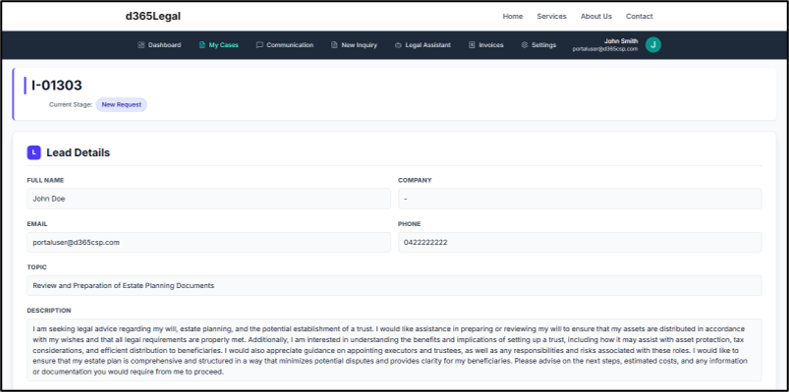
For a new request, the page shows details submitted by the client during the initial enquiry.
This may include:
| Field | Description |
|---|---|
| Full Name | Name of the person who submitted the request. |
| Company | Company name, where applicable. |
| Contact email address. | |
| Phone | Contact phone number. |
| Topic | Subject or topic of the enquiry. |
| Description | Details submitted by the client. |
Proposal Stage
For a matter in the proposal stage, the page shows proposal-related information and progress indicators.
This may include:
| Area | Description |
|---|---|
| Conflict Check Status | Shows whether the conflict check is Pending, Cleared, or Failed. |
| Proposal Status | Shows the proposal progress, such as Draft, Submitted, Negotiating, Accepted, or Lost. |
Active Case Stage
For an active matter, the page shows the main case details.
This may include:
| Field | Description |
|---|---|
| Title | The matter title. |
| Case Number | The unique case or matter reference number. |
| Created On | The date the matter was created. |
| Description | Summary or description of the legal matter. |
Documents on a Case
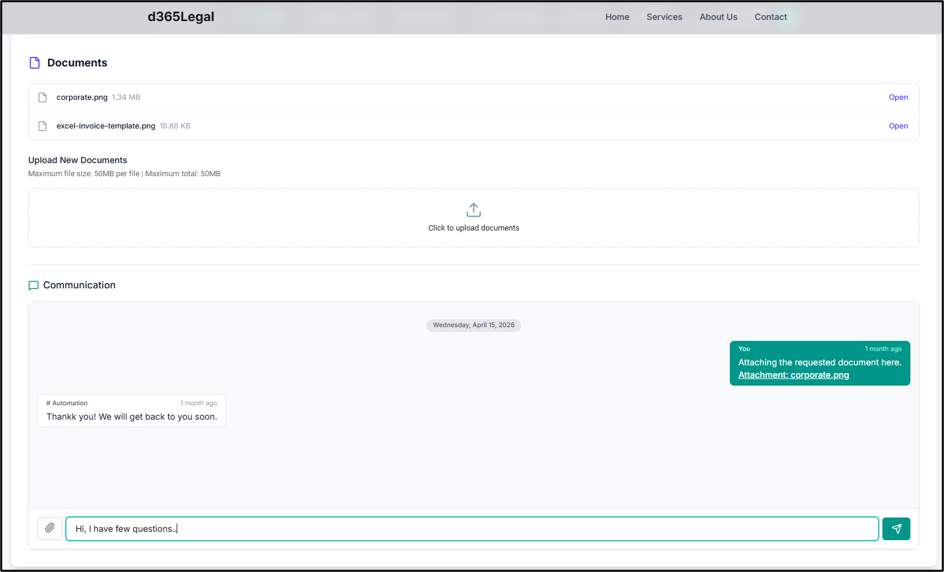
The Case Detail page includes a Documents section showing documents linked to the selected case.
Each document entry may show the file name and file size, along with an Open link to view the document securely.
Clients can also upload new documents directly from the Case Detail page.
To upload a document:
-
Open the relevant case.
-
Go to the Documents area.
-
Drag and drop files into the upload area, or click to browse and select files.
-
Confirm the upload.
Uploaded documents are stored against the relevant case and can be accessed by the legal team.
Communication
A built-in message thread at the bottom of each case detail page lets you communicate with your legal team directly in the context of that specific matter.
Communication
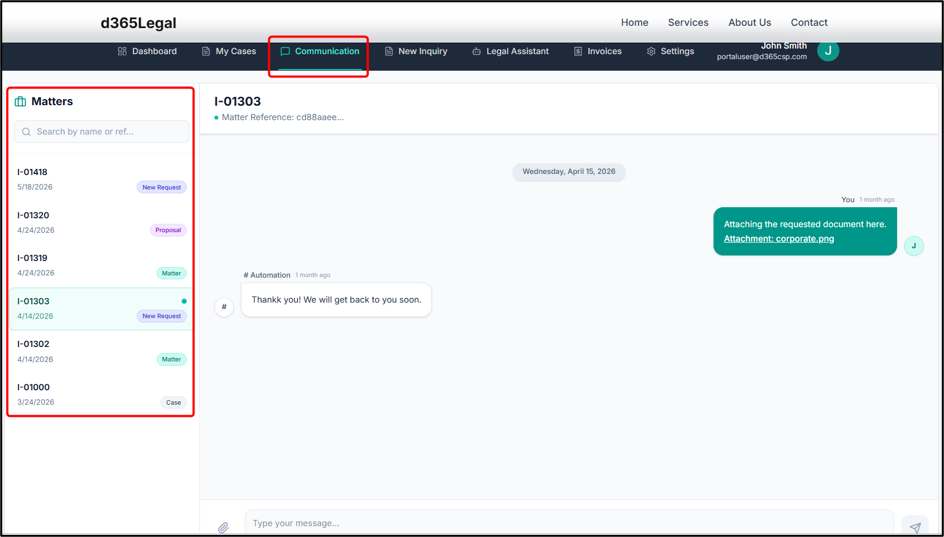
The Communication page provides a dedicated messaging interface between the client and the legal team.
Messages are organised by matter, which helps ensure that discussions remain linked to the correct legal case.
Selecting a Matter
The left panel displays the client’s matters. The client can select a matter to open its message thread.
The matter list may show:
| Detail | Description |
|---|---|
| Matter Name | The name of the case or matter. |
| Created Date | The date the matter was created. |
| Stage Badge | The current stage of the matter. |
A search field is also available to help find a specific matter.
Reading Messages
Once a matter is selected, the message panel displays the conversation history.
Messages from the legal team appear on one side, while messages sent by the client appear on the other. Messages are grouped by date, with separators such as Today, Yesterday, or the full date for older messages.
Sending a Message
To send a message:
-
Select the relevant matter.
-
Type the message in the input field at the bottom of the message panel.
-
Press Enter to send the message.
-
To add a new line without sending, press Shift + Enter.
To attach a file, click the paperclip icon, select the file, and then send the message.
On mobile devices, the Communication page may show either the matter list or the message thread. Clients can use the back arrow to return to the matter list.
Invoices
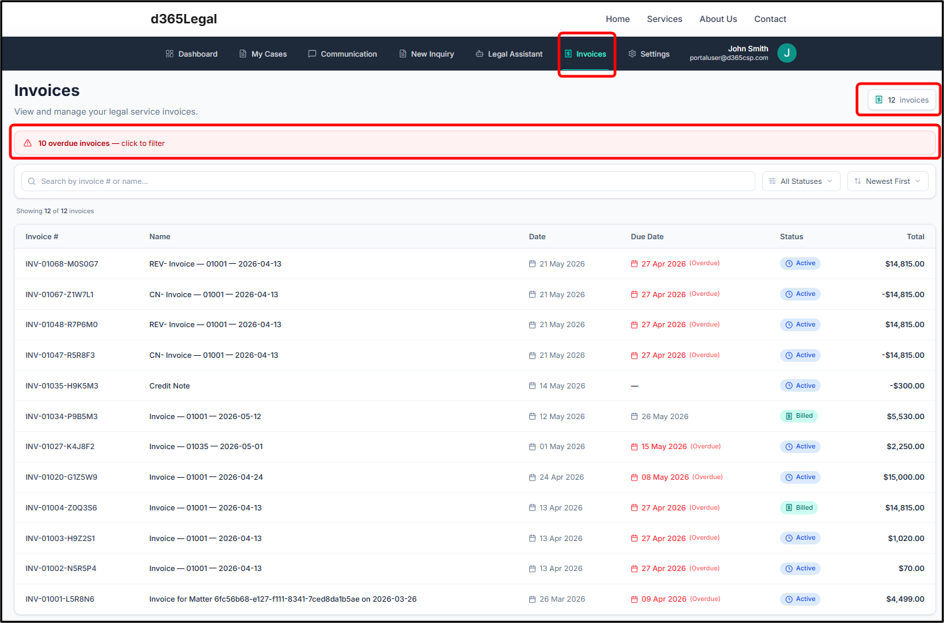
The Invoices page allows clients to view invoices raised against their account. Invoices are shown in a table on desktop and may appear as cards on mobile devices.
The invoice list may include:
| Column | Description |
|---|---|
| Invoice Number | The unique invoice reference number. |
| Name | The invoice description or title. |
| Date | The date the invoice was issued. |
| Due Date | The payment due date. |
| Status | The current invoice status. |
| Total | The total invoice amount. |
Invoice Status
The following statuses may be displayed:
| Status | Description |
|---|---|
| Active | The invoice has been raised and is awaiting payment. |
| Billed | The invoice has been sent to the client. |
| Paid in Full | The invoice has been fully paid. |
| Overdue | The invoice payment is past the due date. |
| Cancelled | The invoice has been cancelled. |
| Closed | The invoice is closed. |
Overdue Invoice Alert
If the client has overdue invoices, an alert banner appears at the top of the page. The client can click the banner to filter the invoice list and show overdue invoices only.
Searching and Filtering Invoices
The Invoices page includes search, filter, and sort options.
Available options include:
| Option | Description |
|---|---|
| Search | Search by invoice number or invoice name. |
| Status Filter | Filter invoices by status. |
| Sort | Sort by newest first, oldest first, due date, or amount. |
| Clear Filters | Reset the active filters. |
Invoice Detail
Clicking an invoice number opens the full invoice detail page.
The invoice detail page may include:
| Section | Description |
|---|---|
| Header | Shows the invoice number, name, and current status. |
| Key Facts | Shows issue date, due date, date delivered, and number of line items. |
| Description | Displays any notes or invoice description. |
| Line Items | Shows the services or disbursements included in the invoice. |
| Totals | Shows subtotal, freight, discounts, tax, and final total. |
Clients can click Back to Invoices to return to the invoice list.
New Inquiry
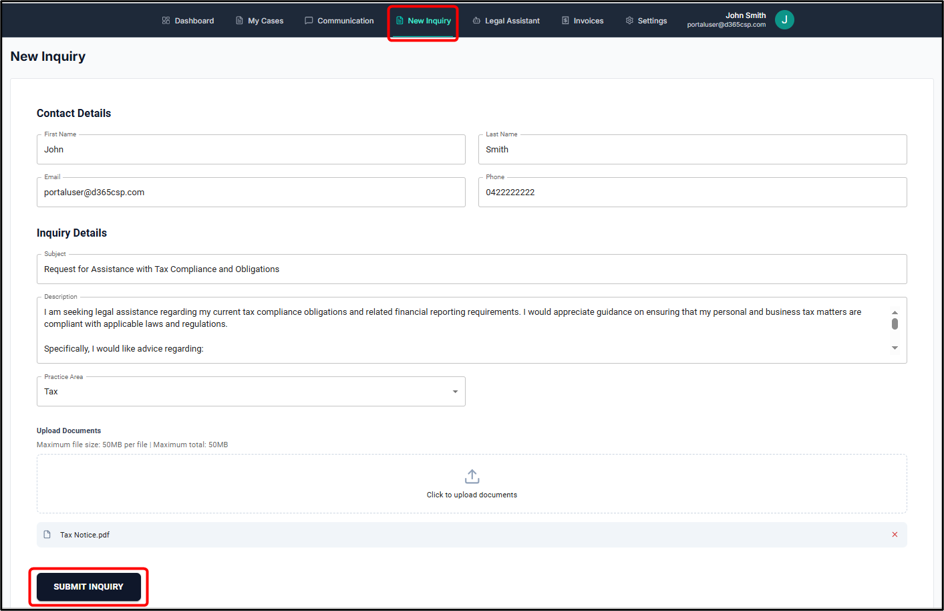
The New Inquiry page allows existing clients to submit a new legal request through the portal.
This is useful when a client already has portal access but needs to raise a new matter, question, or request with the firm.
Contact Details
Some contact details may be pre-filled from the client’s profile.
The form may include:
| Field | Description |
|---|---|
| First Name | Client’s first name. |
| Last Name | Client’s last name. |
| Email Address | Client’s email address. |
| Phone | Client’s contact number. |
Inquiry Details
The client must provide details of the new legal enquiry.
| Field | Description |
|---|---|
| Practice Area | The relevant area of law. |
| Subject | A short title for the enquiry. |
| Description | A detailed description of the matter or question. |
File Attachments
Clients can attach supporting documents to the enquiry.
To attach files:
-
Drag and drop files into the upload area, or click to browse.
-
Select the relevant files.
-
Review the selected file list.
-
Click the X icon beside a file to remove it before submission, if needed.
The portal may apply a maximum file size limit, such as 50 MB per file.
Submitting a New Inquiry
To submit the enquiry:
-
Complete the required contact and inquiry fields.
-
Attach any supporting documents, if required.
-
Click Submit Inquiry.
After submission, the client is redirected to the new case detail page once the request has been received.
Legal Assistant
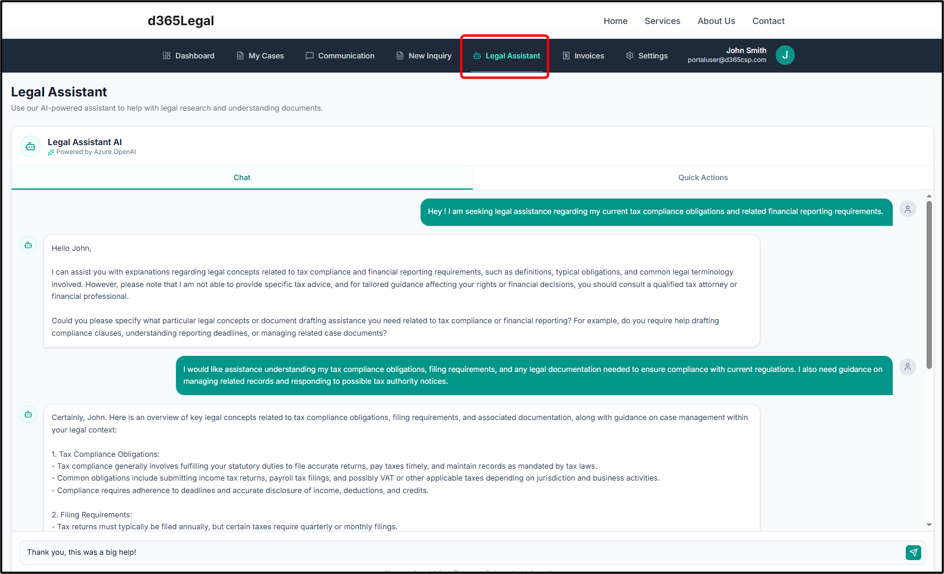
The Legal Assistant is an AI-powered tool available within the Client Portal.
Clients can use it to ask questions in plain language and receive general assistance with legal research or document understanding.
The Legal Assistant is intended to support general understanding only. Clients should still contact their legal team for advice specific to their legal situation.
Profile
The Profile page allows clients to view and update their personal information. Clients can access the Profile page from the top-right avatar menu.
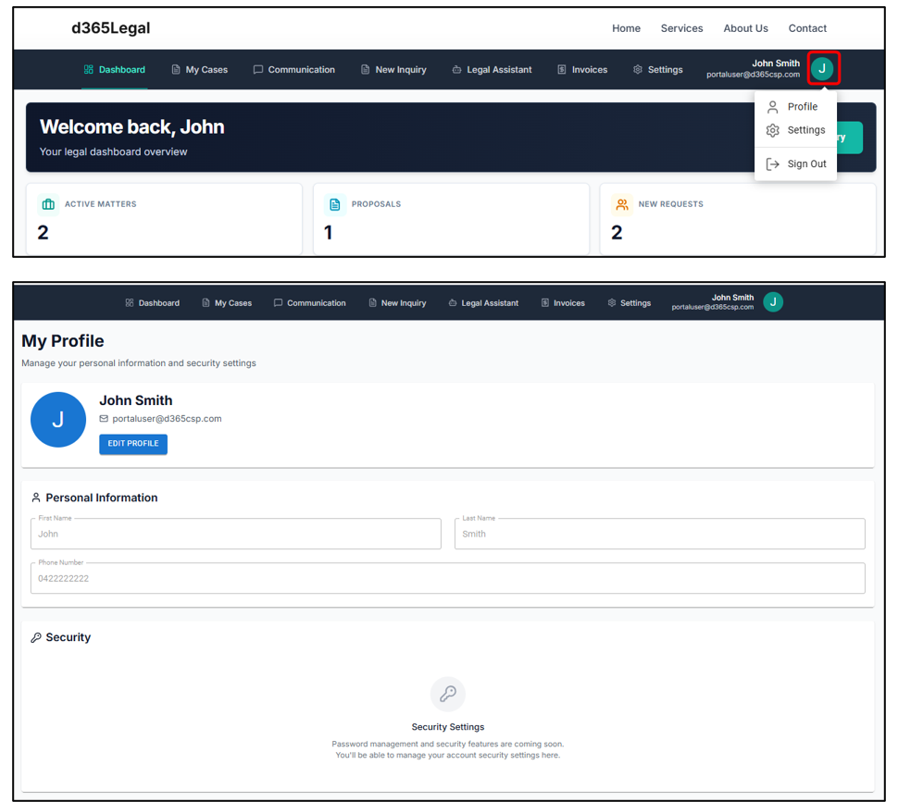
The profile card displays the client’s personal details, such as:
| Field | Description |
|---|---|
| First Name | Client’s first name. |
| Last Name | Client’s last name. |
| Email Address | Client’s email address. |
| Phone Number | Client’s contact number. |
Editing Profile Details
To update profile details:
-
Click the top-right avatar.
-
Select Profile.
-
Click Edit Profile.
-
Update the required details.
-
Click Save.
After saving, the client may be briefly signed out and back in so that the updated profile details can refresh in the current session.
Password Management
The client’s password is managed through Microsoft’s Secure Identity Service.
To change or reset a password:
-
Sign out of the portal.
-
On the Microsoft sign-in page, click Forgot Password.
-
Follow the prompts to reset the password.
Alternatively, the Change Password button on the Profile page may direct the client to the Microsoft password change page.
Settings
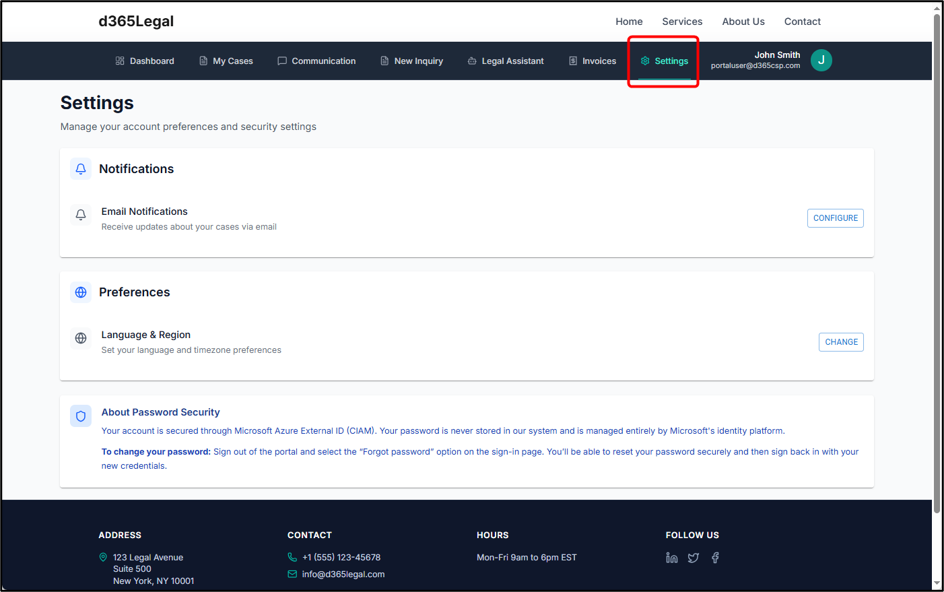
The Settings page allows clients to manage account preferences.
Available settings may include:
| Setting | Description |
|---|---|
| Email Notifications | Allows clients to configure whether they receive case update emails. |
| Language & Region | Allows clients to manage language and timezone preferences. |
Some settings may be marked as coming soon. If a client needs urgent changes to their preferences, they should contact the legal team directly.
Client Portal Notes and Support
The Client Portal is designed to provide clients with easy access to their legal information and communication in one place.
Clients should contact the legal team if:
-
They cannot sign in.
-
They receive an access error.
-
A matter or document is missing.
-
Invoice information appears incorrect.
-
They need help updating their account details.
-
They are unsure about information shown in the portal.
The portal provides a simplified client-facing experience, while the legal team continues to manage the official records and processes in Dynamics 365.