Finance Basic User Training Guide for Dynamics 365 Business Central
Bank Reconciliation
Bank Reconciliation provides a method of reconciling (“cash” receipt and payment) transactions posted to the bank account against the transactions from the bank statement. This requires the importation of a bank statement with transactions and dates to match with posted transaction. The alternative process is to reconcile the bank statement transactions against all “unreconciled” posted (sales/purchase) ledger transactions in the system.
Bank Accounts
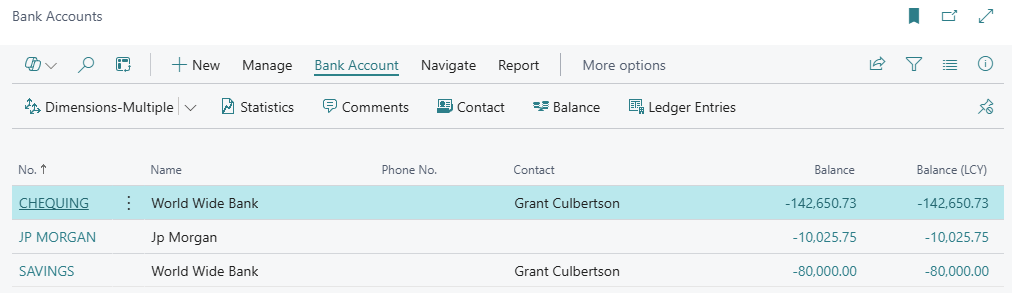
Bank Accounts are created and mapped to G/L account codes using Bank Posting Groups. These G/L Accounts have been set to allow reconciliation so that transactions posted to the bank accounts are available for performing bank reconciliation as described below.
(Example bank accounts)
Bank Account Reconciliations
A reconciliation period is selected and unreconciled (posted receipt/payment) transactions for the same period are presented for reconciliation with the imported bank statement.

Navigate to Bank Account Reconciliations using menu options Cash Management > Bank Account Reconciliations to open the Bank Account Reconciliation list page.

Click New to start a new bank reconciliation or click an existing bank account reconciliation to carry out reconciliation of subsequent periods.
-
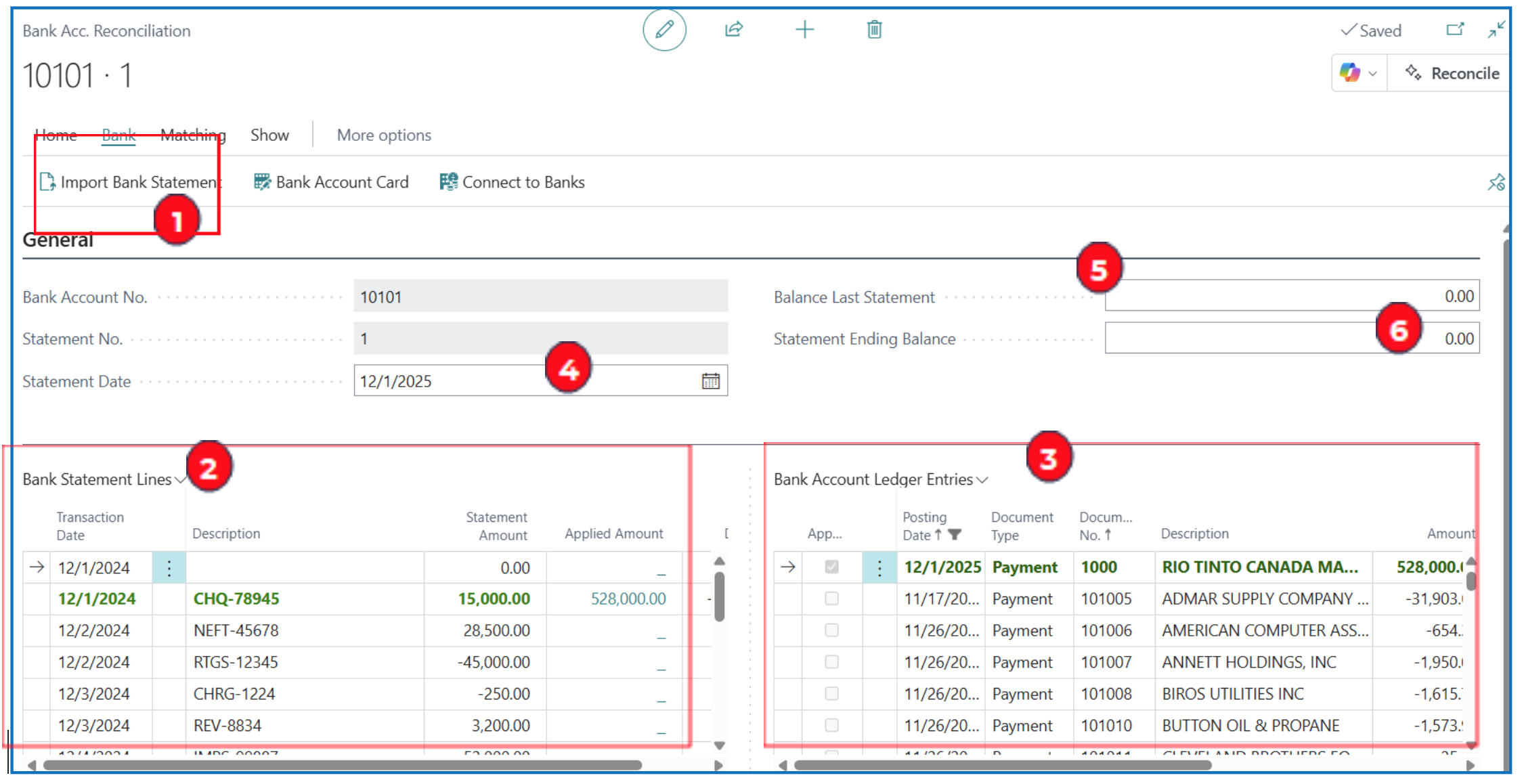
Select Bank > Import Bank Statement to import the bank statement export file.
NB: The file format must first be defined in the Bank Accounts set up.
-
After importing the bank statement, statement entries will be shown on the left panel.
-
The right panel Bank Account Ledger Entries are cash receipt/payment transactions posted into the nominated bank account.
-
Statement Date — Enter the statement date of the imported bank statement.
-
Balance Last Statement — This will display the balance from the previous posted bank reconciliation.
-
Statement Ending Balance — Enter the ending balance of the imported bank statement.
-
Select entries on the left and right panels that reconcile (until Balance To Reconcile is $0) and Total Difference is $0, using the following matching options:
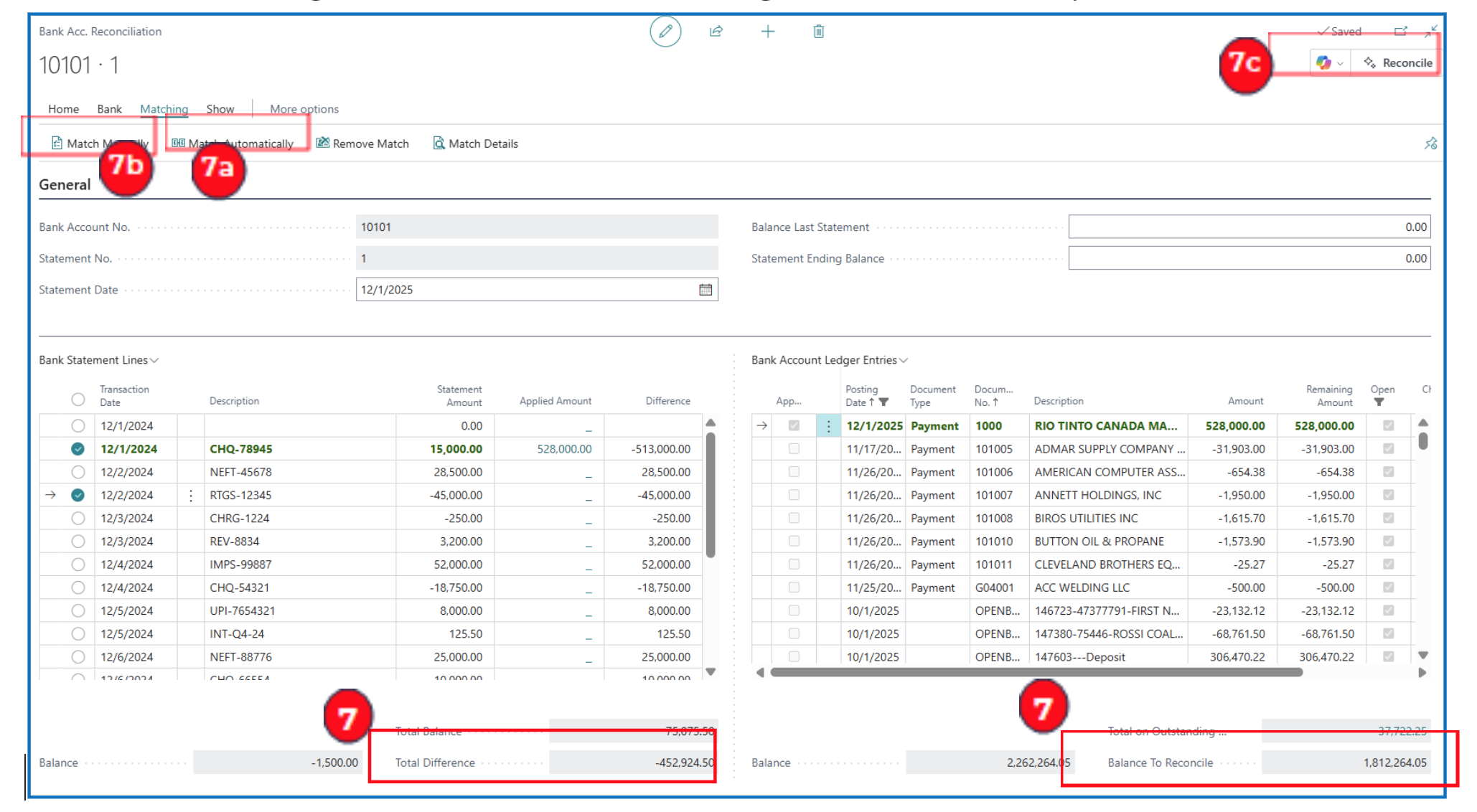
a. Match Automatically
When this is selected, the system will compare transactions by amount and date (within tolerance) and tick the matching lines. Example: within 30 days tolerance.

b. Match Manually
Select the bank statement lines on the left panel that would match with the Bank Account Ledger Entries (right panel) and click Match Manually to reconcile.
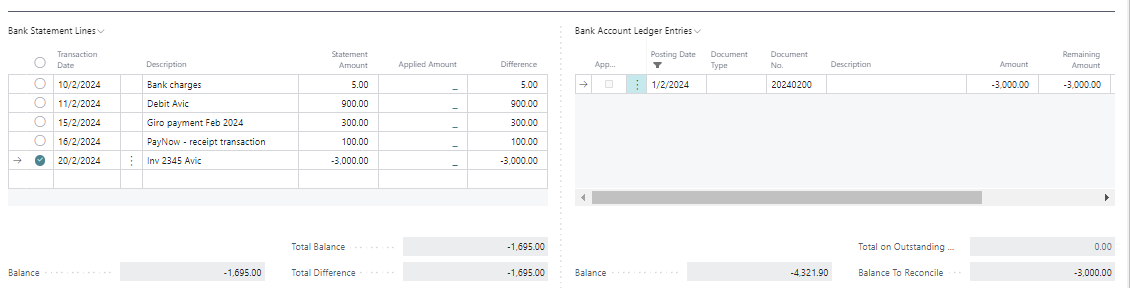
c. Copilot Matching
When you click on the Reconcile (Copilot) icon on the top right, Copilot will analyze the transactions and suggest matched (reconciling) lines.
Example:
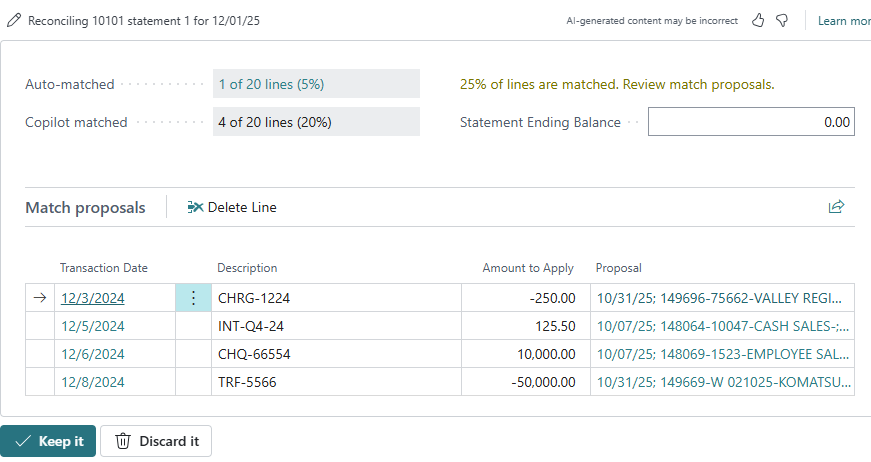
You can choose to accept the suggested match by clicking on “Keep it” for Copilot to reconcile, or you can choose “Discard it” to get Copilot to revise its matching logic.
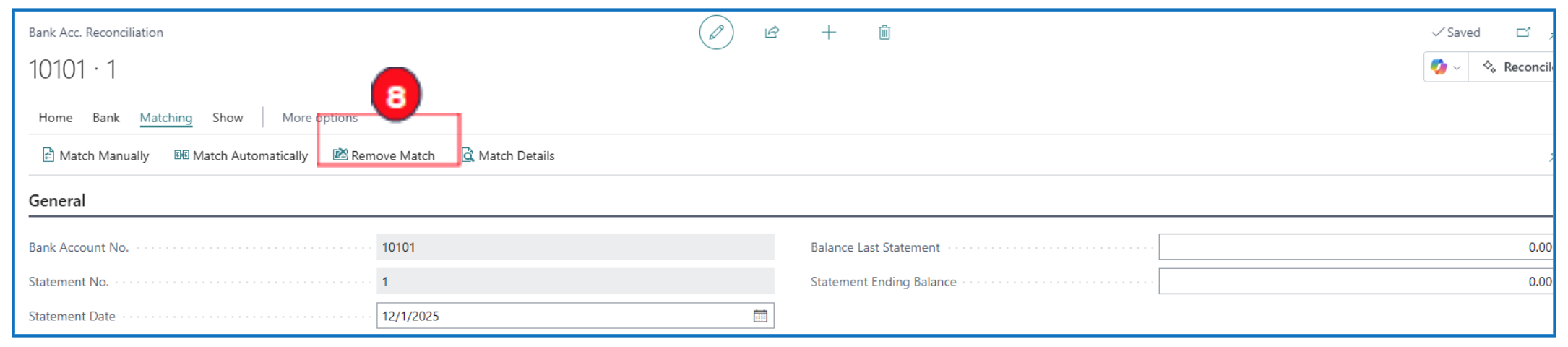
- To undo any matched lines, select the matched line(s) and click Remove Match.
-
When the Balance to Reconcile = $0 and Total Difference = $0, the bank reconciliation is complete. Run the bank reconciliation statement report by selecting menu Home > Post > Test Report.
-
If Total Difference = $0 and there are unmatched Bank Statement Lines,
a. Post “-ve” lines (payment) to G/L using menu option Home > Transfer to G/L Account, or
b. Create a General Journal by transferring unmatched Bank Statement Lines (+ve or -ve) using menu option Home > Transfer to General Ledger.
NB: you need to open the General Journal to review the accounts and then post these entries created from unmatched bank statement lines.
Payment Reconciliation Journal
Another method of reconciling bank statement transactions to posted transactions is to use the Payment Reconciliation Journal. This is a special journal where the bank statement can be imported and compared across all unreconciled posted transactions to suggest reconciliation lines.
To open the Payment Recon. Journals list page, navigate to Cash Management > Payment Reconciliation Journals.


Select the bank account with existing Payment Recon. Journal or click on New Journal to select a bank account for a new journal.
-
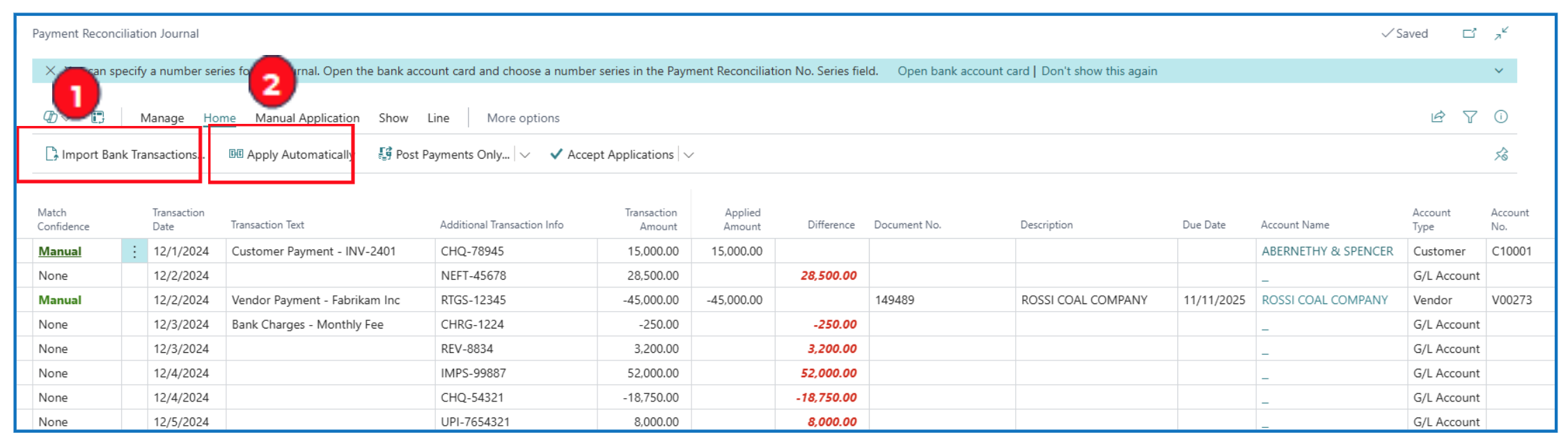
Select Import Bank Transactions to import the bank statement file. Once done, the list of bank statement lines will display.
-
Select Apply Automatically for the system to scan all unreconciled (open) posted sub-ledger (customer/vendor) entries and match these with the bank statement transactions listed based on data matches and entry descriptions.
NB: The Payment Reconciliation Journal matches bank statement entries with sub-ledger entries (open invoices) and when posted, it can also post collection/payment offsets to these open invoices.
The matching follows Payment Application Rules defined to label the confidence level of the matched records.
-
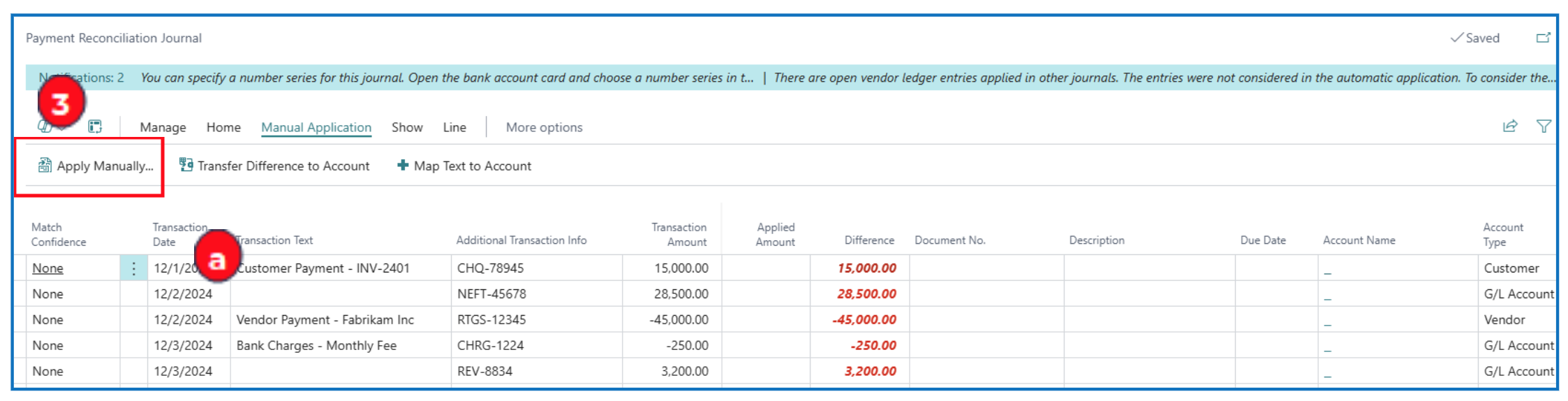
To manually apply each bank statement transaction to an unreconciled posted subledger entry,
a) Highlight the bank statement line and click Manual Application > Apply Manually to open the Payment Application list page
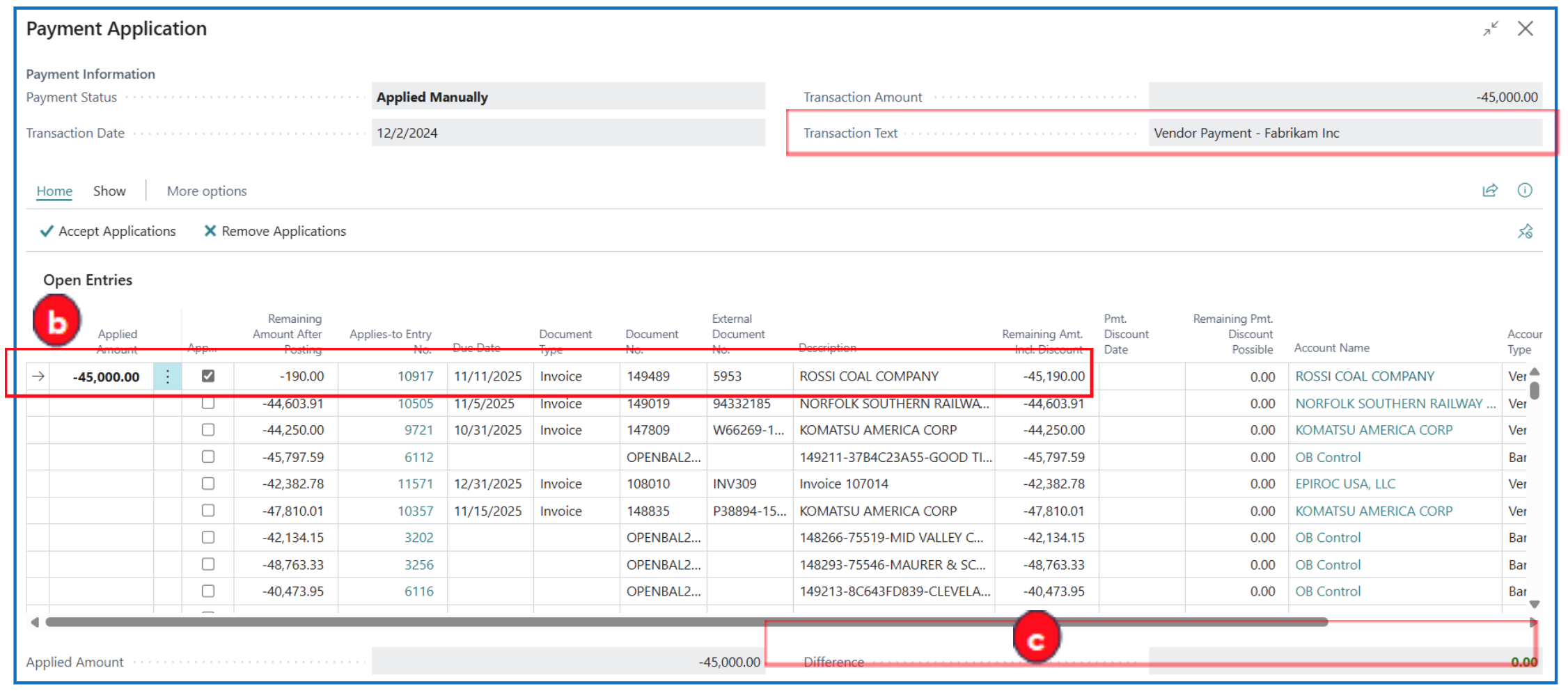
b) Given the Transaction Amount, tick on the Applied checkbox for the open posted subledger entry that matches (or less if the invoice amount is higher) and the Difference becomes $0.
c) The Applied Amount will default to the posted subledger entry amount.
Click Close to return to the Payment Recon. Journal and repeat steps (a) to (c) for each bank statement line.
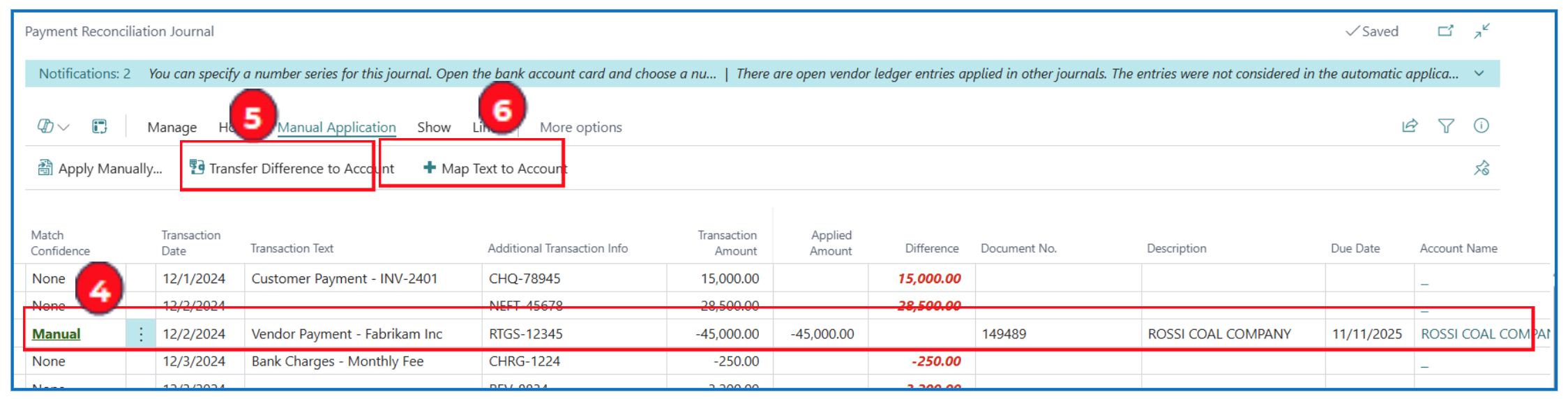
-
This is an example of a manually matched payment line where the bank statement amount is applied to open invoice amounts. When all bank statement lines are matched, the payment reconciliation journal is ready for the next step.
-
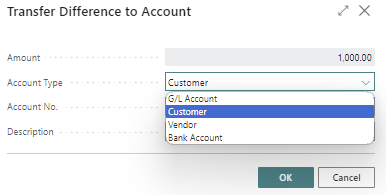
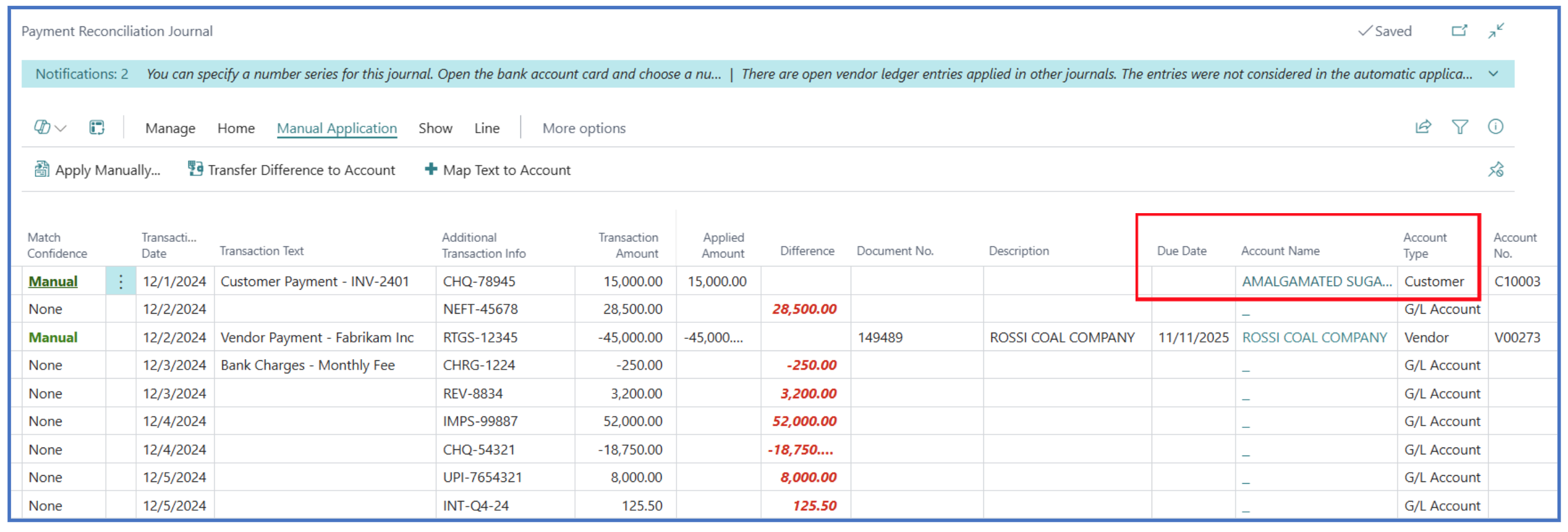
Transfer Difference to Account — Use this option to transfer unmatched bank statement lines to accounts, depending on the Account Type selected:
-
G/L Account — Transfers to G/L account when posted.
-
Customer, Vendor — Transfers to the sub-ledger account when posted.
-
Bank Account — Transfers to the bank account sub-ledger.
The transfer will add the line amount to the matched account displayed.
-
-
Map Text to Account — Highlight a bank statement line and select this option to map the Transaction Text to a GL account and improve the application matching of similar bank statement lines to GL account.
Refer to Appendix for information on improving auto-matching of bank statement line application through Payment Application Rules.
Written By:
Peter Loo
Team Leader, Business Central
Connect on LinkedIn