Finance Basic User Training Guide for Dynamics 365 Business Central
Month-end and Year-end
The only process that closes the Income Statement accounts and updates the Retained Earnings account is the Year-end process. To “close” the month from any further entries by users, the month period is closed but the Income Statement accounts are not closed off to Retained Earnings for the month. This is because Business Central Financial Reports can be configured to calculate monthly values for Income Statement.
Month-end Closing
To close the month and prevent further posting into the month, navigate to the General Ledger Setup card page.
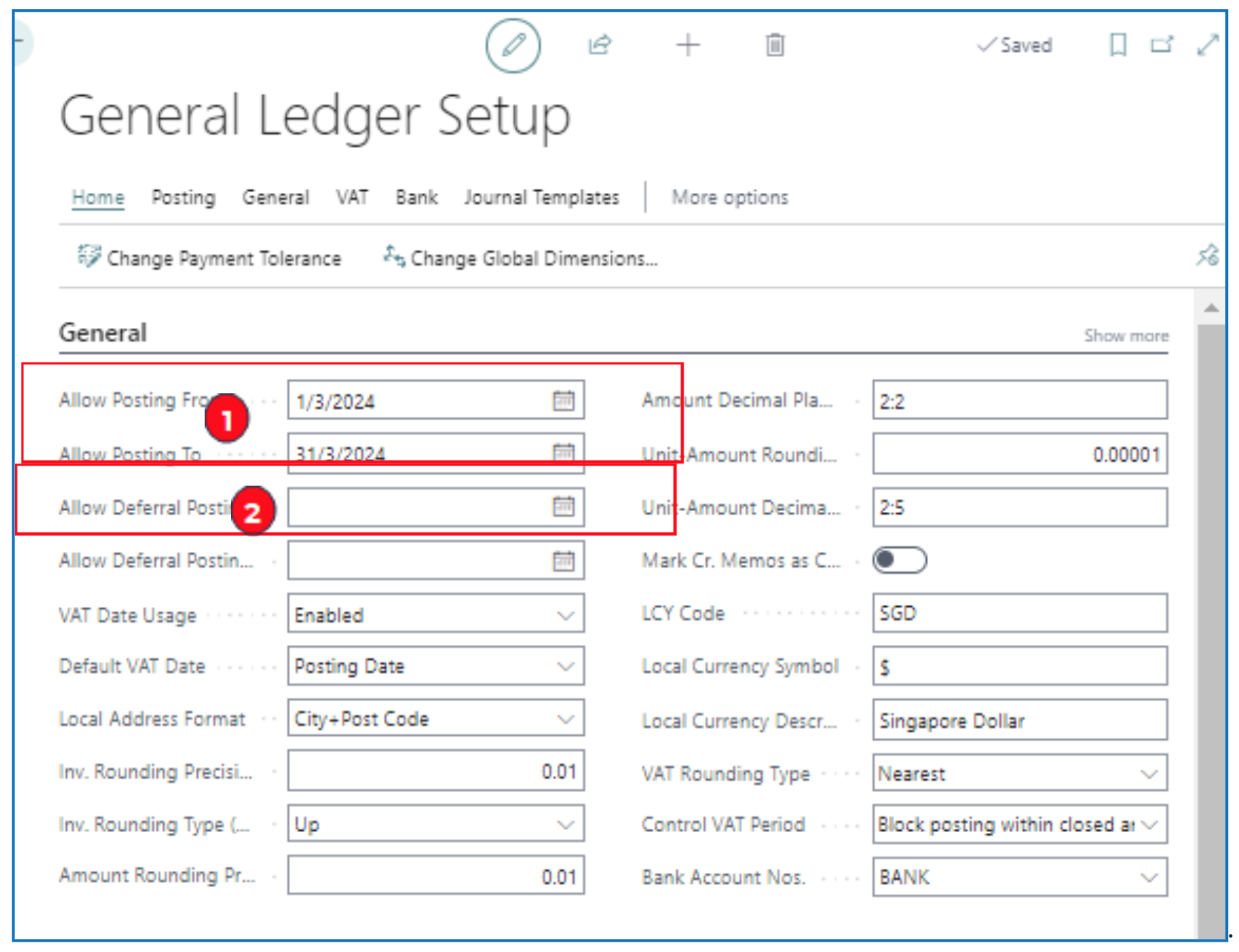
- Allow Posting From and Allow Posting To — If these fields are left blank, users can post to any period.
To maintain control over periods for posting, define the start and end date for the posting month.
- Allow Deferral Posting — These date fields are blank to allow deferral posting into future periods.
EXCEPTION:
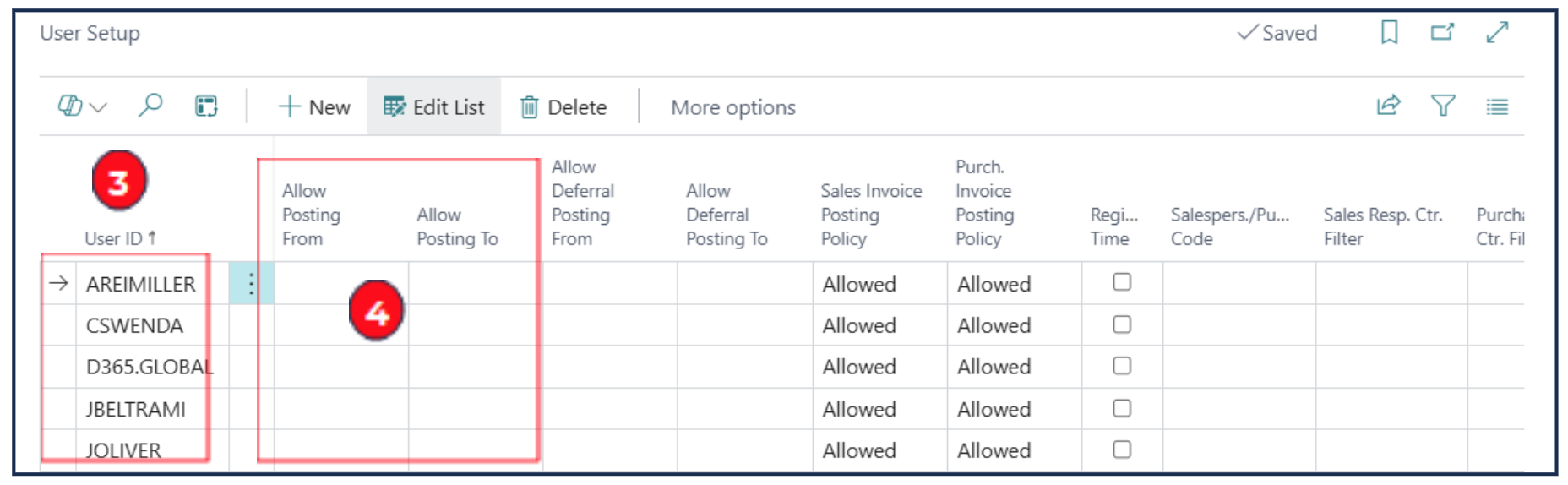
While the General Ledger Setup dates control the month for posting to all users, there is an exception that can be applied to selected users.
Navigate to User Setup list page.
-
User ID — Select the user to be given “permission” to post to closed period as defined in the General Ledger Setup.
-
Allow Posting From and Allow Posting To — Use these date fields to provide posting access to periods (this overrides the periods defined in General Ledger Setup for all other users).
Year-end Close
At the end of the Financial Year (as defined in Accounting Periods), closing the Year-end is a non-reversible process.
The system automatically closes off all income statement accounts and posts the balancing amount into the specified Retained Earnings account (in the runtime prompt).
There are 2 steps in this process:
- Close Year
- Close Income Statement
Close Year End
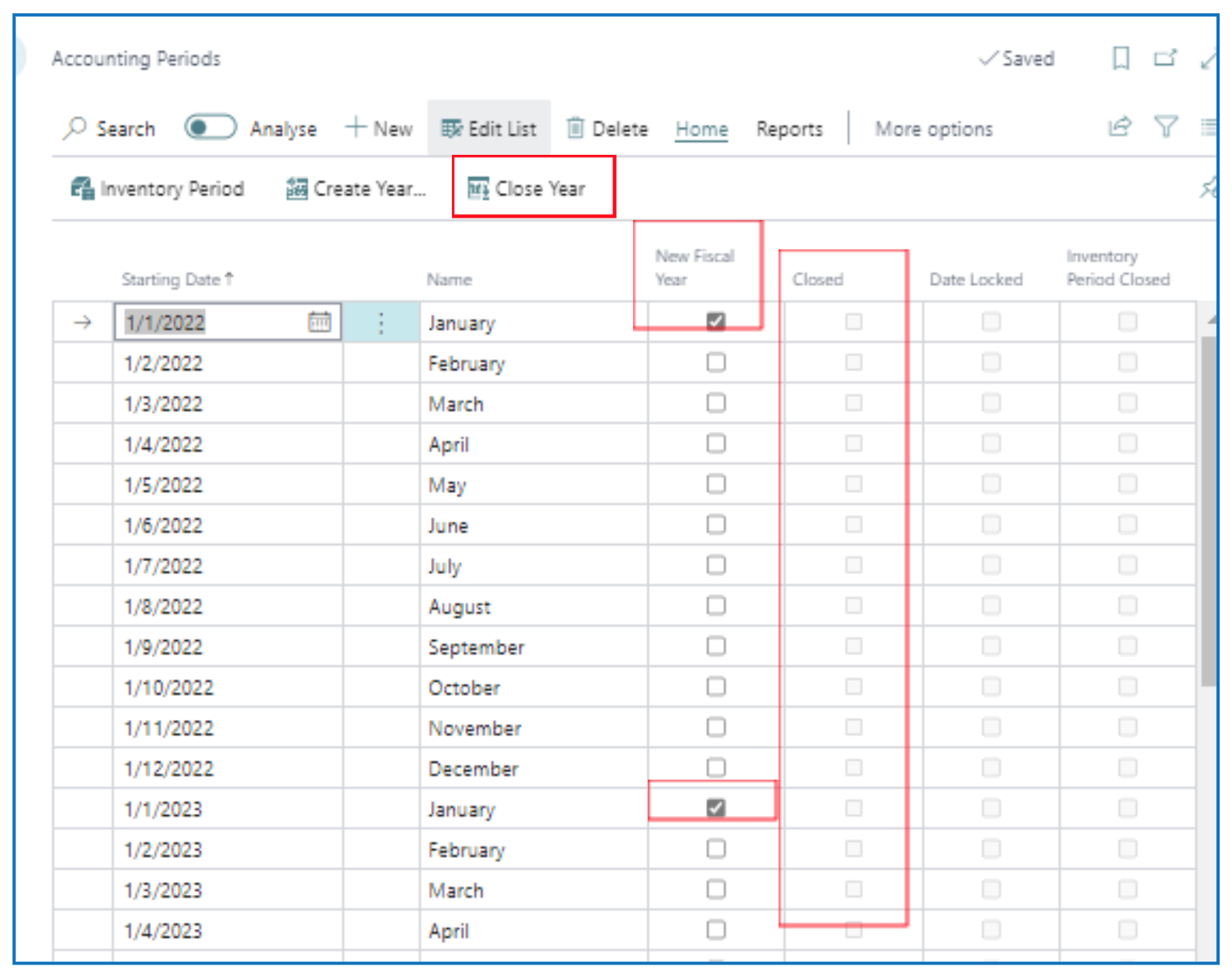
Navigate to Accounting Periods list page – menu option Finance > Accounting Periods and click on Edit List.
-
When accounting periods are defined, the first period of the new year is indicated. The year is not closed, so the Closed checkbox is unticked.
-
To close a financial year, click on Close Year. This will pop-up a warning message:
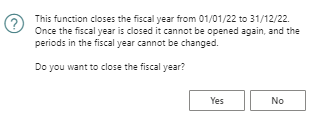
When this process is carried out, the financial year periods will be closed (if Yes is accepted). It cannot be undone.
NB: The earliest/first “open/unclosed” financial year will be defaulted in this process. If other financial years are to be closed, this process is repeated for each financial year (i.e. you cannot choose to close any financial year). Ensure that all accounting transactions are completed for the year before running this process.
-
Once the Close Year process is completed,
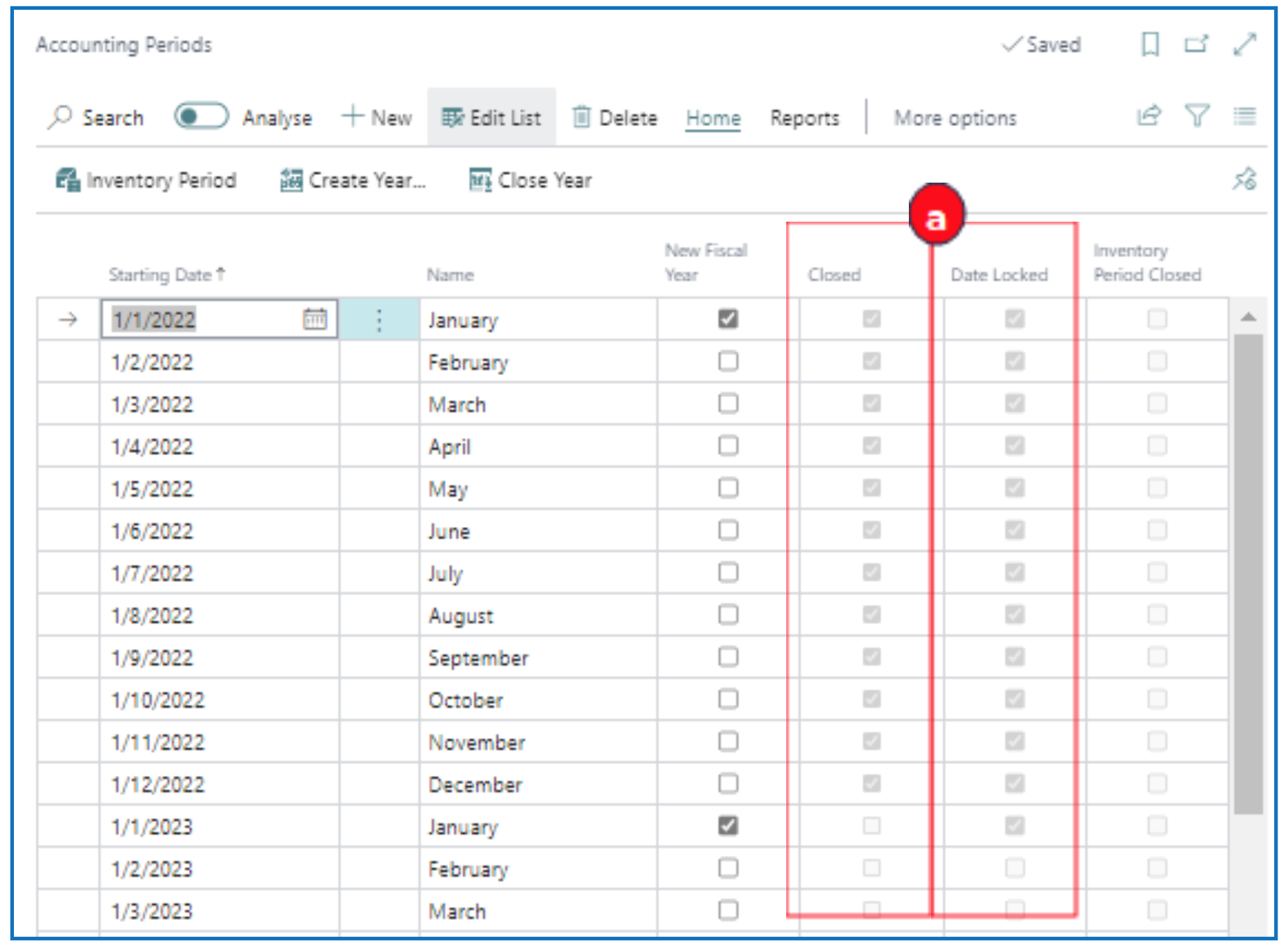
a) Each accounting period will be closed, and the period dates will be closed (for transaction entries).
b) Run the Close Income Statement step (see below section) to close off all income statement accounts and update the nominated Retained Earnings account.
Close Inventory Periods
Although the closing of inventory periods is not mandatory, it is recommended to do so for accurate inventory costing. Inventory periods can be closed if all shipment (outbound) and receipt (inbound) inventory entries are posted for the period and the costs of all items are correctly adjusted.
Before closing an inventory period,
-
Navigate to Adjust Cost > Item Entries to check that none are unposted.
-
Run Close Inventory Period — Test report to determine if there are unposted shipments (outbound inventory) and receipts (inbound inventory).
-
Run Post Inventory to G/L — To ensure that all inventory sub-ledger transactions are posted into G/L.
To close inventory periods, select Inventory Period to open the Inventory Periods list page.
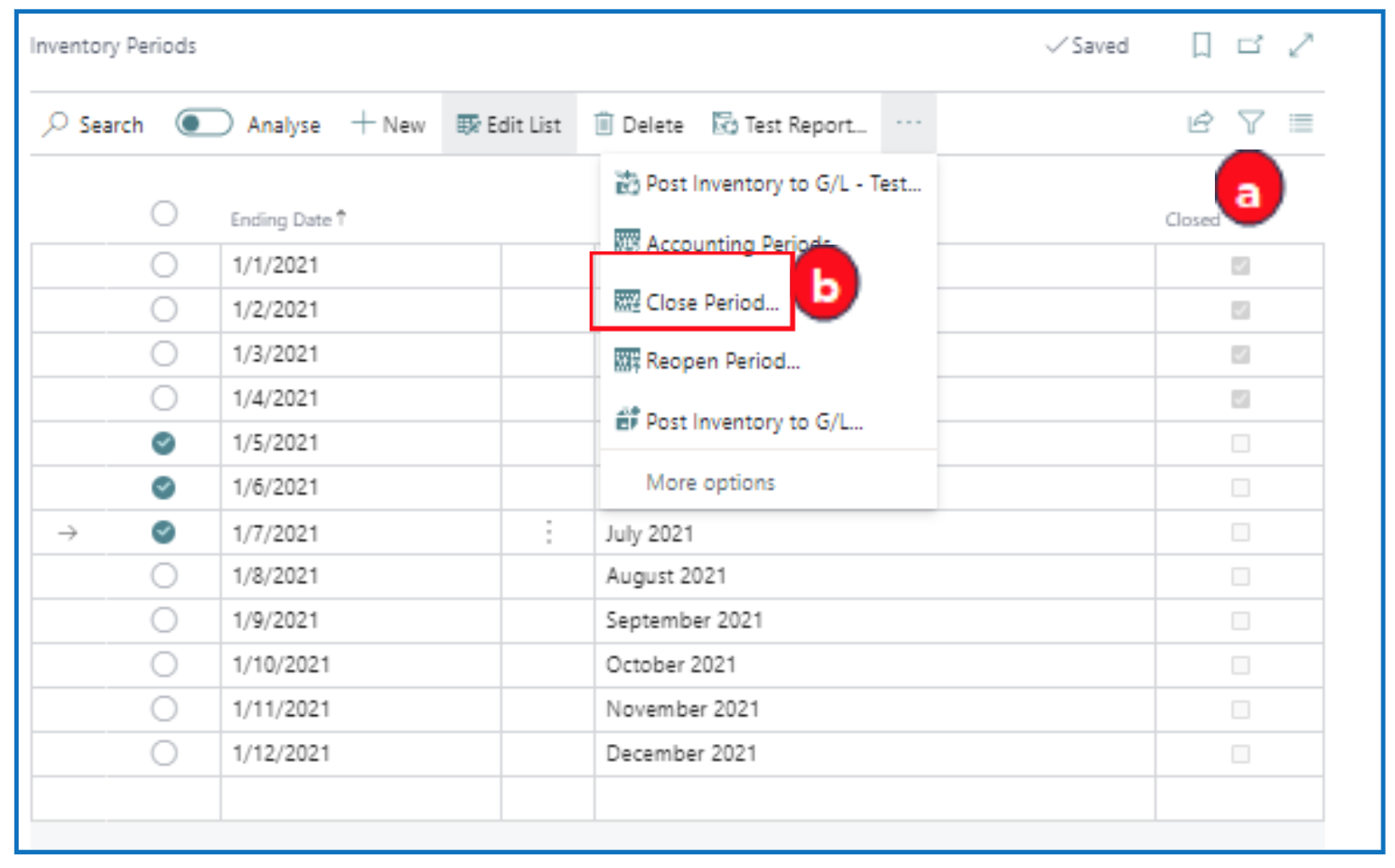
a) Inventory periods that have been closed are ticked.
b) Select one or more periods to close, and select ellipsis menu option Close Period to close selected periods.
NB: Unlike financial periods, inventory periods can be re-opened by selecting Reopen.
Close Income Statement
After the financial year is closed, navigate to Close Income Statement to open the pop-up selection filter.
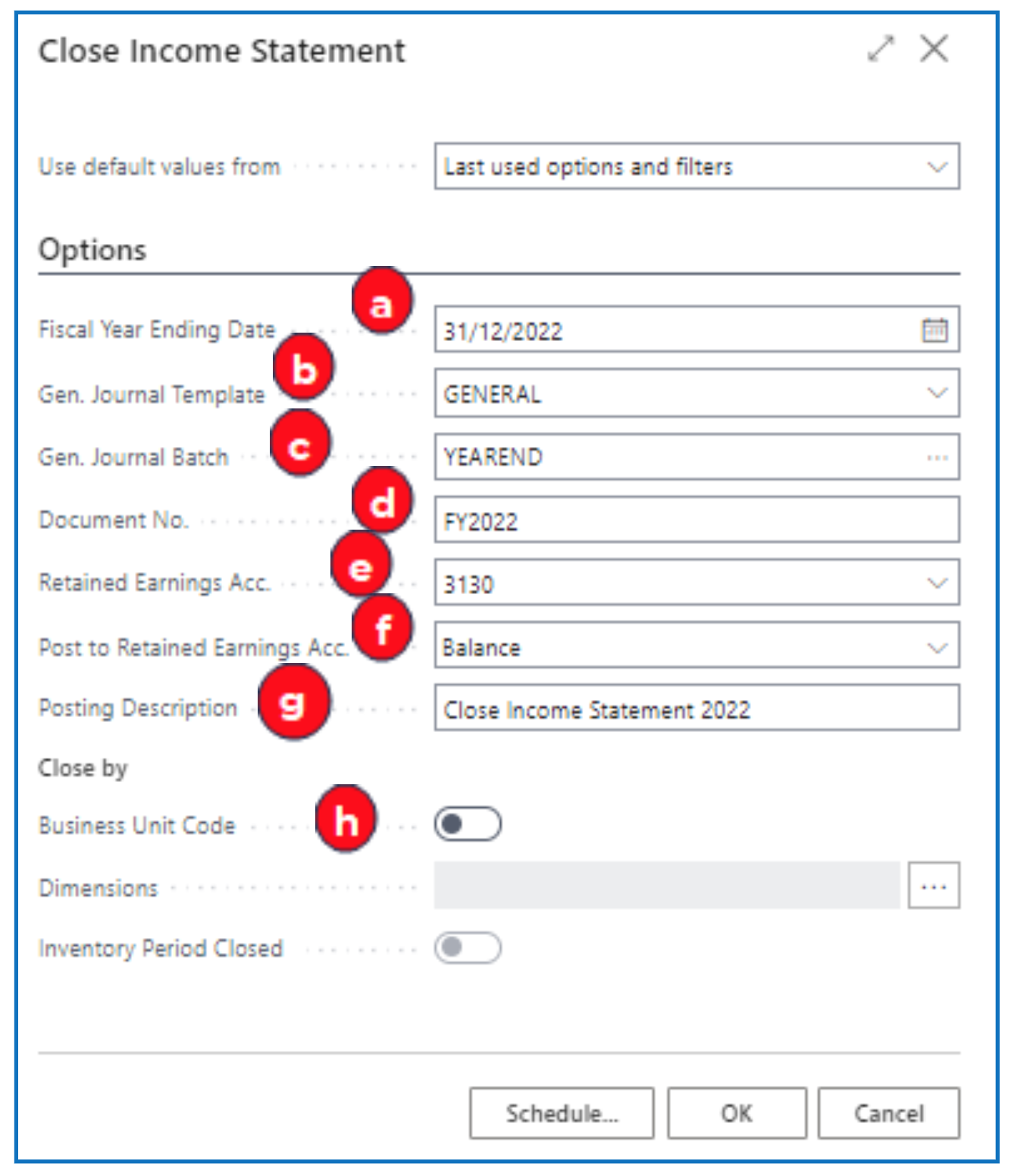
a) Fiscal Year Ending Date — This defaults to the last period date for the financial year that was just closed (in step 1). The system checks for past closed income statement transactions based on dates prefixed by “C”.
b) Gen. Journal Template — Select the journal template for the system-generated income statement journal.
c) Gen. Journal Batch — Select the batch name for the journal.
d) Document No. — This should default to the batch name defined “no. series” or can be manually entered
e) Retained Earnings Acc. — Select the correct retained earnings G/L account to post the balancing amount when closing out Income Statement accounts.
f) Post to Retained Earnings Acc. — Select:
a. Balance — This will create one journal line for the balance of (Income — Expenses).
b. Details — This will create one journal line for each account (contra amounts).
g) Posting Description — Use the default description text or enter one.
h) Optional:
a. Business Unit Code — Only applicable if Business Unit feature is used.
b. Dimensions — Select Dimension codes used in reporting for accounts.
c. Inventory Period Closed — Indicates if the inventory periods are also closed.
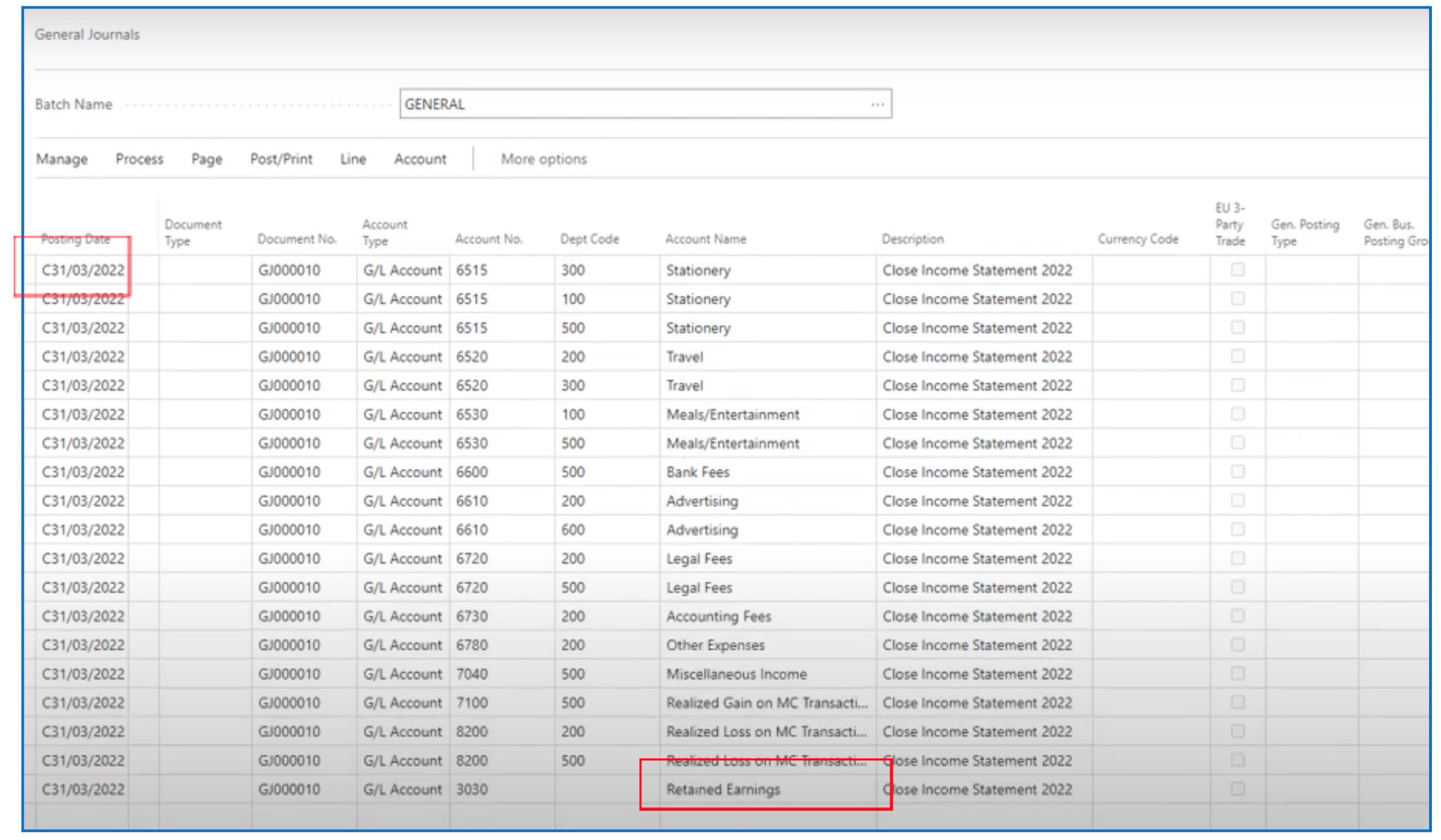
Example of a Close Income Statement general journal showing the Balance amount posted to Retained Earnings account.
Note: The transaction date is prefixed with C.
Written By:
Peter Loo
Team Leader, Business Central
Connect on LinkedIn