Legal User Guide for Microsoft Dynamics 365
Introduction
Purpose
This user guide provides an overview of the Legal Solution built on Microsoft Dynamics 365, designed to support the full lifecycle of legal work, from initial client enquiry through to matter closure and invoicing.
The guide is intended to help users:
- Understand how the system is structured
- Learn how to use each part of the solution confidently
- Follow consistent and compliant processes across the firm
It explains what each area of the system is used for, when it should be used, and how it fits into the broader legal workflow.
Who This Guide Is For
This guide is designed for users across different roles within a legal practice, including:
-
Intake & Administration Staff
Users responsible for capturing new enquiries, managing client details, and routing matters. -
Lawyers & Fee Earners
Users managing matters, recording activities, tracking time, and collaborating on legal work. -
Partners & Practice Leaders
Users overseeing risk, conflicts, pricing, and matter performance. -
Finance & Billing Teams
Users responsible for reviewing billing events, expenses, and generating invoices. -
System Administrators
Users supporting configuration, access, and governance (high-level understanding only).
What Is the Legal Solution?
The Legal Solution is a matter-centric practice management system built using Microsoft Dynamics 365 and Dataverse.
At its core, the solution is designed to help legal practices:
- Capture and assess new client enquiries
- Manage conflict of interest checks
- Track pitches and proposals
- Open and manage legal matters
- Securely store and manage documents
- Record time and expenses
- Maintain compliance and auditability throughout the matter lifecycle
Key Principles of the System
The Legal Solution is built around the following core principles:
- Matter-Centric Design
All work is organised around a Matter, which represents a single piece of legal work for a client. Documents, activities, billing, conflicts, and access are all tied back to the matter.
- Risk & Compliance First
Conflict checks, access controls, and audit trails are embedded throughout the system to protect the firm and meet professional obligations.
- Secure & Controlled Access
Users only see matters and documents they are authorised to access. Client portal access is controlled at an individual level, not broadly by organisation.
- Scalable & Practice-Aware
The system supports multiple practice areas (Law Types), each with tailored intake fields and workflows, while maintaining a consistent overall structure.
Key Legal Concepts Used in the System
To use the system effectively, it is important to understand a few core concepts that appear throughout the solution.
-
Client: A Client is the individual or organisation the firm represents and bills. A client may have multiple matters over time.
-
Matter: A Matter represents a single legal engagement or piece of work. Once a matter is opened, the firm is legally responsible for the work carried out under it.
-
Pitch: A Pitch represents proposed legal work that has not yet been accepted by the client. It is used for scoping, pricing, and decision-making before a matter is formally opened.
-
Conflict of Interest: A Conflict of Interest occurs when the firm’s ability to act independently or in a client’s best interests may be compromised. Conflict checks are mandatory and tracked within the system.
-
Matter Reference: The Matter Reference is the internal legal file identity that links all stages of work together, from enquiry to pitch, matter, documents, and billing. It ensures continuity, security, and auditability across the lifecycle.
System Overview & Navigation
Accessing the Legal Hub
The Legal Solution is delivered through Microsoft Dynamics 365 using the dedicated Legal Hub application.
The Legal Hub is the central workspace for managing:
-
Potential New Clients
-
Conflict Checks
-
Pitches
-
Matters
-
Time & Billing
-
Invoices
All legal work within the system is organised around Matters, ensuring consistency, security, and auditability.
Accessing the Application
The Legal Hub can be accessed via:
https://<YOUR-ENVIRONMENT-NAME>.crm6.dynamics.com/
Users must log in using their Microsoft organisational account. Multi-factor authentication may apply depending on firm policy.
Licensing Requirements
To use the Legal Hub, users must have a valid:
-
Dynamics 365 Customer Engagement license or Sales Enterprise, or
-
Dynamics 365 Team Member license (for limited-access users)
Legal Hub Navigation Menu
The Legal Hub is organised into clear functional sections in the left-hand navigation menu. Each section represents a different stage of the legal and operational workflow.
| Navigation Item / Section | Reference Image |
|---|---|
| Home • Home/Recent/Pinned — Home, Recently Viewed and Pinned Records. My Work: This section contains personal productivity tools. • Activities — Tasks, emails, appointments, and phone calls assigned to you. • Dashboards — Visual reports and performance summaries. Clients: Used to manage client records and related entities. • Organisations — Companies, trusts, and legal entities. • People — Individual contacts (clients, stakeholders, related parties). Conflict Checks: Used to manage conflict of interest processes. • Conflict Requests — Initiate and track conflict checks. • Related Parties — Parties linked to conflict assessments. • Conflict Matches — Potential conflict results requiring review. Time & Billing: Used by lawyers and finance teams to record and bill work. • Matters — Active and closed legal matters. • Time Trackers — Log time entries against matters. • Billing Events — Automatically created billing records from time entries. • Expenses — Disbursements and expenses linked to matters. • Invoices — Generated invoices for billing. • Products — Roles, services, and billable items. Business Development: Used before work formally becomes a matter. • Potential New Clients — Initial enquiries (Leads). • Pitches — Proposed legal work before acceptance. • Competitors — Used when tracking competitive bids. • BD Literature — Business development documents. • BD Accelerator — Supporting tools for pitch development. Marketing: Used for sending out quotes, orders, outreach and campaign management. • Quick Campaigns — Managing quick campaigns for marketing. • Quotes — Formal pricing proposals linked to pitches. • Orders — Accepted commercial agreements (if used). |  |
Matter-Centric Design and Matter Reference
The Legal Hub is built around a matter-centric design. This means that all legal work is organised around a single core record: the Matter.
A Matter represents a single legal engagement or file.
Examples include:
- a commercial contract review
- a litigation dispute
- a property settlement
- an employment claim
- others
Once a Matter is opened, all related activity is linked to it, including:
-
Emails and correspondence
-
Meetings and phone calls
-
Time entries
-
Billing events
-
Expenses and disbursements
-
Invoices
-
Related parties
-
Documents (stored in SharePoint)
Matter Reference
Behind the scenes, each Matter is supported by a Matter Reference record.
The Matter Reference acts as the system’s anchor and ensures:
-
A single SharePoint document location
-
Continuity from potential new client → pitch → matter
-
Controlled portal visibility
-
Proper access management across related records
Users generally work directly within Matters, while the Matter Reference supports governance and document integrity in the background.
Searching, Views, Filtering & Sorting
The Legal Hub provides multiple ways to quickly locate information.
Efficient searching is critical in a legal environment where matters, clients, and documents must be retrieved accurately and quickly.
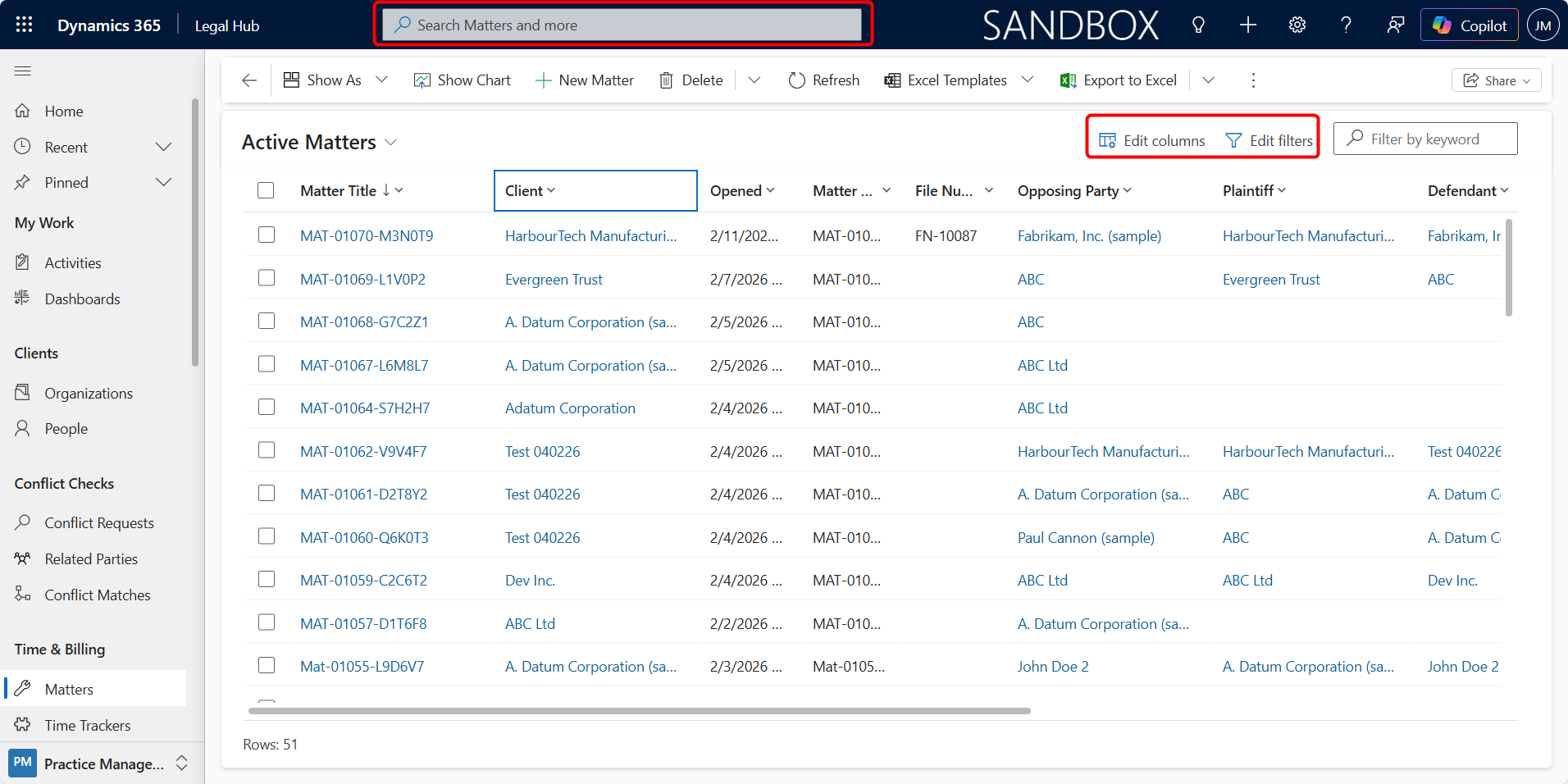
Using Global Search
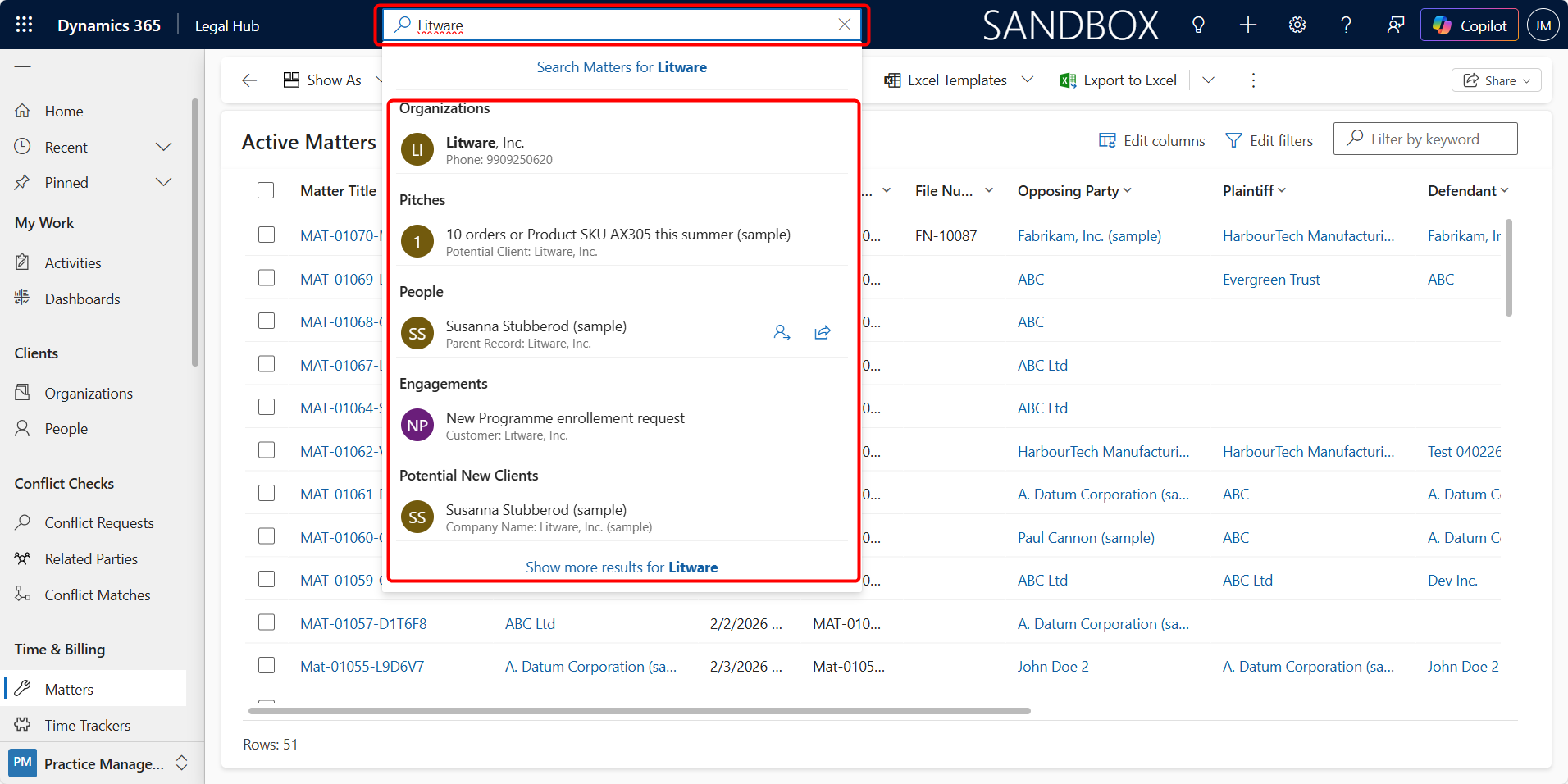
The Global Search bar is located at the top of the screen.
You can search by:
-
Matter Number (e.g., MAT-01069-L1V0P2)
-
Client Name
-
Organisation Name
-
Contact Name
-
Invoice Number
-
Keywords within record names
Searching for a Matter
-
Click in the Search bar.
-
Type the Matter Number or Client Name.
-
Press Enter.
-
Select the correct result from the list.
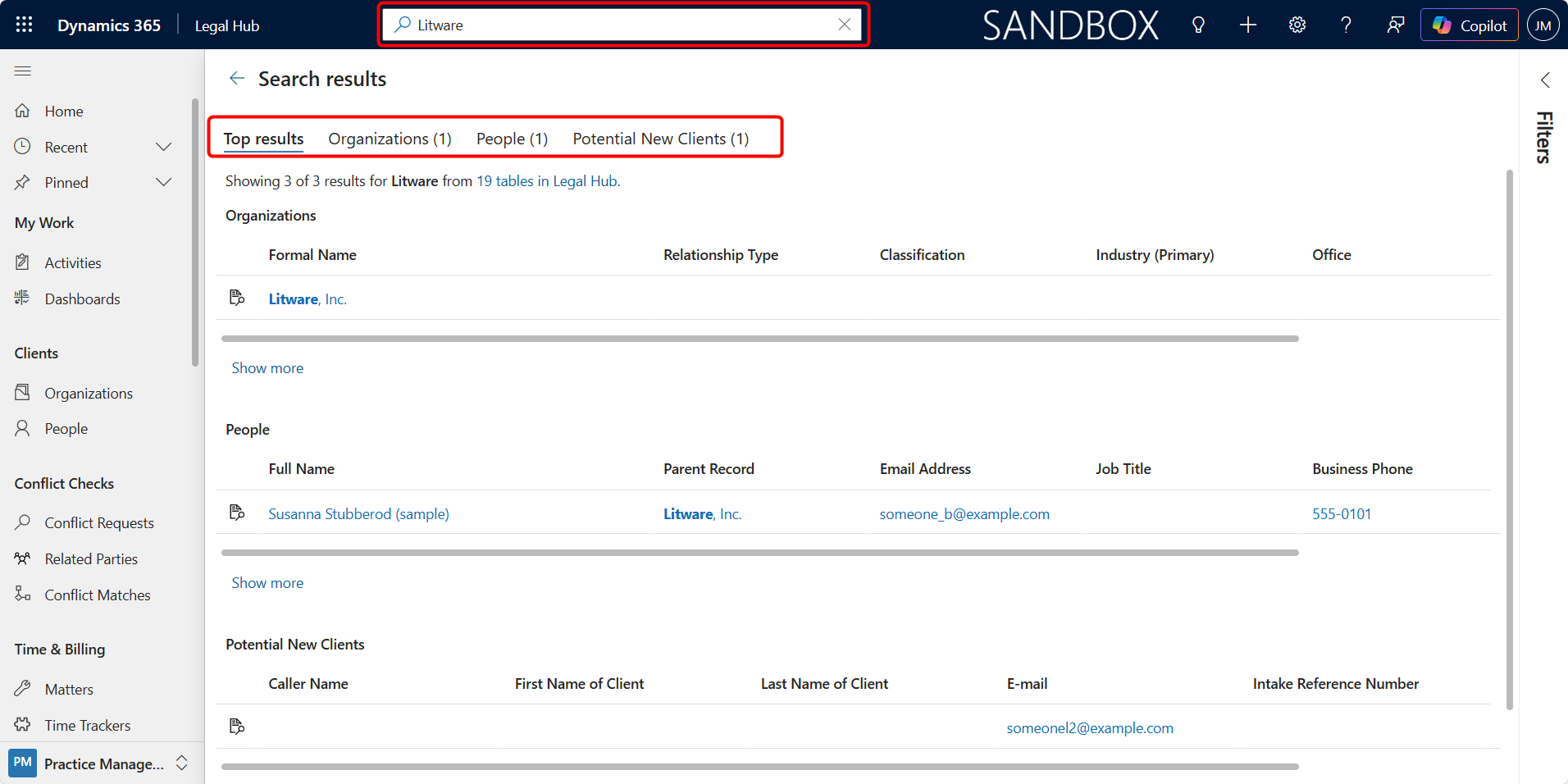
Global search scans across multiple tables, making it useful when you are unsure where a record is stored.
Using Views
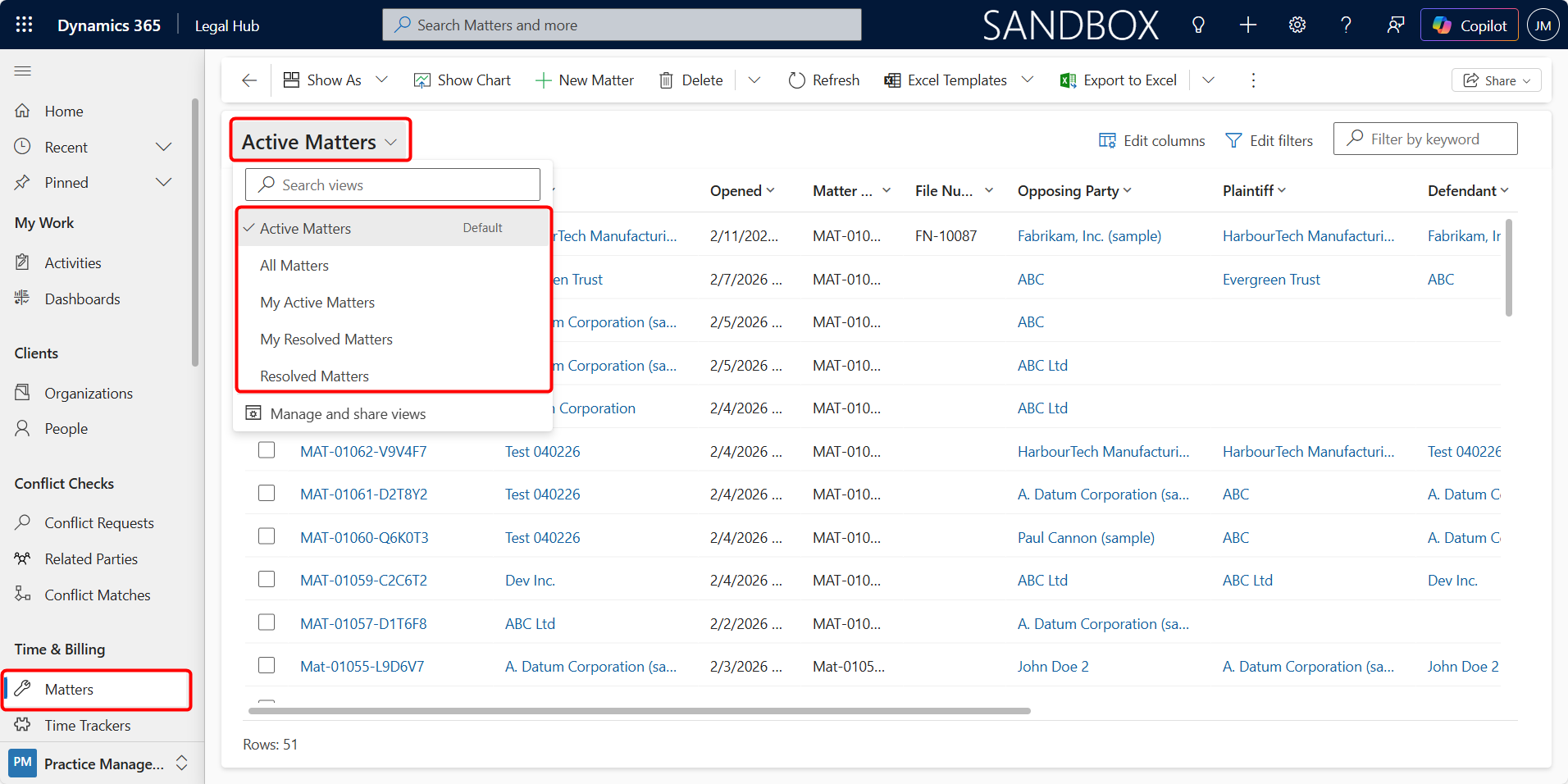
A View is a predefined list of records based on filters.
For example:
-
All Matters
-
My Active Matters
-
My Closed Matters
-
Closed Matters
Views help users focus only on relevant records without manually filtering each time.
Changing a View
-
Navigate to a table (e.g., Matters).
-
Click the view selector at the top-left of the grid.
-
Choose a different view from the dropdown list.
-
The grid updates automatically.
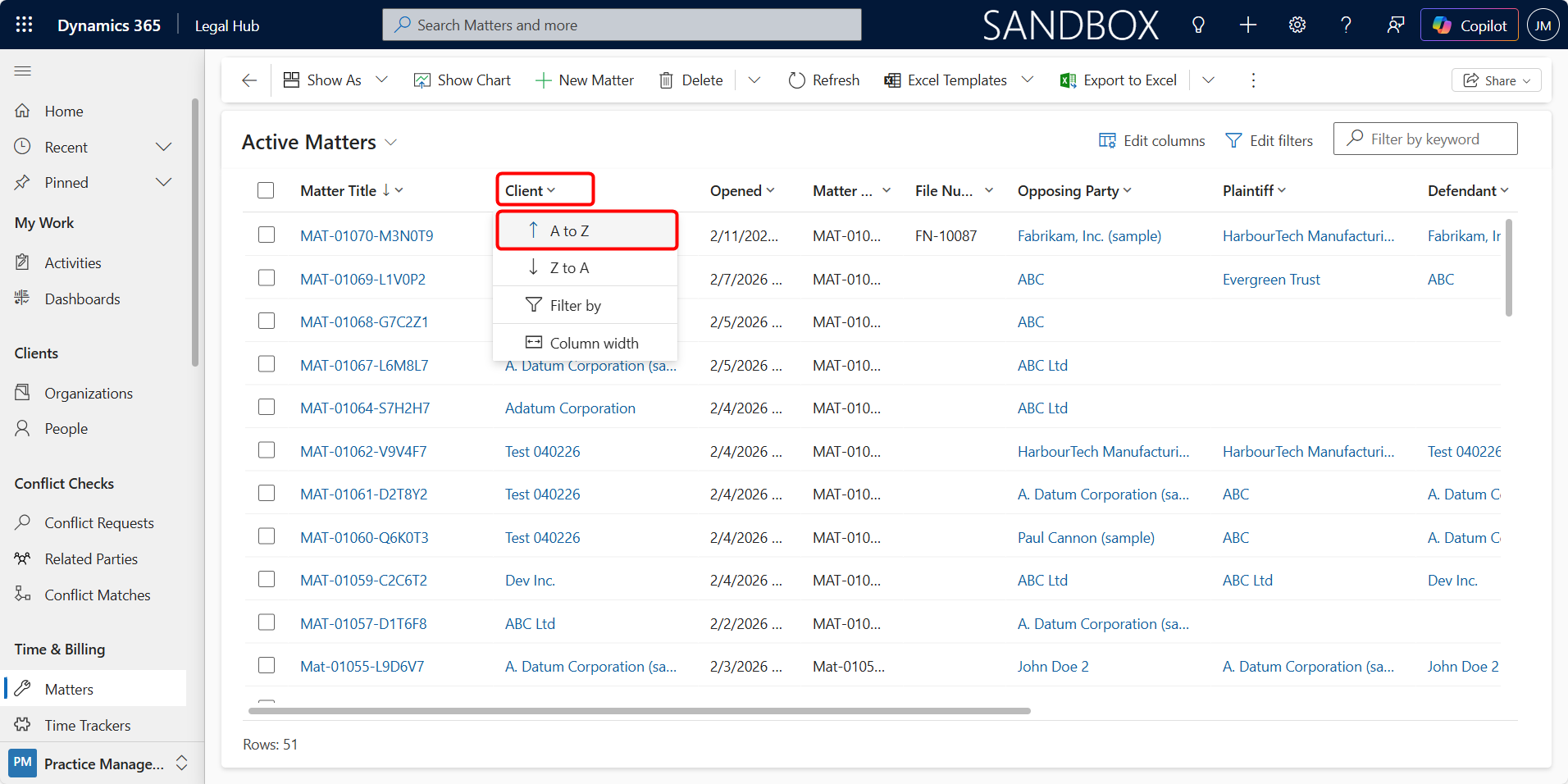
Sorting Records
You can sort records by clicking on a column header.
Examples:
-
Click Client to sort alphabetically.
-
Click Created On to sort by date.
-
Click again to reverse the order.
Filtering Records
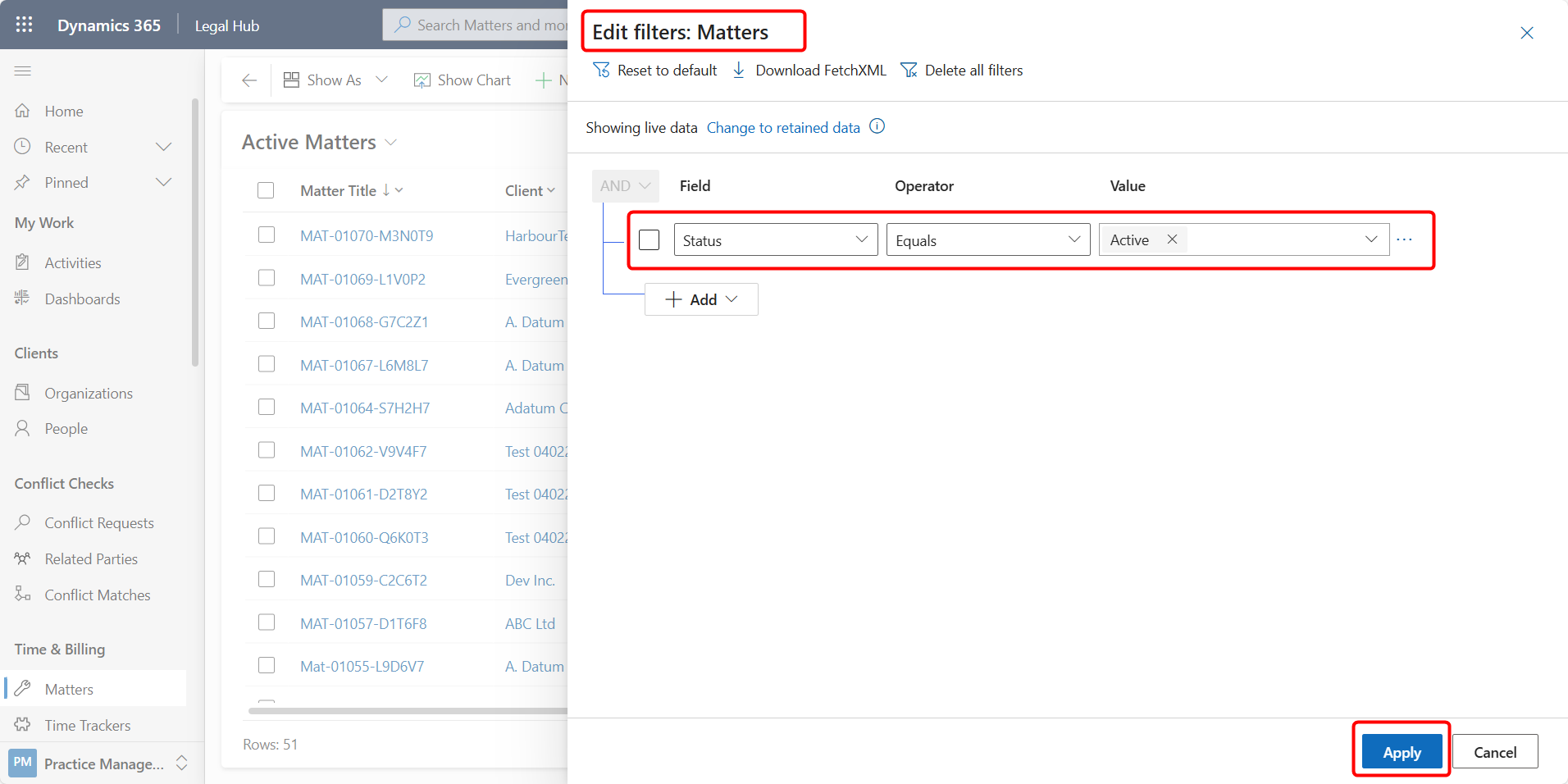
You can apply additional filters within any view.
Filtering Matters by tatus.
- Open the Matters table.
- Click Edit Filters.
- Add a condition (e.g., Matter Status = Active).
- Apply the filter.
You can combine multiple filters for more precise results.
Editing Columns in a View
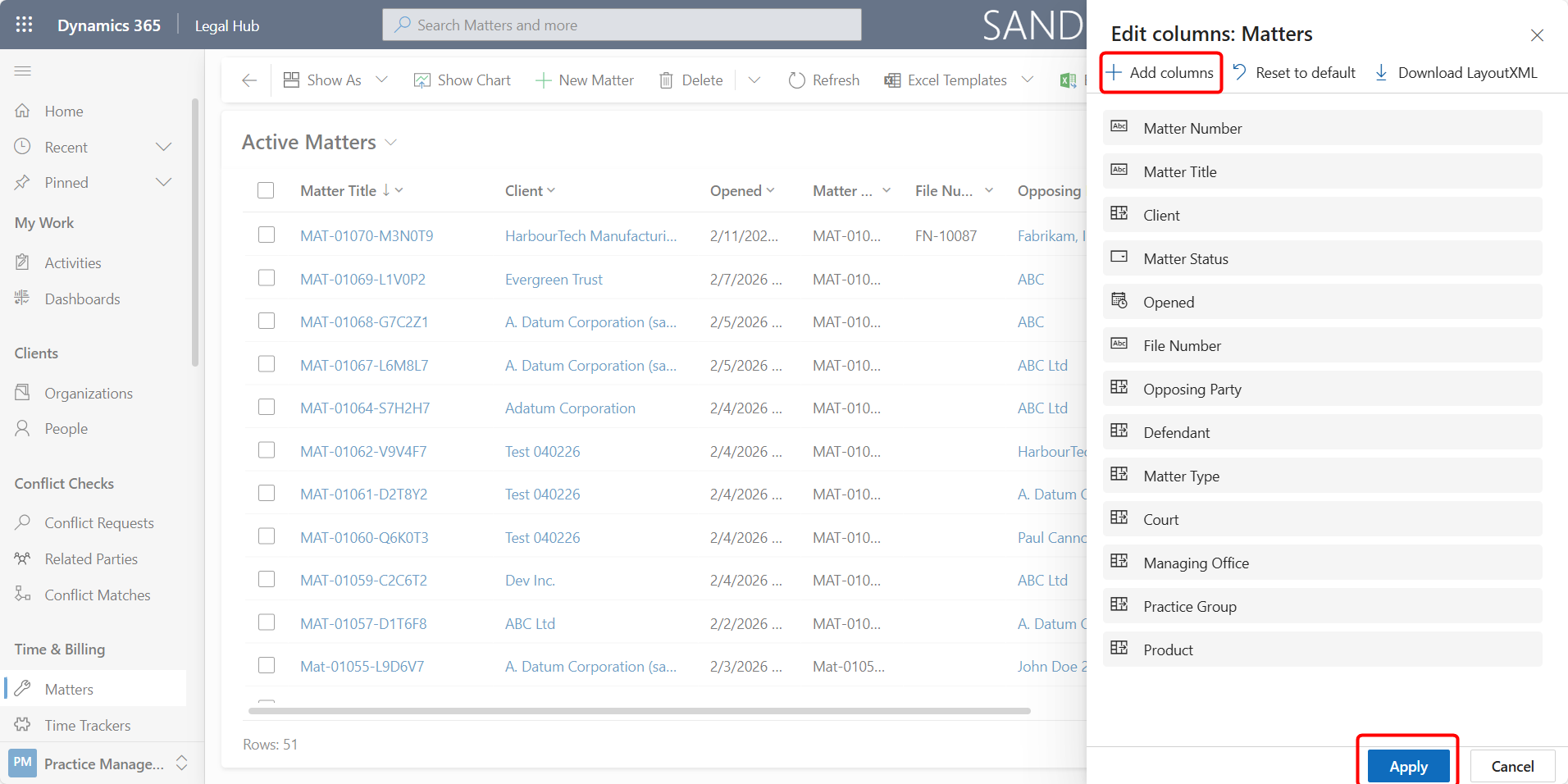
Users can customise which columns appear in a grid. This allows you to tailor the view to your role.
Editing Columns
-
Open a table (e.g., Matters).
-
Click Edit Columns in the top-right of the grid.
-
Add or remove columns as required.
-
Reorder columns by dragging them.
-
Click Apply.
Customising columns improves visibility and reduces the need to open individual records.
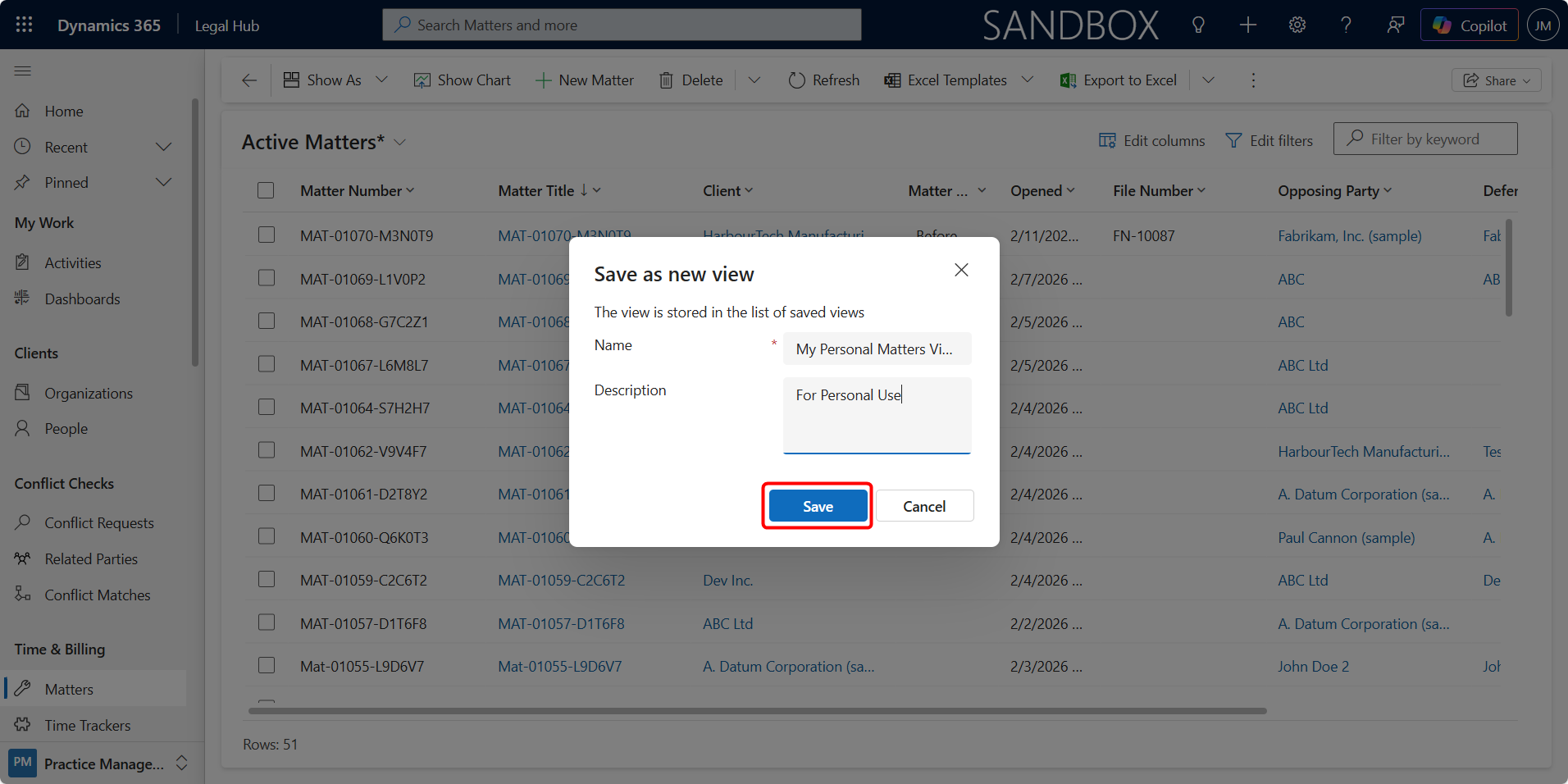
Saving a Custom View
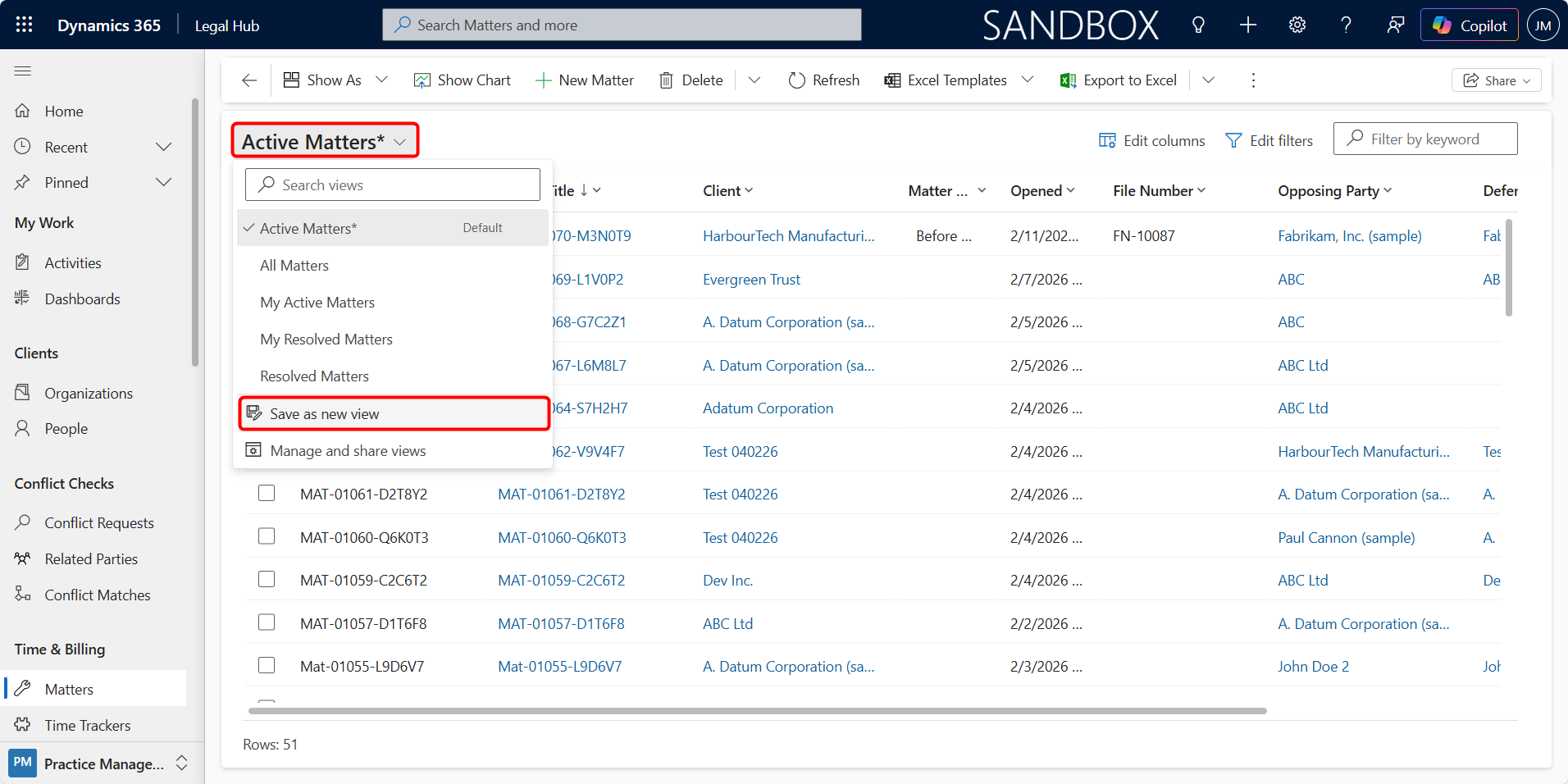
After filtering or editing columns, you may save the configuration.
To Save a View
-
Apply filters and adjust columns as required.
-
Click Save As New View.
-
Enter a view name.
-
Click Save.
You can then reuse this view anytime.
Setting a Default View
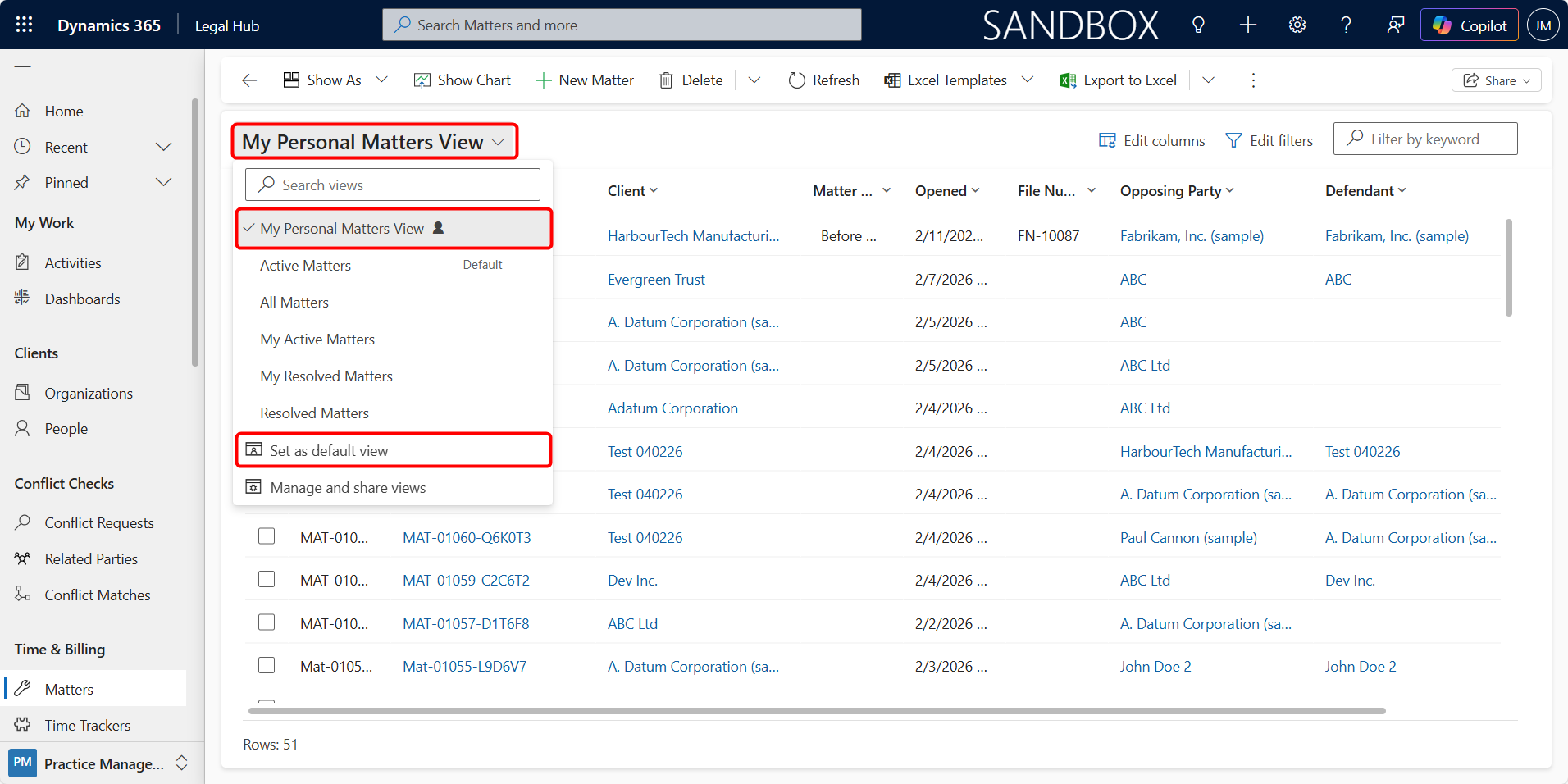
Users can set a view as their default.
To Set Default View
-
Open the view selector.
-
Select your preferred view.
-
Click on Set as default view options.
Your chosen view will load automatically when you return to that table.
Legal Matter Lifecycle Overview
The Legal Hub supports the complete lifecycle of legal work, beginning with a Potential New Client and concluding with Matter Closure and Invoicing.
The structured flow is:
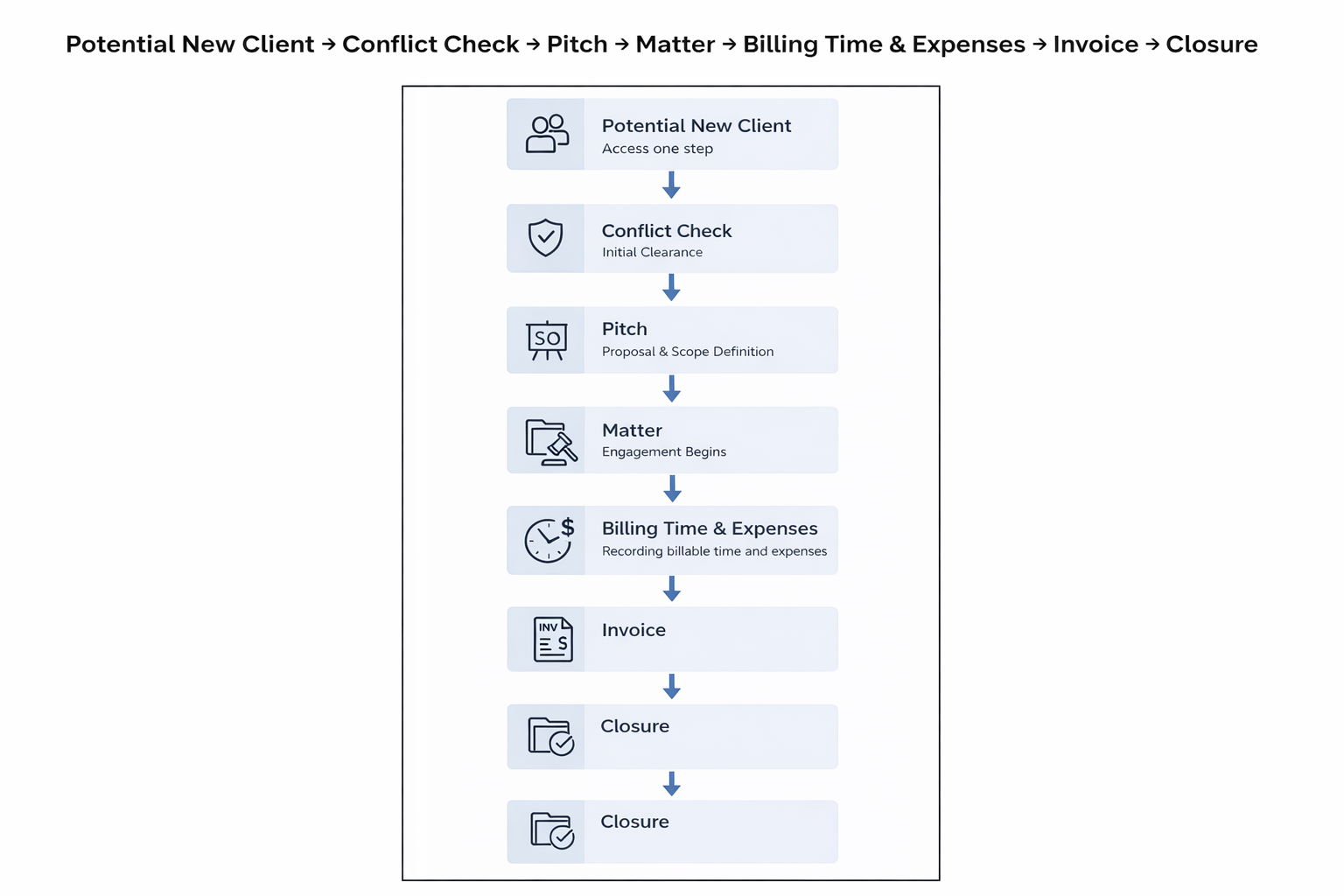
Potential New Client
-
The first point of entry into the system.
-
Captures client details and high-level issue information.
Conflict Check
Ensures there is no conflict of interest before progressing.
-
May occur immediately after intake
-
May be reconfirmed before Matter creation
-
Must be cleared before work begins
Pitch
Defines:
-
Scope of work
-
Fee structure
-
Risk level
-
Estimated hours
-
Deliverables
If accepted, it converts into a Matter.
Matter
-
Represents active legal work.
-
All operational activity, time, and documents are linked here.
Billing Time & Expenses
-
Time is logged.
-
Billing events are created automatically.
-
Disbursements are recorded.
Invoice
-
Billing events and expenses are compiled into invoices.
-
Documents are generated and stored.
Closure
-
Matter is closed.
-
Final billing completed.
-
File becomes read-only.