Legal User Guide for Microsoft Dynamics 365
Activities
Activities represent day-to-day interactions and follow-ups within the system. They allow users to track communication and tasks related to clients, matters, and business development.
Common activity types include:
-
Tasks (to-do items)
-
Emails
-
Phone Calls
-
Appointments (meetings)
Activities ensure that all work and communication is:
-
Recorded
-
Trackable
-
Linked to the correct record (e.g., Matter, Pitch, Client)
Activities help users:
-
Stay organised with follow-ups and deadlines
-
Maintain a complete communication history
-
Ensure accountability across teams
-
Support compliance and audit requirements
All activities are linked to records and also appear in the Timeline, giving a full history of interactions.
Create and Manage Activities
To access Activities:
-
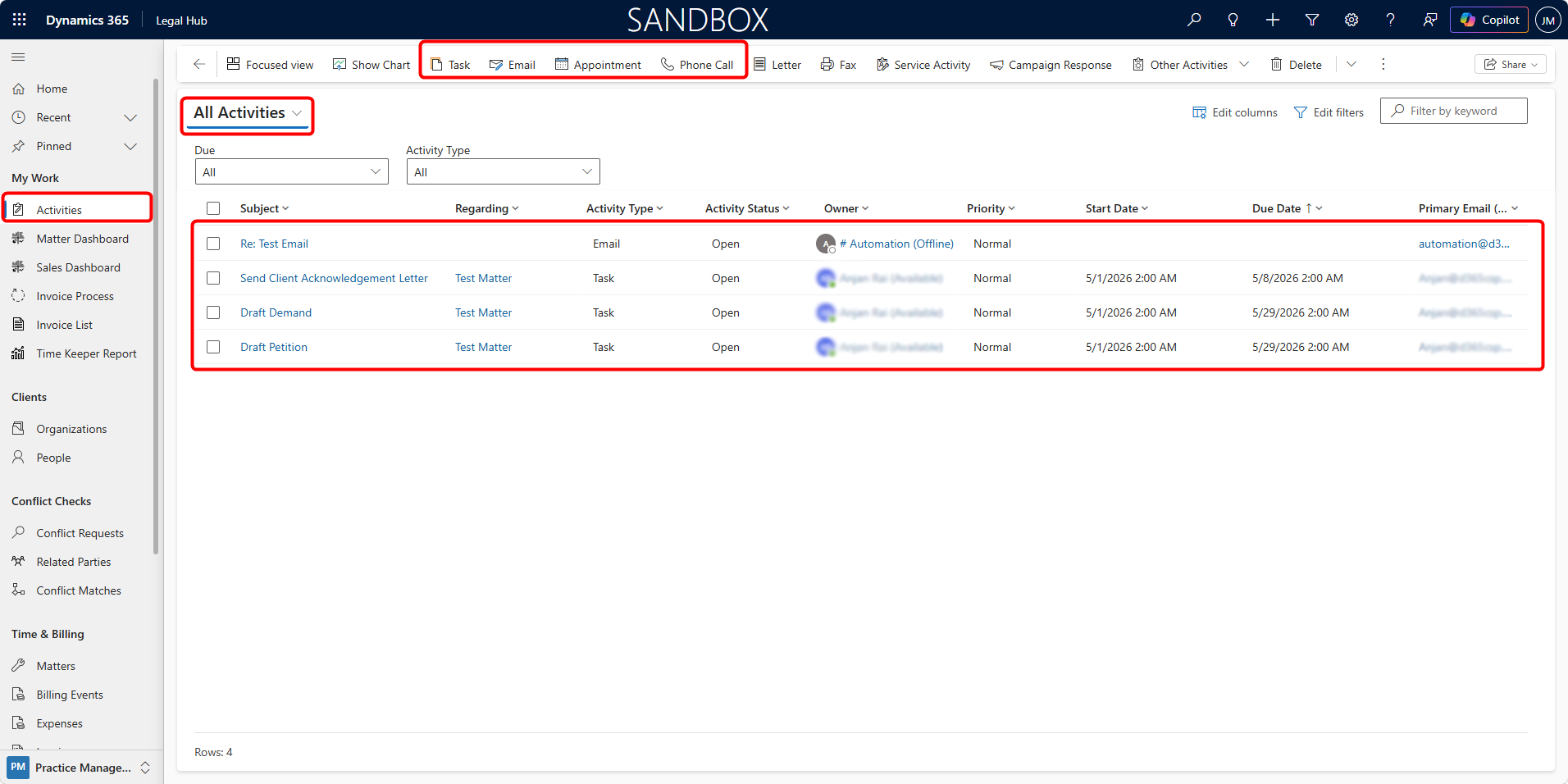
Navigate to My Work in the left-hand menu.
-
Select Activities.
This opens a list of all activities assigned to you.
You can:
-
View all open activities.
-
Filter by activity type (Tasks, Emails, Calls, Appointments).
-
Switch views (e.g., My Activities, Overdue Activities).
Creating Activities
Activities can be created in two ways:
Method 1 - From Activities List
-
Go to My Work → Activities.
-
Click + New.
-
Select activity type:
a. Task
b. Email
c. Phone Call
d. Appointment
-
Enter required details:
a. Subject
b. Due Date / Scheduled Time
c. Related Record (e.g., Matter, Pitch, Client)
d. Description
-
Click Save.
Method 2 - From a Record (Recommended)
Activities are best created directly from a record.
-
Open a Matter, Pitch, Organisation, or Person.
-
Go to the Timeline section.
-
Click:
a. Task
b. Email
c. Phone Call
d. Appointment
-
Enter details
-
Click Save
This ensures the activity is automatically linked to the correct record.
Managing Activities
To manage Activities, users can:
-
Open an activity to view or edit details.
-
Mark activities as Completed.
-
Update status or priority.
-
Reassign activities to another user.