Terms & Conditions Attachment for Purchase & Sales Orders User Guide in Dynamics 365 Business Central
Are you ready to try the solution or have questions?

Introduction
Purpose
The Terms & Conditions (T&C) Attachment app was developed to facilitate the attachment of a standard T&C document in emails sent for Purchase Orders or Sales Orders. By using this app, the Purchase Order and Sales Order document layouts do not need to be customised to include the T&C text. This minimises the need to amend custom layouts when T&C needs to be updated.
Feature Overview
Once the app is installed and configured, it provides:
-
A standard T&C (pdf) document attached to the email sent to customers or vendors.
-
Updates to the standard T&C are easily accomplished by replacing it with an updated T&C document.
-
Eliminates the need for custom layouts with T&C text.
To get the app visit in Microsoft Marketplace - Terms & Conditions Attachment for Purchase & Sales Order
Setup & Maintenance
The app applies to Purchase and Sales, where Purchase/Sales Orders are emailed to the vendor/customer. The T&C document accompanies these order documents when sent through emails. The pre-requisites are:
-
A Terms and Conditions document (in pdf format) needs to be created for either Purchases or Sales — each transaction type having the same or different T&C documents.
-
Customer/Vendor email addresses need to be in the master card, and outgoing email needs to be configured for use.
Purchase Order
The standard T&C attachment (pdf) needs to be uploaded into the new custom field Terms and Conditions in Purchase and Payables Setup.
Search and navigate to the Purchase and Payables Setup page and move to the Terms and Conditions field.
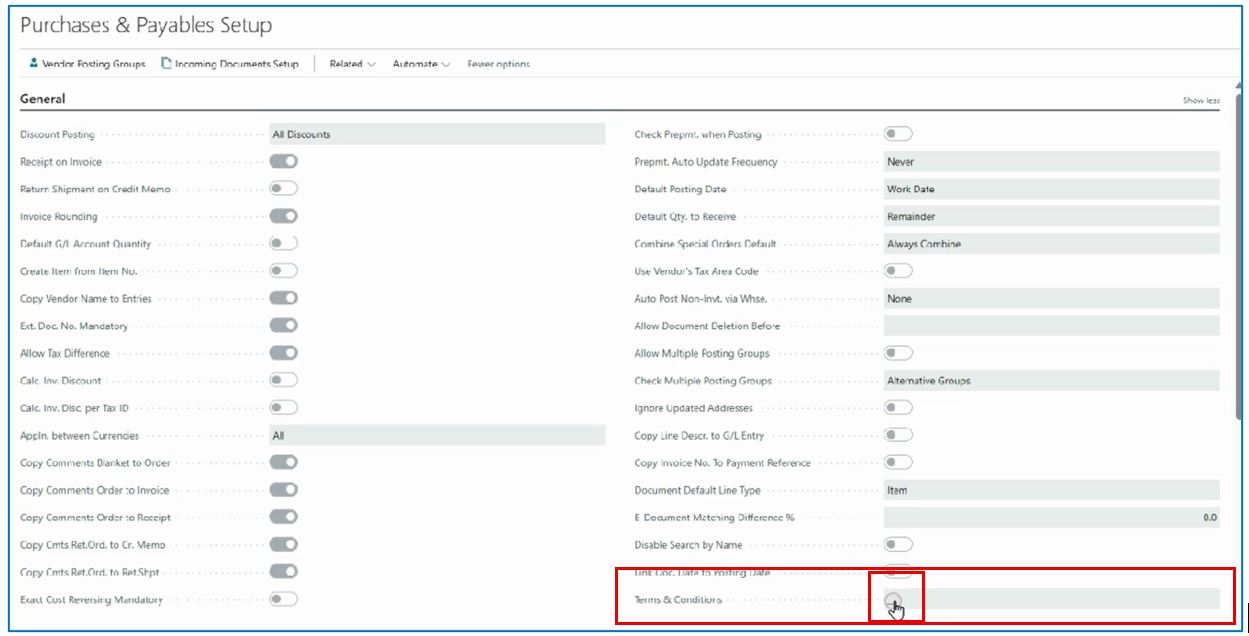
Click on the 3-dot menu on the left of the field to open a file upload dialog box.
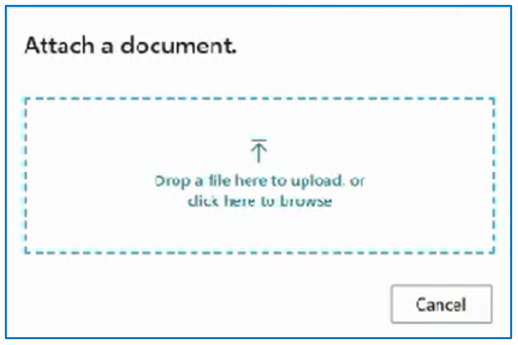
Once uploaded, the T&C document file name appears in the field.
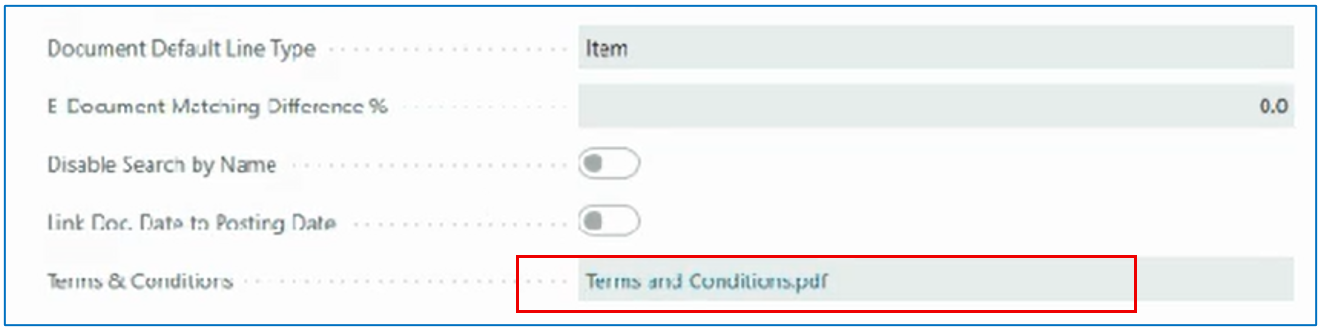
NB: Repeat these steps to upload new versions of the T&C document. If future versions of this T&C document are expected, it would be better to name the file accordingly as a new version overrides the existing version when uploaded.
Sales Order
The standard T&C attachment (pdf) for sales needs to be uploaded into the new custom field Terms and Conditions in Sales and Receivables Setup.
Search and navigate to the Sales and Receivables Setup page and move to the Terms and Conditions field.
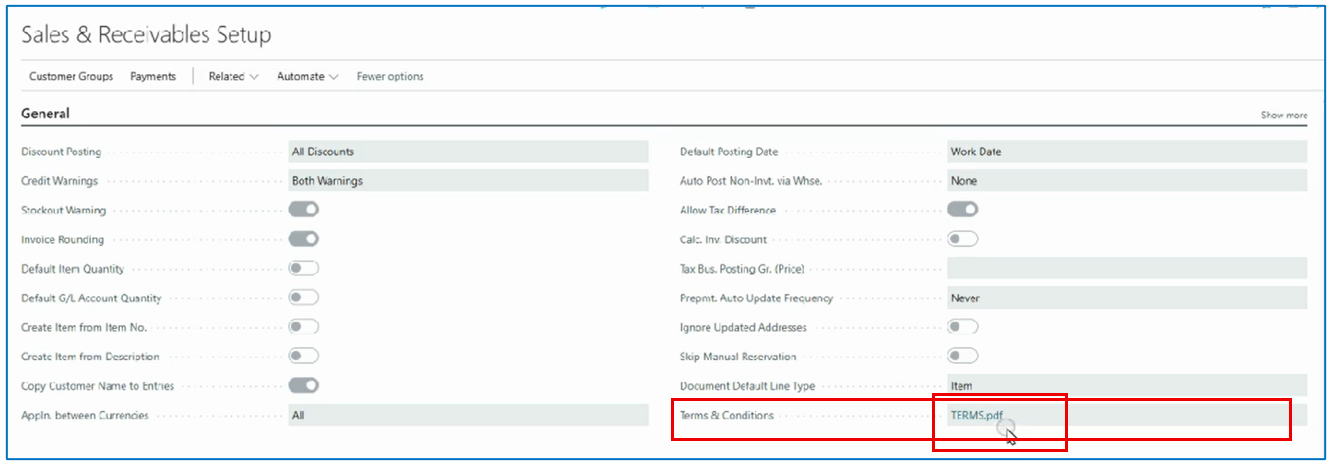
Click on the 3-dot menu on the left of the field to open a file upload dialog box.
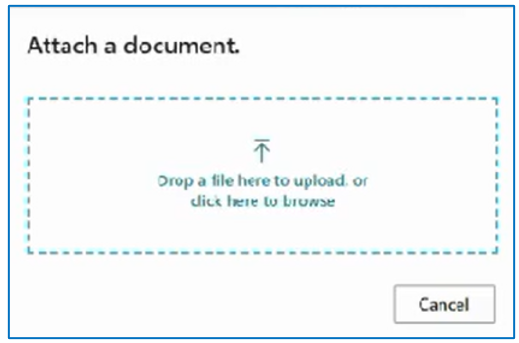
Once uploaded, the T&C document file name appears in the field.
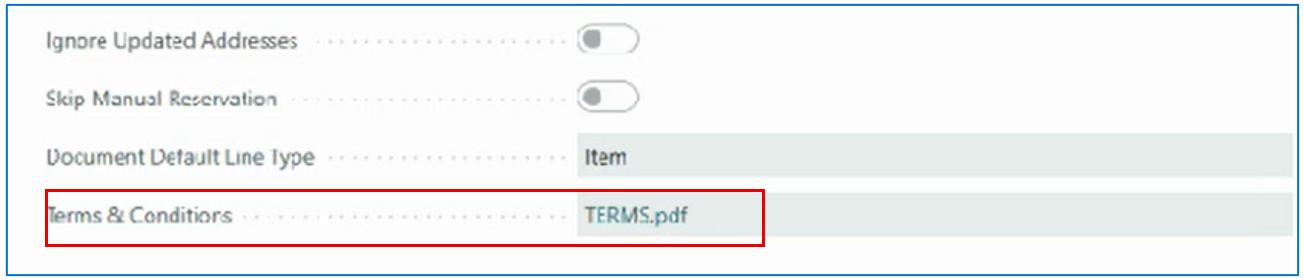
NB: Repeat these steps to upload new versions of the T&C document. If future versions of this T&C document are expected, it would be better to name the file accordingly as a new version overrides the existing version when uploaded.
Removing the T&C Document
If there is no further use of the T&C document, it can be removed from the Purchase and Payables Setup, as well as the Sales and Receivables Setup field.
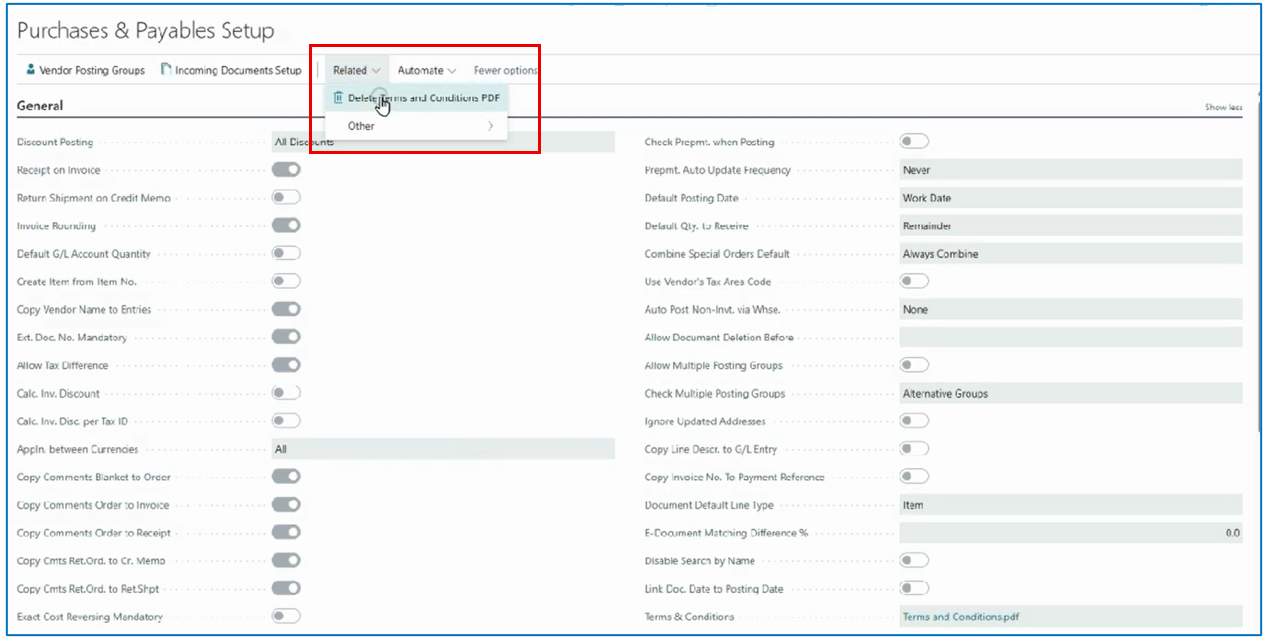
Select the menu option Related > Delete Terms and Conditions PDF. This action will remove the attached T&C document from the field.
Purchase Order Attachment
When emailing Purchase Order to the vendor, the Purchase Order (pdf) will be attached as well as the accompanying T&C document.

In the Purchase Order list page, select a Purchase Order and menu option Print/Send > Send.
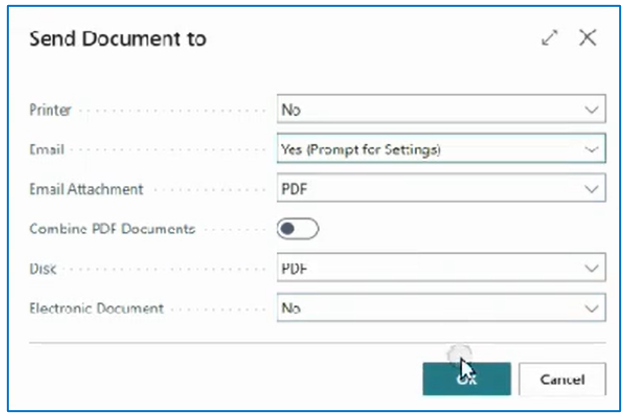
Select YES for Email and the email will be sent when OK is clicked.
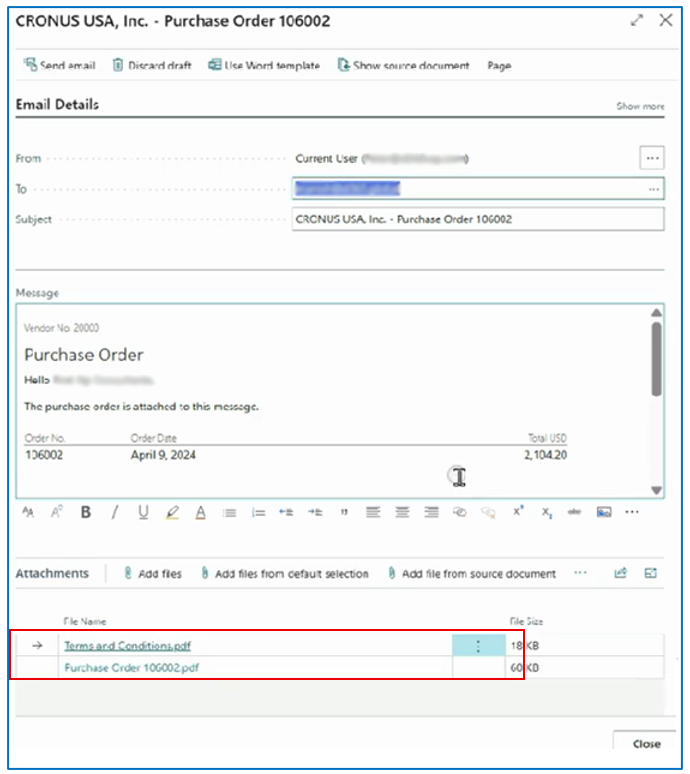
Yes — Prompt for Settings option allows you to view the email before it is sent. In the above example, the T&C pdf attachment is included in the email, as well as the Purchase Order.
Sales Order Attachment
When emailing Sales Order to the customer, the Sales Order (pdf) will be attached as well as the accompanying T&C document.
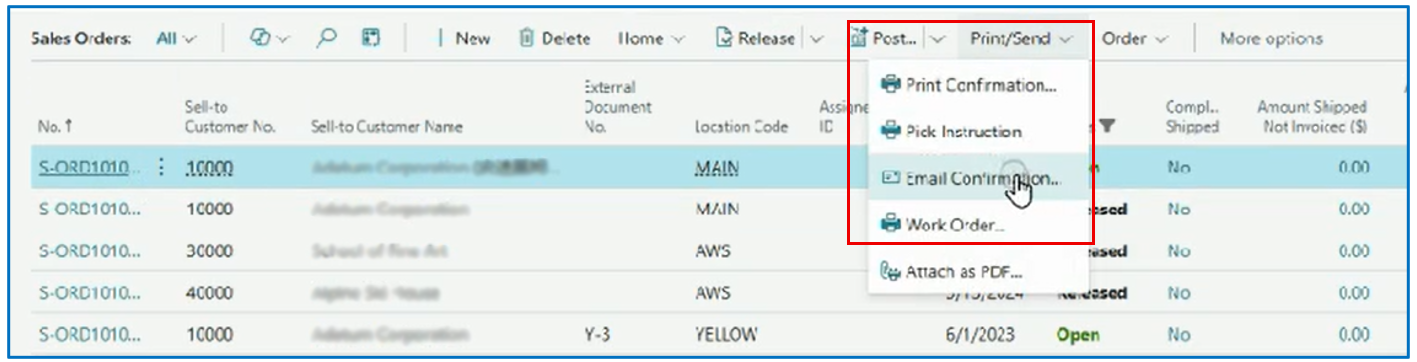
In the Sales Order list page, select a Sales Order and menu option Print/Send > Send Confirmation.
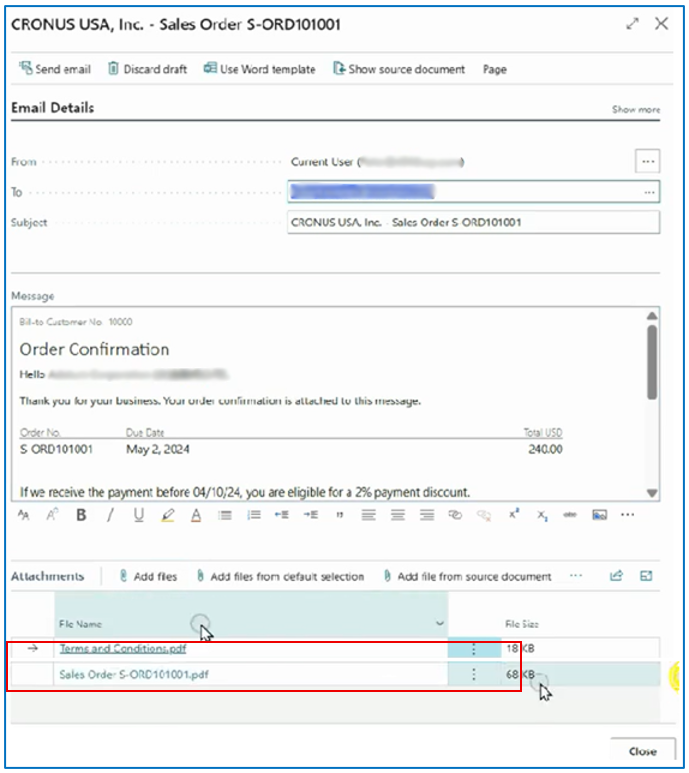
In the above example, the T&C pdf attachment is included in the email, as well as the Purchase Order.