Curriculum Design for Dynamics 365 Education Solution User Guide
Introduction
The Curriculum app is used to define and manage the educational offerings delivered by an institution.
The app supports different types of education providers.
For example:
-
A school may create offerings such as Junior School — Grade 1 or Middle School — Grade 7.
-
A university or college may create diploma, bachelor’s, master’s, or postgraduate programmes.
-
A training provider may create professional training, workshops, short courses, or certification programmes.
The Curriculum app allows users to manage the complete structure of an offering, including its versions, scheduled instances, related courses and assessments, teaching allocations, and sessions.
Curriculum App Areas
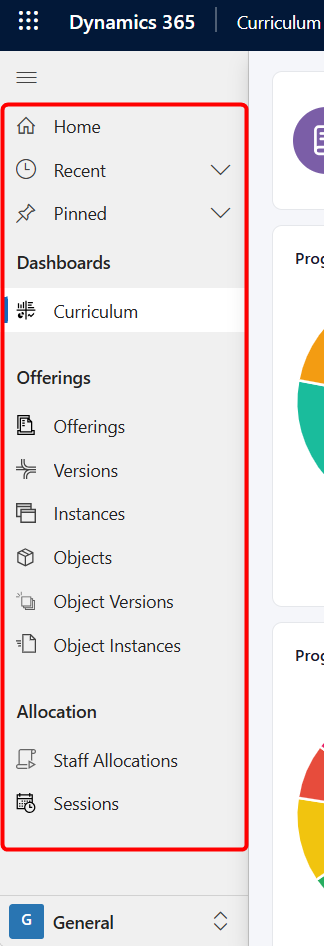
The Curriculum app is divided into the following main areas.
-
Dashboard — Provides an overview of curriculum-related information and records.
-
Offerings — Constraints:
- Offerings
- Versions
- Instances
- Objects
- Object Versions
- Object Instances
-
Allocation — Contains:
- Staff Allocations
- Sessions
Curriculum Dashboard
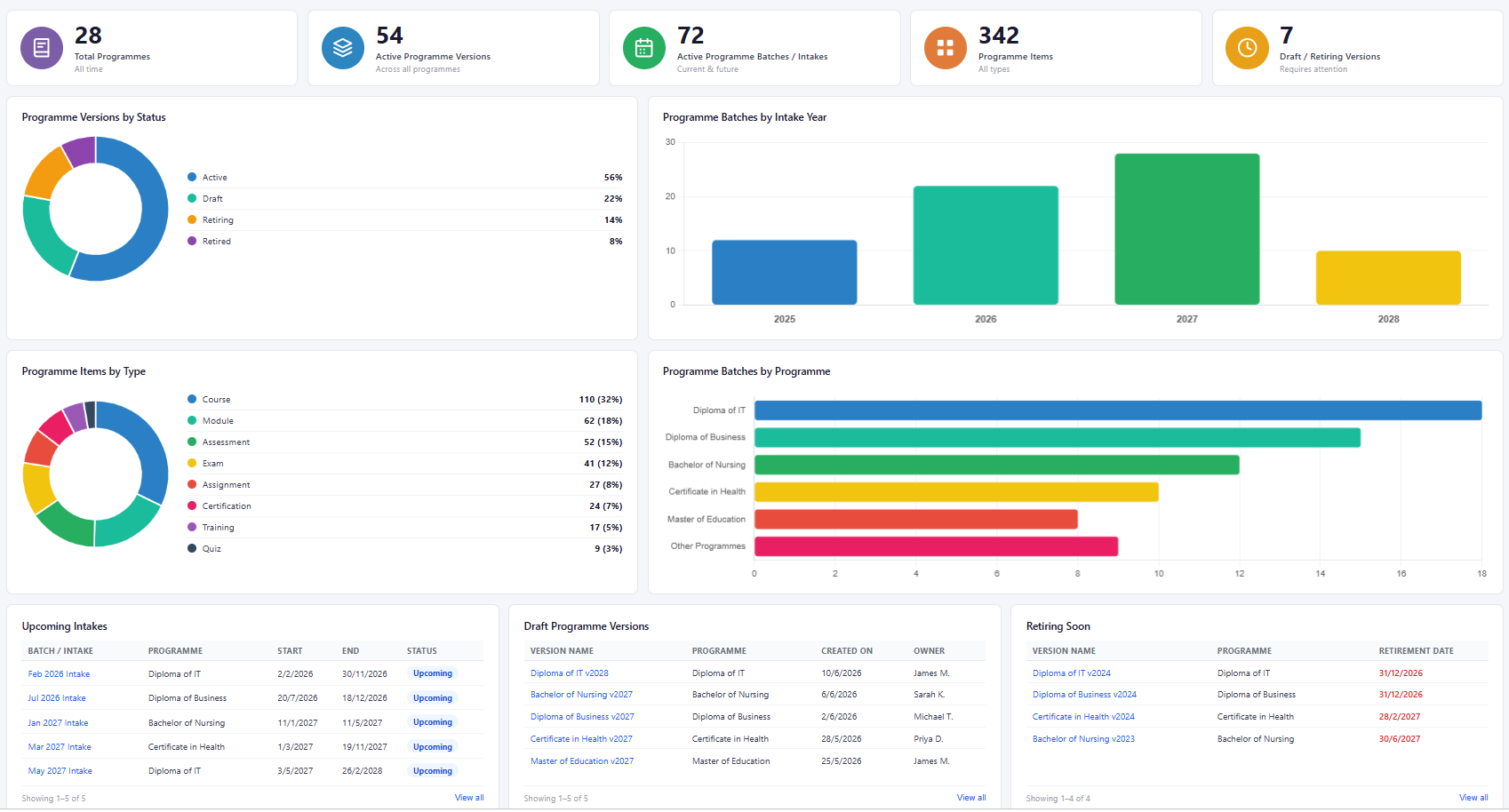
The Curriculum Dashboard provides a summary of the organisation’s current curriculum records and activities.
The dashboard includes information such as:
-
Total number of offerings
-
Active offering versions
-
Active offering instances or intakes
-
Total offering objects
-
Draft or retiring offering versions
-
Offering versions by status
-
Offering instances by intake year
-
Offering objects by type
-
Offering instances by offering
-
Upcoming intakes
-
Draft offering versions
-
Offering versions that are retiring soon
The dashboard allows curriculum administrators to quickly identify current offerings, upcoming intakes, draft records requiring attention, and versions nearing retirement.
Offerings
An Offering represents a programme, course of study, training service, certification, or other educational service delivered by the institution.
Examples include:
-
Junior School — Grade 1
-
Diploma of Information Technology
-
Bachelor of Nursing
-
Master of Education
-
Workplace Safety Training
-
Professional Certification Programme
The Offering record stores the main information that remains consistent across versions and delivery periods.
Creating an Offering
To create a new Offering:
-
Open the Curriculum app.
-
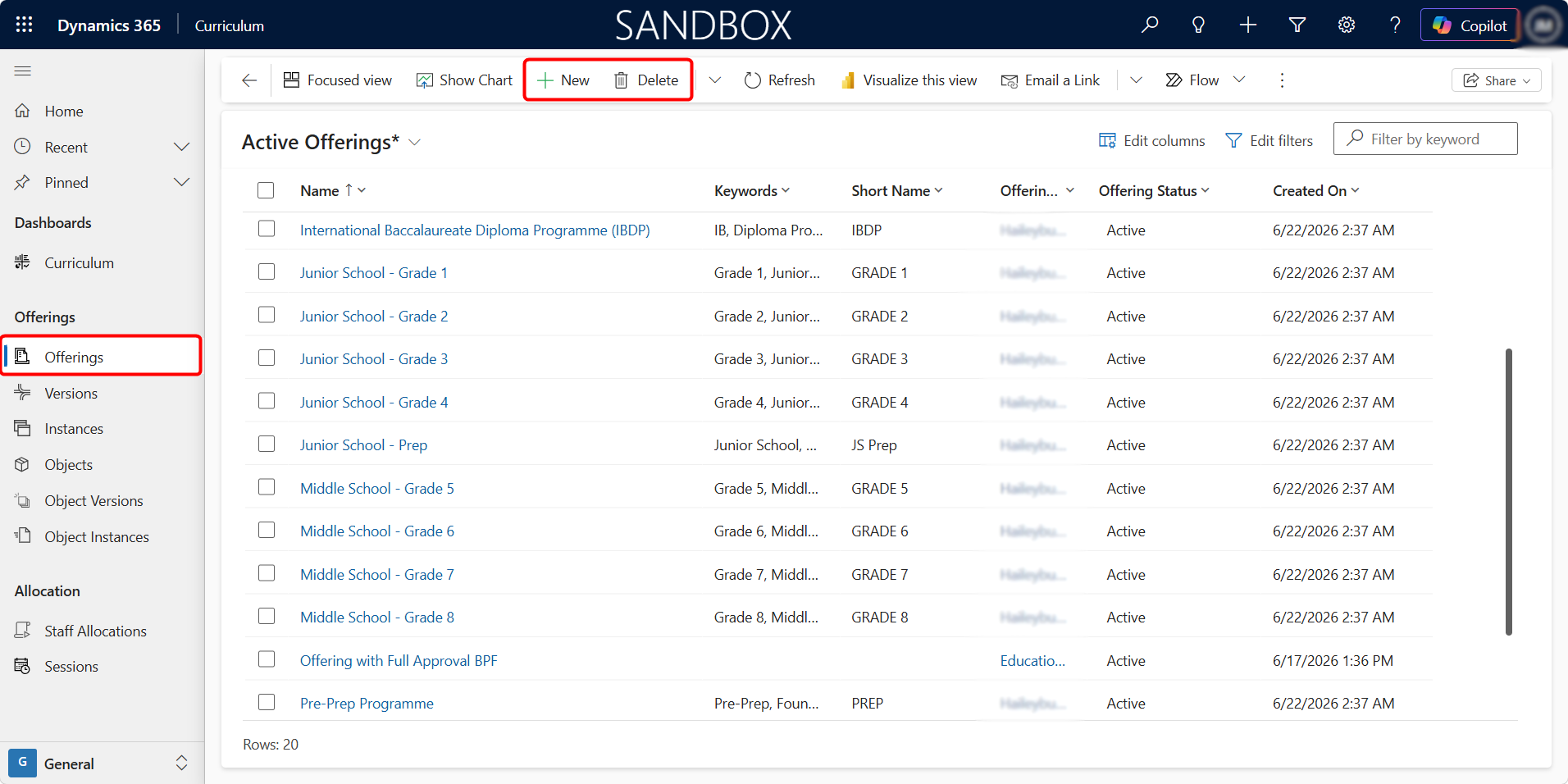
From the sitemap, select Offerings.
-
Select + New from the command bar.
-
Complete the required offering information.
-
Select Save or Save & Close.
Offering information
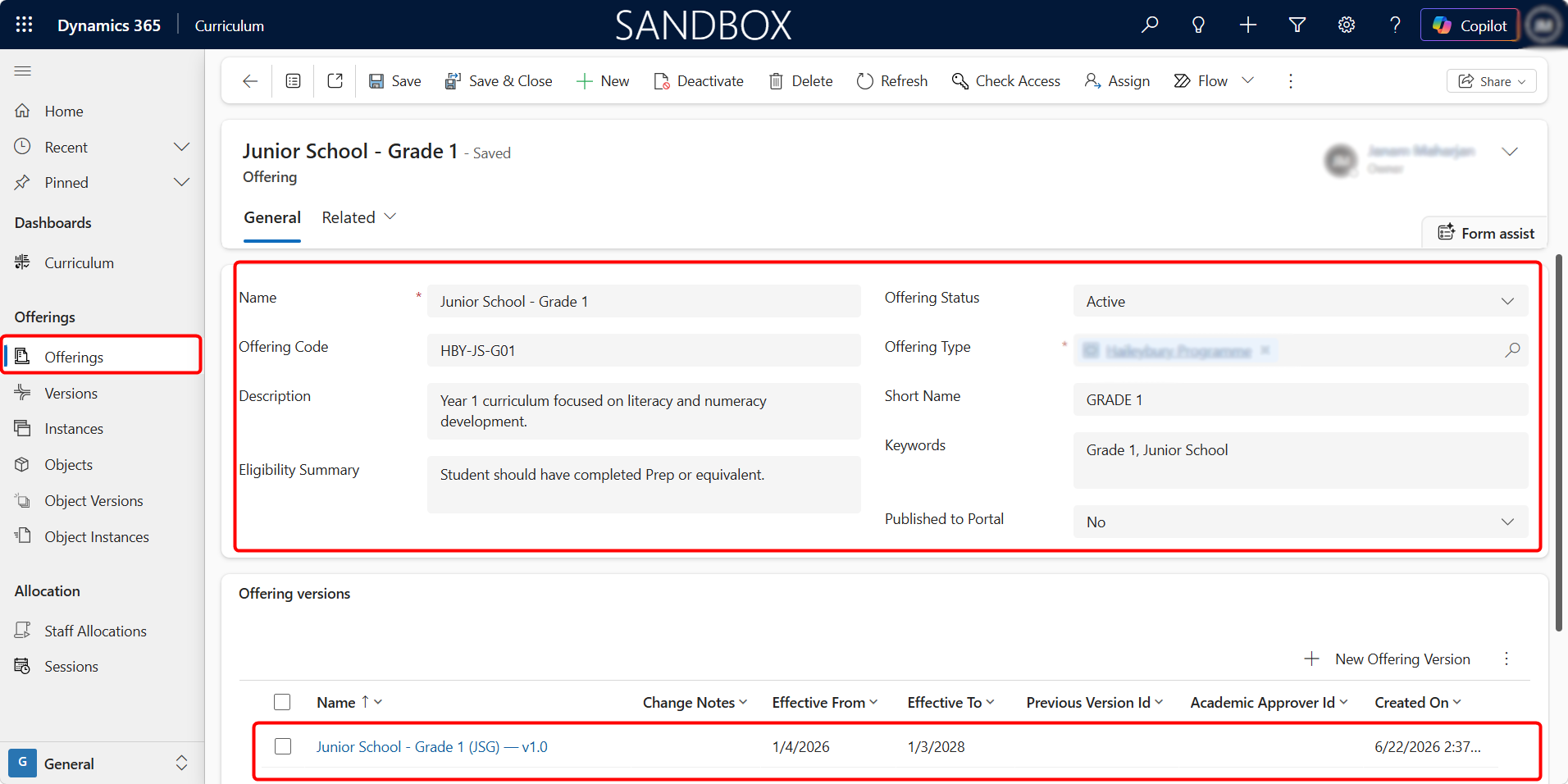
The Offering form includes fields such as:
| Field | Purpose |
|---|---|
| Name | Full name of the educational offering |
| Offering Code | Unique code used to identify the offering |
| Description | Summary of the offering and its purpose |
| Eligibility Summary | Entry requirements or eligibility criteria |
| Offering Status | Current status of the offering |
| Offering Type | Category of educational offering |
| Short Name | Abbreviated name used for easier identification |
| Keywords | Search terms associated with the offering |
| Published to Portal | Determines whether the offering is available through connected portal experiences. Set Published to Portal to Yes when the offering should be available through the connected education portal and related application processes. |
Offering Type
The Offering Type can be selected based on the types of services delivered by the institution.
Examples may include:
-
School Programme
-
Diploma Programme
-
Undergraduate Programme
-
Postgraduate Programme
-
Training
-
Certification
-
Workshop
Where permitted, a new Offering Type can be created if the required type is not already available.
Editing, Deactivating, or Deleting an Offering
To edit an Offering, open the record from the Offerings list and update the required information.
To deactivate or delete an Offering:
-
Select the relevant Offering.
-
Use the available command bar option.
-
Select Deactivate when the Offering should no longer be used.
-
Select Delete only when the Offering has been created incorrectly and is not connected to other records.
Deactivation is recommended for Offerings that have already been used in Offering Versions, Offering Instances, applications, or enrolments.
Offering Versions
An Offering Version represents a particular approved or effective version of an Offering.
Versions allow the institution to update curriculum information over time without overwriting the version previously used by students.
For example:
Junior School — Grade 1
-
Version 1.0
-
Version 2.0
A new version may be required when:
-
Courses or subjects are changed
-
Entry requirements are updated
-
Pricing changes
-
Documentation changes
-
Approval requirements change
-
The curriculum is revised for a future academic period
Initial Offering Version
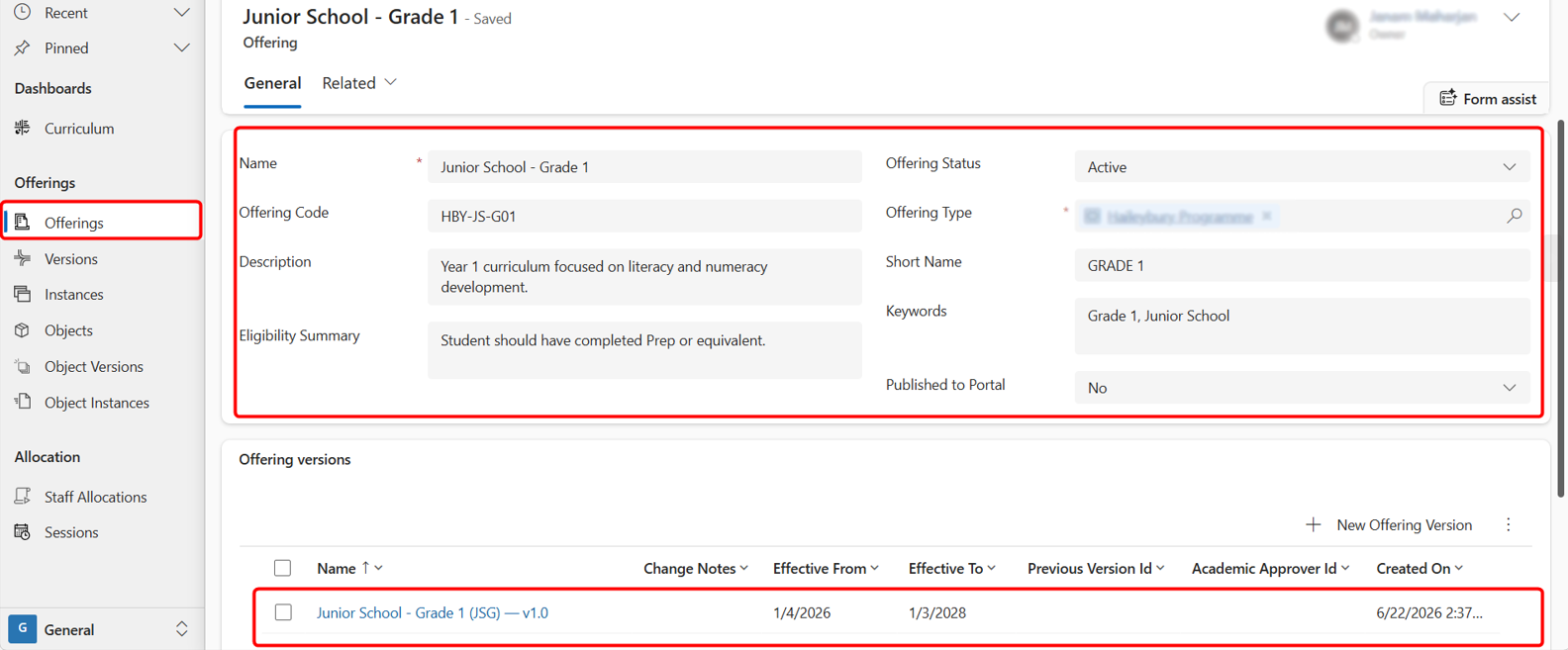
After a new Offering is saved, the system automatically creates its first Offering Version.
By default, this will normally be:
- Version 1.0
The generated version is displayed in the Offering Versions section of the Offering record. This version can then be updated with the relevant curriculum structure, effective dates, courses, approval information, and other version-specific details.
Creating a New Offering Version
A new Offering Version can be created from either the Offering record or the Versions area.
Create from the Offering Record
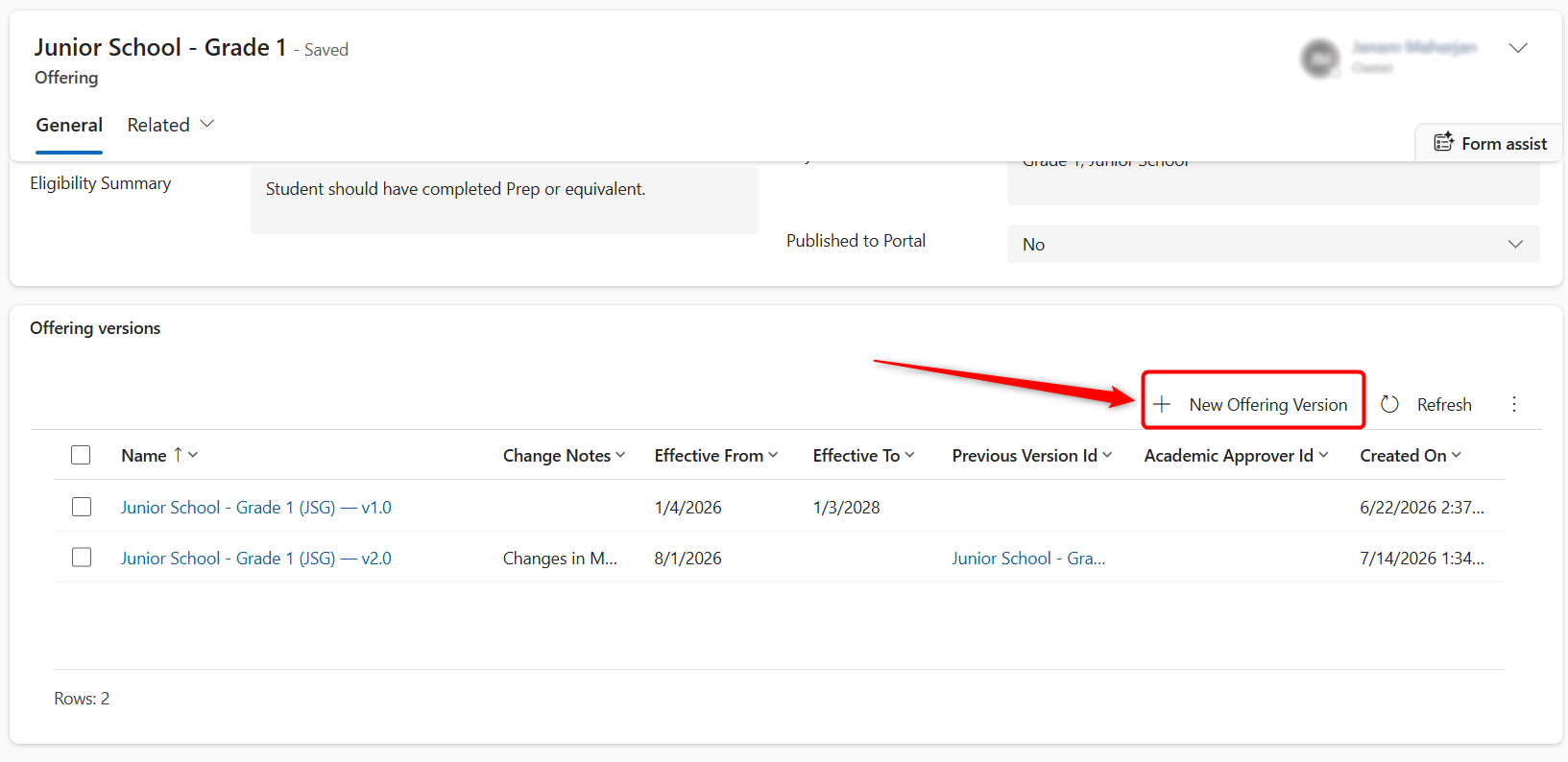
Here are the steps to create from an Offering Record:
-
Open the relevant Offering.
-
Locate the Offering Versions section.
-
Select New Offering Version.
-
Update the required version information.
-
Review or update the related courses and Offering Objects.
-
Save the record.
When created from the Offering form, the Offering field is automatically populated.
Create from the Versions Area
-
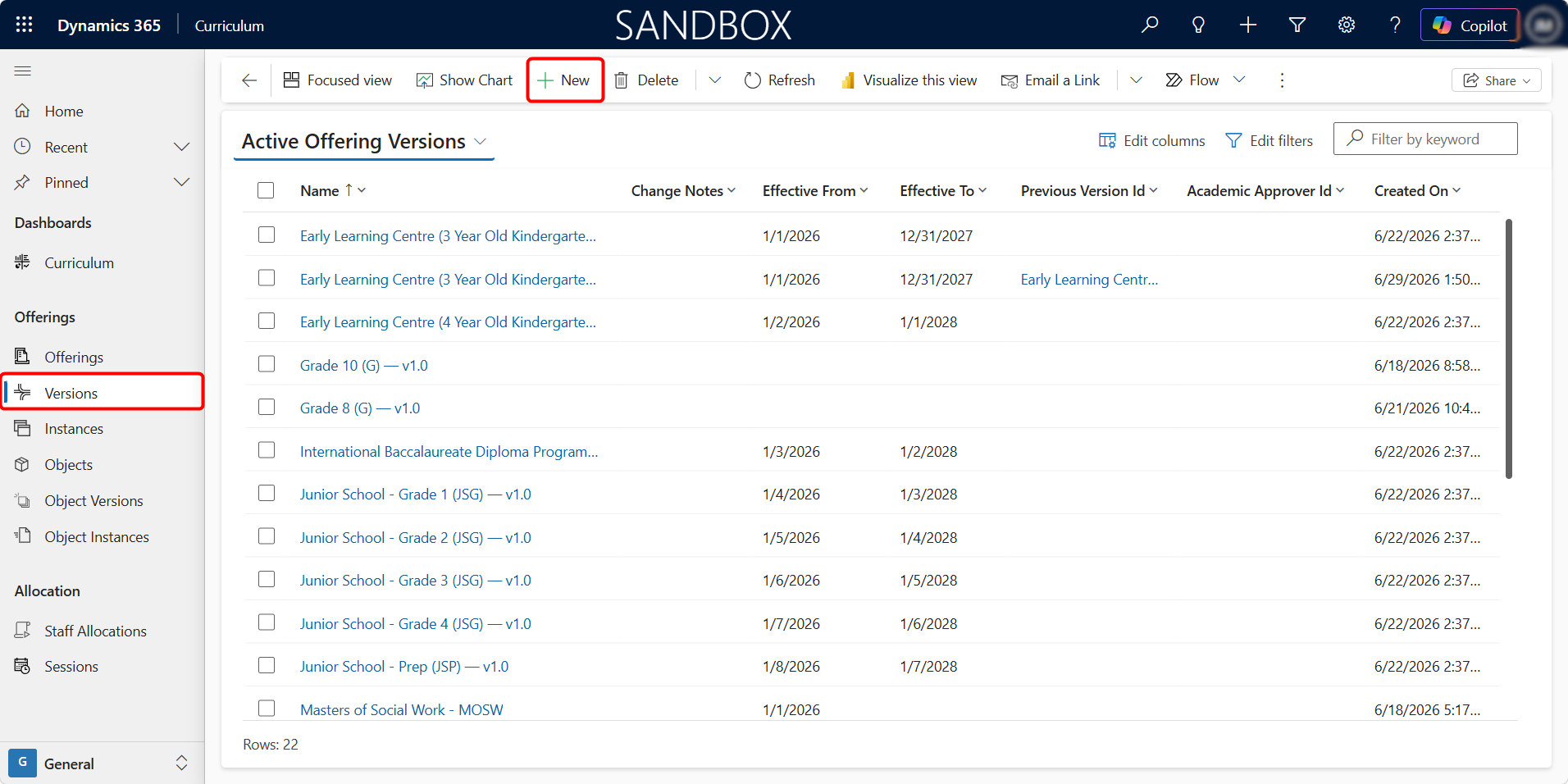
From the sitemap, select Versions.
-
Select + New.
-
Select the related Offering.
-
Complete the version information.
-
Save the record.
Offering Version Fields
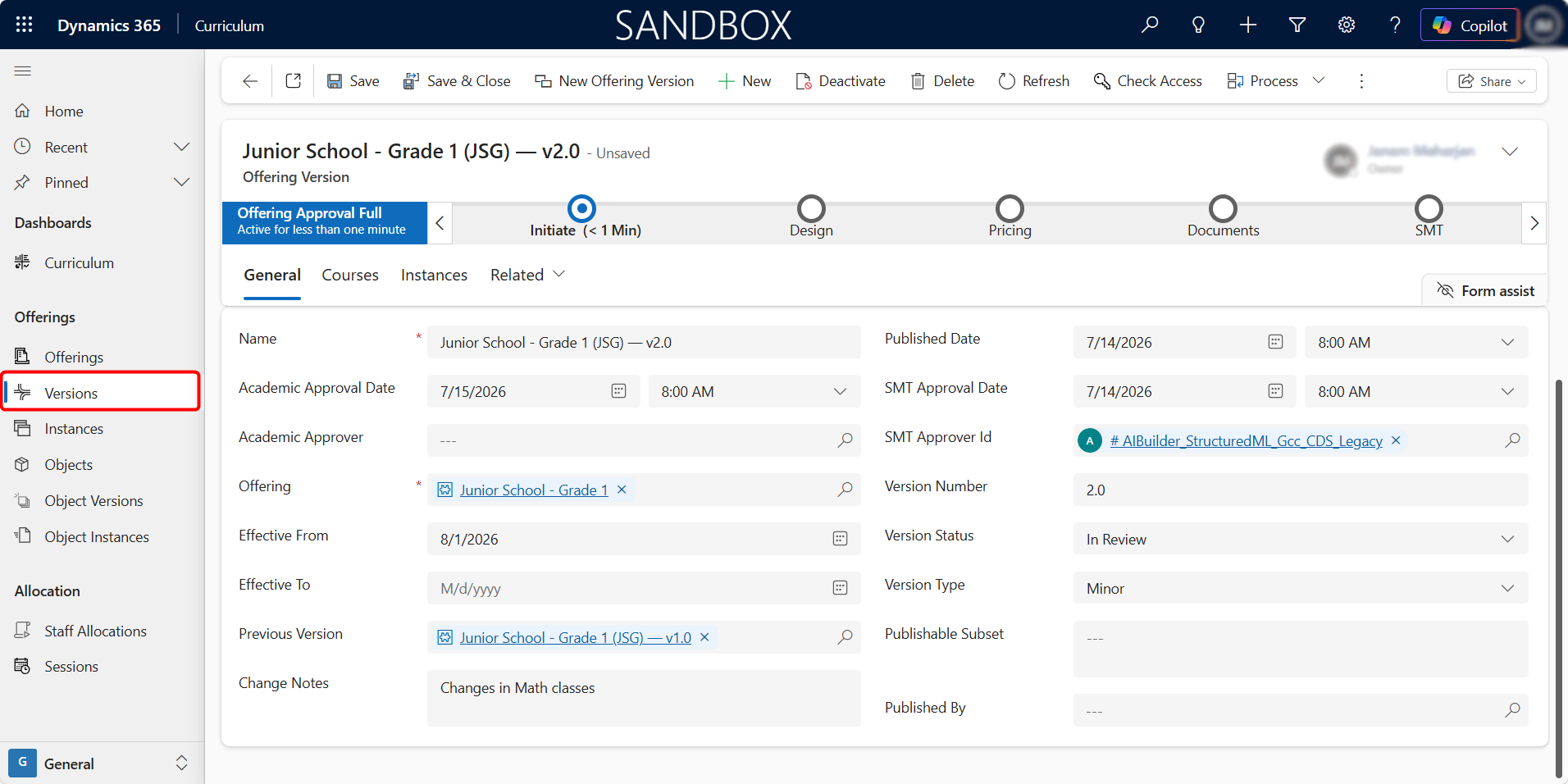
The form may include:
| Field | Purpose |
|---|---|
| Name | Name of the Offering Version |
| Offering | Parent Offering connected to the version |
| Version Number | Version identifier, such as 1.0 or 2.0 |
| Version Status | Current lifecycle status of the version |
| Version Type | Indicates whether the change is major or minor |
| Effective From | Date from which the version becomes effective |
| Effective To | Date on which the version stops being effective |
| Previous Version | Previous version replaced by this record |
| Change Notes | Summary of changes introduced in the version |
| Academic Approver | Person responsible for academic approval |
| Academic Approval Date | Date academic approval was completed |
| SMT Approver | Senior Management Team approver |
| SMT Approval Date | Date SMT approval was completed |
| Published Date | Date the version was published |
| Published By | User responsible for publishing the version |
Offering Version Approval Process
Offering Versions are managed through the following approval stages:

Initiate
The Offering Version is created, and the initial information is entered. This stage normally includes:
-
Selecting the parent Offering
-
Entering the version number
-
Selecting the version type
-
Entering effective dates
-
Linking the previous version
-
Recording change notes
Design
The curriculum structure for the Offering Version is prepared. This may include:
-
Adding or removing courses (Offering Objects)
-
Updating subject or module arrangements
-
Reviewing curriculum content
-
Confirming academic requirements
Pricing
The pricing and cost-related information is reviewed.
This may include:
-
Tuition fees
-
Course fees
-
Module costs
-
Assessment fees
-
Certification fees
-
Other related products and charges
Documents
The supporting documents for the Offering Version are prepared and reviewed.
These may include:
-
Curriculum documents
-
Course outlines
-
Approval papers
-
Pricing documents
-
Accreditation documents
-
Policies or supporting evidence
SMT
The Offering Version is submitted for final Senior Management Team approval.
The relevant approver and approval date can be recorded on the Offering Version. Once all required approvals are completed, the version can be published and made active.
New Versions and Future Instances
Once the curriculum, pricing, documentation, and approvals are complete, the new Offering Version can be activated.
The new active version becomes the version used when creating future Offering Instances.
The previous version remains available too with existing Offering Instances already linked to it.
Offering Instances
An Offering Instance represents a scheduled delivery of an Offering.
While an Offering defines what is delivered, an Offering Instance defines:
-
When it is delivered
-
Which Offering Version is used
-
The academic year
-
The application period
-
The delivery format
-
The available enrolment capacity
Examples include:
-
Junior School — Grade 1 — 2026
-
Diploma of IT — February 2027 Intake
-
Workplace Safety Training — July 2026
-
Master of Education — Semester 1, 2027
Creating an Offering Instance
An Offering Instance can be created in either of two ways.
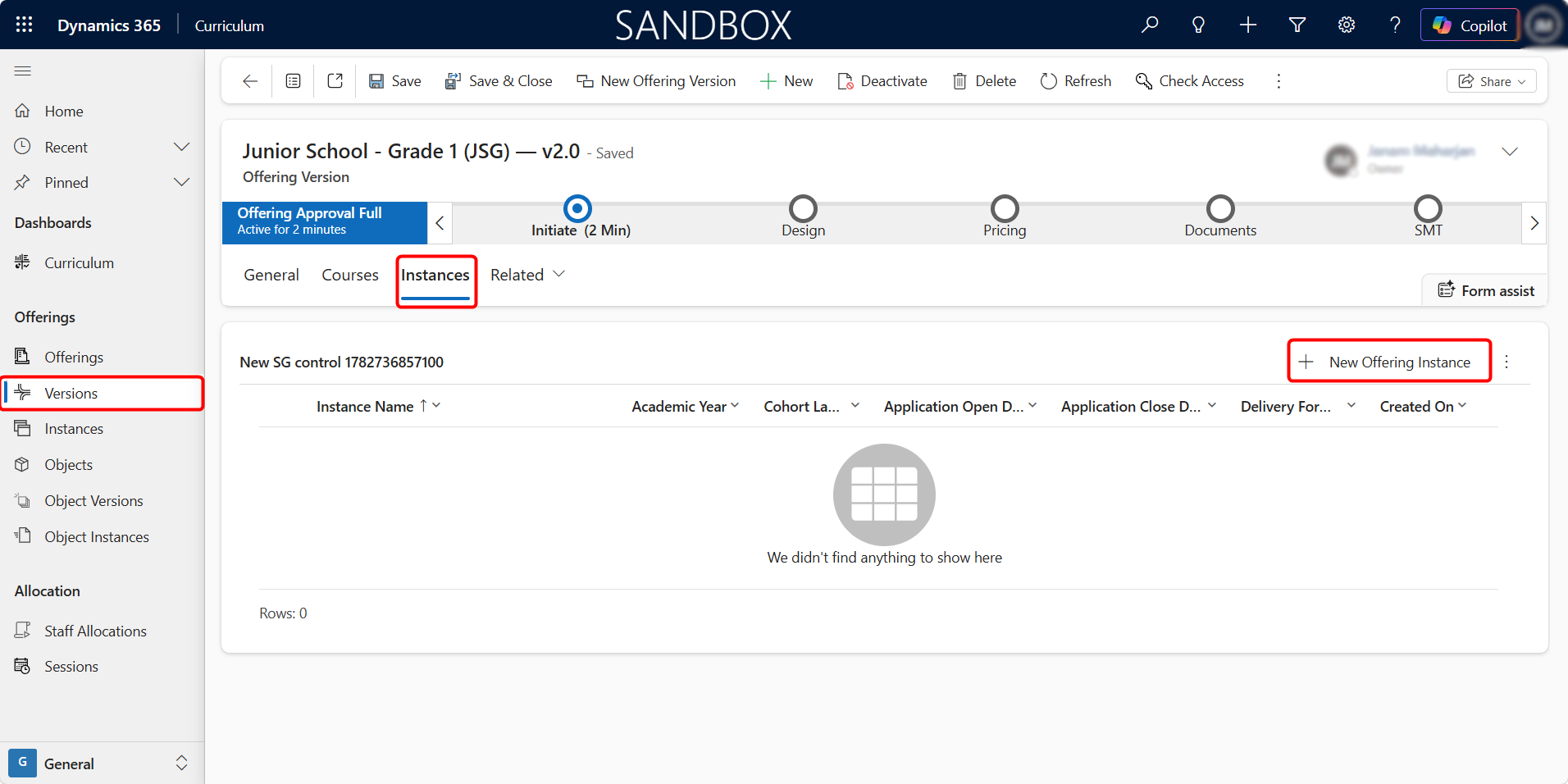
Create from an Offering Version
-
Open the required Offering Version.
-
Select the Instances tab.
-
Select New Offering Instance.
-
Complete the required instance information.
-
Save the record.
When created from the Offering Version, the related Offering and Offering Version should be populated automatically.
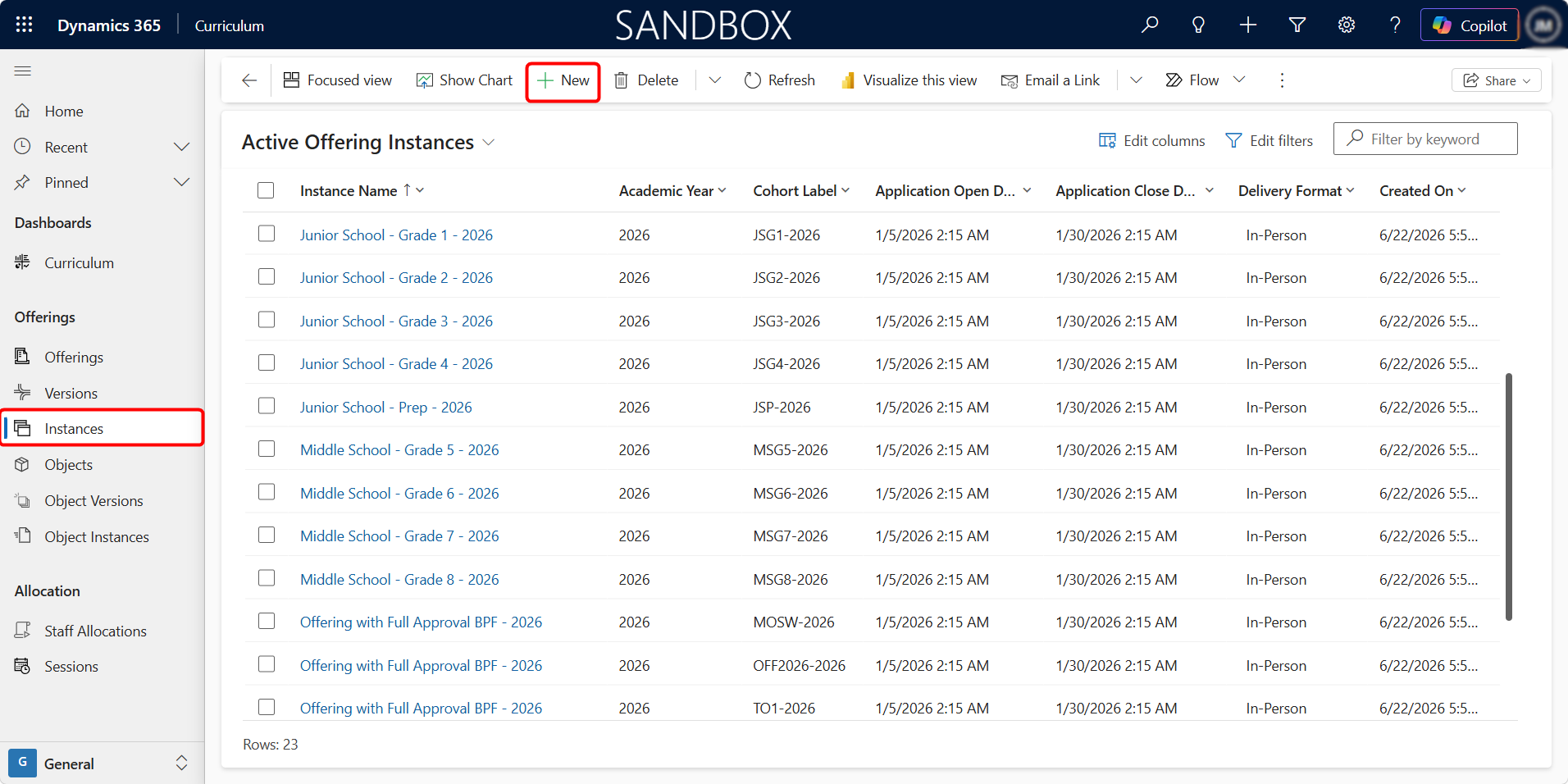
Create from the Instances Area
-
From the sitemap, select Instances.
-
Select + New.
-
Select the appropriate Offering.
-
Select the applicable Offering Version.
-
Complete the remaining instance information.
-
Save the record.
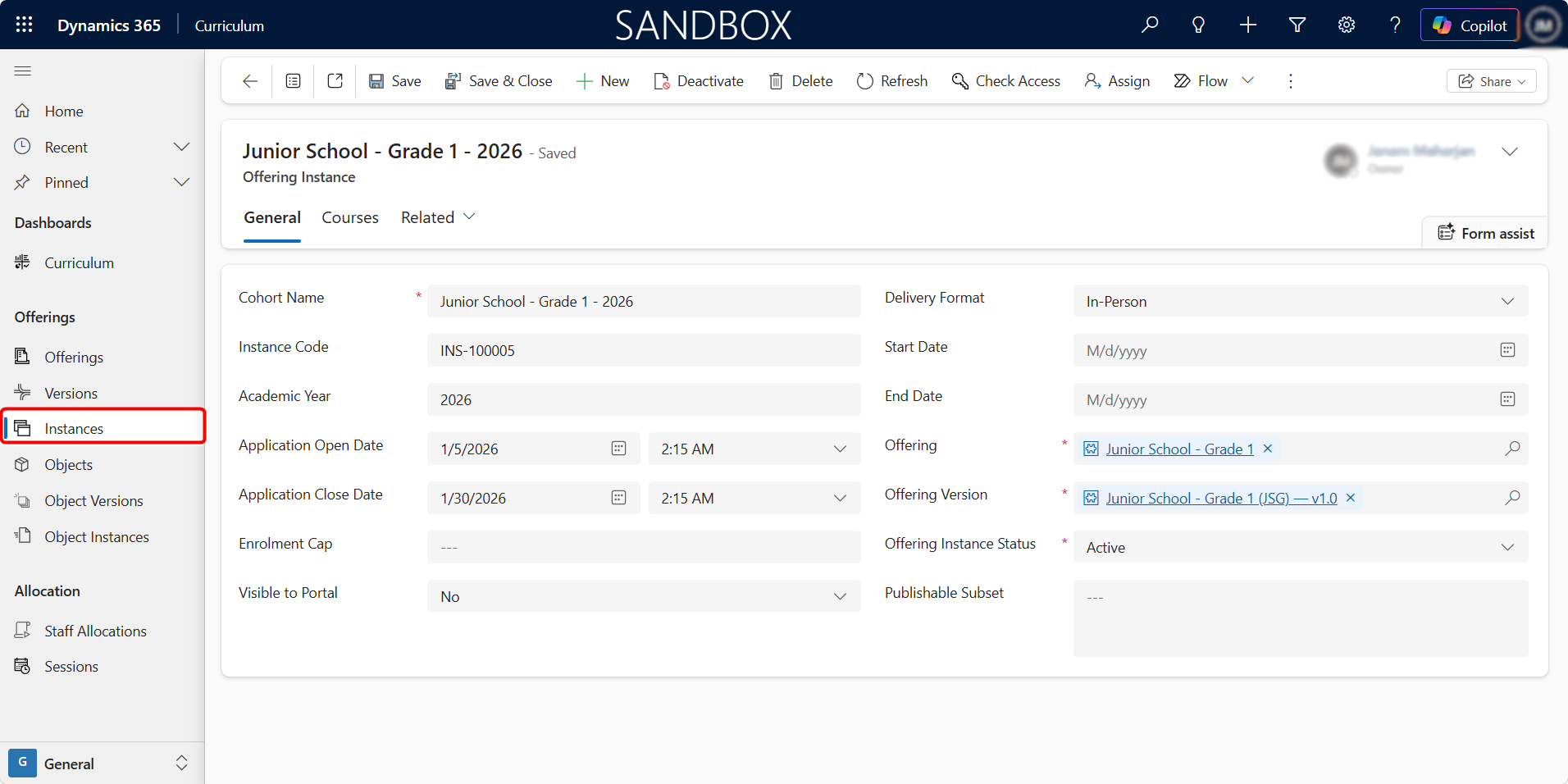
Offering Instance Fields
The form includes information such as:
| Field | Purpose |
|---|---|
| Cohort Name | Name used to identify the intake or delivery group |
| Instance Code | Unique identifier for the Offering Instance |
| Academic Year | Academic year in which the Offering is delivered |
| Application Open Date | Date from which applications are accepted |
| Application Close Date | Final date for submitting applications |
| Enrolment Cap | Maximum number of learners that can enrol |
| Visible to Portal | Determines whether the instance is shown through the portal |
| Delivery Format | Method through which the Offering is delivered |
| Start Date | Scheduled start of the Offering Instance |
| End Date | Scheduled end of the Offering Instance |
| Offering | Parent Offering |
| Offering Version | Version of the Offering being delivered |
| Offering Instance Status | Current status of the instance |
| Publishable Subset | Additional publishing configuration, where applicable |
Delivery formats may include:
-
In-Person
-
Online
-
Hybrid
Adding Offering Objects to an Offering Instance
The Courses tab can be used to review or add the Offering Objects connected to the instance.
This allows the curriculum structure for a specific intake or delivery period to be confirmed or adjusted where required.
We should later confirm whether users are expected to:
-
Add courses primarily at Offering Version level; and
-
Only make instance-specific changes here.
That would be the most logical operating model and should be reflected in the guide.
Offering Objects
An Offering Object is a component that forms part of an Offering.
Offering Objects may include:
-
Courses
-
Modules
-
Assessments
-
Examinations
-
Assignments
-
Certifications
-
Training activities
-
Workshops
-
Quizzes
For example:
- Offering:
- Junior School — Grade 1
- Offering Objects:
-
├── English — Grade 1
-
├── Mathematics — Grade 1
-
├── Science — Grade 1
-
└── Humanities — Grade 1
-
- Offering Objects:
- Junior School — Grade 1
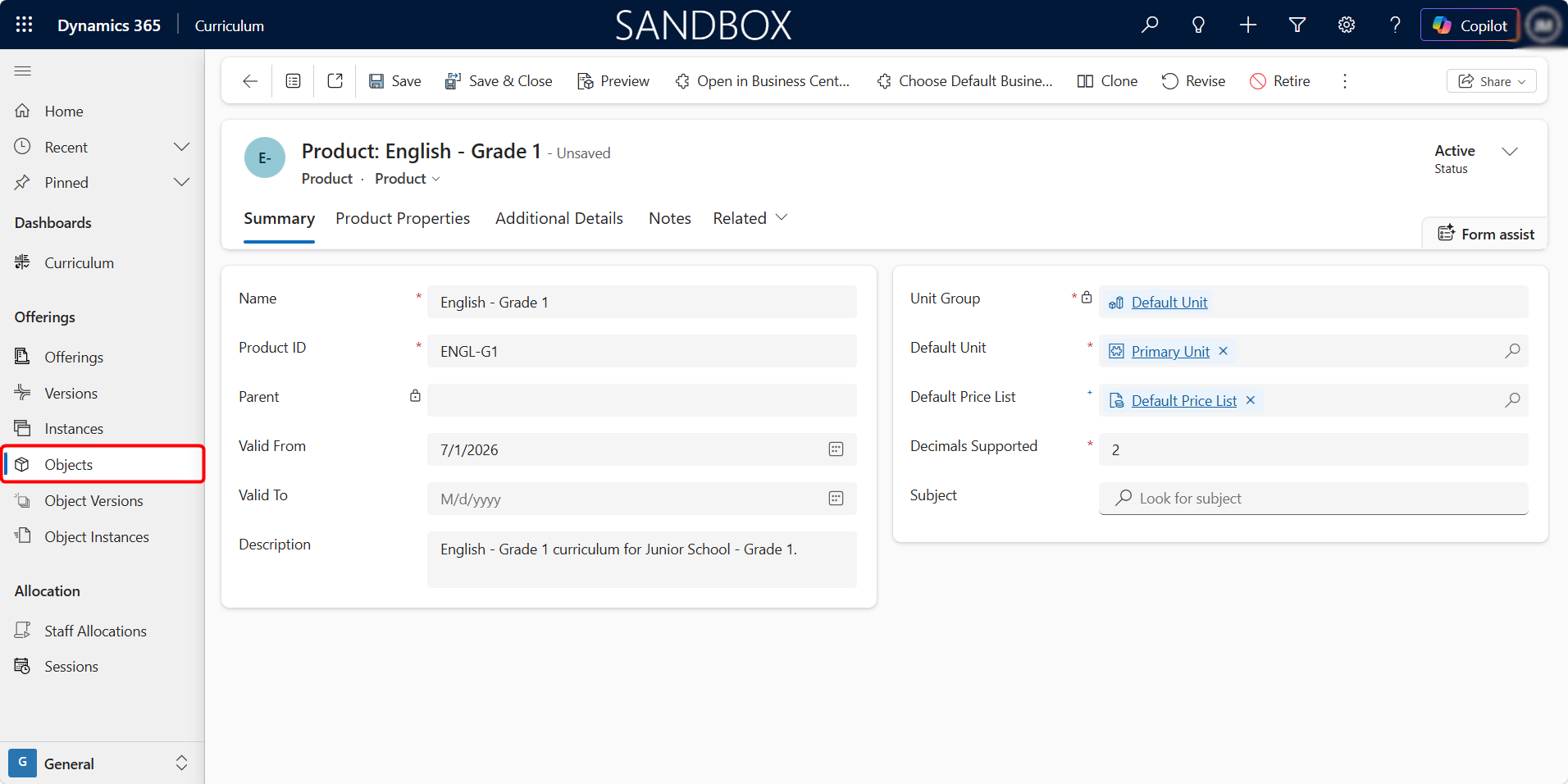
Offering Objects are managed as Products in Dynamics 365. This allows an institution to assign pricing or cost information to an individual course, module, assessment, certification, or other curriculum component.
Creating an Offering Object
To create an Offering Object:
-
From the sitemap, select Objects.
-
Select Add Product.
-
Complete the required product and curriculum information.
-
Select Save or Save & Close.
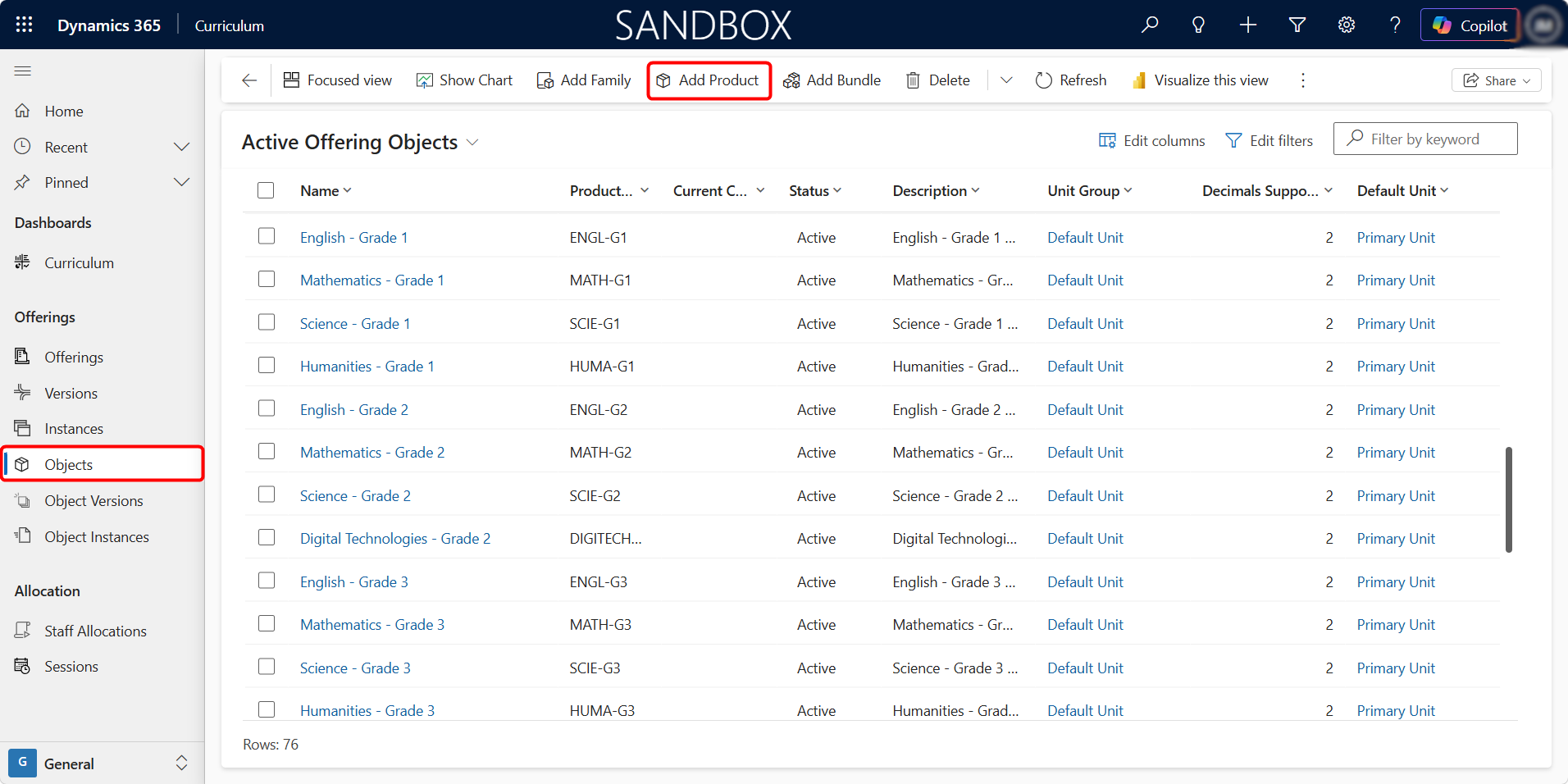
This list show the Offering Object fields:
| Field | Purpose |
|---|---|
| Name | Name of the Offering Object |
| Product ID | Unique identifier or code |
| Parent | Parent product, where a hierarchy is used |
| Valid From | Date from which the object is available |
| Valid To | Date on which the object stops being available |
| Description | Description of the curriculum object |
| Unit Group | Measurement unit group used by the product record |
| Default Unit | Default unit associated with the product |
| Default Price List | Price list used for the object |
| Decimals Supported | Number of decimal places supported |
| Subject | Related subject, where applicable |
Because Offering Objects are products, users can also use standard product functions such as:
-
Clone
-
Revise
-
Retire
-
Add to a price list
-
Associate pricing information
This allows curriculum components to be managed both academically and financially.
Offering Object Versions
An Offering Object Version represents a specific version of an Offering Object.
It allows an institution to update the academic or delivery details of an Offering Object without changing the version already used by previous Offering Versions or Offering Instances.
For example:
- Offering Object: English — Grade 1
- Offering Object Versions:
-
├── English — Junior School — Grade 1 — Version 1
-
└── English — Junior School — Grade 1 — Version 2
-
- Offering Object Versions:
A new Offering Object Version may be created when:
-
Completion requirements change
-
Pass marks are updated
-
Capacity changes
-
Credit values change
-
Eligibility requirements change
-
The Object is linked to a new Offering Version
-
External system references need to be updated
Creating an Offering Object Version
When a new Offering Object is created, the system automatically creates its first Offering Object Version. The initial version can then be updated with the relevant Offering Version, completion criteria, role, visibility, capacity, credits, and other version-specific information.
An Offering Object Version can be created from either the Offering Object record or the Object Versions area.
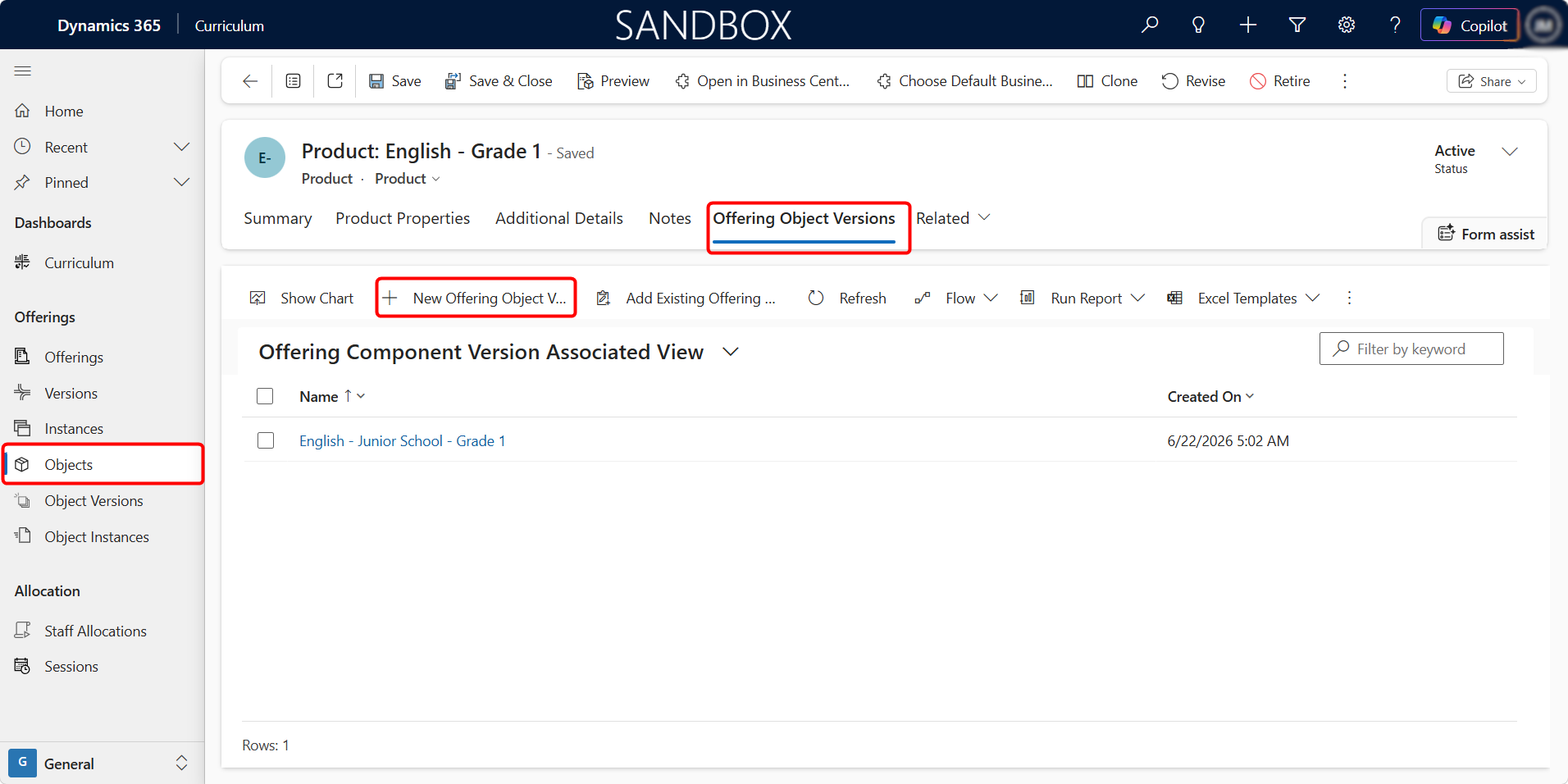
Create from the Offering Object Record
-
Open the relevant Offering Object.
-
Select the Offering Object Versions tab.
-
Select New Offering Object Version.
-
Complete the required information.
-
Select Save or Save & Close.
When created from the Offering Object record, the related Product is populated automatically.
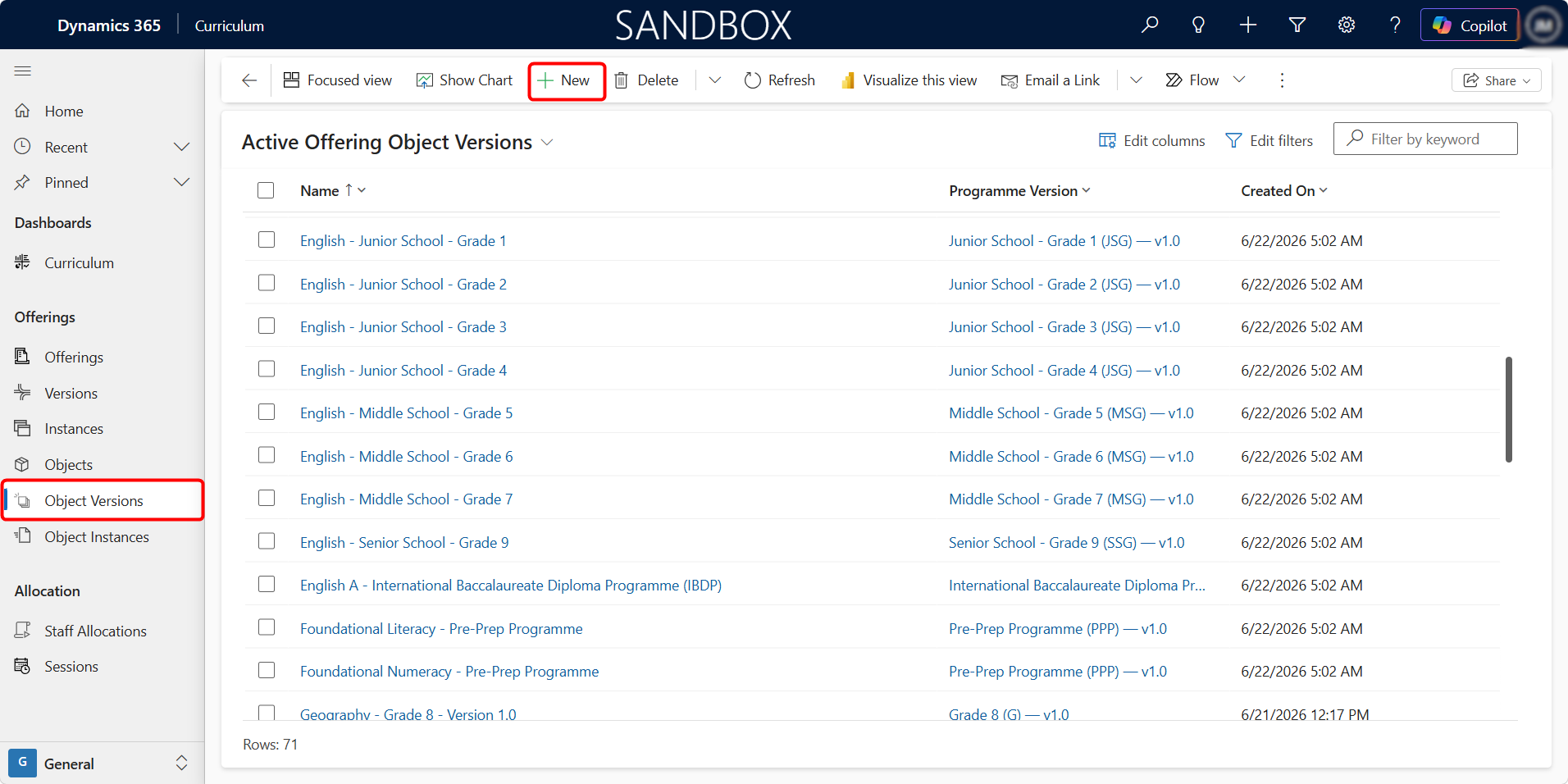
Create from the Object Versions Area
-
Select Object Versions from the sitemap.
-
Select + New.
-
Select the relevant Product or Offering Object.
-
Select the related Offering Version.
-
Complete the remaining information.
-
Select Save or Save & Close.
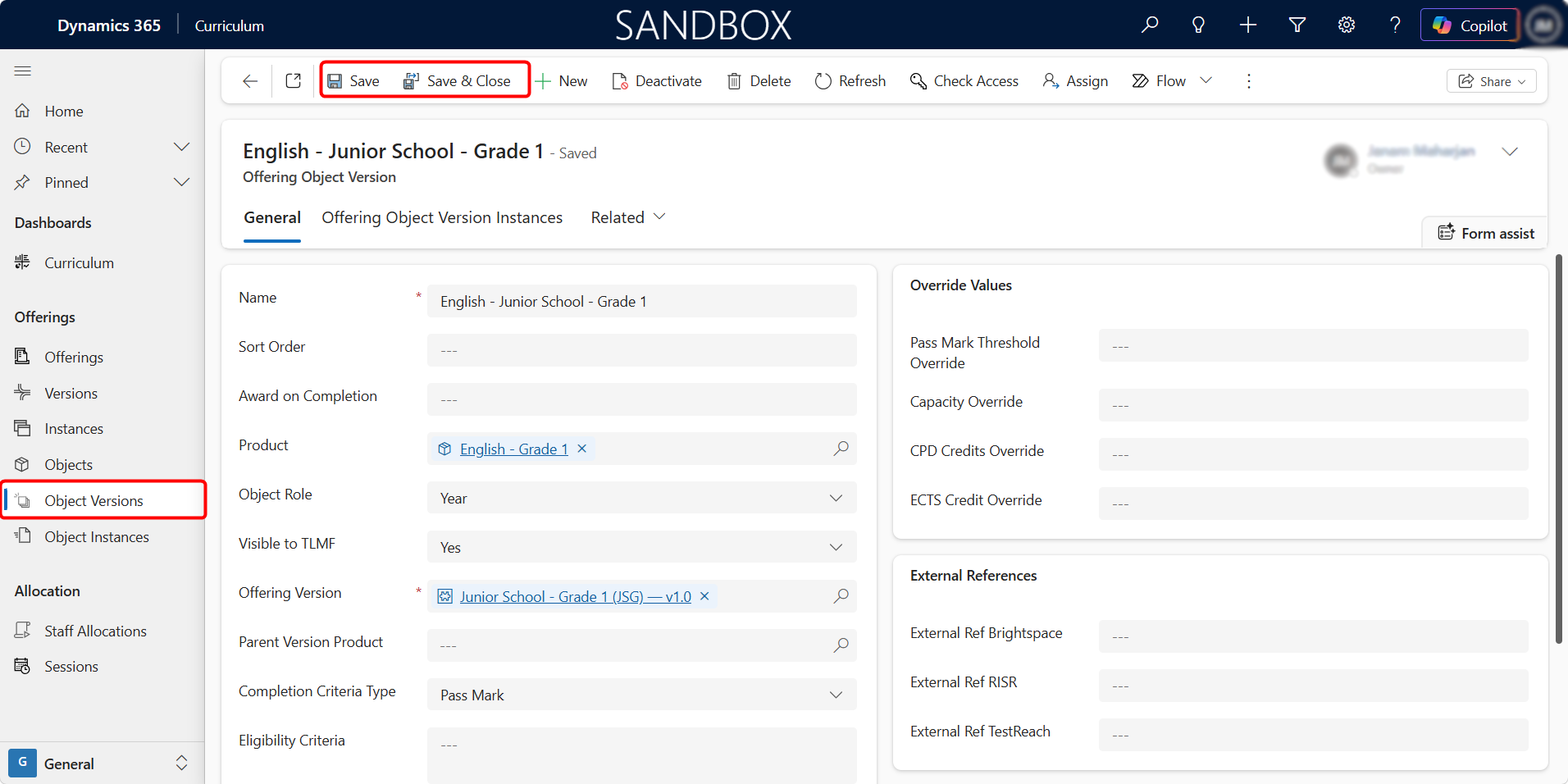
Offering Object Version Fields
| Field | Description |
|---|---|
| Name | Name of the Offering Object Version |
| Sort Order | Determines the order in which the Object appears within the Offering Version |
| Award on Completion | Award or outcome granted after successful completion |
| Product | Offering Object connected to the version |
| Object Role | Role of the Object within the Offering, such as Year, Course, Module, or Assessment |
| Visible to TLMF | Determines whether the Object Version is available to the connected learning platform or framework |
| Offering Version | Offering Version to which the Object belongs |
| Parent Version Product | Parent Object Version where a curriculum hierarchy is used |
| Completion Criteria Type | Method used to determine successful completion |
| Eligibility Criteria | Entry or participation requirements for the Object |
| Pass Mark Threshold Override | Overrides the standard pass mark for this version |
| Capacity Override | Overrides the standard capacity for this version |
| CPD Credits Override | Overrides the standard Continuing Professional Development credits |
| ECTS Credit Override | Overrides the standard European Credit Transfer and Accumulation System credits |
| External References | Stores identifiers used by connected external systems |
The override fields allow version-specific values to be entered without changing the main Offering Object record.
Offering Object Instances
An Offering Object Instance represents the scheduled delivery of an Offering Object Version within a specific Offering Instance.
For example:
- Offering: Early Learning Centre — 2026
- Offering Object:
- Creative Play
- Offering Object Instance:
- Creative Play — Early Learning Centre — 2026
- Offering Object Instance:
- Creative Play
- Offering Object:
The Offering Object Version defines the academic structure of the Object. The Offering Object Instance defines when and where that Object is delivered as part of a specific intake or cohort.
Creating an Offering Object Instance
An Offering Object Instance can be created from either the Offering Object Version record or the Object Instances Area.
Create from an Offering Object Version
-
Open the relevant Offering Object Version.
-
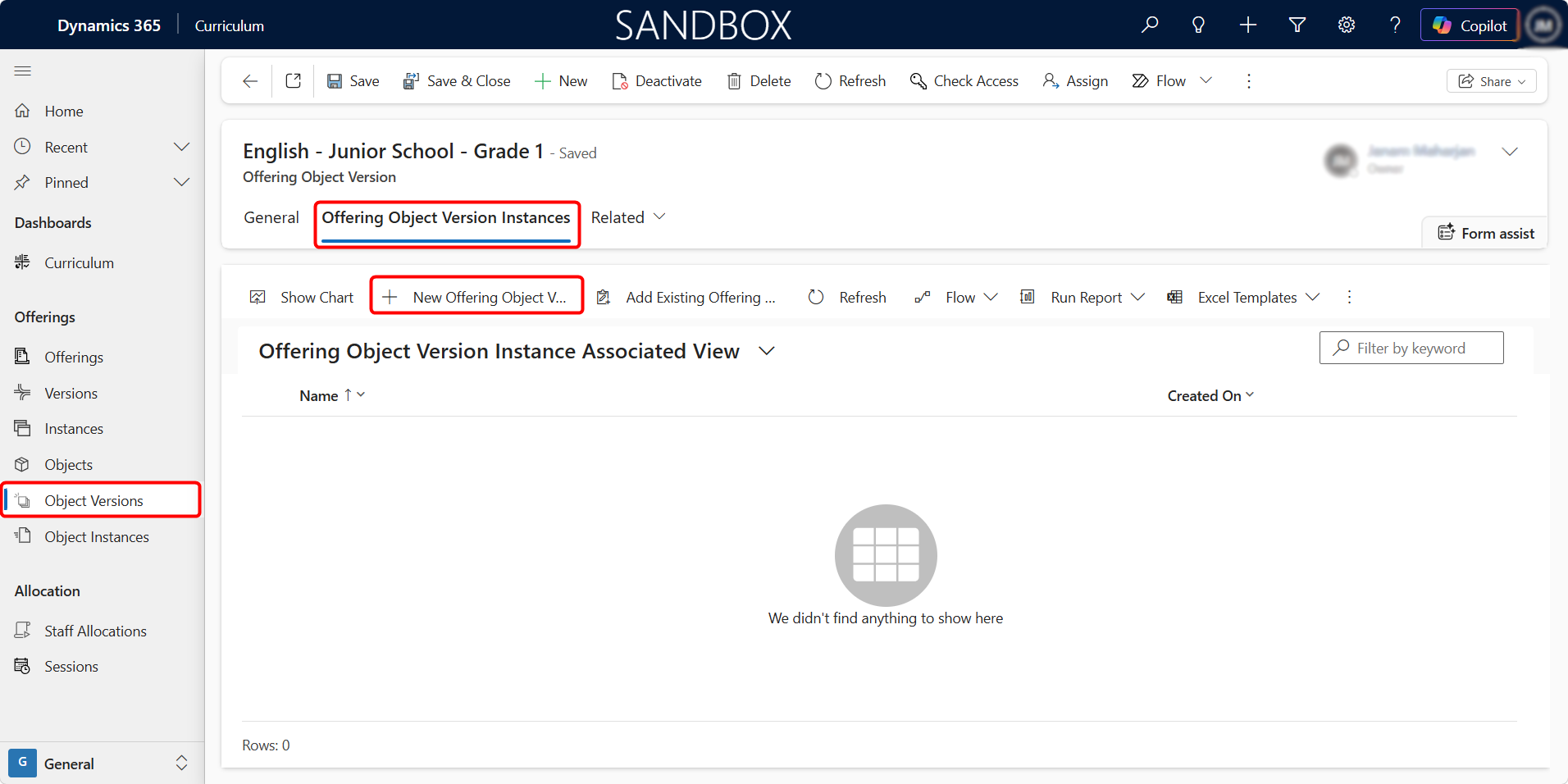
Select the Offering Object Version Instances tab.
-
Select New Offering Object Version Instance.
-
Complete the required information.
-
Select Save or Save & Close.
When created from the Offering Object Version, the related Version Product is populated automatically.
Create from the Object Instances Area
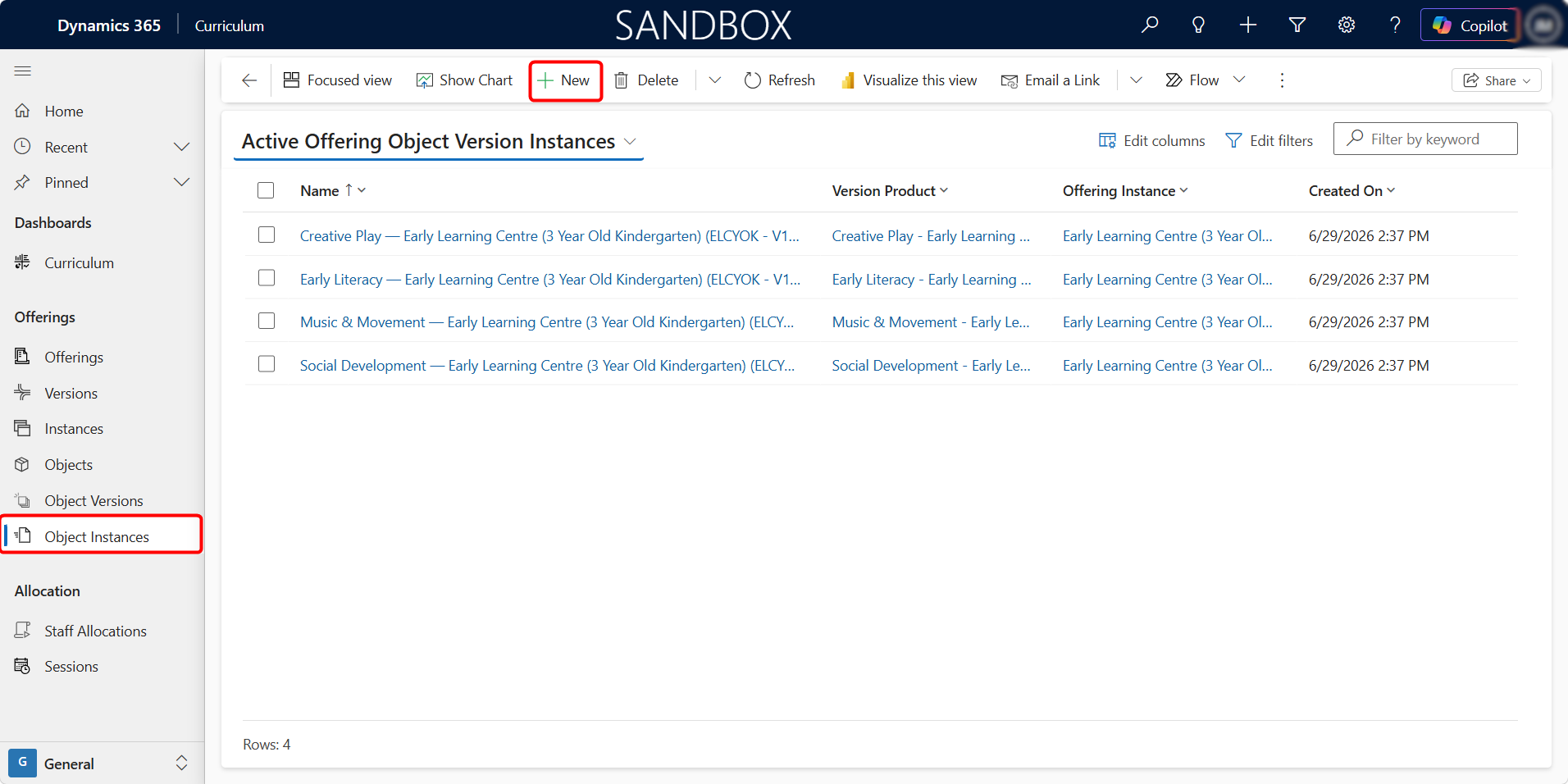
-
Select Object Instances from the sitemap.
-
Select + New.
-
Select the relevant Offering Instance.
-
Select the applicable Offering Object Version.
-
Complete the remaining information.
-
Select Save or Save & Close.
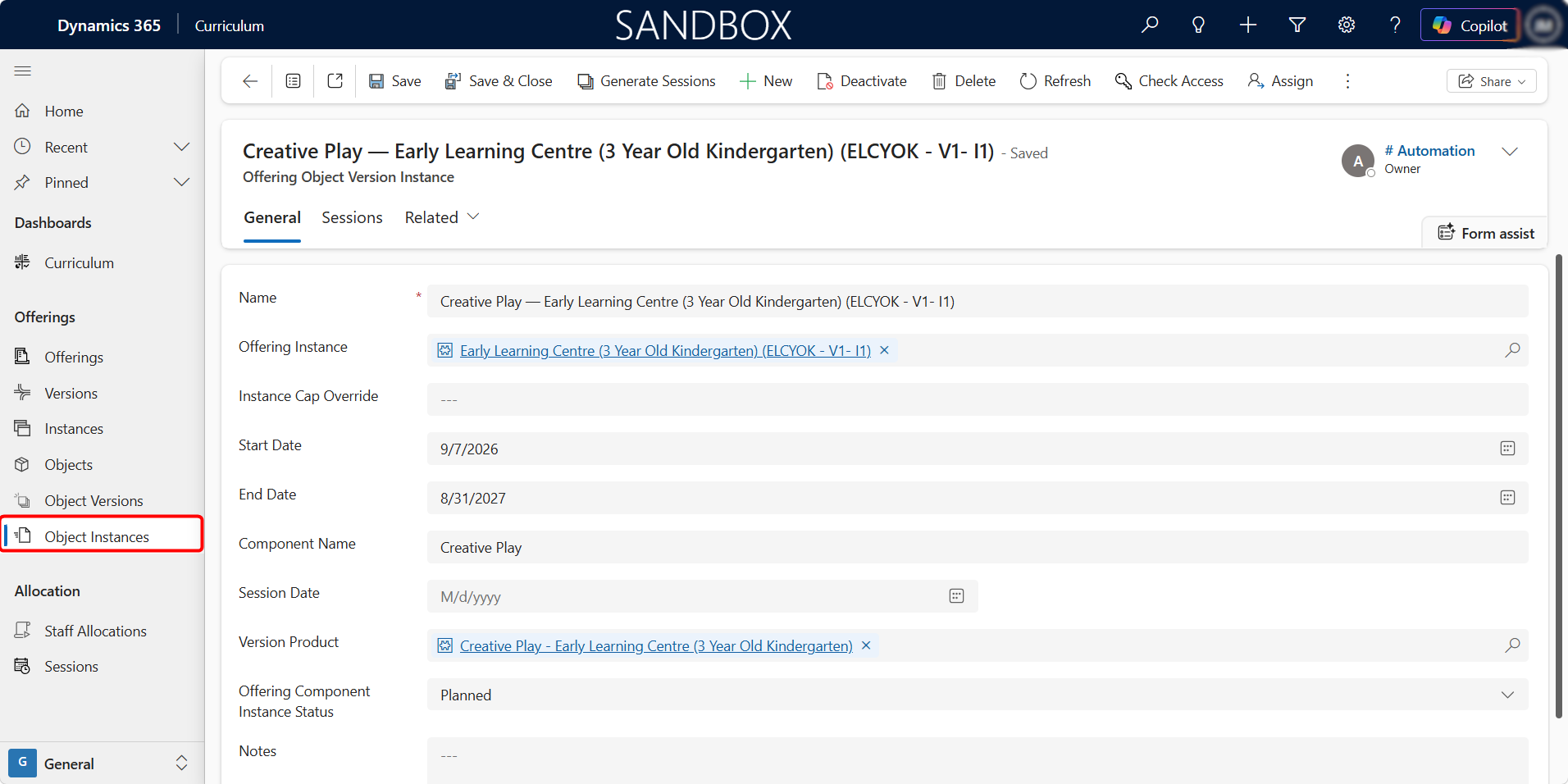
Offering Object Instance Fields
| Field | Description |
|---|---|
| Name | Name of the Offering Object Instance |
| Offering Instance | Offering intake or cohort to which the Object Instance belongs |
| Instance Cap Override | Overrides the standard capacity for this delivery |
| Start Date | Date on which delivery begins |
| End Date | Date on which delivery ends |
| Component Name | Name of the curriculum component |
| Session Date | Relevant session date where applicable |
| Version Product | Offering Object Version being delivered |
| Offering Component Instance Status | Current status of the Object Instance |
| Notes | Additional information about the delivery |
An Offering Object Instance may move through statuses such as Planned, Active, Completed, or Cancelled, depending on the organisation’s configuration.
Sessions
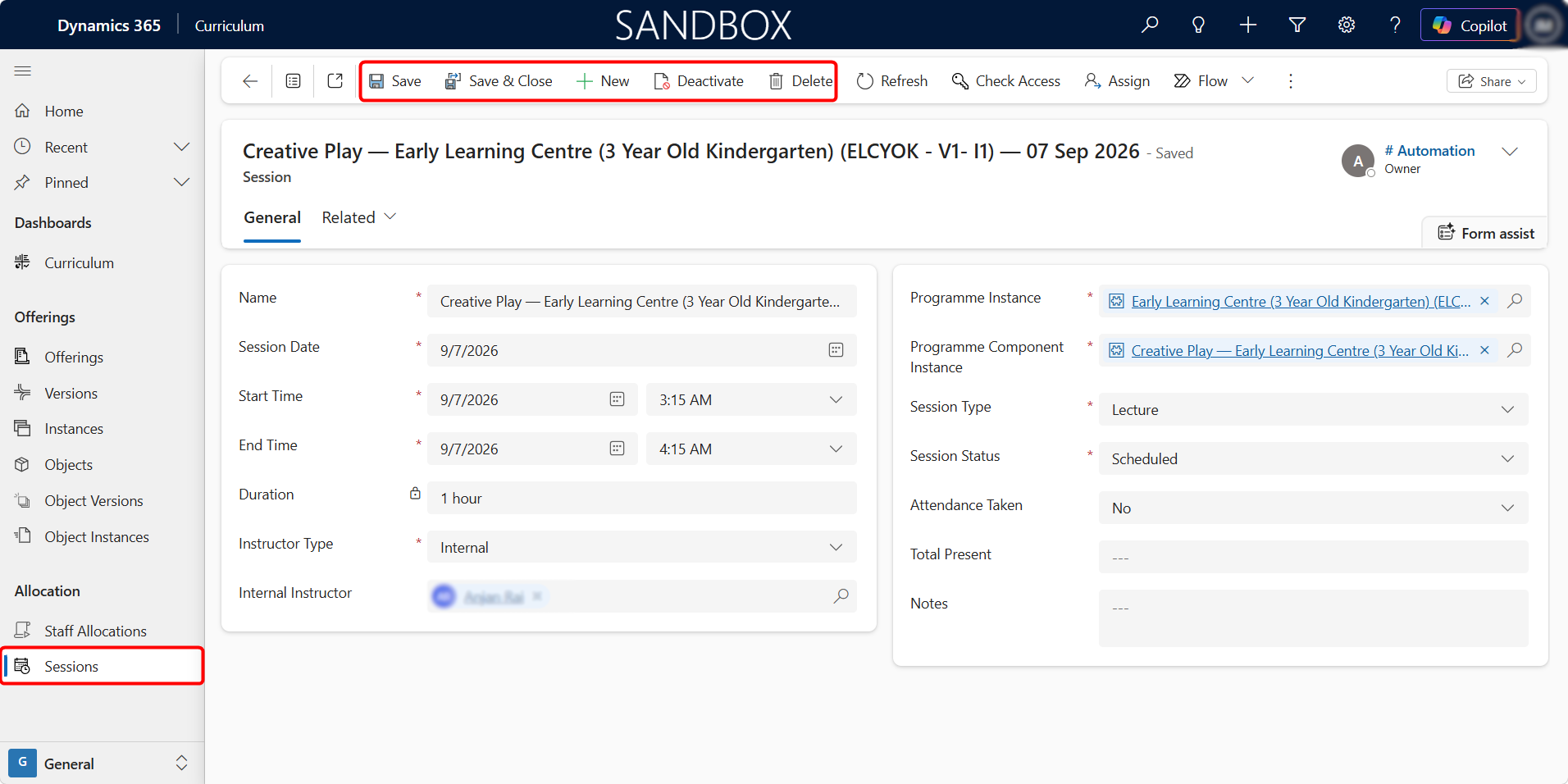
A Session represents an individual class, lecture, workshop, assessment, examination, or other scheduled activity delivered as part of an Offering Object Instance.
For example, an Offering Object Instance for Creative Play may contain weekly sessions throughout the academic year.
Each Session records:
-
The Session date
-
Start and end times
-
Duration
-
Related Offering Instance
-
Related Offering Object Instance
-
Session type
-
Assigned instructor
-
Session status
-
Attendance information
Creating a Session
Sessions can be created from an Offering Object Instance or from the Sessions area.
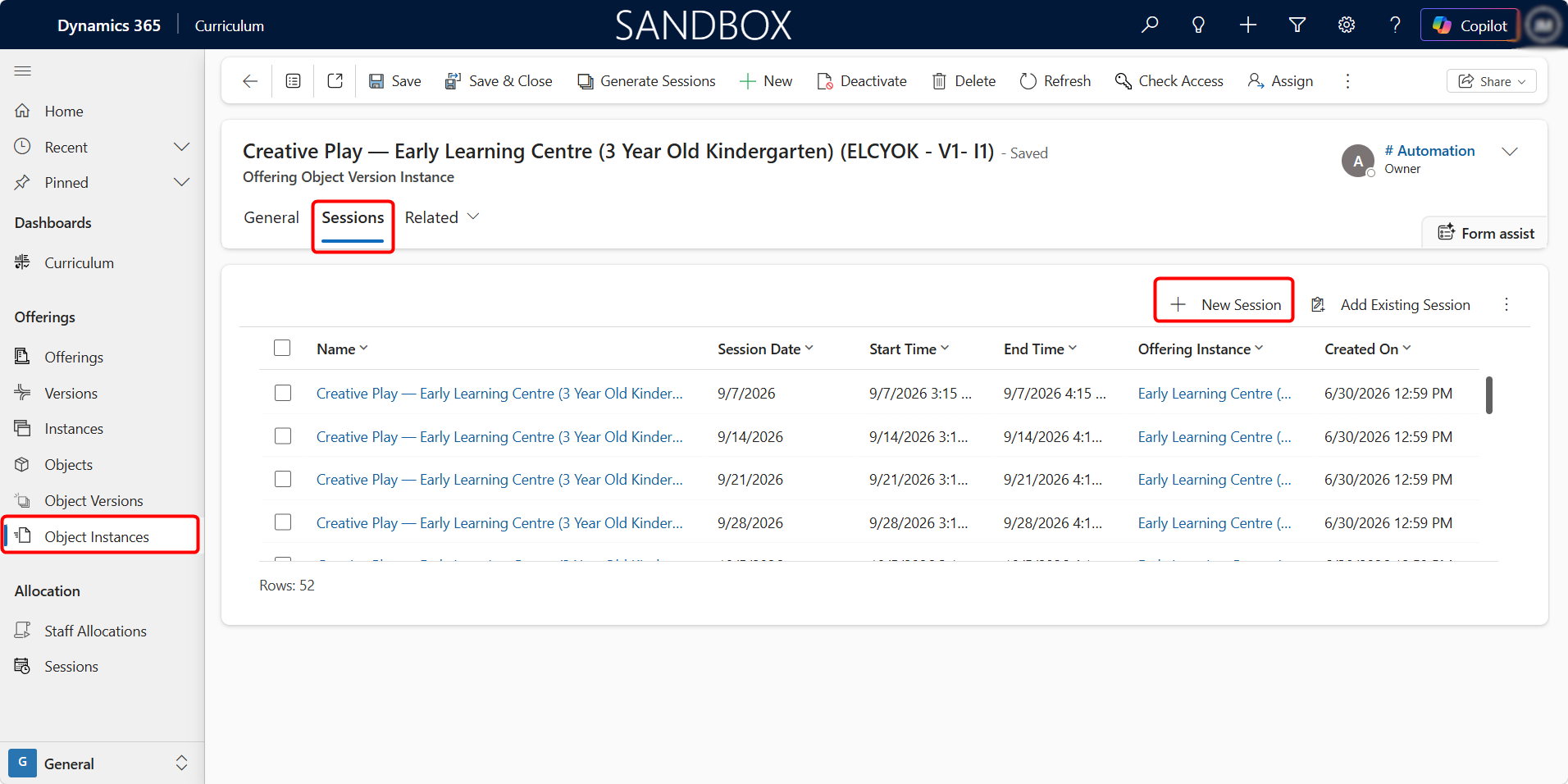
Create from an Offering Object Instance
-
Open the relevant Offering Object Instance.
-
Select the Sessions tab.
-
Select New Session.
-
Complete the Session information.
-
Select Save or Save & Close.
Create from the Sessions Area
-
Select Sessions from the sitemap.
-
Select + New.
-
Select the related Offering Instance.
-
Select the related Offering Object Instance.
-
Complete the Session information.
-
Select Save or Save & Close.
Session Fields
| Field | Description |
|---|---|
| Name | Name used to identify the Session |
| Session Date | Date on which the Session takes place |
| Start Time | Scheduled start date and time |
| End Time | Scheduled end date and time |
| Duration | Calculated length of the Session |
| Instructor Type | Indicates whether the instructor is internal or external |
| Internal Instructor | Internal staff member assigned to the Session |
| Offering Instance | Offering intake or cohort connected to the Session |
| Offering Object Instance | Curriculum component delivery connected to the Session |
| Session Type | Type of activity, such as lecture, workshop, assessment, or examination |
| Session Status | Current status of the Session |
| Attendance Taken | Indicates whether attendance has been recorded |
| Total Present | Number of learners recorded as present |
| Notes | Additional Session information |
Generating Multiple Sessions
The Generate Sessions option can be used from an Offering Object Instance to create a series of Sessions across the Object Instance delivery period.
This is useful for recurring activities such as:
-
Weekly classes
-
Fortnightly workshops
-
Regular tutorials
-
Scheduled laboratory sessions
-
Repeated training sessions
Generated Sessions can then be reviewed and updated individually where required.
Staff Allocations
A Staff Allocation assigns an instructor or staff member to an Offering Object Instance.
This identifies who is responsible for delivering or supporting the curriculum component during a specified period.
Staff may be allocated in roles such as:
-
Lead Instructor
-
Instructor
-
Tutor
-
Assessor
-
Facilitator
-
Coordinator
-
Support Staff
The allocated staff member can then be assigned automatically to Sessions created for that Offering Object Instance.
Creating a Staff Allocation
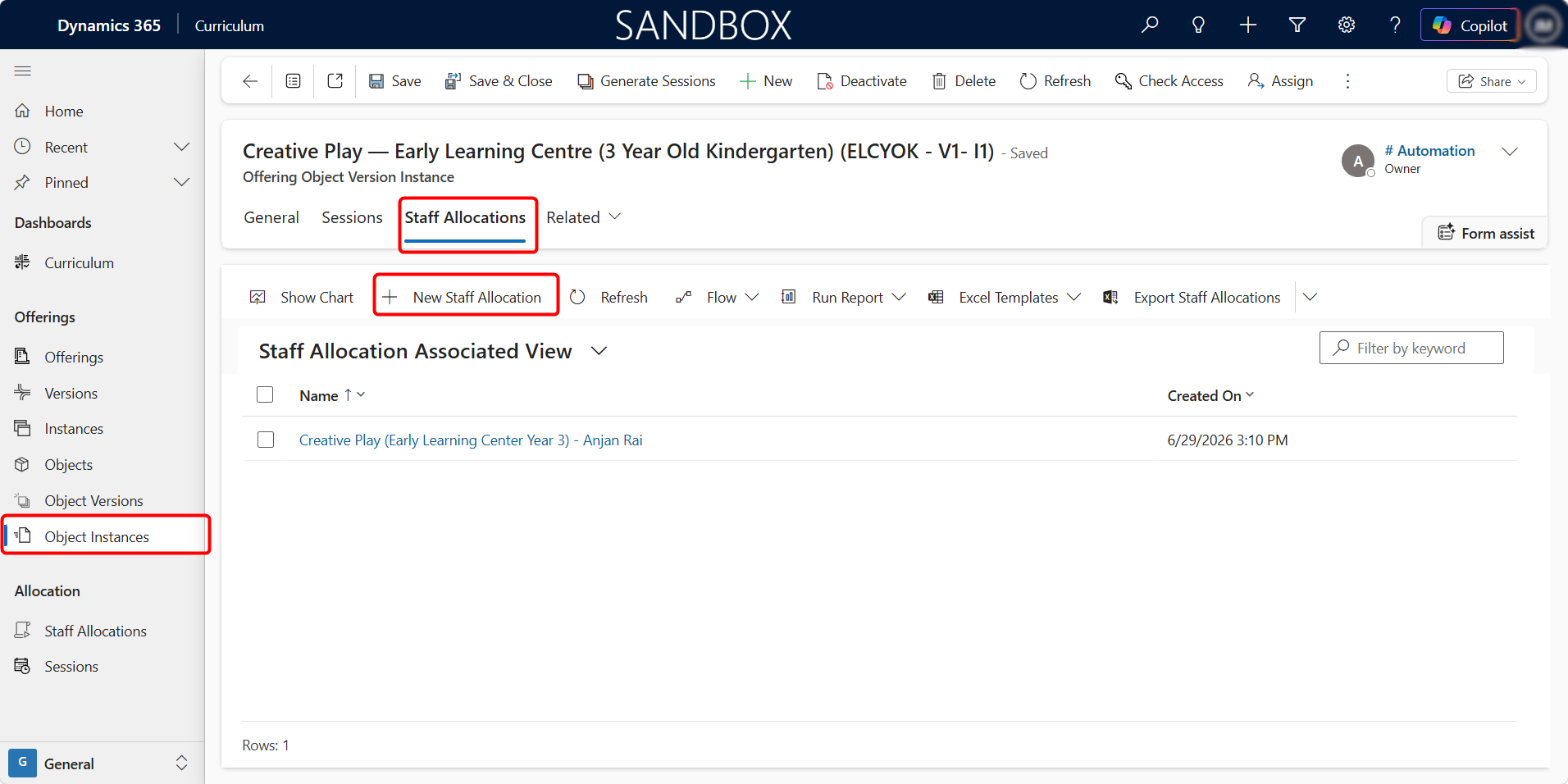
A Staff Allocation can be created directly from an Offering Object Instance.
-
Open the relevant Offering Object Instance.
-
Select the Staff Allocations tab.
-
Select New Staff Allocation.
-
Select the instructor or staff member.
-
Enter the role, allocation dates, and status.
-
Select Save or Save & Close.
Staff Allocations can also be viewed from Staff Allocations in the sitemap.
Staff Allocation Fields
| Field | Description |
|---|---|
| Name | Name used to identify the Staff Allocation |
| Offering Object Instance | Curriculum component delivery to which the staff member is assigned |
| Allocation Status | Current status of the allocation |
| Allocation Start | Date from which the staff member is assigned |
| Allocation End | Date on which the allocation ends |
| Hours Allocated | Number of hours allocated to the staff member |
| Role | Role performed by the staff member |
| Instructor Type | Indicates whether the instructor is internal or external |
| Internal Instructor | Internal staff member or user assigned |
| Notes | Additional information about the allocation |
When Sessions are created for the related Offering Object Instance, the allocated instructor can be carried across to those Sessions.
End-to-End Curriculum Structure
The complete Curriculum structure is:
Offering
↓
Offering Version
↓
Offering Instance
↓
Offering Object Version Instance
-
Sessions
-
Staff Allocations
The curriculum components follow this structure:
Offering Object
↓
Offering Object Version
↓
Offering Object Instance
Together, these records allow the institution to define:
-
What educational services are offered
-
Which version of the curriculum applies
-
When and how the Offering is delivered
-
Which courses, modules, assessments, or other Objects are included
-
Which staff members are responsible
-
When individual classes or activities take place