Legal CRM and Case Management for Dynamics 365 Quick Start Guide
What is the CRM used for?
The Legal CRM (CRM i.e. Customer Relationship Management) is built on Microsoft Dynamics 365 and supports the full lifecycle of legal business development - from first potential new client to active matter.
- Manage Clients and Prospects — Track both existing clients and prospective new clients in one central place.
- Track Legal Opportunities — Log and manage pitches and potential new client enquiries through a structured pipeline.
- Record Communications — Capture calls, meetings, emails, tasks, and follow-ups against the right records.
- Move Work Forward — Guide enquiries from initial intake through qualification, pitch, and into matter creation.
Key Record Types in the System
The Legal CRM uses a small number of key record types to manage client relationships and new business opportunities from first enquiry through to live matter.
- Organisation (Account)
- A company or client organisation stored in the system.
- People (Contact)
- An individual linked to an organisation or recorded as an individual client/contact.
- Potential New Client
- The initial enquiry or prospect captured in the CRM.
- Pitch
- A qualified opportunity where scope, fees, and legal details are reviewed.
- Matter
- The live legal work record created once the engagement is approved.
- Activities Calls, meetings, emails, tasks, and notes linked to the relevant record.
Getting Around the System
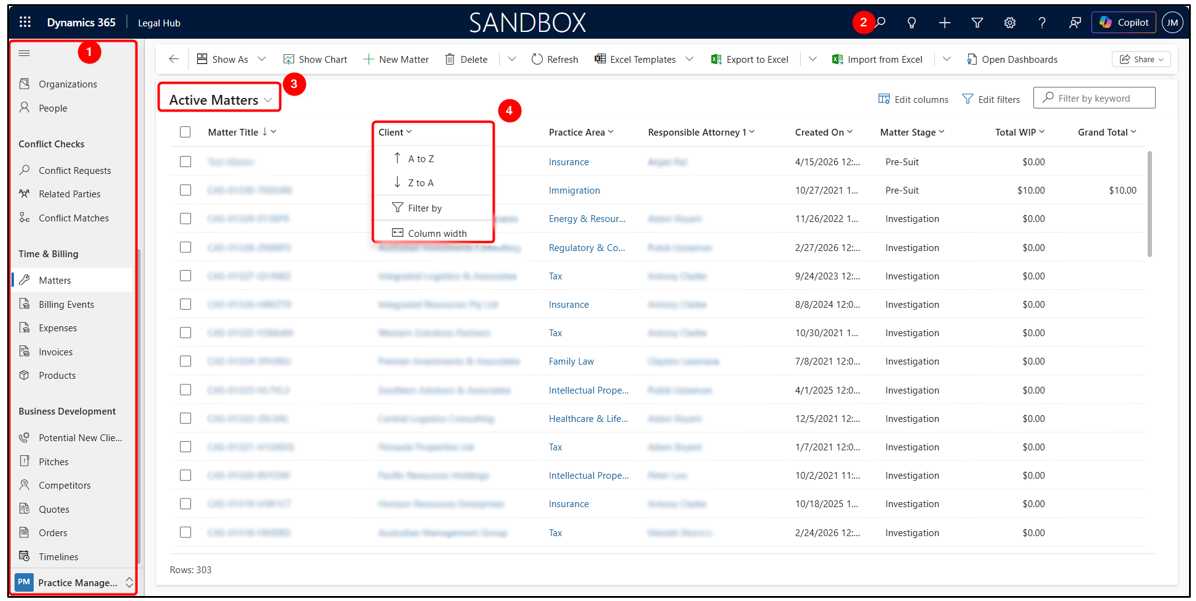
The Legal Hub makes it easy to move between potential new client, pitch, and matter records. Use the navigation menu, global search, and list views to quickly find and manage your work.
-
Main Menu / Sitemap
- Use the left-hand navigation menu to access key areas such as Potential New Clients, Pitches, Matters, Activities, and Invoices.
-
Search
- Use the search bar at the top of the screen to quickly find records by client name, organisation, contact, matter number, or keyword.
-
Using Views
- Views are pre-filtered lists (e.g., Active Matters). Select a view from the dropdown at the top-left of any list page.
-
Filtering & Sorting
- Use filters to narrow down records and click column headings to sort the list.
Organisations
Organisation records are used to manage company or client entity details in the CRM.
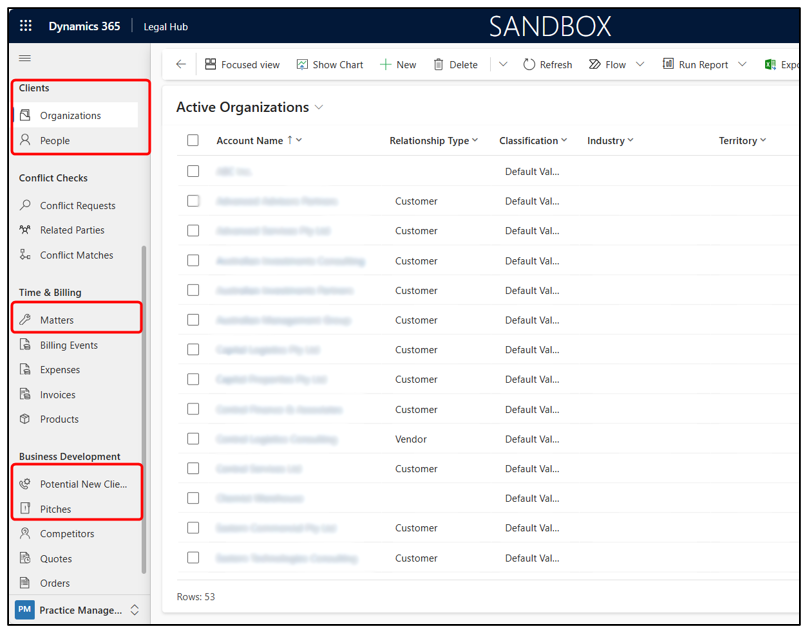
- Go to Clients in the left-hand navigation.
- Select Organisations.
- The Organisations list will open.
- From here, you can view (or change the View) and open existing organisation records.
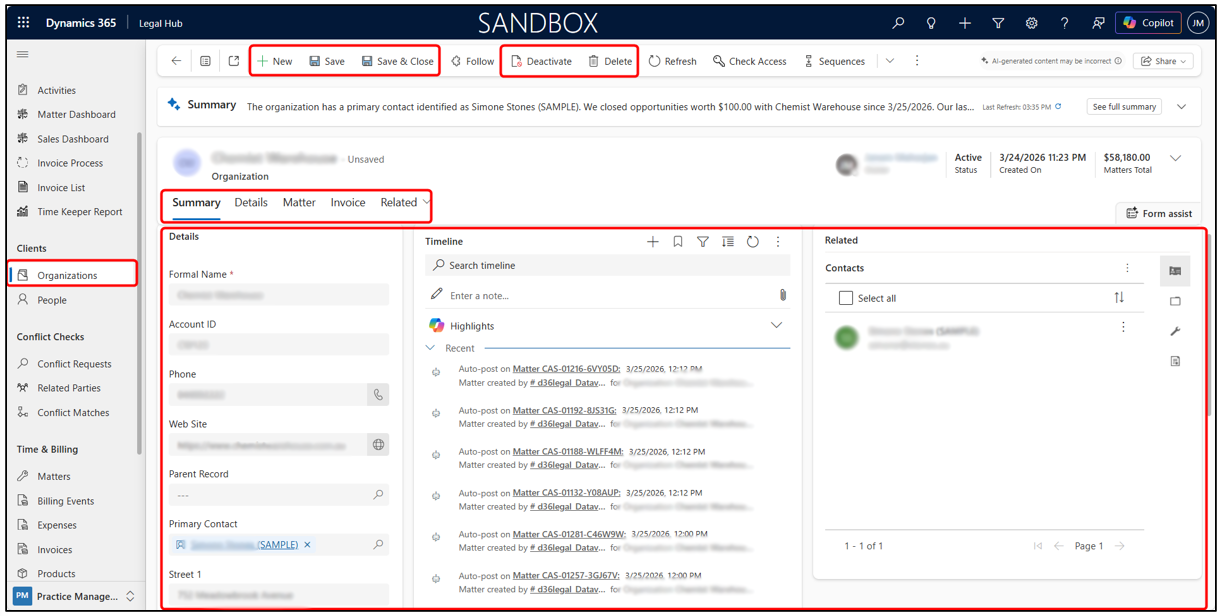
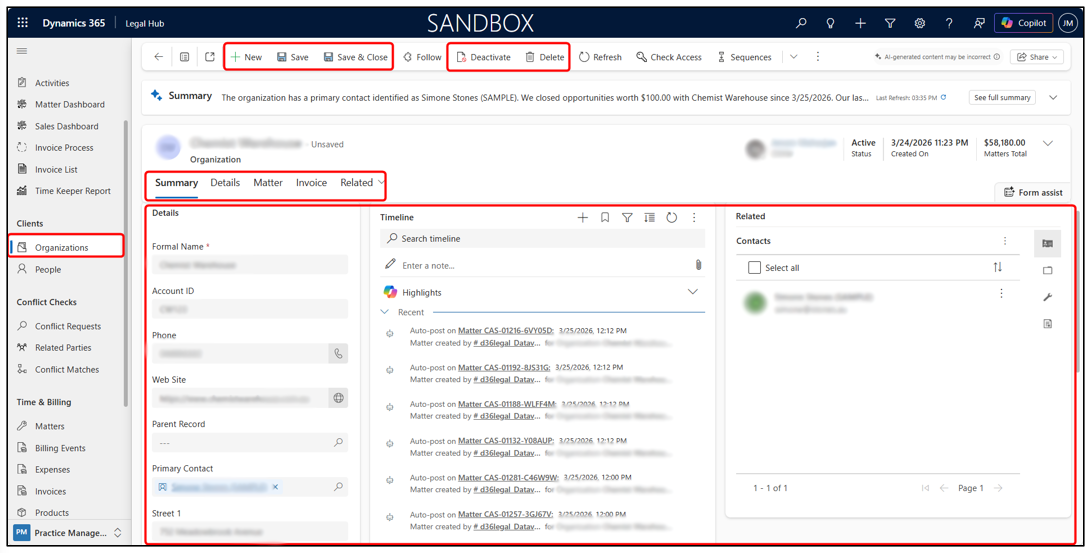
Creating or Managing an Organisation
Organisation records are used to store company or client entity details in the CRM. Always search first before creating a new organisation to avoid duplicates.
Steps to Create an Organisation:
- Go to Clients > Organisations.
- Click +New to create a new organisation record.
- Enter the required details such as organisation name, related contact details, and other key information.
- Click Save to create the record.
Managing an Existing Organisation:
- Open the organisation record.
- Update the details as needed.
- Click Save to keep the changes.
- Delete or deactivate the record if required and if permitted.
People
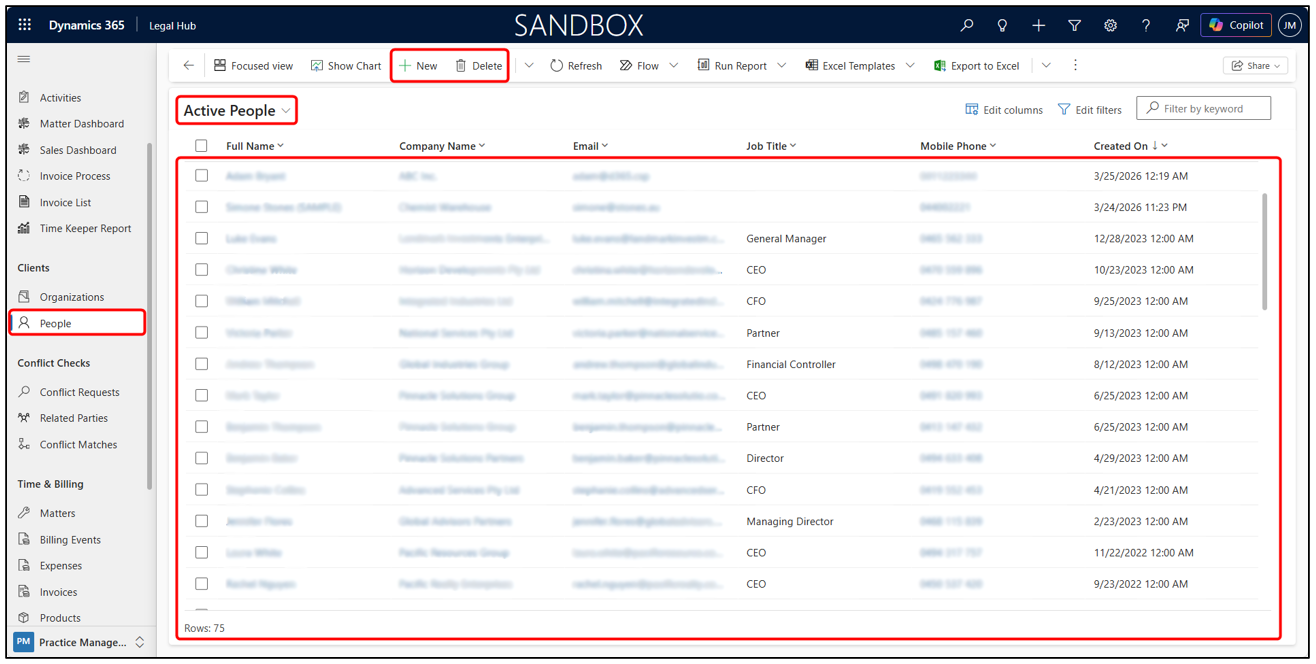
People records are used to manage individual clients or contacts in the CRM and can be linked to an organisation where needed.
- Go to Clients in the left-hand navigation.
- Select People.
- The People list will open.
- From here, you can view (or change the View) and open existing people records.
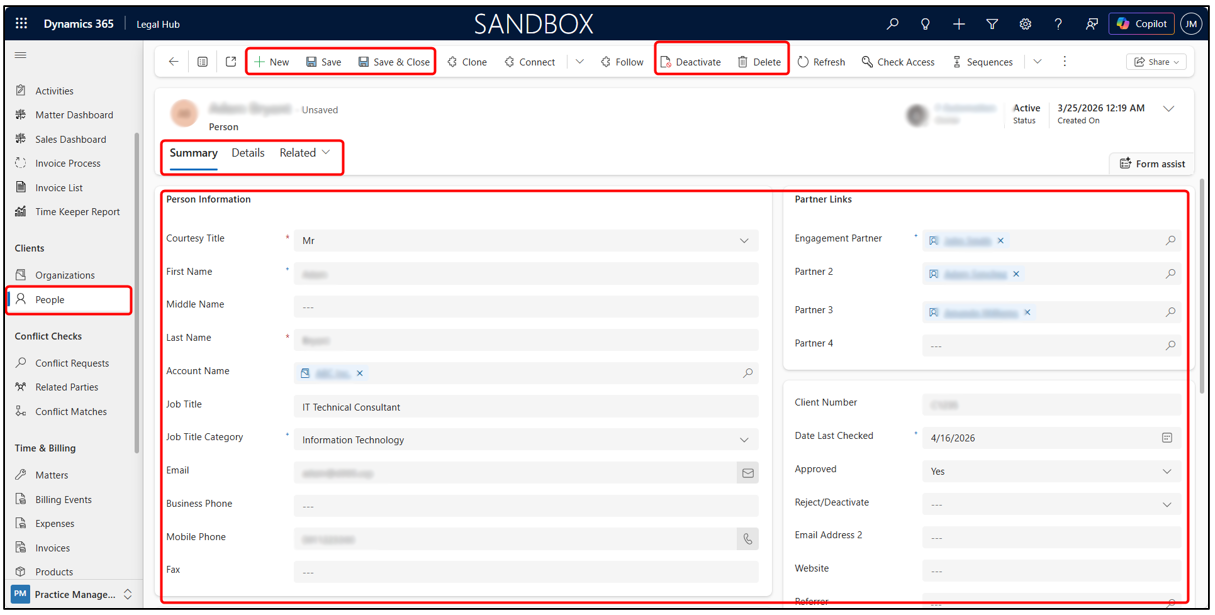
Creating or Managing People
People records are used to store individual client details in the CRM. Always search first before creating a new people record to avoid duplicates.
Steps to Create a Person Record:
- Go to Clients > People.
- Click +New.
- Enter the required details such as name, contact information, and other key information.
- Link the person to an organisation if applicable.
- Click Save to create the record.
Managing an Existing Person Record
- Open the People record.
- Update the details as needed.
- Click Save to keep the changes.
- **Delete or deactivate ** the record if required and if permitted.
Potential New Clients
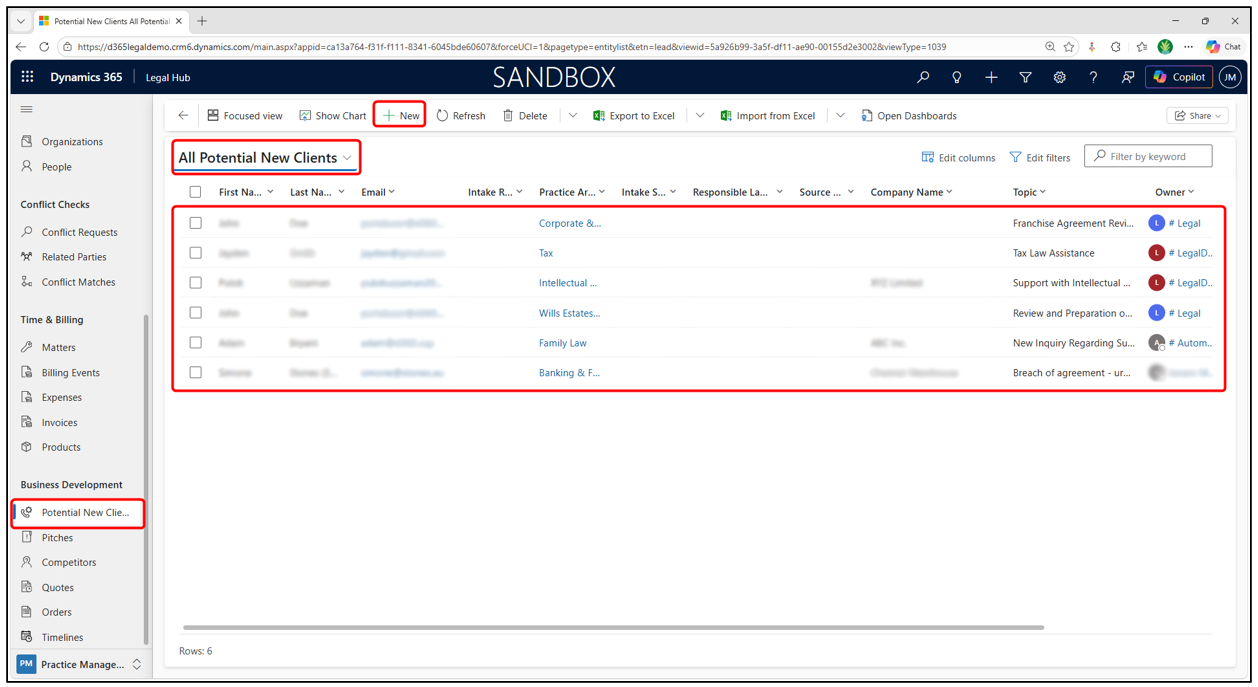
A Potential New Client record captures the initial enquiry and is the starting point for new business in the Legal CRM.
- Go to Business Development in the left-hand navigation.
- Select Potential New Clients.
- The Potential New Clients list view will open.
- From here, you can view and open existing enquiry records.
Creating and Qualifying Potential New Client
A Potential New Client record is used to capture the initial enquiry before it is reviewed and progressed into a Pitch.
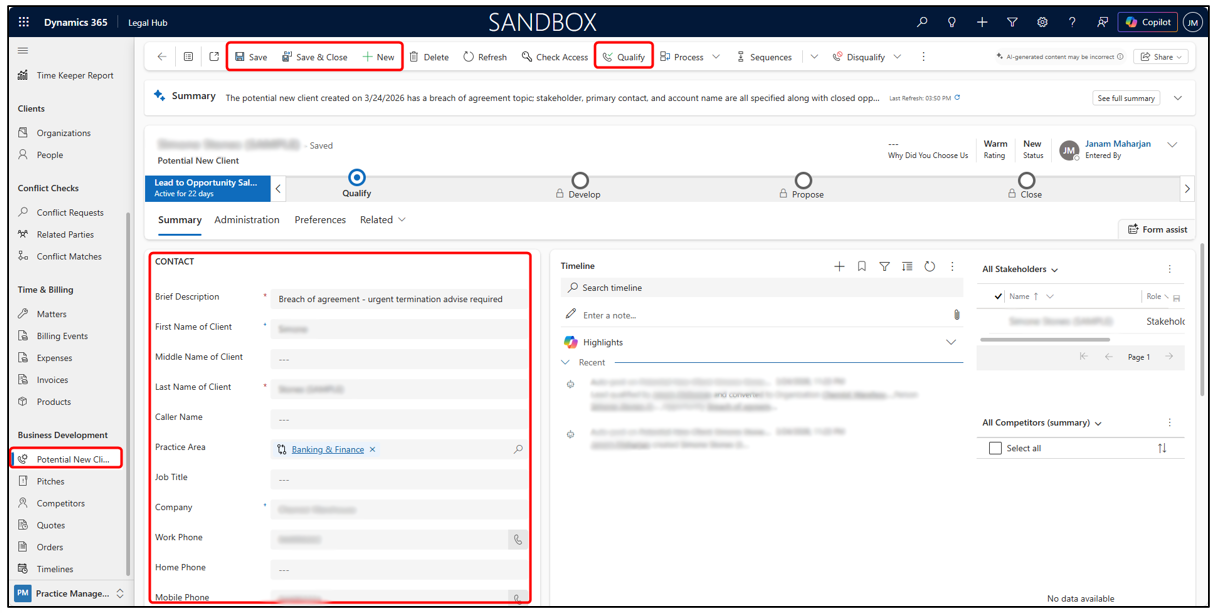
Steps to Create a Potential New Client Record
- Go to Business Development > Potential New Clients.
- Click +New.
- Enter the key enquiry details such as client name, practice area, company, and contact information.
- Click Save or Save & Close.
Managing and Qualifying a Potential new Client
- Open the saved Potential New Client record.
- Review and update the details as needed.
- Click Qualify from the command bar when the enquiry is ready to progress to a Pitch.
Pitches
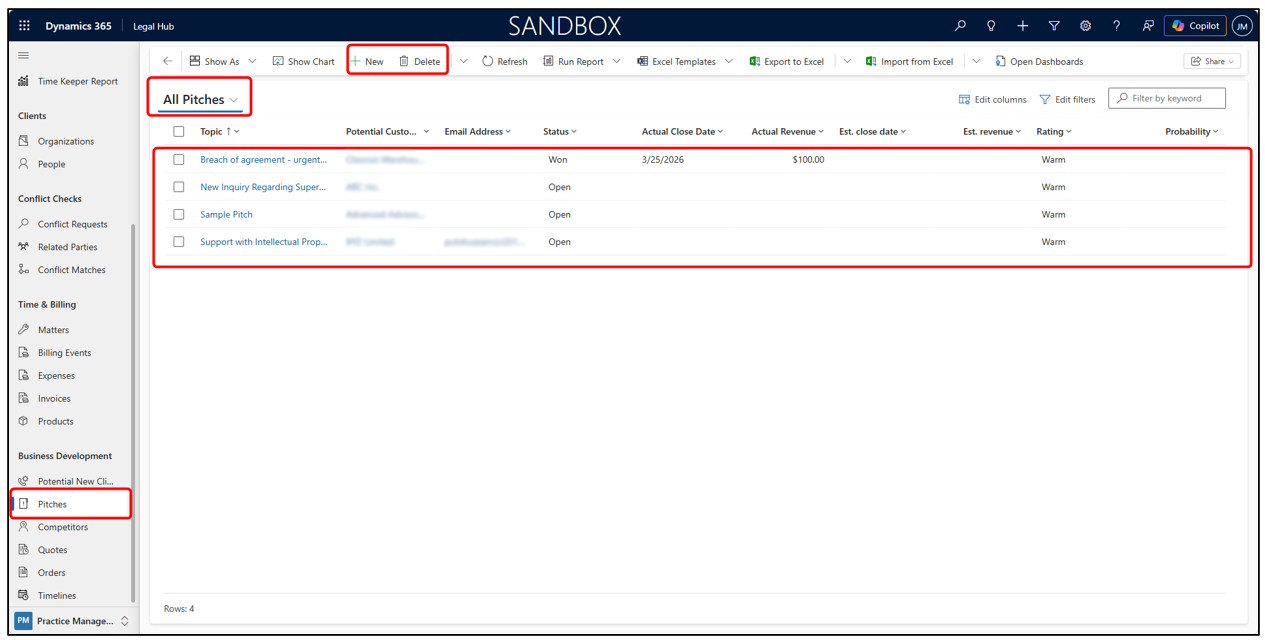
A Pitc is a qualified legal opportunity. It is usually created automatically when a Potential New Clien is qualified.
- Go to Business Development in left navigation.
- Select Pitches.
- The Pitches list will open.
- From here, you can view and open existing Pitch records.
Creating or Managing a Pitch
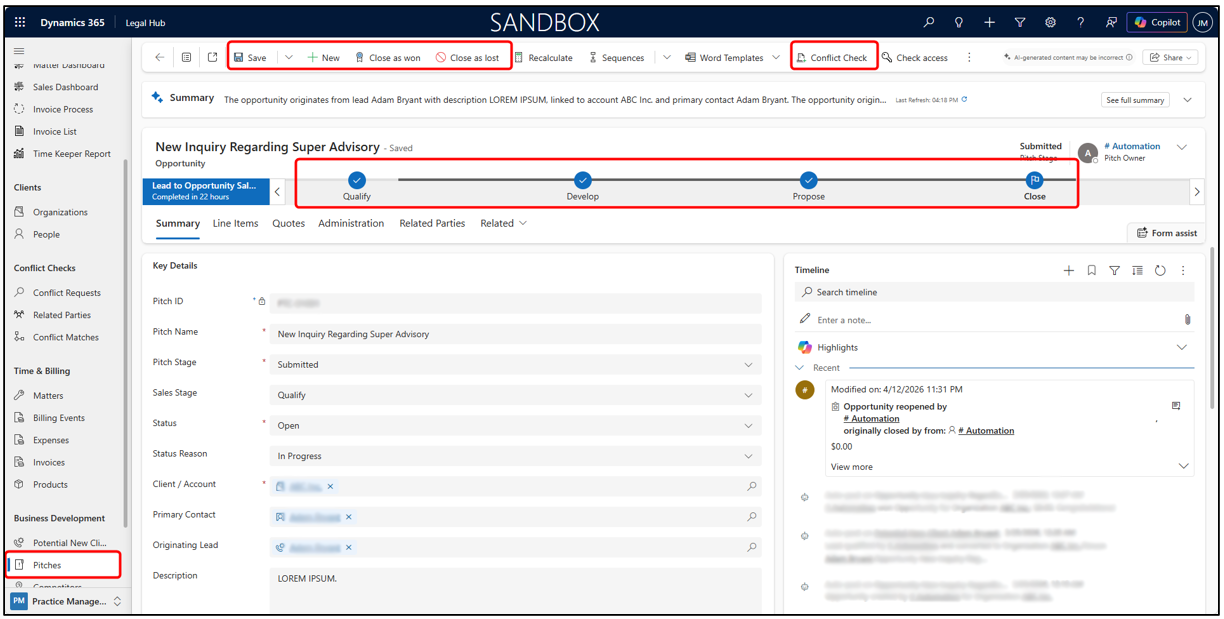
A Pitch can be created automatically from a Potential New Client or created directly from the Pitches area if needed.
- A Pitch is usually created by clicking Qualify on a Potential New Client
Or:
a. Go to Business Development > Pitches > +New.
b. Enter the required details such as Pitch Name, Client / Account, Primary Contact, Law Type, Matter Type, and Description.
c. Click Save.
- Use the business process flow to move through Qualify > Develop > Propose > Close.
- Where applicable, use Conflict Check from the command bar to review potential conflicts before progressing the record.
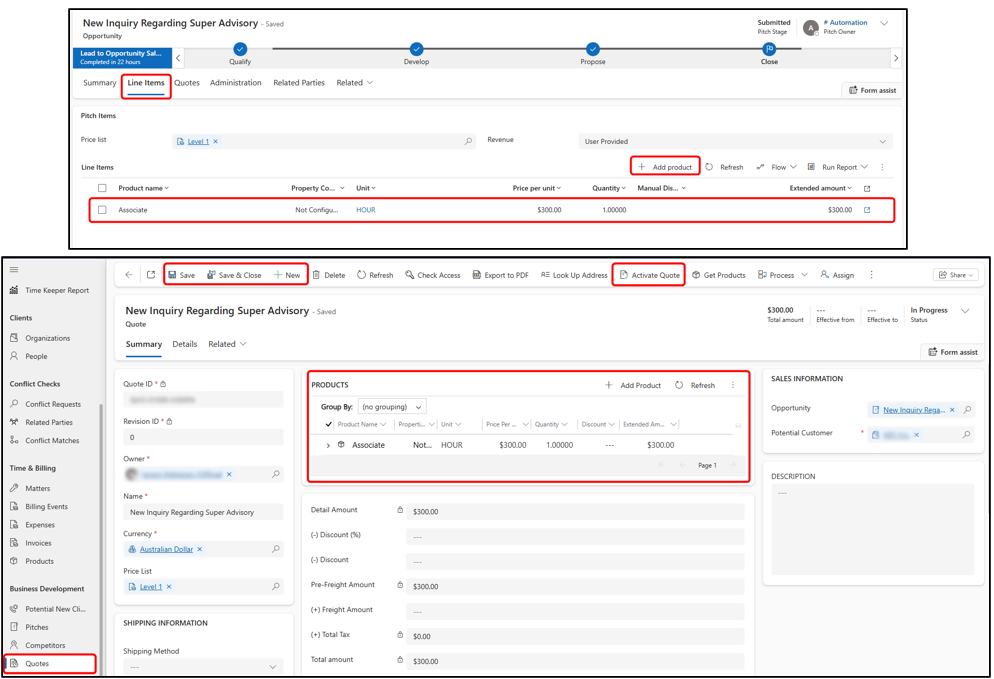
Adding Line Items and Creating a Quote
Line items are added to the Pitch first. A Quote is then created from those line items. A Quote acts as the formal commercial offer to the client. It is first created in Draft and should be activated once finalized.
- Pitch record > Line Items tab.
- Select the Price List.
- Click +Add Product.
- Select the product, confirm the unit and price, enter the quantity, then click Save and Close.
- Go to the Quotes tab.
- Click +New Quote.
- Review the draft quote and make any required changes.
- Click Save, then Activate Quote once finalized.
Closing a Pitch as Won to Create a Matter
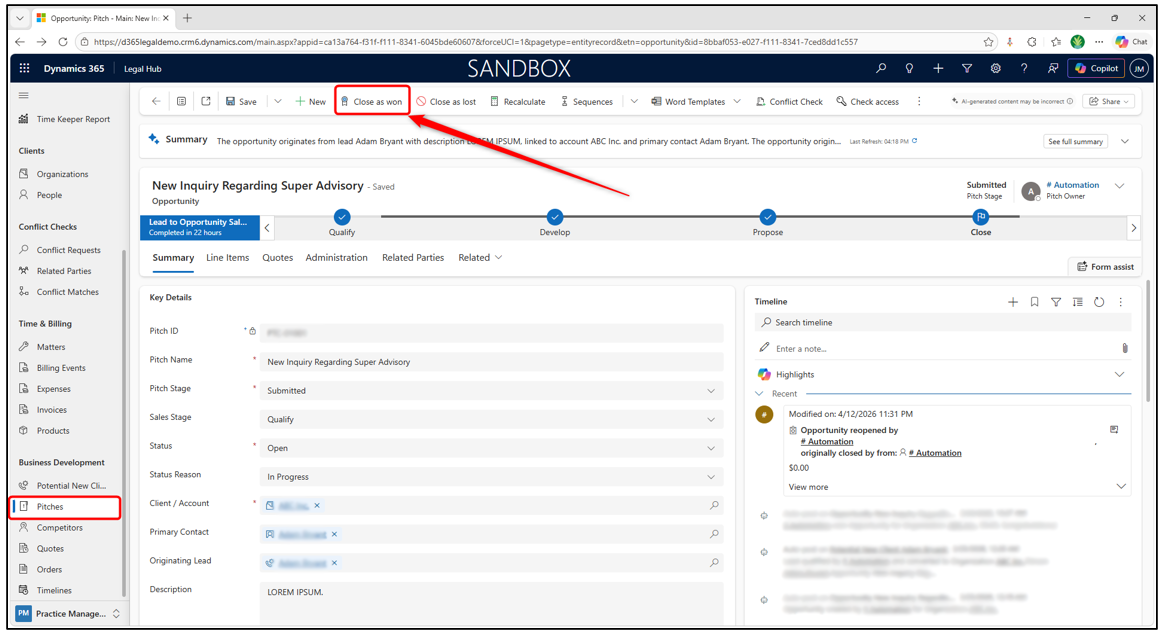
Once the client accepts the proposal, the Pitch can be closed as won, and the system automatically creates a Matter.
- Open the Pitch record.
- Review the final details and confirm the quote is ready.
- Click Close as Won from the command bar → Confirm the action.
- The system automatically creates a Matter record.
- Open the Matter and complete any required details.
- Click Save or Save & Close.
Matters
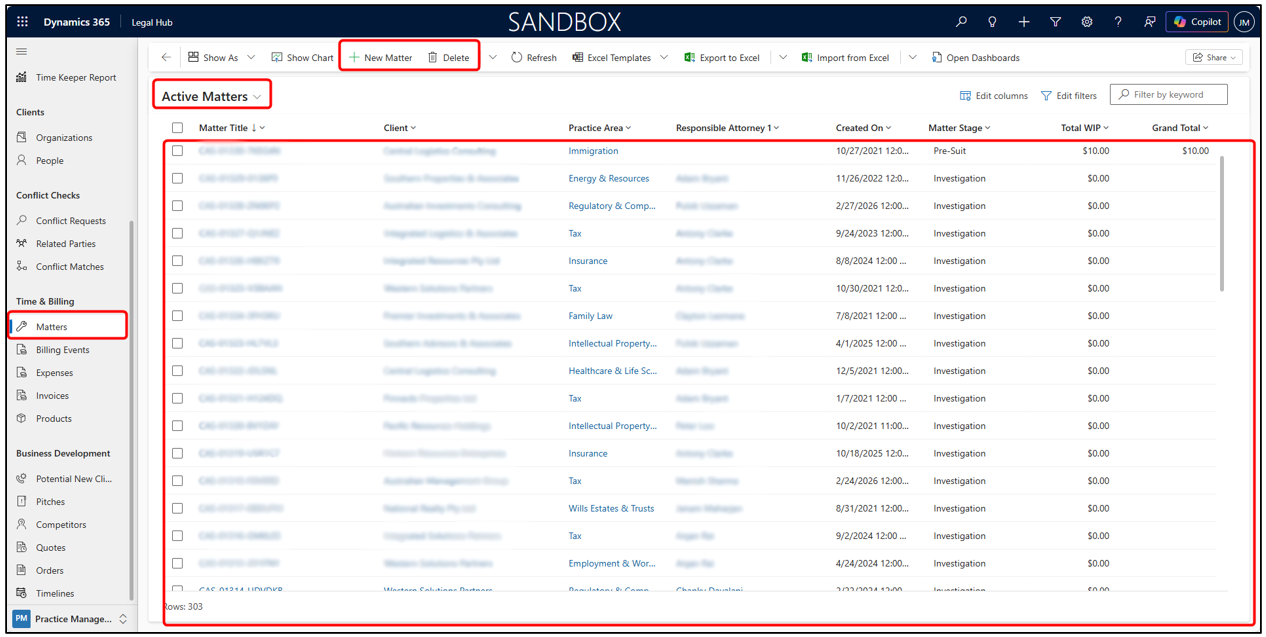
A Matter is the live legal work record in the system. It is usually created automatically when a Pitch is closed as won, but it can also be created directly if needed.
Where to find them:
- Go to Time & Billing > Select Matters.
- The Matters list will open.
- From here, you can view (or change view) and open existing Matter records.
How a Matter is created:
A Matter is usually created automatically when a Pitch is closed as won, Or:
- Click +New Matter
- Enter the required matter details.
- Click Save or Save & Close.
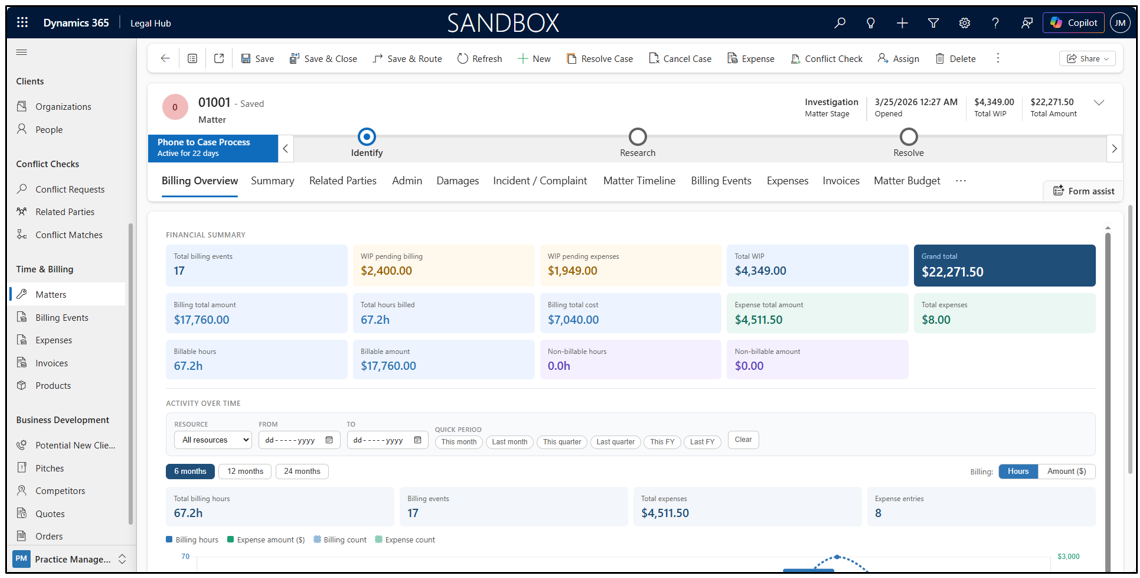
Managing a Matter
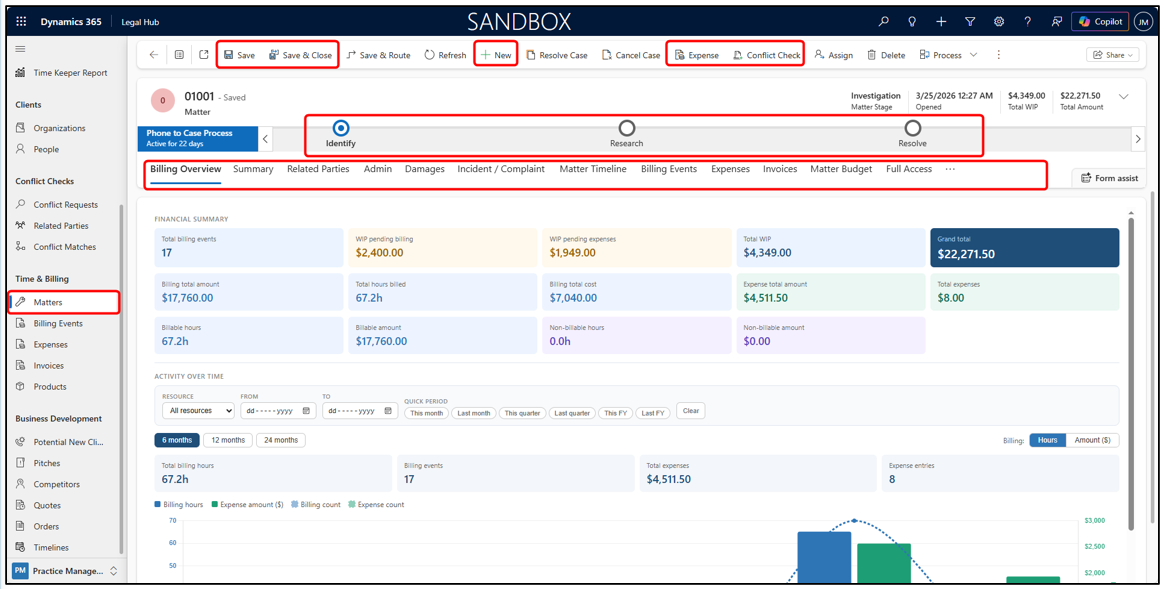
Once created, the Matter becomes the main record used to manage the legal engagement. From here, users can update details, move through stages, track related records, and manage matter activity.
Key tabs in a Matter
- Billing Overview - Snapshot of the Matter’s financial summary and billing totals.
- Summary - Main Matter details and overall information.
- Related Parties - People and organisations linked to the Matter.
- Admin - Administrative and financial setup details.
- Matter Timeline - Activity history and record updates.
- Billing Events - Billable time entries linked to the Matter.
- Expenses - Matter-related expenses and disbursements.
- Invoices - Generated invoices for the Matter.
- Matter Budget - Budget and spend tracking.
- Full Access - Users with full access to the Matter.
- Documents - Matter-related files stored and managed in SharePoint.
Activities
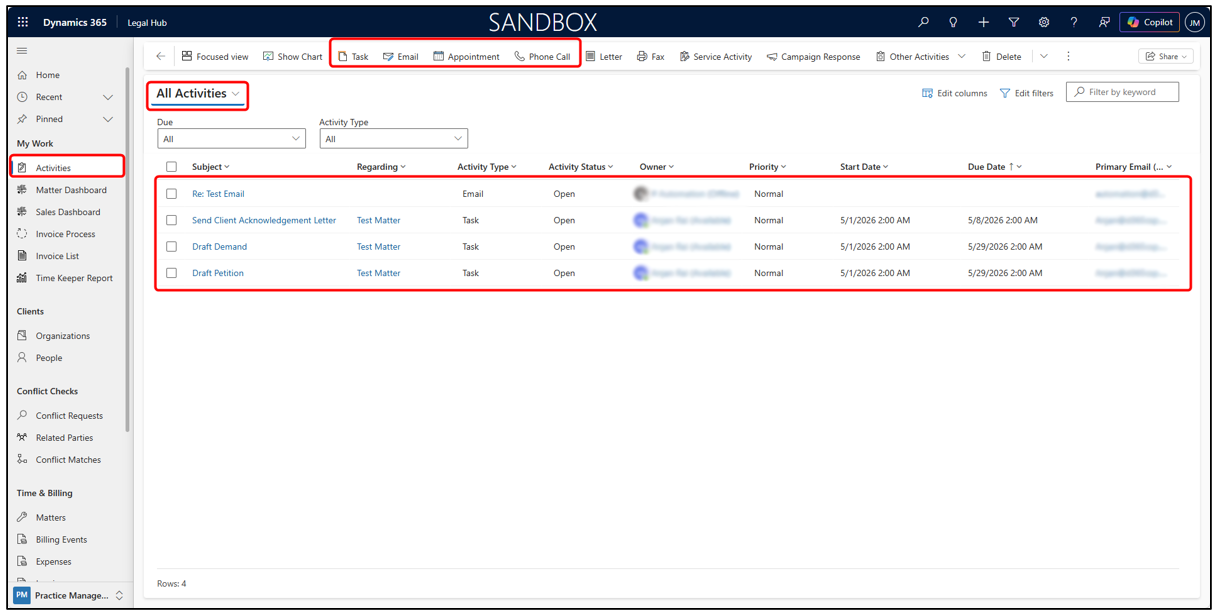
Activities help users manage day-to-day follow-up work such as tasks, emails, phone calls, and appointments.
Where to find them:
- Go to My Work.
- Select Activities.
- The Activities list will open.
- From here, you can view and manage open activity records.
Managing Activities:
- Use the list to review assigned activities.
- Create a new Task, Email, Appointment, or Phone Call from the command bar.
- Open an activity record to review or update the details.
- Use filters and views to focus on the activities that need attention first.
Timeline
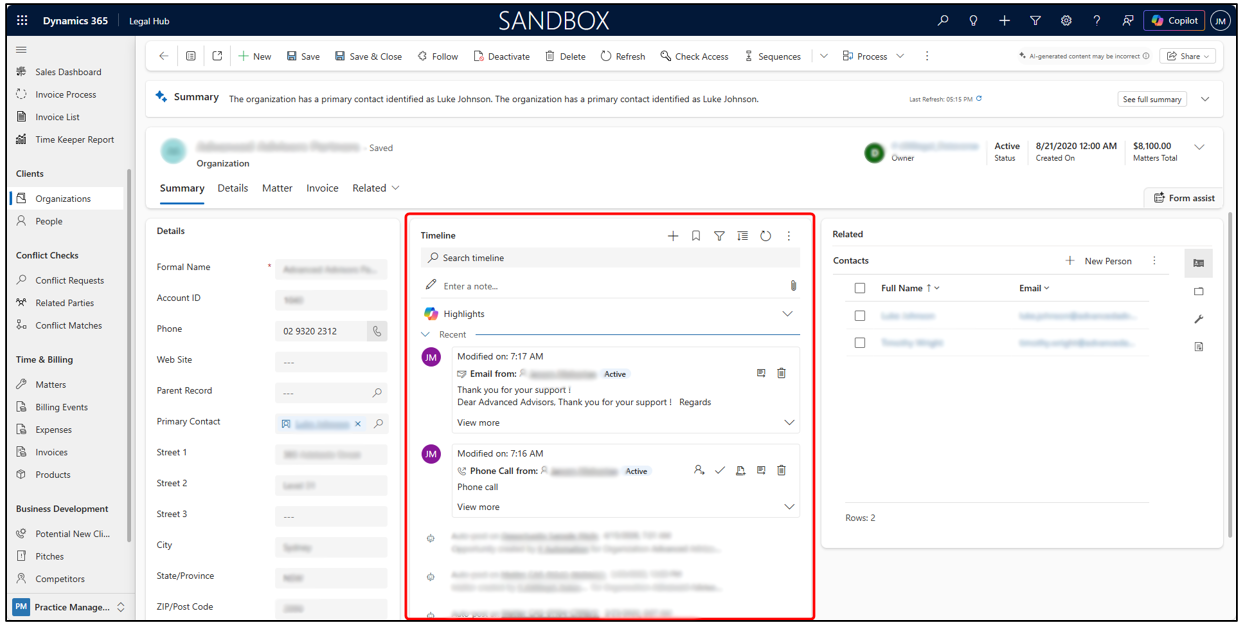
The Timeline provides a central history of notes, emails, phone calls, meetings, and other updates linked to a record. It is important because it helps users see the full interaction history in one place.
Where the Timeline is used:
- The Timeline appears across key records such as Matters, Organisations, and People.
- It helps keep communication and follow-up history visible across the system.
Using the Timeline:
- Open the relevant record.
- Scroll to the Timeline section.
- View notes, emails, meetings, and other activities linked to that record.
- Add a note or create a new activity directly from the Timeline.
- Use it to keep a clear audit trail of client and matter interactions.
Dashboards
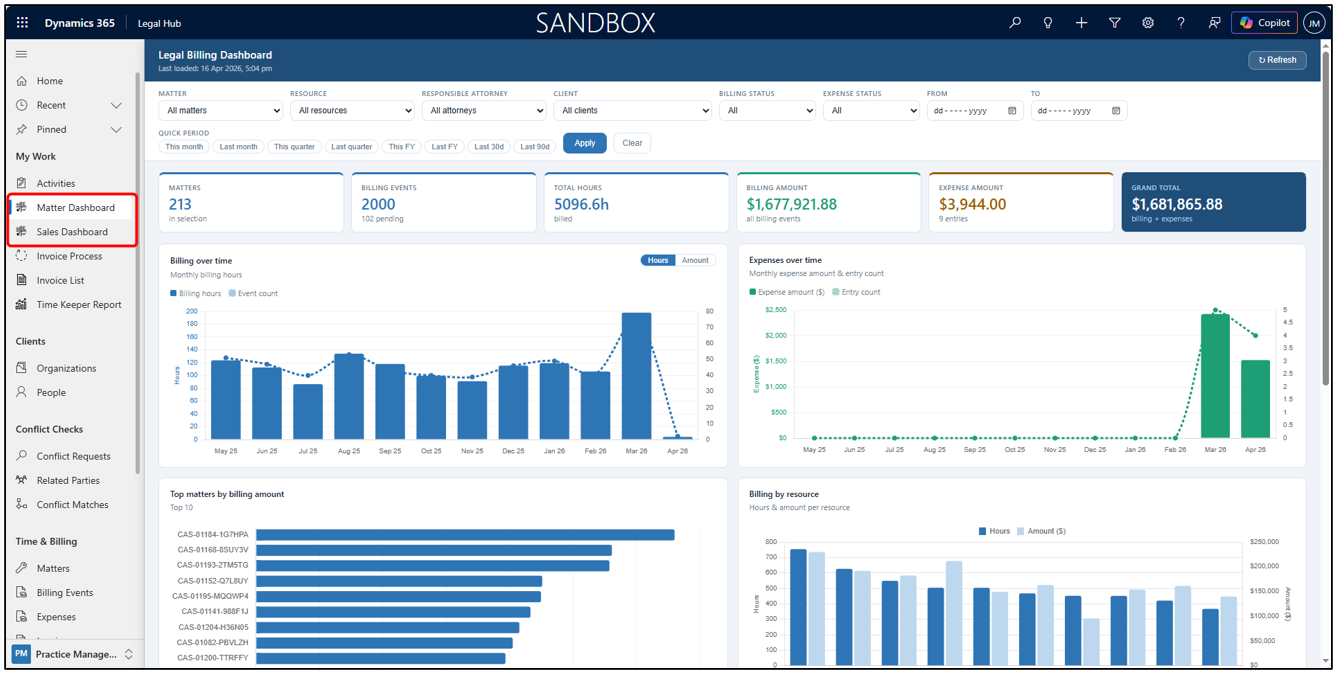
Dashboards provide visual summaries of work and performance, helping users monitor matters, billing, and sales activity more easily.
Where to find them:
- Go to My Work.
- Open Matter Dashboard or Sales Dashboard.
- Use the filters and charts to review performance and trends.
What Dashboards show:
- Matter and billing performance summaries.
- Visual trends and totals.
- Quick insights into activity across matters and sales-related work.
Invoices
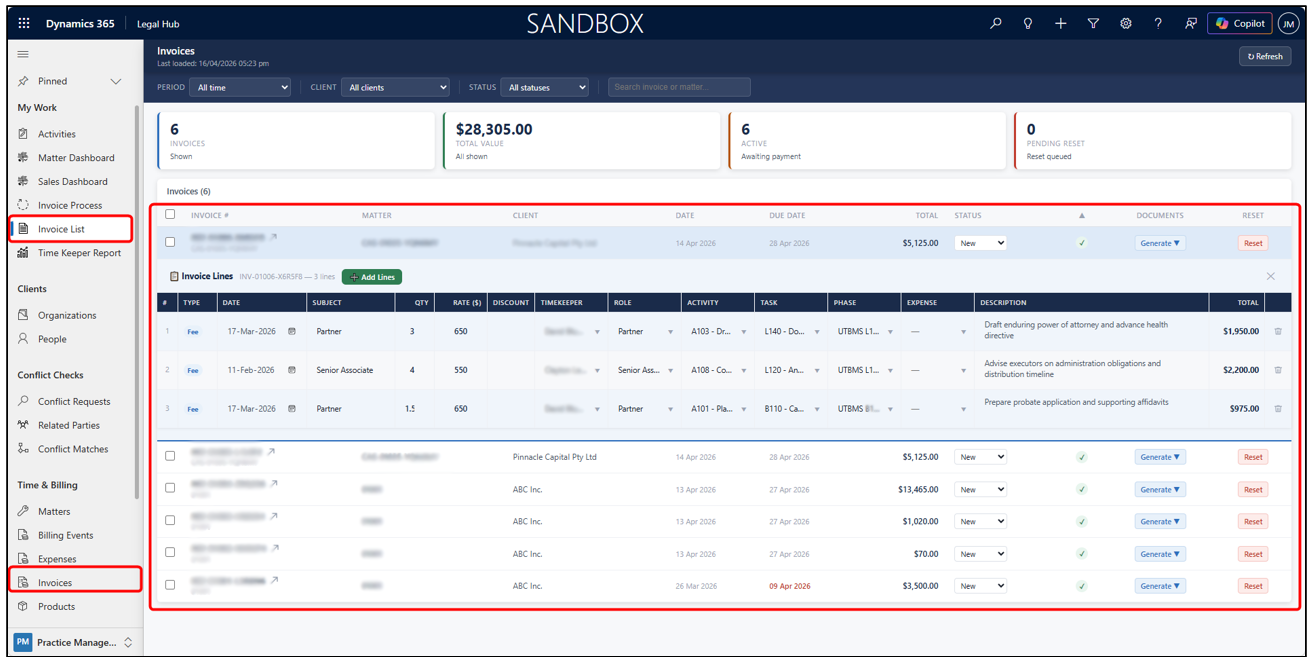
Invoices are generated from a Matter once billing events and expenses are ready. They can be viewed from both the standard Time & Billing > Invoices area and the My Work > Invoice List screen. They are generated through the Invoice Process and can then be reviewed and managed from the invoice list.
Where to find them:
Go to My Work > Invoice List, Or:
- Go to Time & Billing > Invoices.
What you can do:
- View invoice records and invoice line items
- Review and update editable line item details
- Generate invoice documents from the invoice record
How invoices are created:
- Invoices are generated through the Invoice Process
Summary
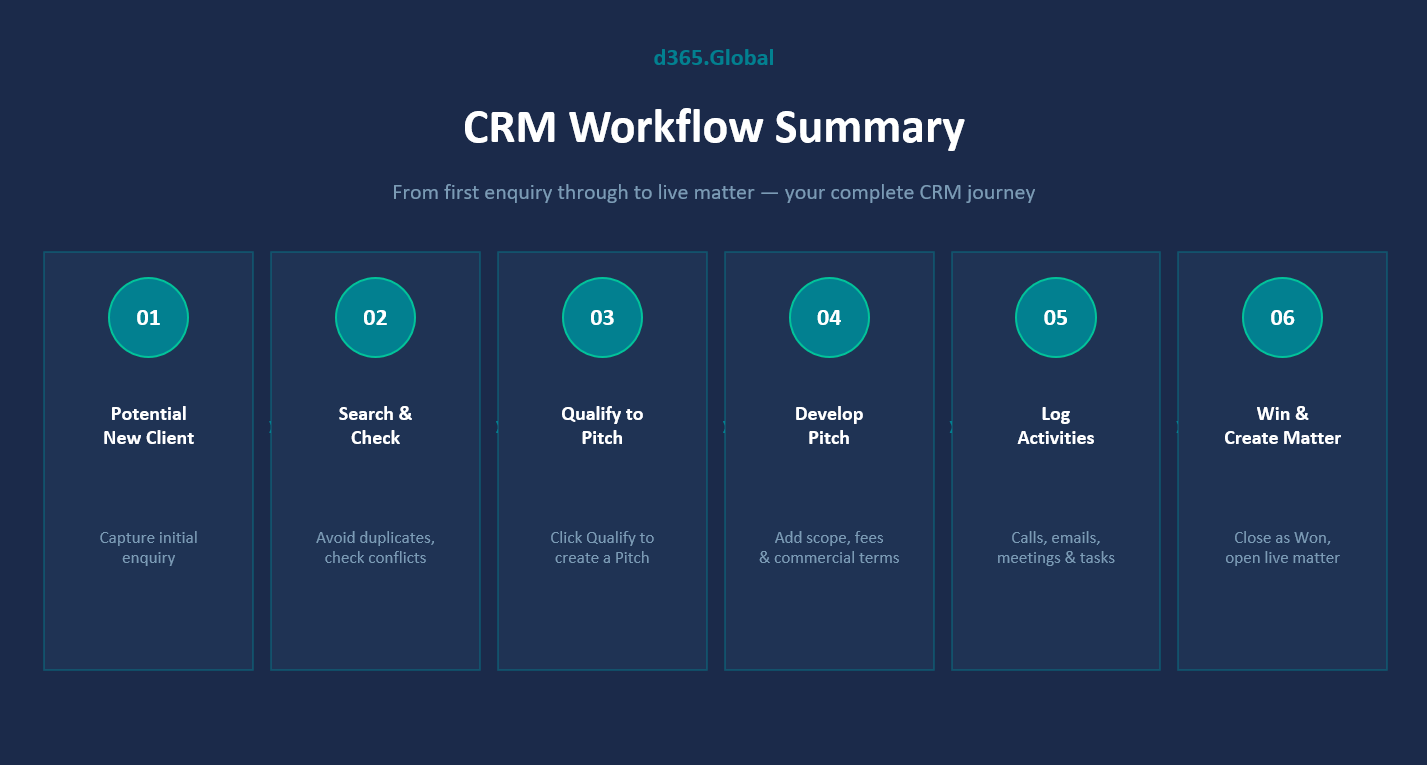
The following diagram provides a summary of the CRM workflow.