Legal User Guide for Microsoft Dynamics 365
Timeline
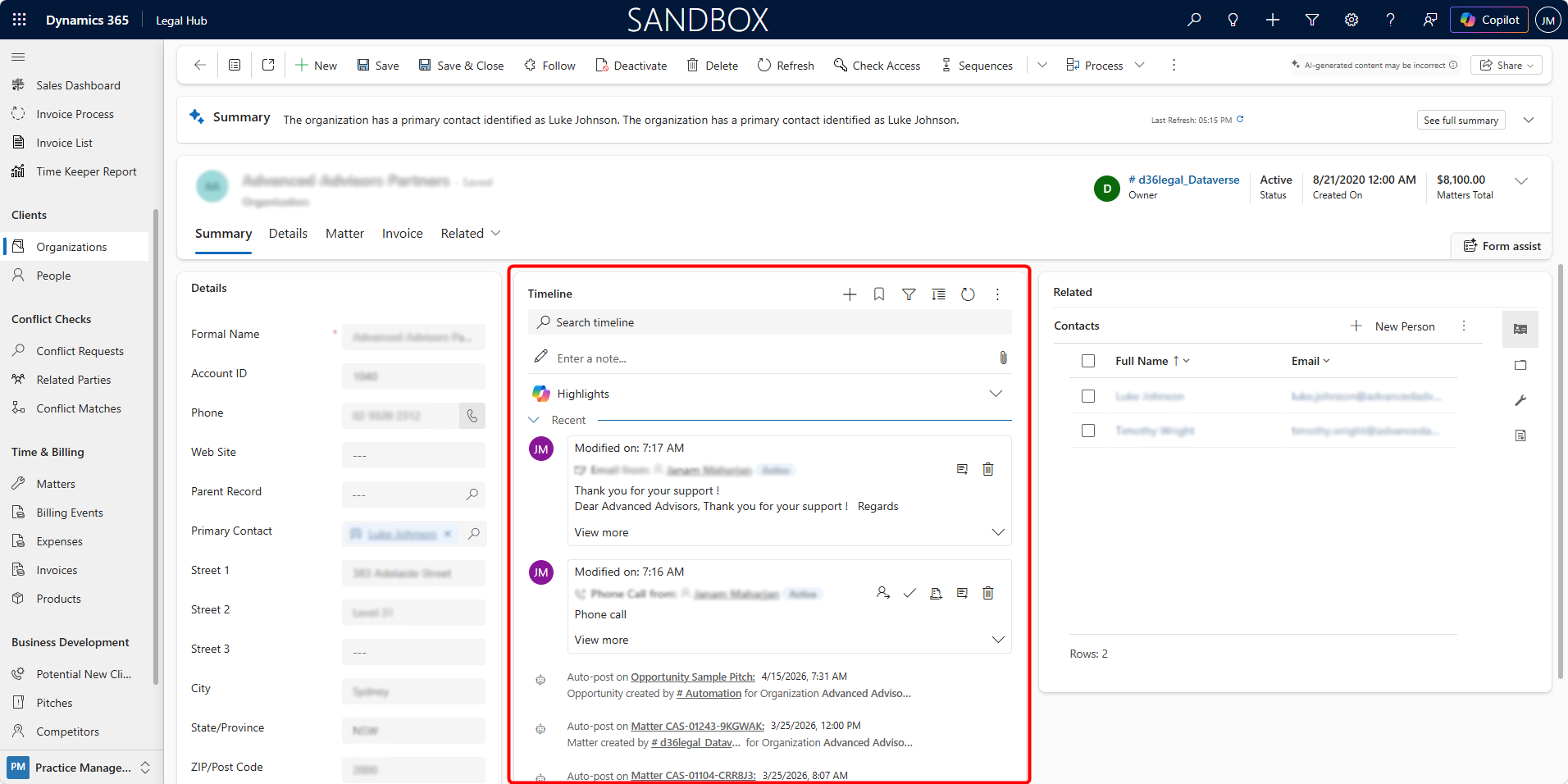
The Timeline is a central activity feed that shows all interactions and updates related to a record.
It includes:
-
Notes
-
Emails
-
Phone calls
-
Appointments
-
Tasks
-
System updates
It provides a complete history of communication and actions.
Where the Timeline Is Used
The Timeline appears in key records such as:
-
Matters
-
Potential New Clients
-
Pitches
-
Organisations
-
People
This ensures all communication is visible in one place.
Why the Timeline Is Important
The Timeline:
-
Provides a single source of truth for interactions
-
Helps users quickly understand the history of a case or client
-
Supports collaboration across teams
-
Maintains audit and compliance records
Using the Timeline
To access the Timeline:
-
Open any record (e.g., Matter).
-
Scroll to the Timeline section.
Adding Activities
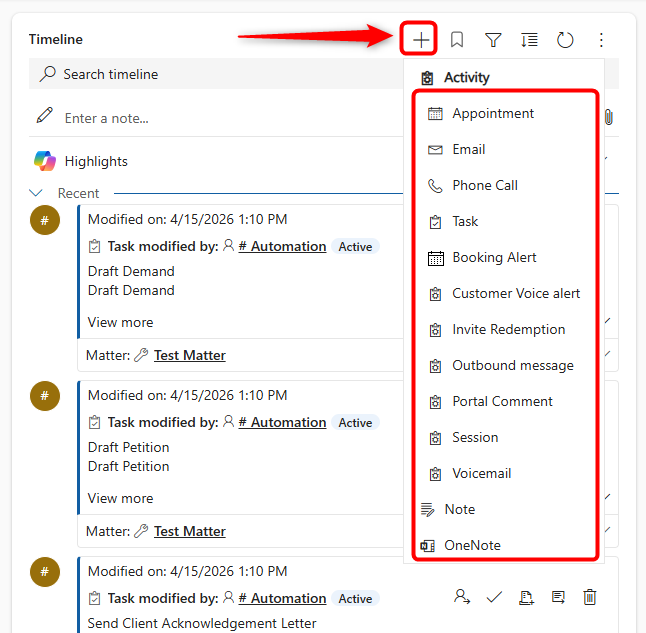
To add Activities from Timeline, users can:
-
Add a Note.
-
Create:
- Task
- Phone Call
- Appointment
Follow these steps:
-
Click the + button on the top right side of the Timeline.
-
Select the activity (e.g., Email, Task, Note).
-
Enter details.
-
Click Save.
Viewing and Filtering Timeline
Users can:
-
Scroll through all activities.
-
Expand/collapse items.
-
Filter by activity type.
-
Search within the Timeline.