Microsoft Dynamics 365 for Legal Case Management Guide
Introduction
Microsoft Dynamics 365 Legal Case Management is designed to simplify and automate the management of cases and matters for legal professionals. With tools for creating and tracking matters, managing documents, handling billing, and leveraging AI-driven insights, Dynamics 365 enables your team to boost productivity, maintain compliance, and deliver excellent client service. This guide provides detailed instructions for utilising each key feature, with practical examples and step-by-step walkthroughs.
Getting Started
To get started with Dynamics 365 Legal Case Management, follow the steps in this section.
- Log in to your Microsoft Dynamics 365 environment by entering your organisational email and password on the sign-in page.
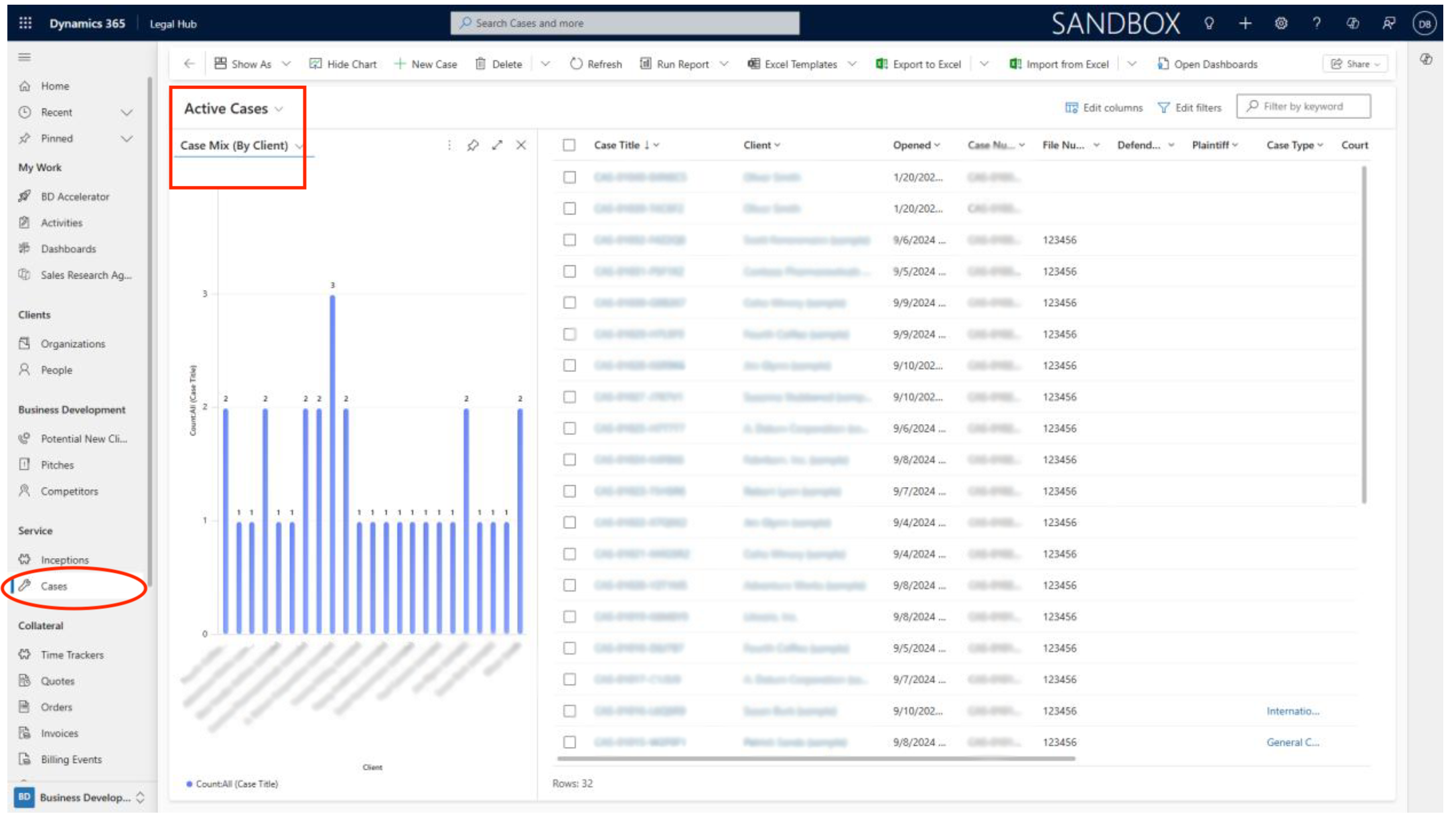
- Once authenticated, from the left-hand navigation menu, in Legal Hub locate and select Cases under the Service menu (as available in your environment).
- Charts (Show Chart/Hide Chart) provide a summary view of all ongoing cases, upcoming tasks, outstanding incidents, resource assignments, and key metrics such as case resolution times. You can customise the charts and add to dashboard by adding or removing widgets relevant to your workflow.
Creating Cases or Matters
Step-by-Step Instructions
Here are steps to create a new case or matter in Dynamics 365 Legal Case Management.
- From the Legal Case Management dashboard, click on New Case or New Matter from the menu selection.
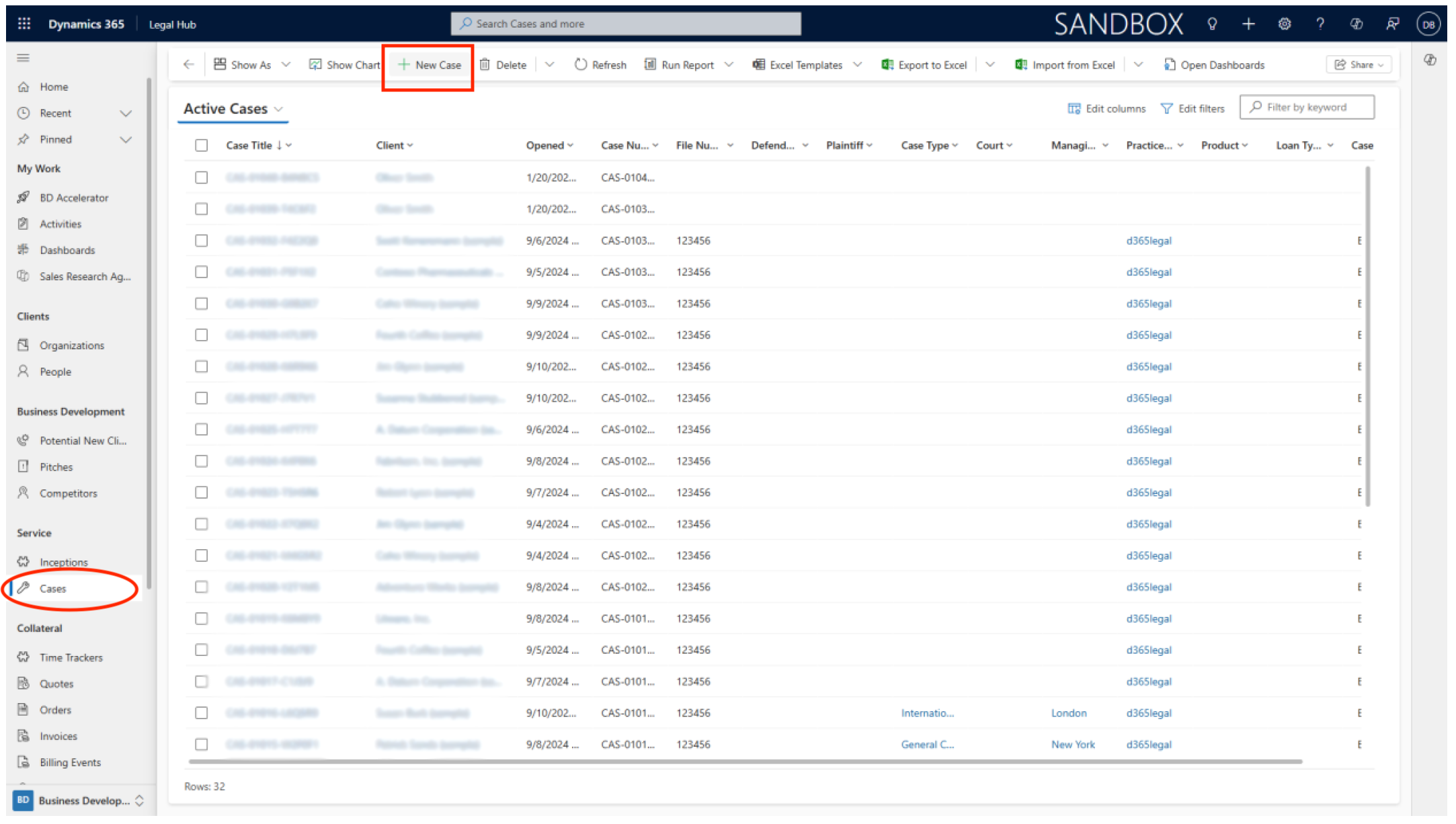
- Fill in the required fields, including:
- Client Name (select from accounts or contacts or enter new)
- Case Type (e.g., Litigation, Contract Review, Complaint, Family Law)
- Case Category for more detailed classification
- Initial Summary describing the background and purpose of the case
- Assign a unique Case ID, if your firm uses bespoke numbering systems.
- Set the case priority (Low, Medium, High) and expected start/end dates if known.
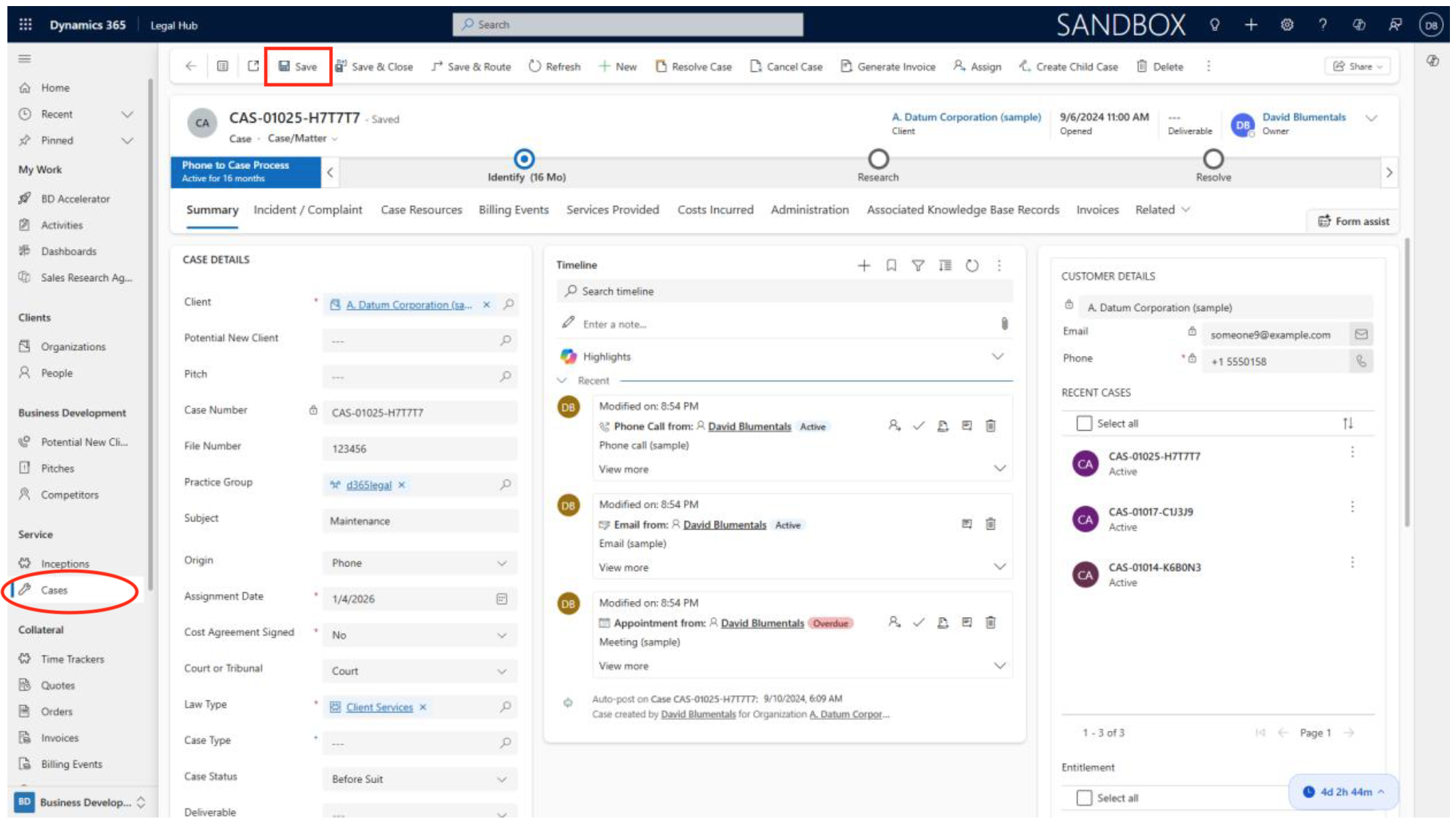
- Click Save.
The new case will now appear in your case grid and be accessible for further management.
Using Enhanced Case or Matter Forms
Managing and Updating Records
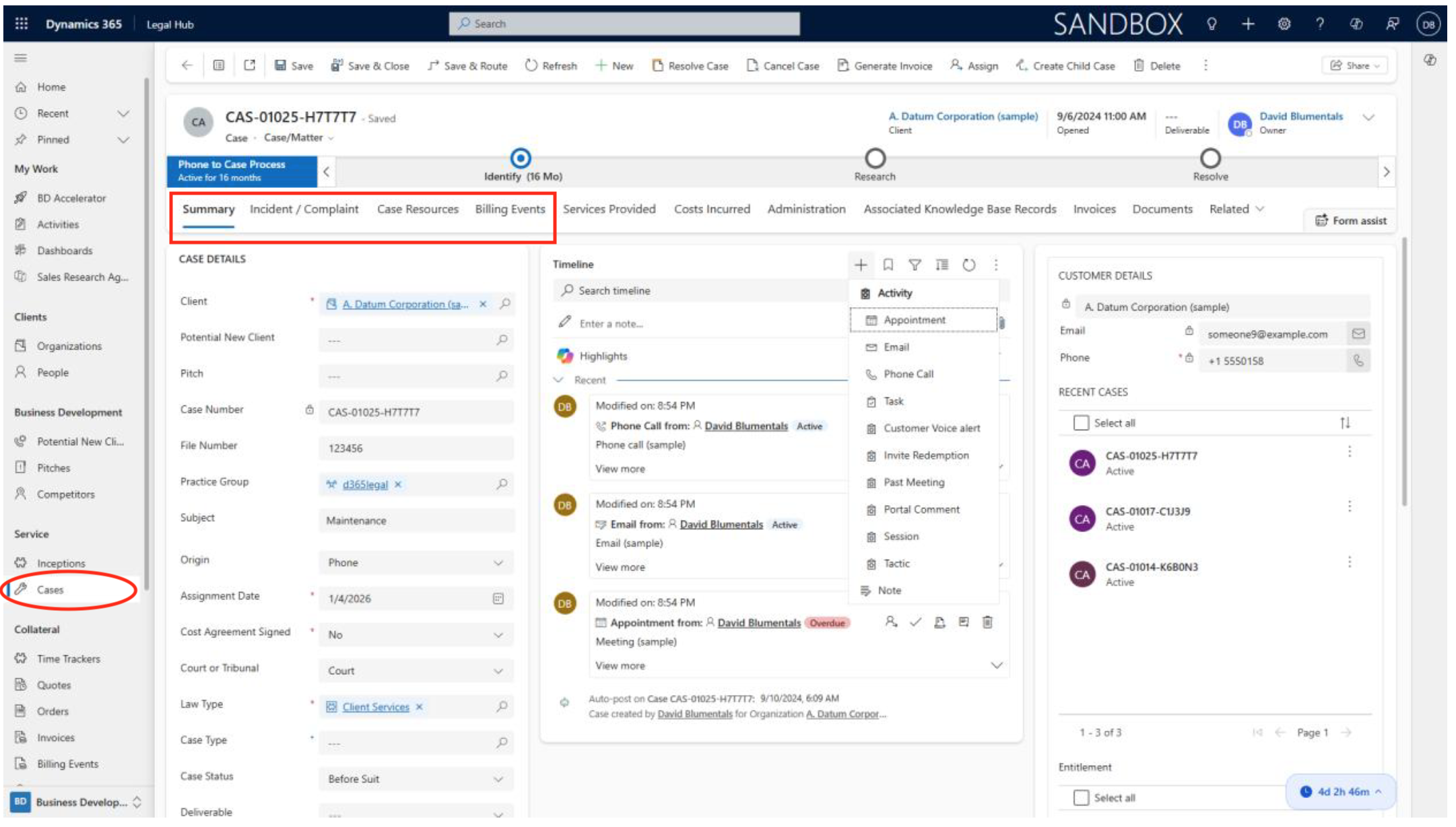
Enhanced forms allow you to efficiently manage every aspect of a case. For example, use tabs to switch between Summary, Incident / Complaint, Case Resources, and Billing Events. Add custom fields for specific needs, such as “Court Date” or “Opposing Counsel.”
To update a record, click into any editable field, make changes, and click Save. You can track Activities like emails, meetings, and tasks directly to the case record using the Timeline section.
Tracking Incident or Complaint Details
Capturing and Updating Information
Here is how to capture and update incident or complaint details within a case or matter.
- Open the relevant case or matter from your grid.
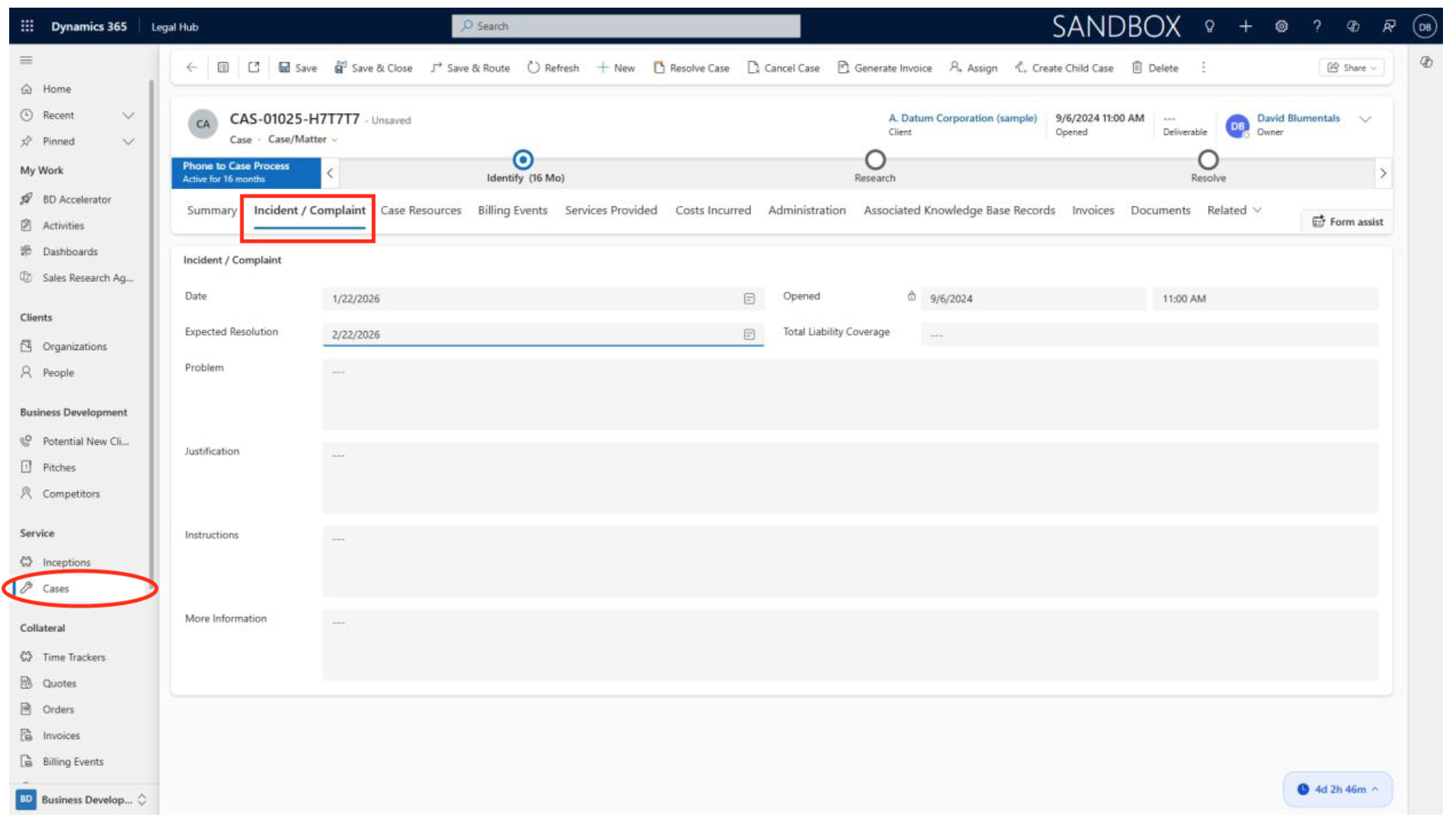
- Navigate to the Incidents/Complaints tab.
- Enter details such as:
- Date and Time of the incident (select from calendar)
- Problem
- Justification
- Instructions
- More Information
- Click Save after each update to ensure all information is recorded.
Assigning Case Resources
Adding Team Members and Resources
The following steps will guide you through assigning resources to a case or matter.
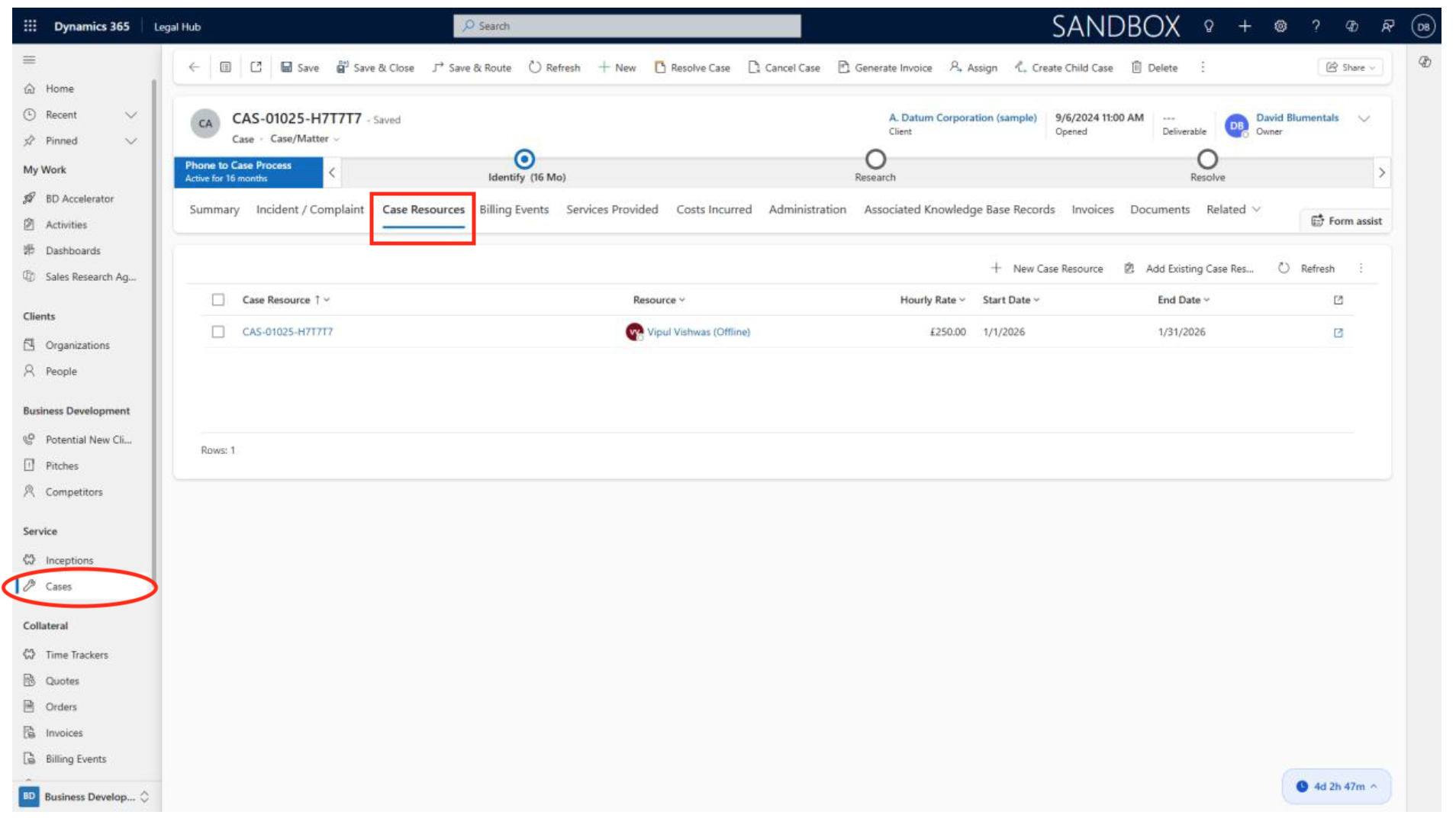
- Within the case, go to the Resources or Team Members tab.
- Click Add Resource. In the directory popup, search for users by name or filter by department or expertise (e.g., “Family Law Specialist”).
- Select the user(s) or team(s) to assign. You may also assign external consultants or subject matter experts if your organisation supports it.
- Set specific roles, such as “Lead Attorney,” “Case Manager,” “Paralegal,” or “Evidence Collector.”
- Determine the access level and notification preferences for each resource (e.g., “Notify upon status change”).
- You can also allocate non-personnel resources such as conference rooms, vehicles, or equipment if integrated.
Integrating Sharepoint Document Management
Linking and Managing Documents
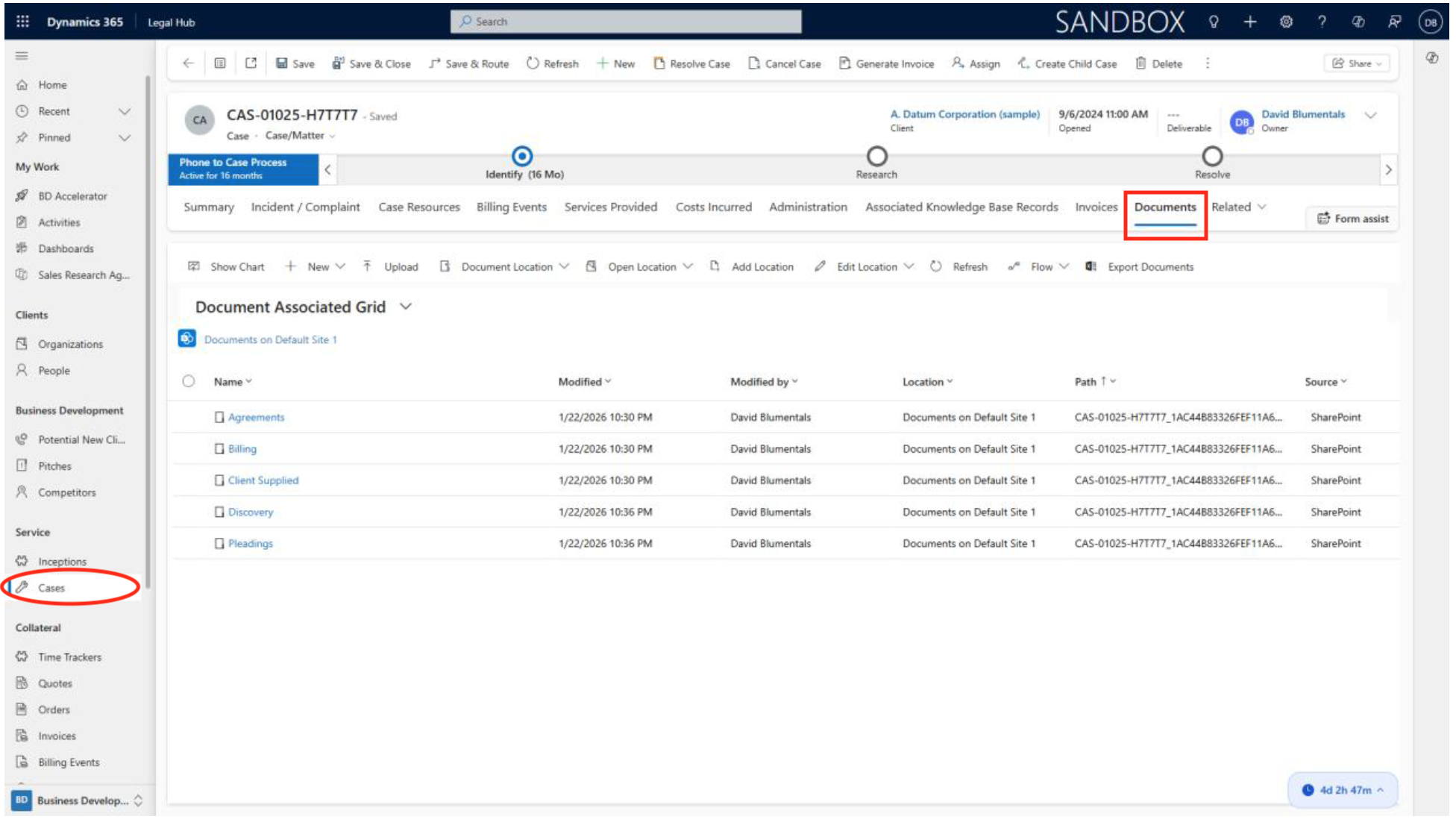
Dynamics 365 automatically creates a dedicated SharePoint folder for each new case. Access this via the Documents tab in the case record. Here you can:
- Upload contracts, witness statements, court filings, and other documents.
- Organise files into subfolders (e.g., “Discovery,” “Pleadings”).
- Set permissions so only authorised team members can view or edit documents.
- Benefit from SharePoint’s version control—each document change is tracked and reversible.
- Use document check-in/check-out to avoid conflicting edits when collaborating. Documents are searchable by title, metadata, or full text, ensuring rapid retrieval.
Tracking Time On Cases
Using the Case Handling Time Widget and Billing Events
This section explains how to track time spent on cases using the Case Handling Time widget and manage billing events.
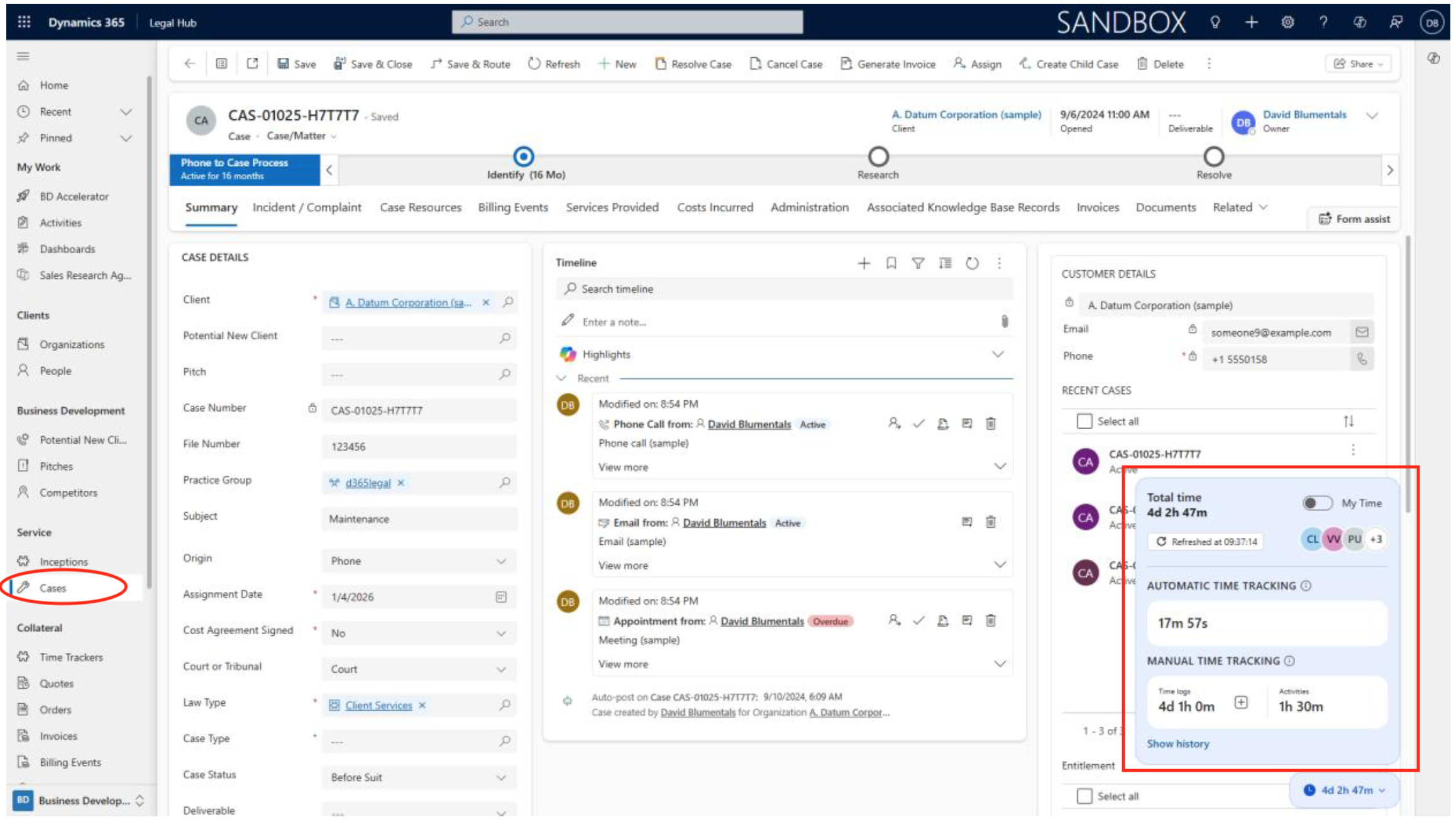
- Open the relevant case and find the Case Handling Time widget, typically visible in the case summary area.
- Start the timer when you begin billable work (e.g., drafting, client meetings). Pause or stop as needed; each entry is timestamped and associated with specific activities.
- When stopped, the platform automatically creates a draft billing event linked to the case and resource involved.
- To edit, click the time entry to update duration, description, or activity type.
- You can view a list of all tracked time for the case under the Time Trackers or Time Entries tab and submit for approval as required by your billing workflow.
Recording Services Provided and Costs Incurred
Documenting Billable Activities
- Within the case, access the Service Provided or Costs Incurred tab and click Add Fee or New Cost.
- Describe each billable activity, with date performed and assigned staff.
- Enter associated costs, including:
- Hourly rates (auto-calculated for time entries)
- Fixed fees (e.g., “Filing fee: $150”)
- Disbursements (e.g., “Courier charges”)
- Attach supporting receipts or invoices if required.
- Review all entries for accuracy before marking as billable or non-billable.
Closing, Cancelling, and Reassigning Cases
Workflow and Best Practices
Here are the steps to close, cancel, or reassign cases effectively.
Closing Cases
When a matter concludes, select Close Case from the actions menu. Complete any required closure fields, such as “Resolution Description” and “Closure Date.” Attach all relevant final documents. Closed cases become read-only but remain available for reference and reporting.
Cancelling Cases
For abandoned or withdrawn matters, choose Cancel Case. Record the reason for cancellation in the comments. Cancelled cases are archived and excluded from active dashboards but can be searched and reopened if needed.
Reassigning Cases
To transfer a case, update the assigned resource or team in the case record. Optionally, add a transfer note or send an automated notification to all stakeholders. Audit logs track all changes for compliance.
Previewing and Updating Billing Events
Preparing for Invoicing
In this section, we show how to prepare an invoice.
- Navigate to the Billing Events tab for the matter. Here you see a detailed list of all time entries, costs, and services linked to the case.
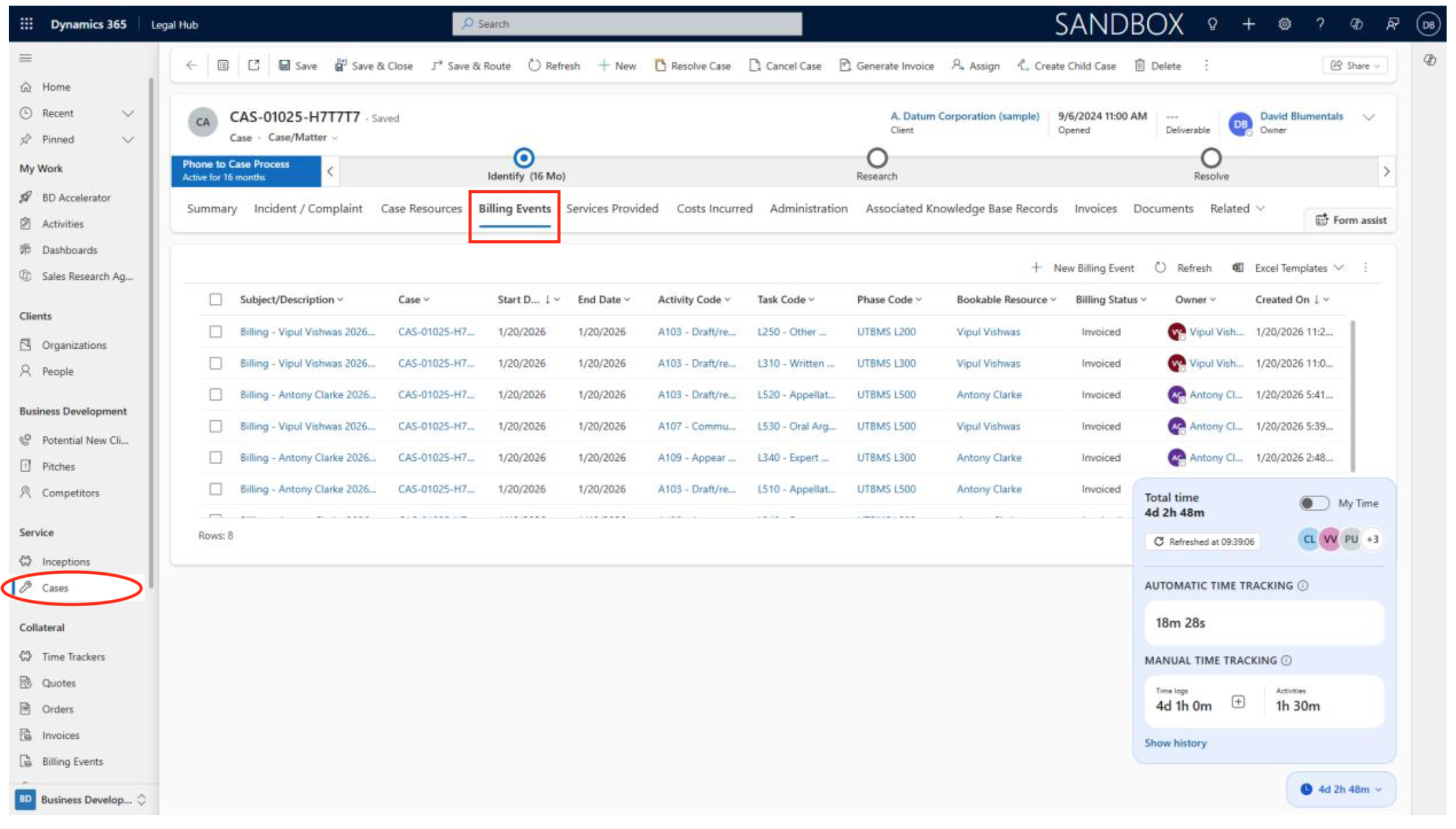
- Review each billing event’s details, such as staff, activity, rate, and approval status.
- Edit entries as necessary—correct misclassified activities, update cost figures, or add internal notes.
- Mark events as “Ready for Invoice” when approved.
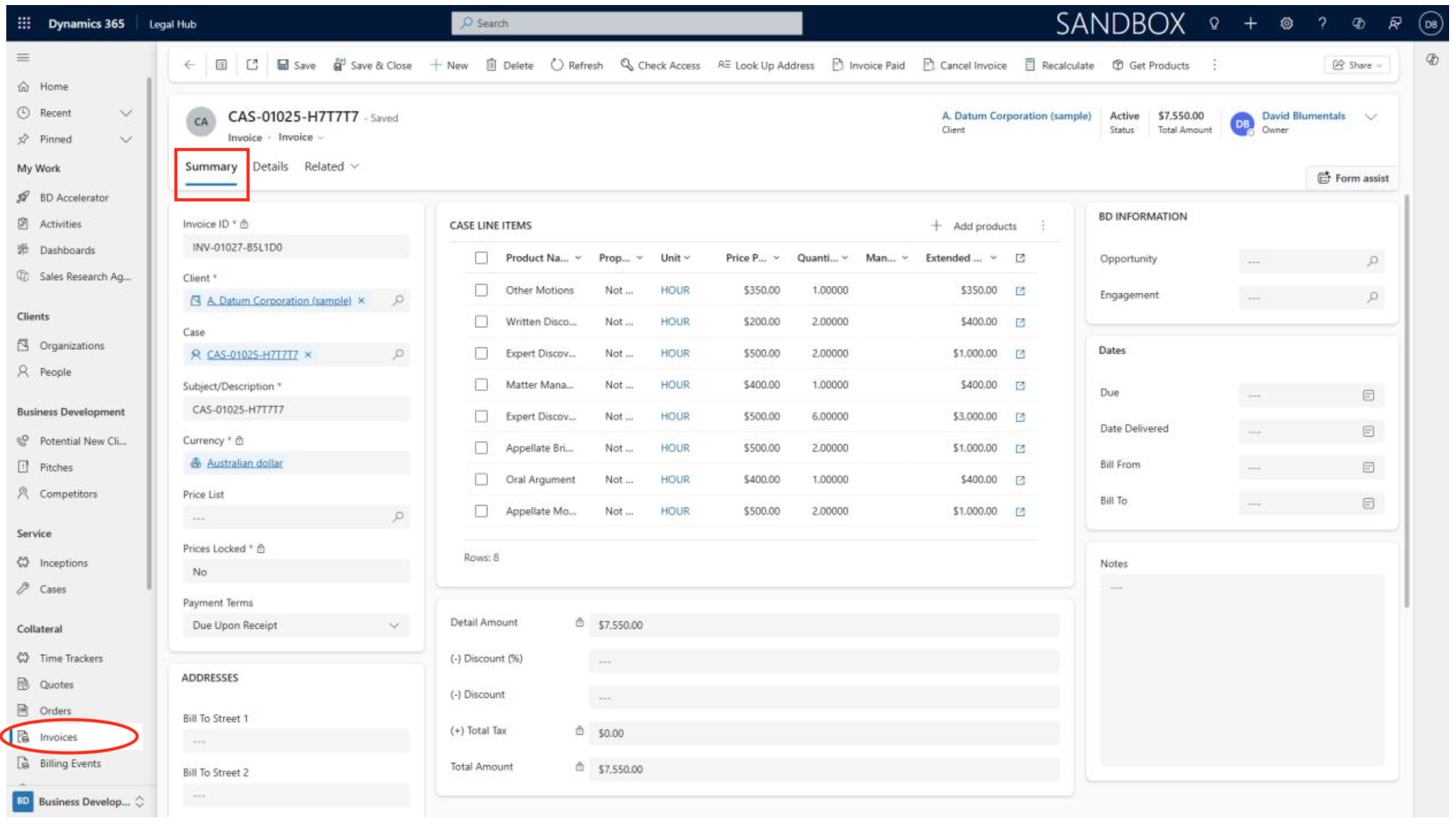
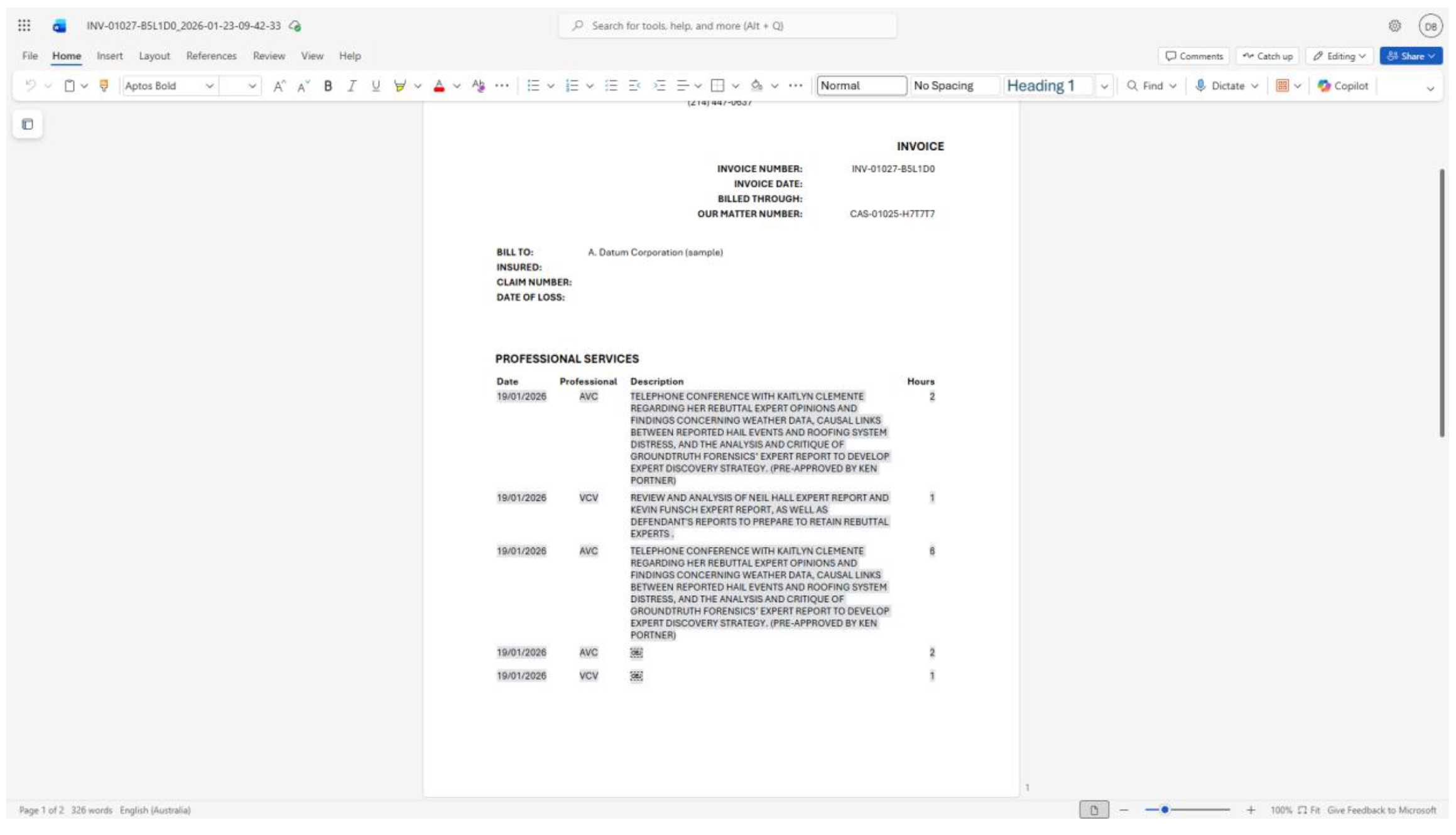
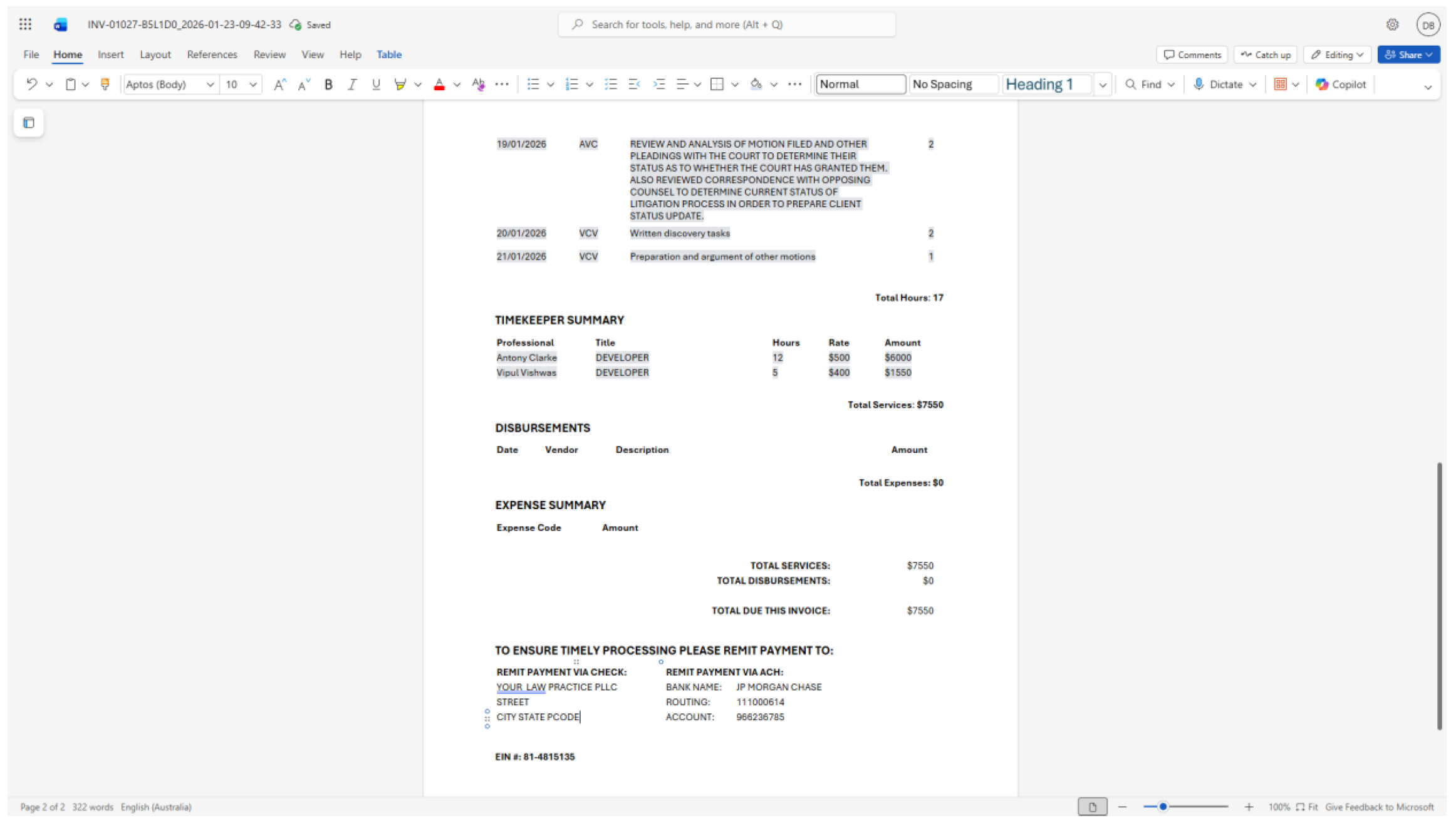
- Use the Preview Invoice button to generate a draft invoice, ensuring all items and rates are correct before submission to your accounting system or client.
Managing Case Matters
Filtering and Organising Cases
Case grids offer a sortable, filterable table of all cases and matters. Filter by status (Active, Closed, Pending), case type, assigned resource, date range, or even custom tags. Click column headers to sort, or use advanced filters to create complex queries (e.g., “All open litigation matters assigned to Smith”). Save your favourite grid views for instant access. Export grid data to Excel for offline analysis or reporting.
Managing Parent and Child Cases
Structuring Related Matters
To link related matters, open a case and use the Parent/Child Case feature. For example, a class action parent case might have several child matters representing individual claimants. Changes to the parent case, such as strategy notes or legal rulings, can cascade to associated child cases. Use parent-child structures for efficient reporting, resource allocation, and consistent documentation across interconnected matters.
Accessing AI-Suggested Similar Cases and Knowledge Base
Leveraging AI for Insights
When working in a case, Dynamics 365’s AI tools automatically analyse the case description and key data, then recommend:
- Similar past cases, with brief summaries and outcomes
- Relevant knowledge base articles, such as legal precedents, regulations, or process guides
Click on suggestions to view full details or attach them to the current matter for reference. This saves research time and can help identify the best strategies or anticipate common issues.
Managing Case Matters Using Interactive Views, Charts, and Dashboards
Visualising and Analysing Case Data
Customise your workspace using interactive views and dashboards. For example, create a dashboard showing “Open Cases by Priority,” “Billable Hours by Staff,” or “Incidents by Case Type.” Drill down into charts or tables to investigate trends, such as recurring complaint types or underutilised resources. Use dashboards to monitor KPIs and ensure timely case progress and effective team management.
Tips and Additional Resources
Tips
- Update case records regularly to maintain complete, actionable data.
- Maximise SharePoint integration for secure document collaboration.
- Take advantage of AI-powered recommendations for insights and efficiency gains.
- Customise Dynamics 365 to match your firm’s unique workflow, adding fields or automations as needed.
- Refer to official Microsoft Dynamics 365 documentation or consult learn.d365.global for advanced features or troubleshooting.
Additional Resources
Here are useful links to continue your learning journey:
Technical Support
For technical troubleshooting, contact your IT support desk or Dynamics 365 system administrator.
Email: Support@d365.Global
AU: 1 Sussex St, Sydney NSW 2000
SG: 59 Ubi Avenue 1# 03-11, Singapore 408938
UK: 71-75 Shelton St, London, WC2H 9JQ
USA: 8 The Green # 20058, Dover DE 19901
AU +61 2 9037 2385 | SG +65 3 1251534 | UK +44 2036 953042 | USA +1 646 652 0780