Legal Work Lifecycle for Legal CRM and Case Management for Dynamics 365 Quick Start Guide
Potential New Client
A Potential New Client is a record type in Dynamics 365 for Legal that captures the initial enquiry from a client. It serves as the starting point for managing the legal work lifecycle, allowing legal professionals to track and manage client enquiries effectively.
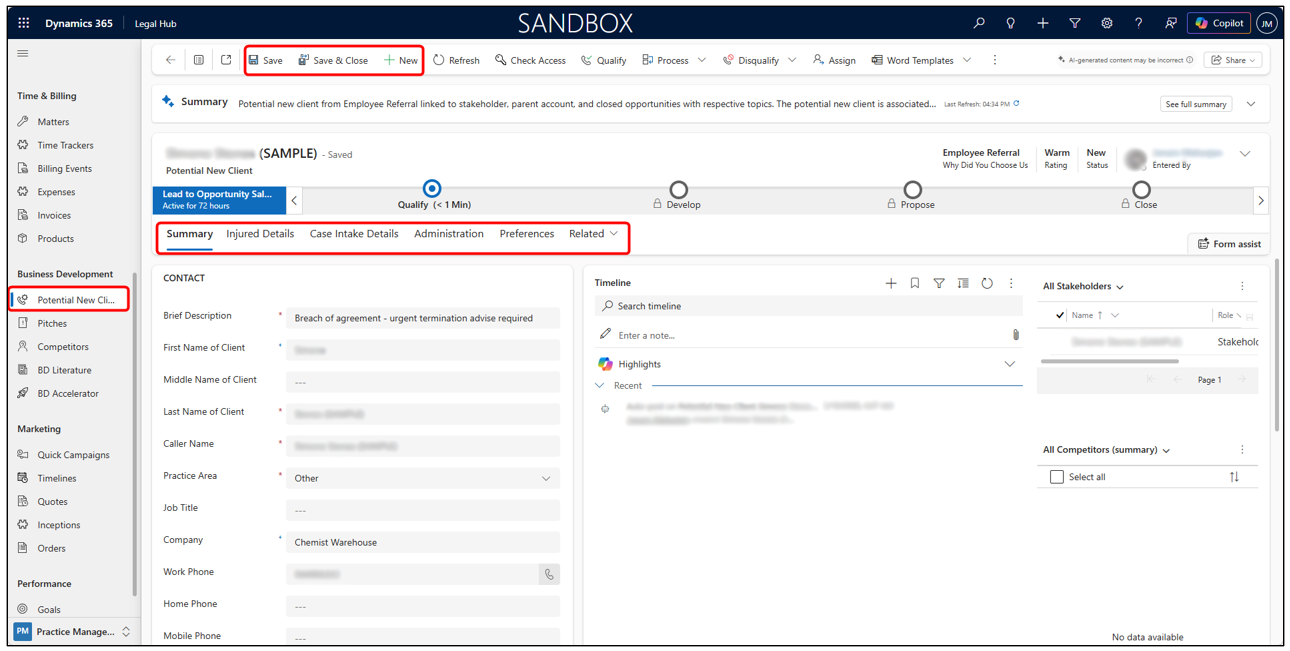
Potential New Client includes:
- Business Process Flow (top bar)
- Multiple form tabs Timeline (Notes, Emails, etc.)
- Ribbon actions (Qualify, Disqualify, Assign, etc.)
You can add:
- The individual and organization clients’ details.
- Involved under All Stakeholders, Competitors.
- All relevant information on the Summary form.
Create a Potential New Client
A Potential New Client record captures the initial enquiry from a client.
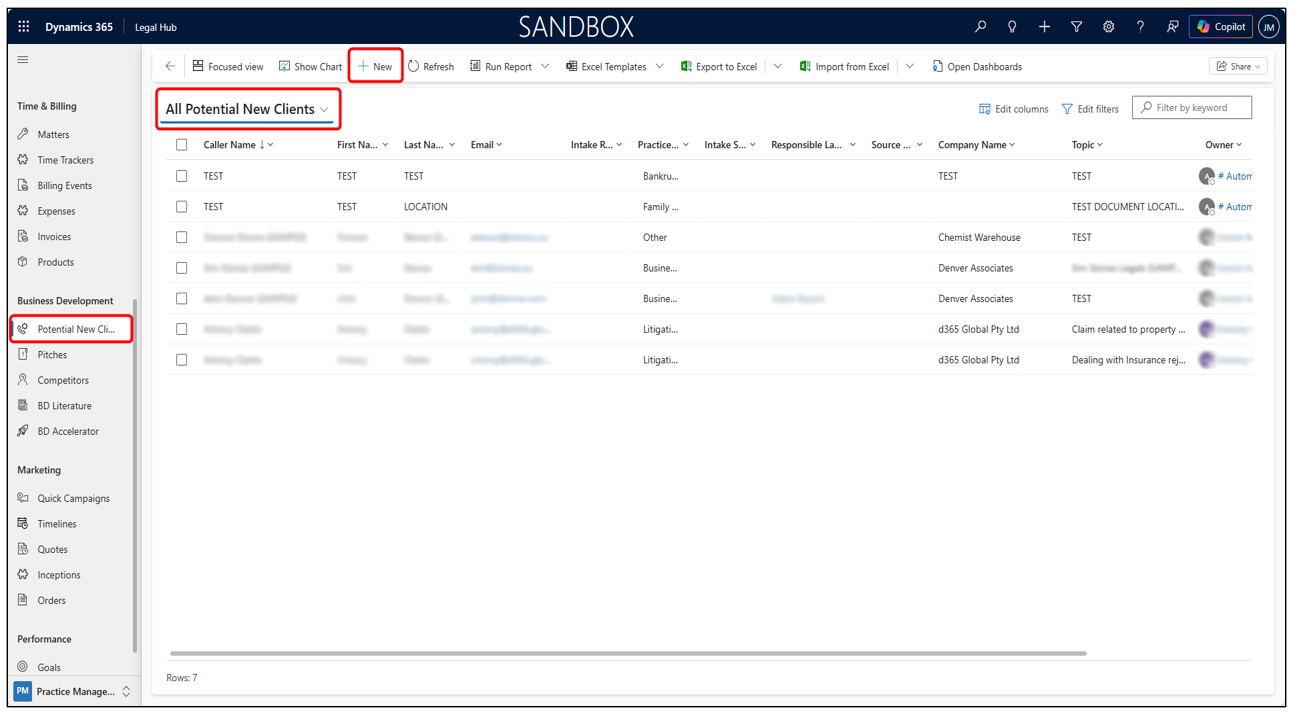
- Naviagate to Business Development > Potential New Clients.
- Click + New.
- Enter the client and enquiry details.
- Click Save.
Pitch
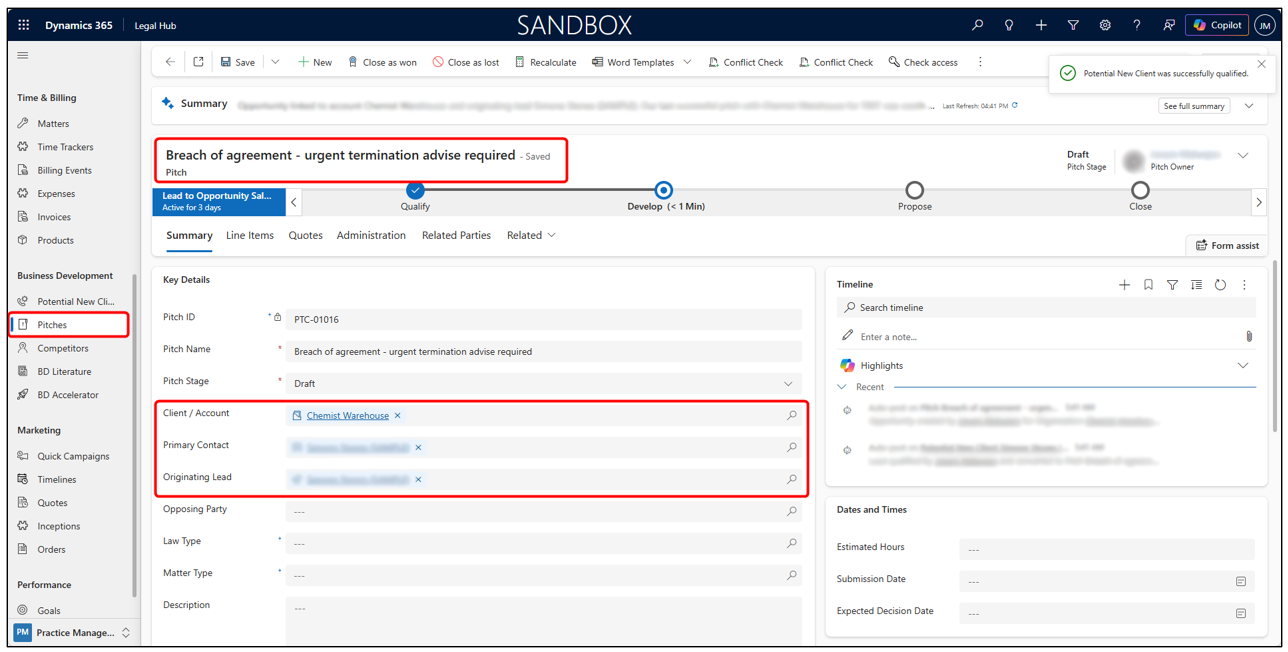
A Pitch is a record type in Dynamics 365 for Legal that represents a qualified potential new client. It allows legal professionals to manage and track the progress of their pitches effectively.
Client, Primary Contact and Originating Lead will get auto populated.
You will see a business process flow at top with following stages:
- Qualify
- Develop
- Propose
- Close
To move between stages:
- Complete important fields like Law Type, Matter Type, Descriptions, Opposing Party, etc.
- Click Next Stage.
You can also do conflict checks by clicking Conflict Check button in the command bar.
Qualify to Create a Pitch
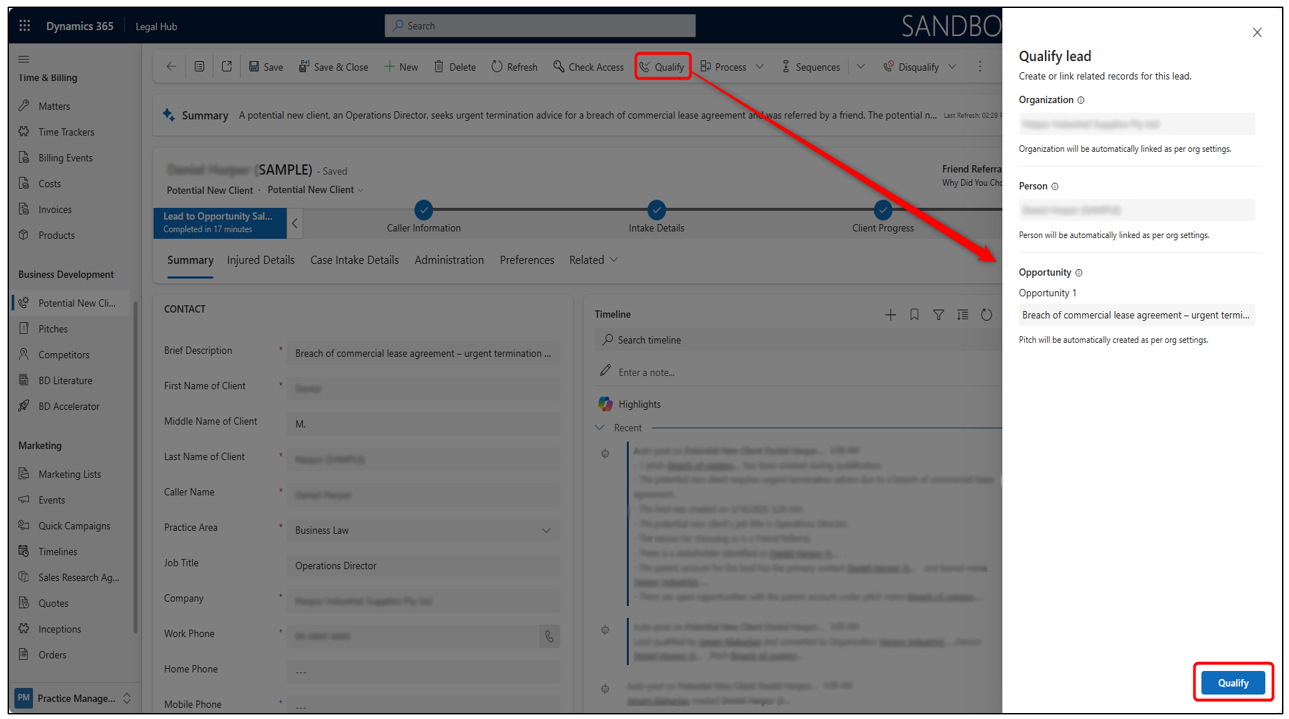
Once the Potential New Client is reviewed and accepted, it is qualified to create a Pitch.
- Open the Potential New Client record.
- Click Qualify from the command bar.
- The system creates a Pitch automatically.
Add Line Items to the Pitch
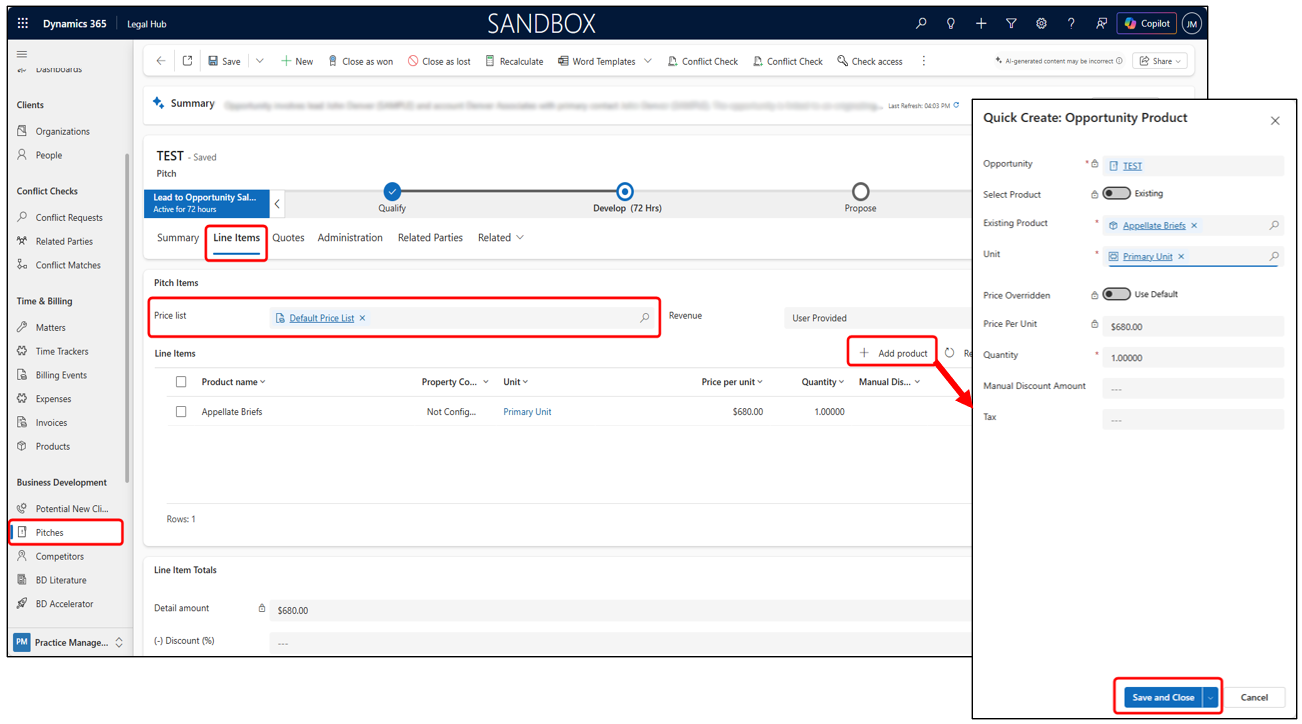
Line Items represent the services, fees, or expenses proposed. A Price List must be selected first.
- Go to the Line Items tab within the Pitch.
- Select the Price List (e.g., Default Price List).
- Click + Add product.
- Select Product, confirm Unit & Price Per Unit, enter Quantity.
- Click Save and Close.
Quote
A Quote is a record type in Dynamics 365 for Legal that represents a formal proposal to the client. It allows legal professionals to manage and track the details of their quotes effectively.
Create a Quote
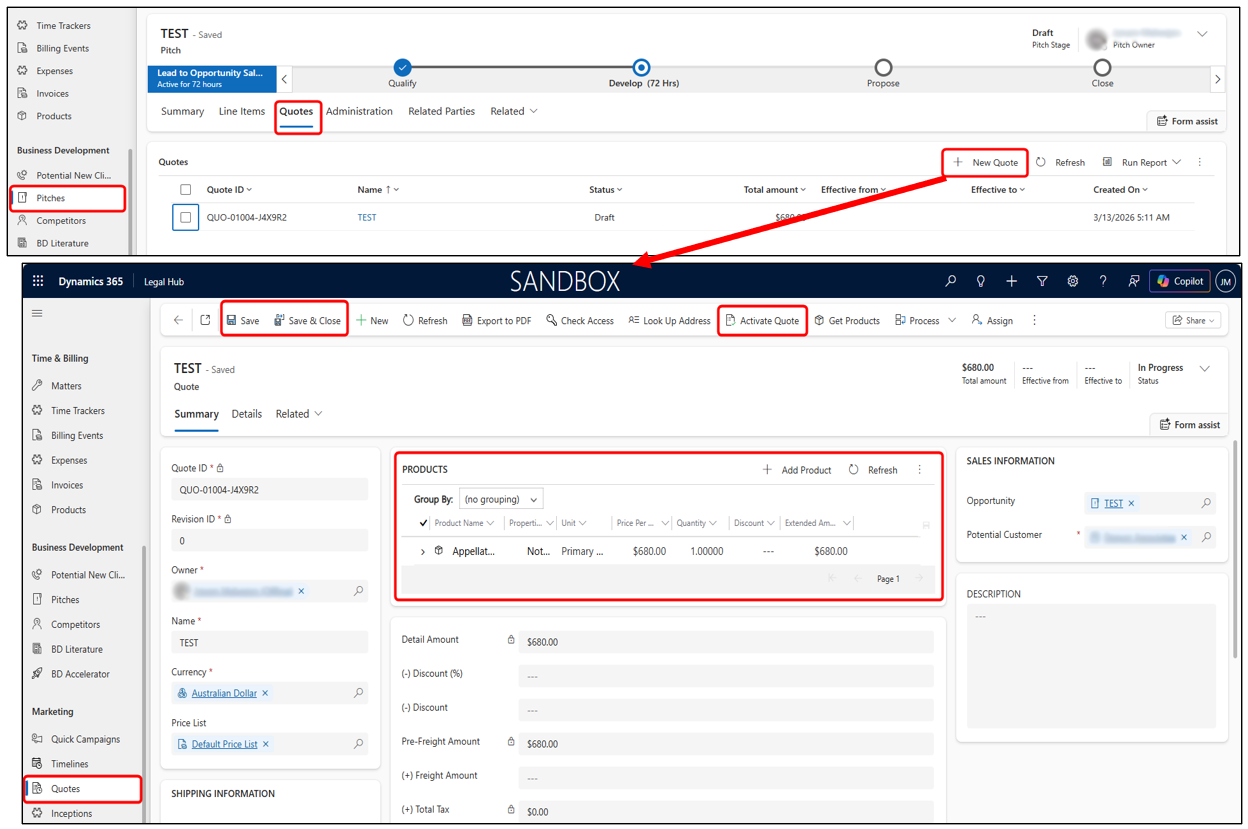
We create a Quote to define the proposed commercial terms for the legal work.
- Open the Pitch.
- Navigate to the Quotes tab.
- Click + New Quote.
- Review pricing and click Activate Quote.
Matter
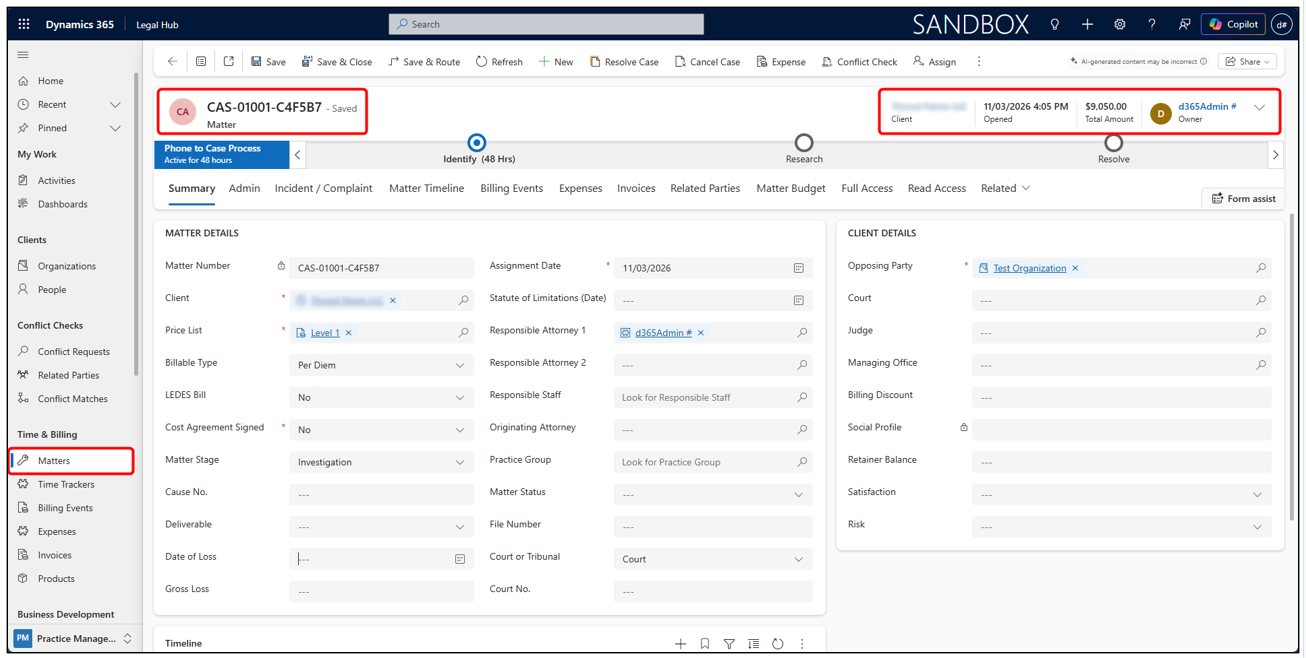
The Matter form is structured into key sections and tabs that provide a complete overview of the case, financials, and related activities. A Matter is a record type in Dynamics 365 for Legal that represents a legal case or project.
Each Matter record is organized into structured tabs which are:
- Summary
- Admin
- Incident / Complaint
- Matter Timeline
- Billing Events
- Expenses
- Invoices
- Related Parties
- Matter Budget
- Full Access
- Read Access
- Documents
Create a Matter
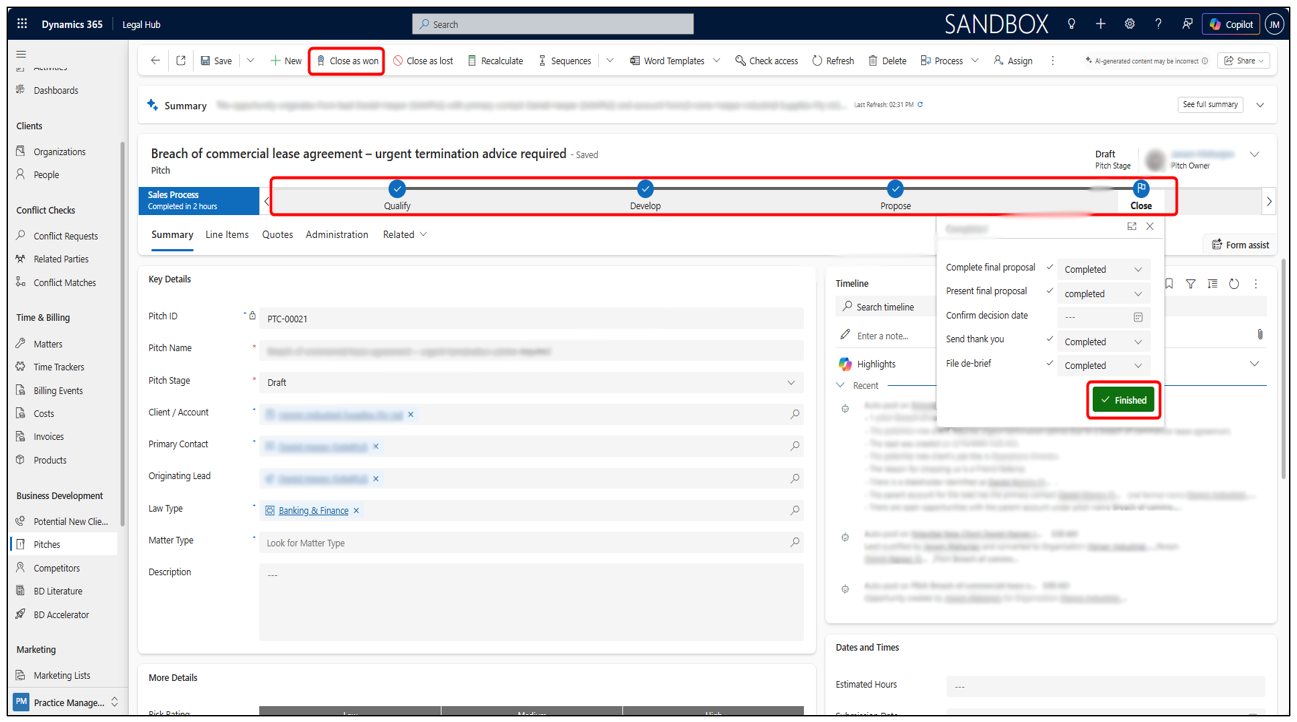
Once the proposal is accepted, the Pitch is closed as Won and a Matter is created.
- Open the Pitch & click Close as Won.
- The system automatically creates a Matter.
- Alternatively, create directly via Matters > + New Matter.
- Complete required Matter Details.
- Click Save or Save & Close.
Record Billable Time
Before invoicing, lawyers must record all billable time and expenses against a Matter.
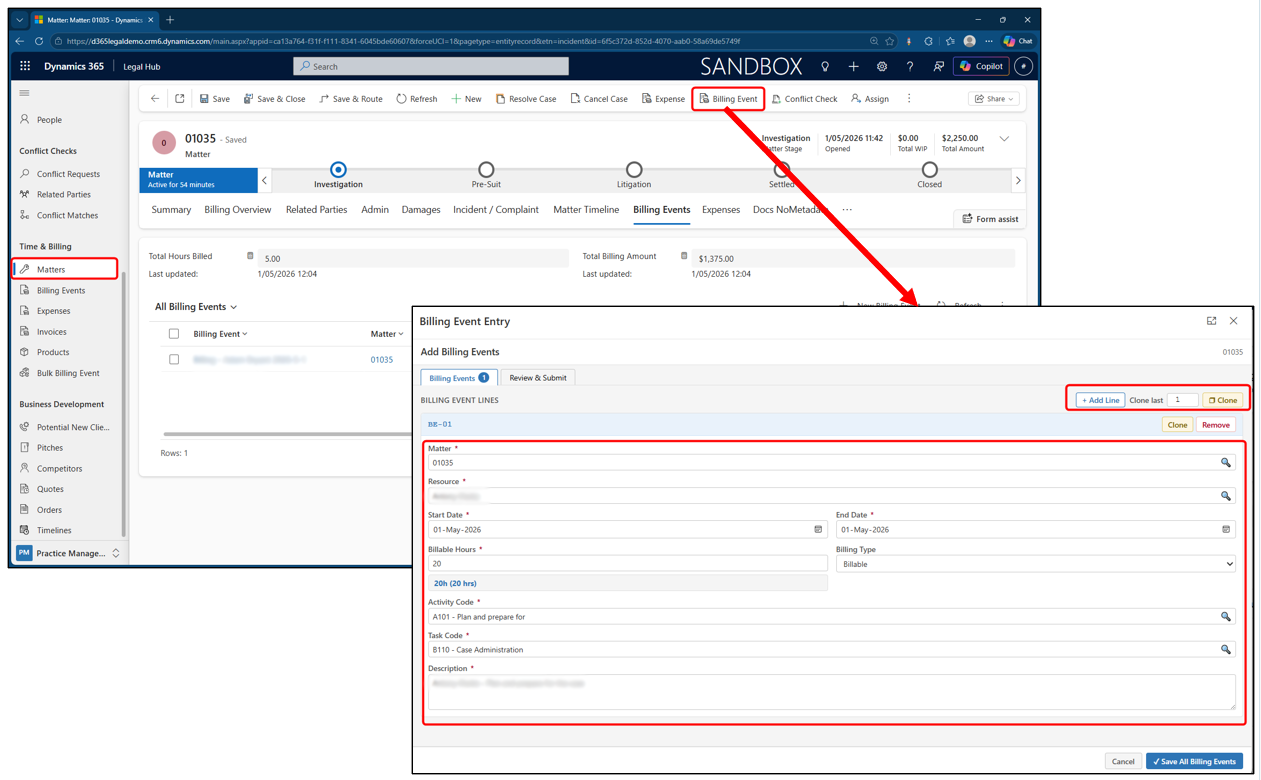
- Open the Matter and navigate to the Billing Events tab to view records.
- Click Billing Event from the top command bar to add new billing event.
- Enter billing event details in the Billing Event Entry screen.
- Use + Add Line / Clone if needed for multiple entries.
- Click Review & Submit > Save All Billing Events.
Add Expenses
Any disbursements or external costs can be recorded as Expenses.
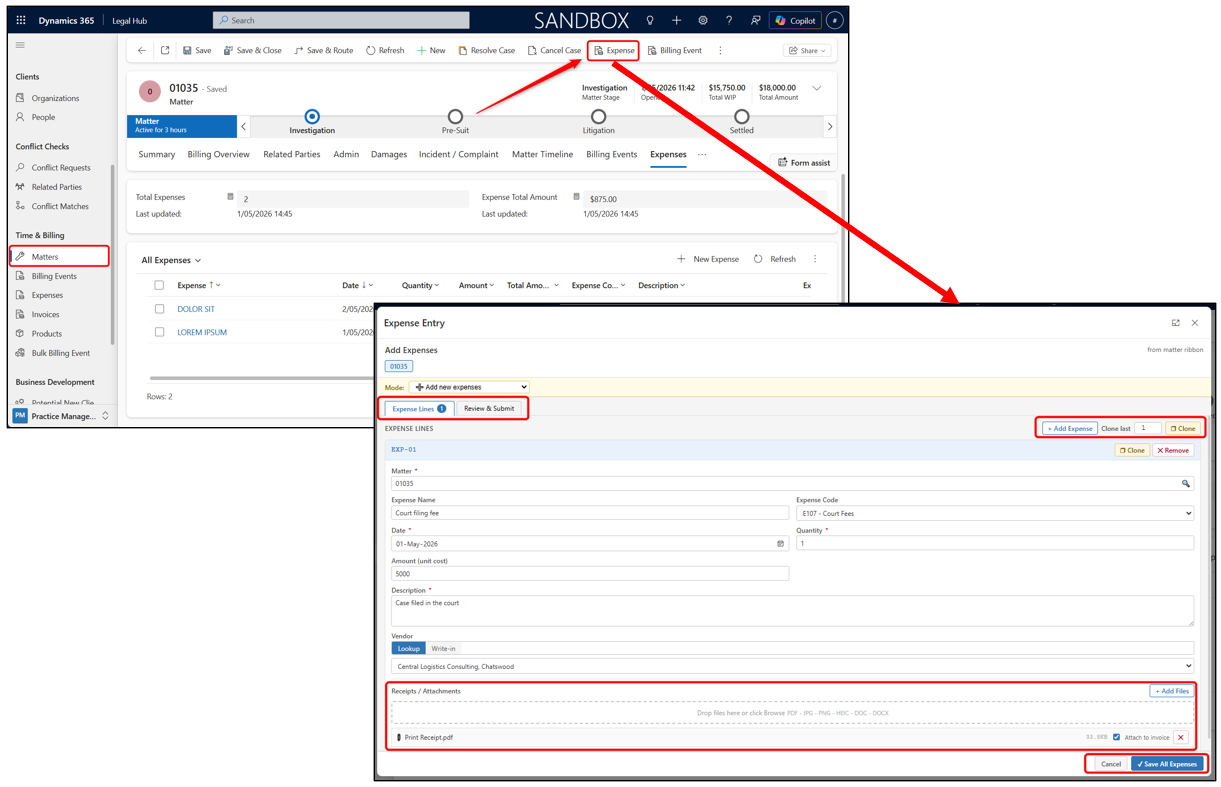
- Open the Matter and click Expense from the top command bar.
- In Expense Entry, make sure mode is Add new expenses.
- Enter expense details and Add receipts in the Attachments section if needed.
- Click Review & Submit > Save All Expenses.
Approve Billing Events and Expenses
Before generating an invoice, all billing entries and expenses must be approved.
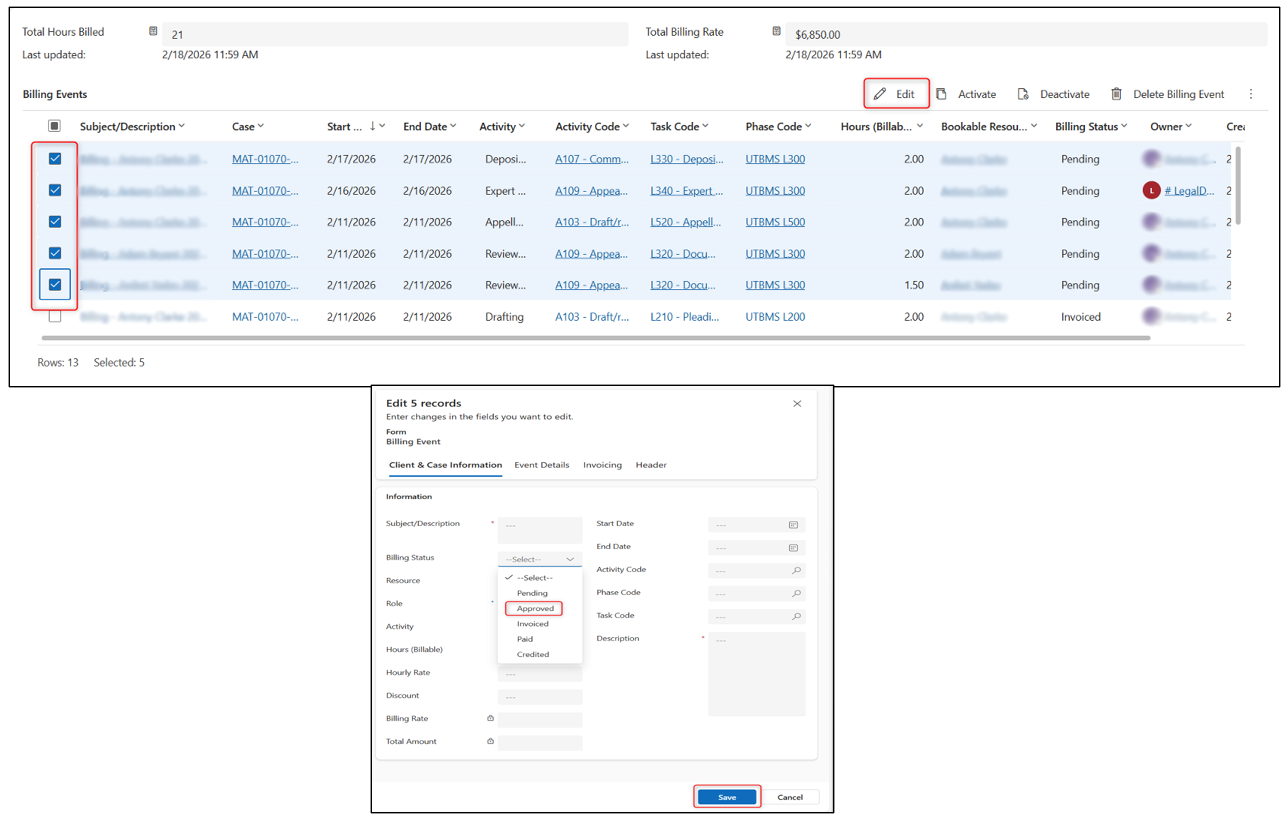
- Open the Matter > Billing Events or Expenses tab.
- Select the relevant records.
- Click Edit from the toolbar.
- Set Billing Status or Expense Status = Approved.
- Click Save.
Invoices
An Invoice is a record type in Dynamics 365 for Legal that represents a bill sent to the client for payment. It allows legal professionals to manage and track the details of their invoices effectively.
Generate Invoices - Run the Invoice Process
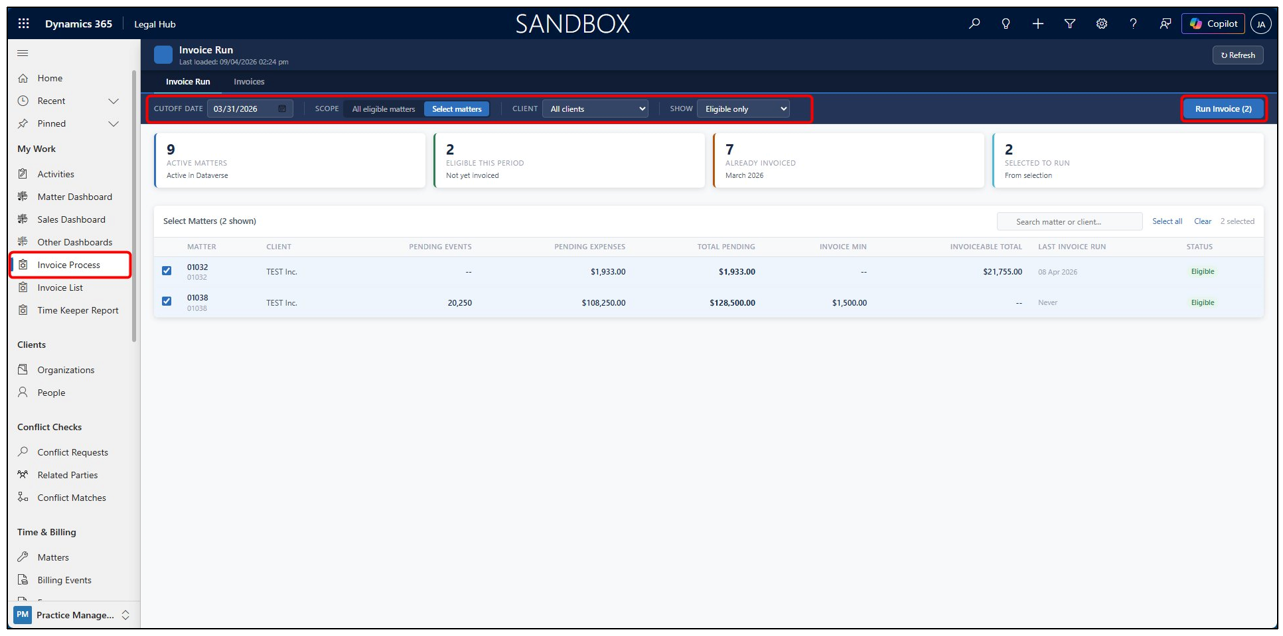
The Invoice Process screen lets you select eligible matters and generate invoices in bulk. This is faster than opening each Matter individually.
- Navigate to Invoice Process from the left navigation pane.
- Click Run Invoices in the top-right corner to process all eligible invoices at once.
- You can also set the Cutoff Date (by default, last day of the previous month) to control which billing events are included.
- Click Select Matters if you want to generate invoices only for specific matters.
- Select the matters you want and proceed to run invoices.
View & Manage Generated Invoices
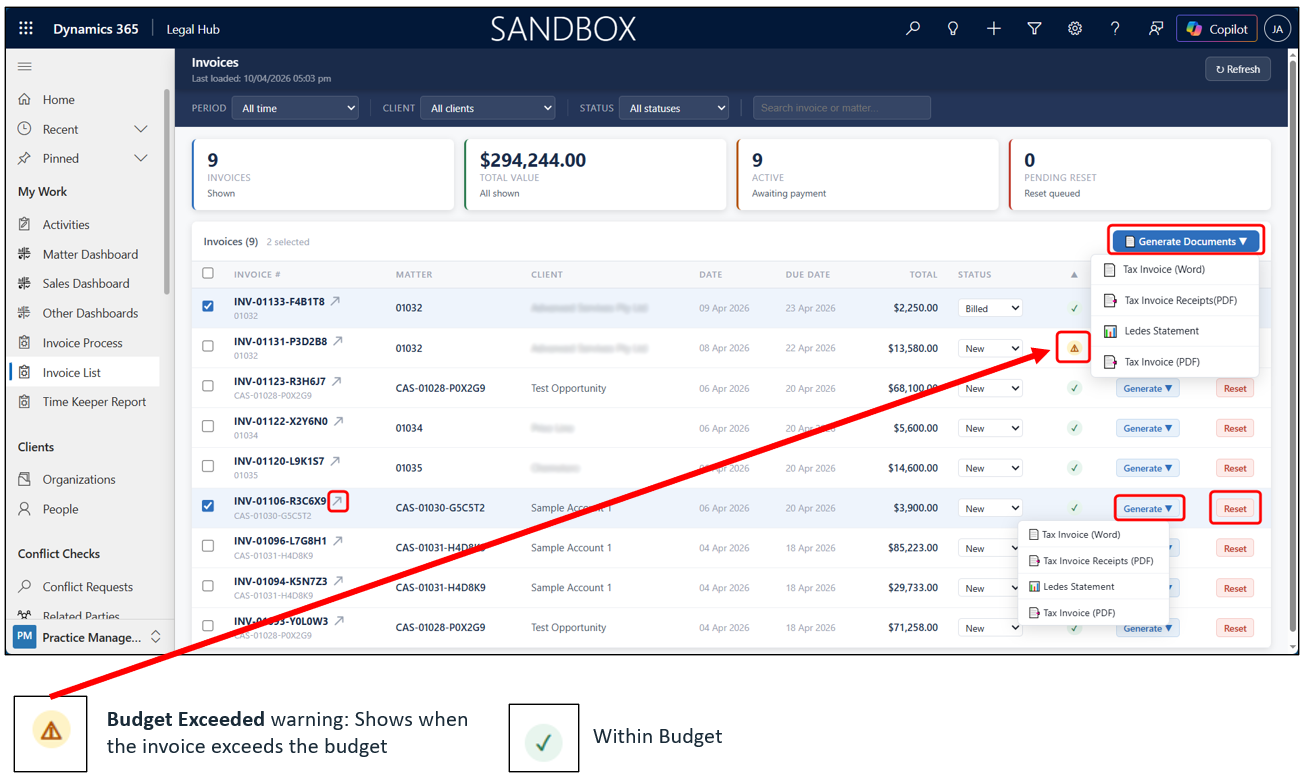
All generated invoices are accessible from Invoice List. From here you can generate documents, review line items, or reset an invoice.
- Navigate to Invoice List from the left navigation pane.
- Select multiple invoices → click Generate Documents → choose format (Tax Invoice Word/PDF, Ledes, PDF No Attachments).
- Click the arrow icon (↗) next to an invoice name to open the full invoice form.
- Click Reset on any invoice to reverse generation and return billing events to Pending.
Workflow Summary
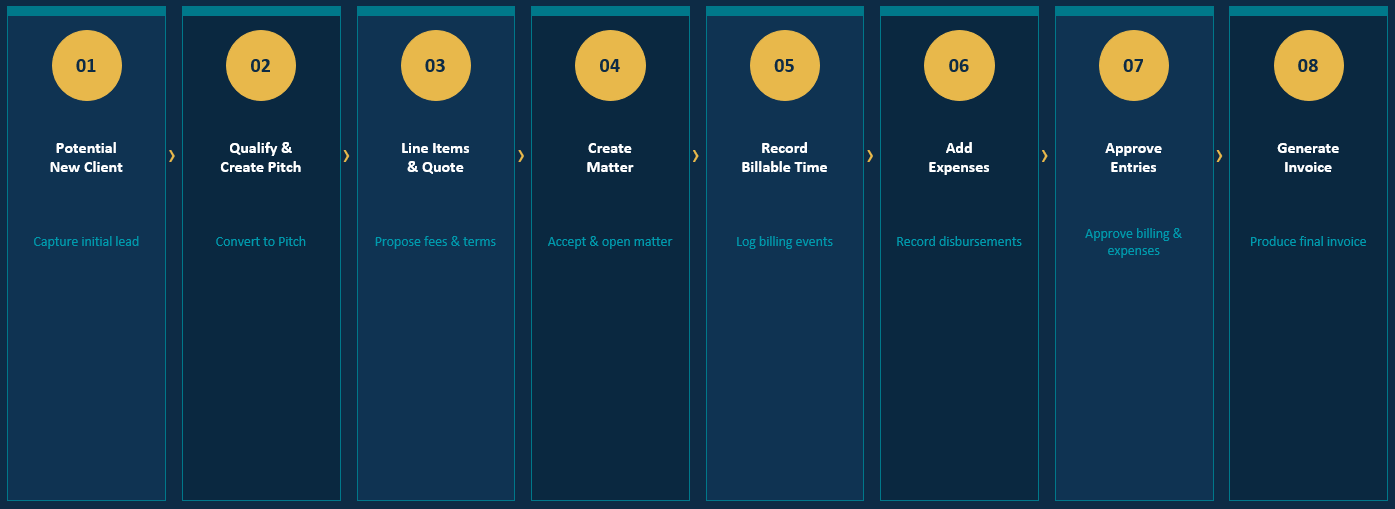
The following diagram illustrates the lifecycle summary, from first enquiry through to invoice — your complete Legal Work Lifecycle.