Legal User Guide for Microsoft Dynamics 365
Dashboards
Dashboards provide a visual overview of data within the system, helping users quickly understand performance, workload, and key metrics across matters and business development.
They display:
-
Summary totals (KPIs)
-
Charts and trends
-
Record-level insights
Dashboards allow users to analyse information without needing to open individual records.
To access dashboards:
-
Navigate to My Work.
-
Select either:
a. My Dashboard
b. Matter Dashboard
c. Sales Dashboard
My Dashboard
The My Dashboard page provides each user with a personalised workspace to monitor their daily work, billing progress, assigned matters, deadlines, tasks, and time entries.
This dashboard is designed to give users a quick view of what is happening across their matters without needing to open multiple areas of the Legal Hub.
Users can access My Dashboard from the left navigation menu under:
- My Work > My Dashboard
Dashboard Filters
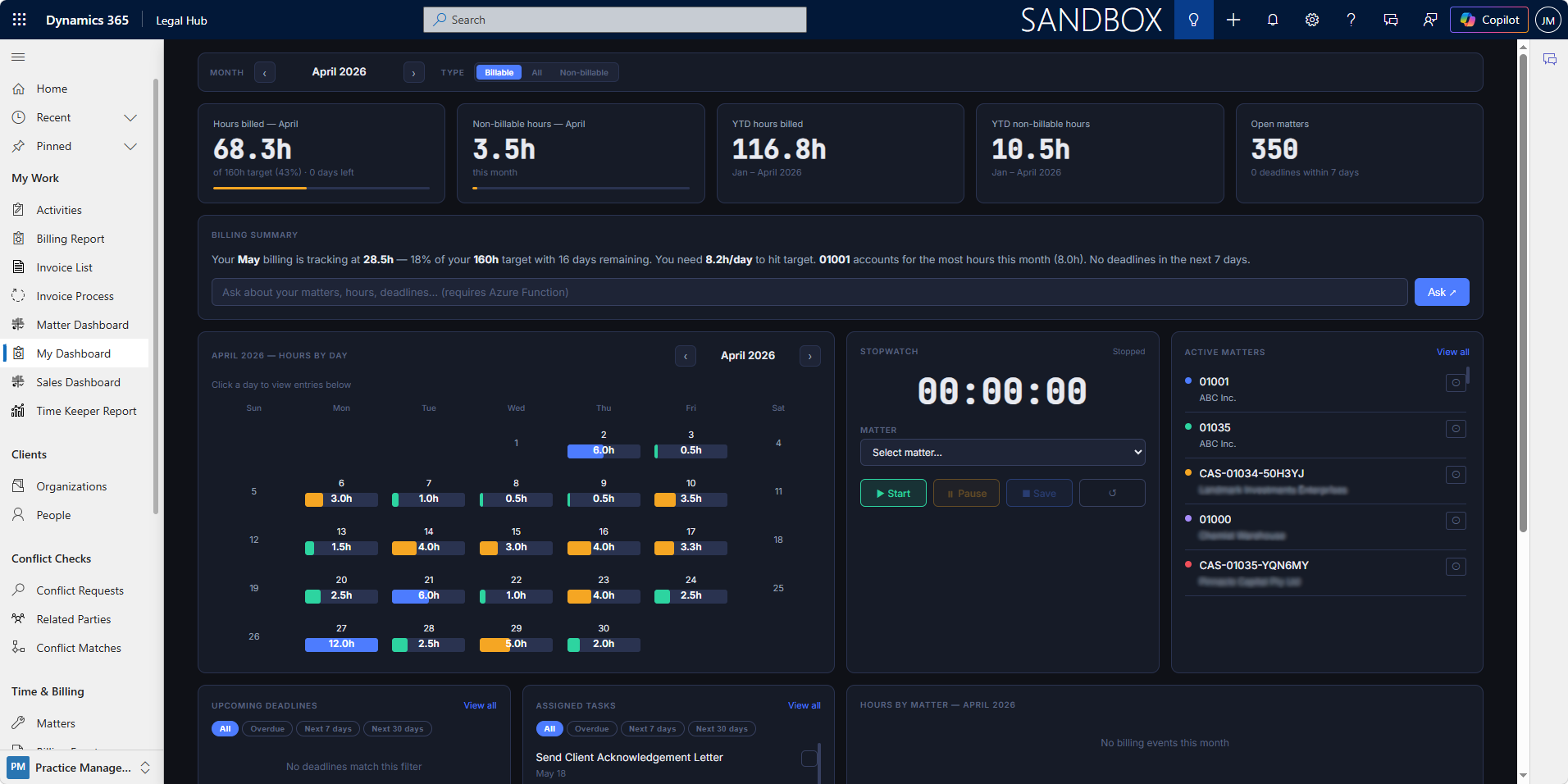
At the top of the dashboard, users can apply filters to adjust the information shown on the page.
The dashboard includes filters such as:
-
Month — Allows the user to change the month being reviewed.
-
Type — Allows the user to switch between billable, non-billable, or all time entries.
When the filters are changed, the dashboard updates the related cards, calendar, billing summary, and other sections accordingly.
Billing Snapshot Cards
Below the filters, the dashboard displays summary cards that provide a quick snapshot of the user’s billing activity and matter workload.
These cards may include:
-
Hours billed for the selected month
-
Non-billable hours for the selected month
-
Year-to-date billed hours
-
Year-to-date non-billable hours
-
Open matters
-
Upcoming deadline indicators
These cards help users quickly understand their current billing progress and overall workload.
Billing Summary
The Billing Summary section provides a short written summary of the user’s billing performance for the selected month.
This may include information such as:
-
Total billing progress for the month
-
Percentage achieved against the monthly billing target
-
Number of days remaining in the billing period
-
Required daily hours to reach the target
-
Matter with the highest logged time
-
Upcoming deadline status
This section helps users understand whether they are on track against their expected billing target.
The dashboard also includes an assistant-style prompt box where users can ask questions about their matters, hours, or deadlines, depending on the configured functionality.
Hours by Day Calendar
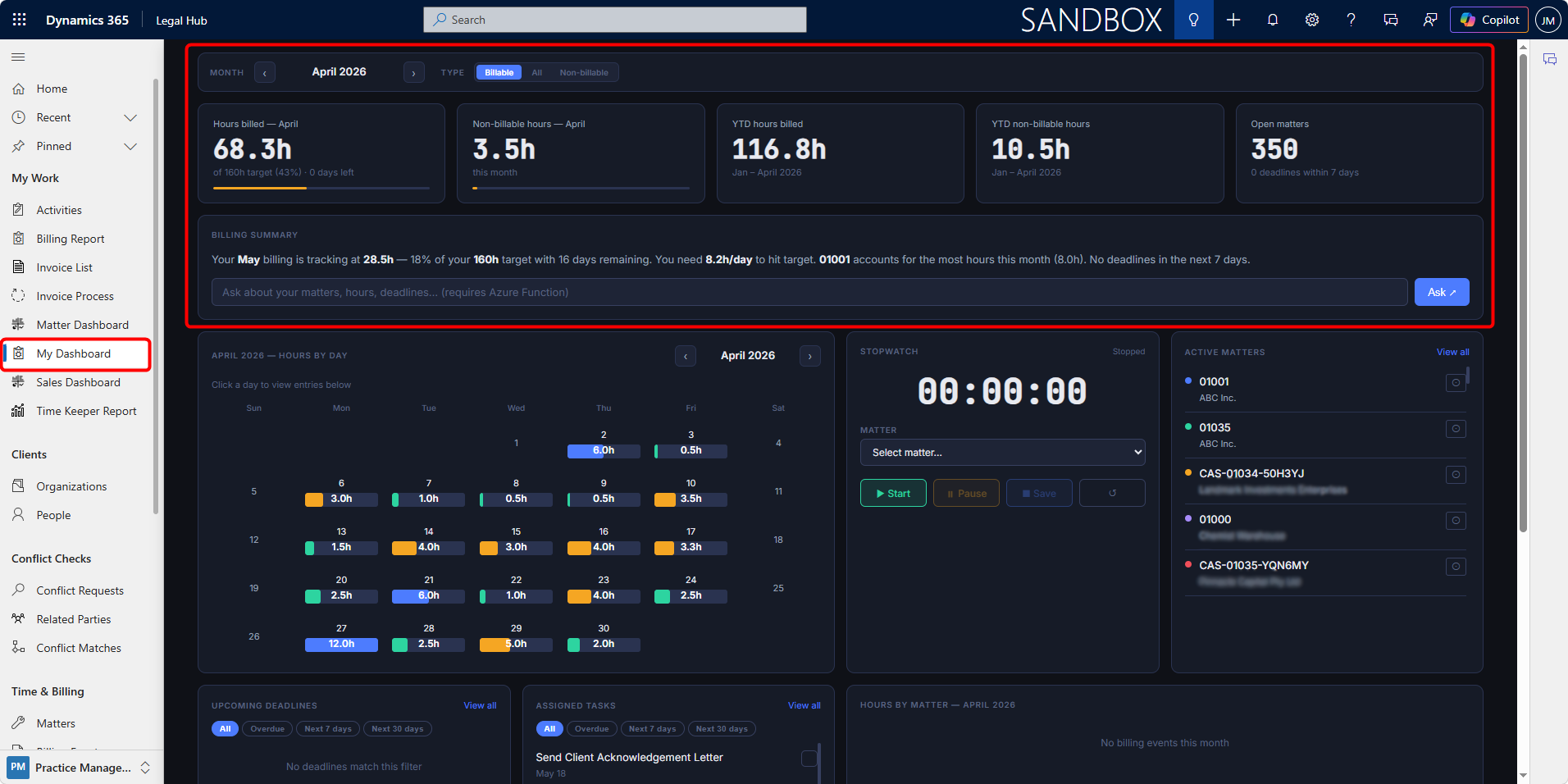
The Hours by Day calendar shows logged time for each day of the selected month.
Each day displays the number of hours logged, allowing users to quickly identify:
-
Days with billable work recorded
-
Days with non-billable work recorded
-
Days where no time has been logged
-
High-activity billing days
-
Gaps in time entry recording
Users can click on a specific day in the calendar to view the time entries logged for that day in the Time Entries section below.
Stopwatch
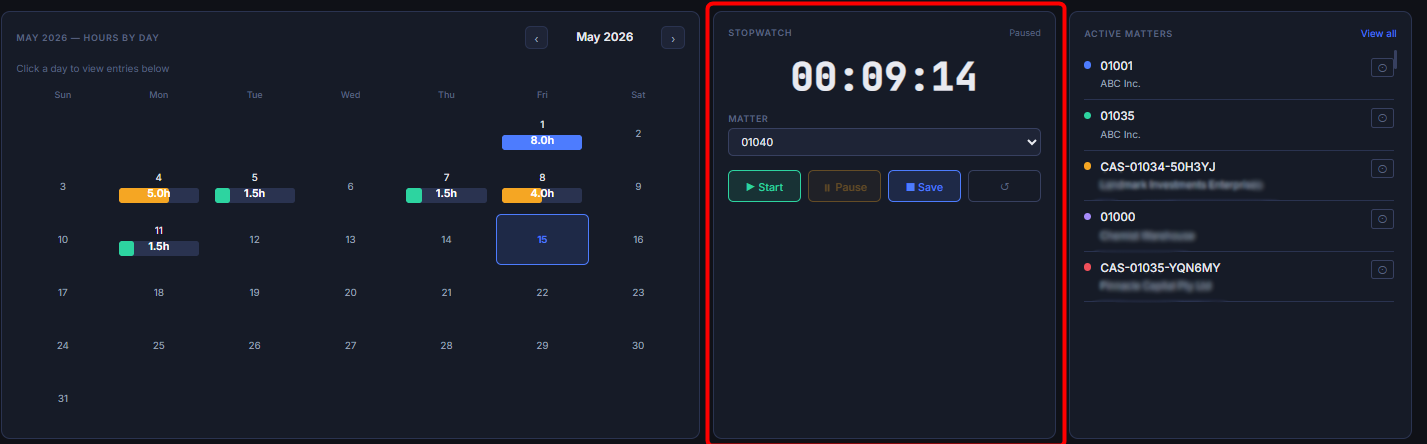
The Stopwatch allows users to track time while working on a selected Matter.
To use the stopwatch:
-
Select a Matter from the Matter dropdown.
-
Click Start to begin tracking time.
-
Click Pause if the work is temporarily stopped.
-
Click Save once the work is completed.
-
The tracked time can then be saved as a billable or non-billable time entry, depending on the configuration and selected options.
This feature is useful when users want to track work in real time instead of entering time manually later.
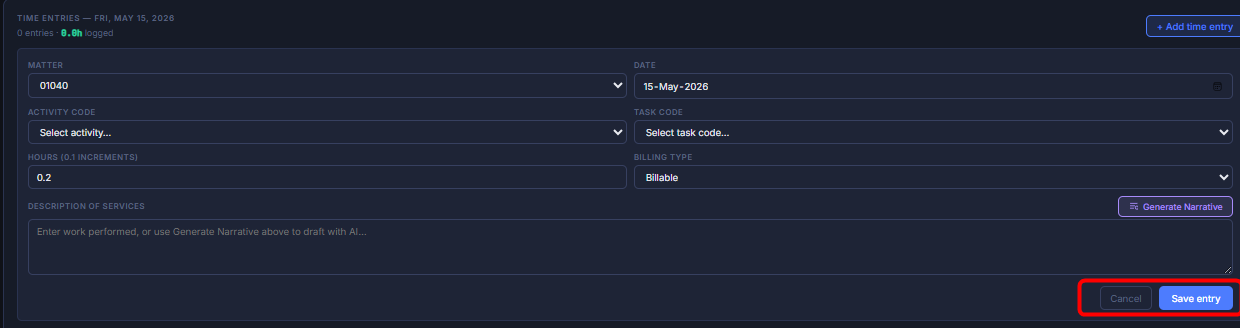
Active Matters
The Active Matters card lists matters associated with the current user.
From this card, users can:
-
View their assigned or active matters
-
Open a matter record directly
-
Select a matter to filter dashboard information
-
Quickly identify the client or organisation linked to each matter
When the user clicks the icon on the right-hand side of a matter row, that matter is selected as a dashboard filter. Once selected, the related dashboard sections such as Upcoming Deadlines, Assigned Tasks, and other matter-based cards are filtered to show information for that selected matter.
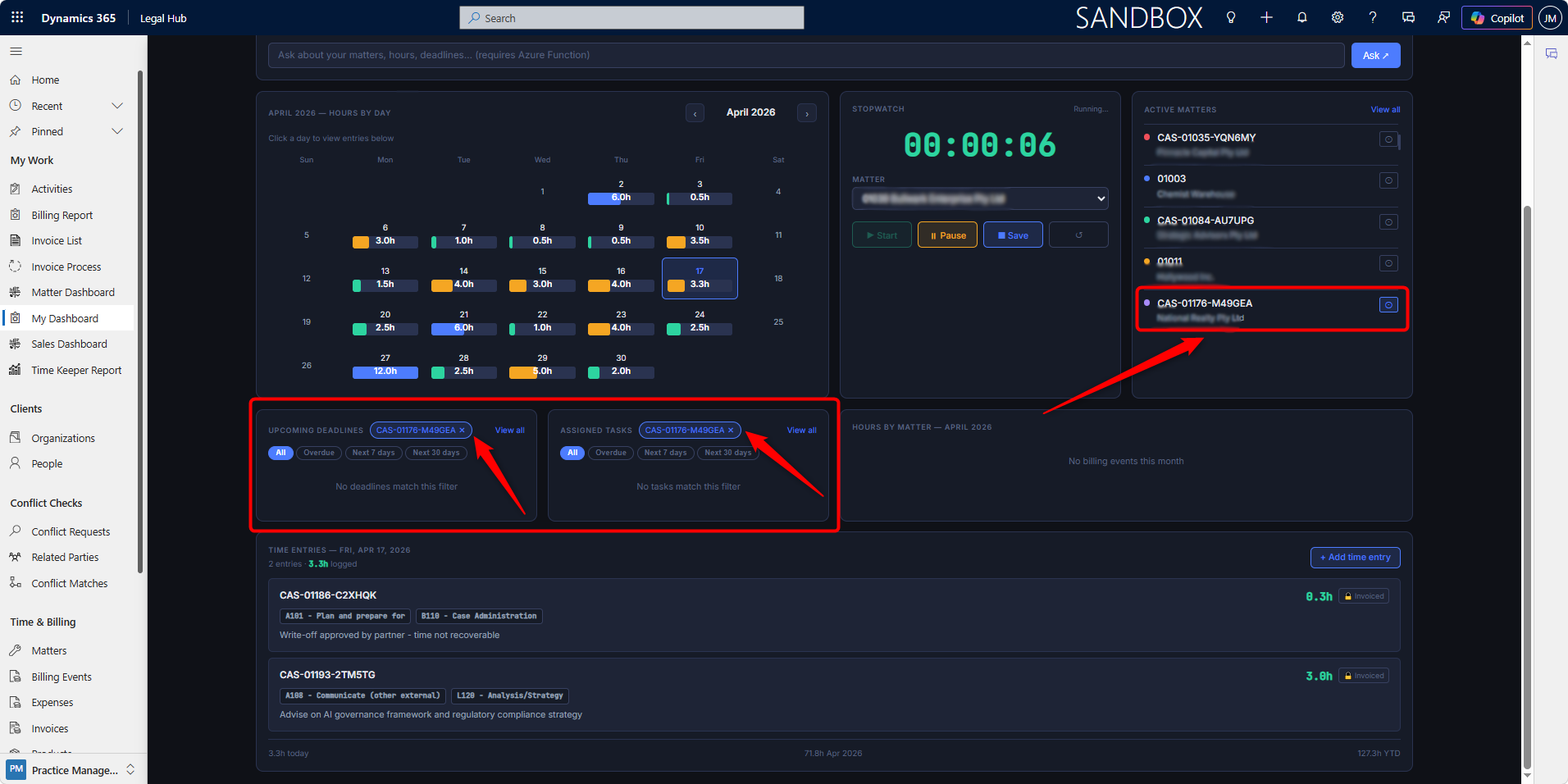
Upcoming Deadlines
The Upcoming Deadlines card shows deadlines related to the user’s matters.
Users can filter deadlines using options such as:
-
All
-
Overdue
-
Next 7 days
-
Next 30 days
If a matter is selected from the Active Matters card, the Upcoming Deadlines card updates to show deadlines only for that selected matter.
This helps users focus on important dates and upcoming work that may require action.
Assigned Tasks
The Assigned Tasks card shows tasks assigned to the current user.
Users can filter tasks using options such as:
-
All
-
Overdue
-
Next 7 days
-
Next 30 days
Tasks may include matter-related actions such as sending letters, reviewing files, preparing documents, or completing internal follow-ups.
Users can mark tasks as completed directly from the dashboard where supported.
If a matter is selected from the Active Matters card, this section is filtered to show tasks related to that selected matter.
Hours by Matter
The Hours by Matter card provides a monthly view of time logged against matters.
This allows users to understand how their time is distributed across different matters for the selected month.
If there are no billing events or time entries for the selected month, the card will display a message indicating that there are no billing events for that month.
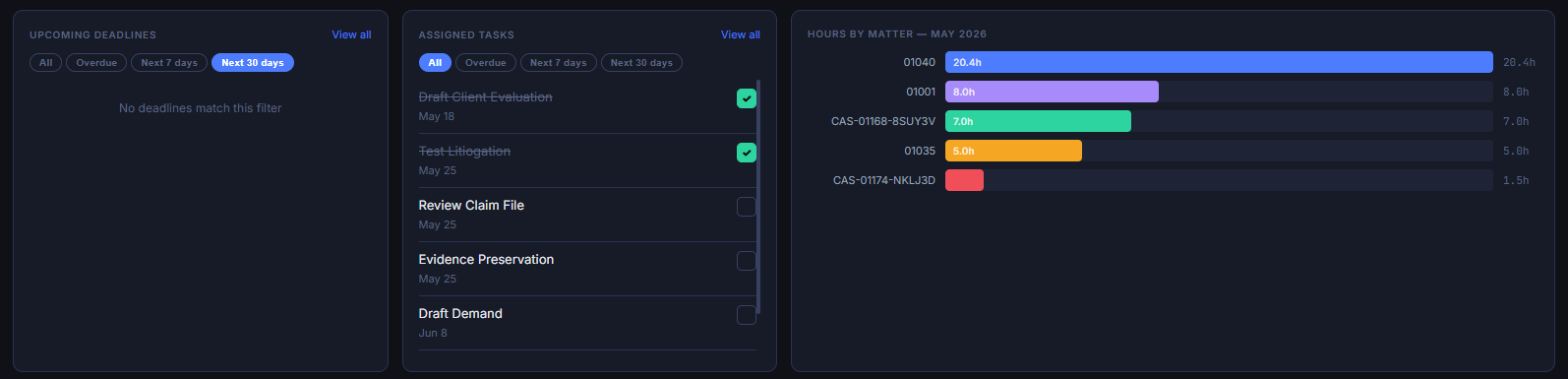
Time Entries
The Time Entries section appears below the main dashboard cards.
This section updates based on the day selected in the Hours by Day calendar. When a user clicks a date in the calendar, the system lists all time entries logged for that selected day.
The Time Entries section may show details such as:
-
Matter reference
-
Activity code
-
Task code
-
Description of services
-
Logged hours
-
Billing type
-
Invoice status
This allows users to quickly review what time has been recorded for a specific day and confirm whether entries have already been invoiced.
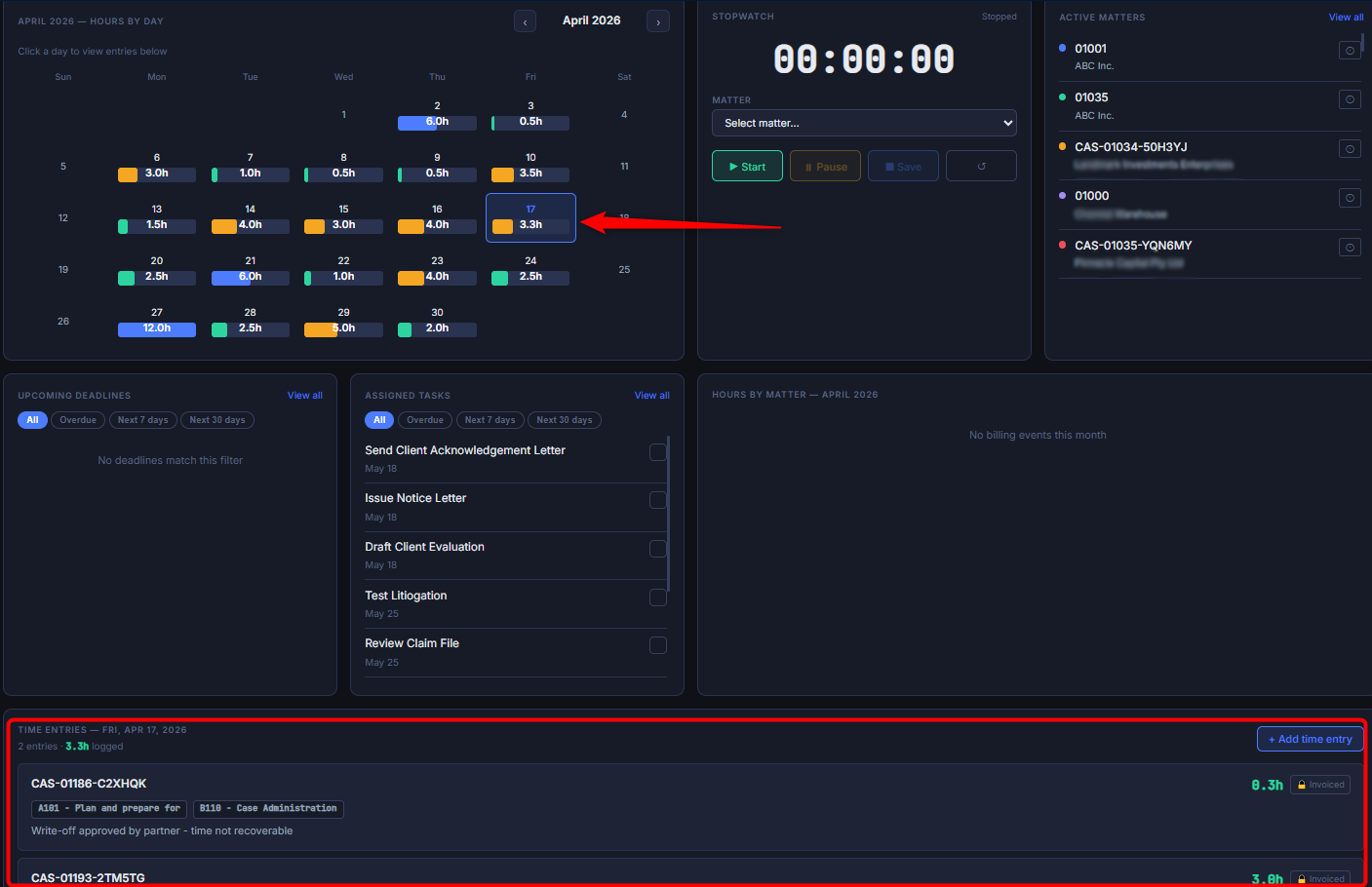
Adding a Time Entry
Users can manually add a new time entry directly from My Dashboard.
To add a time entry:
-
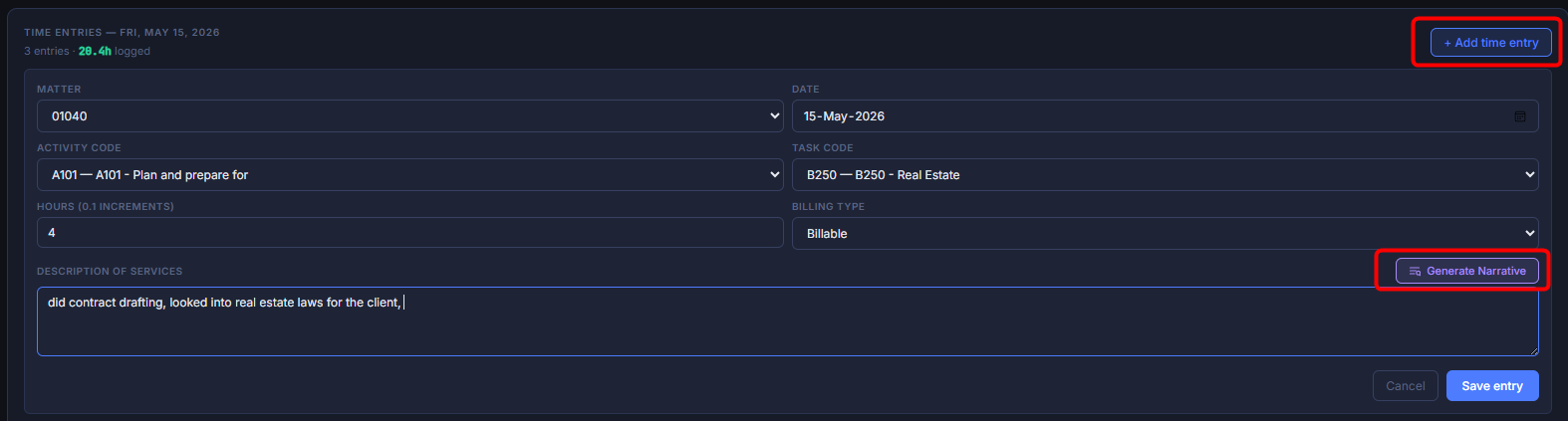
In the Time Entries section, click + Add time entry.
-
Select the relevant Matter.
-
Confirm or update the Date, select the appropriate Activity Code, Task Code, and enter the number of Hours.
-
Select the Billing Type, such as Billable or Non-billable.
-
Enter the Description of Services.
-
Click Save entry.
Once saved, the time entry is added to the selected day and contributes to the user’s billing totals, dashboard cards, and related matter records.
Generate Billing Narrative with AI
When adding a time entry, users can use the Generate Narrative feature to create a professional billing description with AI assistance.
This feature helps users convert short notes or dot points into a clearer billing narrative that can be saved against the time entry.
To generate a billing narrative:
-
Click + Add time entry from the Time Entries section.
-
Enter the Matter, Date, Activity Code, Task Code, Hours, and Billing Type.
-
In the Description of Services area, type short notes or dot points describing the work performed.
-
Click Generate Narrative.
-
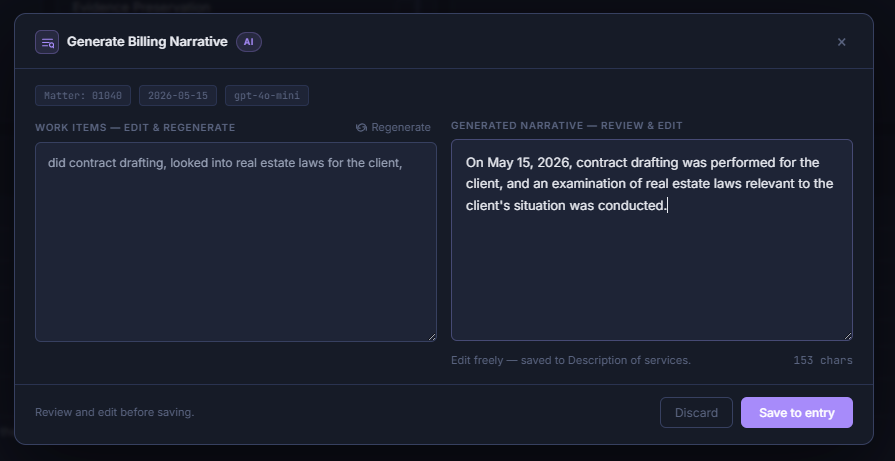
The Generate Billing Narrative window opens.
-
Review the work items entered on the left-hand side.
-
The system generates a suggested narrative on the right-hand side.
-
Review and edit the generated narrative if required.
-
Click Save to entry.
-
The generated narrative is added to the Description of Services field.
-
Click Save entry to save the time entry.
The generated narrative can be edited before saving, allowing users to ensure the description is accurate, appropriate, and aligned with the work performed.
This feature is useful when users want to quickly prepare professional billing descriptions without manually writing the full narrative from scratch.
Why Use My Dashboard?
Users should use My Dashboard as their daily starting point in the Legal Hub.
It provides a single place to:
-
Track monthly billing progress
-
Review daily logged hours
-
Start and save time using the stopwatch
-
Open active matters
-
Monitor upcoming deadlines
-
Review assigned tasks
-
Check time entries for a selected day
-
Understand matter-based workload
My Dashboard helps users stay organised and reduces the need to navigate across multiple screens for daily matter and billing activities.
Matter Dashboard (Legal Billing Dashboard)
The Matter Dashboard or Legal Billing Dashboard provides a firm-wide view of billing activity, matter pipeline, invoice status, outstanding balances, and aged debtors.
This dashboard is used by partners, finance teams, practice leaders, and management users to monitor financial performance across Matters.
The Matter Dashboard includes three main tabs:
-
Billing & Expenses
-
Matter Pipeline
-
Invoices
Each tab provides different insights and allows users to filter, review, and export billing-related information.
Accessing the Matter Dashboard
To access the Legal Billing Dashboard:
-
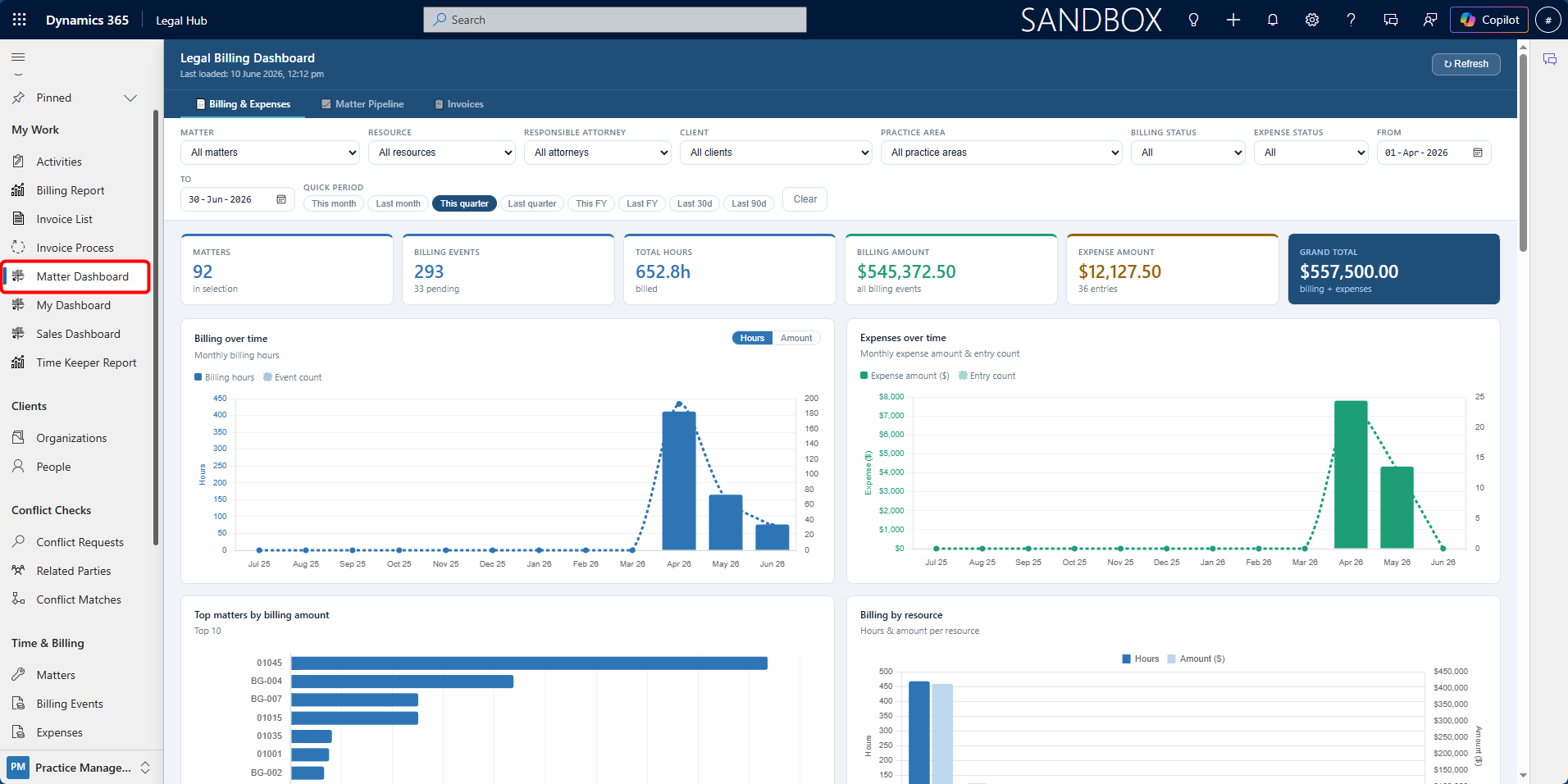
Open the Legal Hub.
-
Go to My Work in the left navigation.
-
Select Dashboards.
-
Open or select the Matter Dashboard.
-
Use the available tabs to review billing, pipeline, and invoice information.
The dashboard loads data from D365 and can be refreshed to show the latest information.
Billing & Expenses Tab
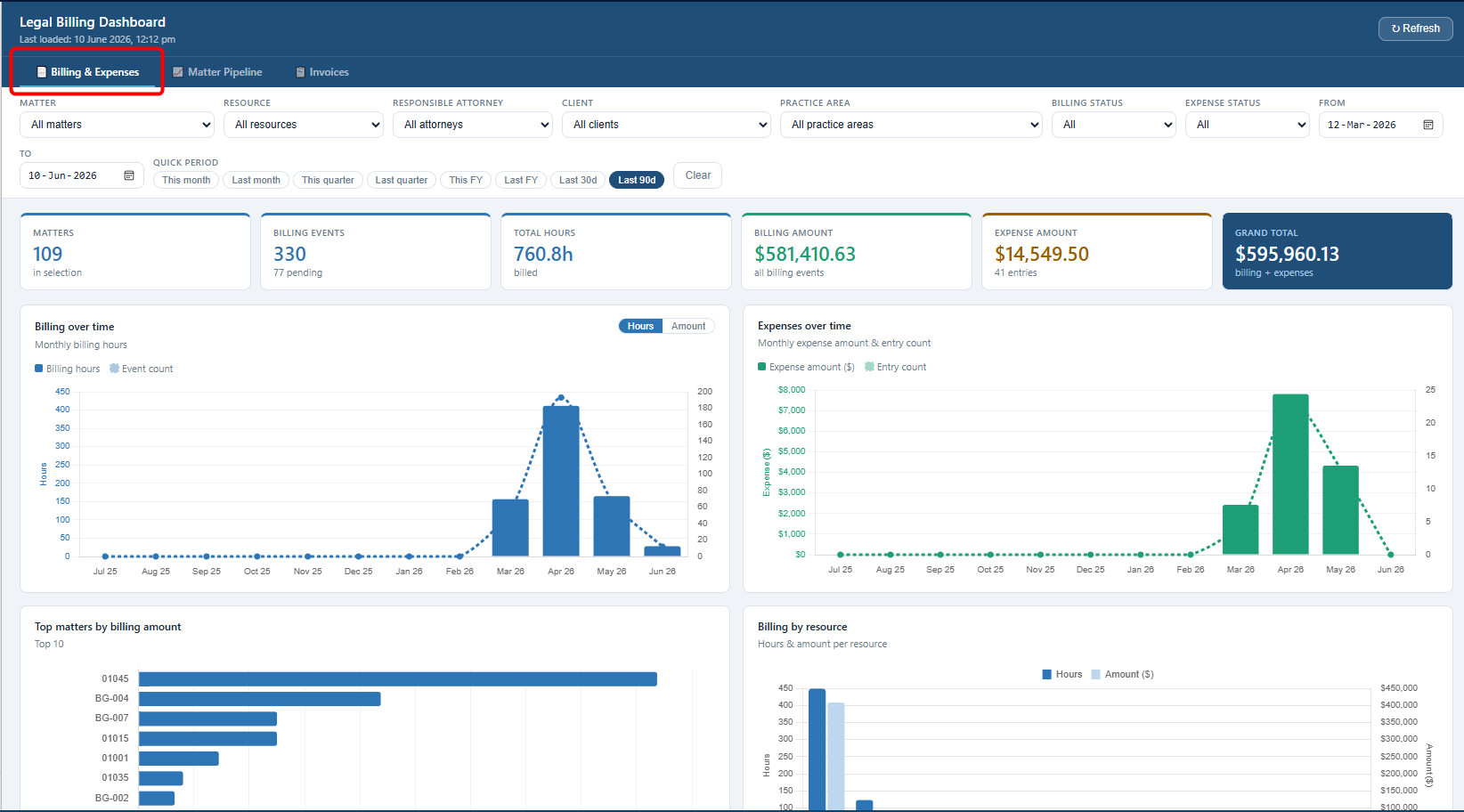
The Billing & Expenses tab shows billing events and expenses across active Matters. It helps users analyse billing activity, expense totals, work patterns, and financial trends.
This tab can be used to review:
-
total hours billed
-
total billing amount
-
total expense amount
-
billing events over time
-
top Matters by billing amount
-
billing by resource
-
billing by responsible attorney
-
billing status breakdown
Users can filter the dashboard by:
-
Matter
-
Resource
-
Responsible Attorney
-
Client
-
Billing Status
-
Date Range
Reviewing Billing and Expenses
To review billing and expense information:
-
Open the Matter Dashboard.
-
Select the Billing & Expenses tab.
-
Use the filters at the top of the dashboard to narrow the results.
-
Review the summary cards and charts.
-
Use the billing events chart to switch between hours and amount, where available.
-
Review top Matters, resources, attorneys, and billing statuses.
-
Scroll to the forecast section if future billing projections are required.
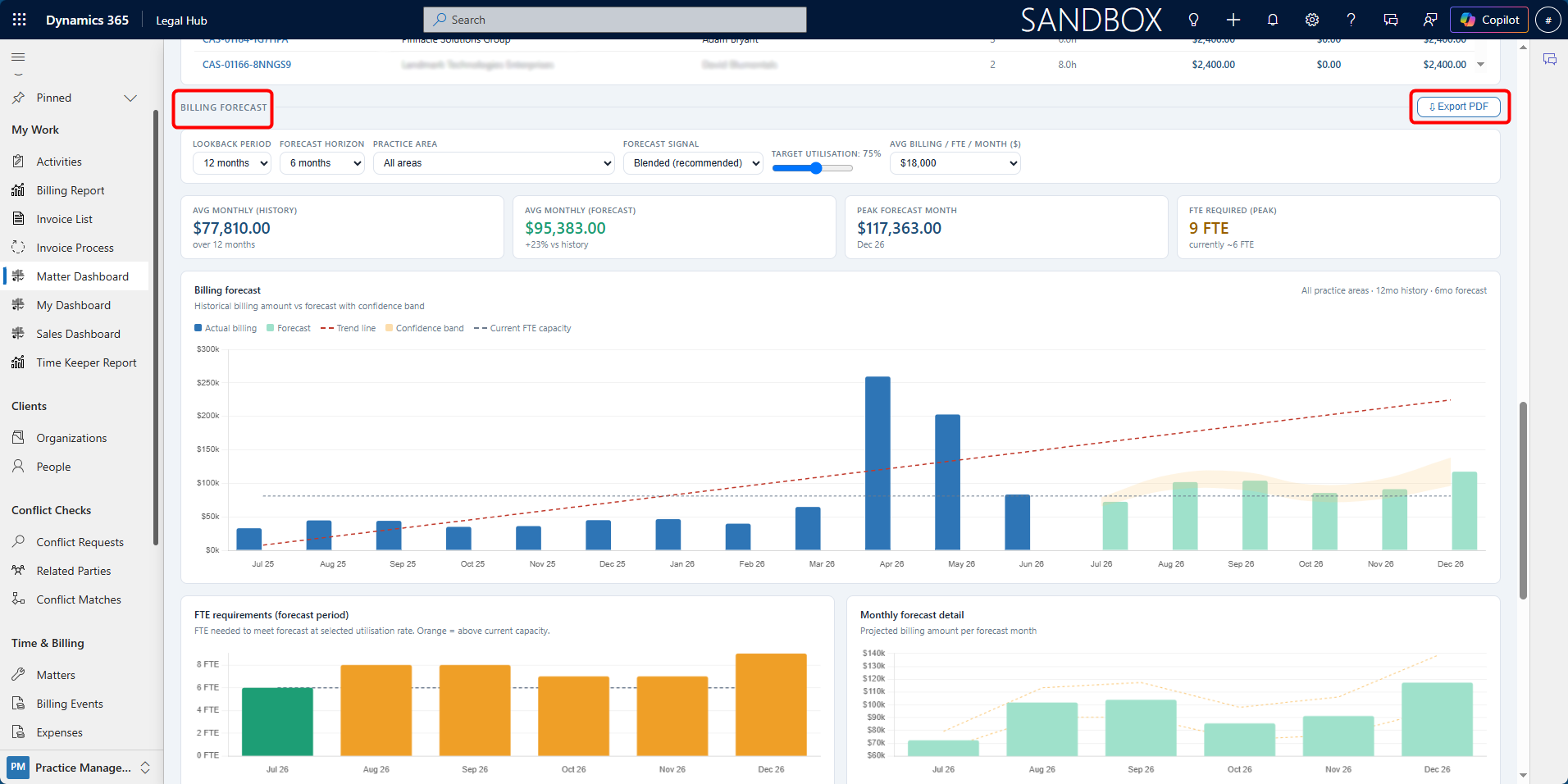
Billing Forecast
The Billing & Expenses tab also includes a Billing Forecast section.
This section projects future billing based on historical patterns. Users can adjust forecast settings such as:
-
lookback period
-
forecast horizon
-
practice area
-
target utilisation
To export the forecast:
-
Scroll to the Billing Forecast section.
-
Adjust the forecast controls if required.
-
Click Export PDF.
-
Save or share the exported report according to firm policy.
Matter Pipeline Tab
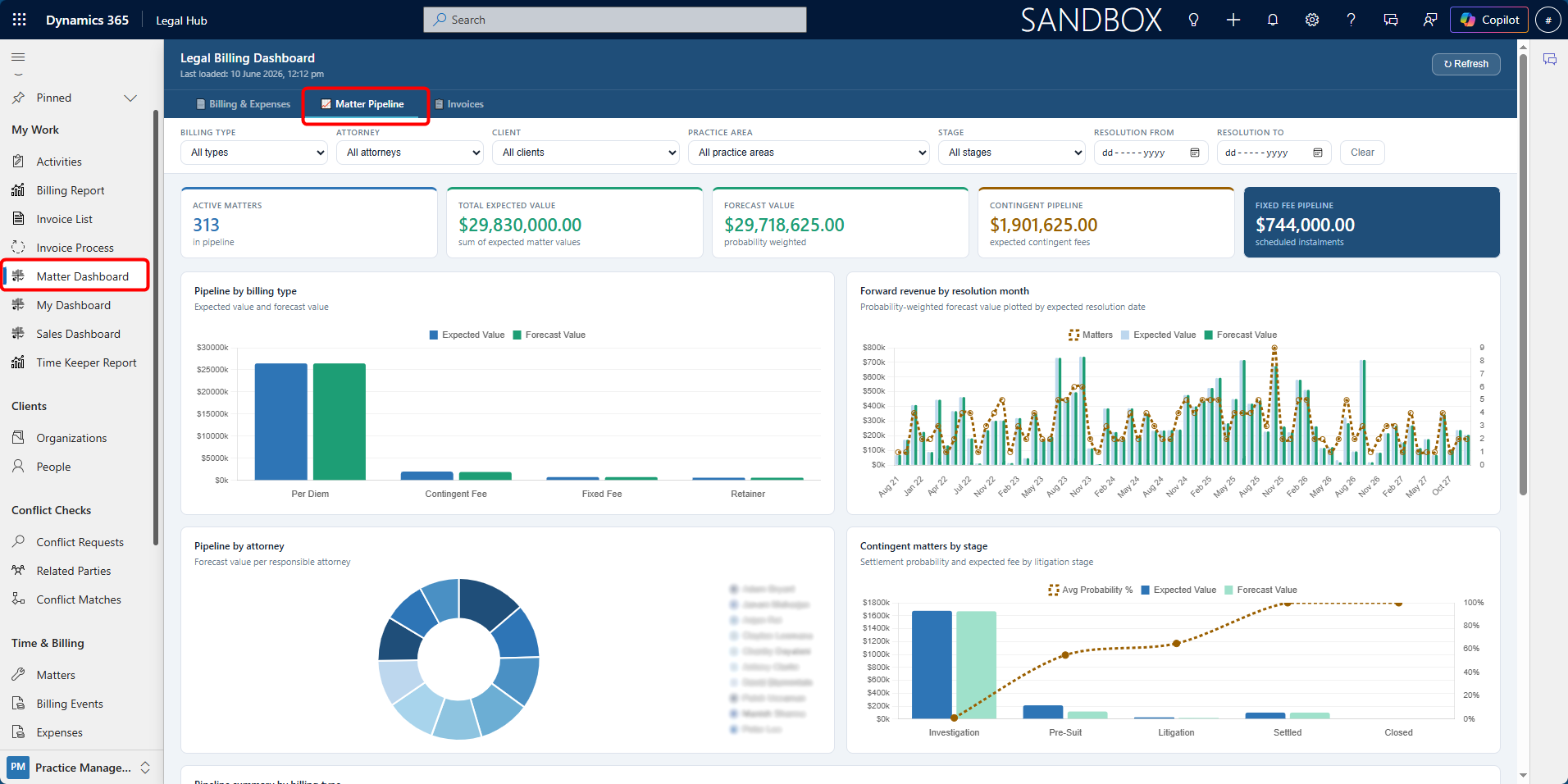
The Matter Pipeline tab provides a forward-looking revenue view across active Matters. This is especially useful for Fixed Fee and Contingent Fee Matters, where expected revenue may not be fully represented by current billing events.
This tab can be used to review:
-
total expected Matter value
-
forecast value
-
contingent fee pipeline
-
fixed fee pipeline
-
forward revenue by expected resolution month
-
pipeline by attorney
-
contingent Matters by stage
Reviewing Matter Pipeline
To review the Matter Pipeline:
-
Open the Matter Dashboard.
-
Select the Matter Pipeline tab.
-
Review the summary cards at the top of the dashboard.
-
Check the pipeline by billable type.
-
Review forward revenue by expected resolution month.
-
Review pipeline by responsible attorney.
-
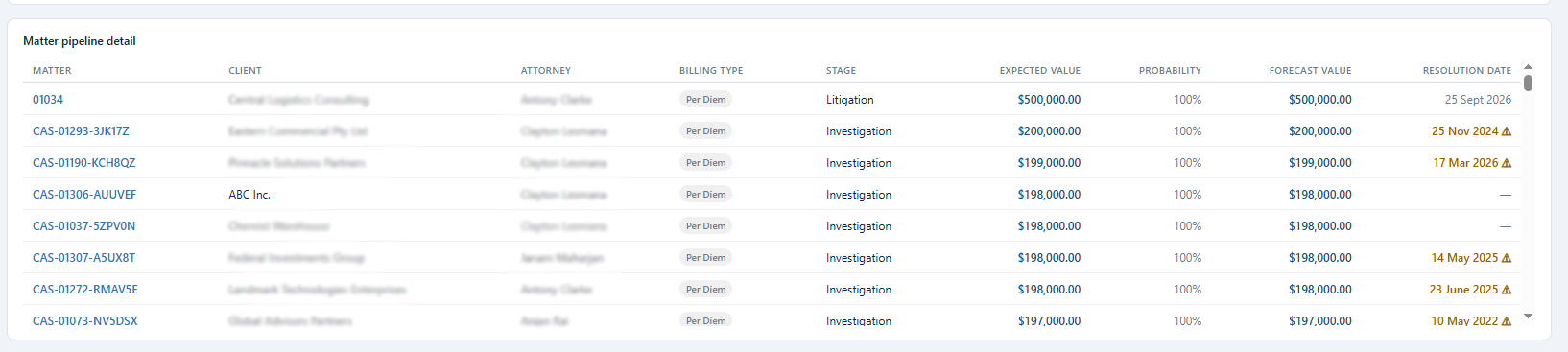
Use the Matter detail table to review individual Matters.
The Expected Resolution field on the Matter is important for this dashboard. Matters with missing or past expected resolution dates may be highlighted for attention.
Matter Pipeline Detail Table
The Matter detail table shows active Matters with information such as:
-
Matter
-
Client
-
Billable Type
-
Stage
-
Expected Matter Value
-
Settlement Probability
-
Forecast Value
-
Expected Resolution Date
Matters with past resolution dates may be highlighted so users can review and update them.
Invoices Tab
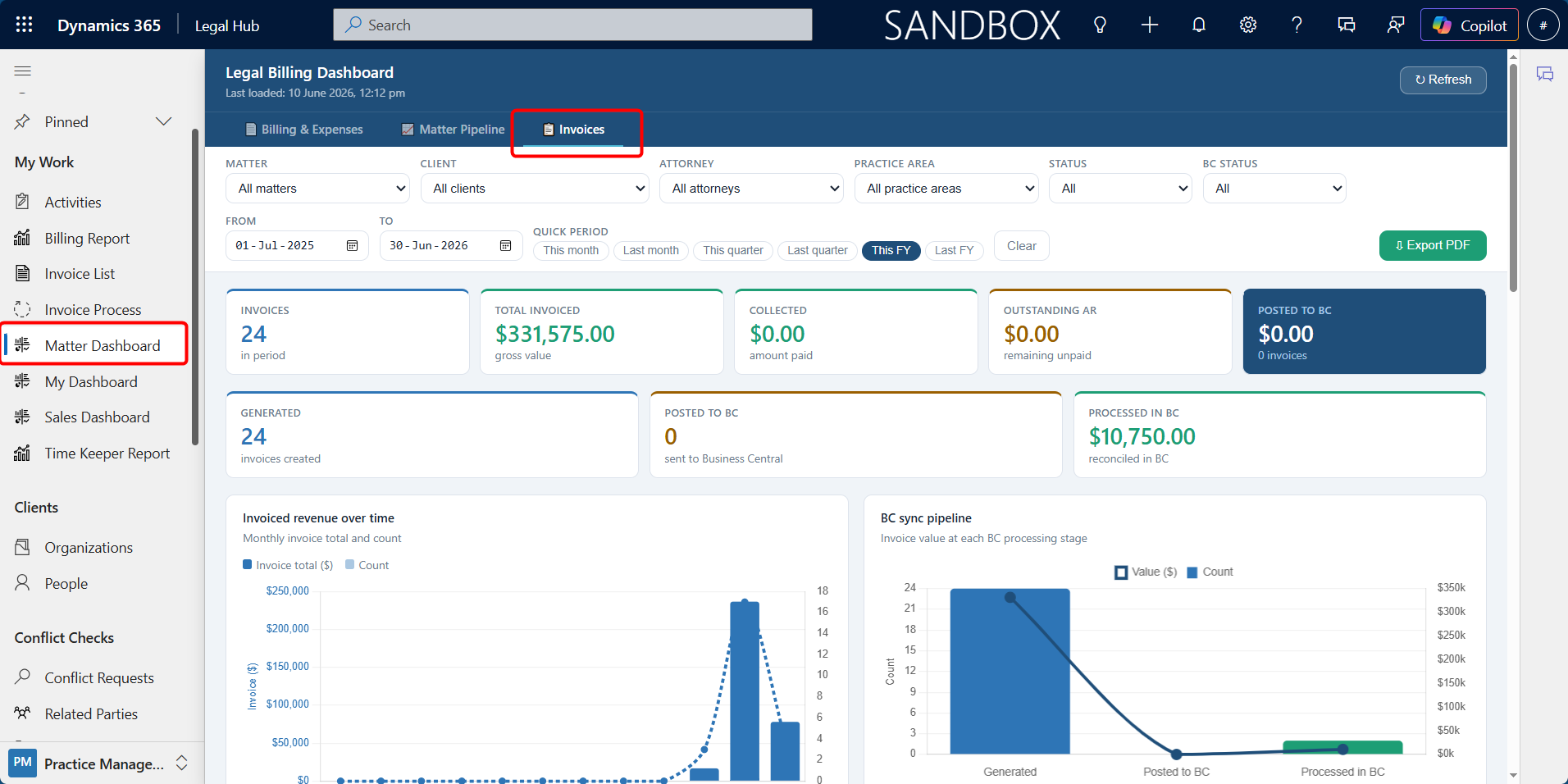
The Invoices tab provides a complete view of invoice status, payment performance, outstanding balances, and aged debtors.
This tab can be used to review:
-
Total invoiced value
-
Collected amount
-
Outstanding accounts receivable
-
Invoice status breakdown
-
Aged debtors
-
Outstanding balances by client
-
Top Matters by invoiced amount
-
Collected vs. outstanding by month
Reviewing Invoice Information
To review invoice information:
-
Open the Matter Dashboard.
-
Select the Invoices tab.
-
Use the date range or quick period buttons to filter the results.
-
Review total invoiced, collected, and outstanding amounts.
-
Review the invoice status breakdown.
-
Check the aged debtors chart for overdue balances.
-
Review the invoice detail table for individual invoice records.
Aged Debtors
The aged debtors section groups outstanding balances by overdue period, such as:
-
0—30 days
-
31—60 days
-
61—90 days
-
90+ days
Overdue invoices may be colour-coded to indicate severity.
Filters, Refresh and Export
Each dashboard tab includes filters that allow users to narrow the data shown.
Common filters may include:
-
Matter
-
Client
-
Attorney
-
Resource
-
Billing Status
-
Date Range
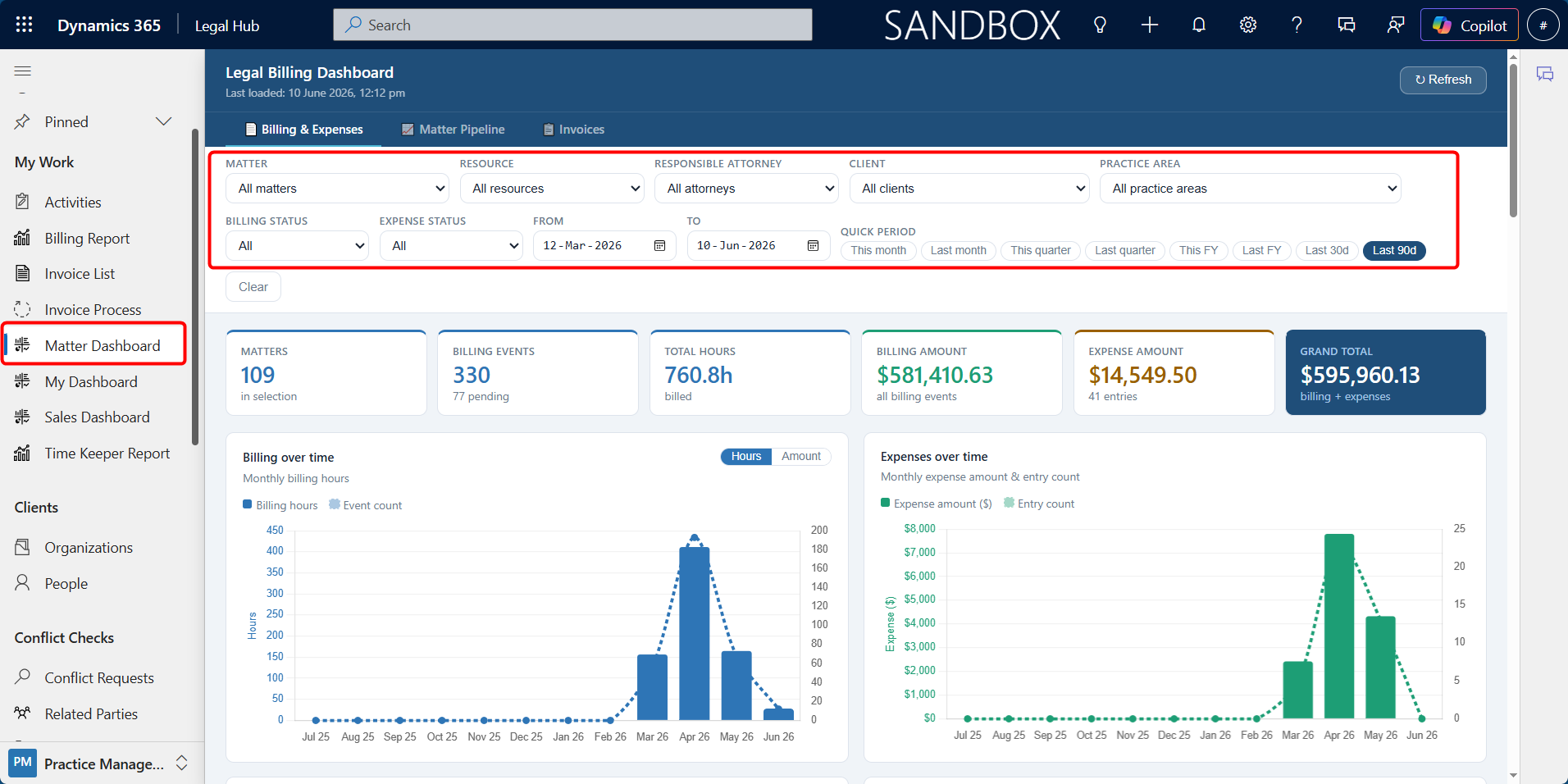
Filters are independent per tab. This means changing filters on one tab does not necessarily change the filters on another tab.
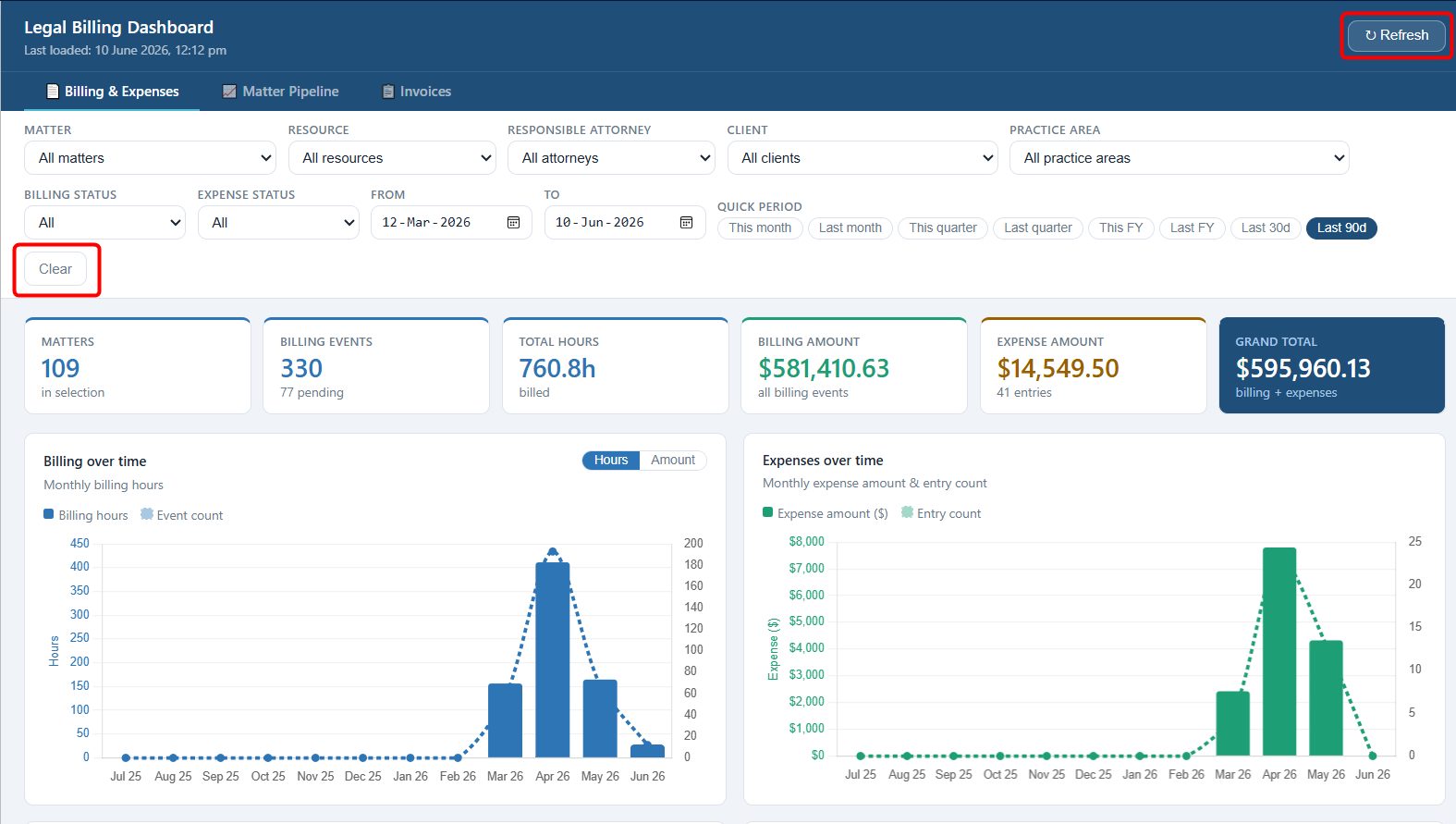
To refresh dashboard data:
-
Open the Matter Dashboard.
-
Click Refresh in the top-right corner.
-
Wait for the latest D365 data to reload.
To clear filters:
-
Open the relevant dashboard tab.
-
Click Clear.
-
The tab resets to its default filter view.
Sales Dashboard
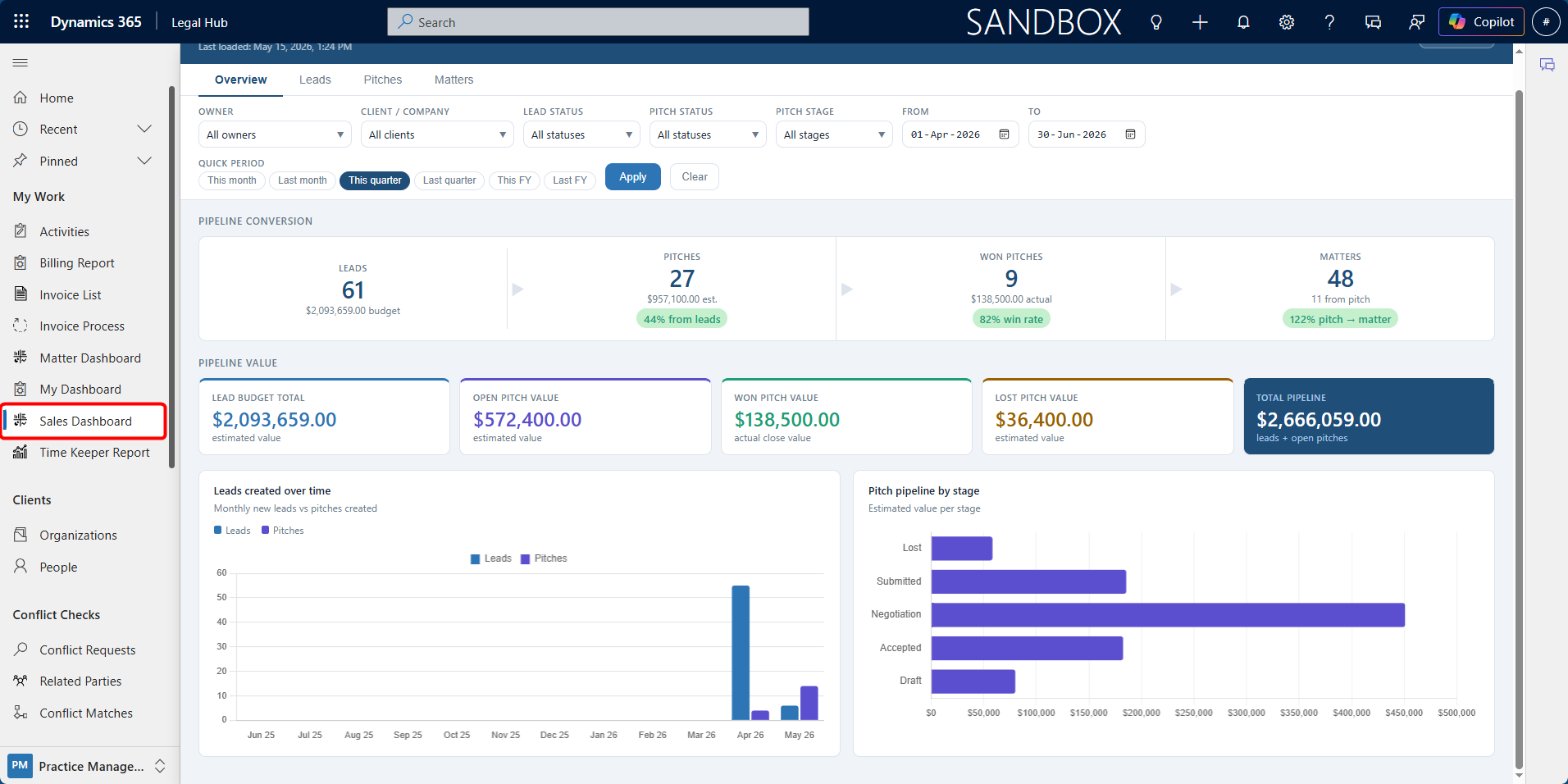
The Sales Dashboard (Sales Pipeline Dashboard) provides visibility into business development and the progression of work from initial enquiry through to active matters.
It helps users track:
-
Potential New Clients
-
Pitches
-
Conversion into Matters
The dashboard provides insights such as:
-
Pipeline conversion (Potential New Client → Pitch → Matter)
-
Total pipeline value
-
Open, won, and lost pitch values
-
Trends over time for new enquiries and pitches
-
Distribution of pitches across stages
Filters allow users to refine data by:
-
Owner
-
Client
-
Potential New Client status
-
Pitch status and stage
-
Date range
Time Keeper Report
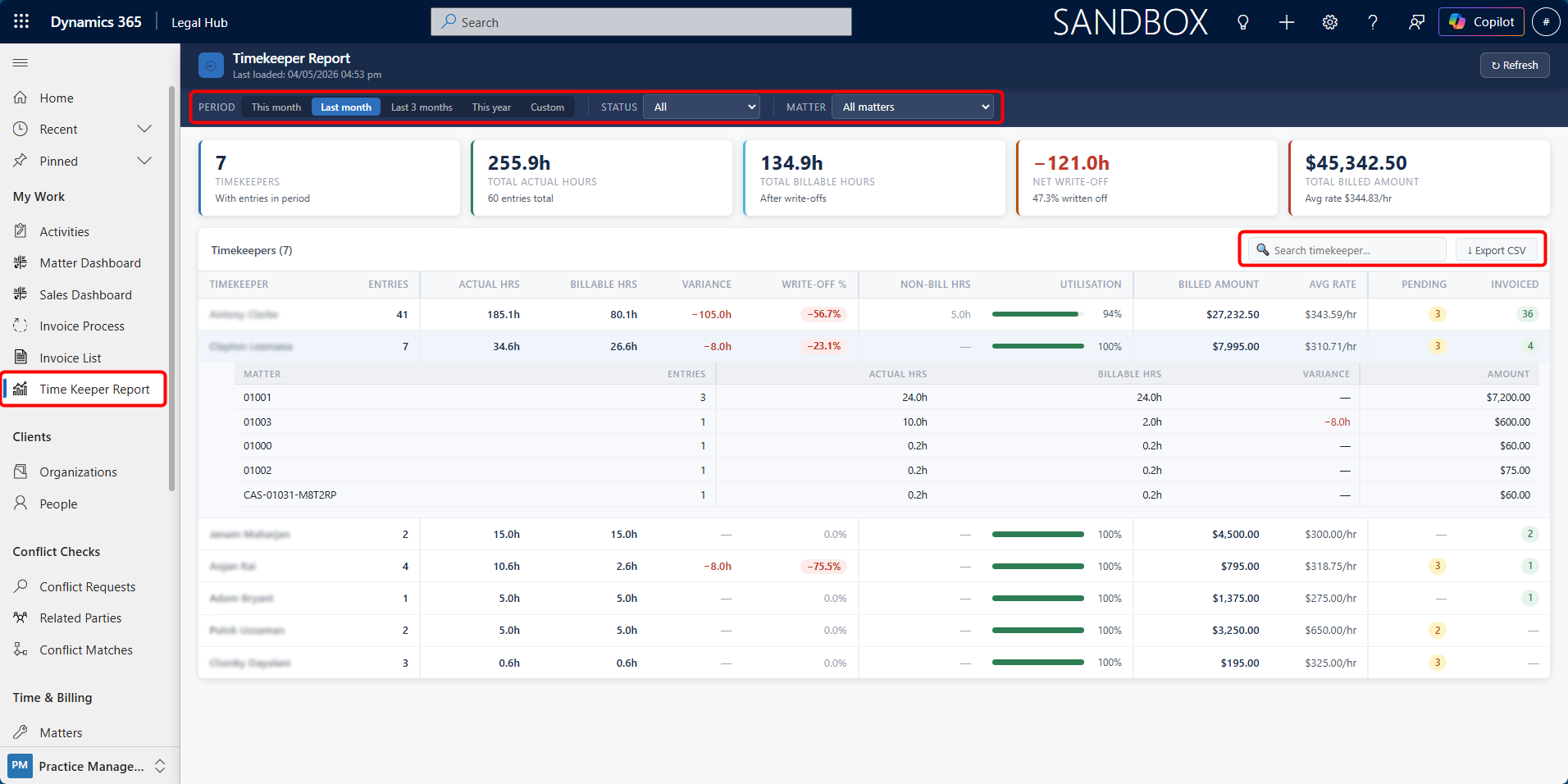
The Time Keeper Report provides a consolidated view of time recorded by bookable resources across matters. It helps users review actual hours worked, billable hours, write-offs, invoiced amounts, and pending time entries based on selected filters.
This report is useful for monitoring timekeeper performance, reviewing matter-level time allocation, and understanding how recorded time contributes to billing.
Accessing the Time Keeper Report
To access the report:
-
From the left navigation menu, go to My Work.
-
Select Time Keeper Report.
The Time Keeper Report screen will open and display timekeeper activity based on the selected reporting filters.
Using Report Filters
At the top of the report, users can filter the data by:
-
Period — Such as This Month, Last Month, Last 3 Months, This Year, or Custom.
-
Status — Filter by billing/invoicing status.
-
Matter — View all matters or focus on a specific matter.
These filters allow users to review timekeeper activity for a selected time period, matter, or billing status.
Understanding the Summary Cards
The report includes summary cards at the top of the screen, showing key totals such as:
-
Timekeepers — Number of resources with entries in the selected period.
-
Total Actual Hours — Total hours recorded by timekeepers.
-
Total Billable Hours — Total billable hours after write-offs.
-
Net Write-Off — Difference between actual and billable hours.
-
Total Billed Amount — Total amount calculated from the billable time.
These summary values update based on the selected filters.
Reviewing Timekeeper Details
The main table lists each timekeeper and shows key information such as:
- Number of entries.
- Actual hours recorded.
- Billable hours.
- Variance between actual and billable hours.
- Write-off percentage.
- Non-billable hours.
- Utilisation percentage.
- Billed amount.
- Average billing rate.
- Pending and invoiced entry counts.
Users can expand a timekeeper row to view the matters they worked on. This shows matter-level details, including actual hours, billable hours, variance, and amount. This helps identify how a timekeeper’s hours are distributed across different matters.
Searching and Exporting
-
Users can use the search box to quickly find a specific timekeeper.
-
The report can also be exported by clicking Export CSV. This generates a basic Excel-compatible CSV report containing the timekeeper report data, which can be used for further review, analysis, or sharing outside Dynamics 365.