Centralised Production Planning for Dynamics 365 Business Central User Guide
Are you ready to try the solution or have questions?

Introduction
The Centralised Production Planning app for Microsoft Dynamics 365 Business Central allows users in a central sales company to plan purchases from one or more production (factory) companies within the same Business Central tenant. This app was designed to meet the complex needs of manufacturing organisations operating multiple factories.
The app adds a Factbox that displays raw material inventory across multiple designated production companies and provides the estimates of finished goods (Qty Able to Make) that can be manufactured with existing raw material inventory.
This information allows the user to break down purchases of the finished goods from different production (factory) companies such that these intercompany purchases drive the production quantities according to available resources. It also provides the user the data to organise for additional raw materials to be sent to the factory if inventory is insufficient for the intended production of the finished goods.
To get the app, visit the Microsoft Marketplace — d365 Centralised Production Planning for Business Central
TIPS: Terminologies to watch for are BOM (Bill of Materials) and MPS (Master Production Schedule).
Minimum Requirements
To effectively use this add-on app, there are some minimum requirements. These are the following:
-
The add-on requires a Premium user license.
Premium license Includes everything in Essential license PLUS two specialized modules: Service Order Management (Service contracts, items, dispatching) and Manufacturing (Production orders, bill of materials, capacities, routing).
-
The environment must be setup with a sales company (main office) and one or more production (factory) companies.
-
Intercompany partners must exist where the sales company is partnered with the production companies. Production companies are intercompany vendors for the items purchased by the sales company.
-
Users are familiar with Planning Worksheet as this is the main interface for the add-on. The planning worksheet is used in the sales company to calculate intercompany purchases to the production companies, based on the sales demand received in the sales company.
Configuration & Setup
Setup must be done in both the main sales company and also for other production (factory) companies.
Production Company (Factory) Setup
-
In the same environment, production companies must be defined as intercompany partners to the sales company, as well as intercompany vendors
-
Items in the production companies have Replenishment method of Production Order and synchronised to the items in the sales company.
-
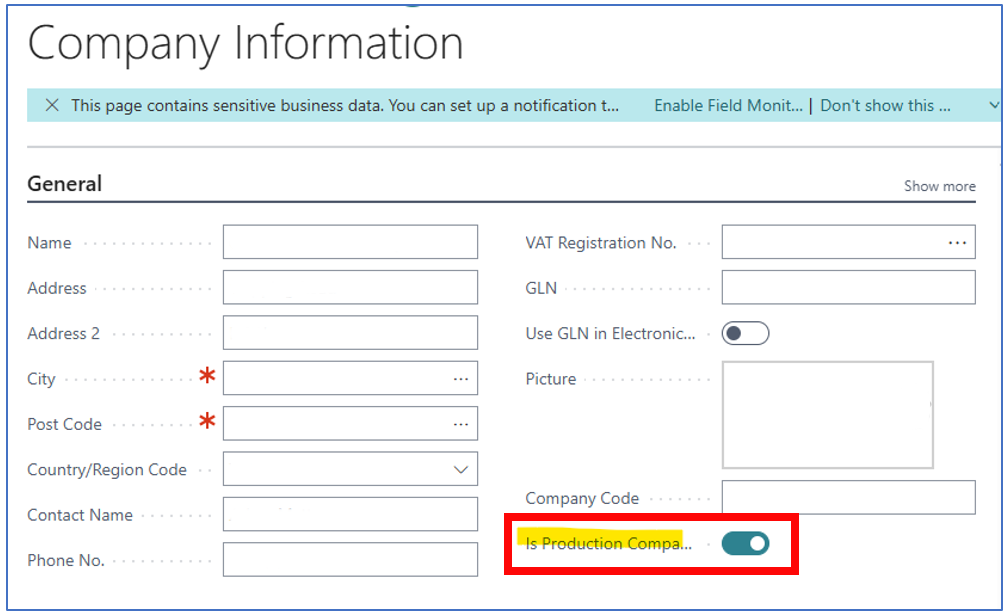
There is a new Boolean flag (Is Production Company) to be enabled in the Company Information page for the production companies:
- Production BOM (Bill of Materials) levels for items and components can be visible in the sales company if these are setup. The maximum will be 5 BOM levels — each level producing sub-assemblies that may be combined with other components.
BOM (Bill of Materials)
A Bill of Materials (BOM) is a comprehensive list of raw materials, components, assemblies, and sub-components. It is the exact quantities of each that is required to manufacture, assemble, or package a finished product. Think of it as a detailed “recipe” for building an item.
With a Premium license, the Production BOM provides full manufacturing environments with multi-level production structures. This links component items directly to Routings (the step-by-step operational sequence, work centers, and machine centers required).
The 5-Level BOM Hierarchy for a Cordless Drill
This is an example of 5 BOM levels.
Level 0: Finished Product
• Cordless Power Drill (Fully assembled and packaged)
Level 1: Major Sub-Assemblies
• Drill Housing Assembly (Plastic shell, screws, label)
• Motor & Gearbox Assembly
• Battery Pack Assembly
• Trigger & Switch Assembly
Level 2: Intermediate Sub-Assemblies (e.g., inside the Motor & Gearbox)
• Electric Motor Sub-Assembly
• Planetary Gearbox Sub-Assembly
Level 3: Component Parts (e.g., inside the Electric Motor)
• Stator Component
• Rotor Component
• Motor Casing
Level 4: Raw Materials & Basic Parts (e.g., inside the Rotor)
• Copper Wire Spool (Raw material for winding)
• Steel Shaft (Raw material/machined bar)
• Silicon Steel Laminations
Sales Company Setup
-
The sales company will be intercompany customer partner with the production company.
-
Items are synchronised with the production company but with the Replenishment Method of Purchase (since the sales company would order items made in the production company through intercompany purchase orders)
-
The planning worksheet will be used for generating purchase orders for the produced items, based on sales demand (and sales forecast if used).
User Guide
The key area for using this add-on is in the Planning Worksheet. In Microsoft Dynamics 365 Business Central, MPS (Master Production Schedule) is used in the Planning Worksheet to plan the production or replenishment of your most critical items, typically finished goods or high-level demand items.
Production Company (Factory)
In the production company, the raw material items must have some inventory quantities so that these can be viewed from the sales company. Production BOM levels (up to 5 maximum) with items will also be displayed in the sales company.
Sales Company (Main)
The following is the process from the sales company perspective.
MPS (Master Production Schedule)
The Master Production Schedule or MPS is a planning method that calculates supply proposals based on:
-
Sales Orders
-
Sales Forecasts
-
Demand Forecasts
-
Existing Inventory
-
Existing Supply Orders
The goal is to determine what needs to be produced or purchased, when, and in what quantity to meet expected demand.
The key difference between MPS and MRP (Materials Requirement Planning) is that MPS focuses on independent demand items (e.g. Finished products sold directly to customers or stocked items driven by forecasts), while MRP focuses on dependent demand items (e.g. components, raw materials, sub-assemblies needed to make finished goods).
Running the Planning Worksheet
-
Creating Demand — Sales orders (released or posted) and sales forecast can be used in creating demand to generate required purchases.
-
Planning Worksheet — This step is used to run a purchase order plan to satisfy demand for the items.
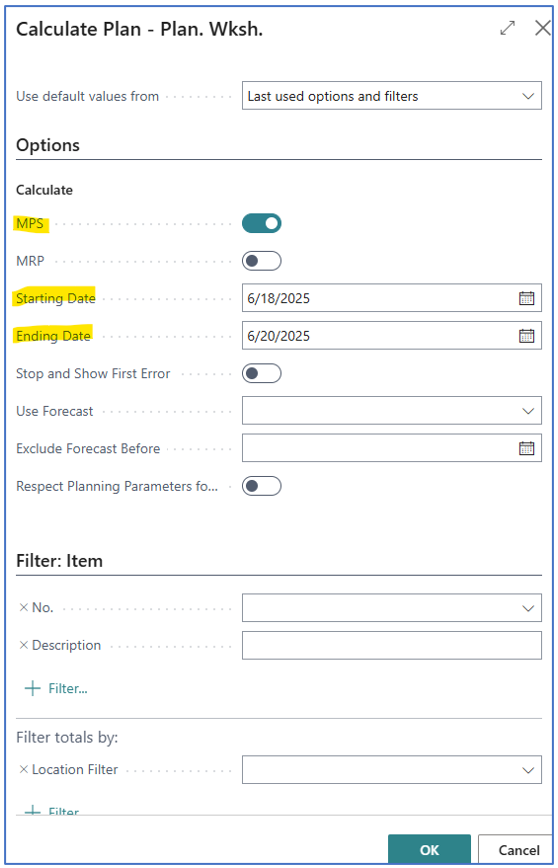
Use Calculate Regenerative Plan to obtain the prompt to filter the period of demand and other parameter.
NB: The minimum filters are: MPS enabled, Starting Date, Ending Date.
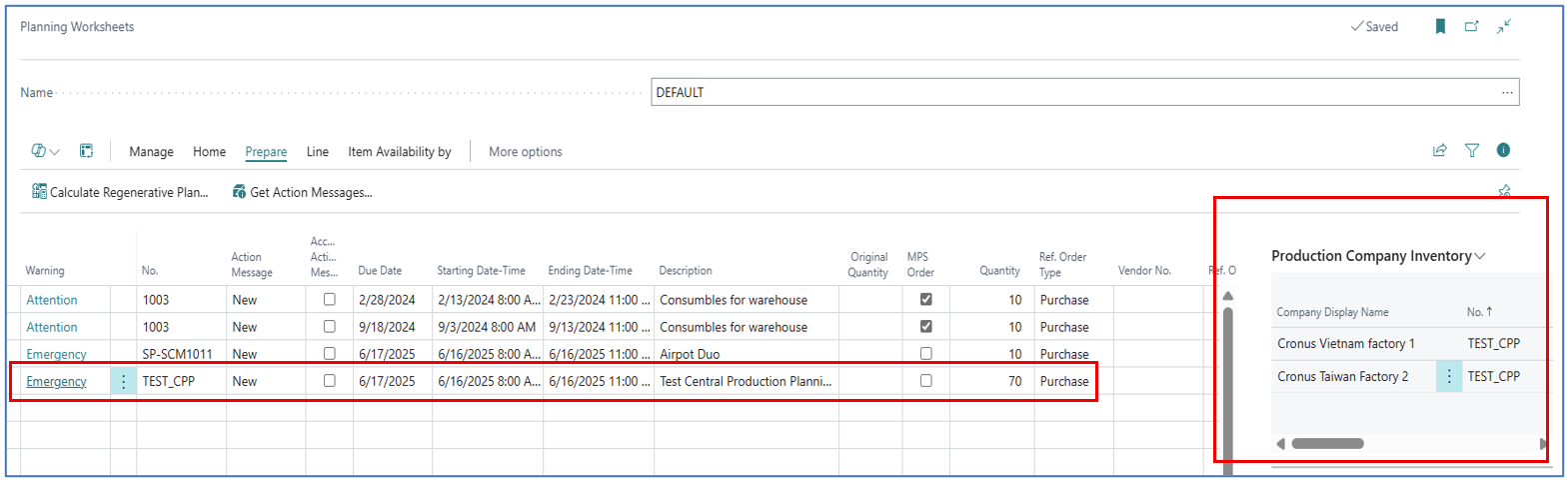
- When the calculation is done, the list of items requiring purchases from factories to satisfy the demand will be displayed with the full quantity to purchase.
-
Select the item where purchases are made from the production companies. In the Factbox panel, the Production Company Inventory is displayed. This Factbox is used to show raw material inventory at the production companies. Scroll to the right to view all the quantity values:
-
Company Display Name — Name of each production company.
-
No. — The same item code that is referenced in the MPS calculation.
-
Inventory — The quantity of the item in the production company.
-
Reserved Qty on Inventory — The reserved quantity of the item in the production company.
-
Qty on Production Order — Quantities of the item to be manufactured as stated in Planned Production Order (in production company).
-
Qty on Sales Order — Quantities of the item that are on released sales orders in the production company.
-
Qty Assigned to Ship — Quantities that are to be shipped from sales order (in the production company).
-
Reserved Qty. on Prod. Order — The quantity that has been reserved by production in the manufacturing company.
-
Qty Able to Make — This quantity shows the maximum possible manufactured output from the production company based on the available BOM raw material inventory. It is a flowfield where you can click to zoom into the production company’s stock level for the BOM materials.
-
-
BOM item inventory levels at each Production Company.
When the Qty Able to Make flowfield in the Production Company Inventory Factbox is clicked, another page is opened displaying the inventory status of BOM materials in the production company (selected).

This shows the Level 1 BOM materials inventory:
-
Company Name and Level 1 — Pre-selected fields.
-
Item No. — The BOM item codes for level 1 BOM.
-
Production BOM No. — The production BOM assigned to the item.
-
Inventory Quantity — Quantity available in production company inventory.
-
Reserved QTY on inventory — The reserved quantity still in inventory.
-
Qty on Prod. Order — The quantity to be manufactured and stated in Planned Production Order of the selected production company.
-
Qty on Sales Order — The quantity reflected in sales order in the selected production company.
-
Qty Assigned to ship — The quantity reflected in warehouse shipment in the selected production company.
-
Reserved Qty on Prod. Order — The quantity in Planned Production Order that is reserved.
-
Qty Able to Make — This will reflect the quantities of items with level 2 BOM that can be manufactured with raw materials and made available.
NB: This is a flowfield which opens the Level 2 BOM items.
- Gross Requirement — This is the expected raw material inventory needed for the item purchase order generated by the MPS.
Planning Use Case
When the Production Company Inventory Factbox data is used to view the available materials to manufacture the final product which has to be purchased by the sales company, the user can then decide either to:
-
Send/increase raw material inventory in the selected production company to enable full production of the item quantities to be purchased.
-
Manually split the MPS planning line to purchase Able to Make quantities from each of the production companies.
Example of common planning sequence:
Run MPS —> Create Production Orders —> Run MRP —> Generate component and raw material requirements.