Fixed Assets Basic User Training Guide for Dynamics 365 Business Central
Asset Master and Process Overview
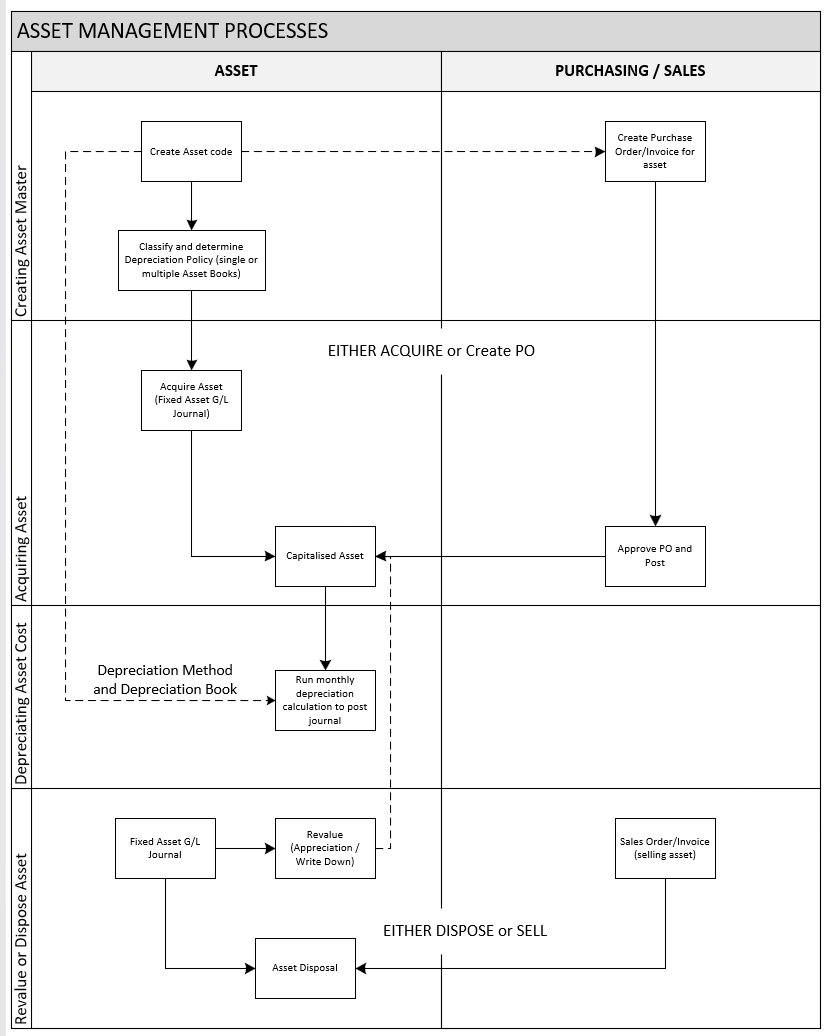
Asset Lifecycle Processes
In managing organizational assets, the Fixed Asset module is configured to register the asset and record periodic depreciation. Additionally, the asset register could record the employee responsible as well as the cost of insurance and asset maintenance.
Asset transactions include:
-
Fixed Asset G/L Journals for recording different asset costing transactions that update the General Ledger (main Asset Depreciation Book).
-
Fixed Asset Journals for recording asset costing transactions that do not update the General Ledger (e.g. a separate Asset Depreciation Book for tax or fiscal reporting on assets).
-
Purchase Order/Invoice — For recording the purchase cost of a new asset (acquisition).
-
Sales Order/Invoice — For recording the sales of an asset (and sales value).
Fixed Asset Setup
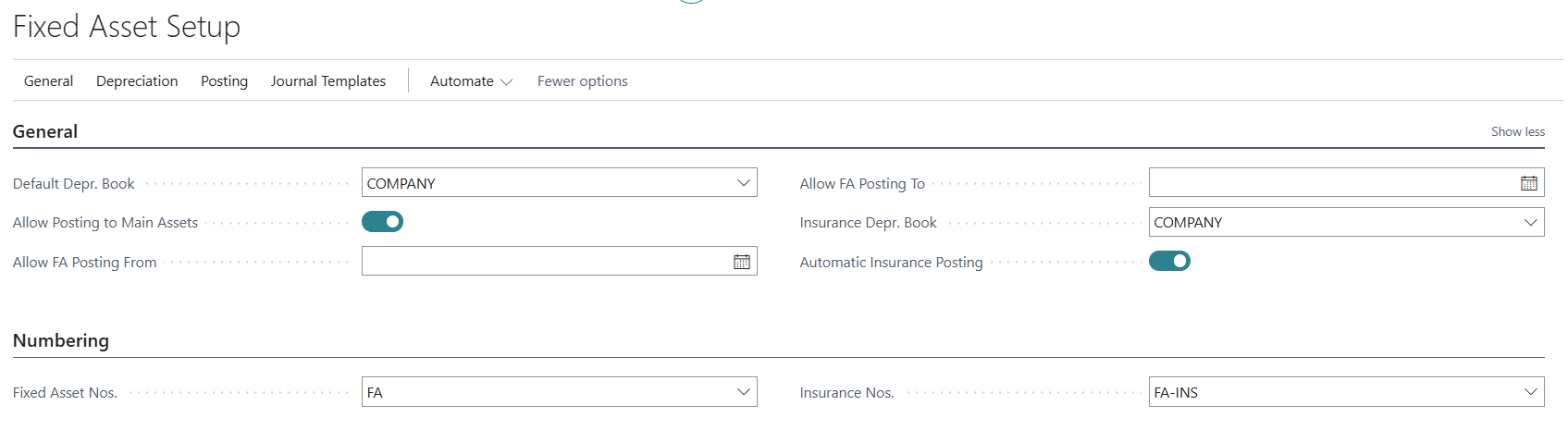
The configuration of the Fixed Asset module defines some key parameters. Navigate to Fixed Asset Setup to define these parameters.
General Tab
-
Default Depr. Book — The default depreciation book is displayed (but can be changed to any defined depreciation book)
-
Allow Posting to Main Assets — If you have a parent-child asset structure (Main and Component Assets), this flag must be enabled to allow posting to the main asset.
-
Allow FA Posting From and Allow FA Posting To — Select these dates to control users to post within the authorised dates.
-
Insurance Depr. Book — Select a depreciation book for recording insurance coverage ledger entries.
-
Automatic Insurance Posting — Enable this flag for auto-posting of insurance.
Numbering Tab
-
Fixed Asset Nos. — Select the numbering sequence code for auto-numbering of new assets.
-
Insurance Nos. — Select the numbering sequence code for auto-numbering of new insurance expense transactions for the asset.
Asset Creation
The first step in recognising an asset is to create the asset master. Navigate Finance > Fixed Assets to the Fixed Assets list page and click on +New to create a new asset.
Example:

The following highlights Asset Creation:
General Tab
-
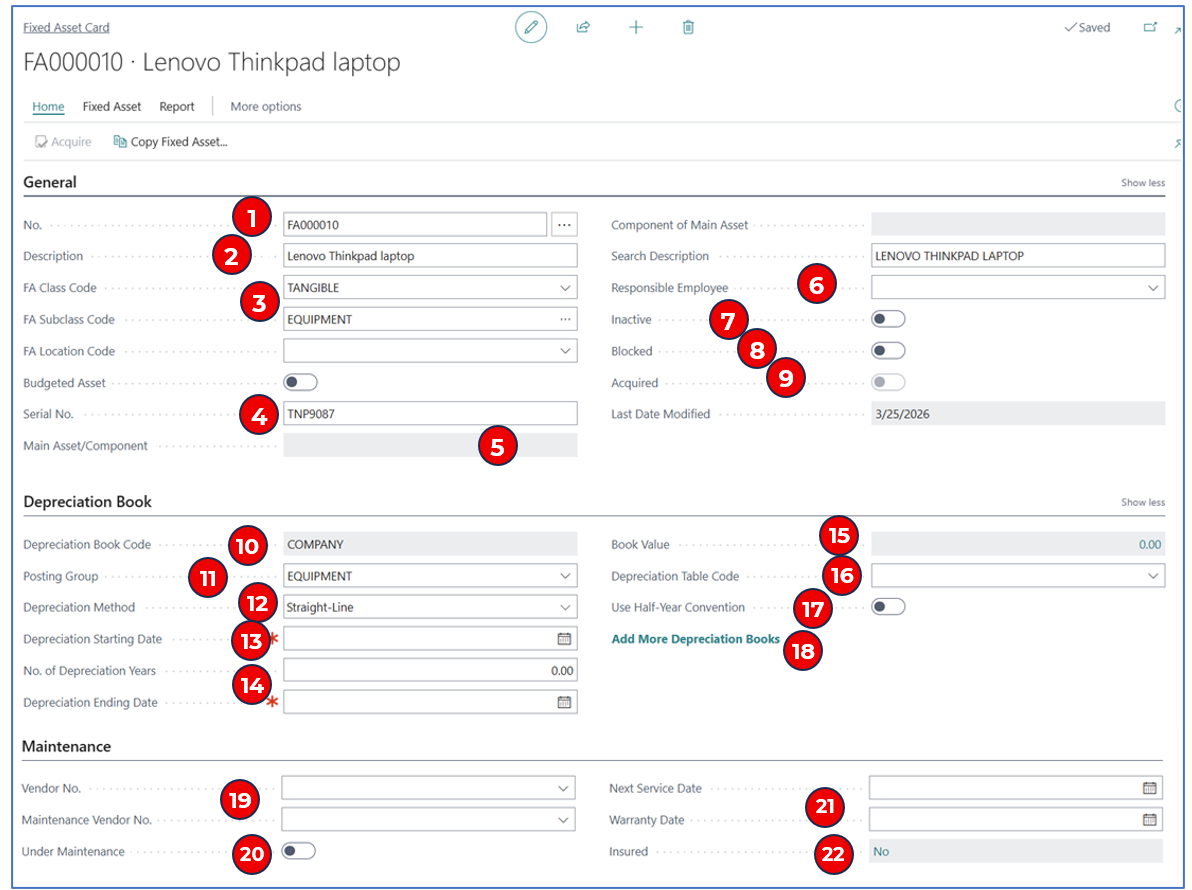
No. — The Asset No. is auto-generated; if manual Asset No. is allowed, this field will display for editing.
-
Description — Enter a description for the asset.
-
FA Class Code and FA Subclass Code — These are asset classification codes. Select the classification codes for the asset.
NB: The subclass/class code combination defaults to the FA Posting Group code.
-
Serial No. — Enter the asset serial number if available.
-
Main Asset/Component and Component of Main Asset — These fields display the parent-child asset relationship if the asset is a parent asset or a child asset of another parent asset.
-
Responsible Employee — Select the employee responsible for the asset (e.g. company vehicle, work laptop).
-
Inactive — If this asset is decommissioned or disposed, enable this flag to prevent further transactions on the asset.
-
Blocked — Enable this flag if the asset is to be blocked from transactions such as depreciation or maintenance charges.
-
Acquired — This flag is only enabled once the asset is capitalised i.e. the capital cost of acquisition is posted against the asset.
Depreciation Book Tab
-
Depreciation Book Code — This field defaults to the main depreciation book for the asset.
-
Posting Group — The value defaults from the FA subclass code if it is configured. Otherwise, select the relevant FA posting group code.
-
Depreciation Method — Select the relevant depreciation method. (refer to the section Depreciation Methods and Books for more details)
-
Depreciation Start Date — Select the start date for depreciation (this can be different from the asset acquisition date e.g. depreciate from start of the month of purchase).
-
No. of Depreciation Years and Depreciation End Date — The number of depreciation years is only entered if the depreciation method is Straight-Line.
NB: It is not applicable for all other depreciation methods. The Depreciation End Date auto-populates when the number of depreciation years is entered.
-
Book Value — This is the acquisition cost for the new asset. Once the asset is depreciated, it displays the net book value.
NB: $0 indicates that the asset has not been acquired.
-
Depreciation Table Code — If the depreciation method is User-defined, it requires the definition of a table of depreciation rates. This table is then selected in this field.
-
Use Half-year Convention — This flag applies to the Declining Depreciation Method where the end-period asset value is taken every 6 months instead of the annual value.
-
Add More Depreciation Books — This option opens the page for defining additional depreciation books e.g. for tax reporting. (Refer to section Depreciation Methods and Books for more details)
Maintenance Tab
-
Vendor No. and Maintenance Vendor No. — (optional) These are information fields referencing the vendors used for asset purchase and maintenance.
-
Under Maintenance — (optional) This information flag indicates that the asset is under maintenance.
-
Next Service Date and Warranty Date — (optional) These are information dates used to track the asset service and warranty expiry.
-
Insured — If the asset has an insurance expense posted, this flag will be enabled.
Asset Acquisition
After the asset has been created in the system, the next step is to record the asset cost — this is the Asset Acquisition Process. Acquisition can be done either within the Asset Card, or to have a purchase transaction posted to record the asset value.
Acquisition by Purchase Order/Invoice
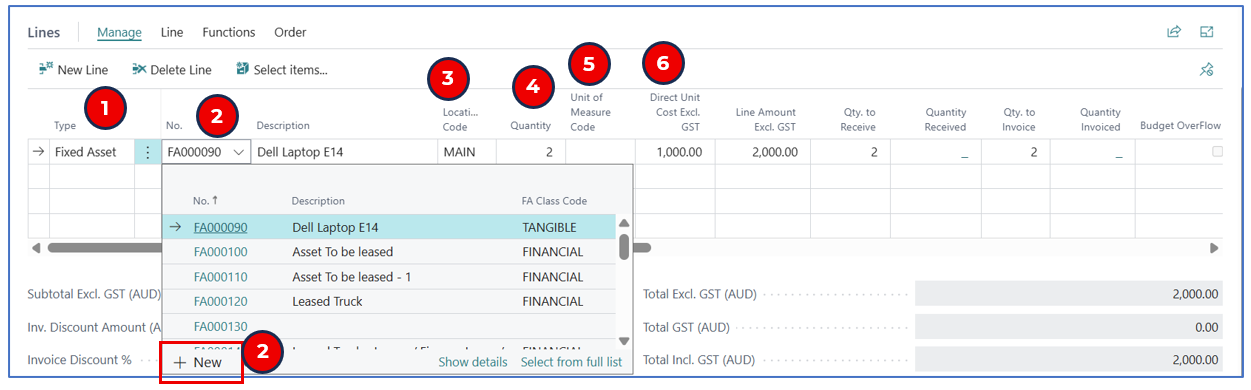
If the asset is purchased with approval, a Purchase Order (or Purchase Invoice) can be created for approval of the purchase. In the line section, the Line Type will be Fixed Asset.
Example:
-
Type — The line type should be Fixed Asset to recognise that this purchase line will be posted as the asset acquisition cost.
-
No. — Select the Asset No. from the dropdown list or click on +New to open the asset card to create the asset.
-
Location code — Select the receiving (warehouse) location for the asset purchase.
-
Quantity — Enter the quantity of the asset purchased.
-
UOM — Select the unit of measure for the asset.
-
Direct Unit Cost Excl. GST — Enter the cost per asset. The Line Amount will be the acquisition cost of the asset.
When the purchase order/invoice is posted, the Line Amount will be added as the acquisition cost to the selected asset.
Acquisition within the Asset Card
Once the asset is created, it can be acquired. The pre-requisite is that the depreciation book and depreciation method must be defined. The definition of depreciation book and method will enable the Asset menu option Acquire.
Example:
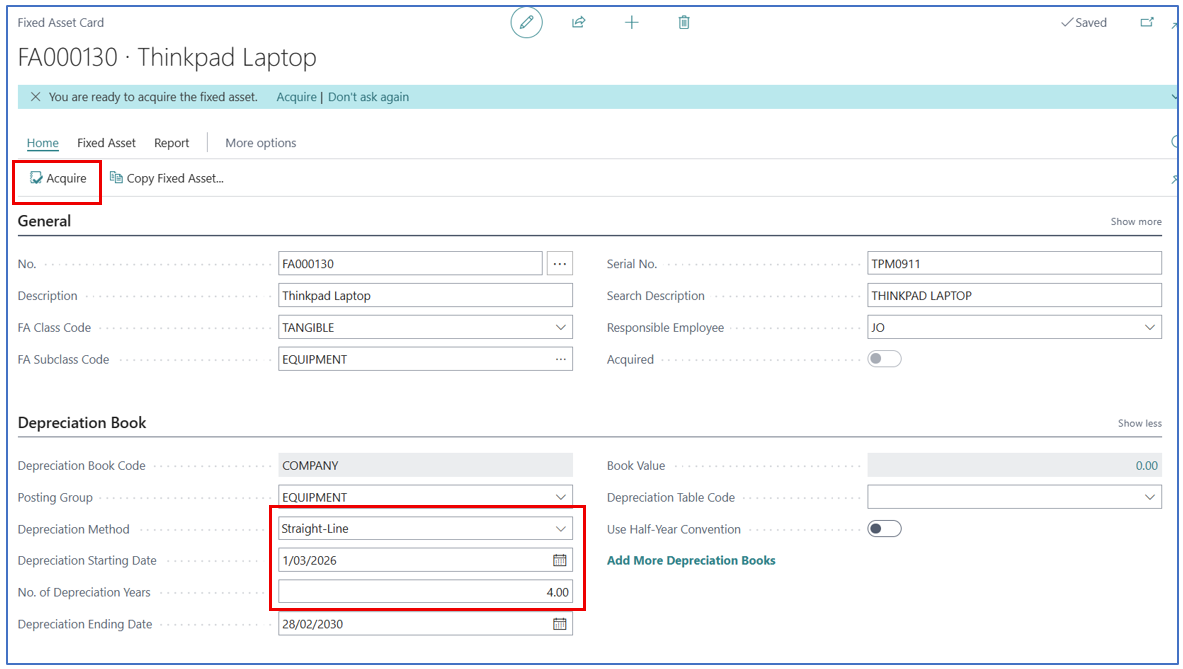
When Depreciation Method, Depreciation Starting Date, and No. of Depreciation Years (for Straight-line method) are completed, the Acquire menu option is enabled.
Click on Acquire to open the Asset Acquisition wizard to complete the steps:
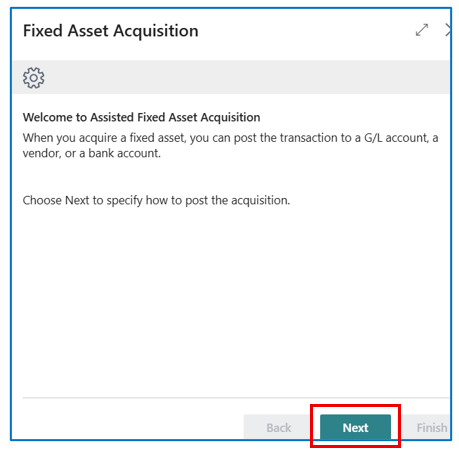
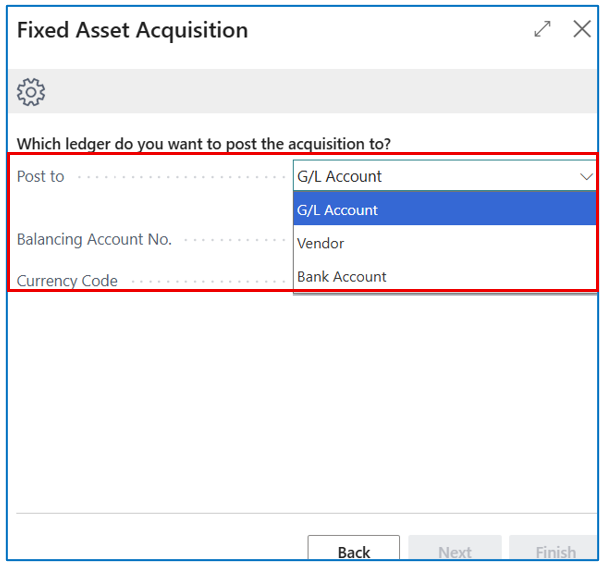
3 Ways To Acquire an Asset
There are 3 ways to acquire the asset:
- G/L Account
- Vendor
- Bank Account
One of these methods must be selected for Post to.
G/L Account
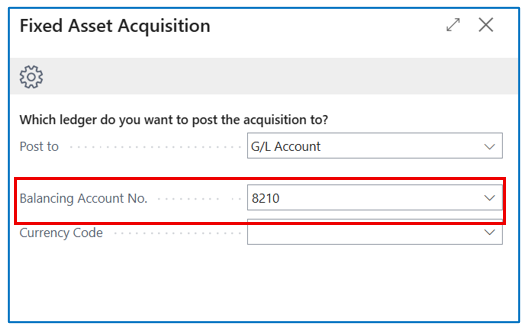
This method assumes that the asset is acquired by charging the acquisition cost (DR) to a nominated G/L account (CR). When this option is selected, the Balancing Account No. for the CR entry must be selected.
Example:
Vendor
This method creates a Vendor Ledger entry and assumes that the vendor invoice is received as a reference for the entry.
Example:
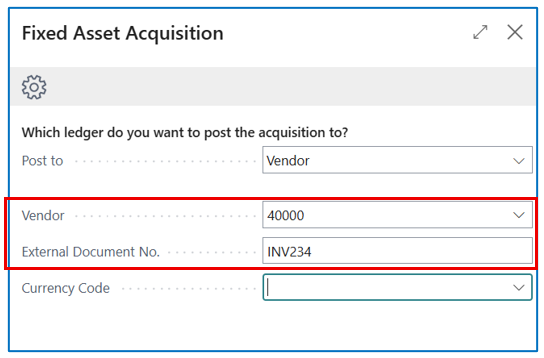
Select the vendor code and enter the External Document No. (Vendor Invoice No.) — this information is used to establish the Vendor Ledger Transaction.
Bank Account
This method assumes that the asset purchase is “cash” financed from a bank account.
Example:
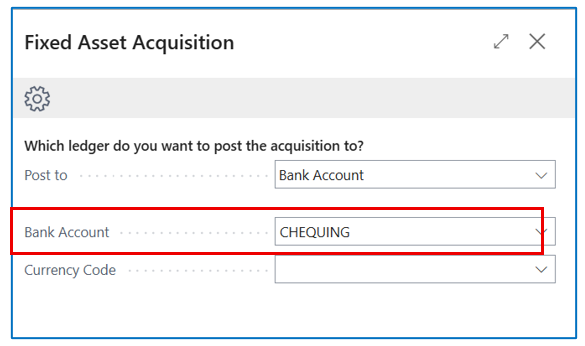
Select the bank account where the funds are sourced from.
Once the acquisition method is determined, the next page is used to enter the asset acquisition cost.
For example:
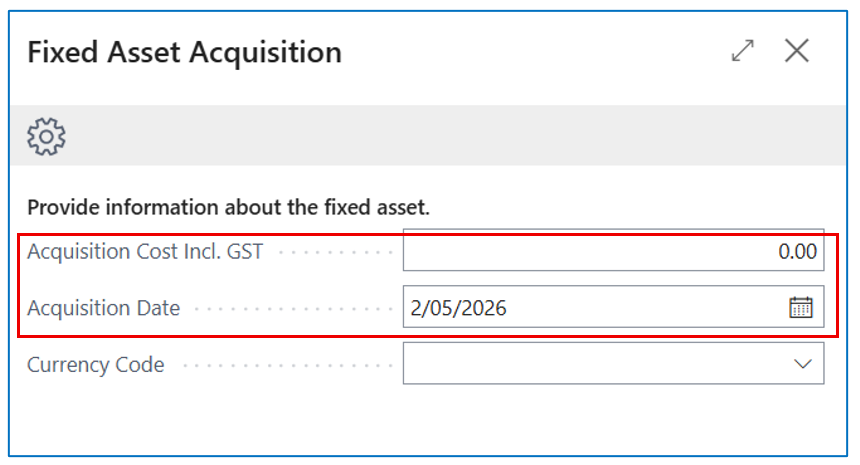
Enter the total acquisition cost inclusive of GST. The acquisition date will be the posting date of this transaction.
The last step of the acquisition wizard confirms the creation of a Fixed Asset G/L Journal to record the acquisition.
Example:
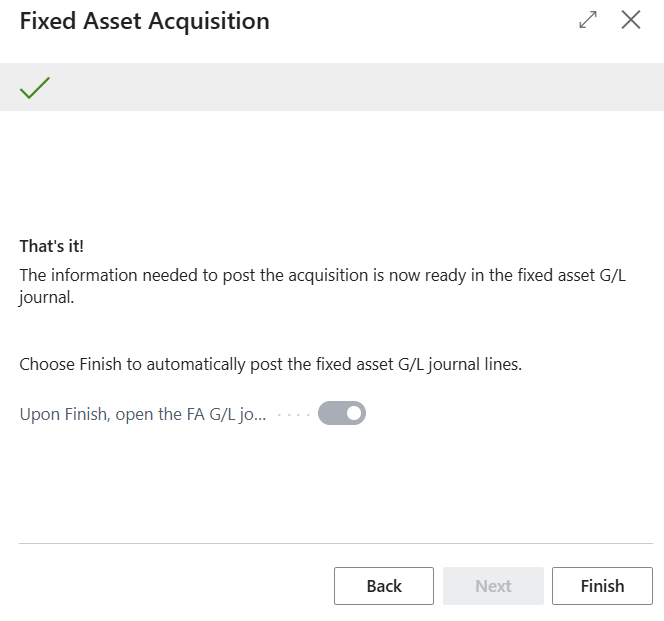
Click Finish to complete the acquisition costing and open the Fixed Asset G/L Journal to review the entries before posting. Depending on the method used, the journal line will have either a balancing G/L account, a vendor account, or a bank account.
Asset Revaluation
During its lifecycle, the asset can be revalued (appreciation or write-down). These are recorded through Fixed Asset G/L Journals, using FA Posting Type of Appreciation or Write-Down. It is assumed that the asset has been acquired (with acquisition cost) before Appreciation or Write-Down entries can be made.
Asset Appreciation Example
An asset’s value (e.g. land) may increase in the reporting period, and this increase needs to be recognised so that the net asset value is adjusted for depreciation.
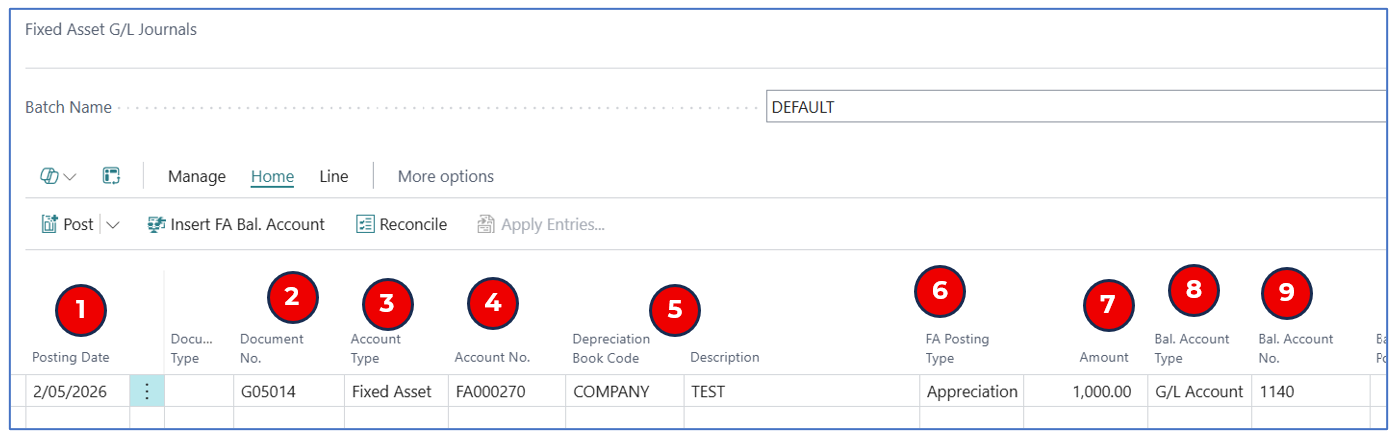
Being an internal valuation adjustment (+ve), the transaction uses the Fixed Asset G/L Journal.
-
Posting Date — Enter the posting date to recognise the appreciation value.
-
Document No. — This should be auto-populated by the journal batch; if not, enter a document number.
-
Account Type — Select Fixed Asset for this asset journal line.
-
Account No. — Select the asset no. for this appreciation posting.
-
Depreciation Book Code and Description — These fields default from the asset master.
-
FA Posting Type — This is the critical field to select Appreciation for the journal line.
-
Amount — A positive asset appreciation amount is entered.
-
Bal. Account Type — Select G/L Account to post the offsetting entry to a GL account.
-
Bal. Account No. — Select the G/L account for the CR offset for the appreciation posting.
Asset Write-Down Example
An asset’s value (e.g. equipment or vehicle) may decrease in the reporting period, and this revalued decrease needs to be recognised so that the net asset value is adjusted for depreciation.
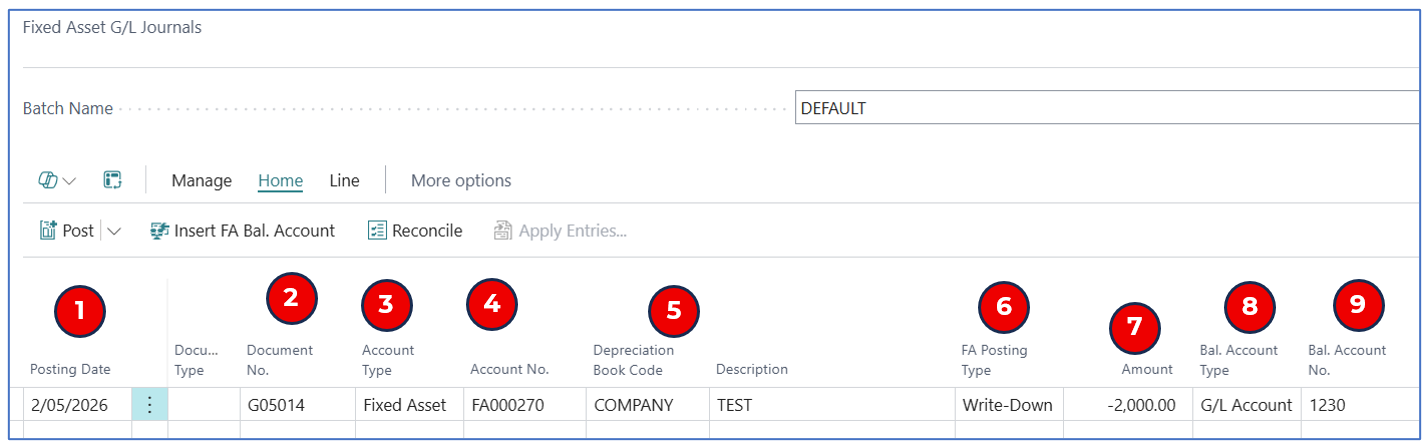
Being an internal valuation adjustment (-ve), the transaction uses the Fixed Asset G/L Journal.
-
Posting Date — Enter the posting date to recognise the write-down of the asset.
-
Document No. — This should be auto-populated by the journal batch; if not, enter a document number.
-
Account Type — Select Fixed Asset for this asset journal line.
-
Account No. — Select the asset no. for this write-down posting.
-
Depreciation Book Code and Description — These fields default from the asset master.
-
FA Posting Type — This is the critical field to select Write-Down for the journal line.
-
Amount — A negative asset write-down amount is entered.
-
Bal. Account Type — Select G/L Account to post the offsetting entry to a GL account.
-
Bal. Account No. — Select the G/L account for the DR offset for the write-down posting.
Default G/L Accounts for Revaluation
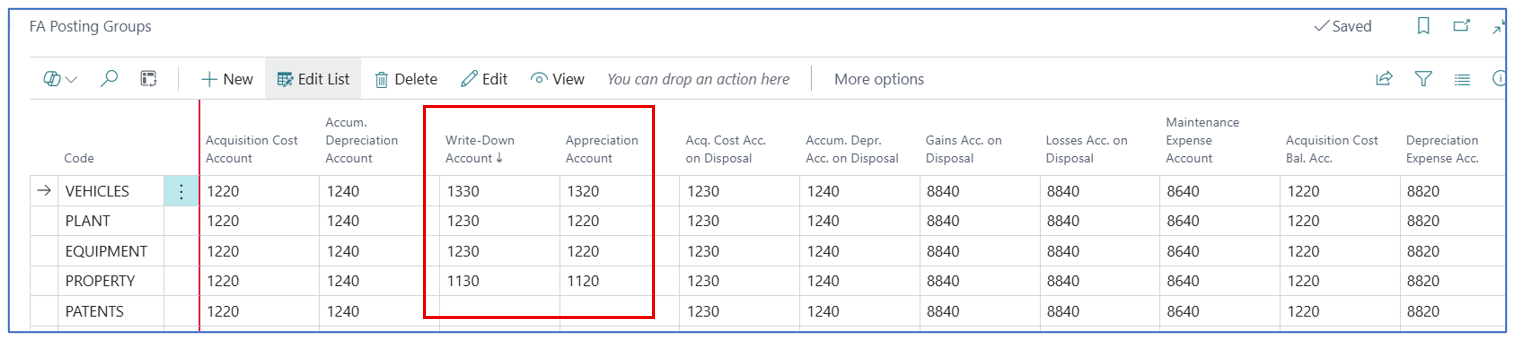
The default accounts used by the journal for FA Posting Type of Appreciation and Write-down are found in the FA Posting Group definition.
Example:
Asset Disposal
At the end of the asset life, it is disposed or sold. If sold, there could be sales proceed — this is reflected in an invoice transaction or a Fixed Asset G/L Journal.
Dispose Asset Through a Sale
A sales order or sales invoice can be created for the asset sale — these documents require a customer code. In the Sales Order/Invoice line, select the asset to be sold.
The recognition of gain or loss from the sale and the sales proceed will depend on the net value of the asset.
Example:
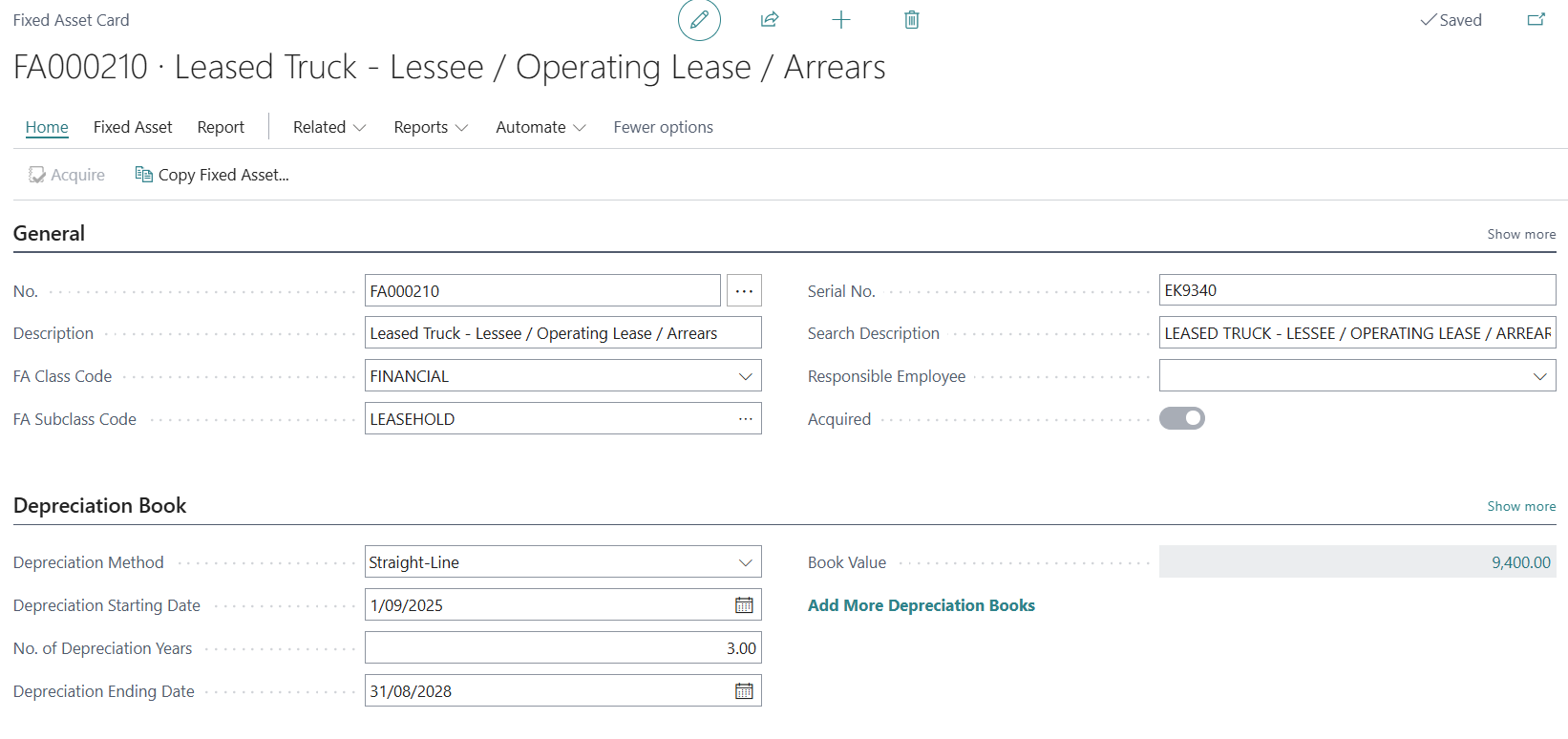
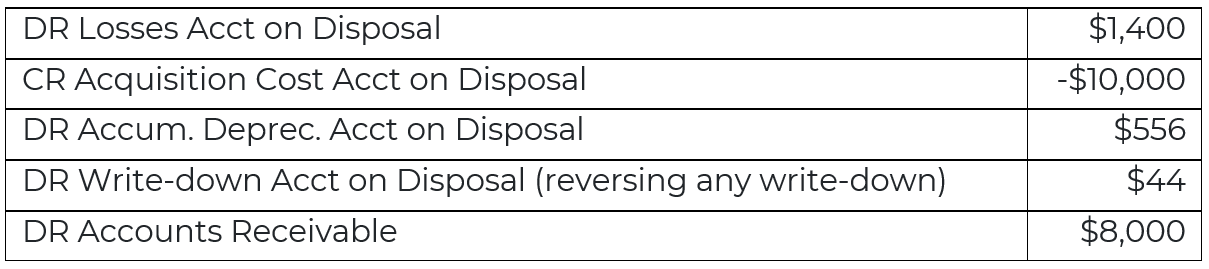
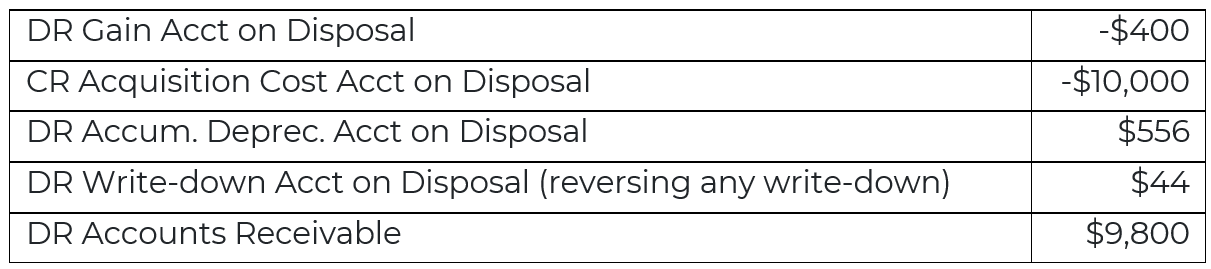
Asset net value is $9,400 (acquisition $10,000, depreciation -$556, write-down -$44)
Sales Order/Invoice line where the proceed is less than the net asset value:

In this example, the loss on asset disposal is $1,400 ($9,400 less $8,000). The posting entries are:
Sales Order/Invoice line where the proceed is more than the net asset value:

In this example, the gain on asset disposal is -$400 ($9,400 less $9,800). The posting entries are:
The default asset GL accounts are found in the FA Posting Group.
Example:

Dispose Asset Through a Fixed Asset G/L Journal
If the asset is disposed by other means, the entry can be booked through the Fixed Asset G/L Journal using the FA Posting Type of Disposal.
For example, the asset with net value of $8,000 (acquired cost $8,260.87, accum. Depreciation -$459, value appreciation $198.13)
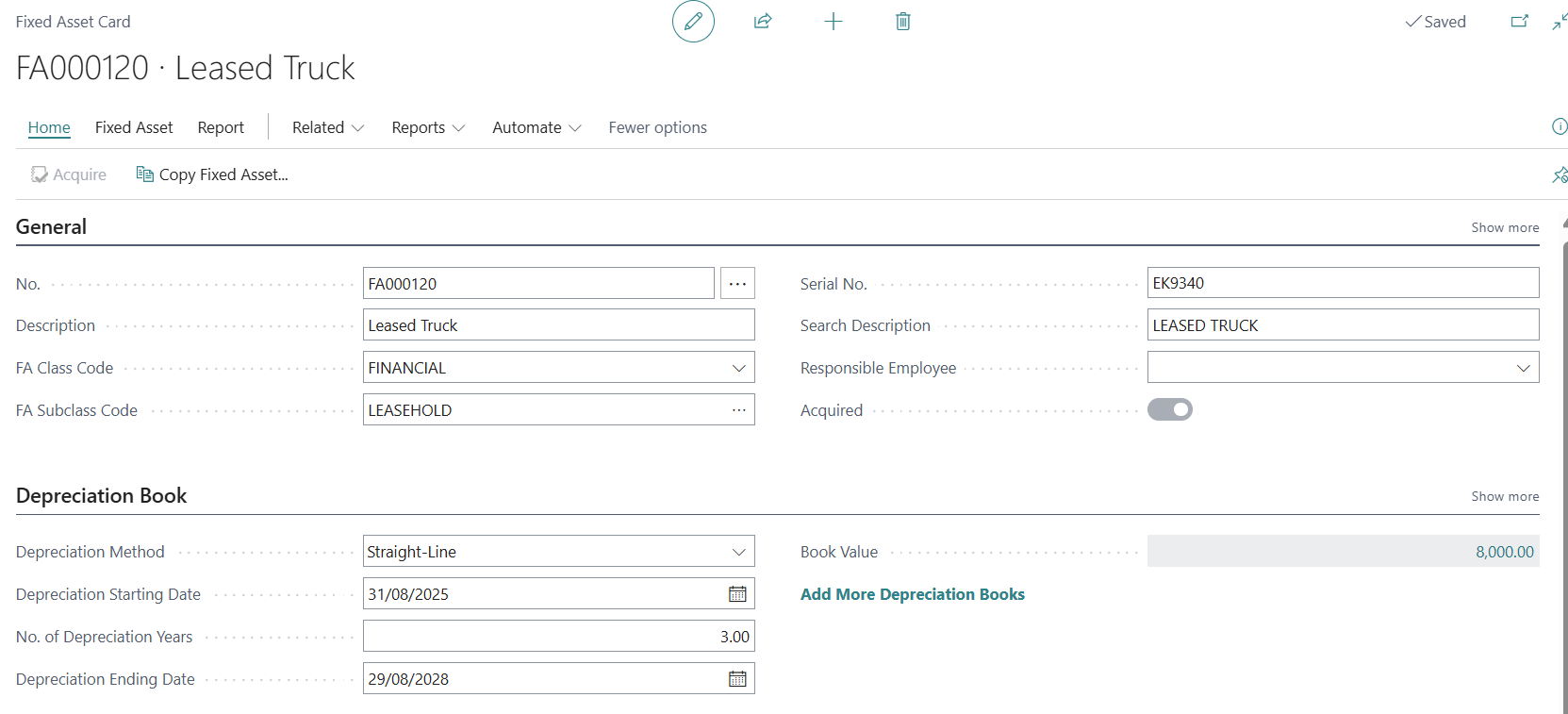
Fixed Asset G/L Journal line with FA Posting Type of Disposal.
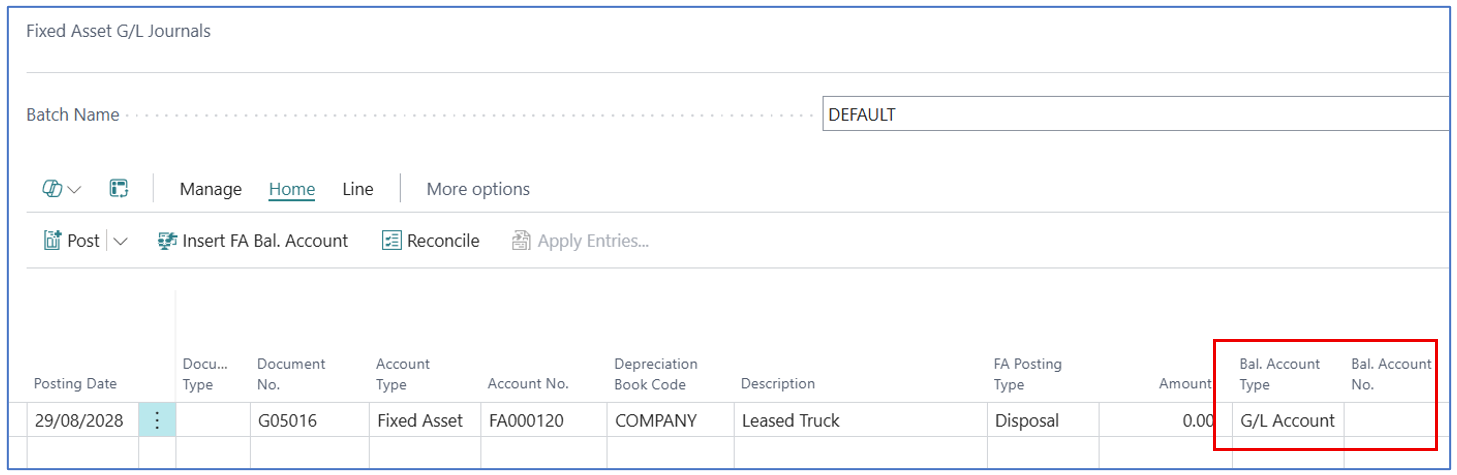
In this example, the disposal has $0 balance (e.g. proceeds)
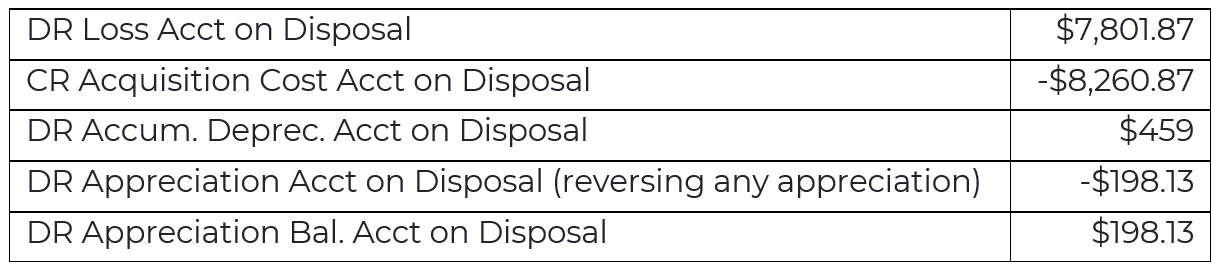
If the disposal has cash proceeds, then the journal line Bal. Account Type will be Bank Account, and the Bal. Account No. will be the Bank Account No..
Example:
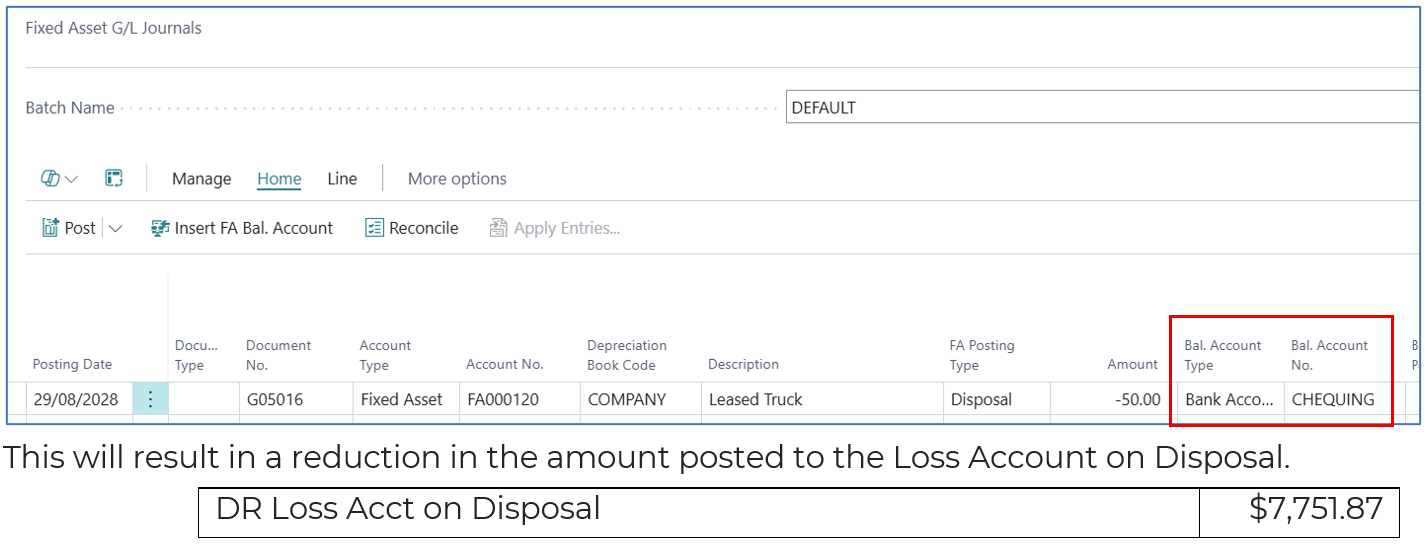
The default asset GL accounts are found in the FA Posting Group.
Example:
