Support At Home Aged Care User Guide
Onboarding
Support At Home Changes
Under Support At Home, there will be eight funding levels, with the highest level of funding around $78,000 Services will be defined under three categories:
- Everyday Living (Domestic cleaning, gardening, meal prep, shopping assistance)
- Highest contribution: 17.5% – 80.0%
- Independence (Personal care, transport, support to attend social activities and appointments)
- Moderate contribution: 5.0% – 50.0%
- Clinical (Nursing services, physiotherapy)
- No contribution required
Annual package funding will be split into quarterly budgets. If you have unspent funds in your budget at the end of the quarter, a maximum of 10% of your budget or $1000 (whichever is higher) can be rolled over into the next quarter.
Assistive Technology and Home Modifications (AT-HM)
- Low: $500 cap
- Medium: $2000 cap
- High: $15000 cap
Maximum 10% of your budget will be held by your provider to cover Care Management costs.
Current package management fees will be incorporated into service fees.
Create A Lead
- From the left navigation menu, click on Leads.
- Click on the +New button to create a new lead.
- From the Participant tab, fill in the information of the participant’s details.
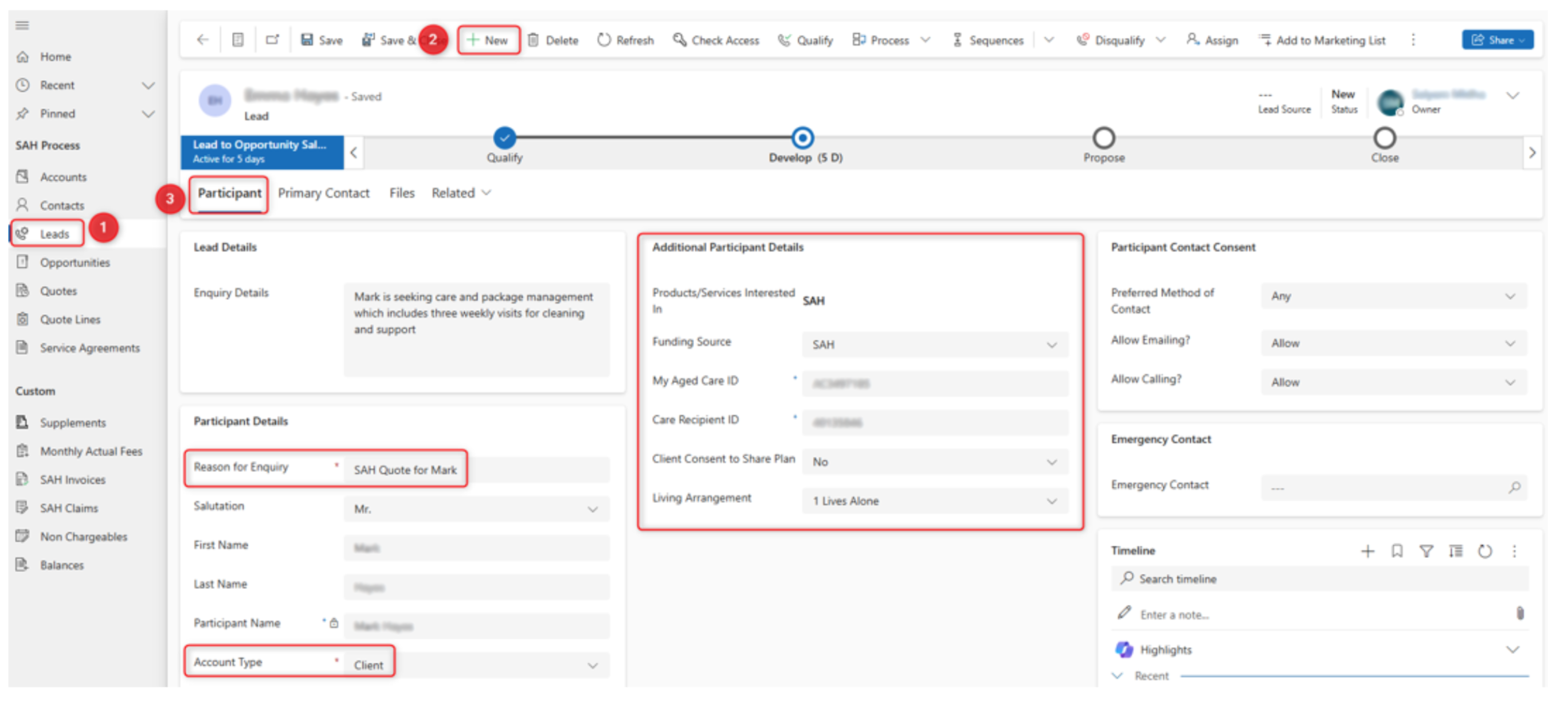
Leads can be generated via website, imported lists and manually. Minimum fields required are below, other fields can be added removed as required.
- Reason (Lead Title)
- Enquiry Details
- First Name
- Last Name
- Account Type
- Products / Services: SAH
- Funding Source: SAH
- My Aged Care ID
- Care Recipient ID
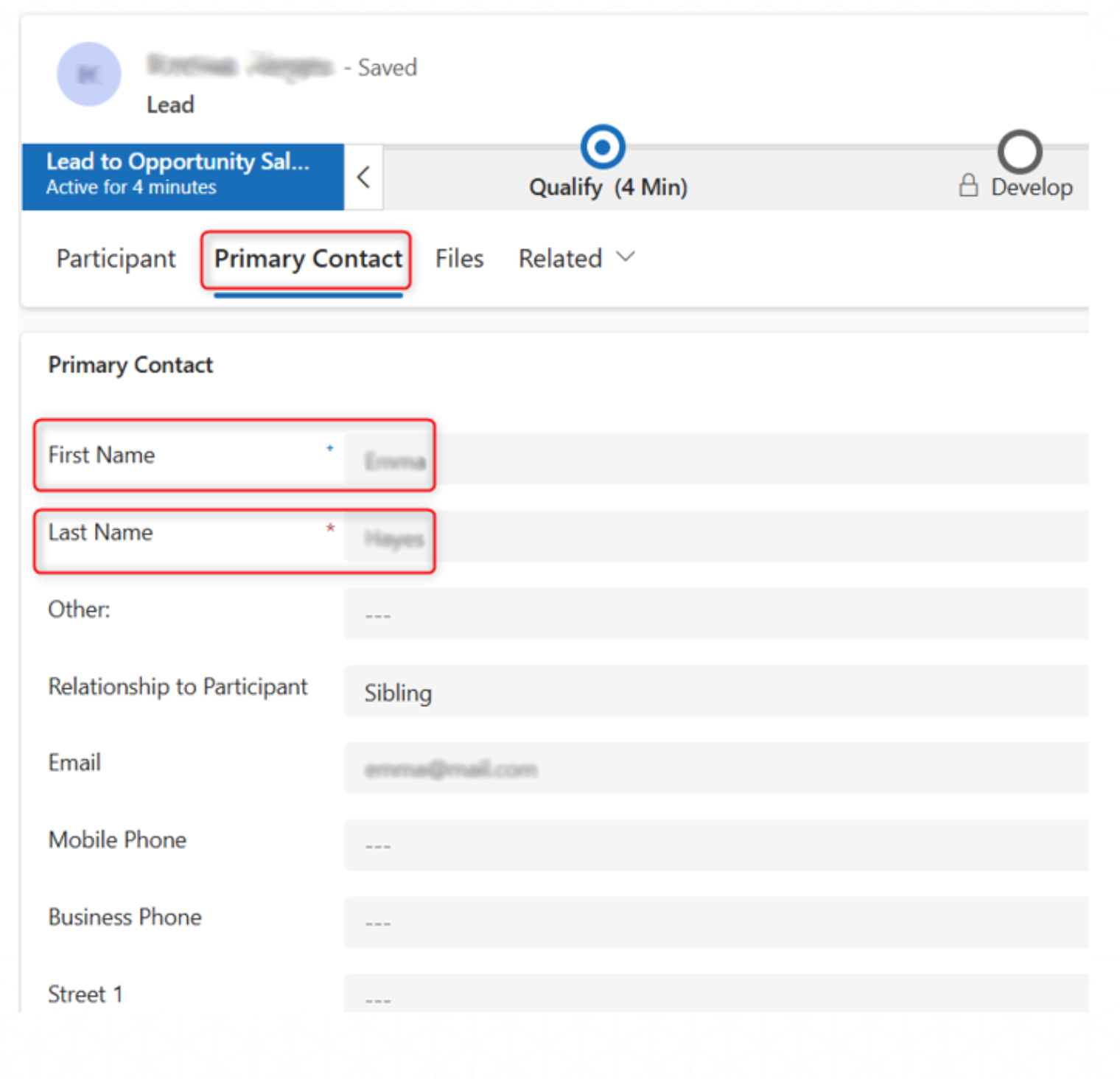
If required a Primary Contact can be created such as a spouse, sibling or guardian.
They will be created as a contact and related to the participant as a primary contact.
In the SAH App we have multiple ways to store relationships such as connections or lookups.
Minimum fields for the primary contact:
- First Name
- Last Name
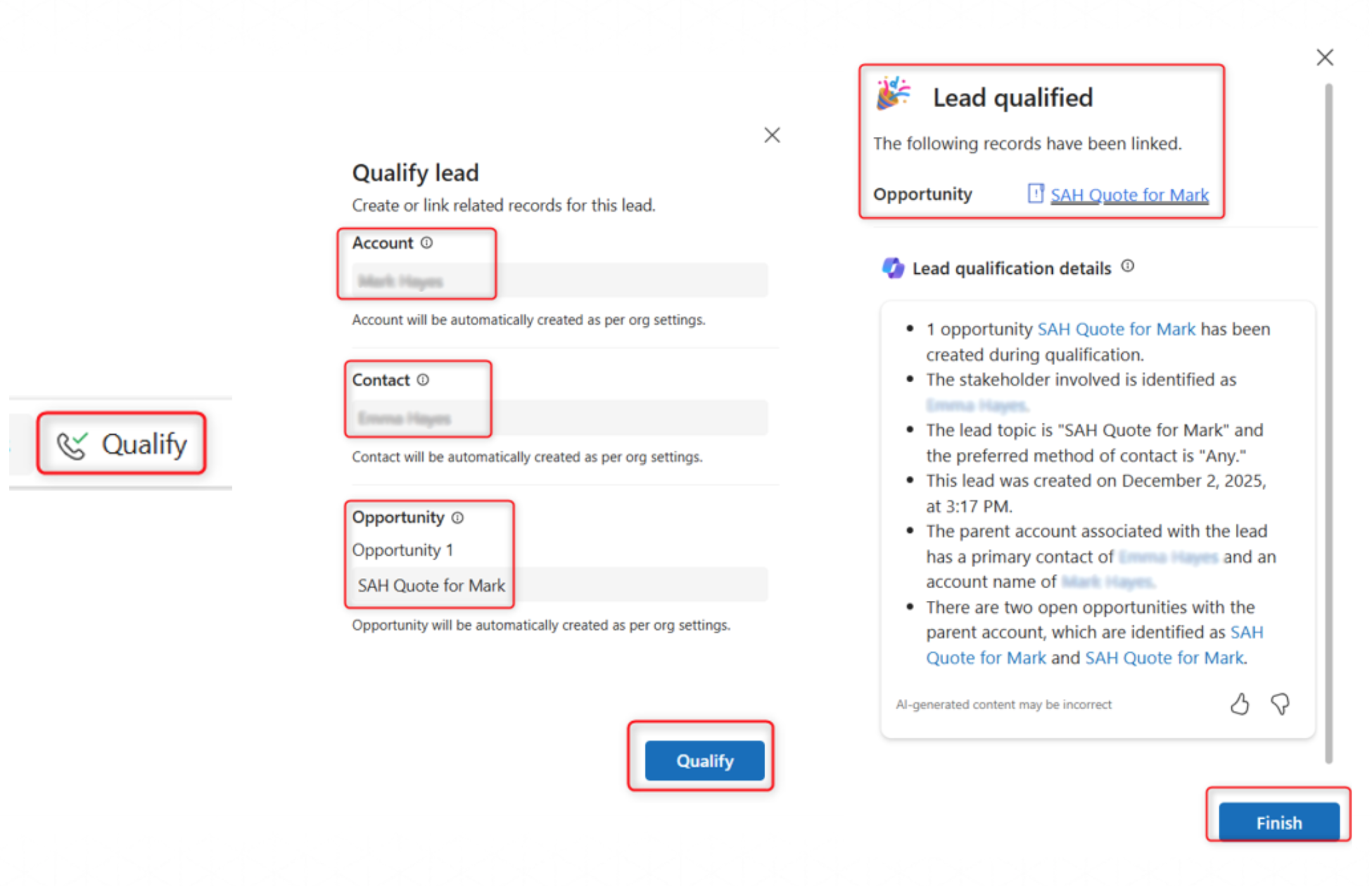
Once it’s determined the lead should be qualified to create a quote. Click the Qualify button and then confirm by clicking Finish.
This will create the following records:
- Opportunity
- Account (Participant record)
- Contact (based on primary contact from lead guardian etc)
Account
You will be navigated to the new Opportunity Entity at the Develop stage.
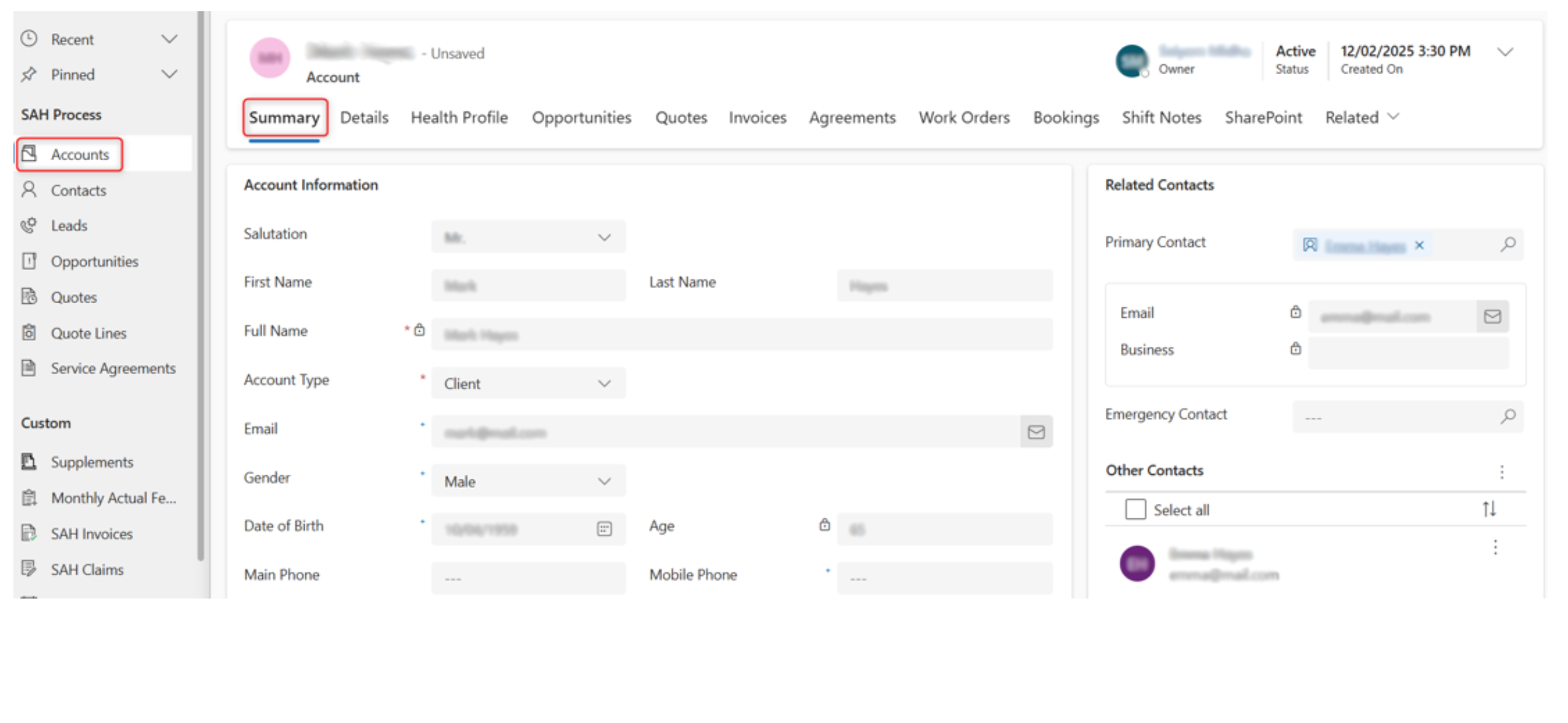
After qualifying a lead, a Participant (account) and a contact will also be created.
To view the Account created, navigate to the Accounts Entity and select the participant from the list of Accounts.
Contact
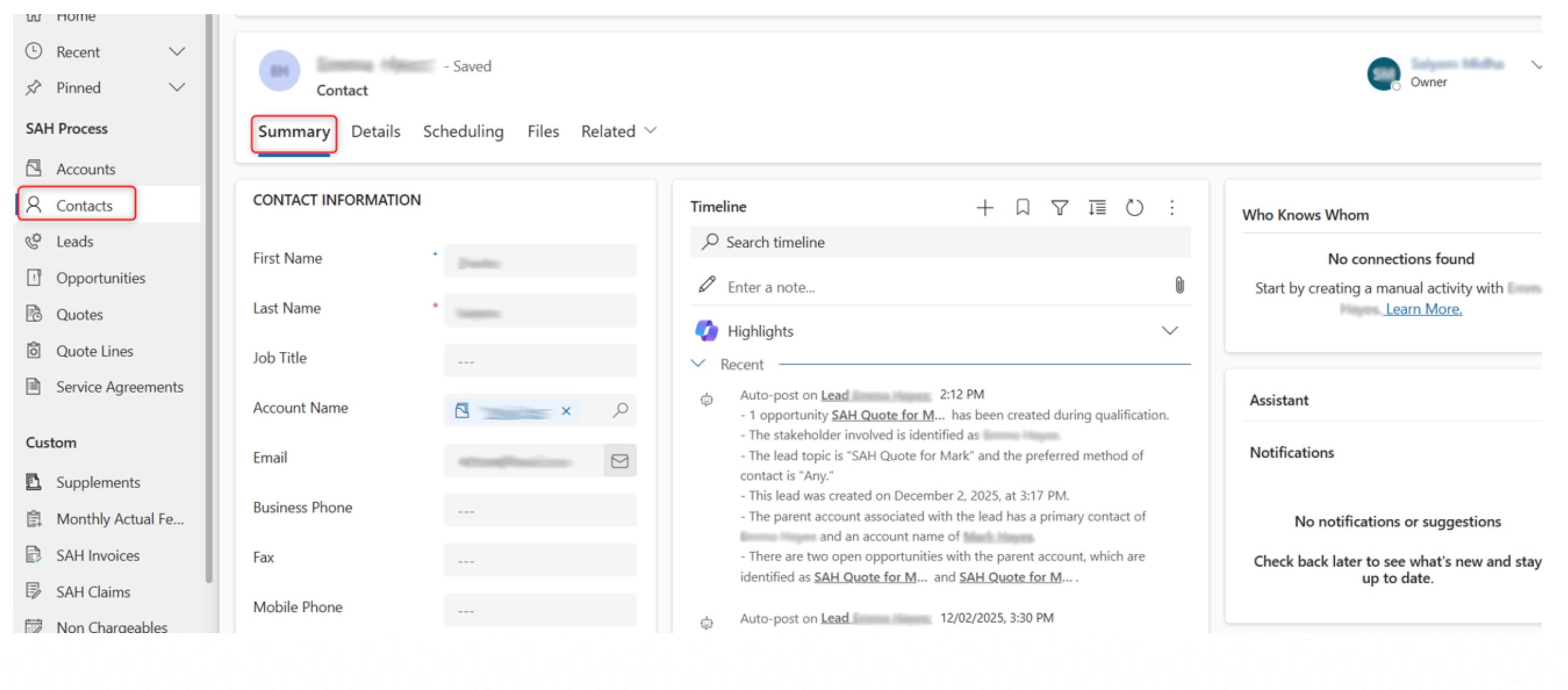
Similarly, to view the Contact, navigate to the Contacts Entity and select the Lead from the list of Contacts.
Opportunity
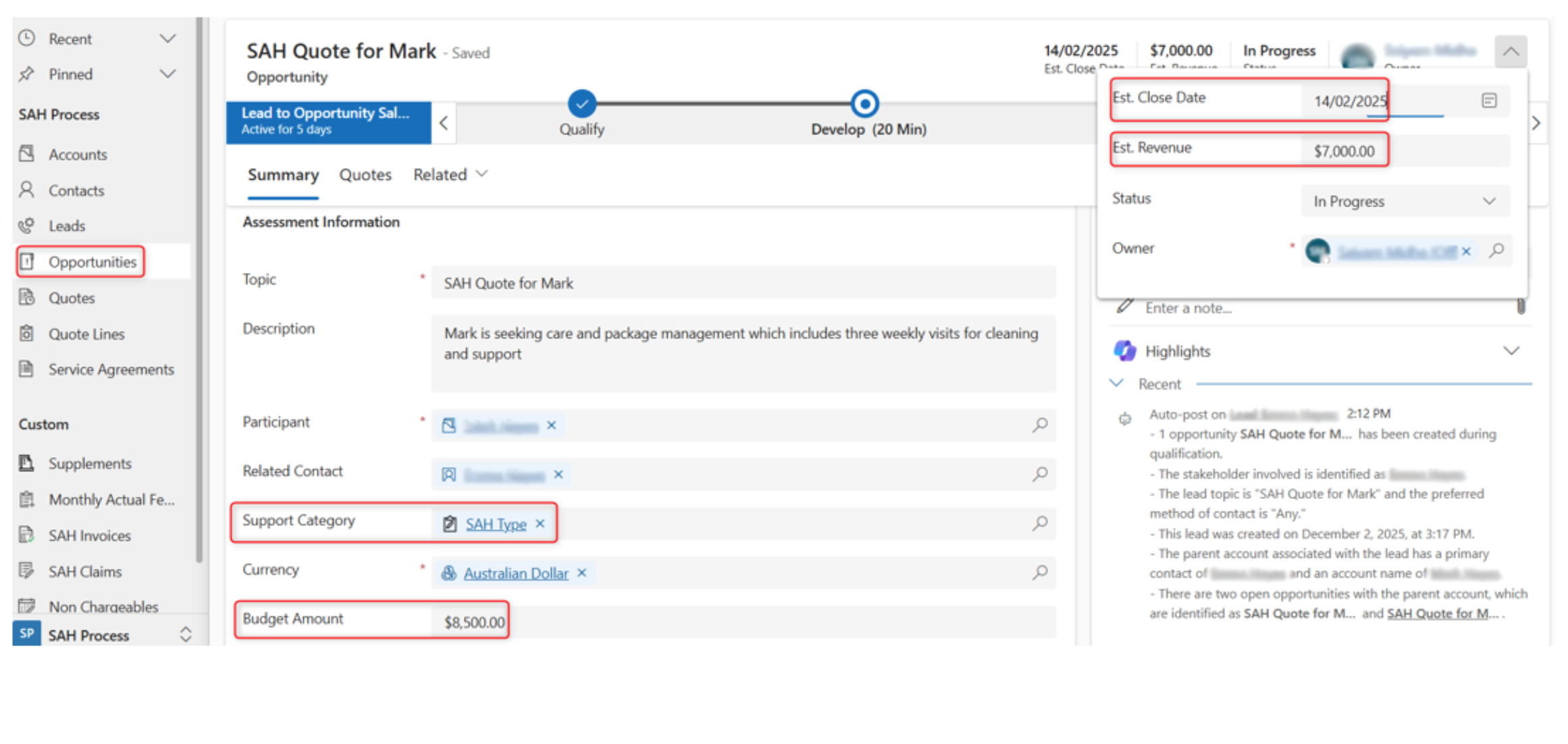
After qualifying a lead an Opportunity is created, and you will be navigated to the new Opportunity at the Develop stage.
Populate fields to track your pipeline:
- Support Category
- Budget Amount
- Est. Close Date
- Est. Revenue
Create A Quote
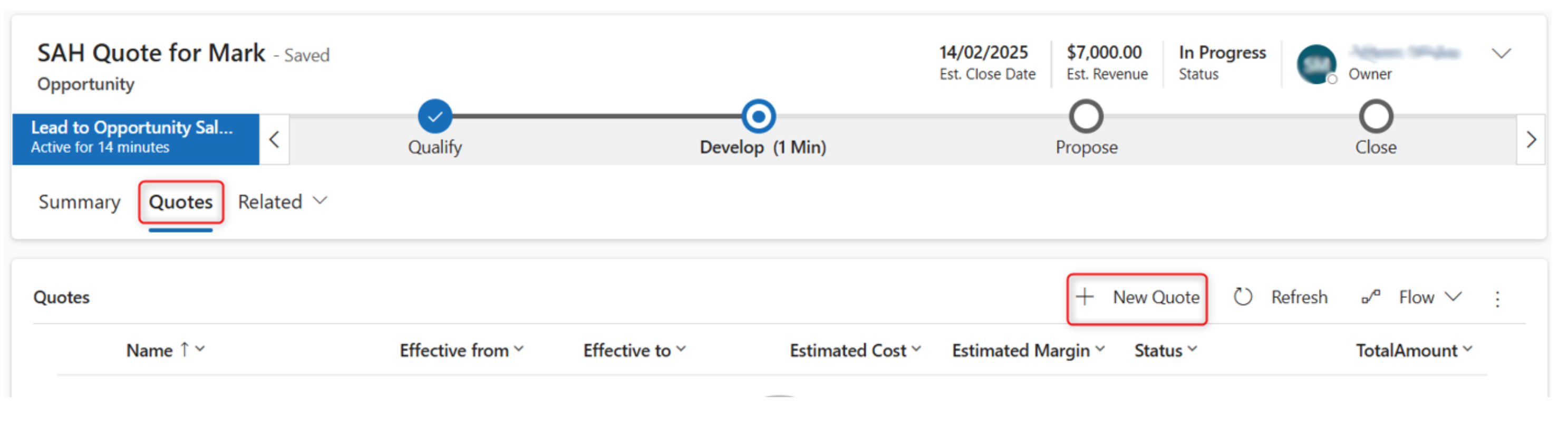
- Under Opportunity go to Quotes tab.
- Select New Quote button.
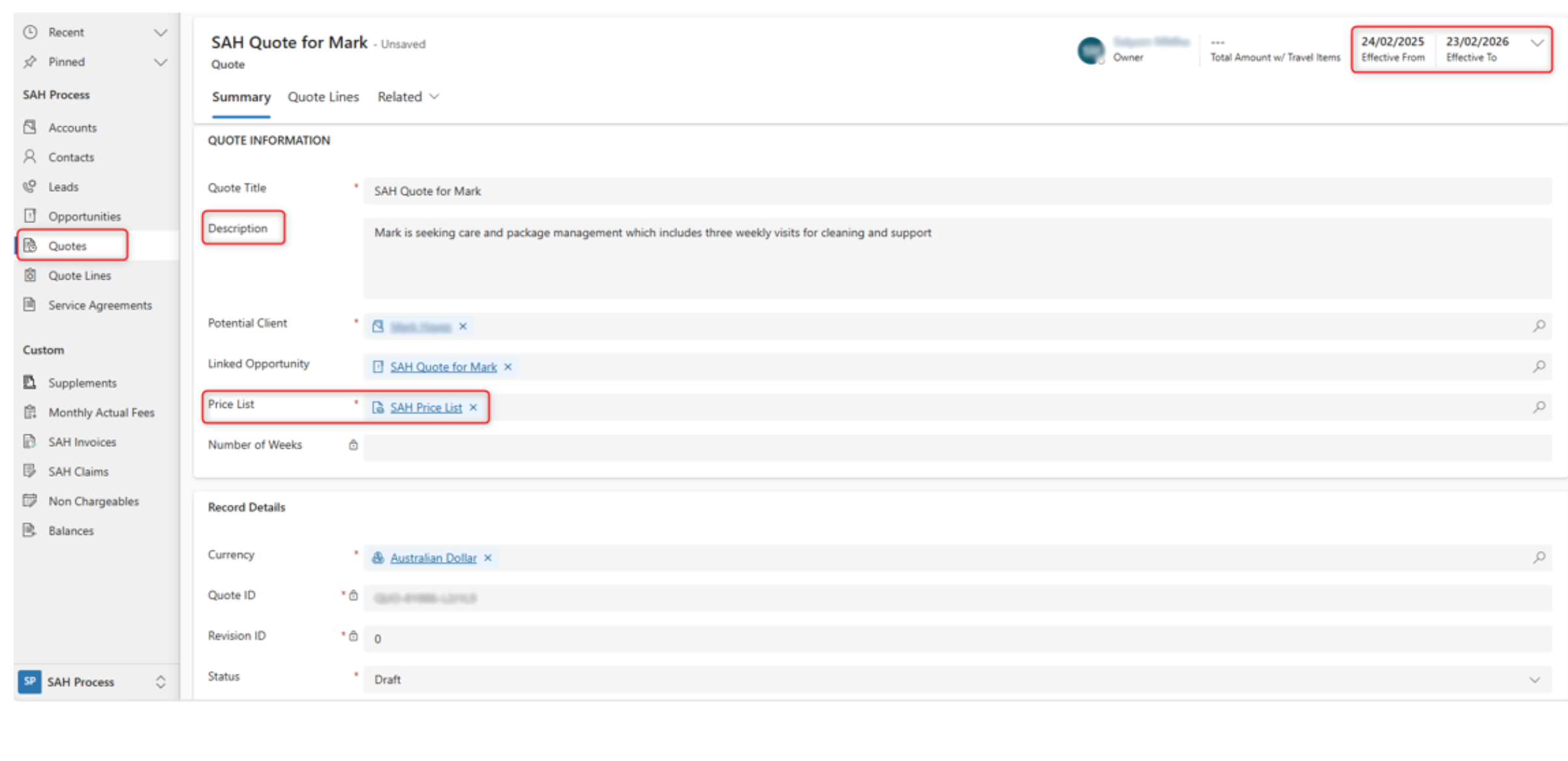
Quote will be prefilled with data as shown. Number of Weeks populated from Quote Line. Multiple Price Lists can be created for use in quotes.
Provide values:
- Description
- Price List
- Effective from
- Effective to
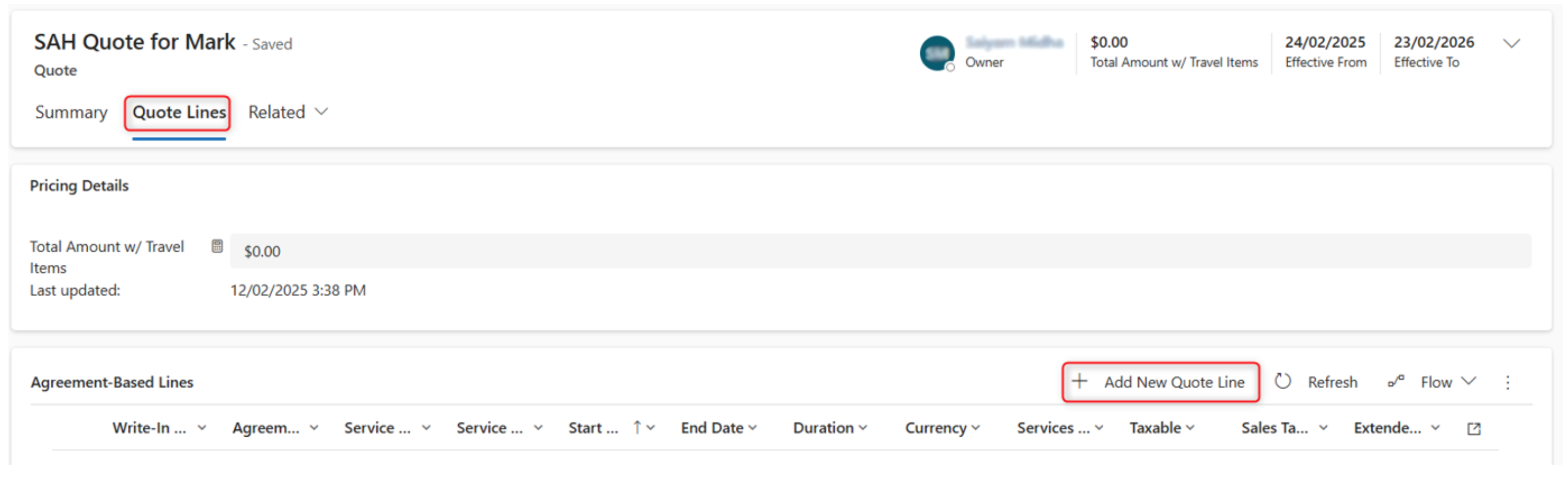
Create A Quote Line(s)
Navigate to Quote Lines tab.
A Quote Line will generate an agreement when activated and an order is created.
Typically, a participant will have one quote line / agreement.
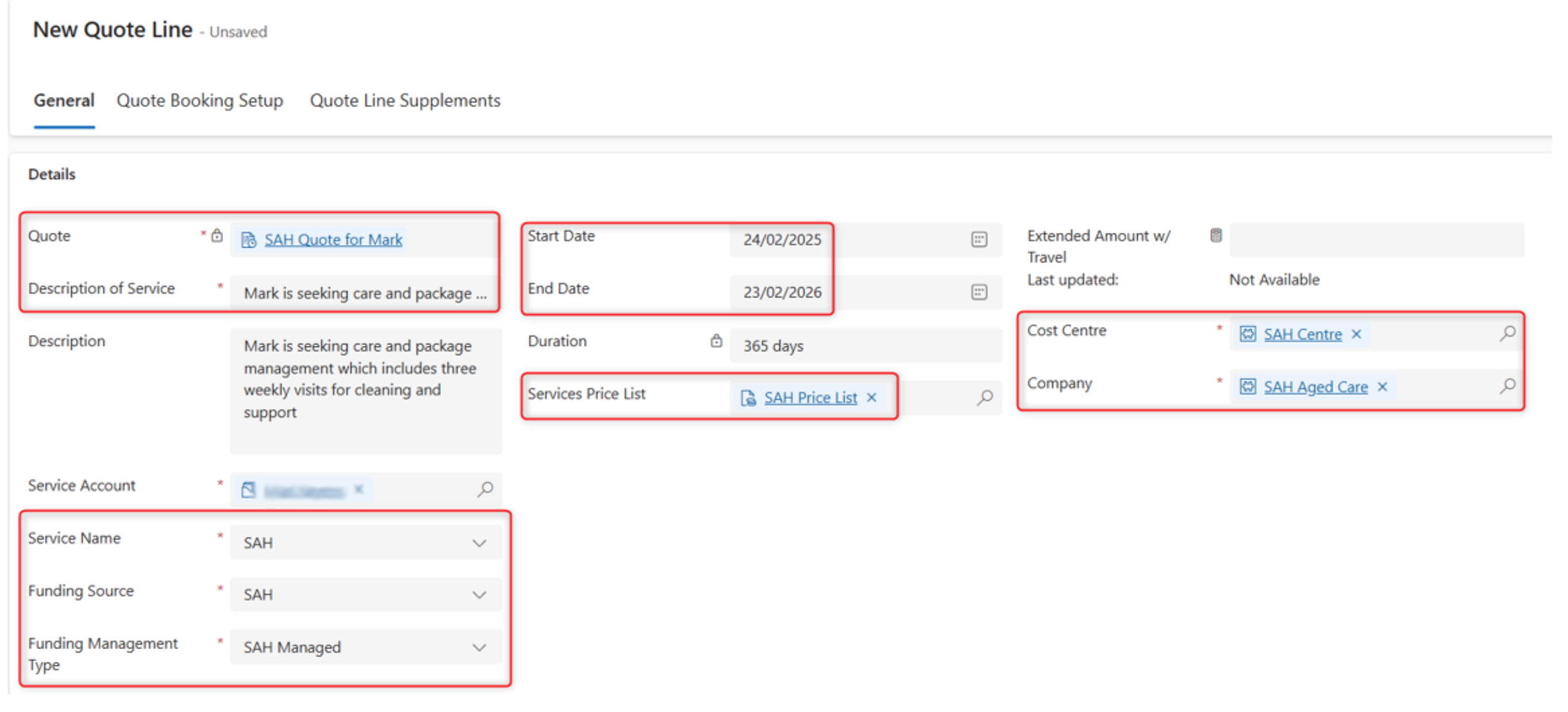
Create a new Quote Line:
- Add Description of Service
- Service Name: SAH
- Funding Source: SAH
- Funding Management Type: SAH Managed
- Start Date
- End Date
- Service Price List
- Cost Centre (if required)
- Company (if required)
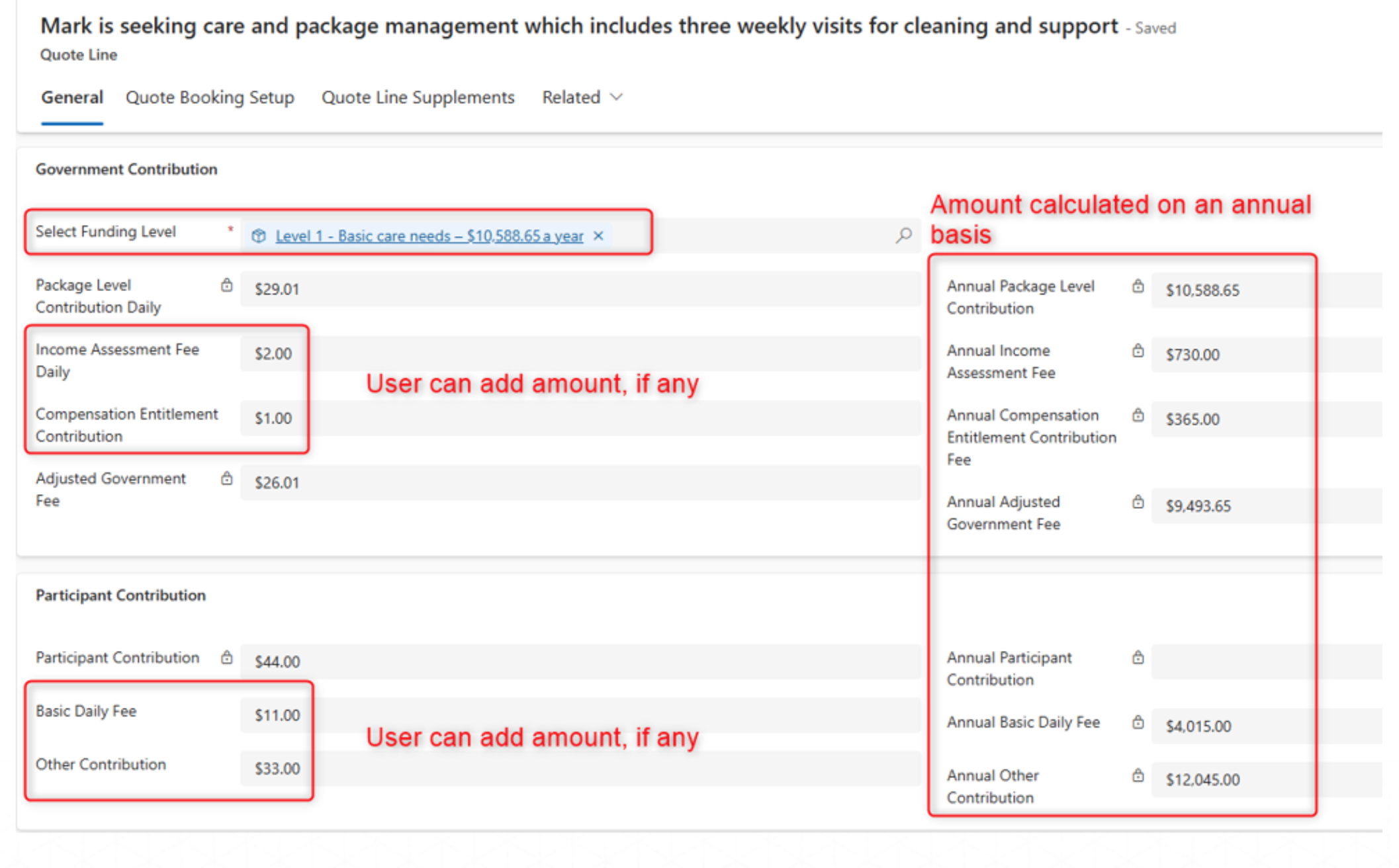
Funding & Fees
Create a new Quote Line:
Select the Funding Level 1, 2 or 3.
Add other fees
-
Income Assessment Daily Fee
-
Compensation Entitlement Fee (user can add)
-
Basic Daily Fee
-
Other Contribution
-
Adjusted Government Fee = Package Level Contribution Daily – (Sum(Income Assessment Fee Daily + Compensation Entitlement Contribution))
-
Participant Contribution = Basic Daily Fee + Other Contribution
On saving the quote line, all other fields will be calculated automatically.
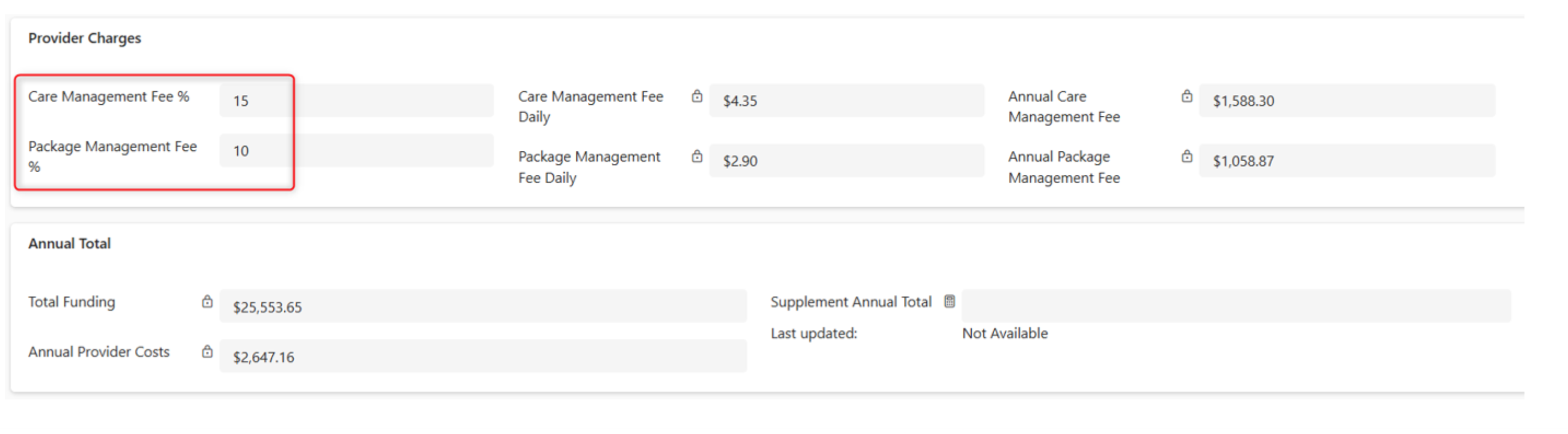
Add Provider Charges:
- Case Management Fee % (capped at the maximum 20% of Package Level Contribution Daily)
- Package Management Fee % (capped at the maximum 15% of Package Level Contribution Daily)
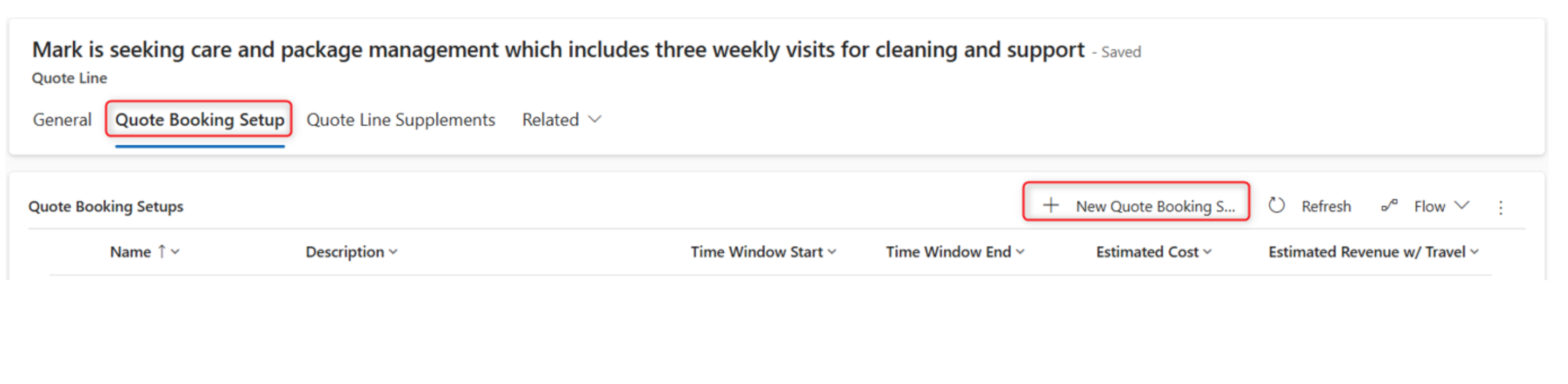
Booking Setup
Create a new Quote Line Booking Setup for each service that is going to be delivered.
For a Home Care service delivered thrice a week for 2 hours, 1 Booking setup is required.
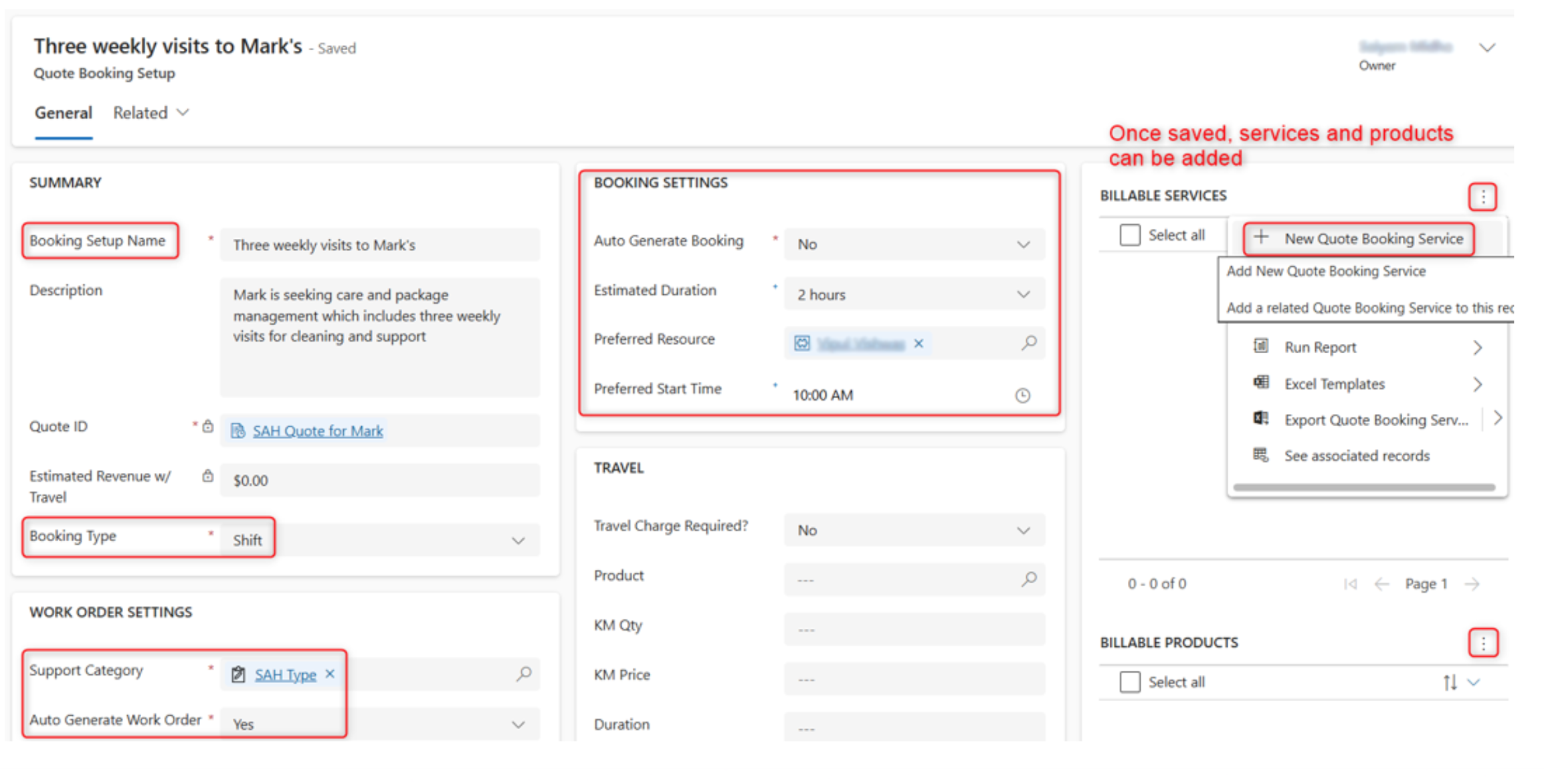
Add financial details:
- Booking Setup Name
- Select Booking Type
- Select Support Category: SAH
Add booking details:
- Estimated Duration
- Select Preferred resource
- Set Preferred Start Time
- Auto Generate Booking
- Select Yes, if you want to create Bookings automatically.
Setting resource will automatically create bookings for the resource.
Public Holiday can update for services that are required on public holidays.
Next, we add services and if required products to be billed.
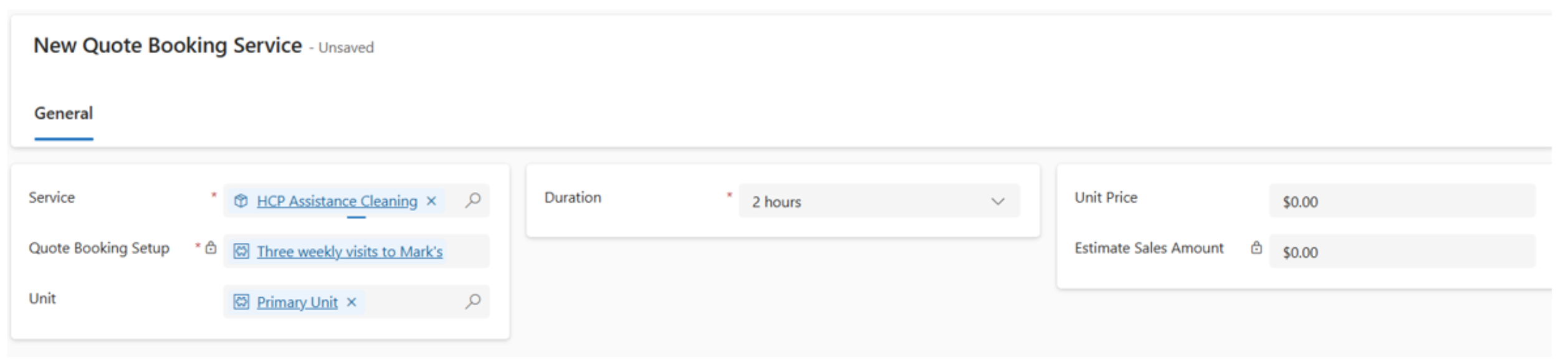
Booking Service & Booking Product
For Quote Booking Service, add the service required and adjust duration if required. It will be set initially from Quote Booking Setup.
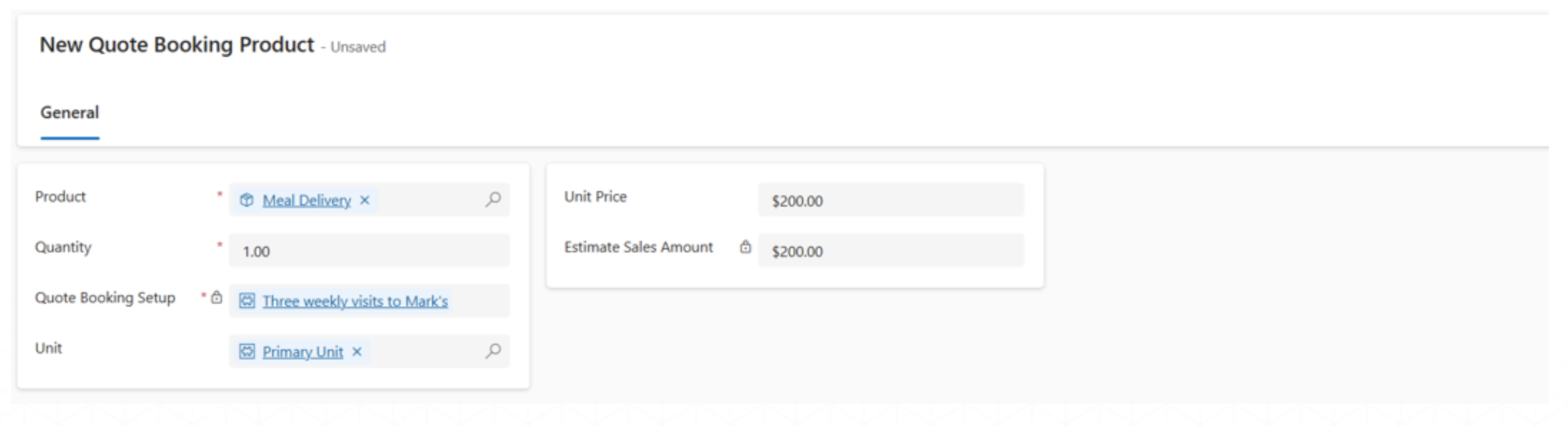
Similarly, For Quote Booking Product, add the product required and add the unit price.
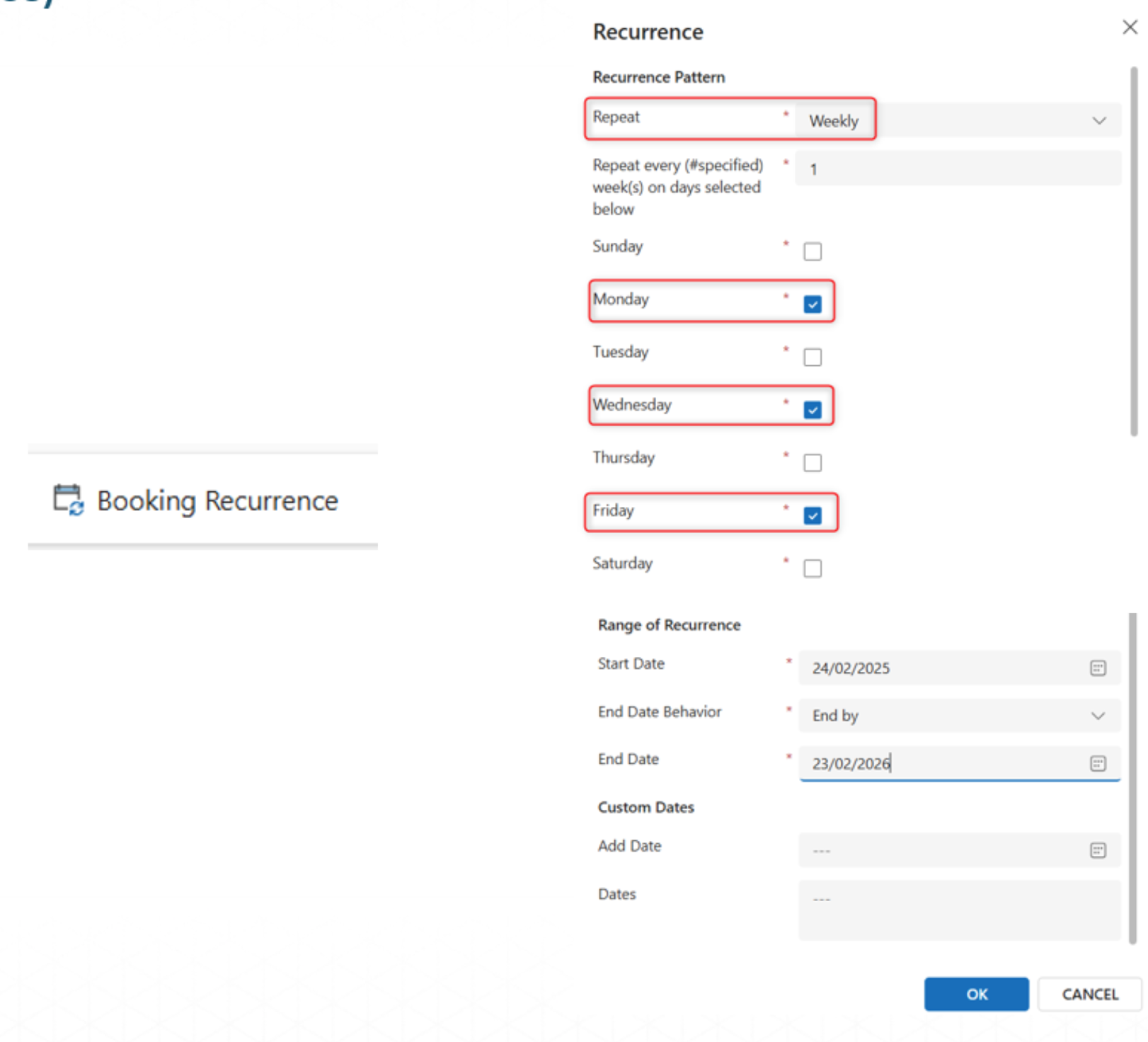
Booking Recurrence
To set the Booking recurrence we select Booking Recurrence from the command bar on the Quote Booking Setup form.
We have options of Daily, Weekly and Yearly which will accommodate any pattern.
The start and end date should be populated based on the Quote Booking Setup.
This will calculate the number of bookings required for the quote and the agreement if converted to an agreement
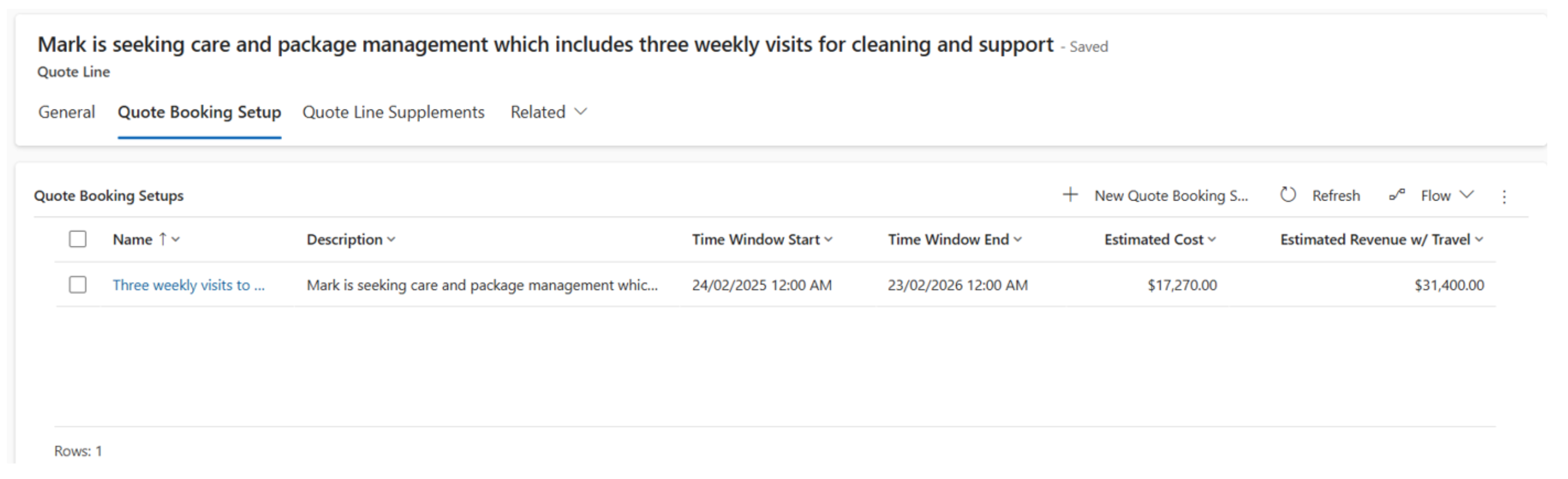
The Quote Booking Setup should look like below once completed.
Create Quote Supplements
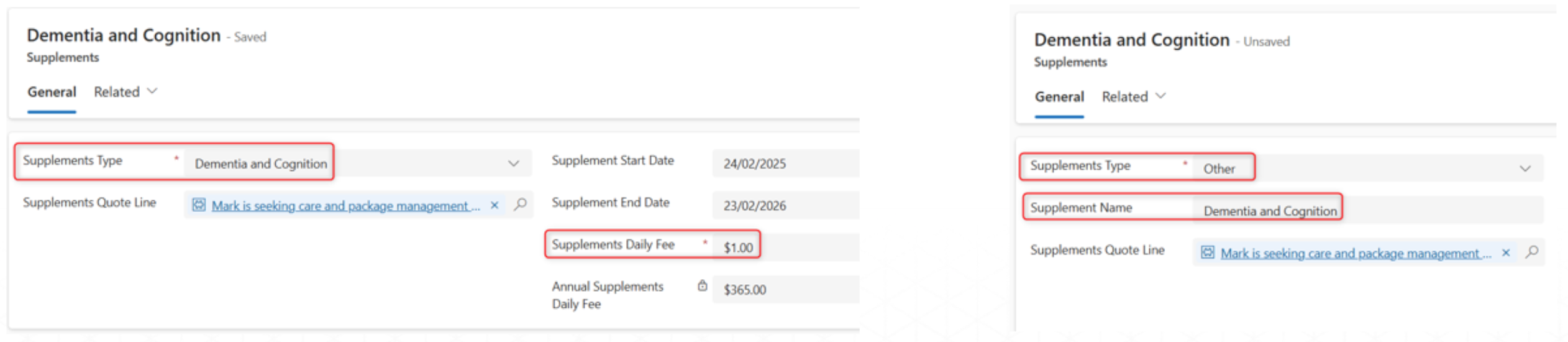
Quote Booking Supplements can be added if required.
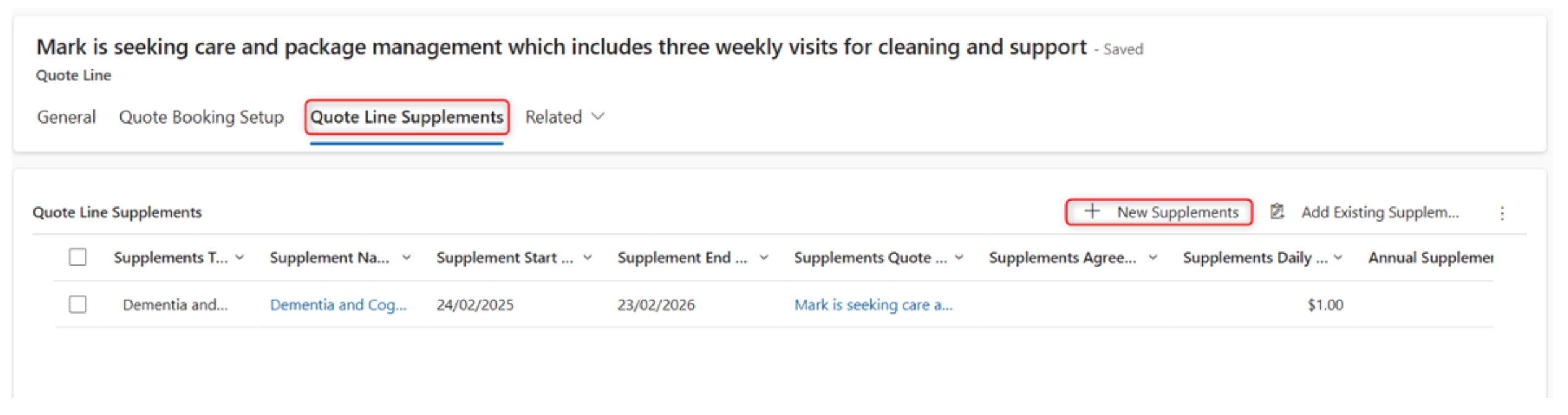
If Other is selected as a Supplement Type, provide a Supplement name to identify the supplement and the same is applicable for statement use.
Create Quote Document
-
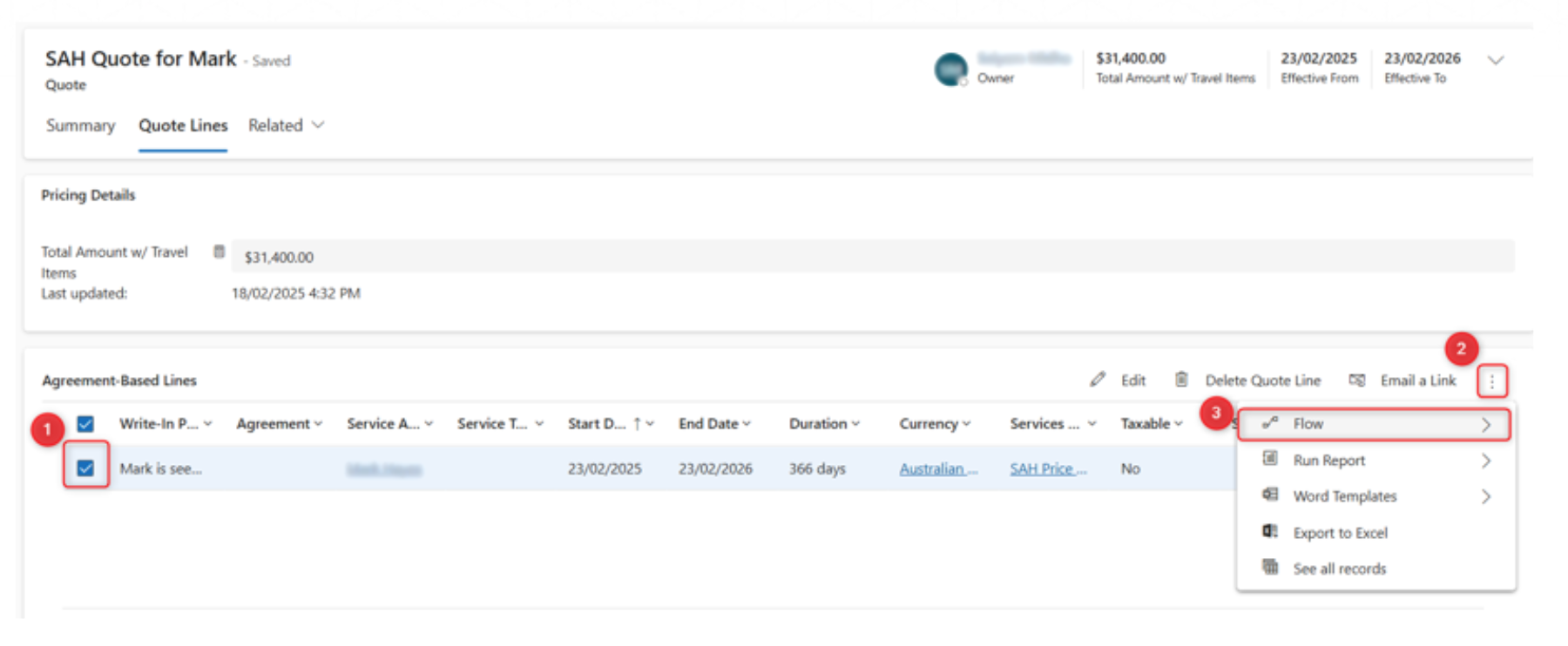
To create the Quote Document, select the quote line from the quote line section
-
Click on Ellipses to see a list of options.
-
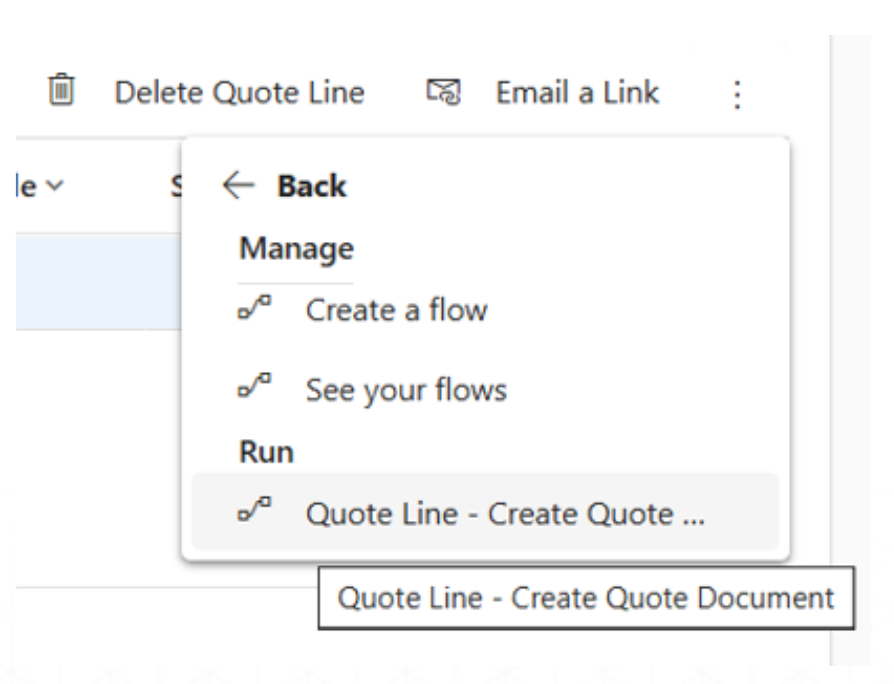
Select Flow and then select Quote Line – Create Quote Document.
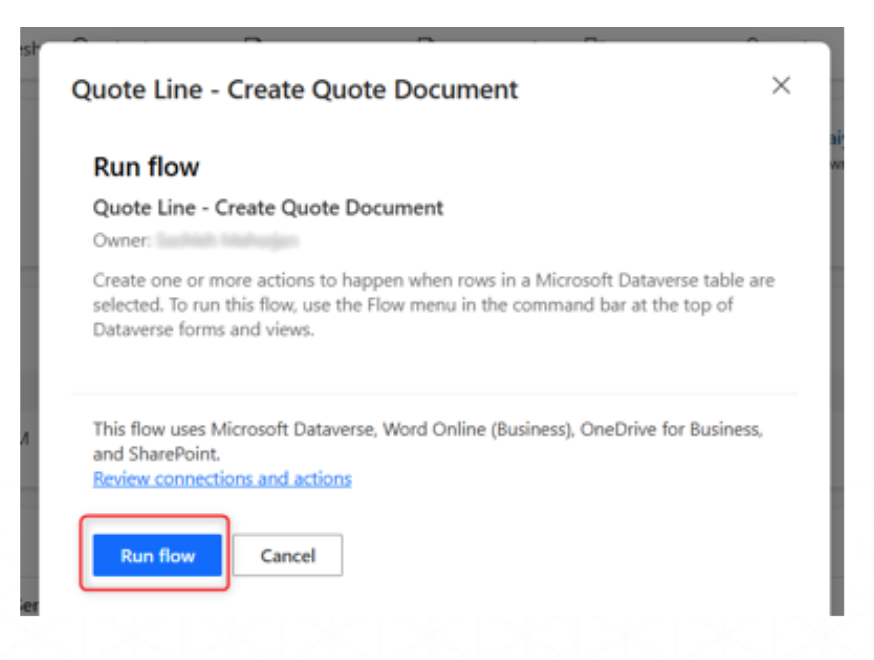
- Click on Run flow to create the document.
SharePoint Access - Quote Document
The Quote document can be accessed from the SharePoint site. The document contains the financial details.
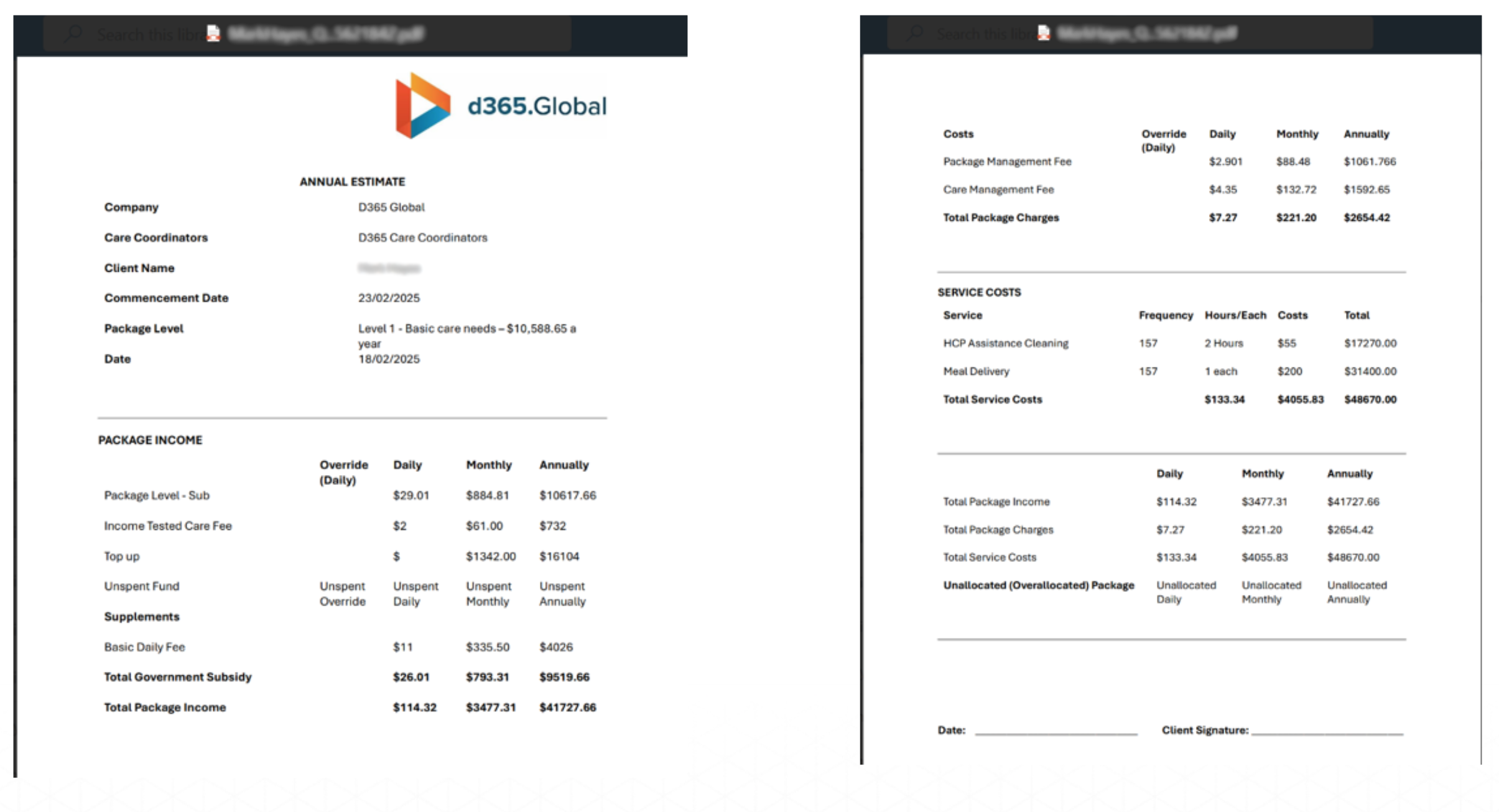
Activate Quote
To activate the quote, select Activate Quote from the command bar.
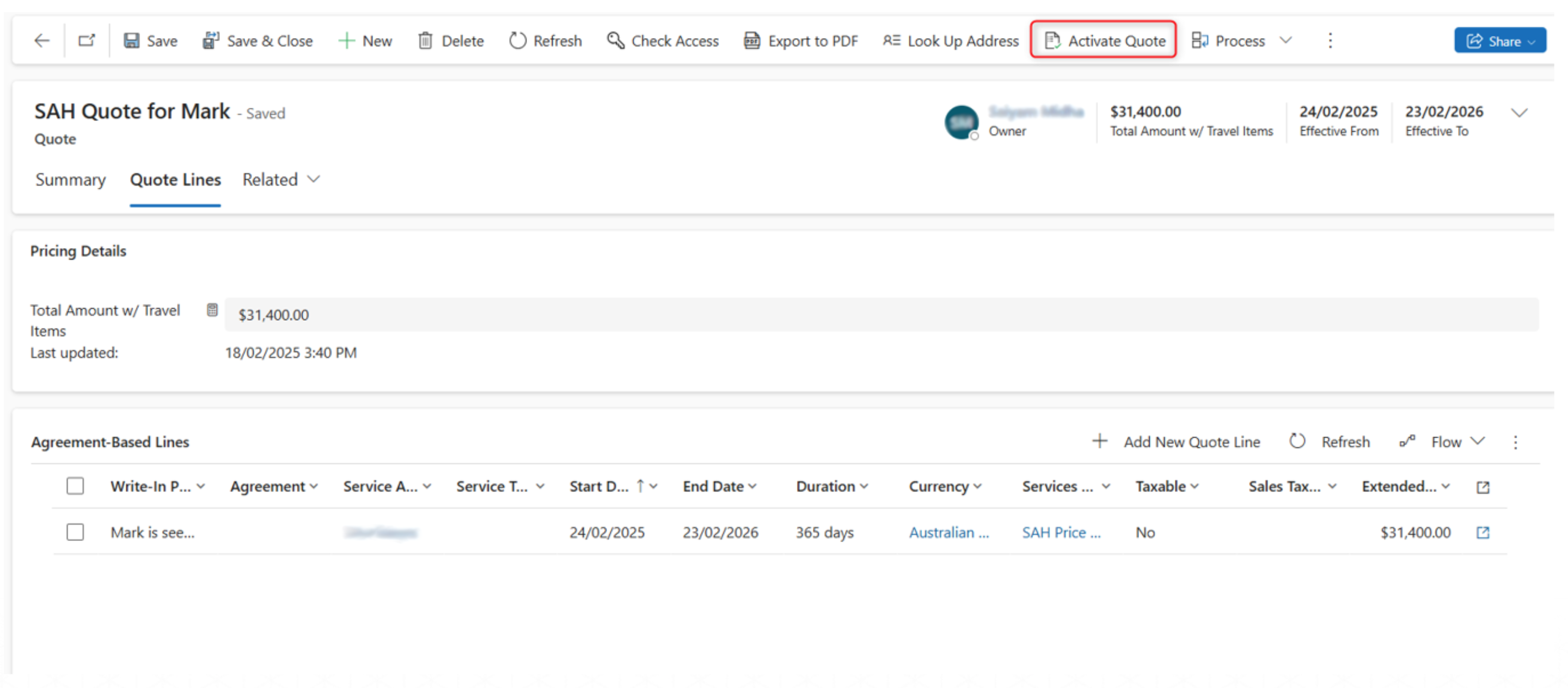
Revise Quote
Once activated Quote is read only, but we can revise it. The revision ID will increase and return to Draft waiting to be Activated again.
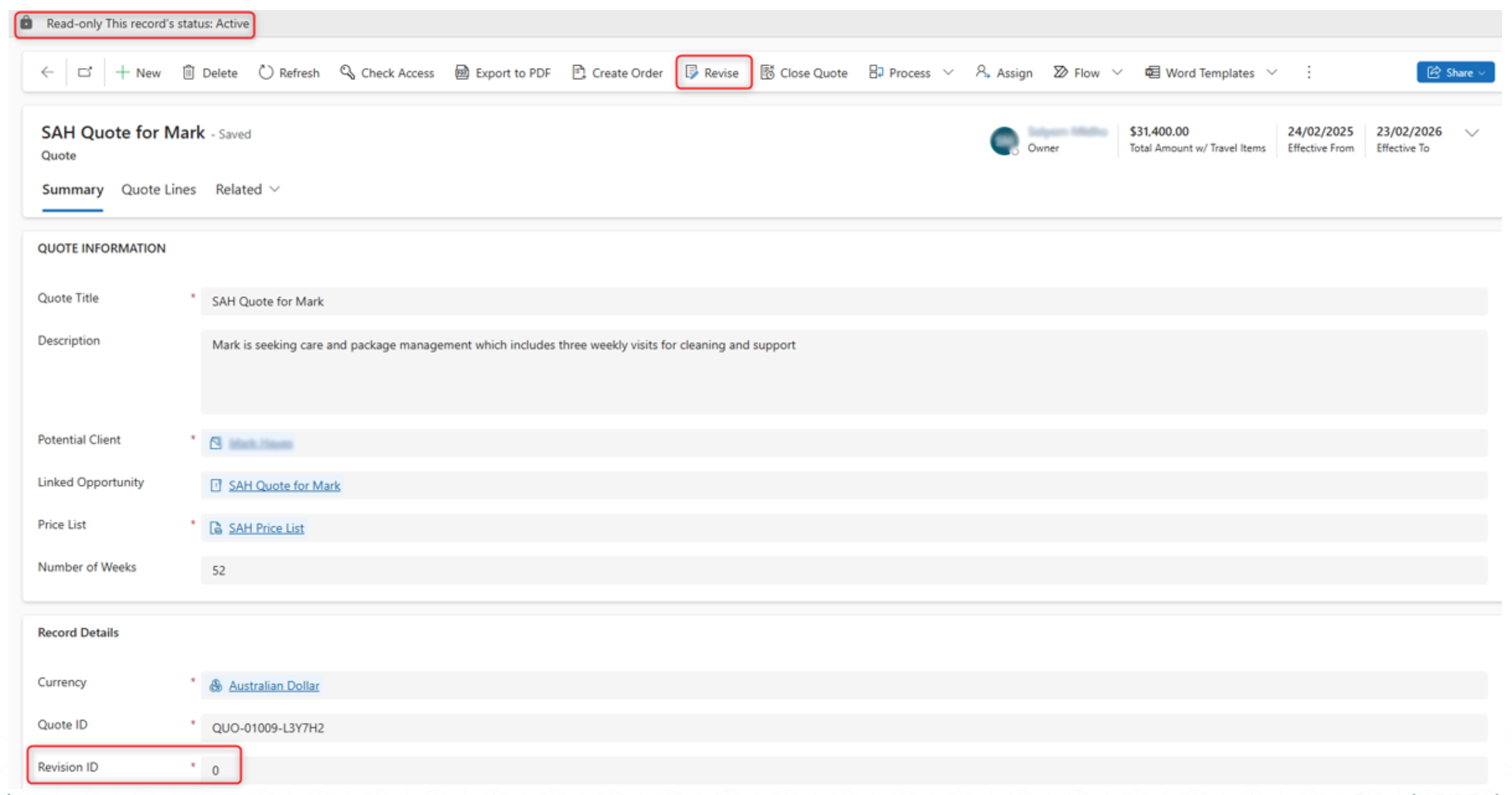
Create Order
After activating the quote, an order needs to be created for the agreement. Clicking the Create Order button will generate the order.

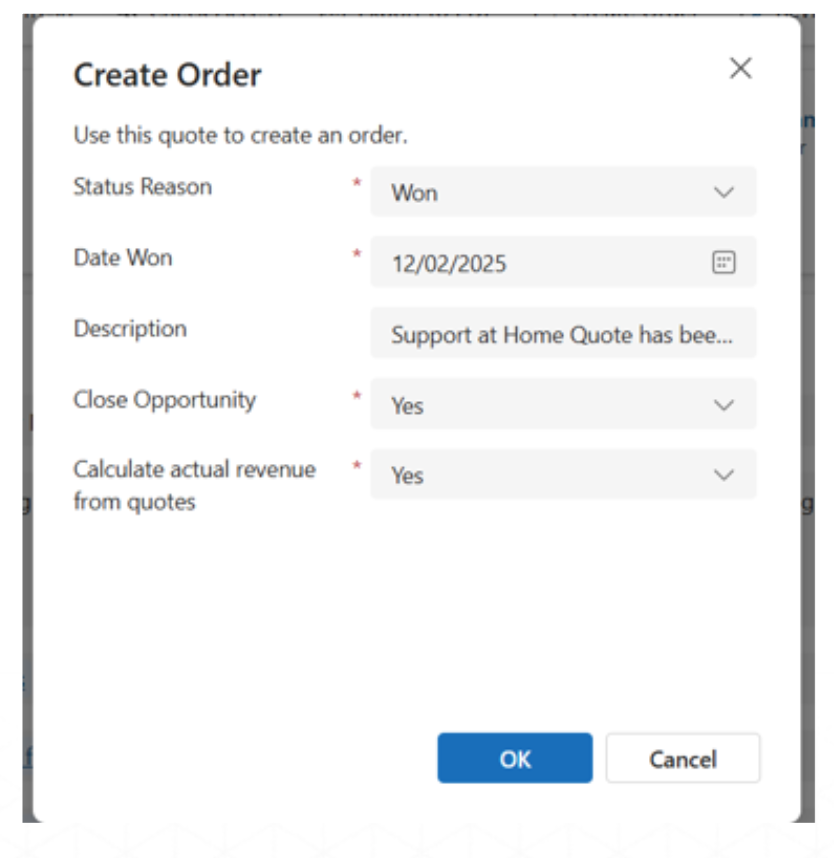
Order will be prefilled with data as shown.
Navigate to Order Lines tab.
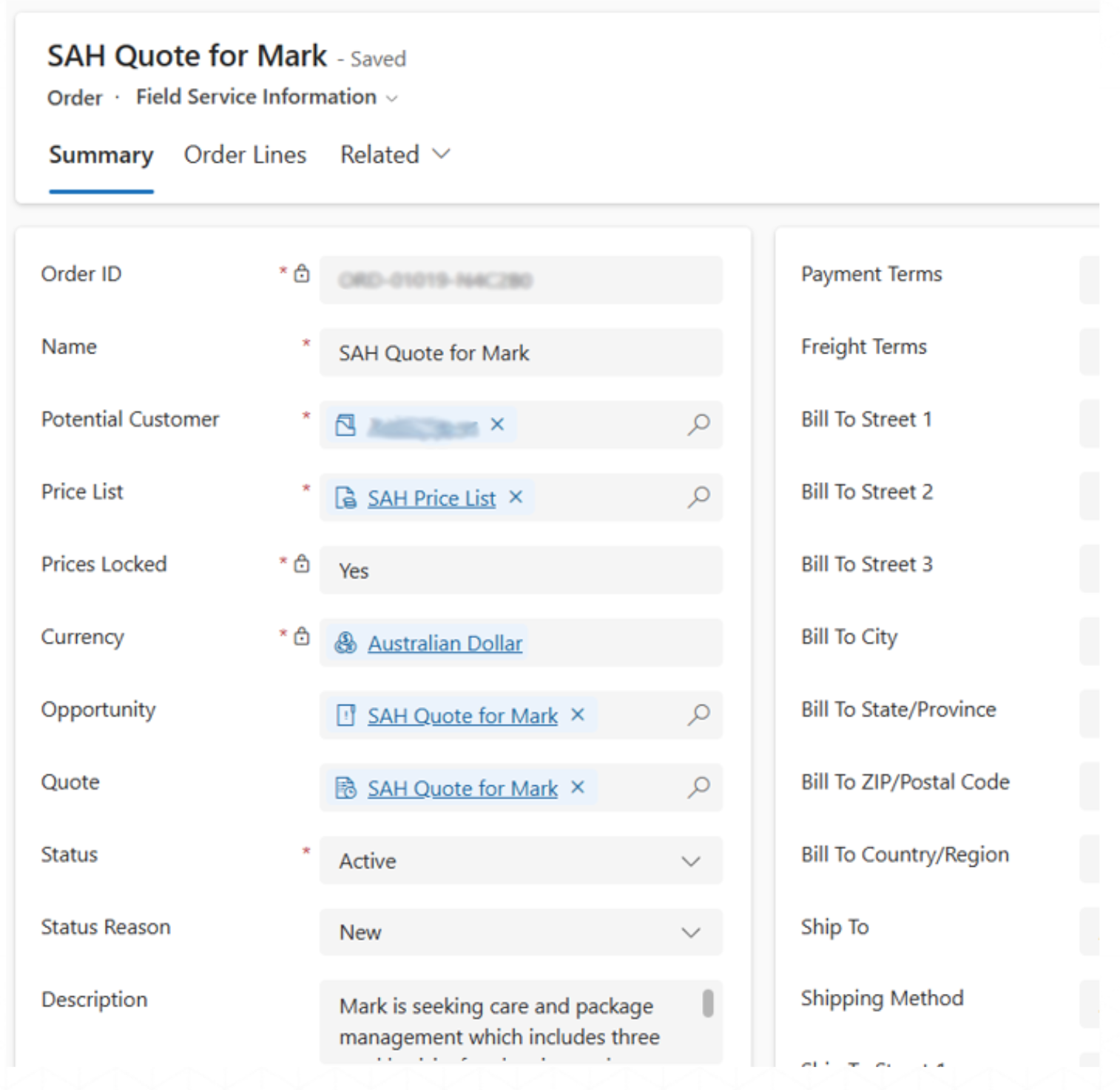
After creating the order, an Agreement will be created visible from Order Lines.
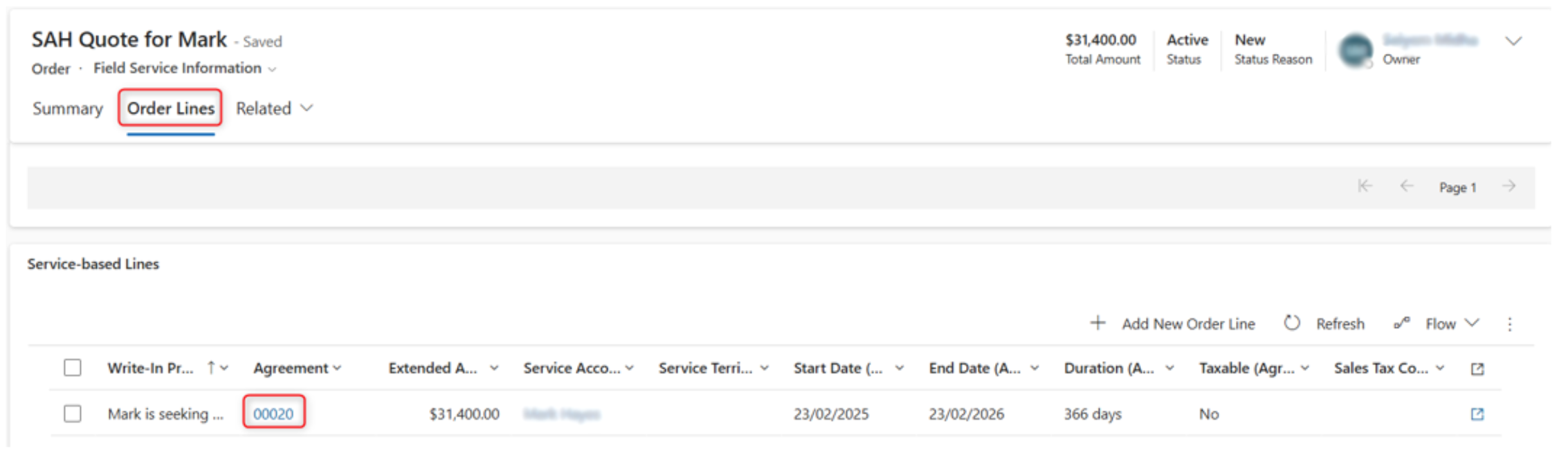
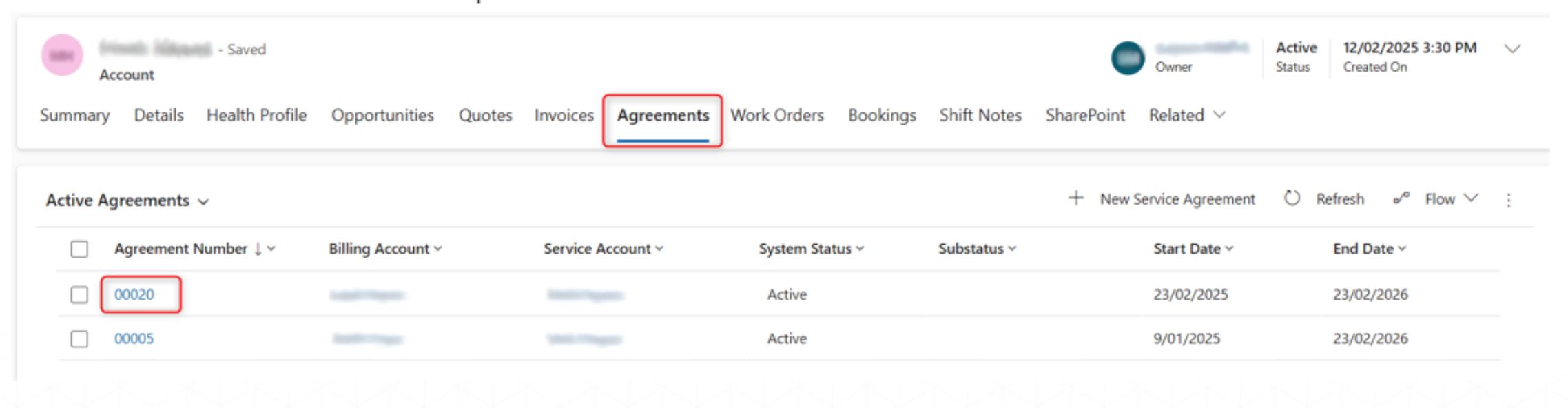
Agreements can also be accessed from the Participant record.
Invoice
When a file/attachment containing invoice details is received in a shared mailbox, a flow is triggered to create a SAH Invoice.
The flow then triggers a plugin to extract and update values from the attachment into the corresponding SAH Invoice with the extracted data. It identifies the participant by matching the Age Care ID in the Participant record with the Age Care ID in the attachment. If a match is found, it populates the Participant and their associated Agreement.
At the end of the month when the Monthly Actual flow runs, all SAH invoices of a participant are accumulated into 1 record and added to the monthly actuals.
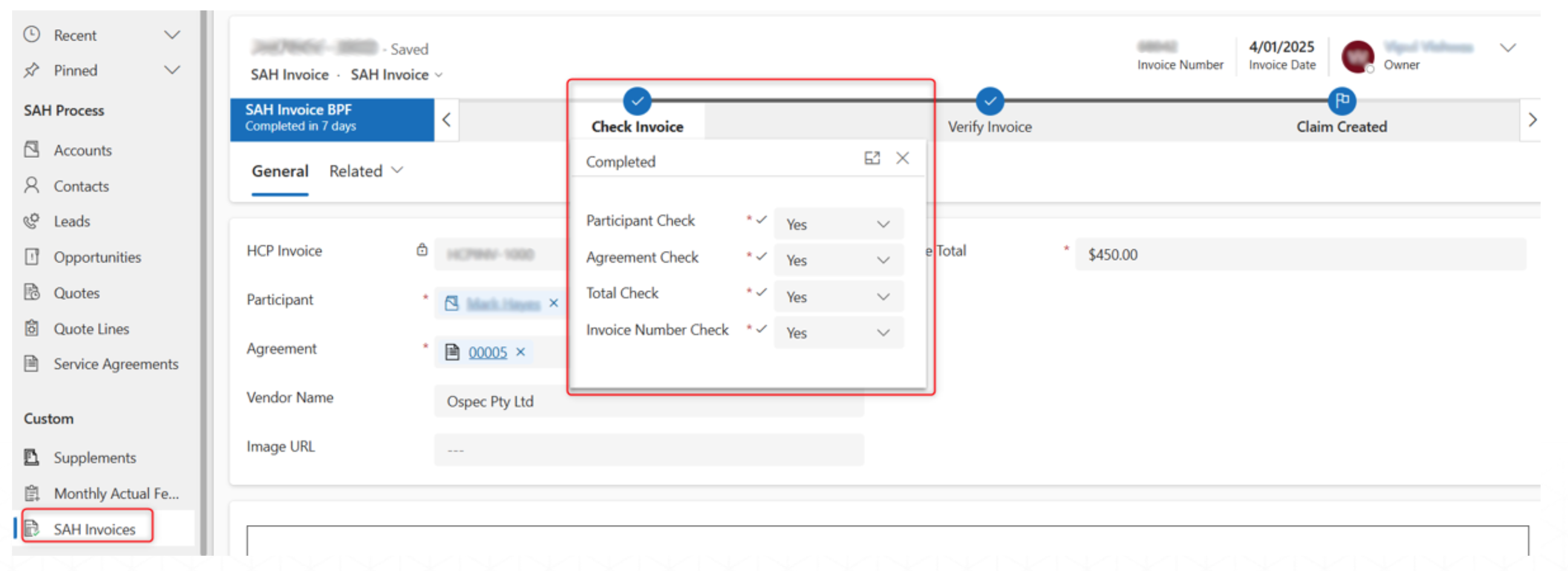
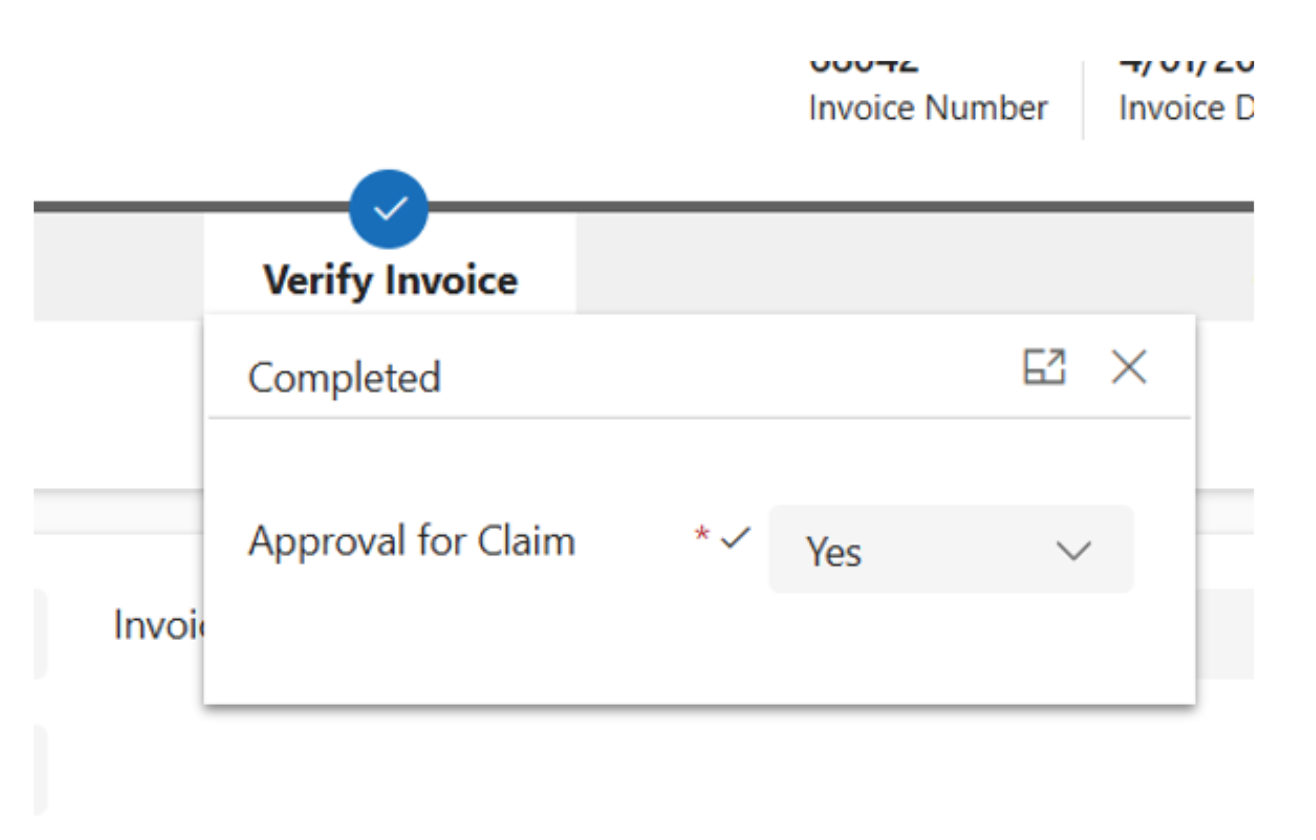
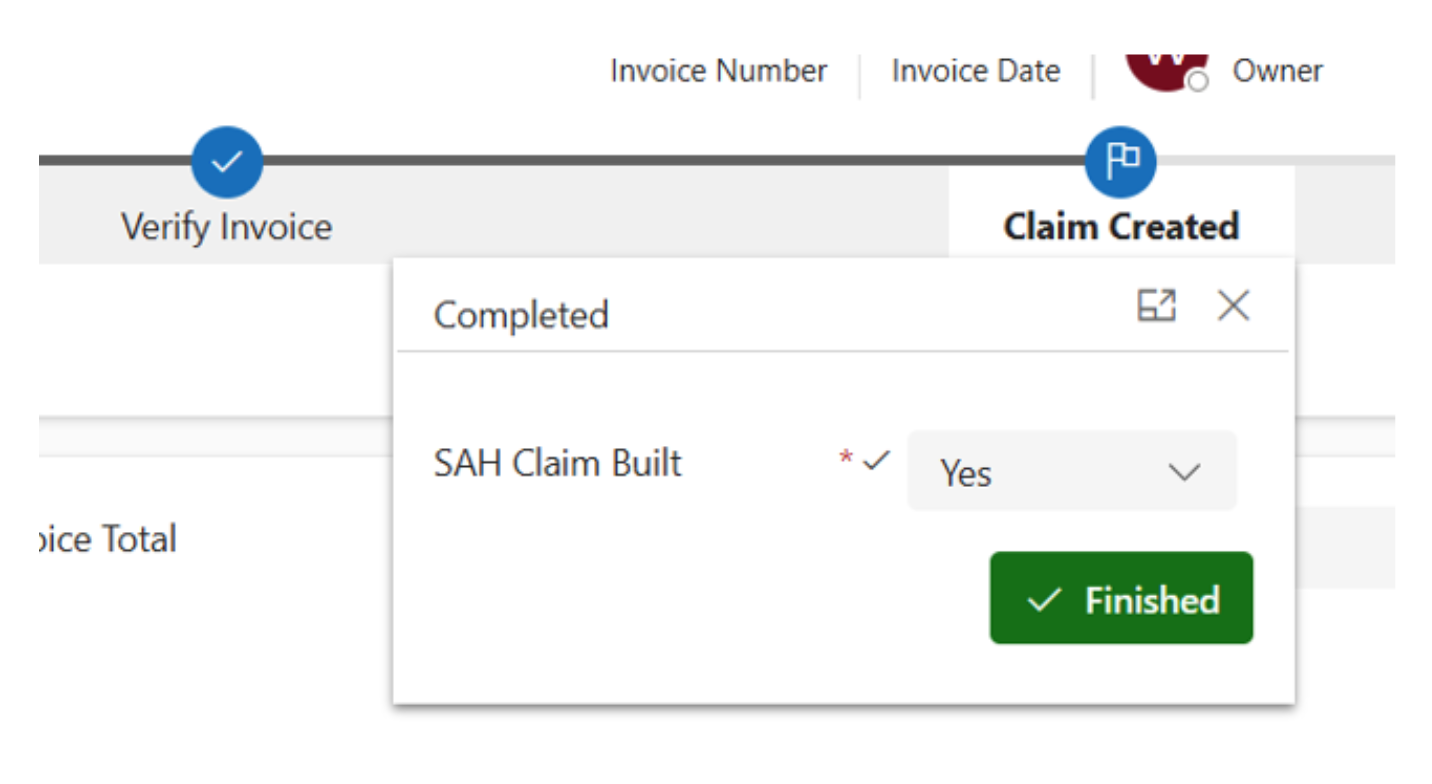
The SAH Invoice automatically moves to Claim Created when the mandatory fields such as Participant, Agreement, Invoice Total are populated with data. After the monthly actual flow runs a SAH claim also gets created.
Claim
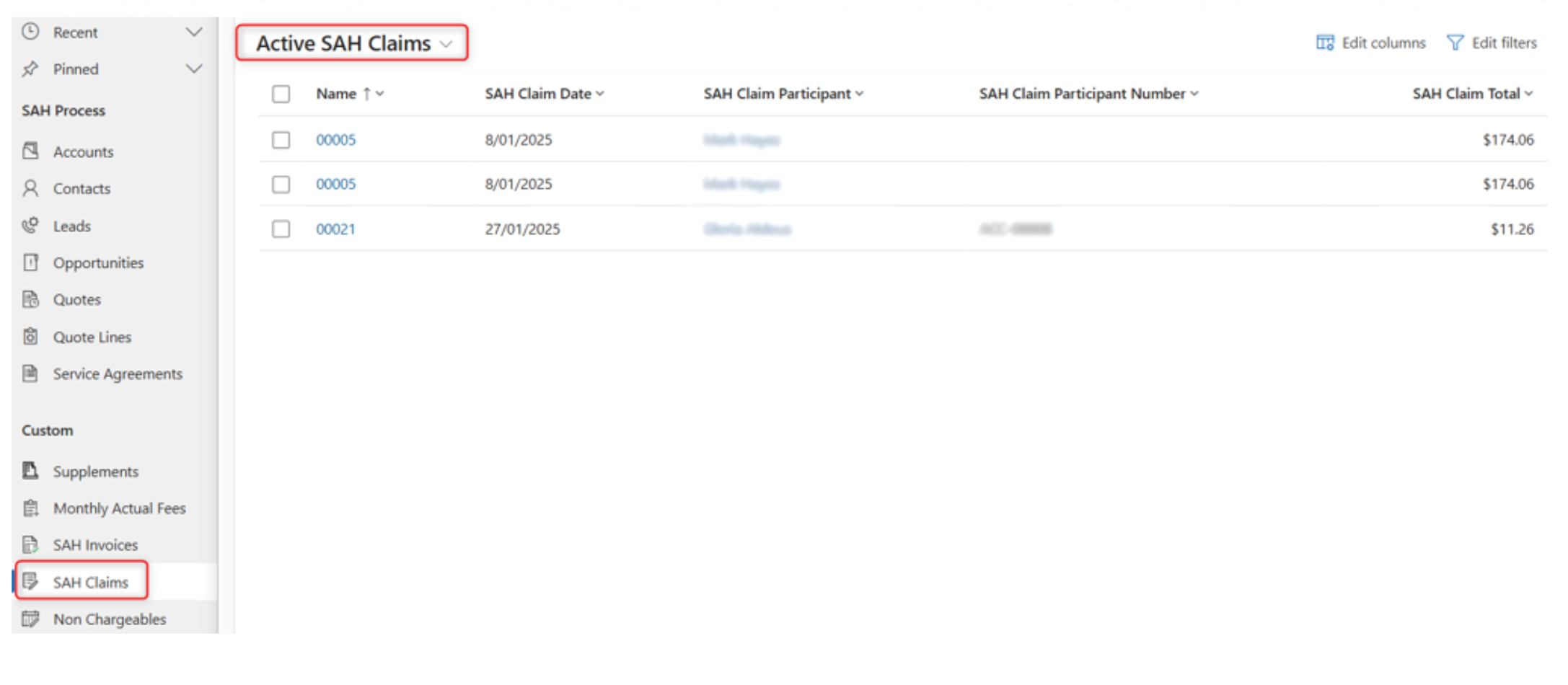
SAH Claims can be seen in the SAH Claims Tab.
This includes details such as:
- Claim Date
- Claim Participant
- Claim Participant Number
- Claim Total
Total Service Cost = Work Order Service/Product + Provider Charges + SAH Invoice + Monthly Item (if Adjustment, manually created in Monthly Actual) + Monthly Item (if Item Purchased, manually created in Monthly Actual)
OOTB Invoice Calculation = Monthly Income Assessment Fee + Monthly Basic Fee + Monthly Other Contribution + Monthly Compensation Contribution
SAH Claim = Total Service Cost - (Monthly Income Assessment Fee + Monthly Basic Fee + Monthly Other Contribution + Monthly Compensation Contribution)
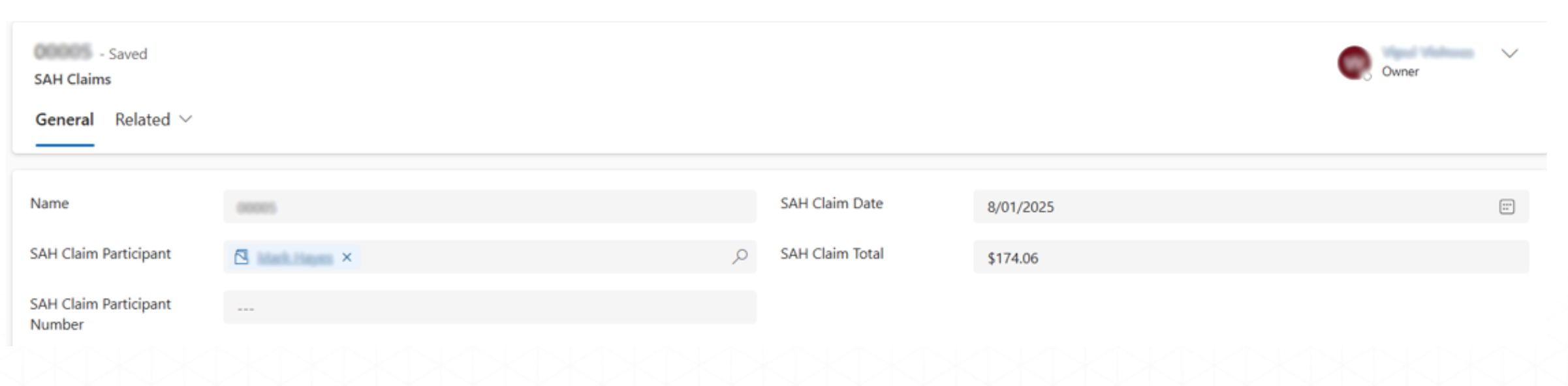
SAH Claim will be prefilled with data from records in the Agreement Monthly Actuals as shown. When we receive the monthly statement for that agreement, we generate a SAH Claim based on the actual totals through the scheduled flow which run every end of the month.
Populated data using Flow:
- Name (Agreement Number)
- SAH Claim Participant
- SAH Claim Participant Number
- Claim Date (Agreement Start Date or Previous Month start date)
- Claim Total (Sum of Contribution Monthly Actuals)
Non-Chargeable
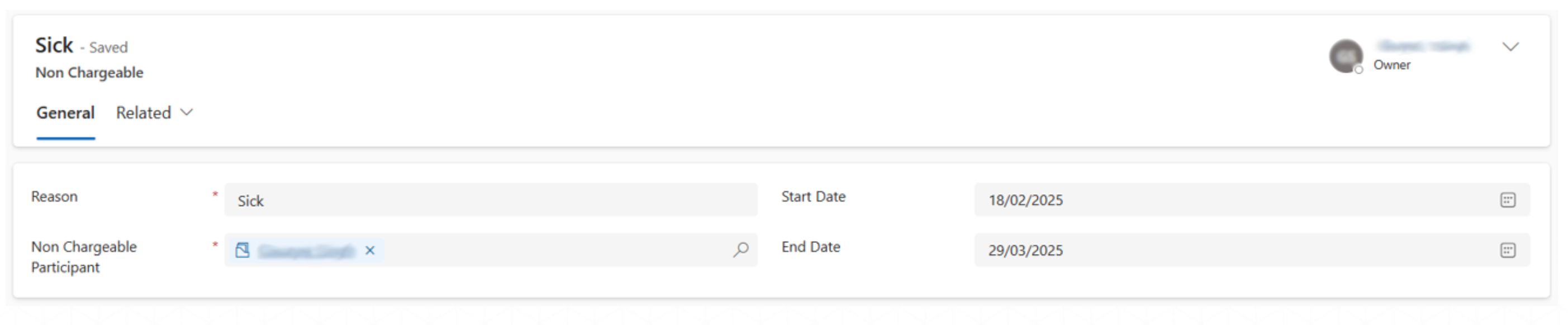
This process is for when a Participant is unavailable for some reason. For that Participant, we create a Non-Chargeable record to indicate their unavailability during a specified period.
If the Participant is unavailable, only the contribution fee is calculated on a daily basis, and their expenses are excluded in the Agreement.
All SAH Invoices created from external files sent to the shared mailbox will be included in the monthly actuals.
The following fields are required to be filled:
- Reason (Reason for unavailability)
- Participant
- Start Date (Date from when unavailable)
- End Date (Date until unavailable)