Administering Corporate Asset Insurance Guide for Dynamics 365 Business Central
Introduction
Purpose
This guide explains how to set up and use Fixed Asset Insurance in Microsoft Dynamics 365 Business Central. It covers what the feature does, where it is used in practice, how to configure it, and how to assign assets to insurance policies.
Feature Overview
Fixed Asset Insurance in Business Central lets you record insurance coverage for one or more fixed assets under an insurance policy. You can assign one asset to one policy, or multiple assets to the same policy, and then review the insured value, over/under coverage, and the linked coverage ledger entries through dedicated pages and reports.
The feature is especially useful when businesses need to track replacement value, policy limits, or insured value for expensive assets. It supports insurance administration without treating the insurance linkage itself as a standard financial posting.
Typical Industry Use
This feature is commonly used in industries where assets are costly or exposed to risks, such as retail, manufacturing, logistics, professional services, hospitality, and real estate. Typical examples include building insurance for offices and warehouses, vehicle insurance for fleet assets, and equipment insurance for production or medical equipment.
Scenarios
- A retail company insures point-of-sale hardware, shelving, and warehouse equipment under one property policy.
- A manufacturer insures CNC machines, forklifts, and production lines under separate equipment policies.
- A transport company tracks insurance coverage for trucks and trailers in a single fleet policy.
- A professional services firm insures laptops, servers, and office furniture for theft and accidental damage.
Prerequisites
Before you start, confirm that the fixed assets module is enabled in your environment and that users have permission to access fixed asset setup, insurance pages, and posting journals. It also helps if you have your company’s insurance policy structure in advance, example, including policy numbers, renewal dates, coverage types, and responsible owners.
Configuration
Within Business Central, insurance coverage for assets can be tracked through a separate Insurance Ledger that is not integrated to the General Ledger (insurance coverage is not posted to General Ledger but the premium paid for the insurance policy is posted to GL). The insurance function must be configured (as follows in the upcoming section).
Set Up General Insurance Information
Search and navigate to Fixed Asset Setup and complete the insurance-related fields.
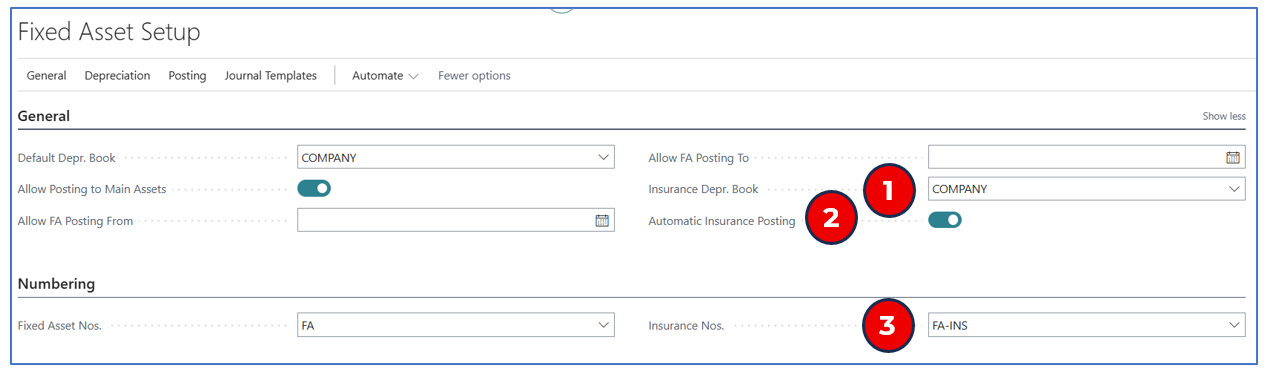
- Insurance Depr. Book -– Select the default depreciation book used for posting Asset Coverage Ledger Entries.
- Automatic Insurance Posting -– This is enabled to auto-create and post an Insurance Journal for the asset coverage value based on the asset acquisition cost.
Tip: If the insured value is more or less than the asset acquisition cost, disable this flag to post insurance coverage value manually.
- Insurance Nos. -– Select the default no. series code used to generate Insurance Journal numbers when the journal is auto-generated with asset acquisition.
Create Insurance Types
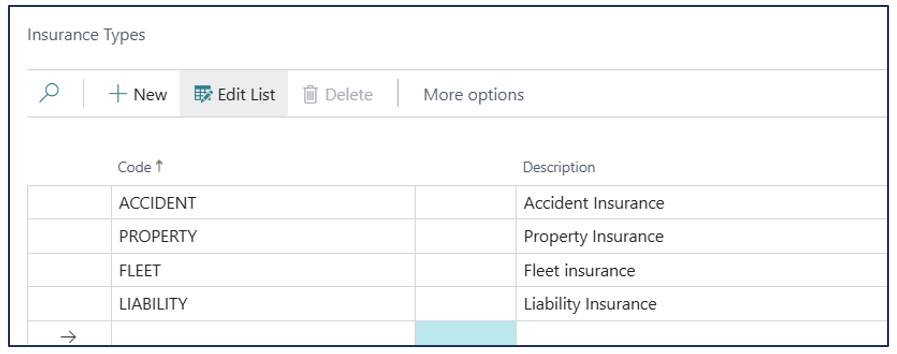
Insurance Types are user-defined labels to group policies into categories such as fire, theft, liability, or vehicle insurance. These types are then selected on the insurance policy cards. Seach and navigate to Insurance Types and edit the list to add a new type.
Example:
Create Insurance Policies
Corporate asset insurance policies can be maintained in insurance policy cards. Search and navigate to Insurance Policies to view the list of asset insurance policies.
NB: One policy could cover several assets, or one asset can be covered by several policies.
Select an insurance policy to open the Insurance Card page or click on +New to create a new Insurance Card.
Example:
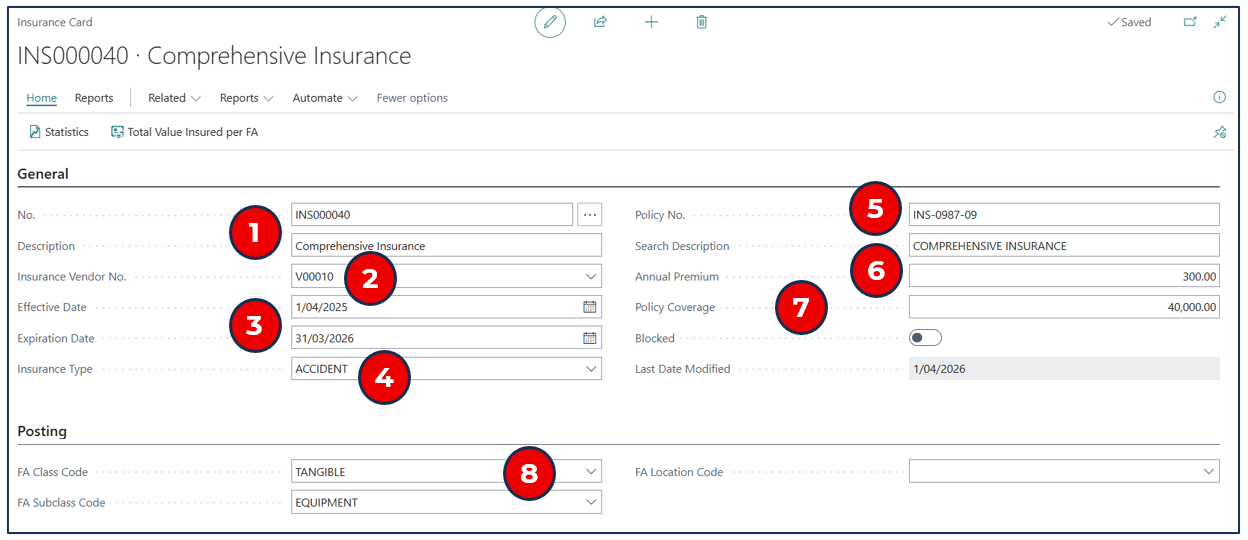
- No. and Description –- The number field is auto-sequenced; enter a description for the insurance policy.
- Insurance Vendor No. –- Select the vendor (insurer) of the policy (for admin purposes).
- Effective Date and Expiration Date –- Enter these dates according to the policy.
- Insurance Type -– Select the type defined (insurance category).
- Policy No. -– Enter the insurance policy number.
- Annual Premium -– Enter the annual premium for the policy.
- Policy Coverage - Enter the asset value coverage of the policy.
- FA Class Code, FA Subclass Code, FA Location Code -– (optional) Select the appropriate grouping (these do not impact posting entries).
These are reference fields defining the policy that will cover one or more fixed assets but do not impact on the posting of Insurance Journals.
Set Up Journal Templates and Batches
Asset insurance coverage is recorded through Insurance Journals. Define the default Insurance Journal Template and Batch for recording insurance coverage value, especially when the coverage is automatically created upon asset acquisition (using the acquisition cost).
-
Search and navigate to Insurance Journal Templates. The default value for a template is provided.

- Name –- The default insurance journal template name is provided.
identify the journal batch.
- No. Series –- The default number series for insurance journals.
- Source Code –- The default source code for insurance journals is INSJNL.
- Name –- The default insurance journal template name is provided.
identify the journal batch.
-
Click Batches to create journal batches.
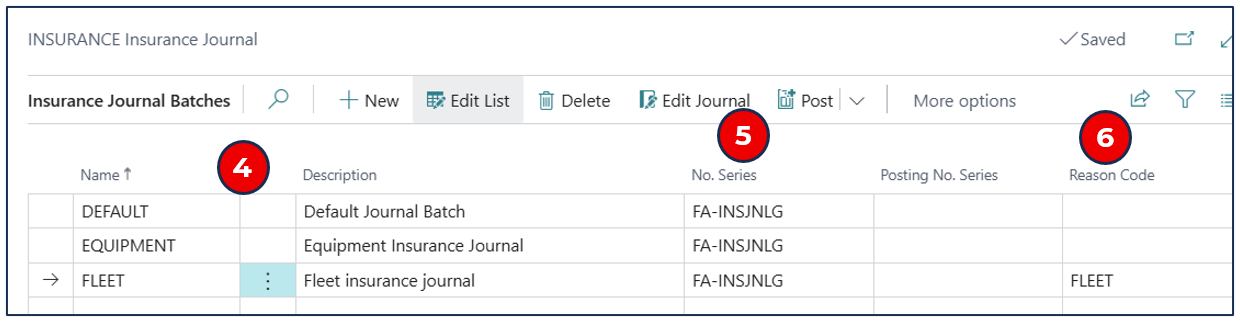
- Name and Description –- Enter a batch name and the description to
identify the journal batch.
- No. Series –- The default number series is taken from the insurance
journal template.
- Reason Code –- (optional) If additional identifier is needed for the journal batch, create and use Reason codes.
- Name and Description –- Enter a batch name and the description to
identify the journal batch.
Insurance Coverage and Assets
The key insurance feature is to track insurance coverage for important corporate assets. Insurance Coverage (insured value) is assigned to one or more assets through Fixed Asset Insurance Journals. These journals can be automatically created and posted concurrently when the asset acquisition is posted, or it can be created manually.
Auto Assigning Insurance Policy to Asset
If the insurance coverage value is assumed to be the same as the asset acquisition cost, the Fixed Asset Insurance Journal can be auto created if the flag Automatic Insurance Posting is enabled in the Fixed Asset Setup.
For each asset that is acquired, the Insurance No. must be selected either in the Purchase Order/Invoice line, or in the Fixed Asset G/L Journal line.
Asset Acquisition by Purchase Invoice
When acquiring an asset with a purchase invoice, ensure that the insurance (policy) number is indicated in the Purchase Invoice line.
Example:

NB: Use Personalisation to reveal the hidden column Insurance No. This does not apply to a Purchase Order.
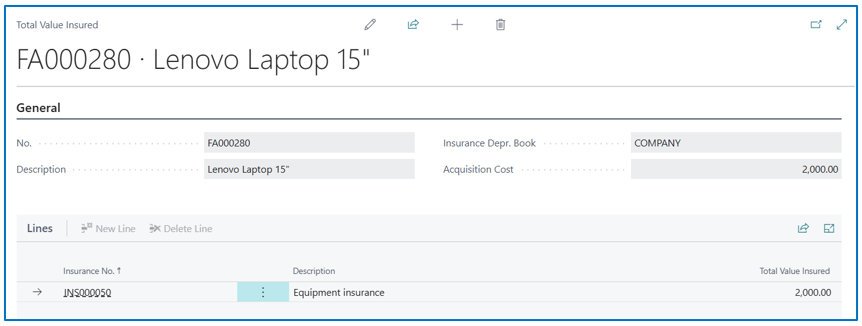
When this purchase invoice for a Fixed Asset (line type) is posted, the acquisition cost will also be posted as an Insurance Journal for the same insurance coverage. The posted Insurance Coverage Journal can be viewed in the Fixed Asset card menu option Related /> Insurance /> Total Value Insured.
Example:
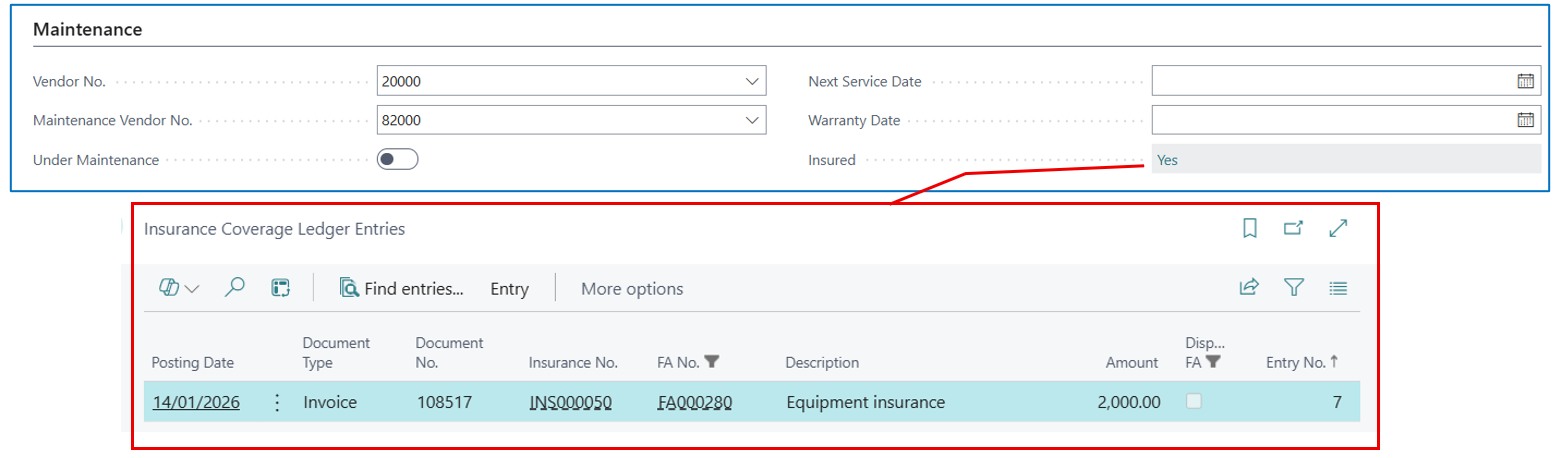
Alternatively, the Fixed Asset -> Insured flag is Yes, and clicking through this, the Insurance Coverage Ledger Entries can be viewed.
Example:
Asset Acquisition by Fixed Asset G/L Journal
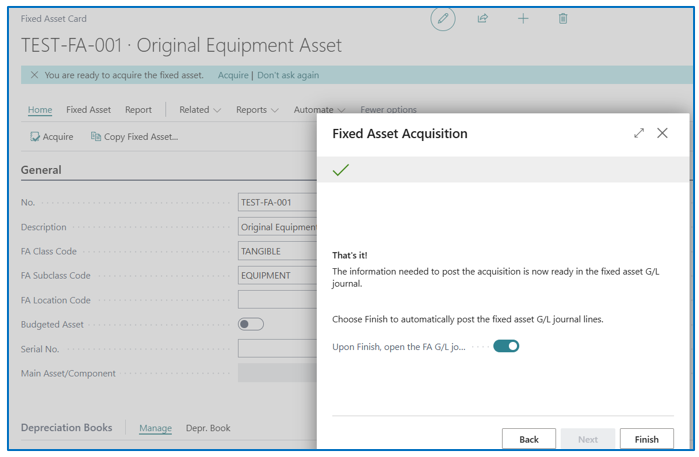
If asset acquisition is processed through the Asset card, it will create a Fixed Asset G/L Journal with the value under the FA Posting Type of Acquisition.
Example:
When the journal is opened, select the insurance (policy) number in the column Insurance No..
NB: Use Personalisation to reveal this hidden column in the FA G/L Journal.
Example:
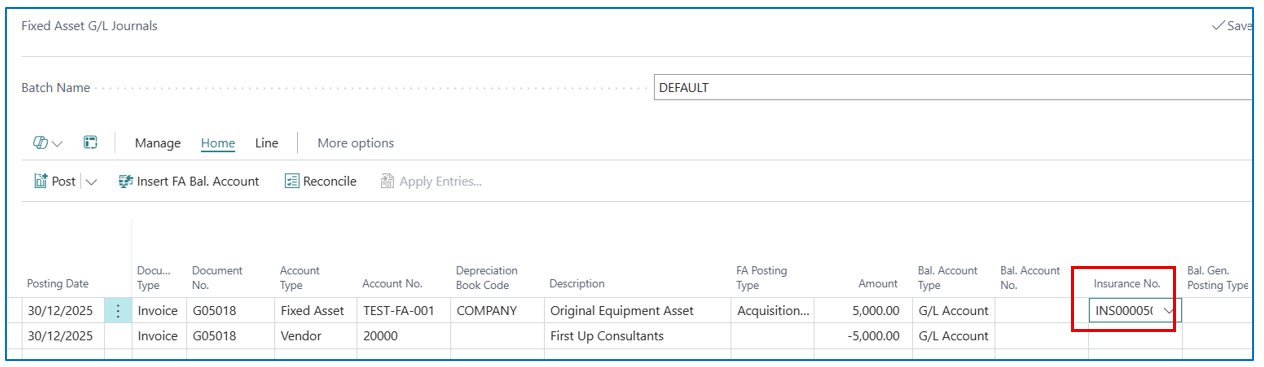
The asset acquisition cost will be used as the insurance coverage value posted in the Insurance Coverage Ledger Entries (in the asset card).

Manually Assigning Insurance Policy to Asset
This method links existing assets to an insurance policy, e.g.
- A new insurance policy taken to cover one or more operating assets.
- Adjustment of the value insured for any linked assets (or use the Index function).
Search and navigate to Fixed Asset Insurance Journals and select a pre-defined journal batch or use the default batch.
Example:
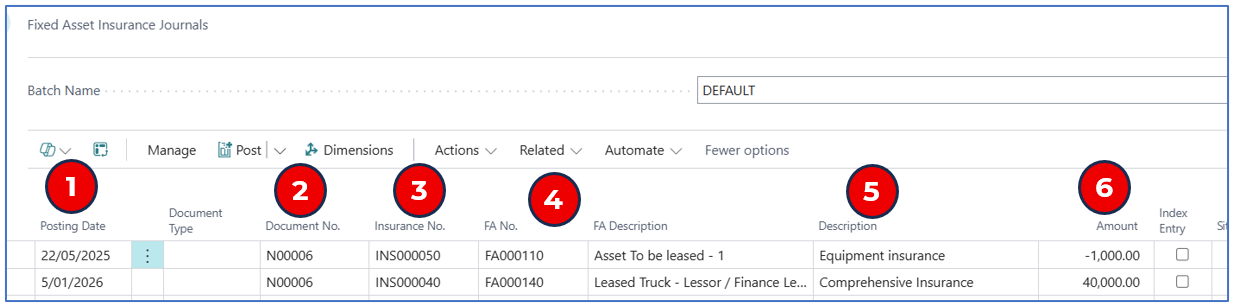
Each journal line will post the insurance coverage value (+ve or -ve) to the asset’s insurance coverage ledger and associate the insured value with the insurance policy.
- Posting Date -– This is the posting date for assigning the insurance coverage to the asset (it is not the insurance effective date).
- Document No. -– This default from the journal batch no. series.
- Insurance No. -– Select the insurance policy to be assigned to the asset.
- FA No. -– Select the asset to be assigned the policy selected.
- Description -– Enter a description for this assignment (e.g. new policy) to identify the entry in the insurance coverage ledger.
- Amount -– This is the insurance coverage value for the asset. (NB: this value is the intended insurance coverage and not necessarily the insurance policy coverage value since a policy could have assets added after policy inception).
Note: If a negative value is entered, it indicates an adjustment to the existing coverage value for the asset – this can also be handled through Indexing Insurance.
Indexing Insurance Coverage Value
Periodically, the insurance value of an asset may change (e.g. building is appreciated after renovation, or an equipment reduces coverage because of age). Search and navigate to Index Insurance to open the prompt:
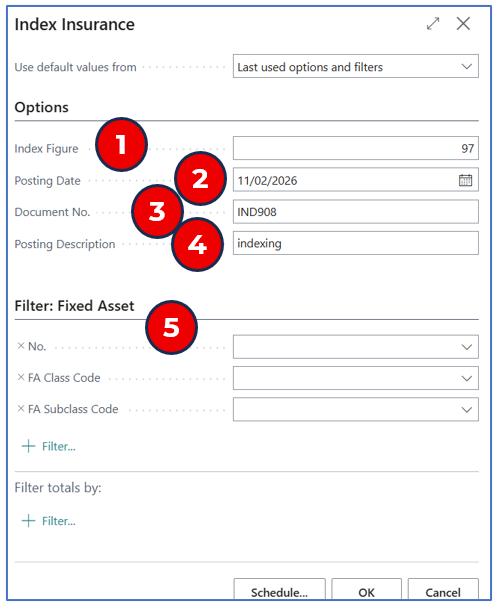
Options
- Index Figure -– Use this number to adjust the asset insurance coverage value. a. +ve (increase) adjustment – based on a 100-point number, for an increase of 5%, enter 105. b. -ve (decrease) adjustment – based on a 100-point number, for a decrease of 10%, enter 90.
- Posting Date -– This is the date of recording the adjustment in the Insurance Coverage Ledger.
- Document No. –- (optional) Leave blank for auto-numbering or enter a document number.
- osting Description –- (optional) Enter a posting description.
Filter: Fixed Asset
- No., FA Class, FA Subclass -– Use these filters to run the indexing adjustment to filtered assets (or leave blank for all assets).
The resulting Fixed Asset Insurance Journal from this process will have an indicator that the journal lines were outcomes from Indexing adjustments.
Example:
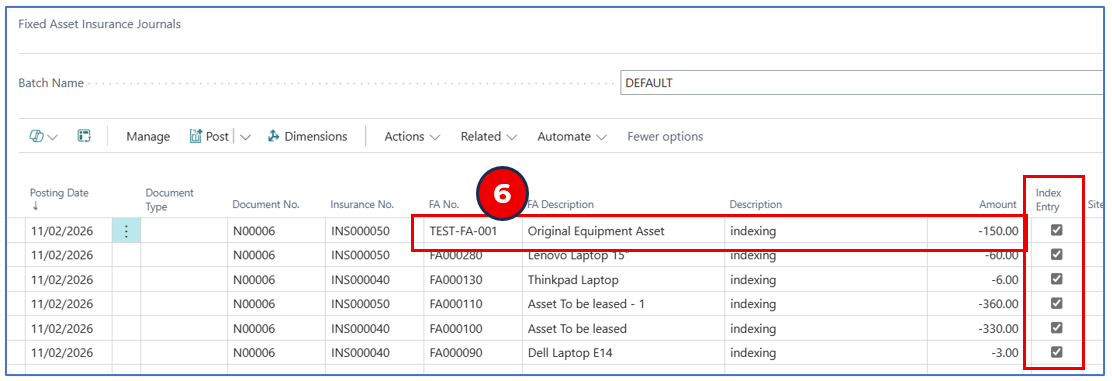
- Asset TEST-FA-001 has an insurance coverage of $5,000 and the adjustment (97 indicates -3% reduction, or -$150).
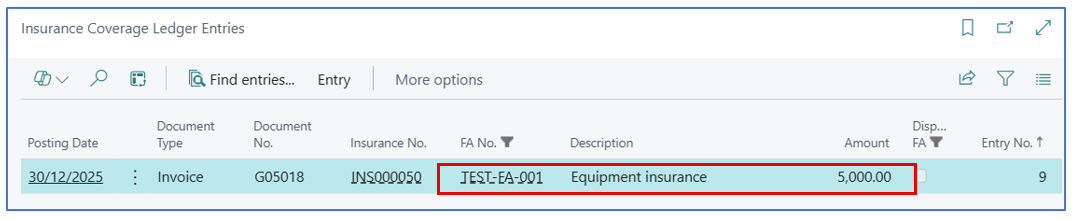
Asset Disposal and Insurance
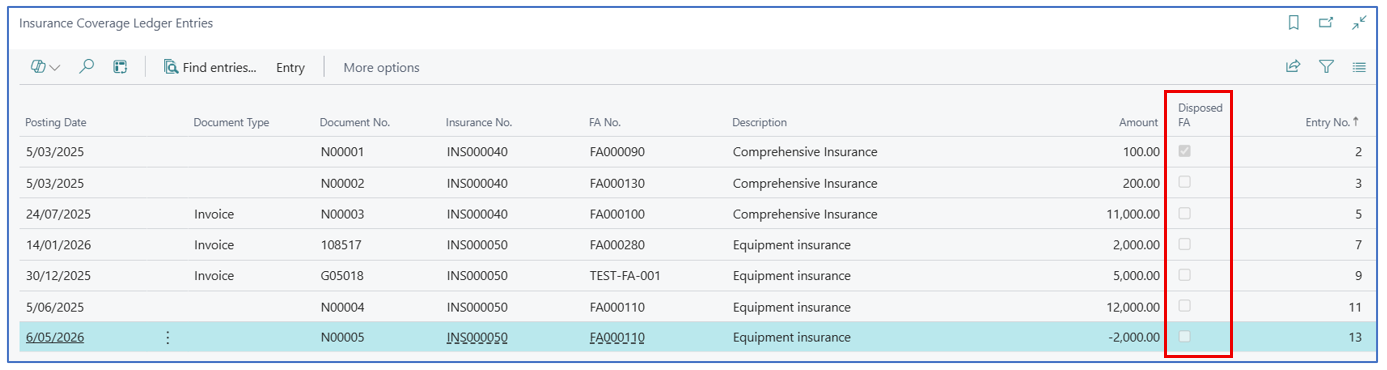
When the asset is disposed (i.e. a Fixed Asset G/L Journal line with FA Posting Type of Disposal is posted against the asset), the insurance policy coverage will exclude the disposed asset. This is shown in the Insurance Coverage Ledger Entries – entries with flag Disposed FA is enabled.
Example:
Insurance Reporting
Business Central provides an easy way to evaluate insurance coverage for any policy or any asset from reporting through the insurance policy or in the asset.
Listing of Insurance Policies
Search and navigate to the Insurance Policies list page to see a listing of all insurance policies.
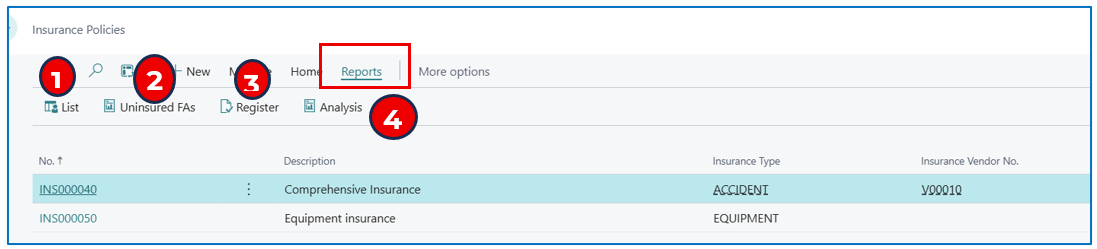
Select menu option Reports to view the following reports:
- List — This is a report showing all insured assets, assigned
policies, policy premium, and policy coverage value (on the policy
card).

-
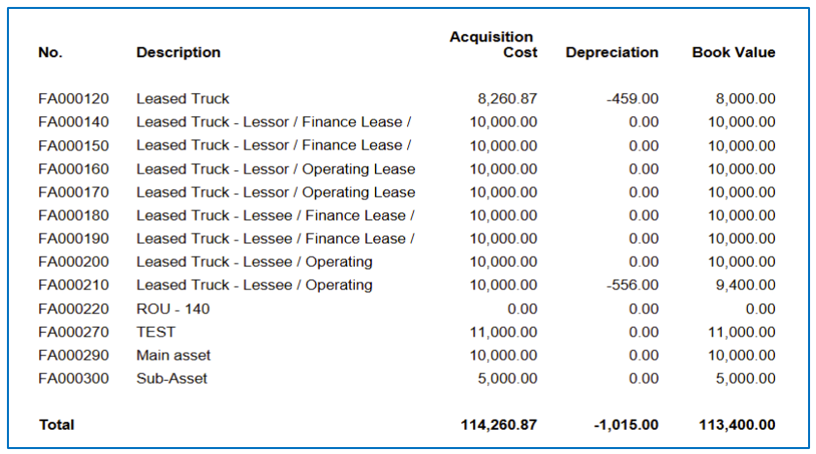
Uninsured FAs — This report lists all corporate assets (in Fixed Assets) that are uninsured.
-
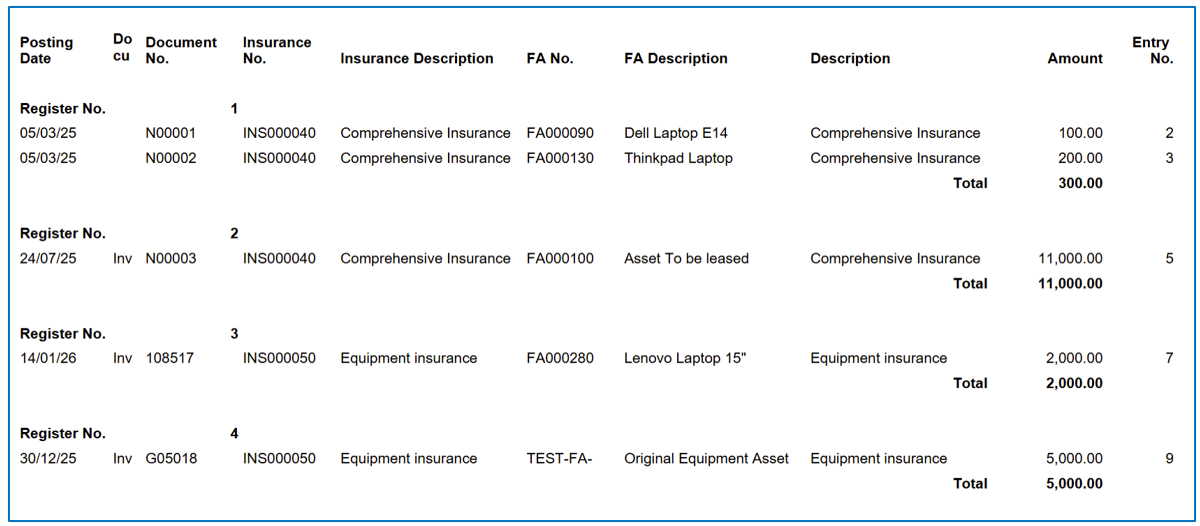
Register — This is a report showing a register of insured assets and the specific insurance coverage value (of the asset).
-
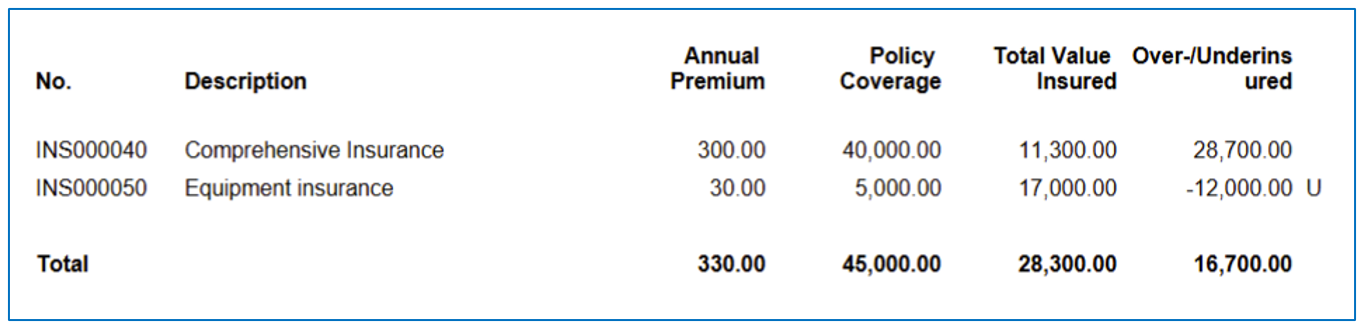
Analysis — This is a report analysing the coverage sufficiency for insurance policies.
Insurance Policy Coverage
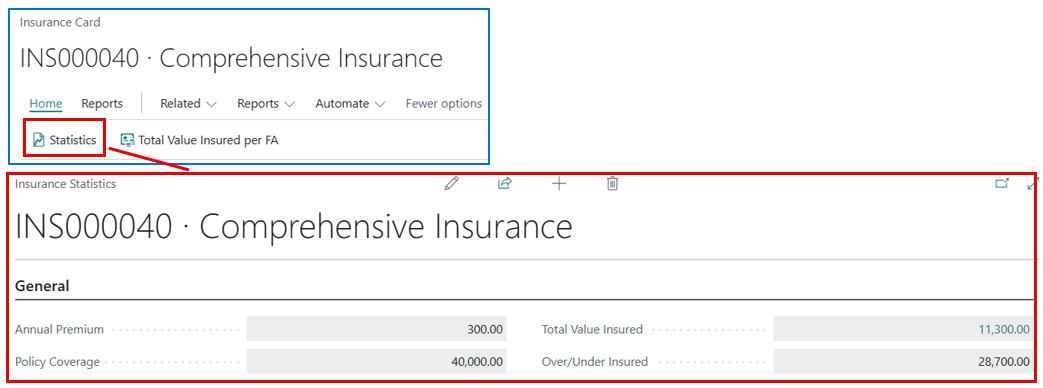
If new assets are assigned to an existing comprehensive insurance policy, the policy coverage may need to be adjusted if no assets are removed. An analysis view of policies will show the coverage sufficiency.
Methods
-
Run the Analysis report from the Insurance Policy page (as above).
-
Within an insurance policy card, select Statistics to display the analysis (example below).
Asset Insurance Coverage
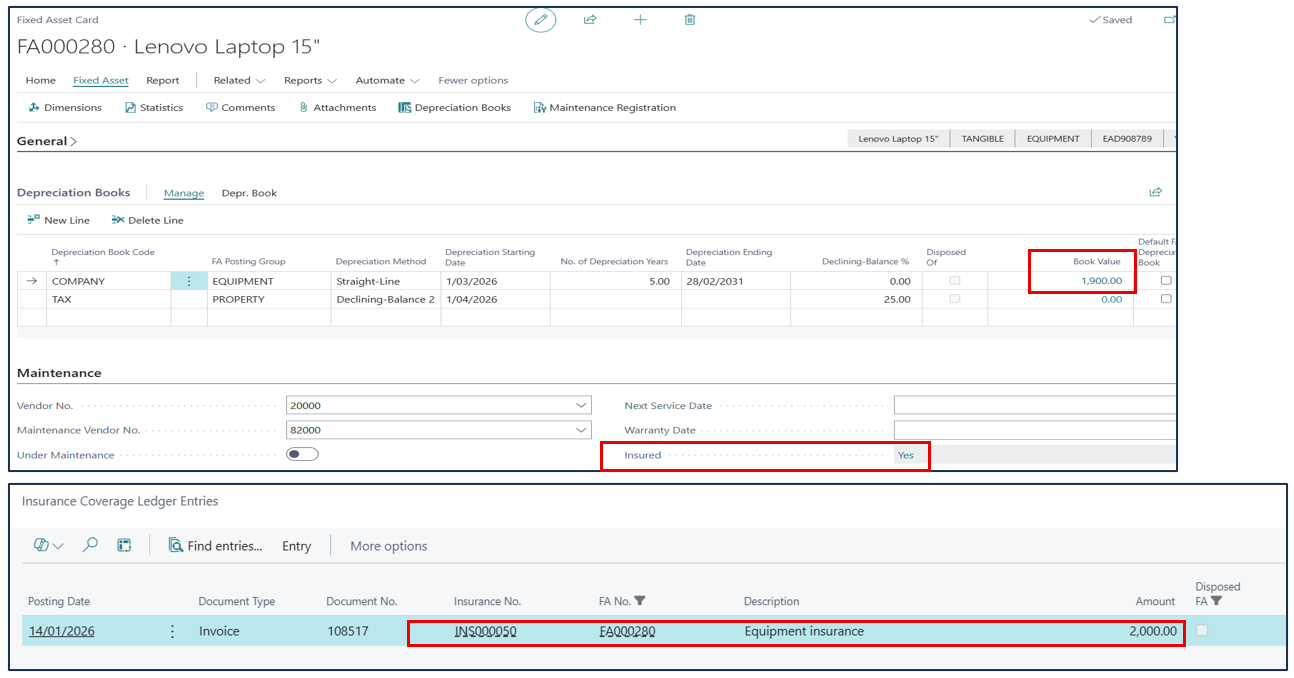
Asset Insurance Coverage is initiated when the asset is acquired, and the acquisition cost is automatically posted as the insurance coverage value in the Insurance Ledger. However, as the asset revalue, the net book value can be compared to the insured value to determine if the asset insurance is adequate.
Example:
In the Asset card, compare the Net Book Value with the Insured Value (click on Yes in the Insured field). If insurance coverage is higher than book value, it might warranty -ve indexing.
Online Reference
Here are some online references for further reading and learning about Fixed Asset Insurance in Dynamics 365 Business Central:
Standard video training videos are available in Microsoft Learn
More information on Insure Fixed Assets
Written By:
Peter Loo
Team Leader, Business Central
Connect on LinkedIn