Amazon Punchout Integration for Dynamics 365 Business Central User Guide
Setup The Microsoft Entra Application
Setup Steps
Complete these steps to set up the Microsoft Entra Application for service-to-service authentication in Business Central.
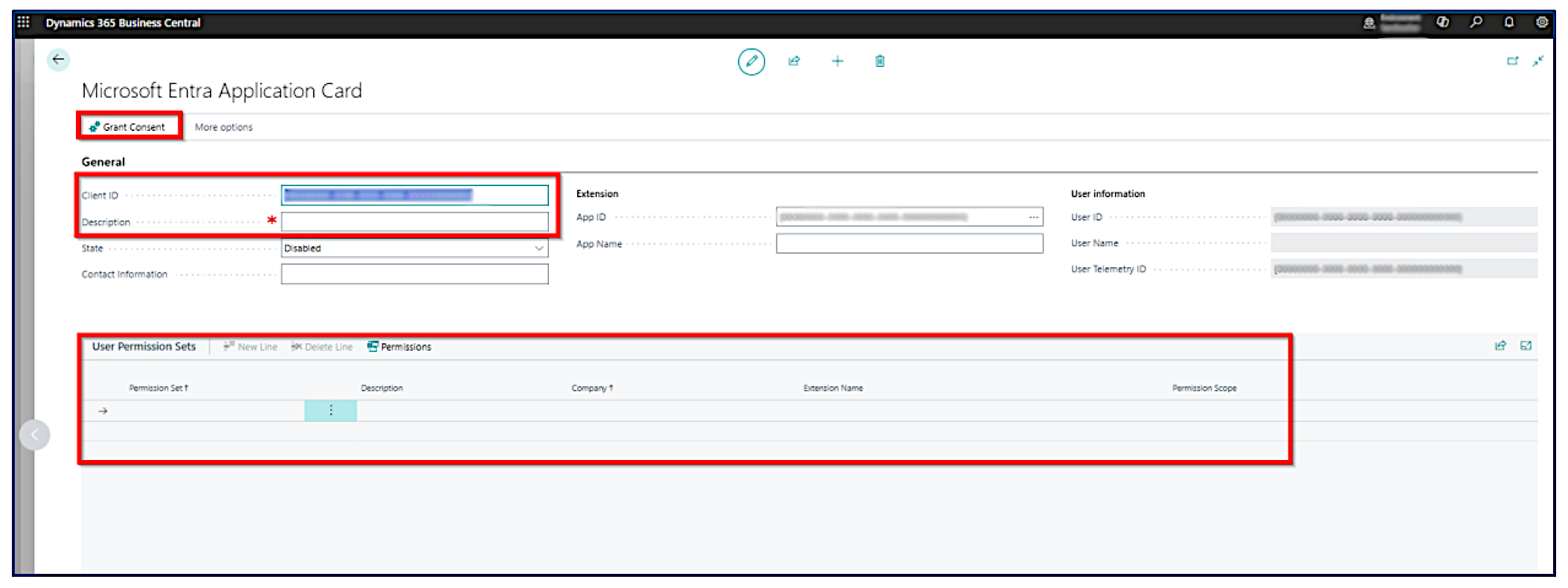
- In the Business Central client, search for Microsoft Entra applications and open the page.
- Select New.
- The Microsoft Entra application Card opens.
- In the Client ID field, enter the Application (client) ID for the registered application in Microsoft Entra ID.
- Fill in the Description field. If this application is set up by a partner, please enter sufficient partner-identifying information, so all applications set up by this partner can be tracked in the future if necessary.
- Set the State to Enabled.
- Assign permissions to objects as needed, for the app that you want to use.
- You also need to Grant Consent, this will open up a new page for you to confirm the login and confirm the consent.
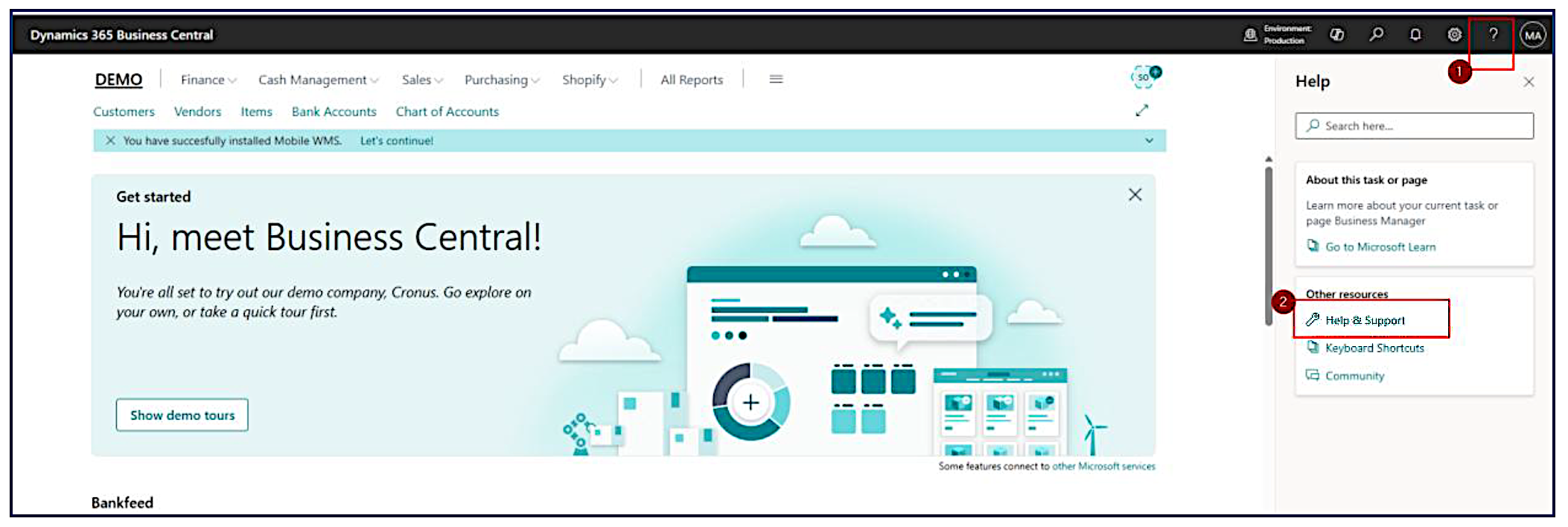
How to get Business Central Tenant ID
- Go to Help & Support in Business Central.
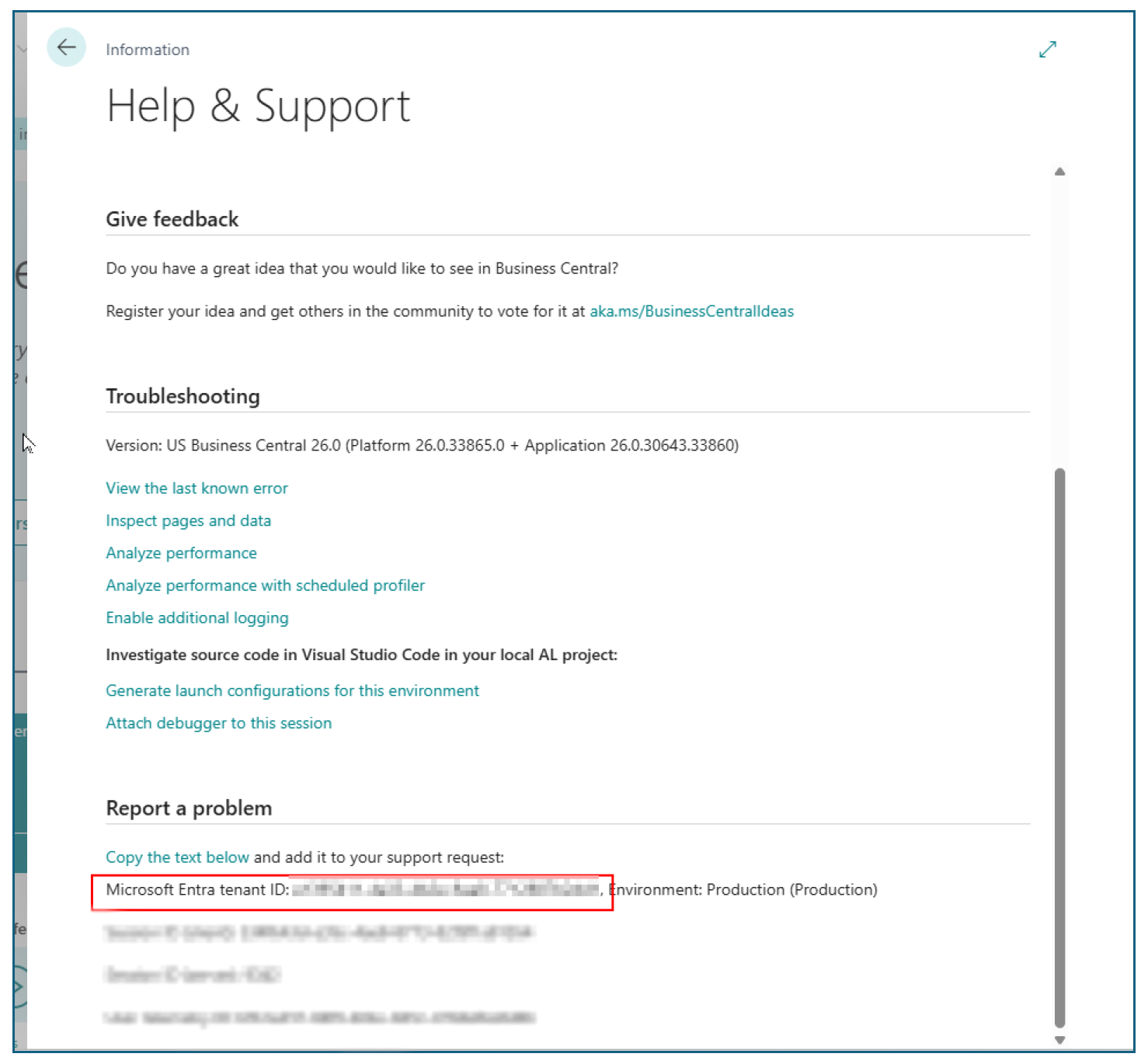
- Copy the value (Microsoft Entra tenant ID) that will be used further in the setup.
Last updated on