Admin Guide for Immigration in Legal Solution for Microsoft Dynamics 365
Are you ready to try the solution or have questions?

Introduction
The Admin Guide for Immigration in Legal Solution for Microsoft Dynamics 365 is designed to provide administrators with the necessary information and instructions to effectively manage and configure the immigration module within the legal solution. This guide will provide you information about the basics for the configuration of Power Apps by d365 Legal Solution.
This guide covers opening the Legal Solution, finding tables, adding fields, updating Choice values and editing forms. Only authorised admin users who are comfortable making small configuration changes should perform these processes. Make small changes first, save and publish, then test in Legal Hub before advising users.
Important: For larger structural changes, new tables, automations, integrations, security roles or portal changes, contact d365.Global before making the change.
Access
Open Power Apps & the Legal Solution
Start from Power Apps and work inside your legal environment workspace.
How to Open Legal Solution
Follow these steps:
- Open https://make.powerapps.com in your web browser.
- Confirm you are in the correct environment before making changes.
Note: The name of the environment will be provided by d365.
- Go to Solutions in the left navigation menu.
- Open Legal Solution (it should appear under the Display name in the center frame).
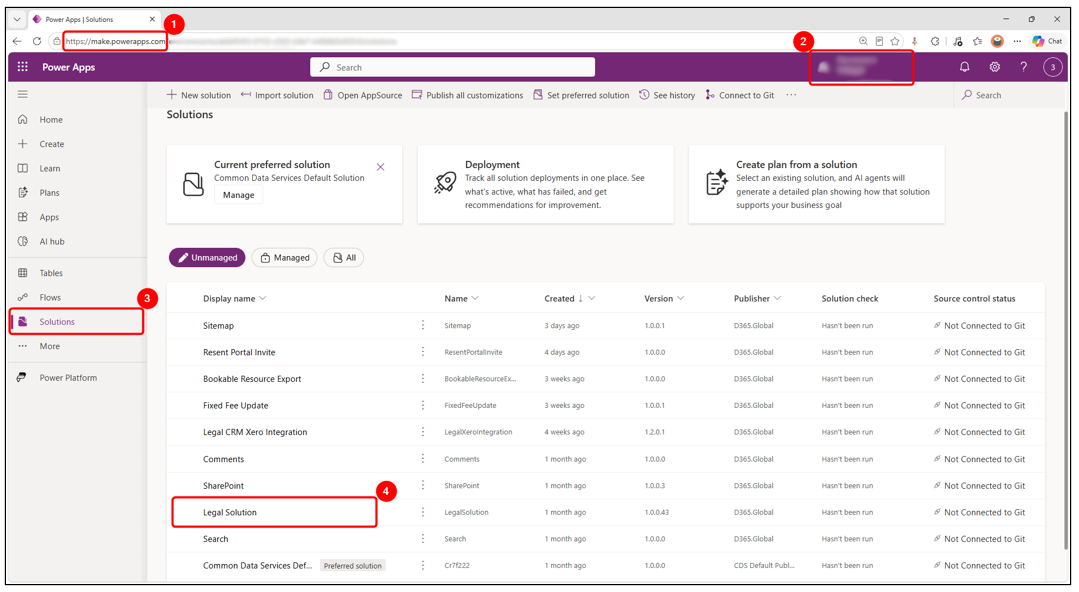
TIP: Keep configuration changes inside the Legal Solution so they remain organised and easier to support.
Tables
Find Tables You Need to Update
A Table holds the records and fields used by the Legal Hub app. They serve as the fundamental data architecture for the Legal Hub app, storing all structured records and attributes.
How to Find Tables
- Inside Legal Solution, select Objects.
- Expand or select Tables. You will see a list of names of available tables.
- Use the search box on the top right to find Contact, Account, Matter, Application or Immigration Record.
- Open the required table.
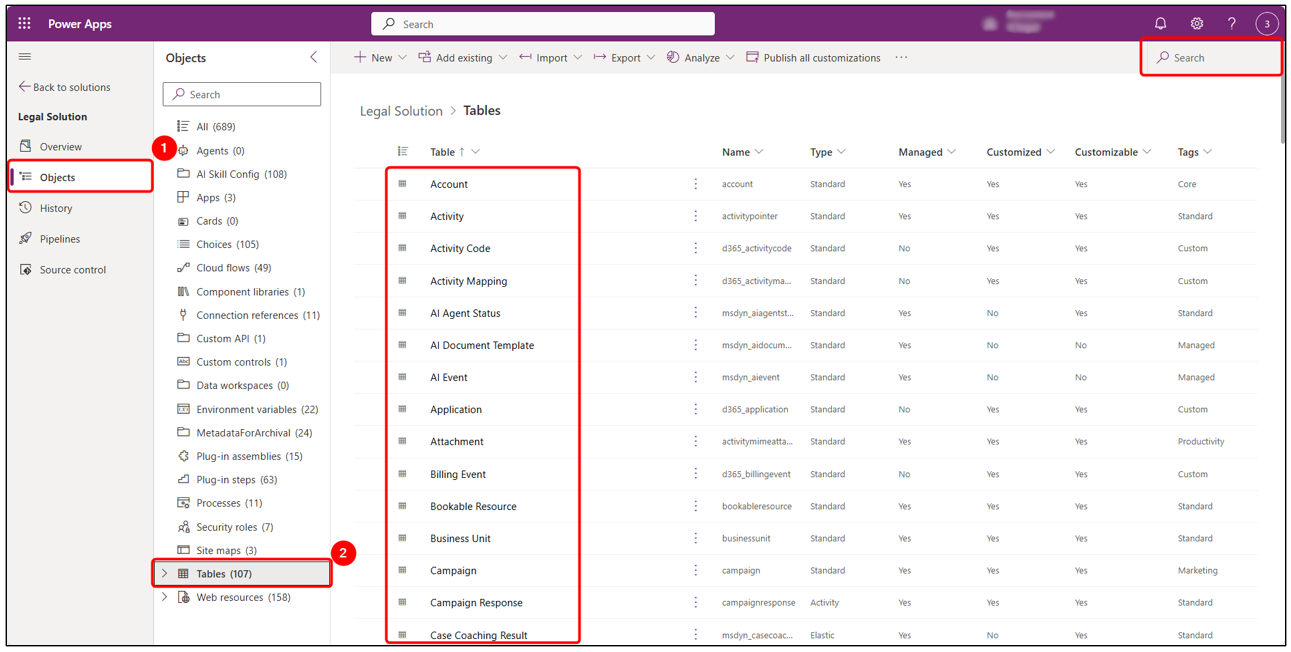
TIP: Use the search feature rather than scrolling through all tables. This reduces the chance of opening the wrong table. It also brings you directly to the table you are looking for, which helps save time.
Understanding Table Areas
Each table has areas for fields, forms, views and related configuration.
Here is a description of what to use.
- Columns are fields on the table.
- Forms control what users see when they open a record.
- Views control list screens and grids.
- + shortcut button or Columns under Schema to work with fields.
In this image we see an example. The table is named Contact (the object name in Dynamics 365) under Legal Solution > Tables.
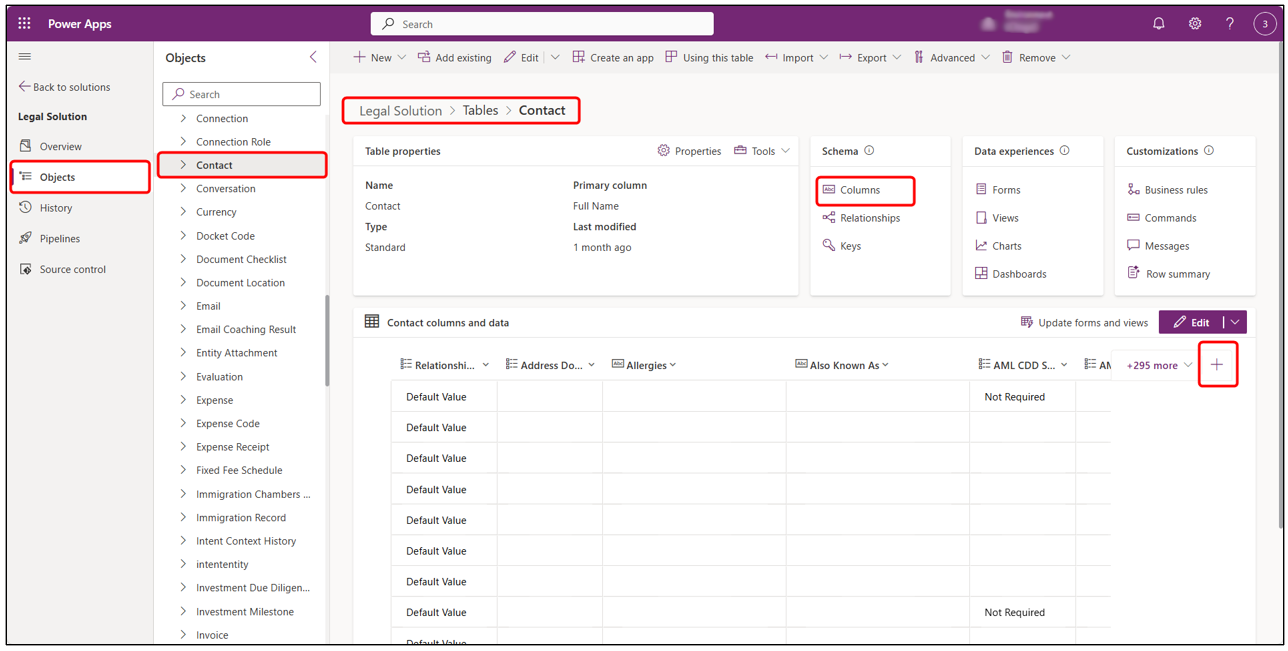
For most small admin changes, you will only need Columns and Forms.
Columns
Create a New Column
Use this only where the information cannot be captured by an existing field. Here are the steps to follow:
- Open the table and go to Columns.
- Select + New column.
- Enter Display Name and Description.
- Choose the correct Data type and Required Level, then click Save.
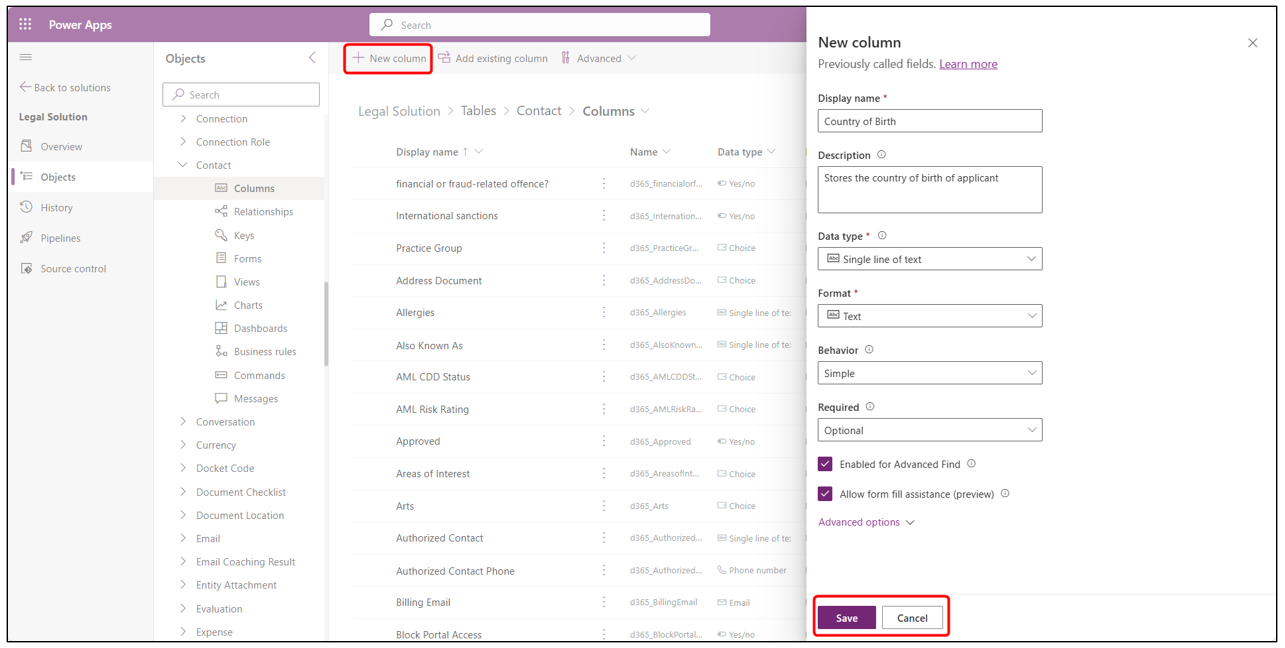
Choose the data type carefully. Once data exists, changing the type later can be difficult.
Edit an Existing Column
Use this for small changes such as display name, description or required level.
- Open the table, then Columns.
- Search for and select the existing column.
- Update safe settings such as Display name, Description or Required level.
- Select Save.
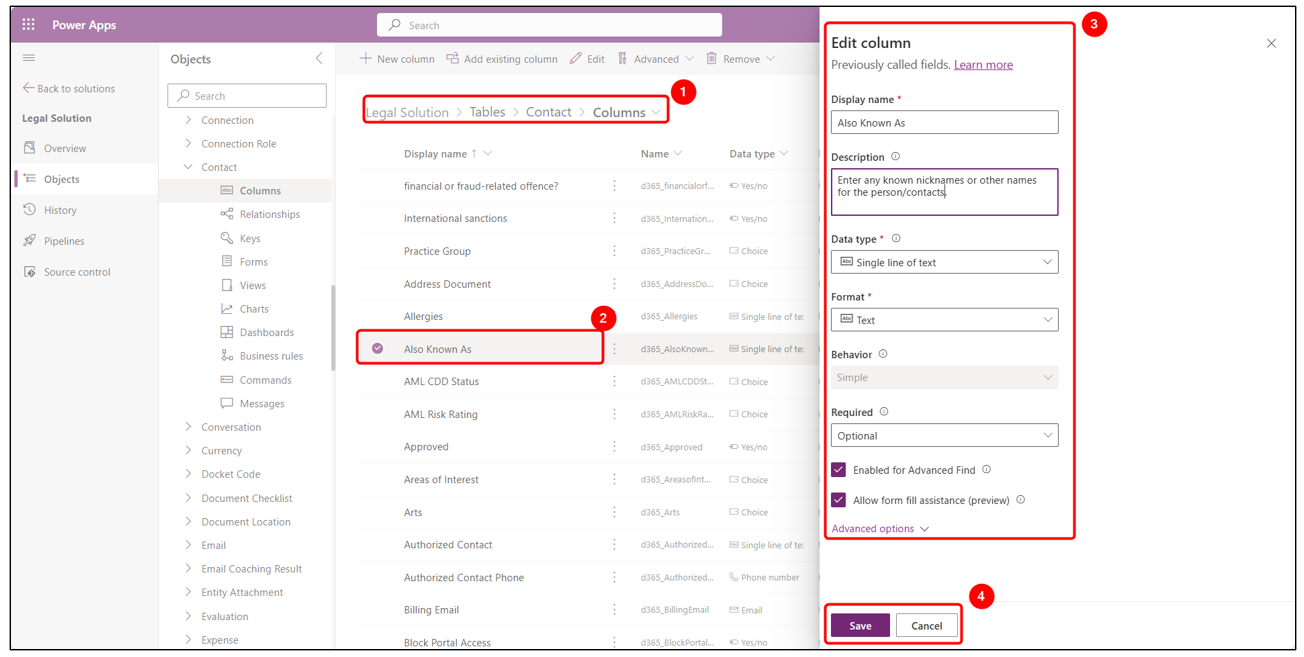
Do not change schema names or data types without checking first. These changes can affect forms, automations and integrations.
Choice Values
Update a Choice Field
Choice fields are maintained in the Power Apps backend rather than inside Legal Hub.
- Open the relevant table and Choice column.
- Scroll to the Choices section.
- Select + New choice to add a new option.
- Enter the label users should see.
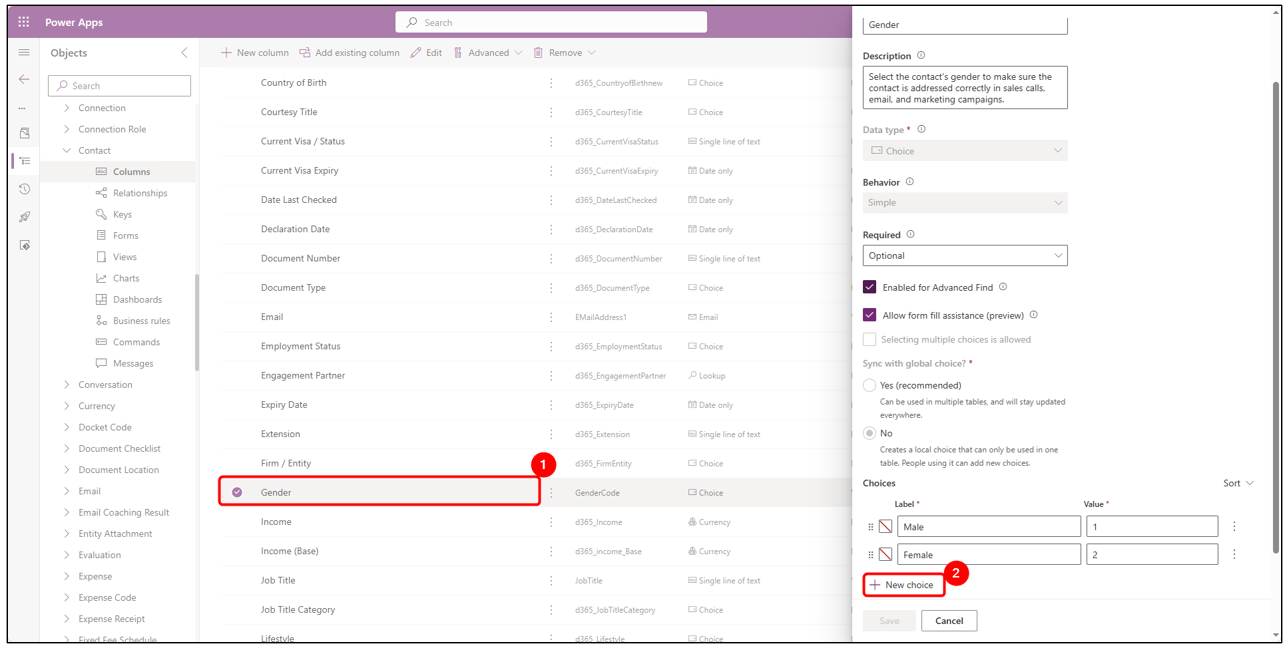
Examples include Gender, Relationship type, Visa Application Category etc.
Save New Choice Value
After adding the option, save the column. Follow these steps:
- Review the new label and generated value.
- Set a default choice only if users should see it pre-selected.
- Select Save.
- New choice is added in the choice field.
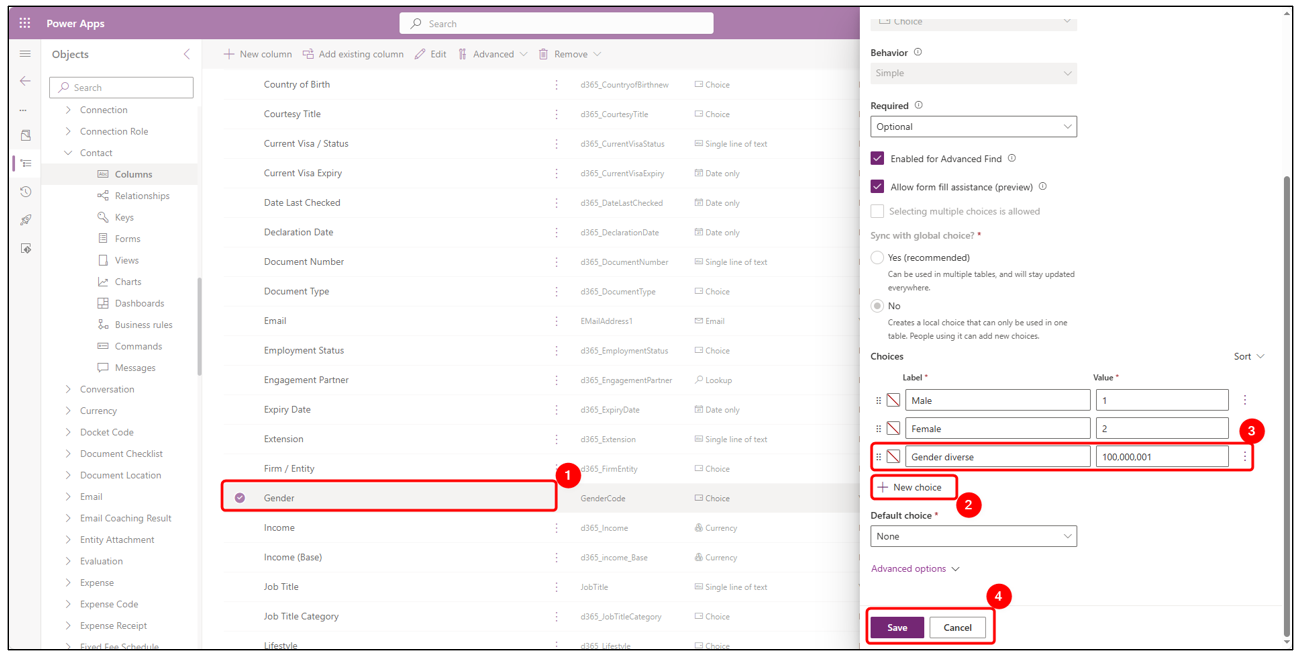
If the value does not appear immediately in Legal Hub, refresh the app after saving.
Forms
Check Which Form is Being Used
Before editing a form, confirm the form name used by the record in Legal Hub.
- Open a record in Legal Hub.
- Hover over the browser tab.
- Read the form name shown in thebrowser tooltip.
- Use that same form name in Power Apps to edit the form.
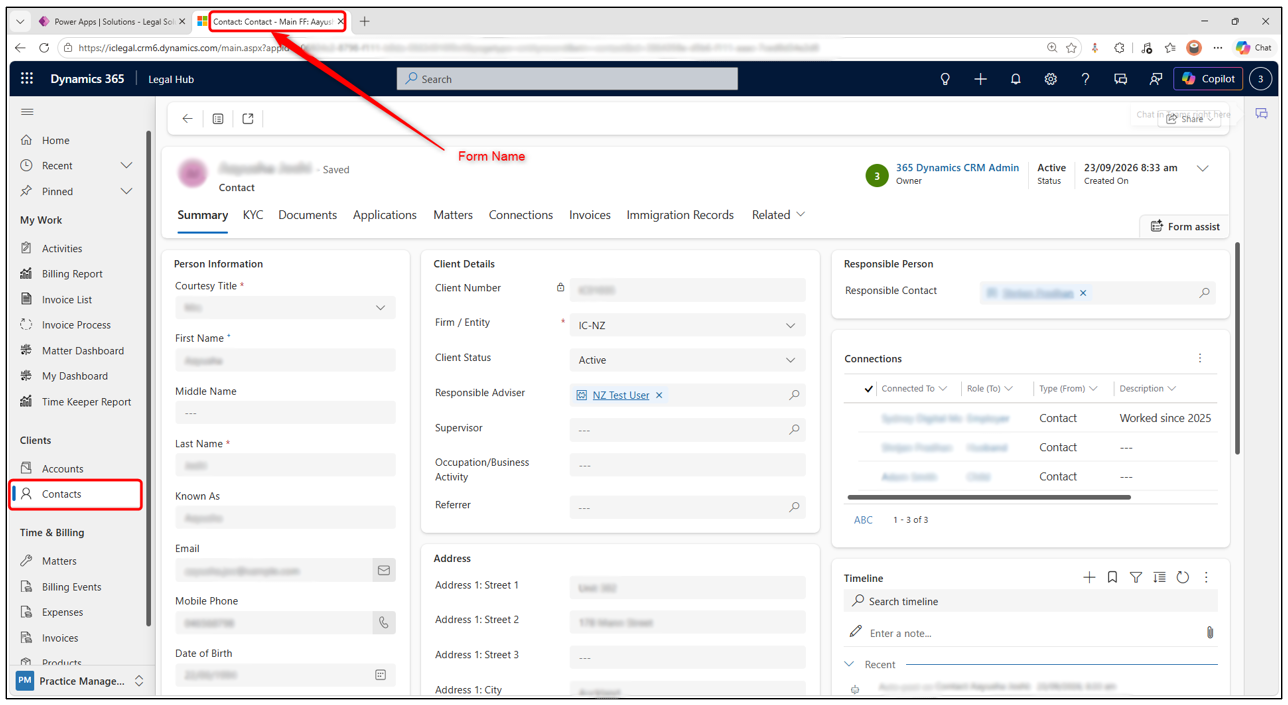
This helps avoid editing a form that users do not actually see.
Open Correct Form in Power Apps
Forms define the tabs, sections and fields visible in a record.
- Open the table in Legal Solution.
- Select Forms from the table menu.
- Open the Main form being used, for example Contact - Main FF.
- Avoid editing Quick Create or Quick View forms unless that is the intended change.
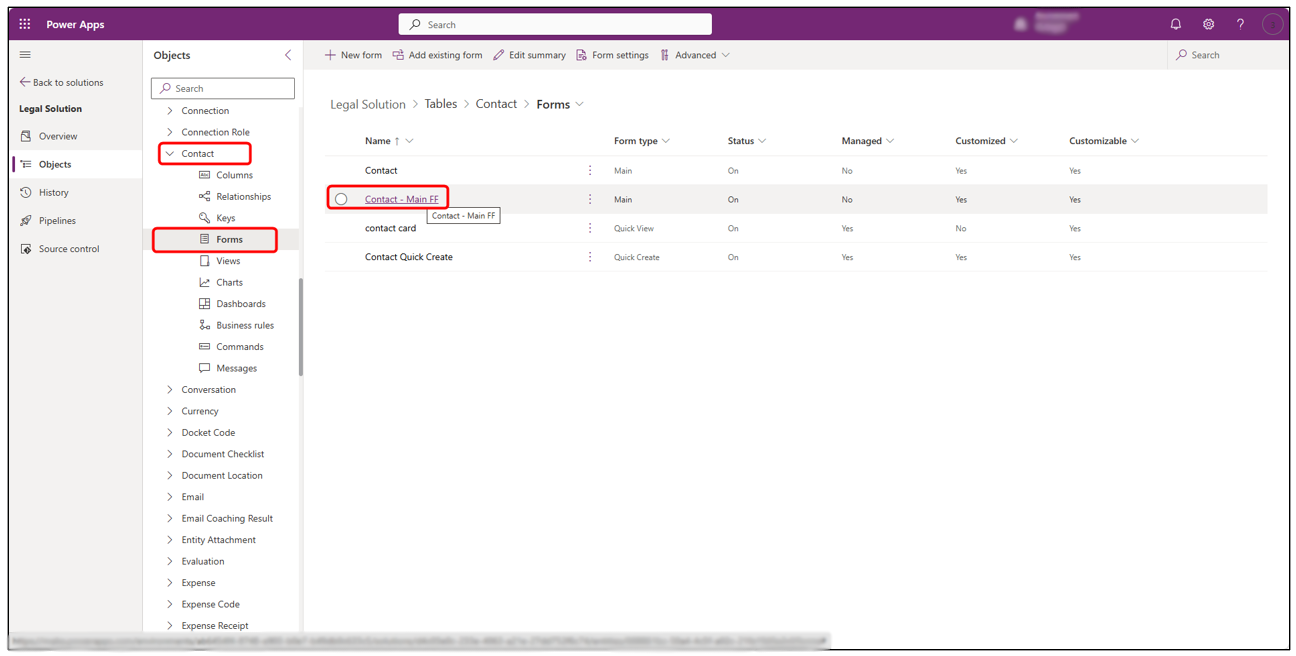
Main forms are usually the forms users see when opening records in Legal Hub.
Add or Edit Fields in a Form
Use the form designer to add fields, move fields and adjust sections.
- After opening the form use Table columns to search for an existing field.
- Drag the field into the required section on the form.
- Use Components to add sections, tabs, subgrids, timeline or spacers.
- Select Save and publish when complete.
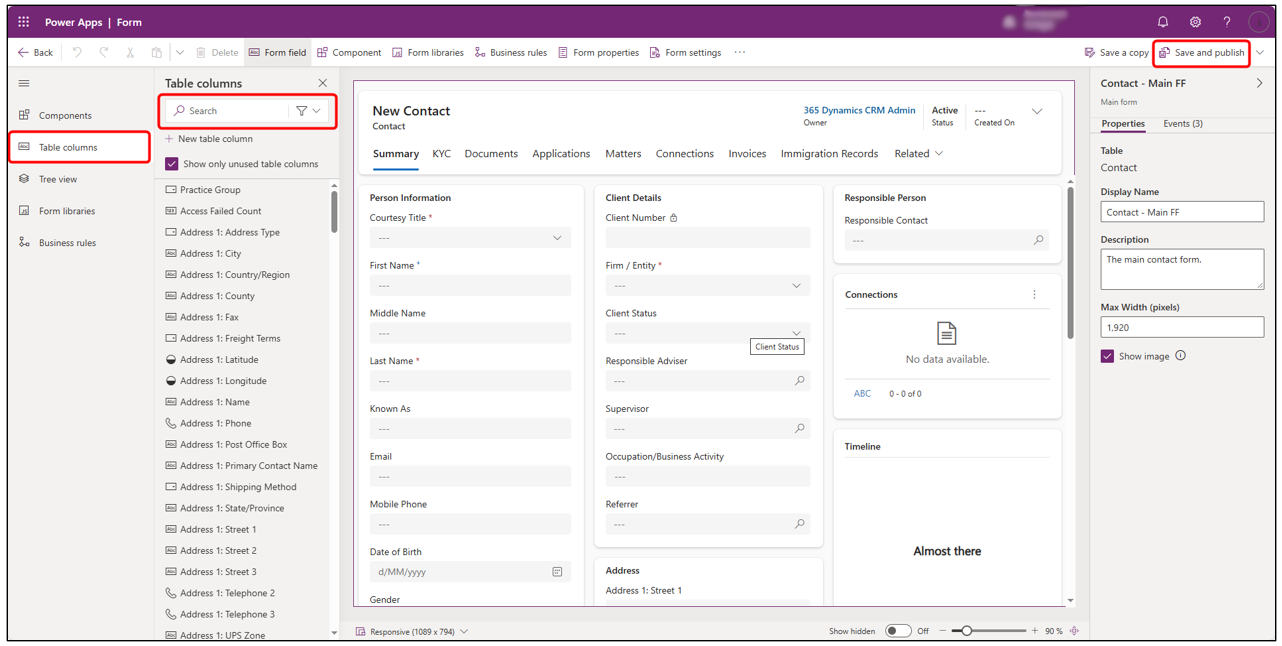
Removing a field from the form is safer than deleting the column from the table.
Additional Tips
Before Publishing Save, publish and test carefully. Use UAT (User Acceptance Testing) where possible and avoid major changes directly in production.
Common Data Types
Choose the simplest data type that fits the business requirement.
- Single line of text
- Date only
- Choice
- Lookup
- Yes/No
- Number or Currency
Recommended Flow
For important changes, test in the UAT first, then repeat the change in Production once confirmed.
- Make the change
- Save
- Publish
- Open Legal Hub
- Test the result
Caution
-
A small mistake can affect forms, automations, portal behaviour or integrations. Consult d365.Global before making major changes.
-
DO NOT delete columns, change data types, modify security roles, change flows or edit portal configuration without review.