Sales Integration CRM User Guide in Dynamics 365 Business Central
Introduction
This guide is written for integration to synchronise master files between Dynamics 365 Sales and Business Central. Learn how to perform the steps to accomplish this for Business Central in your organisation.
Purpose
Dynamics 365 Sales (CRM) has been used to record customer interactions including invoicing for products and services. These invoices will then flow into Business Central through the configured integration. Additionally, invoiced lines that are payments recharged to customers will also create vendor purchase lines in Business Central.
With the integration enabled, master files between Dynamics 365 Sales and Business Central are synchronised, and the input of sales invoices and credit memos will automatically be posted in Business Central.
Feature Overview
The integration between Dynamics 365 Sales and Business Central has been configured to:
-
Couple and synchronise master records — Customers, Vendors, Contacts, and Products/Items.
-
Synchronise Business Central dimensions associated with custom fields in Dynamics 365 Sales — e.g. Matter and Practice Area.
-
Process Dynamics 365 Sales invoices into Business Central.
-
Process invoice cancellation or credit memos from Dynamics 365 Sales into Business Central.
Integration Overview
The Dynamics 365 Sales and Business Central integration comprise of master files and sales transactions. The integration setup uses the field mappings defined in the Integration Table Mappings.
Integration Mapping of Master Files
Master files are directly mapped from Dynamics 365 Sales to Business Central. The direction of data synchronisation for each master file is:
Customer Master
In Dynamics 365 Sales, these are organisation Accounts with the relationship type of Customer. The integration synchronises each customer account (ID) with the customer code in Business Central. When a new account (customer) is added in Dynamics 365 Sales, the background integration job will run to insert the new record in Business Central (Integration Sync Job Runner in Job Queue Entries). This assumes that Dynamics 365 Sales is the source of truth for the customer list.
The posting to a Receivable G/L Accounts is determined by the Customer Posting Group code assigned to the Business Central customer. Integration configuration templates are used to default Customer Posting Group based on criteria used.
Unidirectional Synchronisation — Dynamics 365 Sales to Business Central
Vendor Master
In Dynamics 365 Sales, these are organisation Accounts with the relationship type of Vendor. The integration synchronises each vendor account with the vendor code in Business Central. Since new vendors are likely to undergo onboarding and approval, the vendors are assumed created in Business Central (as the single source of truth) and then synchronized to Dynamics 365 Sales. A job queue also updates the Dynamics 365 Sales vendor account ID with the Business Central vendor code that are coupled.
The posting to a Payable G/L Accounts is determined by the Vendor Posting Group code assigned to the Business Central vendor. The default Posting Group is determined by the integration configuration template used.
Bidirectional Synchronisation — Business Central to Dynamics 365 Sales (and vice versa)
Item Master
In Dynamics 365 Sales, these are products of sales inventory type. These are used in sales invoice lines to itemise the invoice. The integration synchronises and couples each sales inventory product with the item code in Business Central.
When the item is used in an invoice line, the G/L account is determined by the Gen. Product Posting Group code (assigned to the item) in combination with the Gen. Business Posting Group code assigned to the customer/vendor for the invoice. This combination is defined in General Posting Setup as the Sales account and Purchases account.
Unidirectional Synchronisation — Dynamics 365 Sales to Business Central
Contact Master
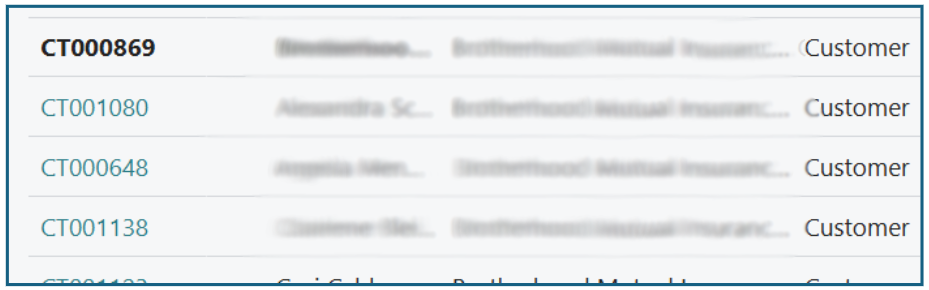
In Dynamics 365 Sales, these are people contacts defined and associated to a customer or vendor. In Business Central, contacts are classified into Company or Person type. The Company contact type is linked to the Customer or Vendor master. The Person contact type is associated with the Company contact. When people contacts in Dynamics 365 Sales are synchronized to the Person-type contacts in Business Central, the association with the contact’s company is also reflected in Business Central.
Example: (Bold lettering indicates Company contact and normal lettering indicates Person contact)
Unidirectional Synchronisation — Dynamics 365 Sales to Business Central
Dimensions
Dimensions are used in Business Central for segmented reporting. These are configured to map Dynamics 365 Sales data, e.g. Client, Matter and Practice Area.
Unidirectional Synchronisation — Dynamics 365 Sales to Business Central
Integration of Sales Transactions
Sales invoices created in Dynamics 365 Sales are integrated through the Dataverse staging table built into Business Central.
The staging records are accessed through the menu option Sales Invoices > Microsoft Dynamics 365 Sales.
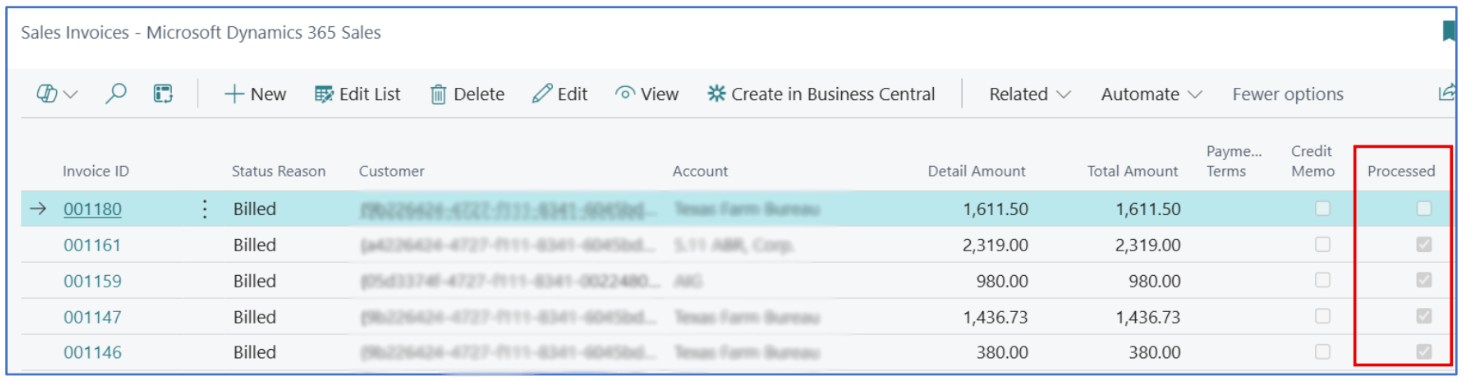
Transactions in the staging table are pushed into Business Central by using the menu option Create in Business Central. The creation of a Business Central sales invoice will update the Processed flag to indicate that the Dynamics 365 invoice has an equivalent in Business Central.
A background job queue can be created to auto-create these transactions into Business Central.
Synchronisation of Master Files
Job Queues synchronise master files. These are found under the menu option Job Queue Entries where the Job Queue object ID is 5339.
Example:
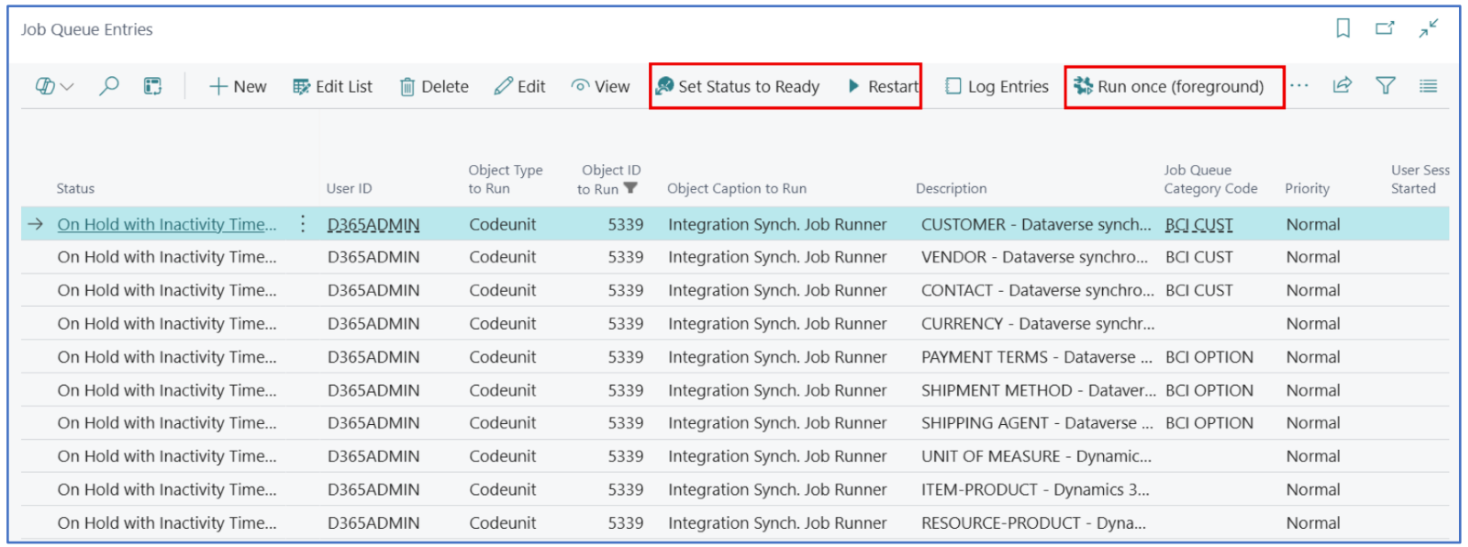
If the integration fails or is not working, the job status will either be Error or On Hold. The job can be restarted using menu options Restart or Set Status to Ready. For a once-off immediate integration job run, use menu option Run once (background).
Sales Transactions Processing
Sales invoices are created in Dynamics 365 Sales and synchronised into Business Central. When the sales invoices are processed and posted in Business Central, the unique invoice number prevents the same invoice from being duplicated. If the sales invoice in Dynamics 365 Sales has a Billed Status, it is considered posted in Business Central.
Sales Invoices
When the Dynamics 365 Sales invoice Status Reason updates from New, or Approved, to Billed, the invoice details (header and detail lines) are pushed into the Business Central staging table, waiting to be validated and pulled into Business Central as sales invoices.
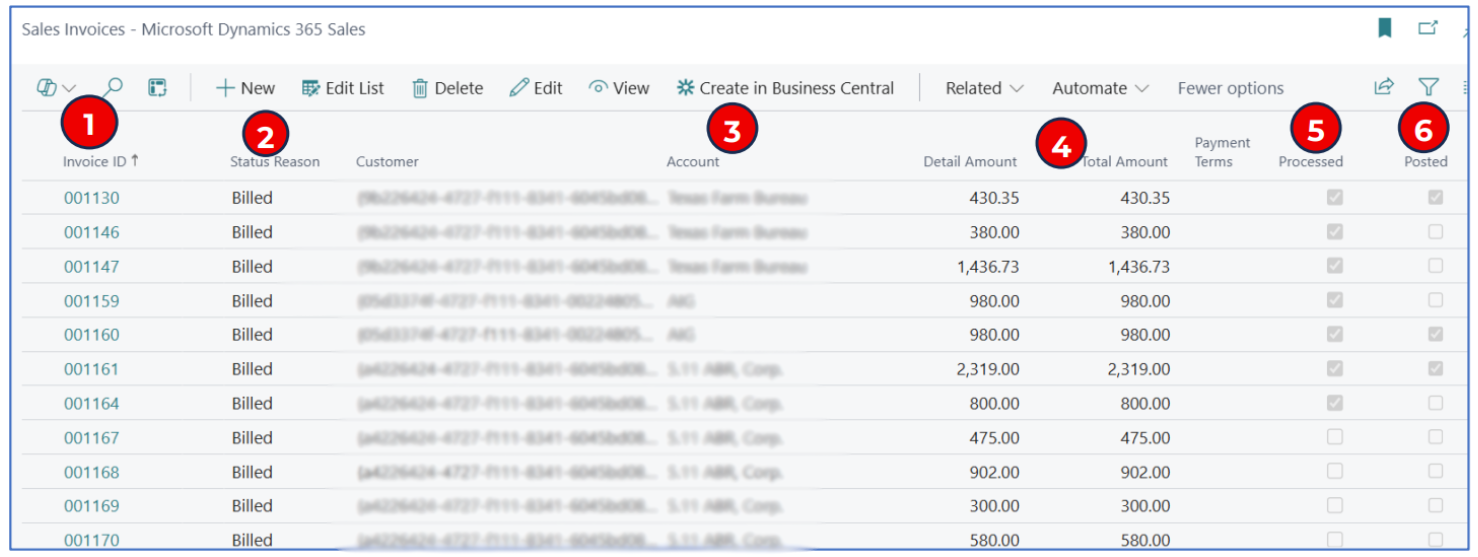
Search and navigate to Sales Invoices > Microsoft Dynamics 365 Sales to open the list page of all Dynamics sale invoices processed as Billed.
Tip: This process could be automated with a Power Automate job.
Example:
-
Invoice ID — This displays the Dynamics 365 Sales invoice number.
-
Status Reason — This displays the Billed status of the sales invoice.
-
Account — This displays the customer’s name.
-
Debit Amount and Total Amount — These fields display each invoice amount.
-
Processed — When the invoice is integrated into Business Central (to create a sales invoice), the flag is updated to Processed. If this flag is disabled, this indicates that the Sales invoice has yet to be pushed into Business Central as a sales invoice.
-
Posted — When the invoice is posted in Business Central, this flag is updated to Posted.
Amendments and Credit Memos
The default Status Reason for a new Dynamics 365 Sales invoice is New. In this draft status, updates/amendments to the invoice can be made. If approval workflow is configured, the invoice will need to be approved before being billed.
When the invoice is Billed, the integration pushes the invoice record into the Business Central staging table, where it could remain unprocessed until the background job creates a Business Central sales invoice from the record (or Create In Business Central menu option is used).
If the invoice in the staging table remains unprocessed, it can still be edited in Dynamics 365 Sales and “re-billed” (i.e. status reverted to New for edits and then Billed). The edited data will update the sales invoice in the staging table.
Example:
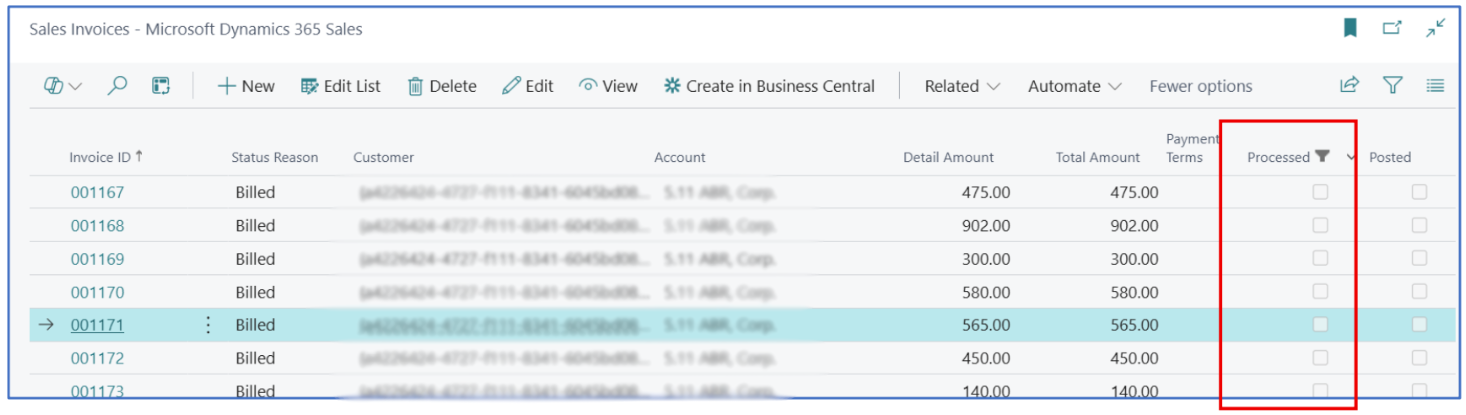
If the invoice in the staging table is Processed, the invoice should not be edited in Dynamics 365 Sales; doing so will result in an integration error with the edits.
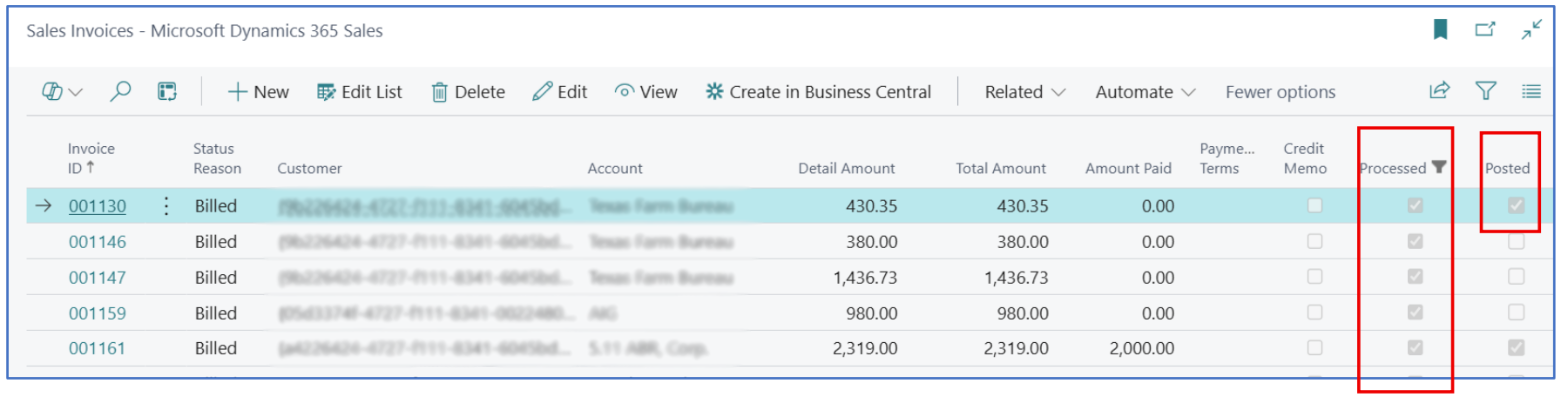
When the invoice in the staging table is Processed, the Dynamics 365 Sales invoice must be reversed with a credit note. This is done by creating a credit note against the sales invoice in Dynamics 365 Sales. The Dynamics credit note creates a negative value transaction into the Business Central staging table which is processed in Business Central as a credit memo to offset the original invoice (i.e. cancelling the invoice).
Example:
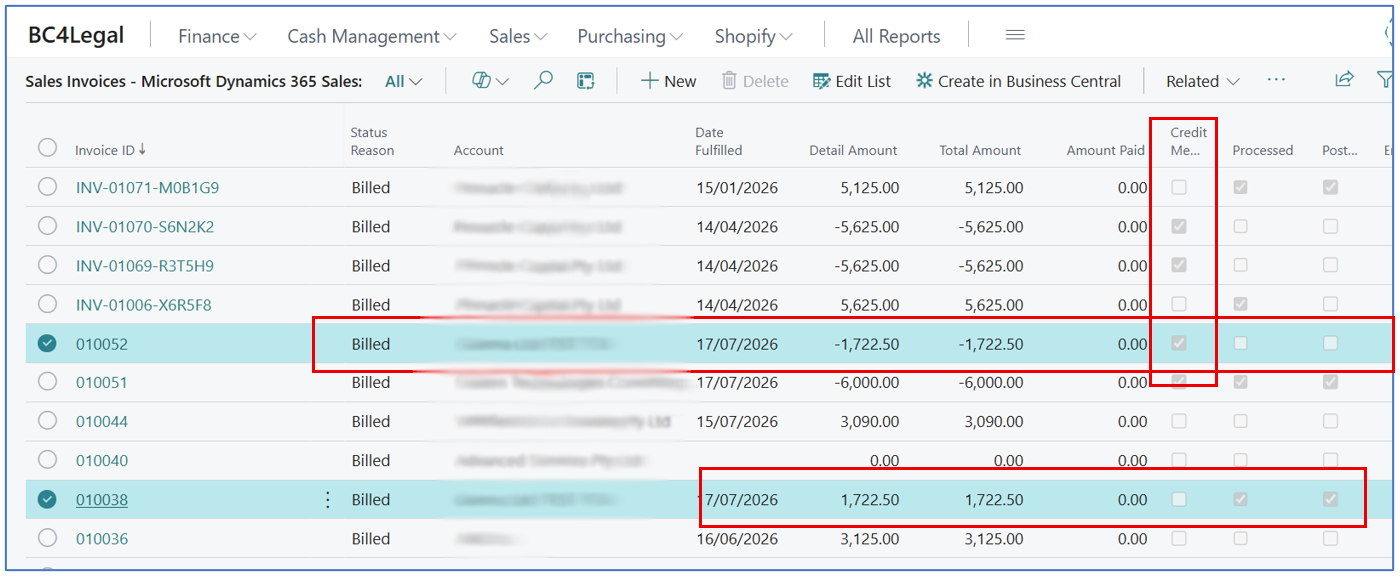
When the credit note is processed through Create in Business Central, the unposted sales credit memo page will pop-up for posting.
Before posting, edit the credit memo header fields to apply this credit memo against the original invoice. (Update the reason code for the credit memo)
-
Applies-to Doc. Type — Select Invoice.
-
Applies-to Doc No. — Click the 3-dot menu to open the Apply Customer Entries page and select the invoice to offset.
Example:
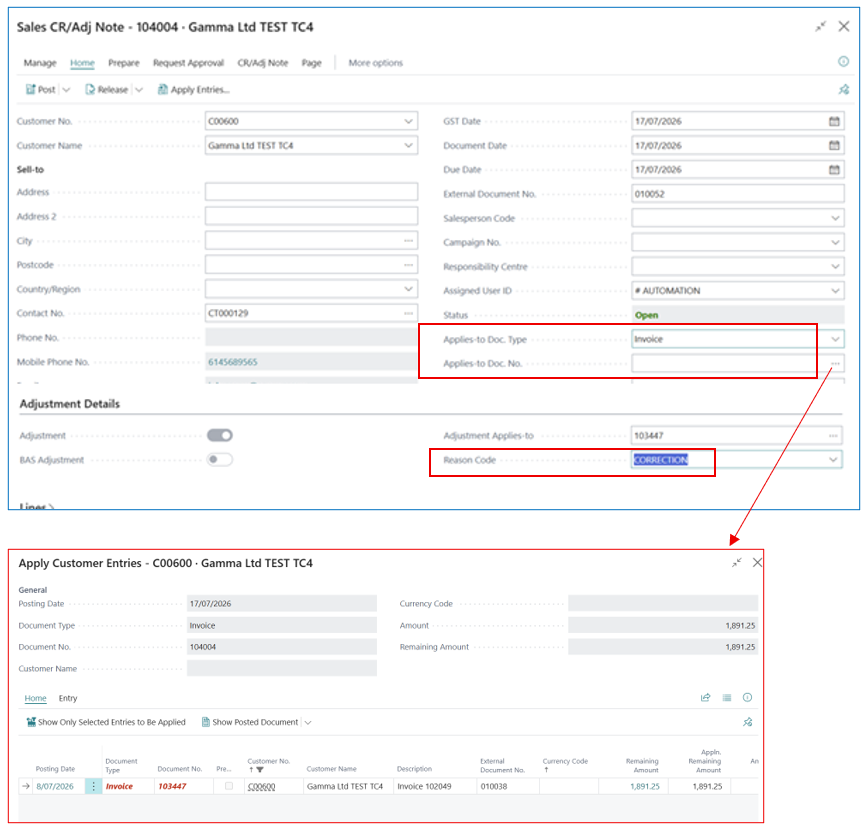
NB: If the credit memo is not manually applied against the invoice at the time of creation, it can be processed into Business Central as an unposted document. The posting of the original invoice and the credit memo in Business Central will update these transactions into the customer ledger for subsequent offsetting (i.e. Applying the credit memo to the invoice).
Customer Payments
Customer invoice payments are processed in Business Central using manual Cash Receipt Journals or Payment Reconciliation Journals (if using bank feed). There is an optional method of creating cash receipt journal lines by using the processed and posted in Dynamics 365 Sales invoices in the staging table.
Search and navigate to Sales Invoices > Microsoft Dynamics 365 Sales list page. For those integration invoices with Processed and Posted flags enabled, the transactions will be added to another custom table for cash receipt processing (D365 BC Invoice Details).
Example:

Search and navigate to D365 BC Invoice Details to open the list page showing all processed and posted sales invoices.
Example:
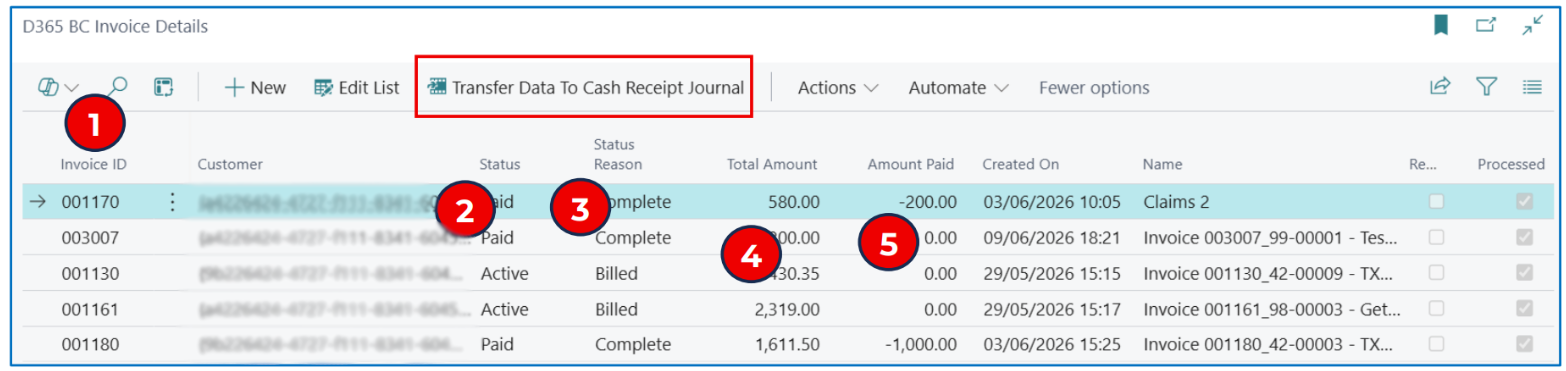
-
Invoice ID — The Dynamics 365 Sales invoice number.
-
Status — Active indicates Billed invoice and Paid indicates payment received against the invoice.
-
Status Reason:
a. Billed — Indicates that the invoice is also posted in Business Central (but not paid).
b. Complete — Indicates that the invoice has full payment (Status is also “Paid”).
c. Partial — Indicates that the invoice was partially paid.
-
Total Amount — Original sales invoice amount.
-
Amount Paid — Displays the posted cash receipt amount applied to the invoice.
For the invoices where Processed flag is unchecked, click the Transfer Data to Cash Receipt Journal menu option to create a Cash Receipt Journal line for the selected invoice. In the resulting cash receipt journal, use Apply Entries menu option to apply the payment against the invoice.
Example:
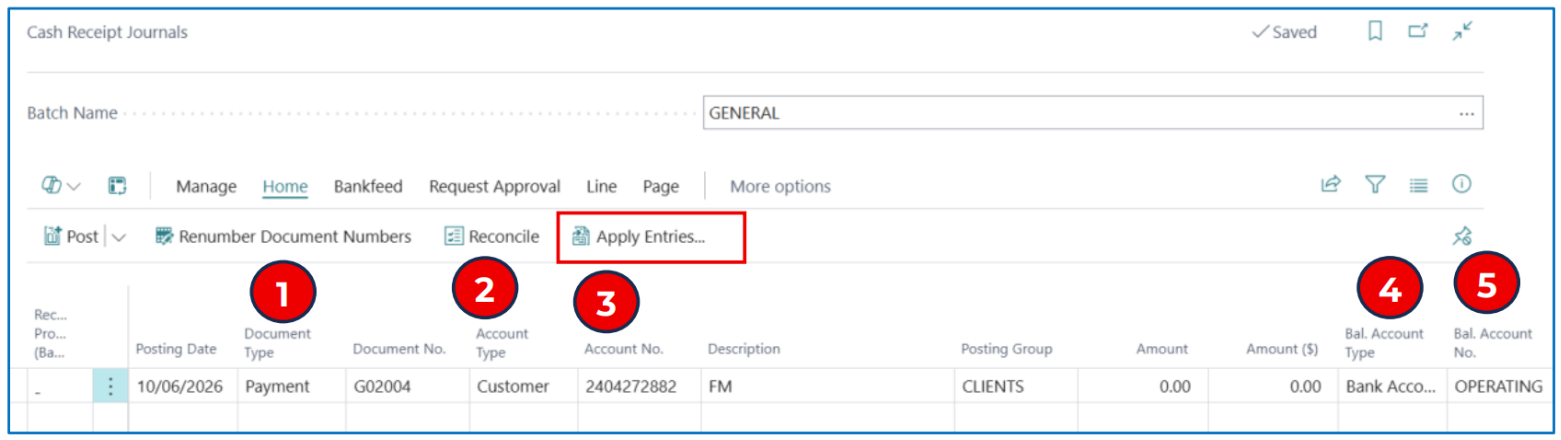
Key fields:
-
Document Type — Select Payment.
-
Account Type — Select Customer.
-
Account No. — Select the customer code (customer who paid for invoices).
-
Bal. Account Type — Select Bank Account if the money has been deposited in the bank.
-
Bal. Account No. — Select the bank account code to post this payment.
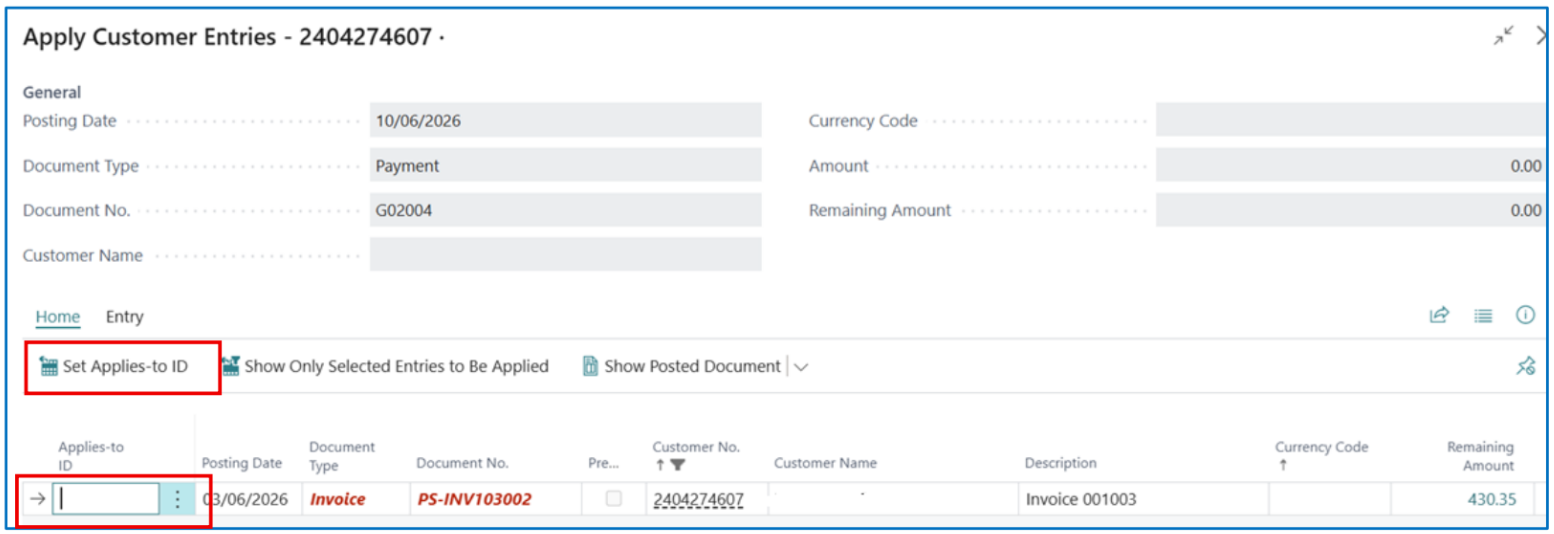
For the amount field, use menu option Home > Apply Entries to match posted sales invoices.
This opens the Apply Customer Entries form to select posted sales invoices.
Example:
-
Select one or more invoices and click on Set Applies To ID. This inserts the payment document number in the Applies to ID field.
-
The system cumulates the invoice amounts (for each applied invoice) and presents the total applied/offset amount in the cash receipt journal line (as a negative value).
-
The External Document No. field displays the invoice number from Dynamics 365 Sales.
Example:
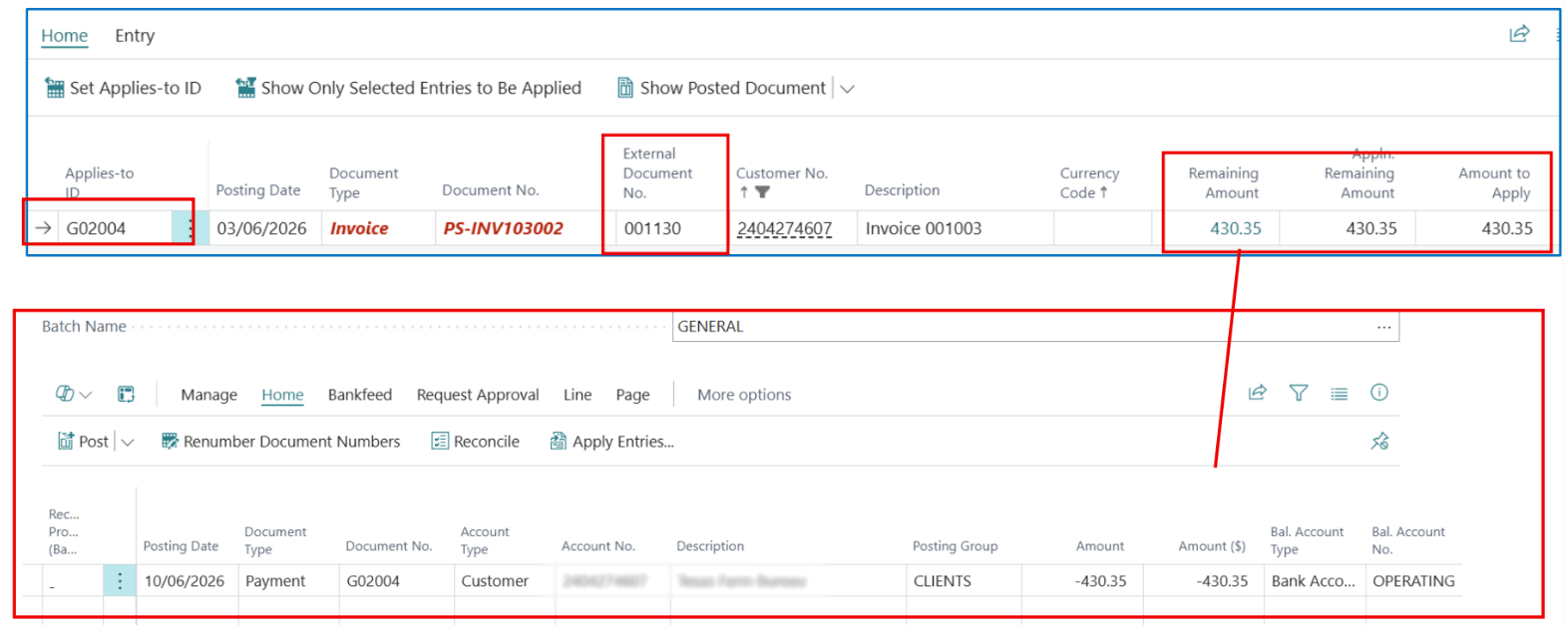
-
Posting the Cash Receipt Journal confirms that the invoice is paid (note that the Amount to Apply equates to the invoice total balance).
-
The integration will update Dynamics 365 Sales invoice status as Paid and a status reason as Complete.
Partial Payments
If a customer partially pays the invoice and is captured in the Payment Journal with partial offset to the applied invoice, there will be an invoice Remaining Amount in Business Central. The integration will update the Dynamics 365 Sales invoice with a Status of Paid and a Status Reason of Partial.
Example:

| Invoice | Status | Status Reason | Processed | Comment |
|---|---|---|---|---|
| 003009 | Active | Billed | Uncheck | Use “Transfer Data to Cash Receipt Journal” to create a receipt |
| 001130 | Paid | Partial | Checked | Partial payment made against the invoice. Amount paid ($130.35) less than invoice amount. |
| 001161 and 001172 | Paid | Complete | Checked | Full payment made against the invoice. Amount paid = Total amount |
Customer Underpayment with Write-off
When applying customer payments to sales invoices in Business Central, there may be occasions when underpayment is encountered and this amount is written off.
This is done through Payment Tolerance — the write-off limit being defined in General Ledger Setup.
Example:
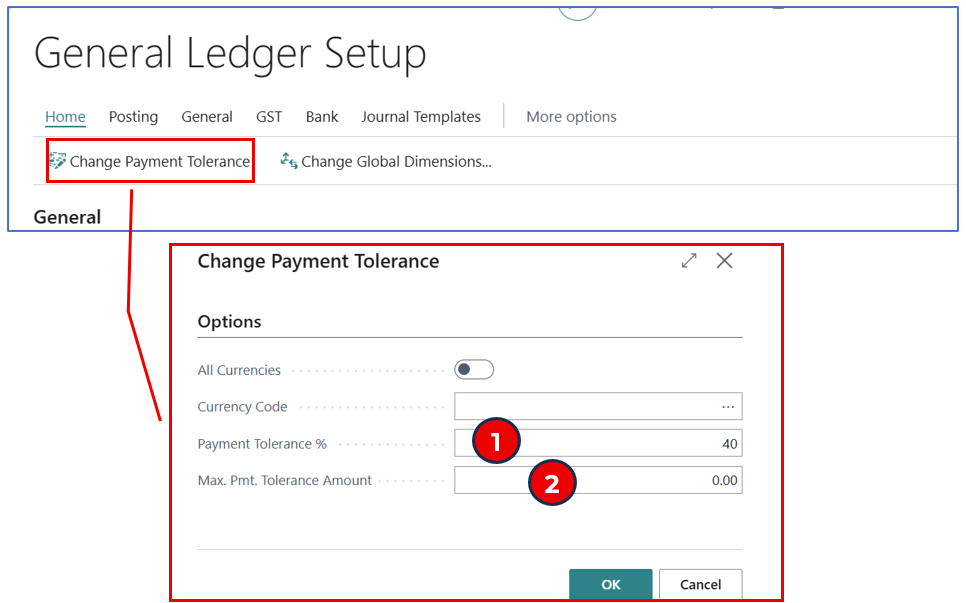
The limit for write-off amounts during the invoice application is either:
-
A defined % of the sales invoice.
-
A maximum defined amount for the write-off.
Write-off underpayment during Invoice Payments
When applying a customer payment against a sales invoice (e.g. Cash Receipt Journal), the system will prompt for the decision on the underpayment.
Example:
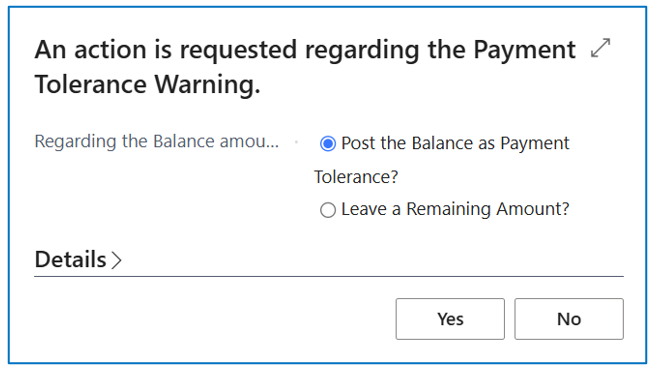
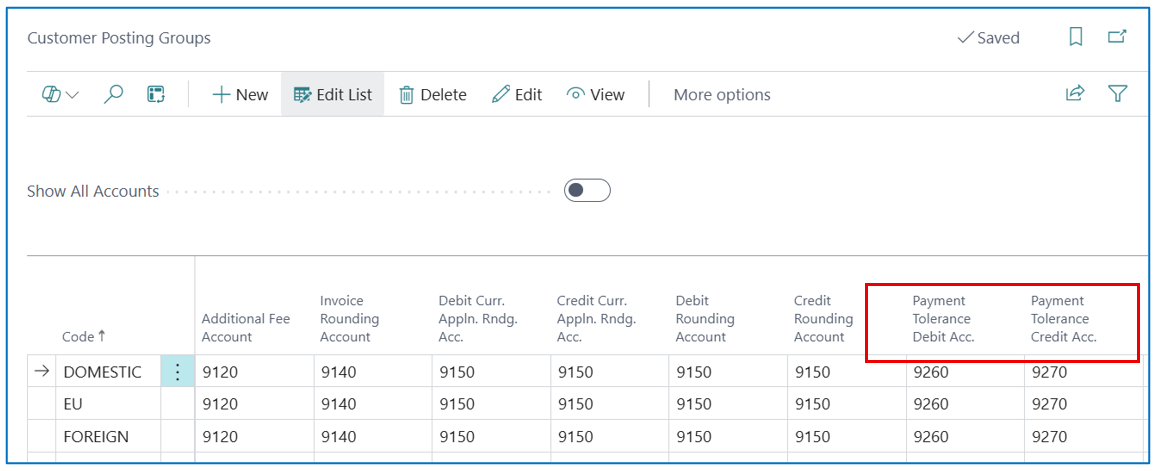
Select Post the Balance as Payment Tolerance to post the underpayment to the Payment Tolerance account defined in Customer Posting Group setup.
NB: This account can be the write-off account.
Example:
Disbursement Expense Processing
When there’s a disbursement expense created from within any Matter in Dynamics 365 Sales, this expense needs to be identified with an existing synchronized vendor. When the Matter expense transaction is saved, there is a job queue that creates a Purchase Invoice against the coupled vendor in Business Central.
The unposted purchase invoice will have the Vendor invoice number as External Reference. The purchase invoice can be posted to update the vendor ledger and the designated purchase account in the General Posting Setup.
Written By:
Peter Loo
Team Leader, Business Central
Connect on LinkedIn