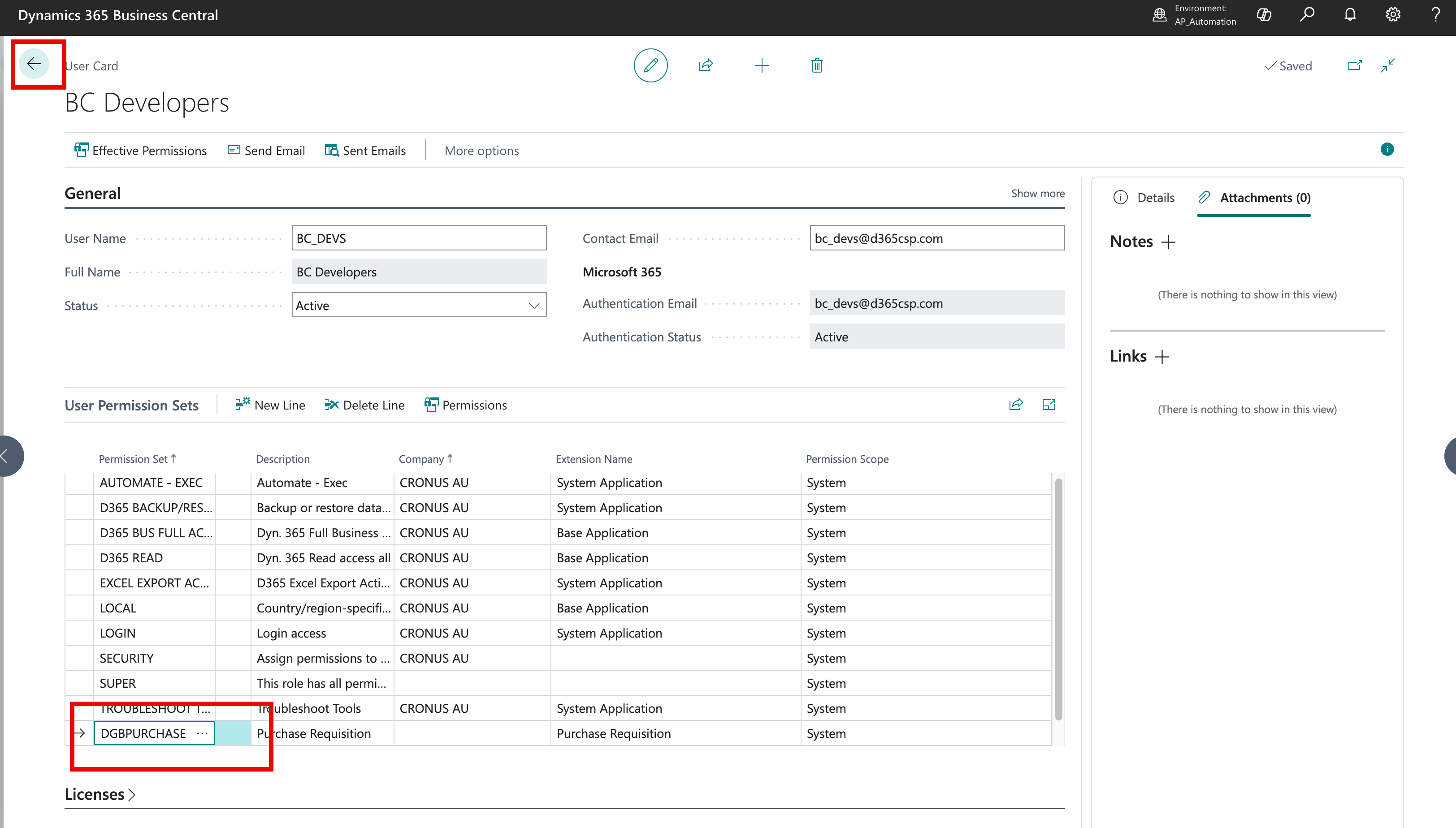
Assigning Permissions for Custom Apps in Dynamics 365 Business Central
Introduction
In this tutorial, we will explore how to assign permissions for d365.Global custom apps from the Microsoft Marketplace in Dynamics 365 Business Central. Custom apps are extensions that enhance the functionality of Business Central, and it’s crucial to ensure that users have the appropriate permissions to access and use these apps effectively.
Steps
-
After installing any d365.Global app from Microsoft Marketplace, particular users who need to access those apps, needs to be assigned a particular permission set.
-
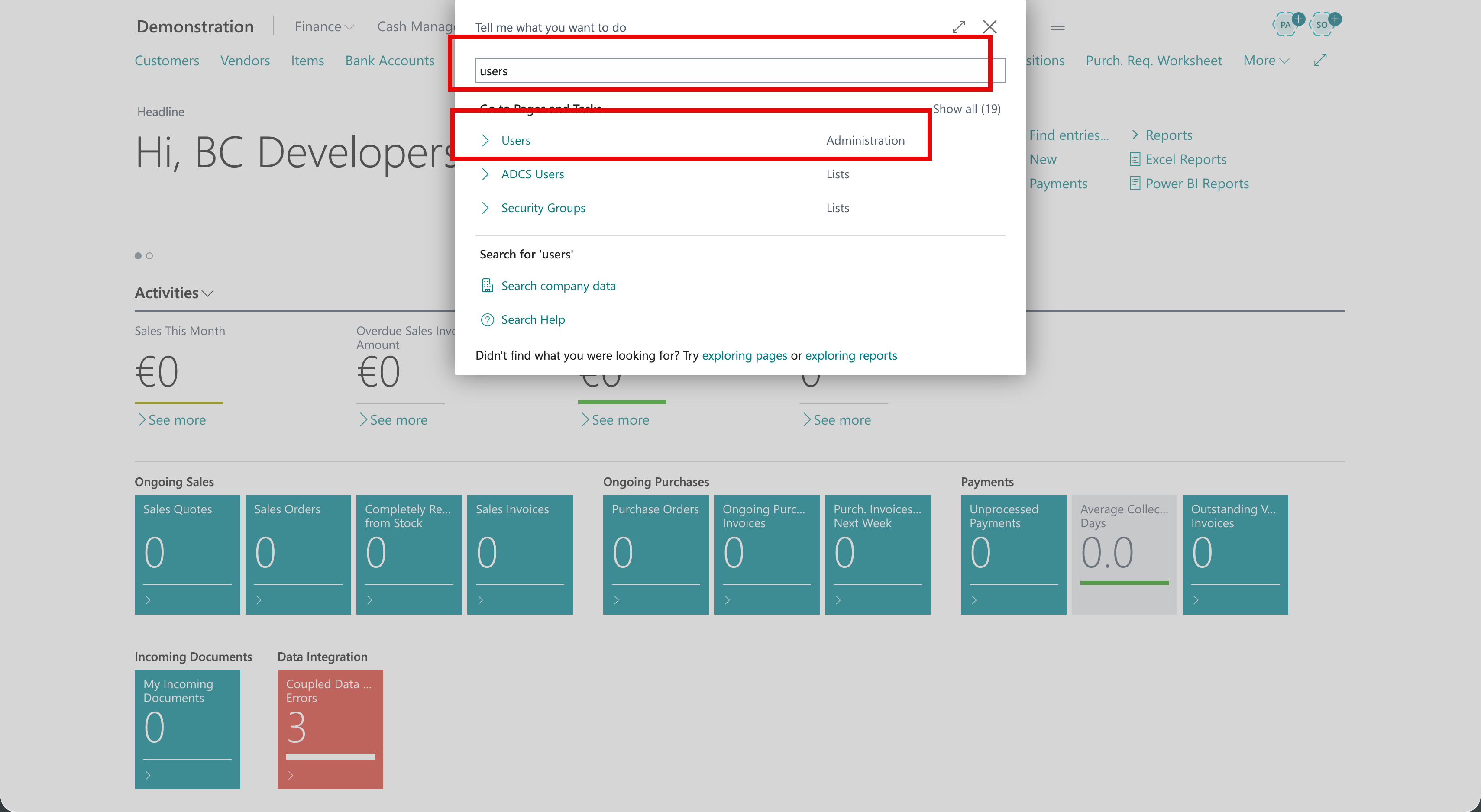
To do so, please open the user card, by searching for Users.
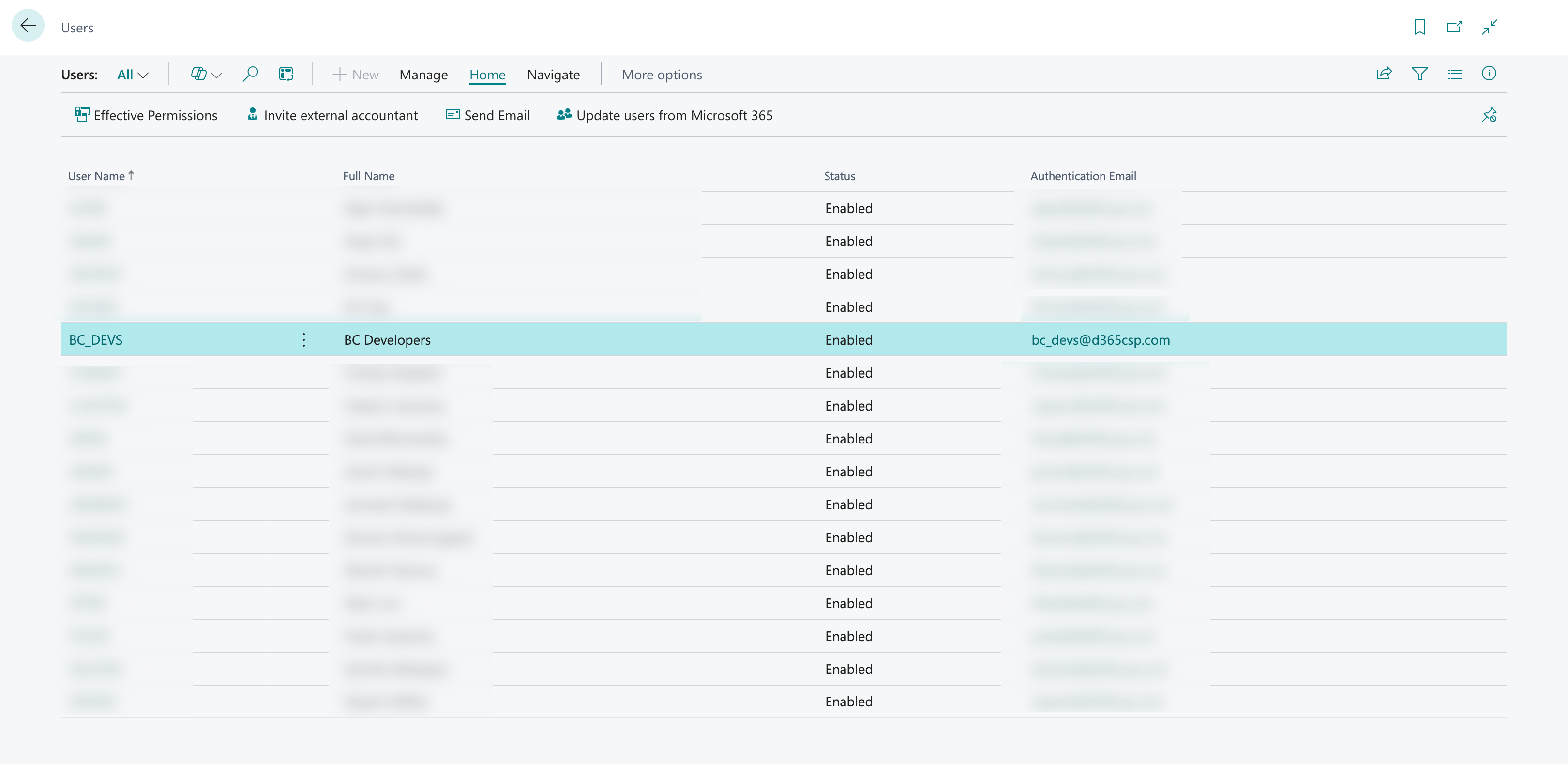
- Now open the user to whom you need to assign the permissions. In this example we are taking the permission for the Purchase Requisition App.
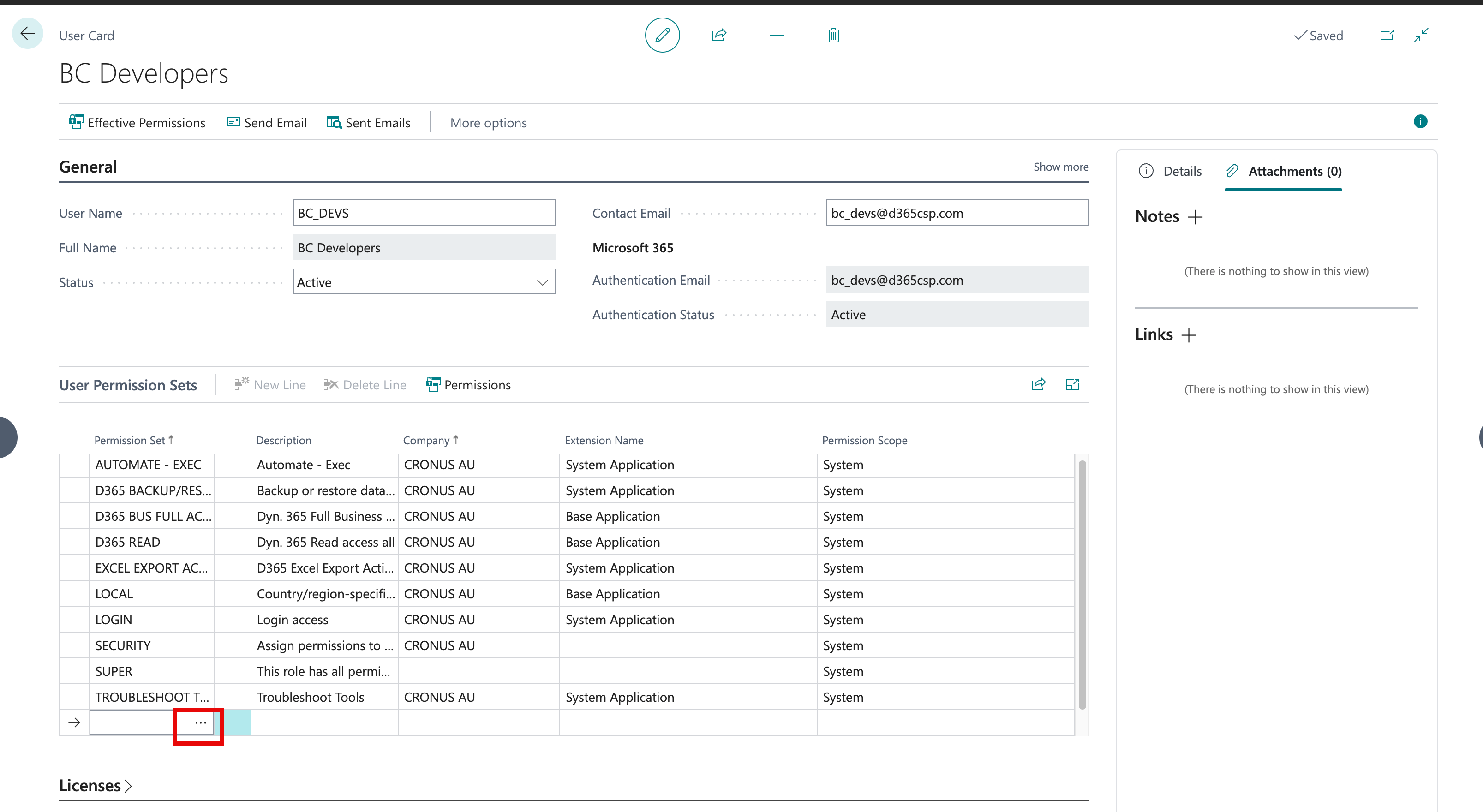
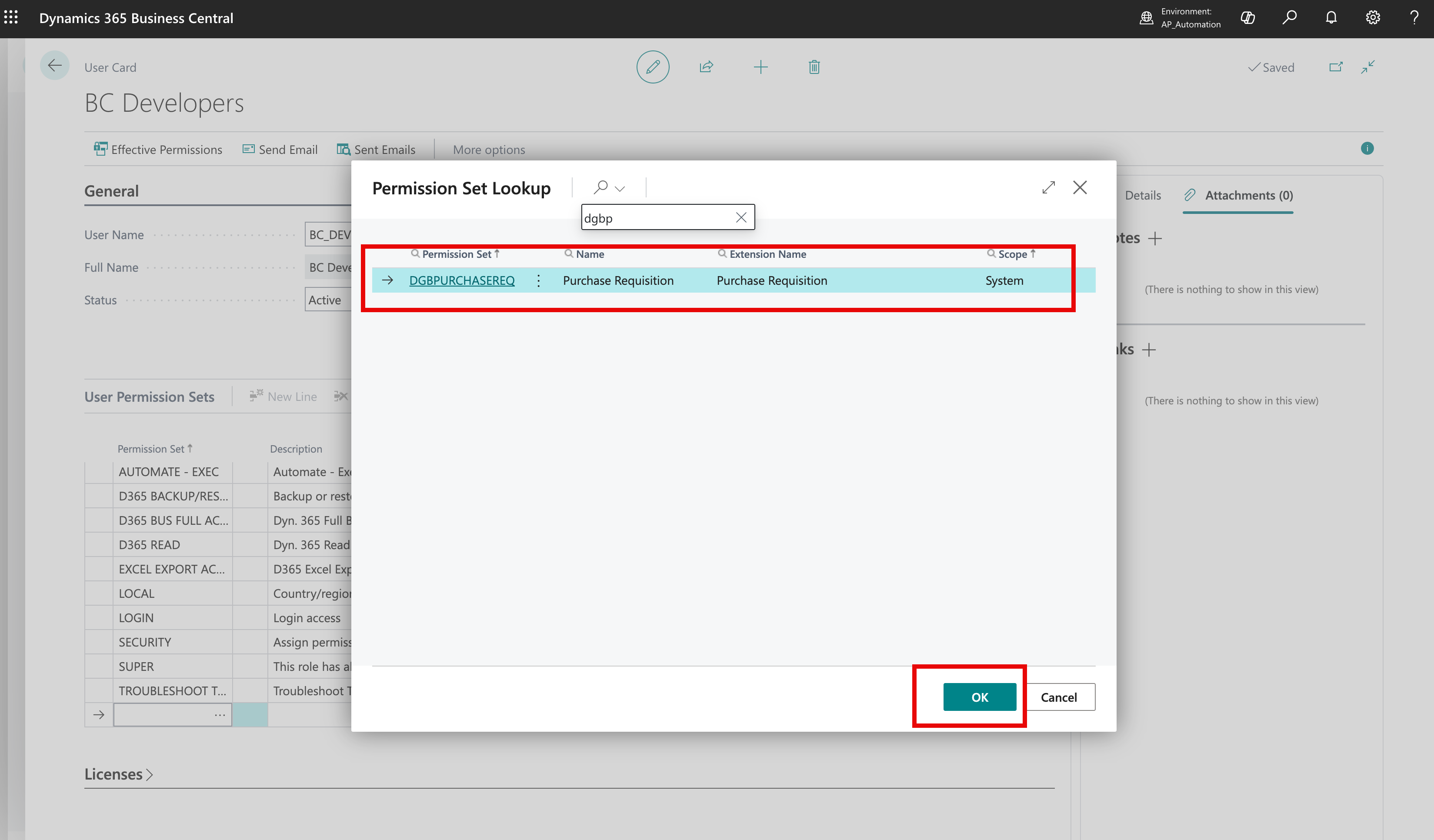
- Open the user card and assign a permission. Click on the three dots (ellipsis) for system to open all the permission sets available to select.
- Now search for DGB and it will bring up the Purchase Requisition Permission. Select that and assign it to the user.
-
In the scenario where we have more than one d365.Global app installed you might see more permission sets. Select the appropriate one for the user as per system policy.
-
Once assigned, go back and that user will be able to access the Purchase Requisition Module.