Tips In Managing Customers/Vendors in Dynamics 365 Business Central
Linked Customer and Vendor (Related)
There are occasions when the customer is also a vendor, but in Business Central, these must be created as separate Customer and Vendor accounts. The Customer account is used for invoicing sales, while the Vendor account is for purchase invoicing.
e.g. Company B supplies parts to Company A but also purchases resale equipment from Company A.
Customer and Vendor Balances
Each account type will have respective balances from sales and purchase transactions.In the example, when Company B supplies parts to Company A, it is a vendor to Company A.
When it purchases resale equipment from Company A, it is a customer of Company A. In Company A’s records, Company B is both a vendor and a customer.


Creating a Vendor Account from a Customer Account
If the company created Customer B initially as a customer account, it can subsequently create an “associated” vendor account using the company default Contact.
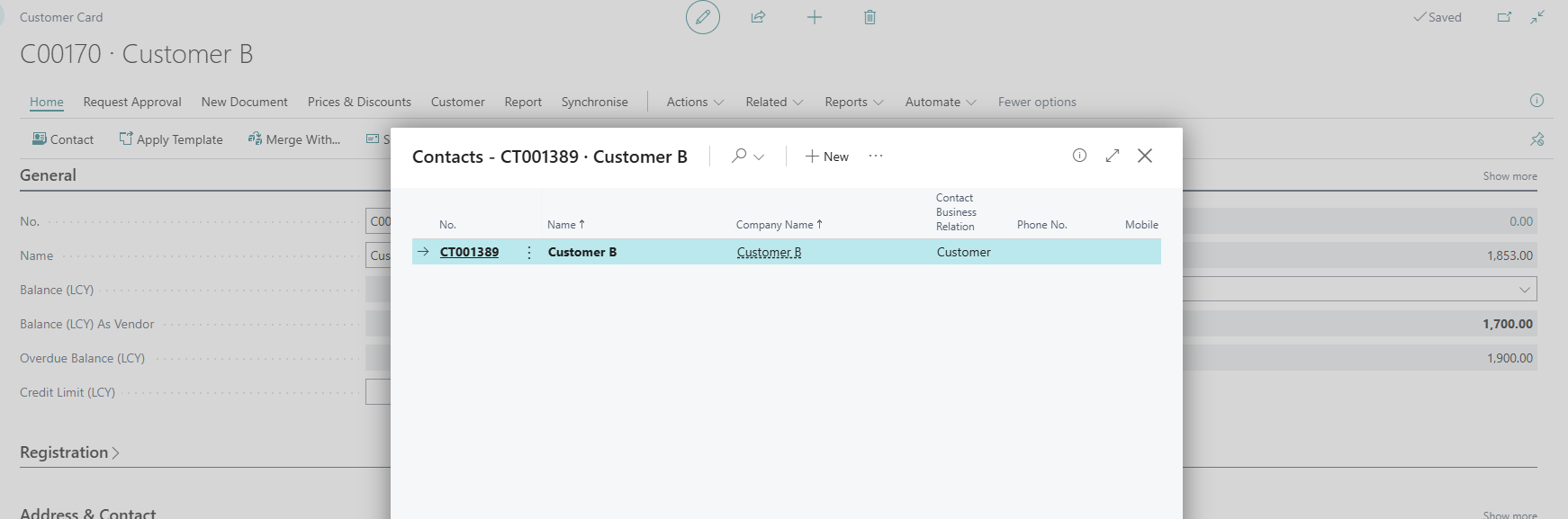
Open the Contact card of the default company contact.
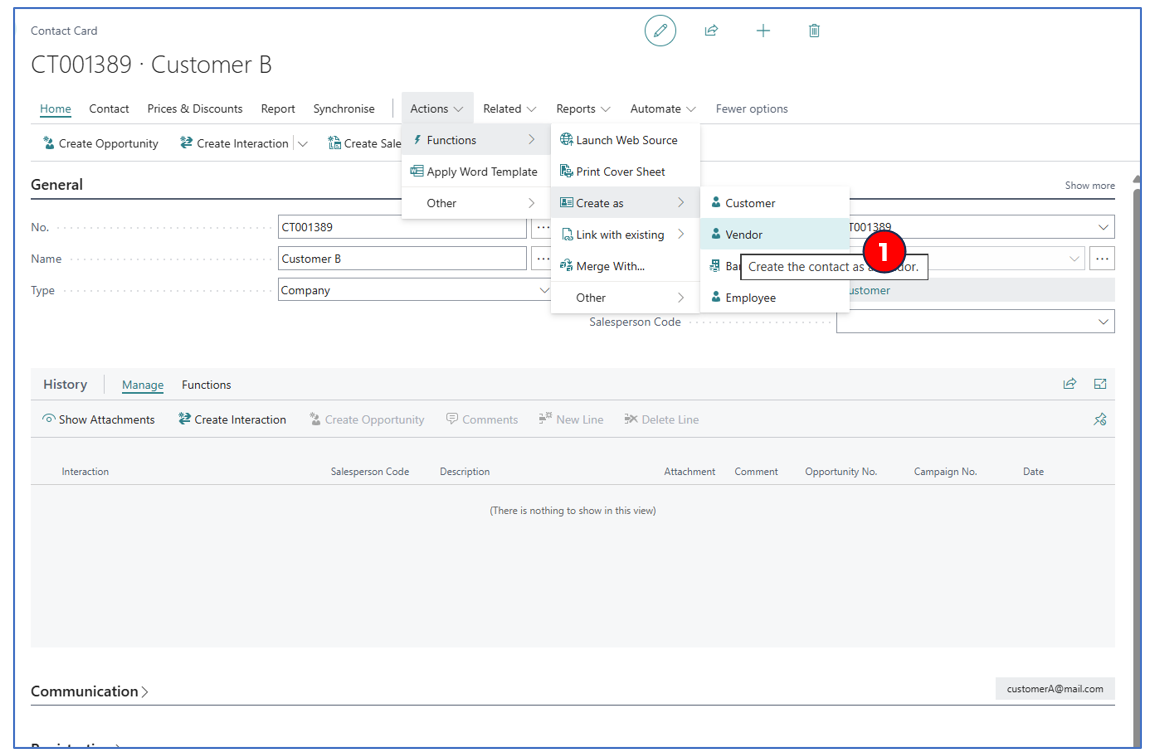
- Navigate Actions > Functions > Create as > Vendor to create a vendor card
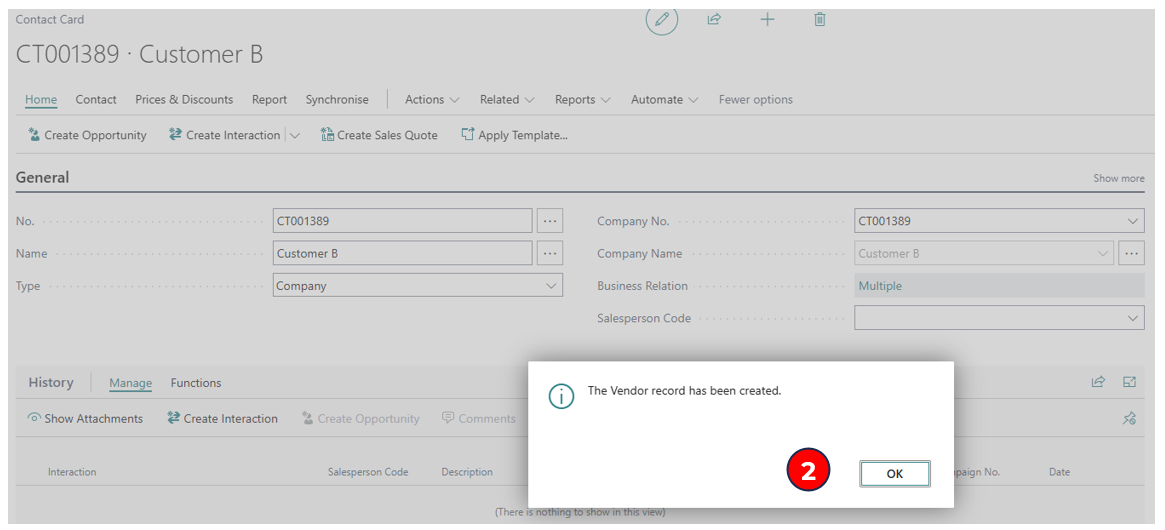
- Confirmation that the vendor account has been created and linked to the customer account.
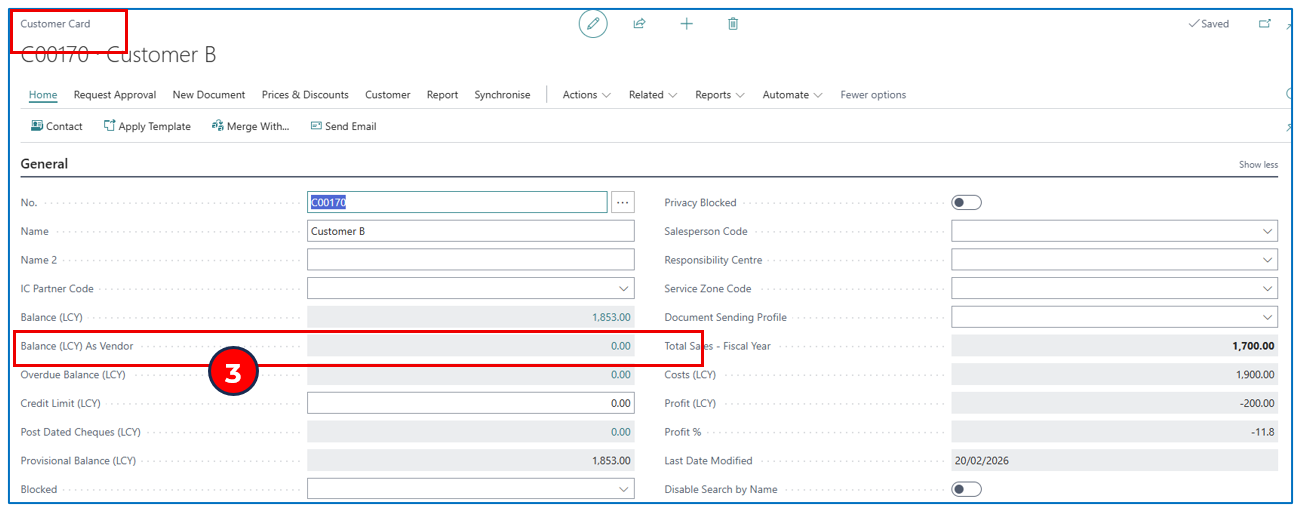
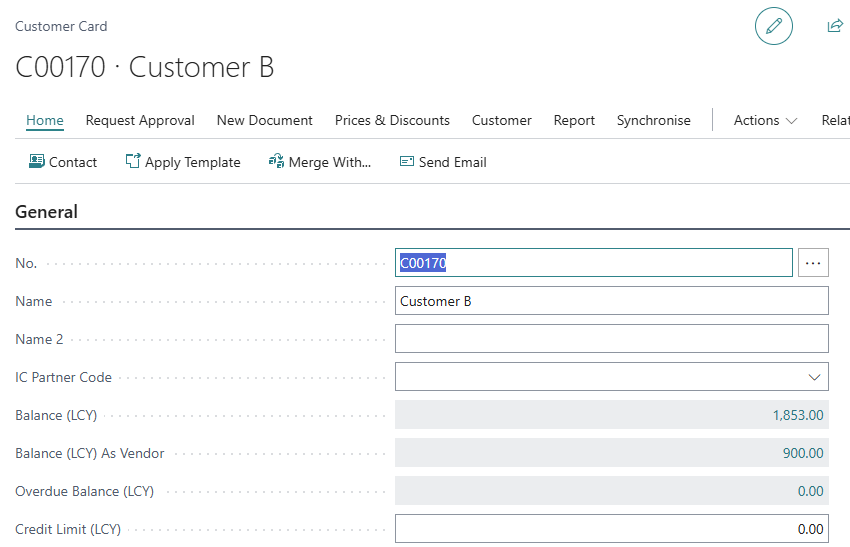
- In the Customer card, there’s a new field Balance (LCY) As Vendor — this displays the balance from the company linked as the vendor.
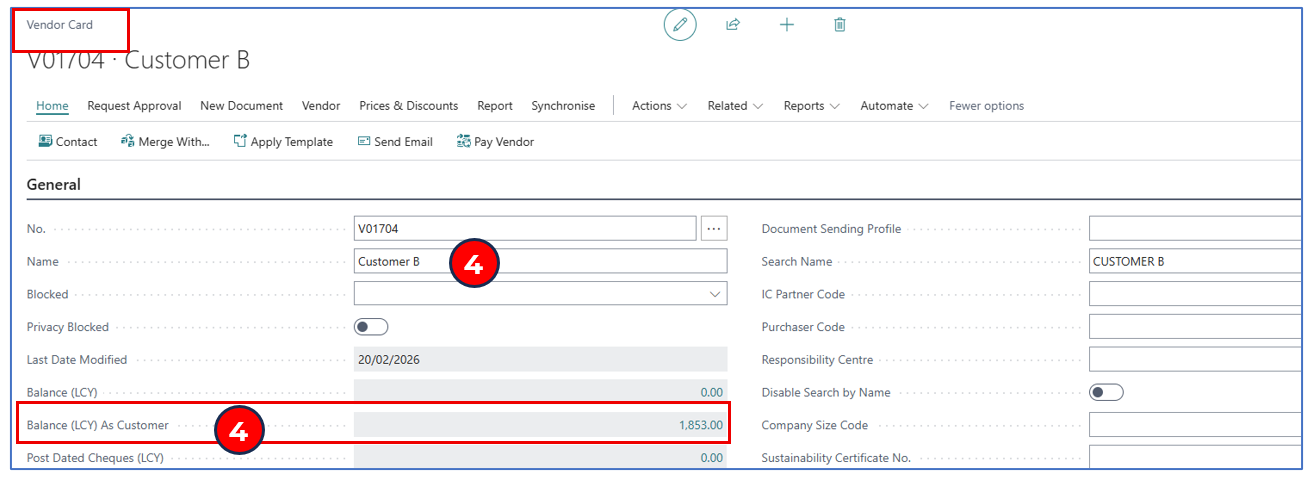
- The new vendor account shows the name of the customer (Customer B) and a new field Balance (LCY) As Customer is available.
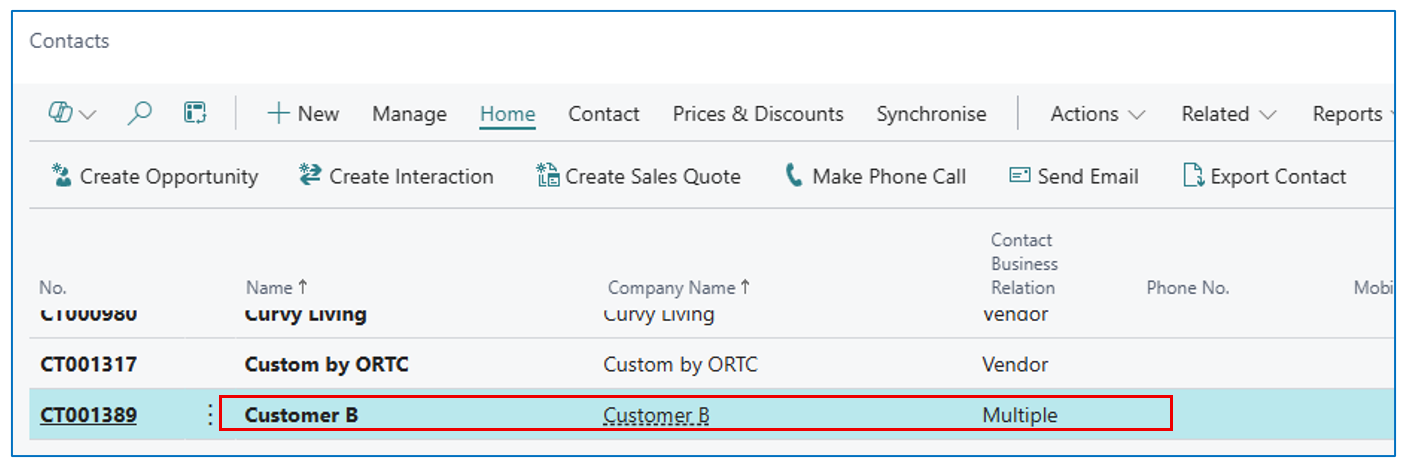
- The Contact that has been created as customer and as vendor will display a Contact Business Relation as Multiple.
Creating a Customer Account from a Vendor Account
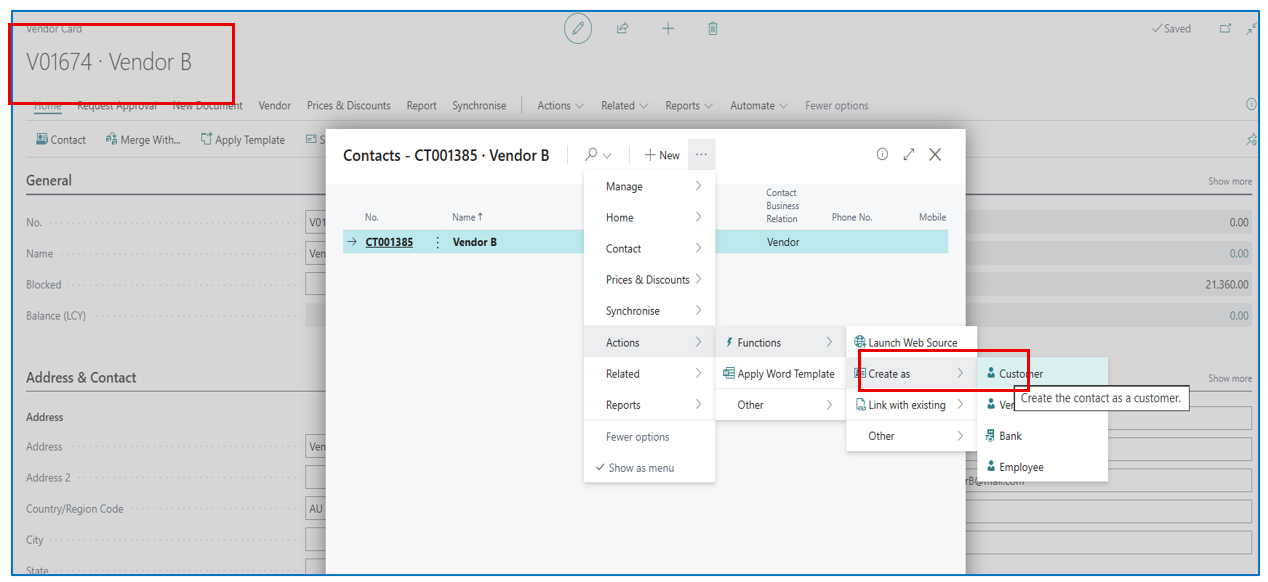
The same steps (above) are taken to create an associated Customer Account from the Vendor card.
This can also be done through the contact list page — example:
Consolidating Balances of Customer and Vendor
To consolidate the balances of both the customer and vendor, we use Net Customer/Vendor Balances in Payment Journal.
Example:
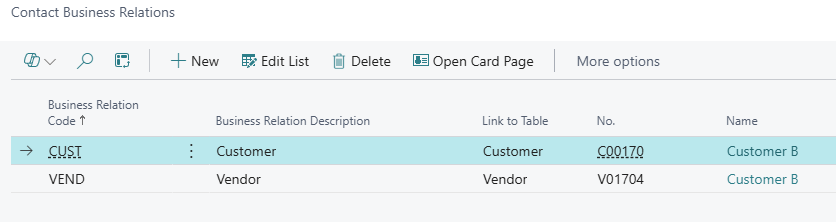
For a Contact with Multiple Business Relation, click on the Business Relation field to view the linked customer and vendor accounts.
View balance from the Customer account:
View balance from the Vendor account:
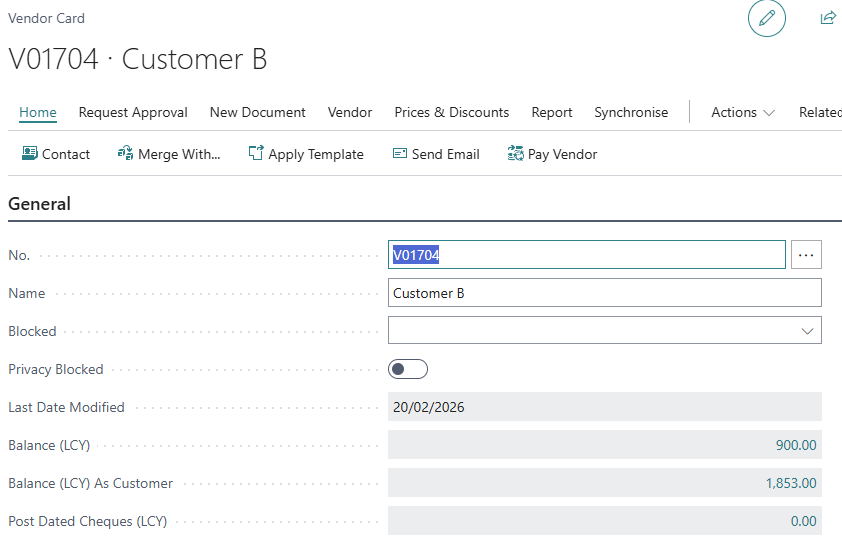
The Net amount in the example ($1,853 - $900) — DR balance of $953.
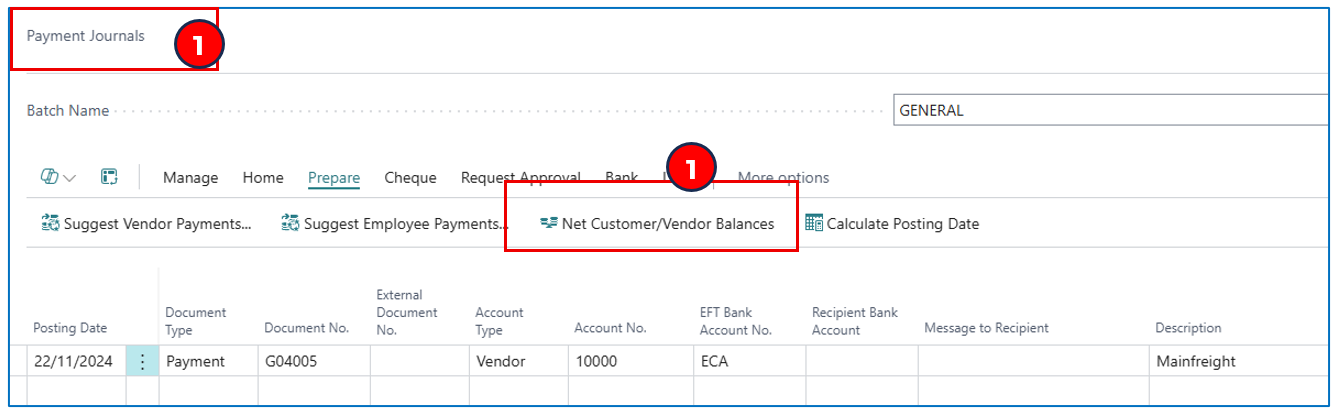
- Select Net Customer/Vendor Balances in Payment Journal.
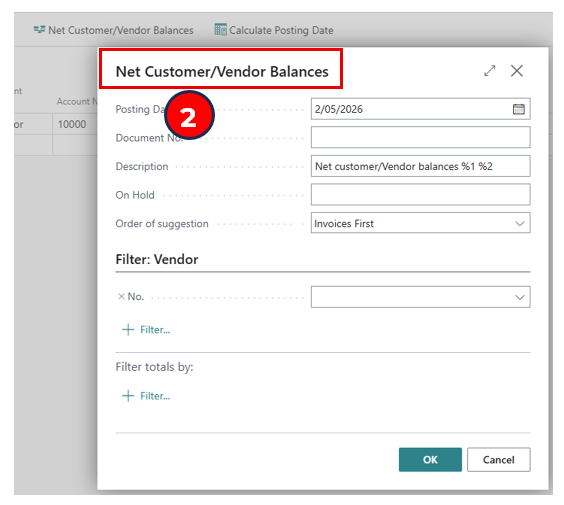
- The runtime pop-up has optional filters for selecting records. If the filters are not used, the process will compute and evaluate all customers and vendors for the combined balances.
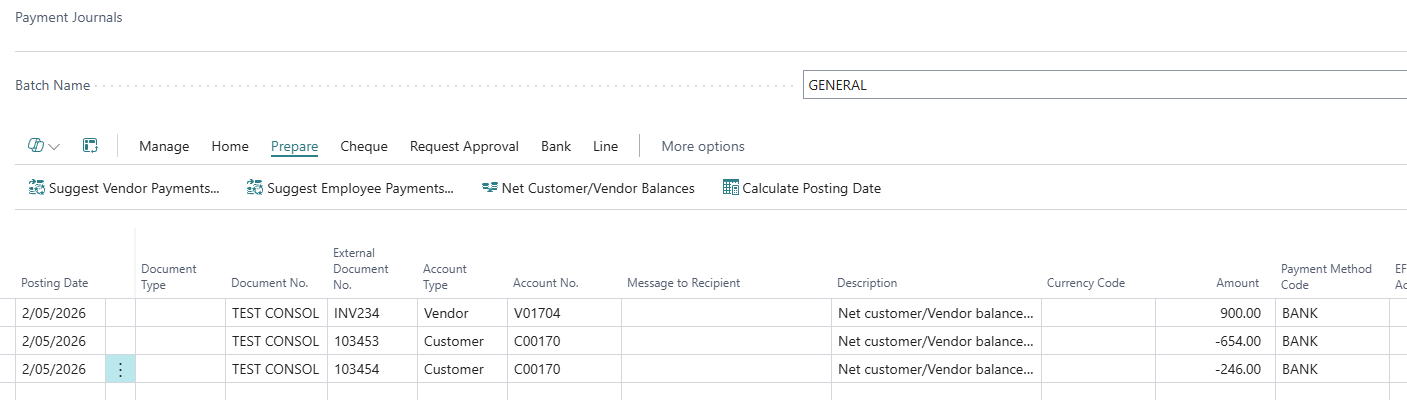
- On completion, any customer/vendor accounts that are linked will be displayed (as example). The entries can then be posted to offset customer balance with the linked vendor balance.
Written By:
Peter Loo
Team Leader, Business Central
Connect on LinkedIn