Finance Basic User Training Guide for Dynamics 365 Business Central
Financial Reports
Financial Reports comprise mainly Balance Sheet and Income Statement. Using the reporting tool in Business Central, the formats of these reports are user-defined.
Each report has a Row Definition combined with a Column Definition.
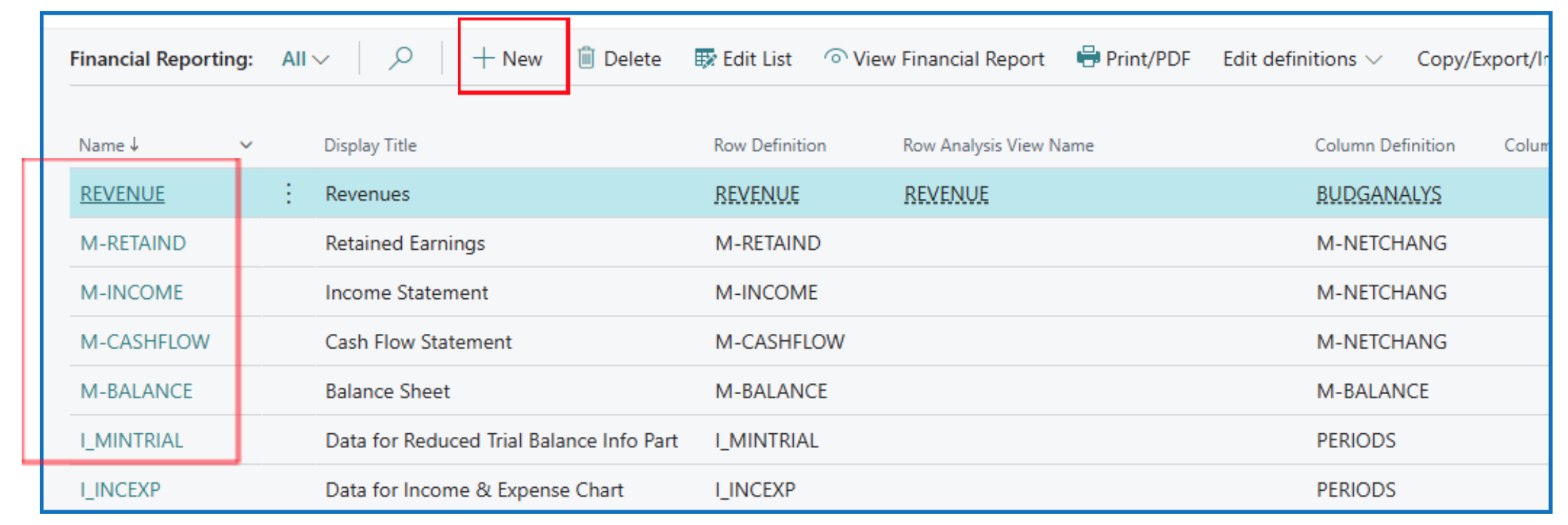
Navigate to Financial Reporting list page using menu option Finance > Financial Reporting,

The list of financial reports is displayed. Select the Report Name code to view an existing report or select New to create a new report.
Row Definitions
The Row Definition of a report specifies the row label and amount to display.
The row can be a title (label), a value row extracting the posted balance for one or more accounts, or a totaling row.
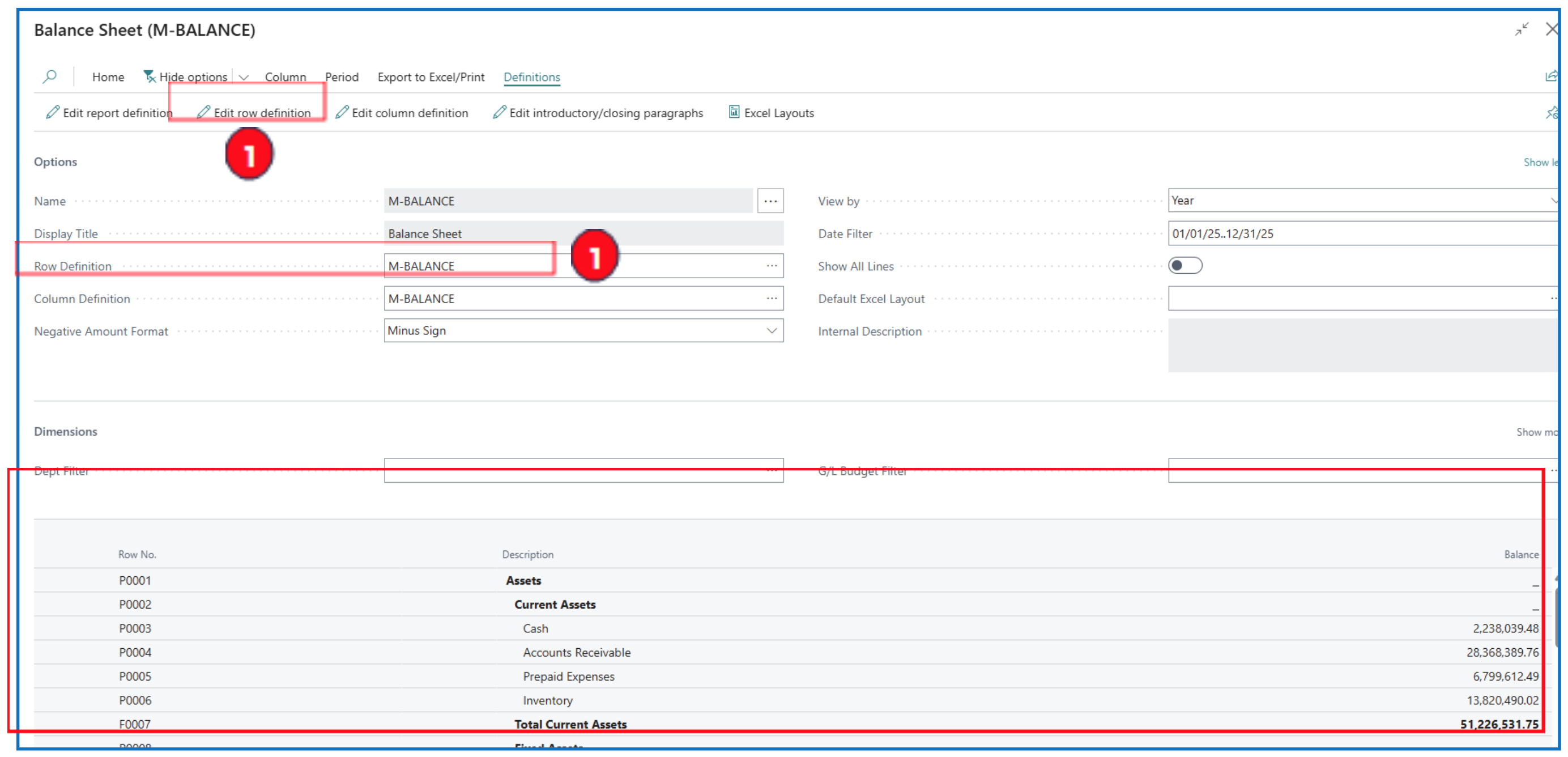
Accessing the Row Definition list page:
- From an existing report, open the report and select menu option Definitions > Row Definition or click on the ellipsis in the Row Definition field.
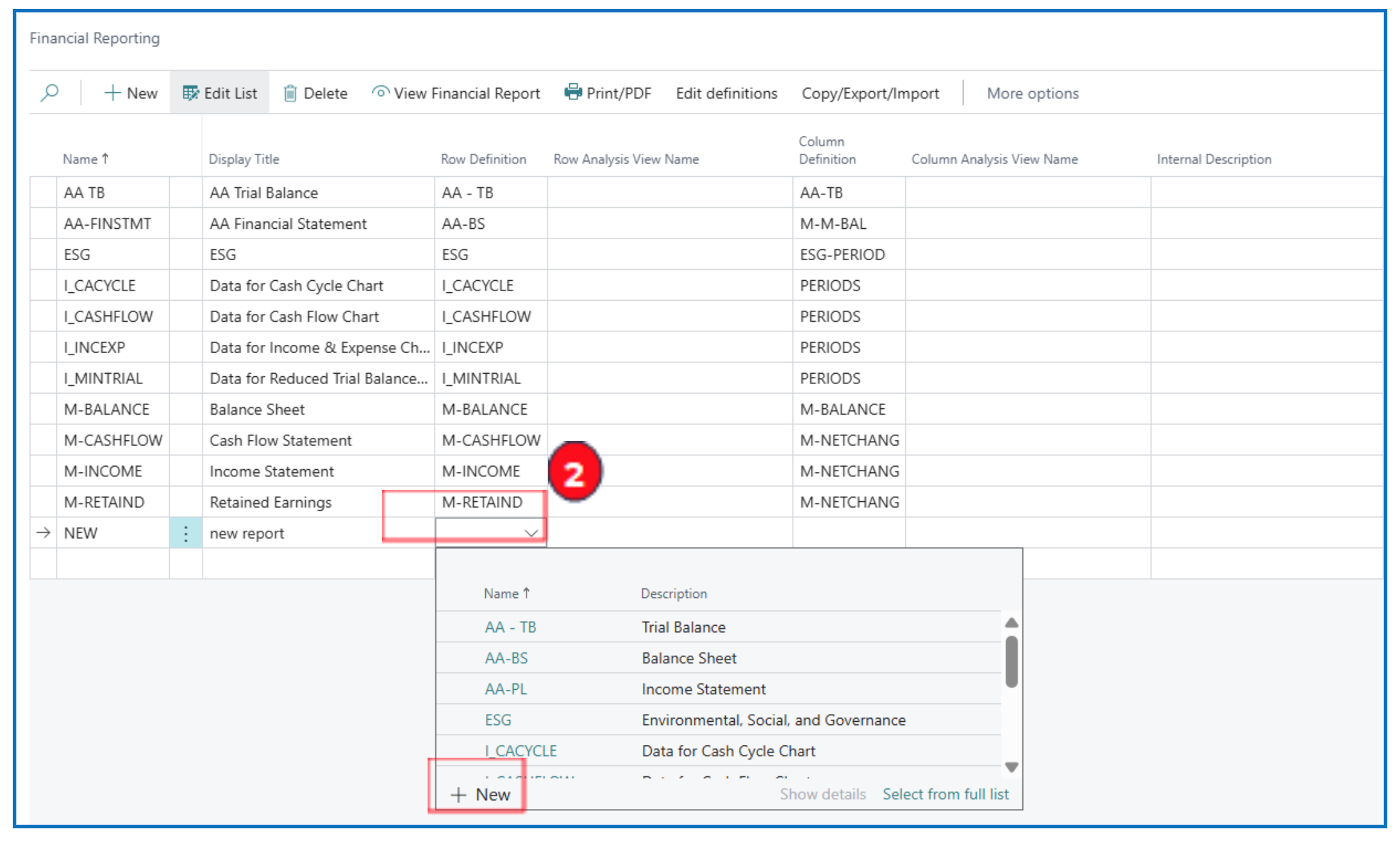
- From a New Report, select from the Row Definition column or create a new definition.
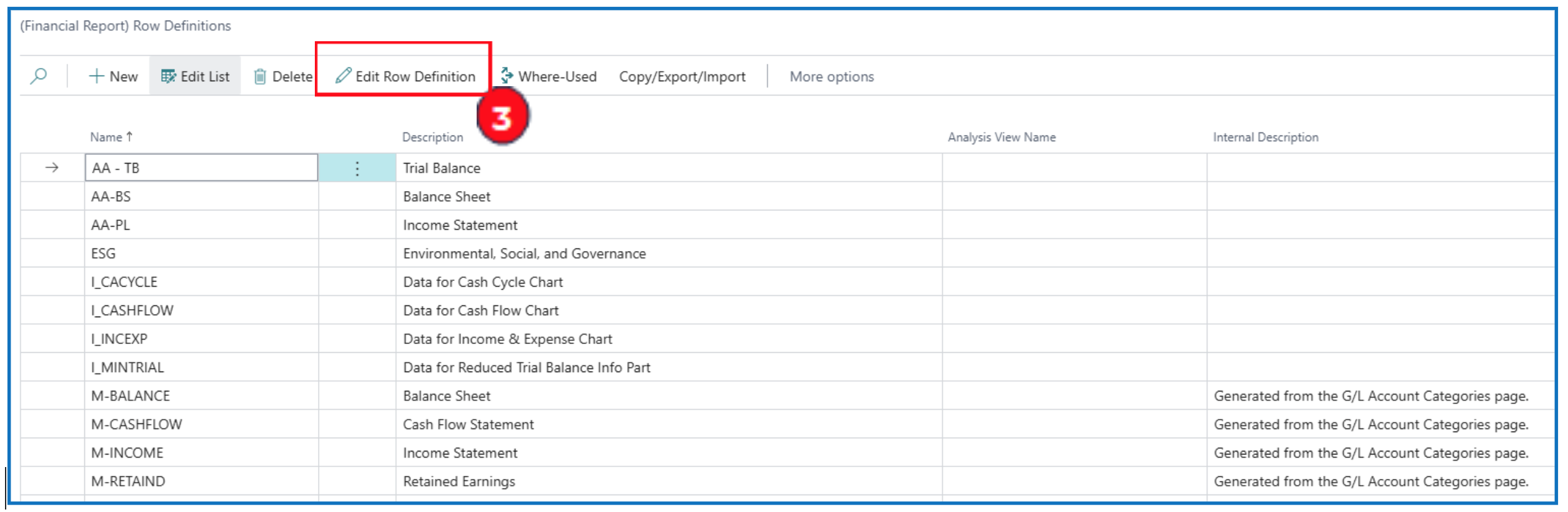
- Navigate to Row Definitions list page through search and select
Edit Row Definition to edit the definition.
NB: Best practice is to copy an existing row definition to revise.
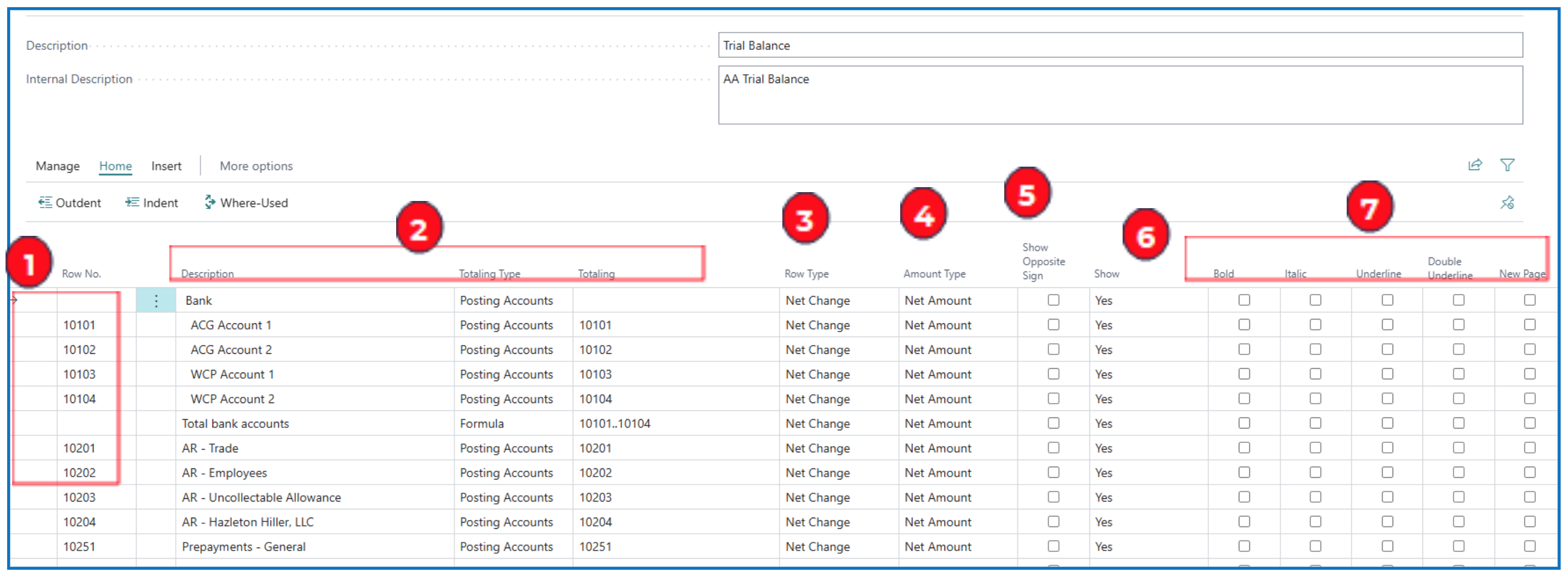
On the Row Definition page,
-
Row No. — Enter a row number for each row.
Use Insert G/L Accounts to select G/L accounts to add to the row definition.
If this is selected, the G/L Account List page will open for account selection. Selected account codes will also populate column Row No..
-
Description, Totaling Type, Totaling — Enter the Description to display for this row and select the Totaling Type.
For Posting Account, enter the G/L account code in Totaling column. This will allow display of the account balance for this row.
For Total Accounts, enter the formula for computing the total (based on row no.) in Totaling column.
For Formula, enter the calculation formula in Totaling column.
-
Row Type — Select a type of value to display for the row.
a) Net Change — Movement posted for the period (based on posting date).
b) Balance at Date — Account amount balance as at a selected date.
c) Beginning Balance — Beginning balance for the selected period.
-
Account Type — Select either:
a) Net Amount — Net of debits and credits posted.
b) Debit Amount — Displays only debit amount.
c) Credit Amount — Displays only credit amount.
-
Show Opposite Sign — Tick this checkbox to display the row amount with an opposite sign.
-
Show — Select Yes to display the row. Other display options can be selected.
-
Bold, Italic, Underline, New Page — These are formatting options for the selected row.
For more information on Row Definition: Visit Microsoft Learn
Column Definitions
The Column Definition of a report specifies the column label and financial period type to display.
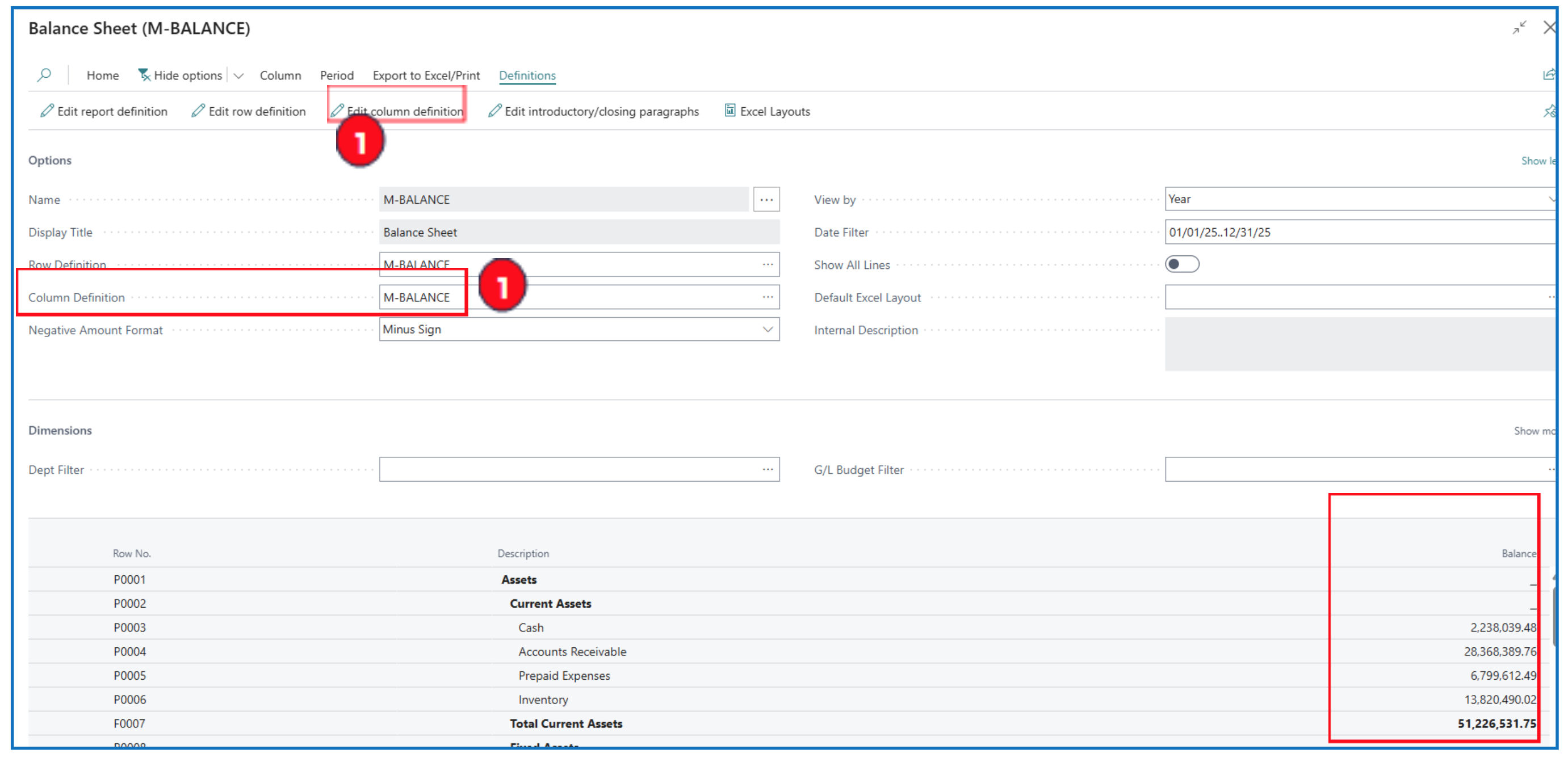
Accessing the Column Definition list page:
-
From an existing report, open the report and select menu option Definitions > Column Definition or click on the ellipsis in the Column Definition field.
-
From a New Report, select from the Column Definition column or create a new definition.
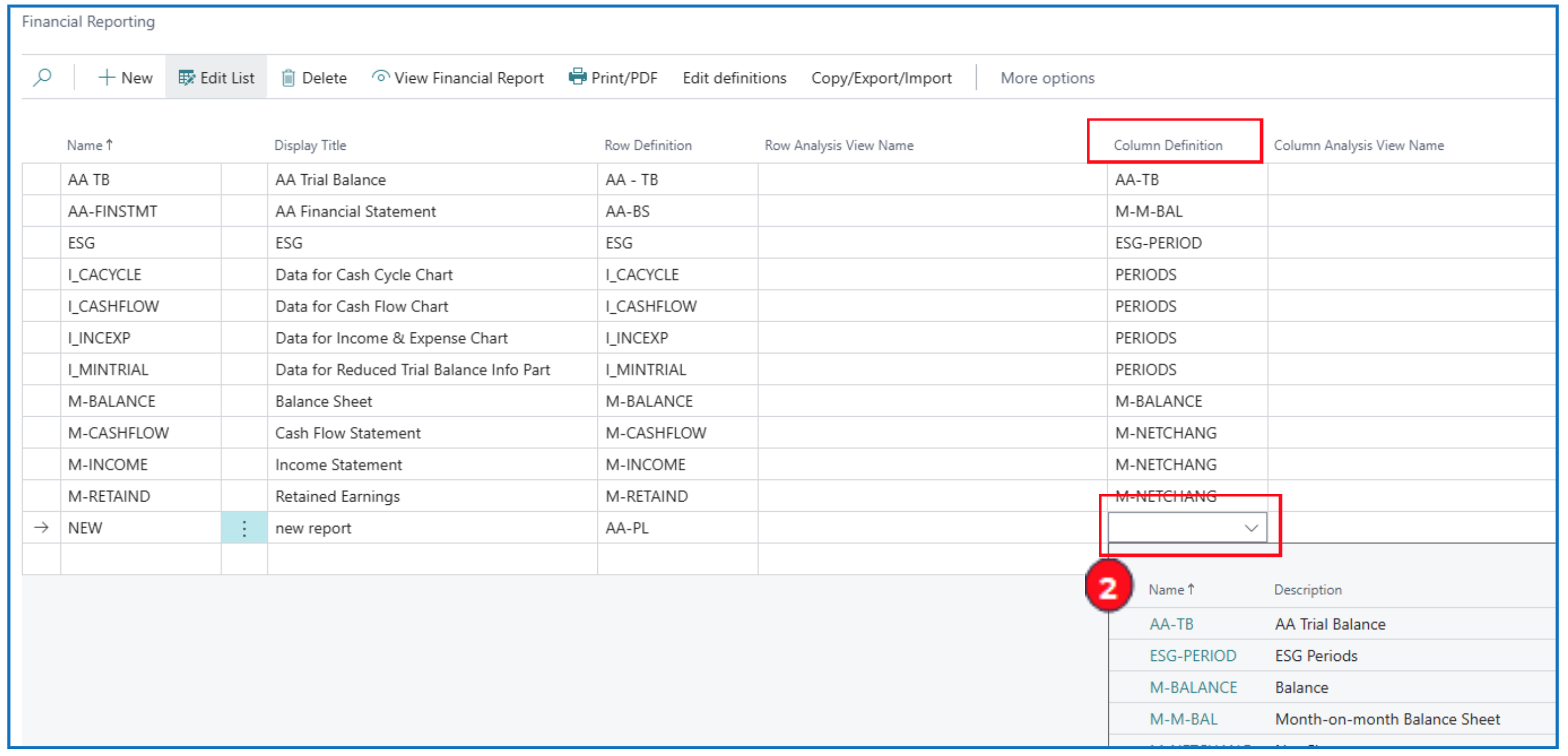
-
Navigate to Column Definition page through search. Click on the Name field ellipsis to view other column definition names on the Column Definitions page.
NB: Best practice is to copy an existing row definition to revise.
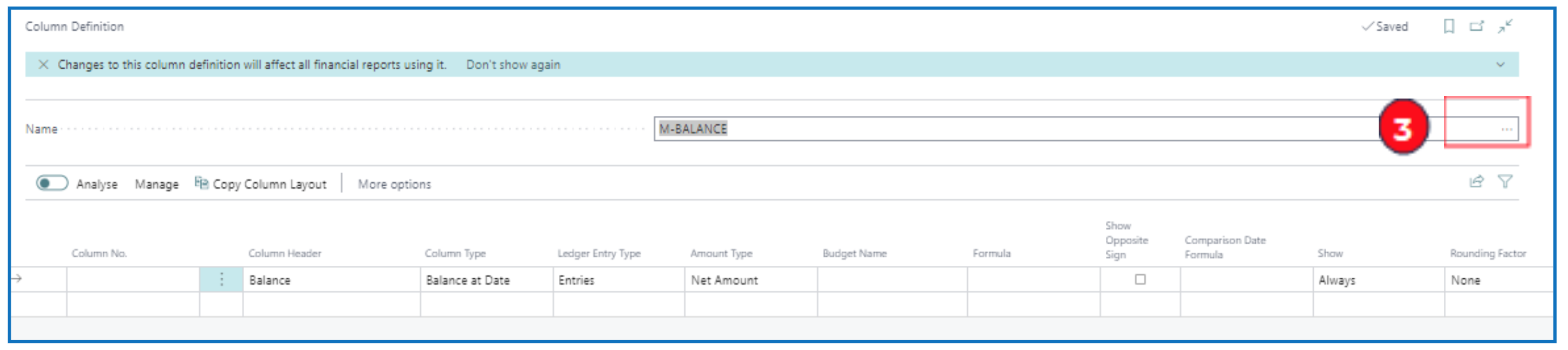
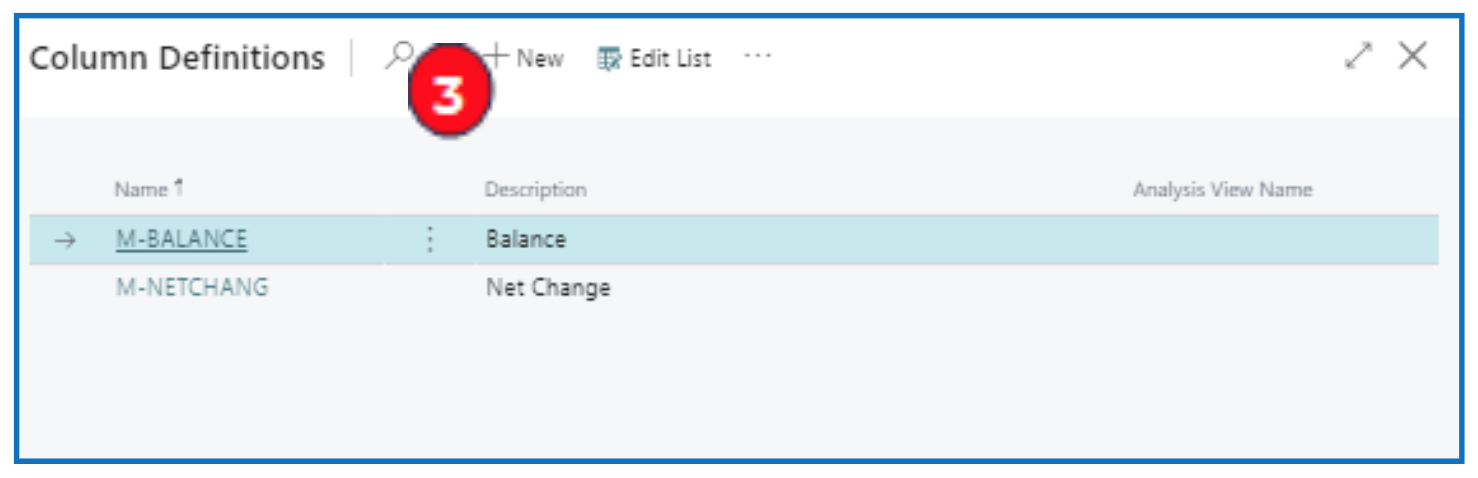
On the Column Definition page,
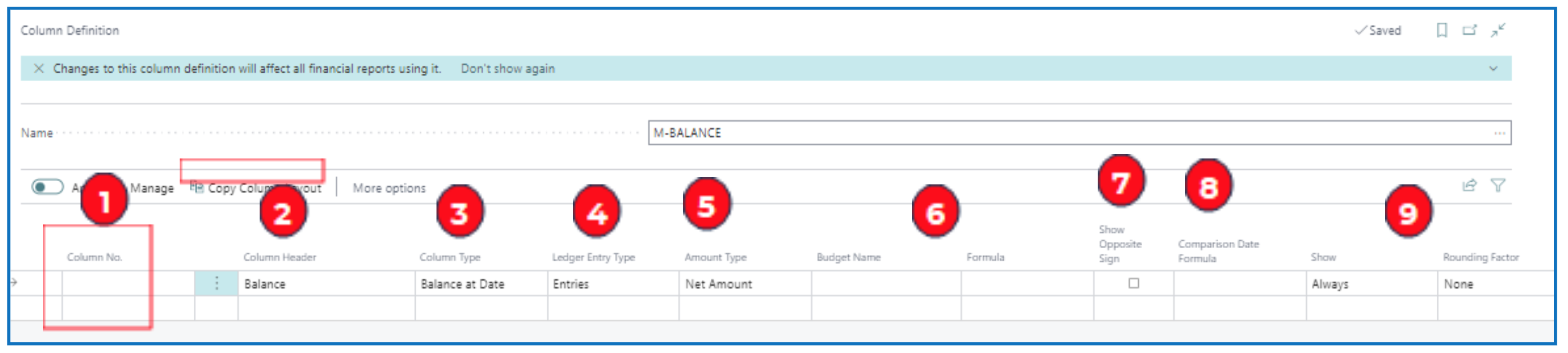
- Column No. — Enter a column number for displaying columns (left to right in column no. sequence).
Use Copy Column Layout to copy an existing column layout.
-
Column Header — Enter a title for the column.
-
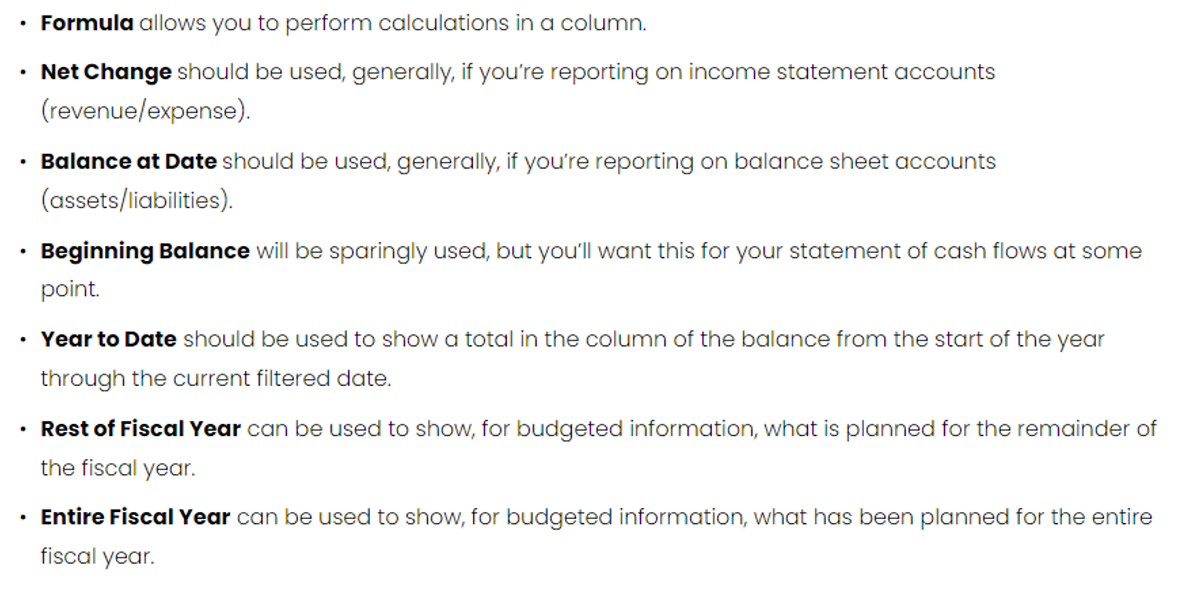
Column Type — Select the type of value to display for the column, common types:
a) Formula — It is a calculated column.
b) Net Change — It is a column displaying account movement value (e.g. P/L).
c) Balance at Dat — It is a column displaying the balance as at the specified date (e.g. B/S).
-
Ledger Entry Type — Select to display either Entries (actual posted) or Budget Entries (based on budget selected).
-
Amount Type — Select either Net Amount, Debit Amount or Credit Amount to display.
-
Budget and Formula — These fields are used only for related Column Type (3).
-
Show Opposite Sign — If the opposite sign for amounts is to be displayed.
-
Comparison Date Formula — If this column is comparative against another column, the date formula for the period is defined here.
-
Show and Rounding Factor — Select the correct formatting of amounts for these columns.
More information on Column Types:
Written By:
Peter Loo
Team Leader, Business Central
Connect on LinkedIn