WhatsApp for Dynamics 365 Business Central User Guide
Introduction
This app is an extension to standard Microsoft Dynamics 365 Business Central addressing the need for communications with customers, vendors and warehouse employees.
Operations of WhatsApp messaging within Business Central requires a nominated WhatsApp Business Account (and mobile number) in the set up. This will be the main number for inbound and outbound messaging, both external (Customers & Vendors) and internal (Warehouse).
The app is designed to allow sending of WhatsApp messages from within Business Central and pushing nominated Business Central data in the message.
To get the extension, visit the Microsoft Marketplace for WhatsApp Integration for Business Central
WhatsApp Configuration
Templates
The sending of WhatsApp messages incorporate a standard user-defined message text, and optionally, the default document attachment (e.g. sales order, sales invoice, purchase order),
The message text templates are predefined but uses parameters (e.g. {{1}}) to extract the relevant transaction data into the message. These parameters are available in a Fields Lookup table.
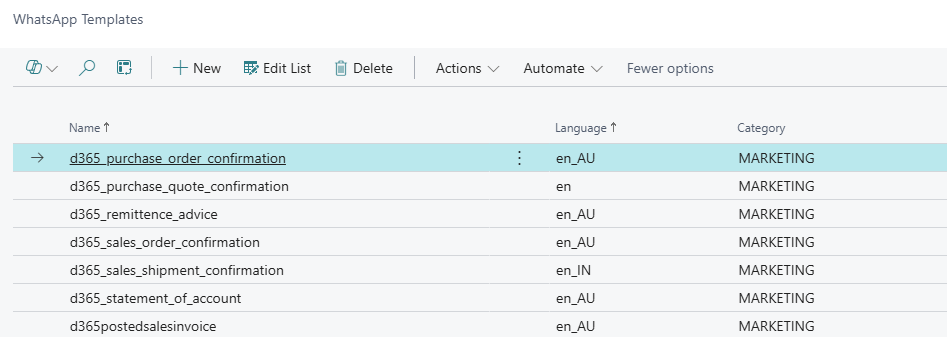
The predefined templates are created through menu option WhatsApp Integration Setup > Bulk Template Create during the initial configuration.
The following are examples:
d365_purchase_order_confirmation
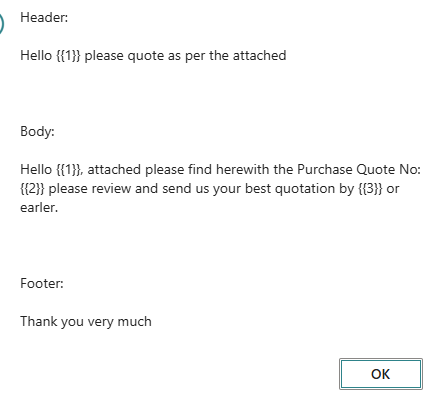
d365_purchase_quote_confirmation
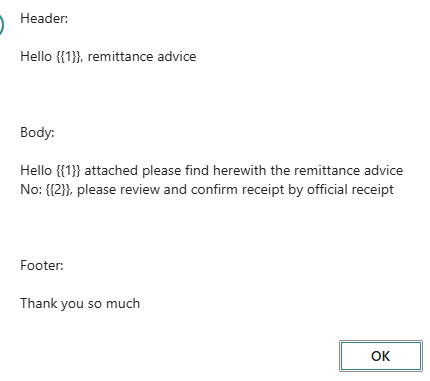
d365_remittance_advice
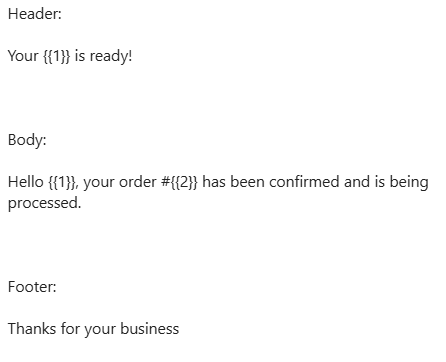
d365_sales_order_confirmation
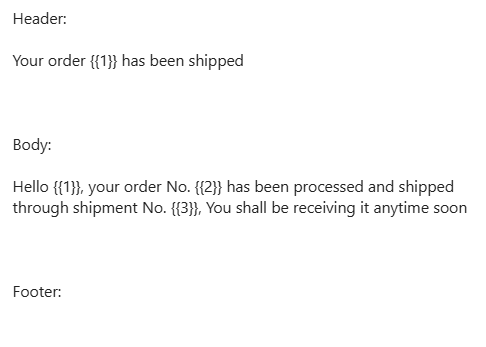
d365_sales_shipment_confirmation
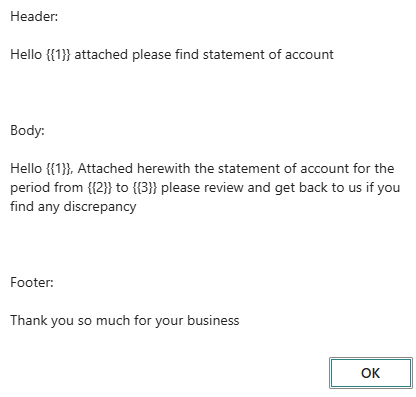
d365_statement_of_account
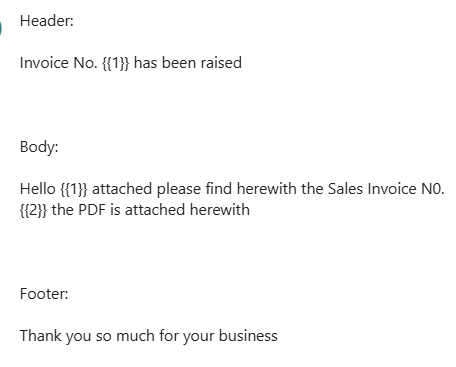
d365postedsalesinvoice
WhatsApp Setup
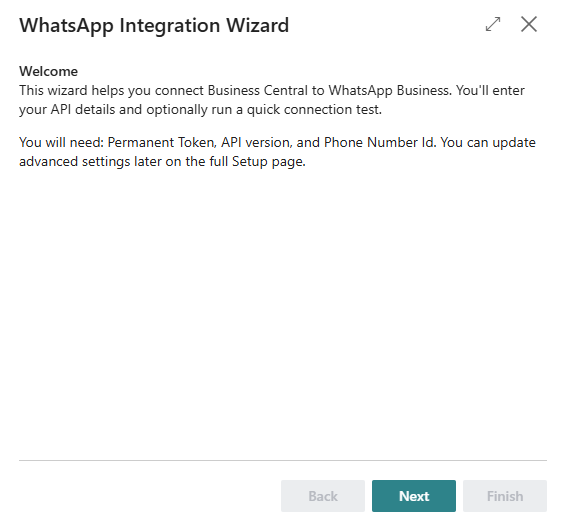
Use the Assisted Setup menu option Run WhatsApp Setup Wizard to setup all your required WhatsApp message templates.
The Next step is to define the communication tokens.
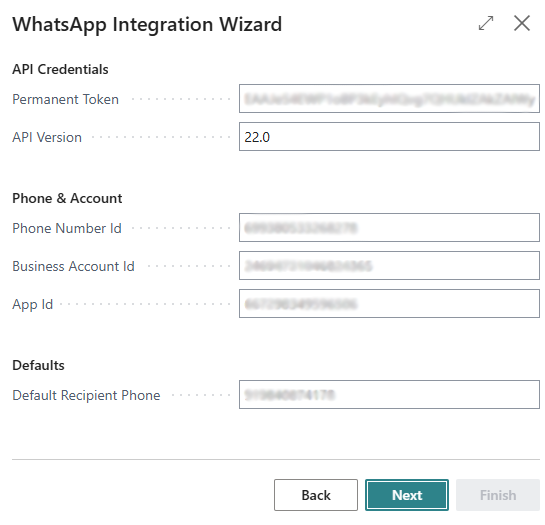
API Credentials
-
Permanent Token — Your WhatsApp Business Account settings will store the Permanent Token needed for all communications from the account.
-
API version — This defaults to the API version used.
Phone & Account
-
Phone Number ID — This is the phone number ID linked to your WhatsApp phone number registered for use.
-
Business Account ID — When you register for a WhatsApp Business Account, you will receive an ID that you need to enter here.
-
App ID — This value is taken from the Facebook (Meta) Business Account (required for use in WhatsApp integration).
After defining the communication tokens & IDs, the next page allows you to enable the integration points needed.
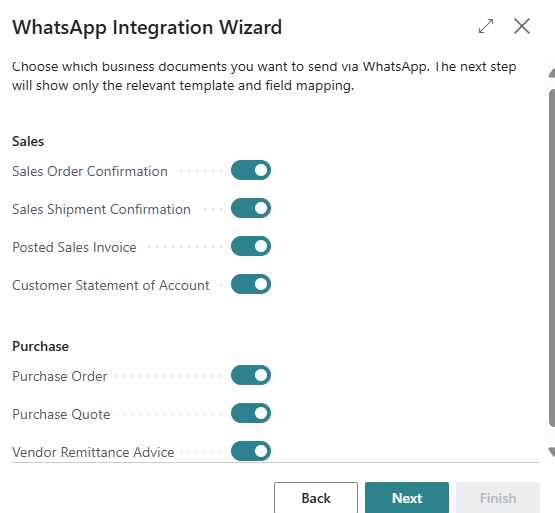
Sales
There are 4 areas providing WhatsApp messaging.
-
Sales Order Confirmation — For each Sales Order completed, you can send a WhatsApp message with the sales order PDF to the customer.
-
Sales Shipment Confirmation
-
Posted Sales Invoice — When the sales order is posted, the posted Sales Invoice can be sent through WhatsApp message.
-
Customer Statement of Account
Purchase
There are 3 areas providing WhatsApp messaging.
-
urchase Order — For each Purchase Order completed, you can send a WhatsApp message with the PO PDF to the vendor.
-
Purchase Quote — Each Purchase Quote (PDF) can be sent via WhatsApp message to the vendor.
-
Vendor Remittance Advice
For each of the enabled WhatsApp messaging integration point, the details of the message templates appear when Next is clicked.
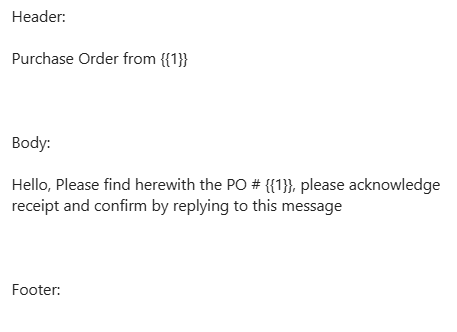
There are default message templates that utilises parameters to extract and display data which is added to the message text defined. The message templates comprise Header and Body Parameters, which are selected fields from the relevant Header/Detail transaction tables.
The default templates (examples) and message text are:
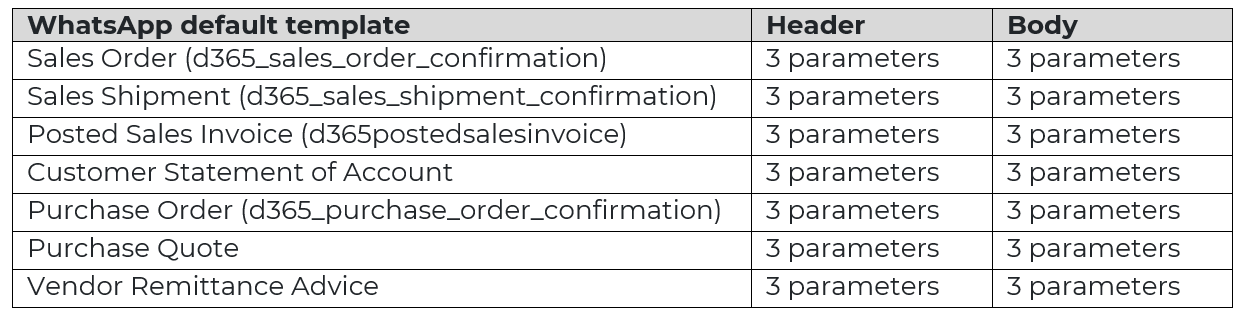
The following are examples:
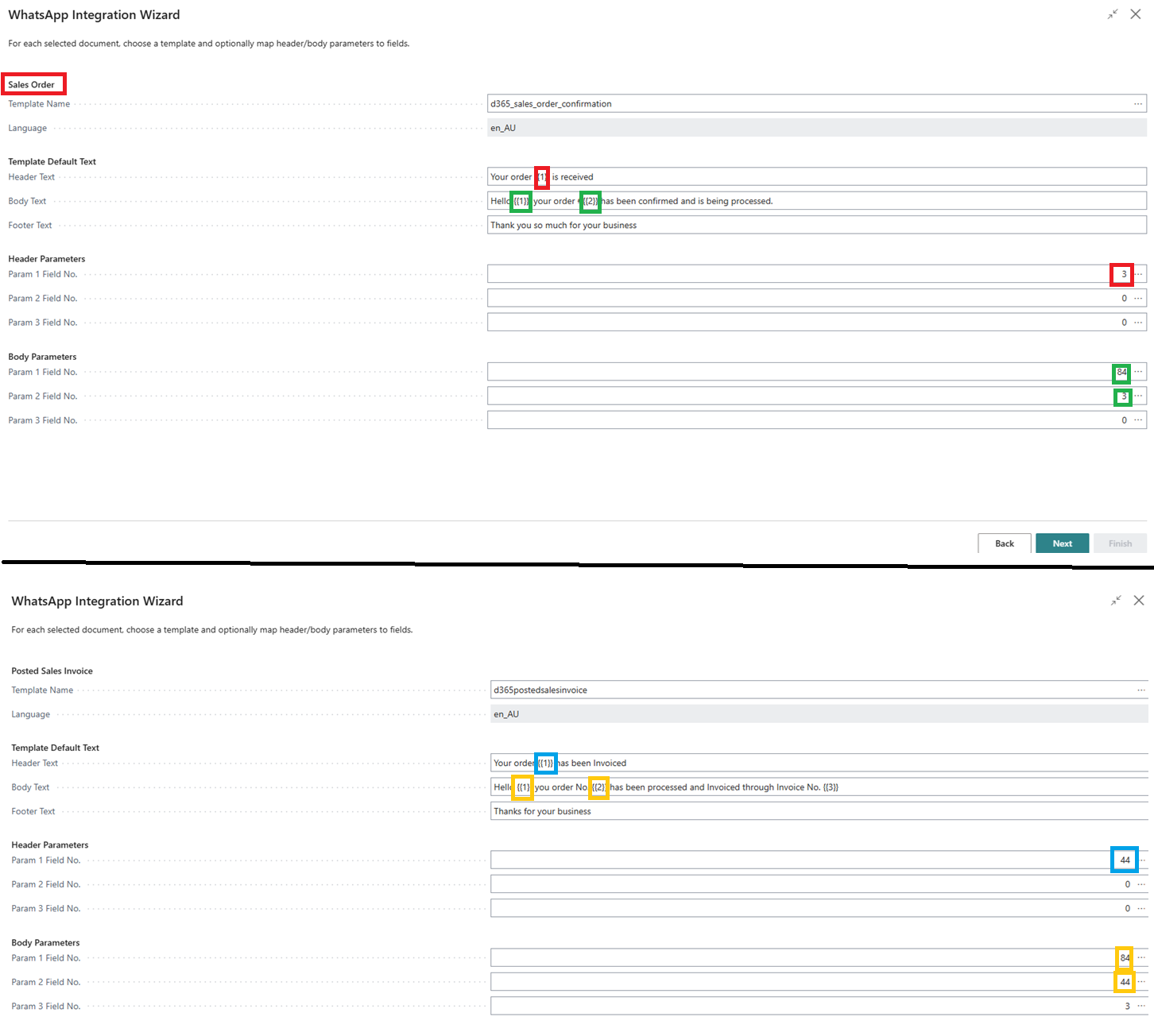
The character text sizes for messages are Header (60), Body (1024), and Footer (60).
To view the list of templates after the wizard configuration, search for WhatsApp Integration Setup page, which summarises the message text templates. From this page, the communication and templates can be viewed and updated, using the WhatsApp Templates Create (Bulk) menu option.

Customer and Vendor Setup
For each Customer and Vendor Master, enter a default business WhatsApp number for the message communication.
Customer Card
To send WhatsApp messages to each customer, the customer card Mobile Phone No. field will require the default Business WhatsApp number.
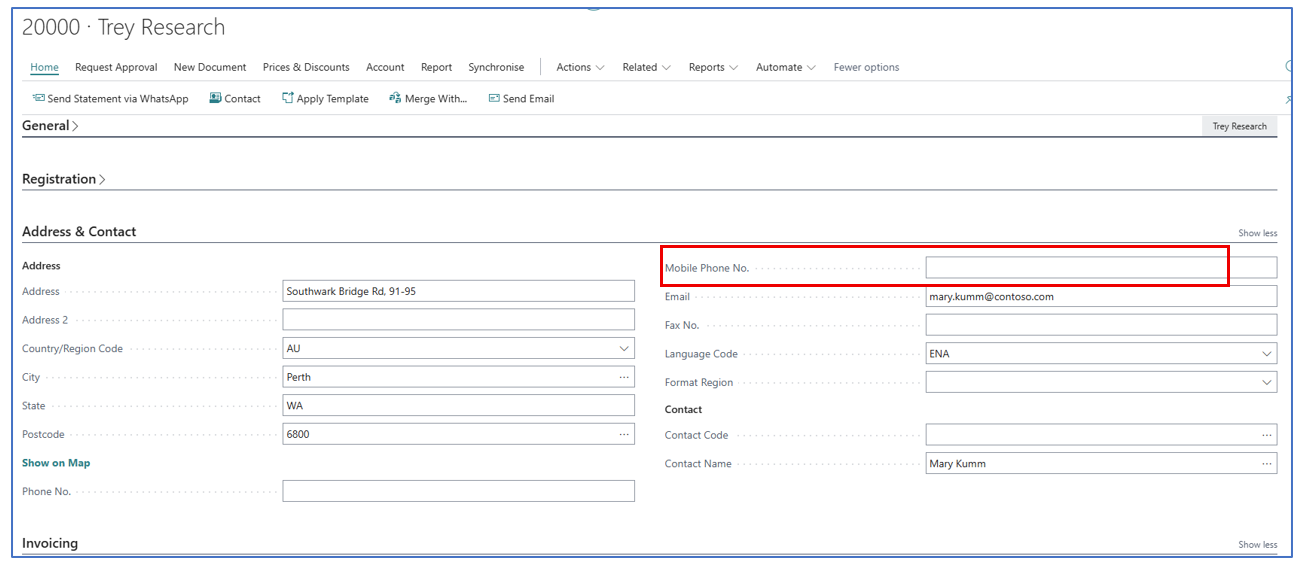
Vendor Card
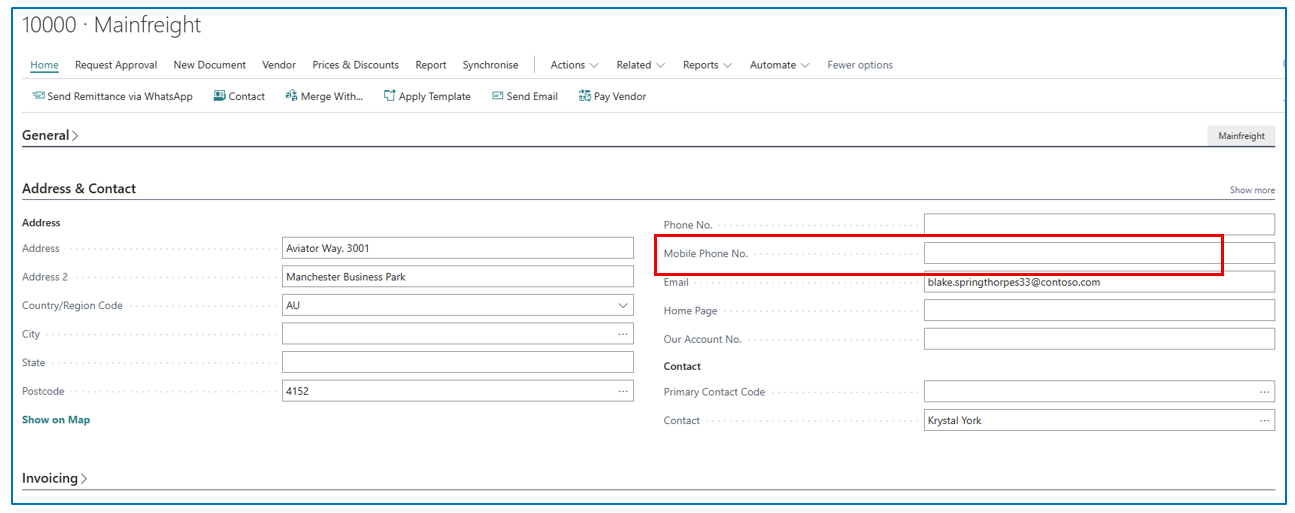
To send WhatsApp messages to vendors, the vendor card must have the WhatsApp mobile number.
WhatsApp Communications
Sales
WhatsApp communication allows users to send WhatsApp messages within Business Central for several sales related transactions as follows:
Sales Order
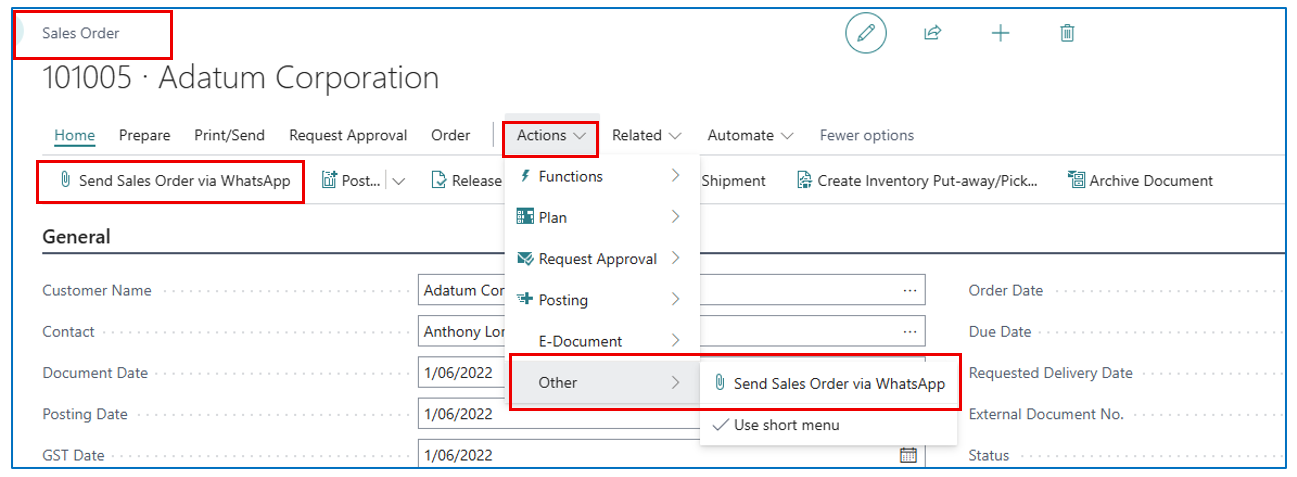
For each sales order created, it can be sent to the customer using menu option Actions > Others > Send Sales Order via WhatsApp.
Sales Shipment
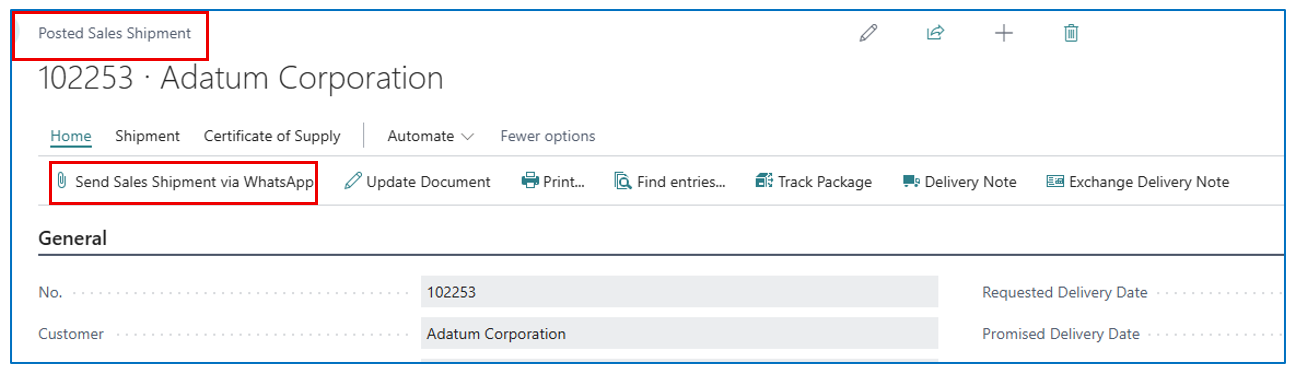
When the sales order is Ship posted, the shipment update can also be sent to the customer via WhatsApp. This is done in the Posted Sales Shipment card.
Sales Invoice
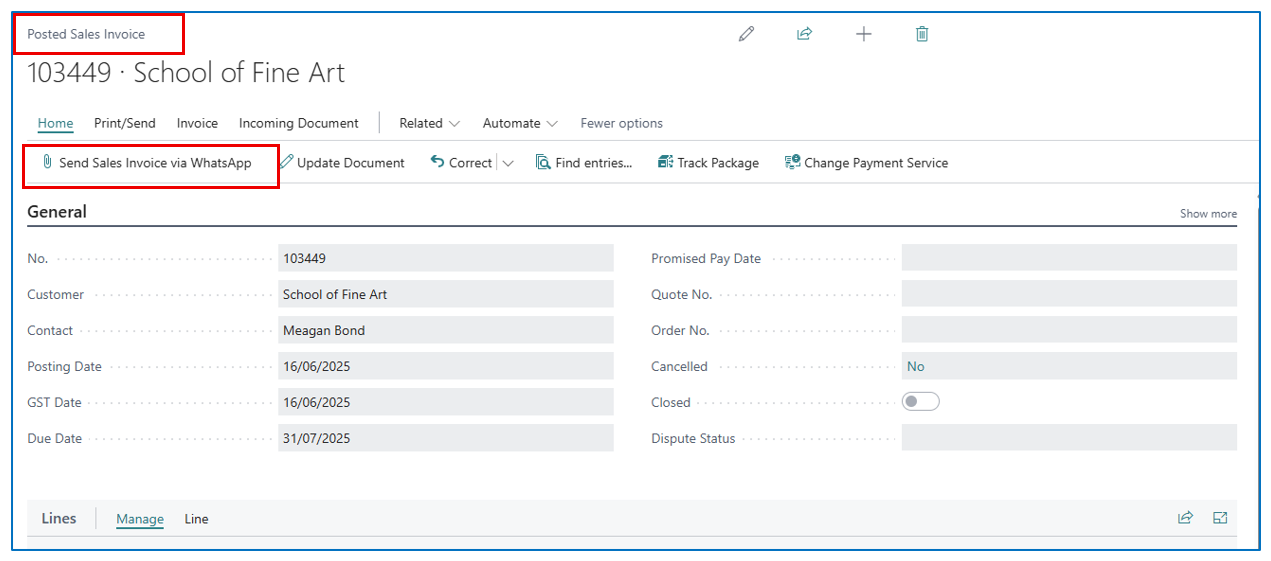
When the sales order is Invoice posted, the posted sales invoice (Tax Invoice) can be sent to the customer via WhatsApp. This is done in the Posted Sales Invoice card. The sending of this invoice to the customer confirms that the sales is registered in the Customer Ledger Account.
Customer Statement of Account
When following up on Customer Ledger balances, you can send the latest Customer Statement of Accounts (SOA) via WhatsApp. The message will include a copy of the SOA. This is done in the Customer Card from menu option Actions > Other > Send Statement via WhatsApp.
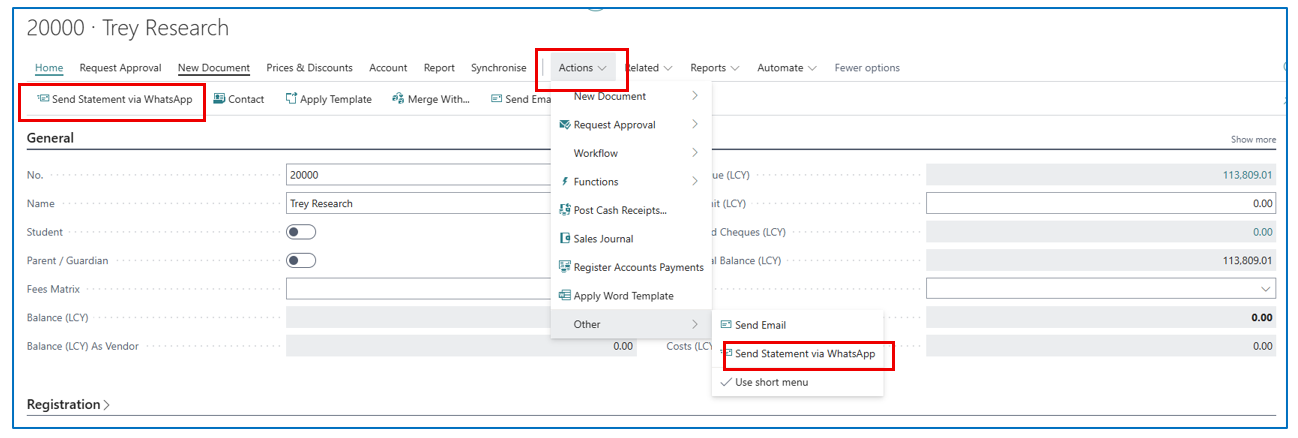
This action requires the customer’s default business WhatsApp number defined in the **“**Mobile Phone No.** field.
NB: The standard Customer Statement runtime prompt will appear to select the parameters and period to generate the statement to be included in the message.
Purchasing
WhatsApp communication allows users to send WhatsApp messages within Business Central for several purchase and payment related transactions as follows:
Purchase Order
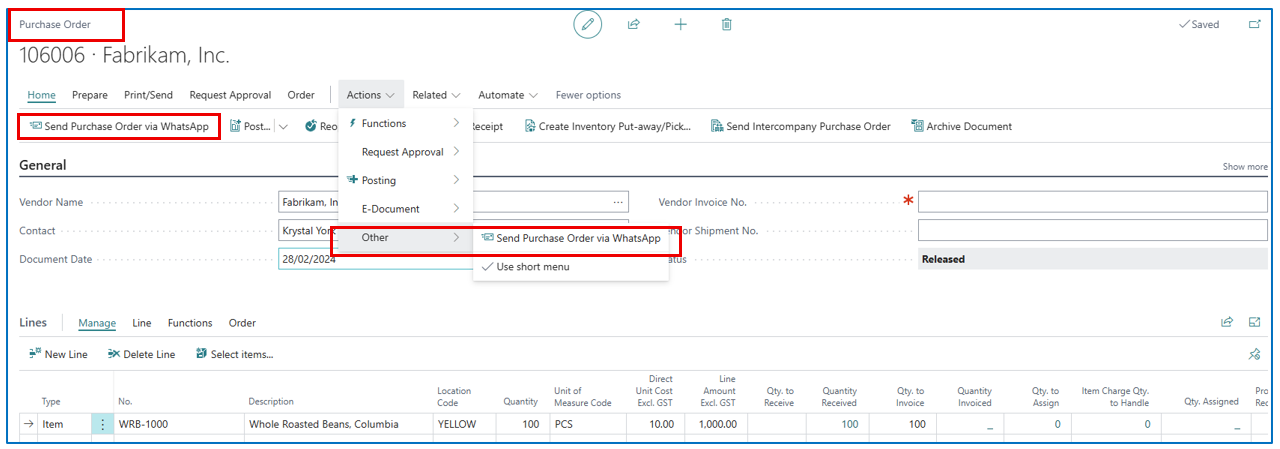
From the purchase order (entry) card, you can use Send purchase order via WhatsApp menu option to send the purchase order document to your vendor.
NB: The vendor’s default mobile phone number must be added to the vendor card Address details.
Purchase Quote
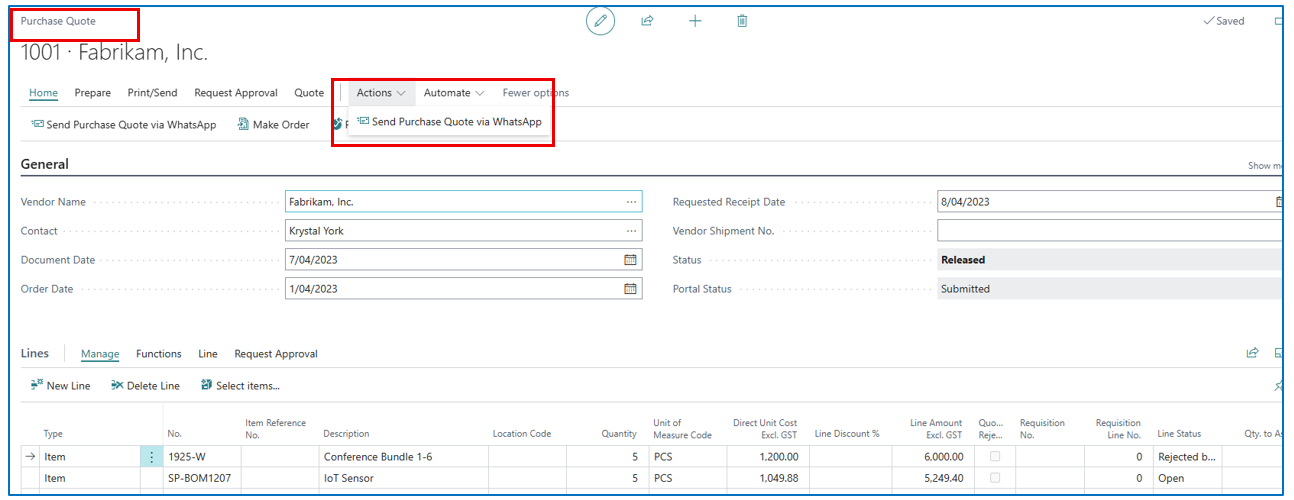
The Purchase Quote can also be sent via WhatsApp if Request For Quote (RFQ) feature is used.
Remittance Advice
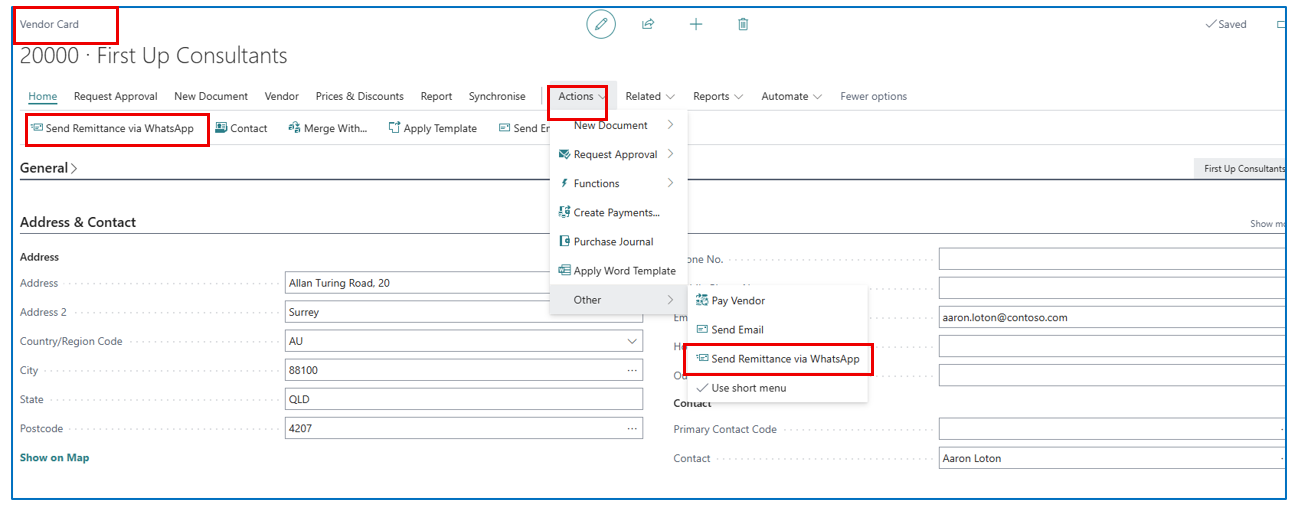
After you have paid your vendor’s invoices, you can also confirm payment with the vendor by sending the remittance advice via WhatsApp. The attached remittance advice holds payment details for each purchase invoice.
This is done through the vendor card — it sends the latest remittance advice to the vendor.
Archived Communications
All WhatsApp communications (messages sent and received) are archived in Business Central.
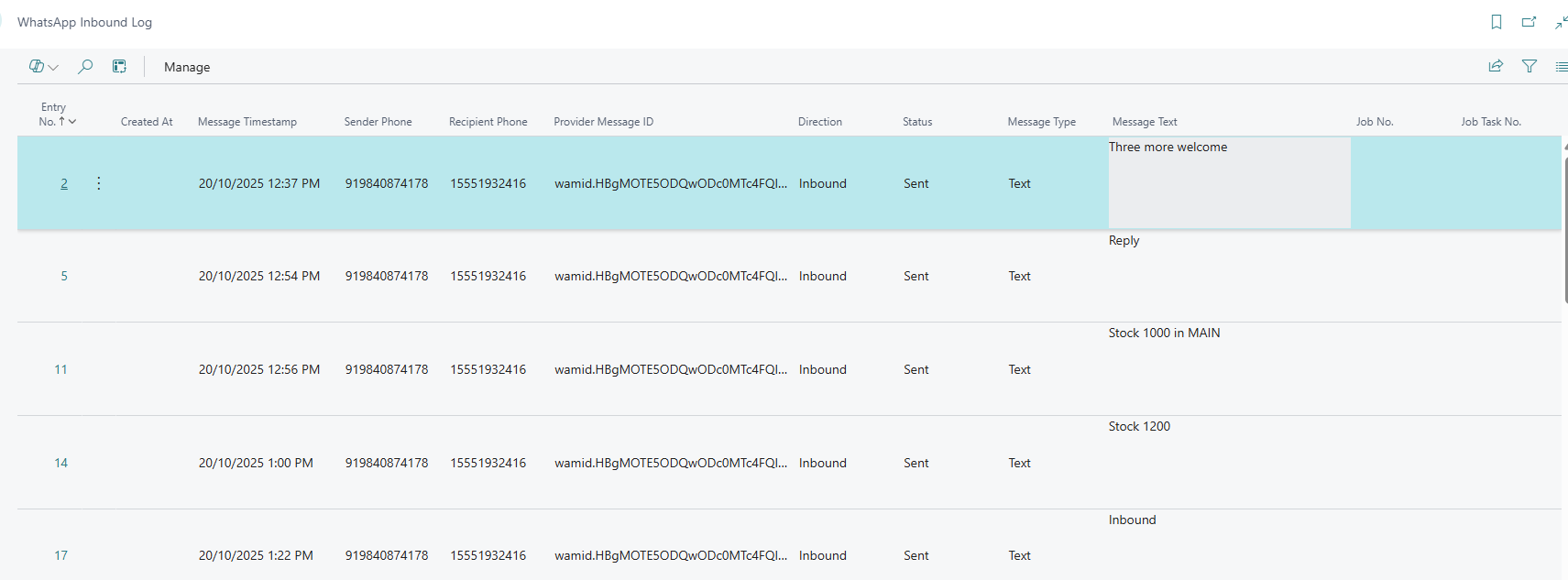
WhatsApp Inbound Log
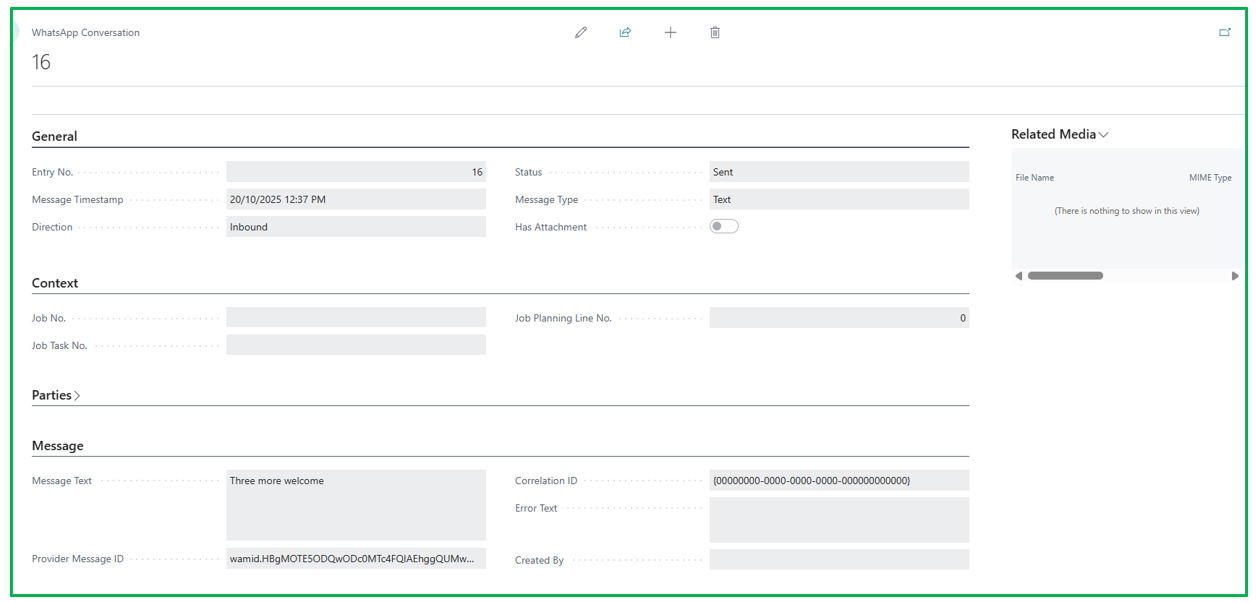
For replies received to the default Business WhatsApp phone number (defined in setup), this page records the message timestamp.
Search for menu option [WhatsApp Inbound Log] to open the list page.
Example:
WhatsApp Conversation Archive
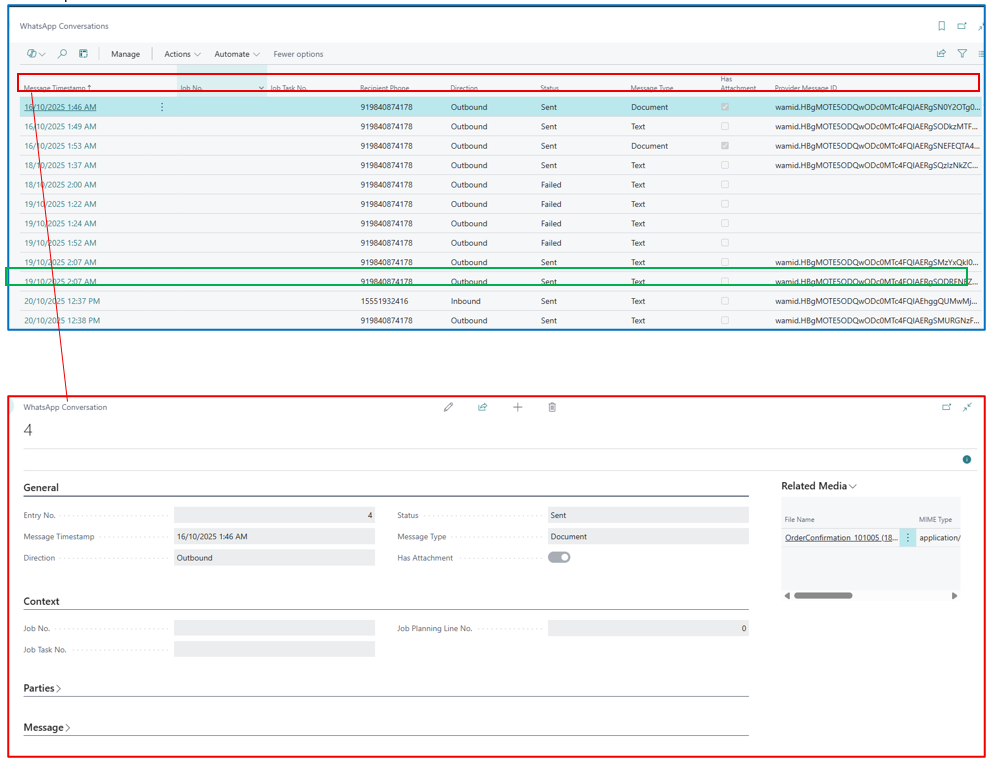
All WhatsApp inbound and outbound communications are archived, and this archive can be viewed by searching for menu option [WhatsApp Conversation].
The archived messages provide audit tracking: Direction (Inbound or Outbound), Status (Sent or Failed), Message Type (Text or Document) and “Has Attachment”.
By clicking on the timestamp (outbound or inbound), you can view the details.
Example: