Tasks for Legal CRM and Case Management for Dynamics 365 Quick Start Guide
How Tasks Work
Tasks are auto-created when a Matter is created or changes stage. They are assigned automatically based on the Responsible Attorney 1 field, with due dates calculated from the Assignment Date.
- Matter Created / Stage Changed — A task is triggered automatically whenever a Matter is created or moves to a new stage.
- System Checks Templates — The system checks for active Task Templates matching the Practice Area and Stage Name.
- Tasks Auto-Created — Each matching template generates a task with a Subject, Description, Owner, and calculated Due Date.
- Assigned to Attorney / Owner — If Responsible Attorney 1 is filled, tasks are assigned to them. If blank, they are assigned to the Matter Owner.
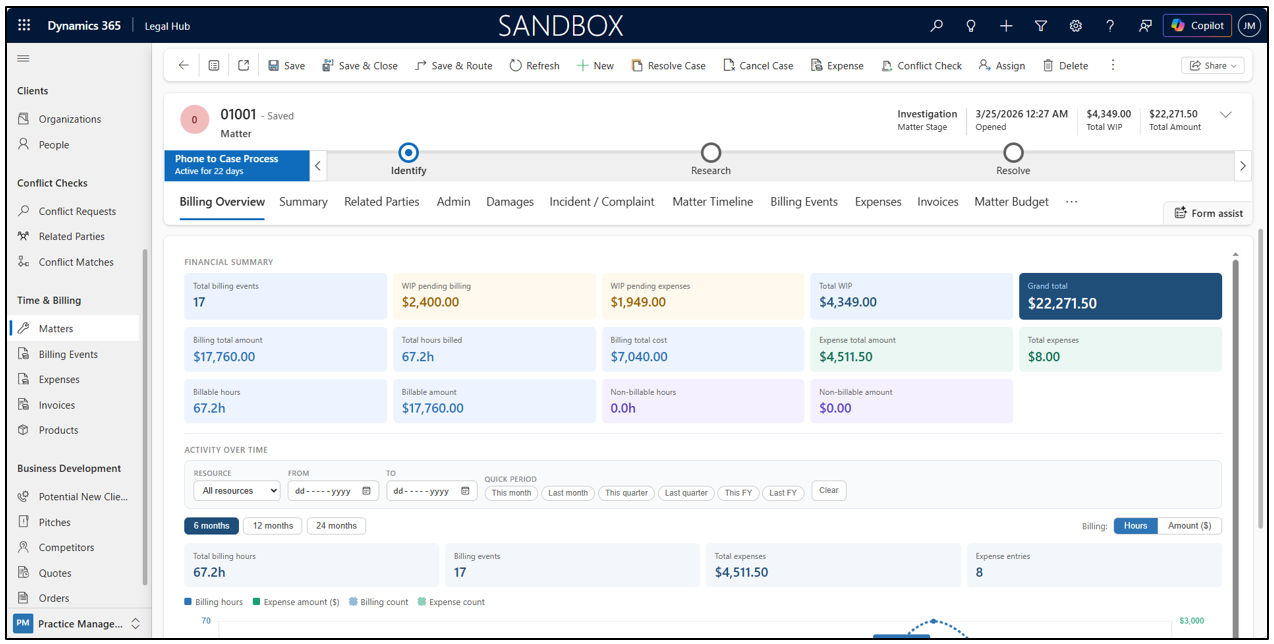
View Tasks Inside a Matter
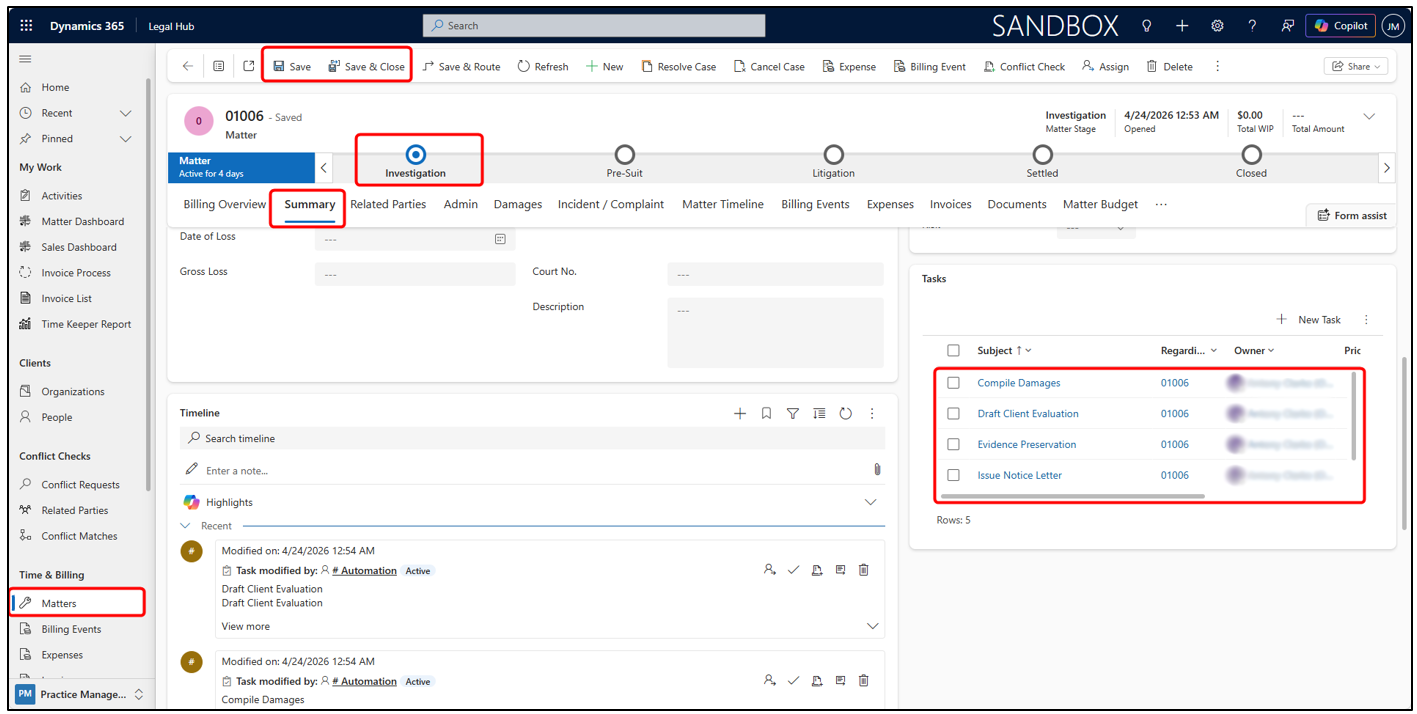
Tasks are automatically created for each Matter stage, which can be viewed and managed from the Summary tab, helping users track progress and complete required actions efficiently.
- Navigate to Matters in the left sidebar → Open a Matter record.
- Click the Summary.
- Scroll to the Tasks panel on the right side of the screen.
- Click Save or Save & Close to confirm any changes made within the Matter.
View All Tasks via Activities
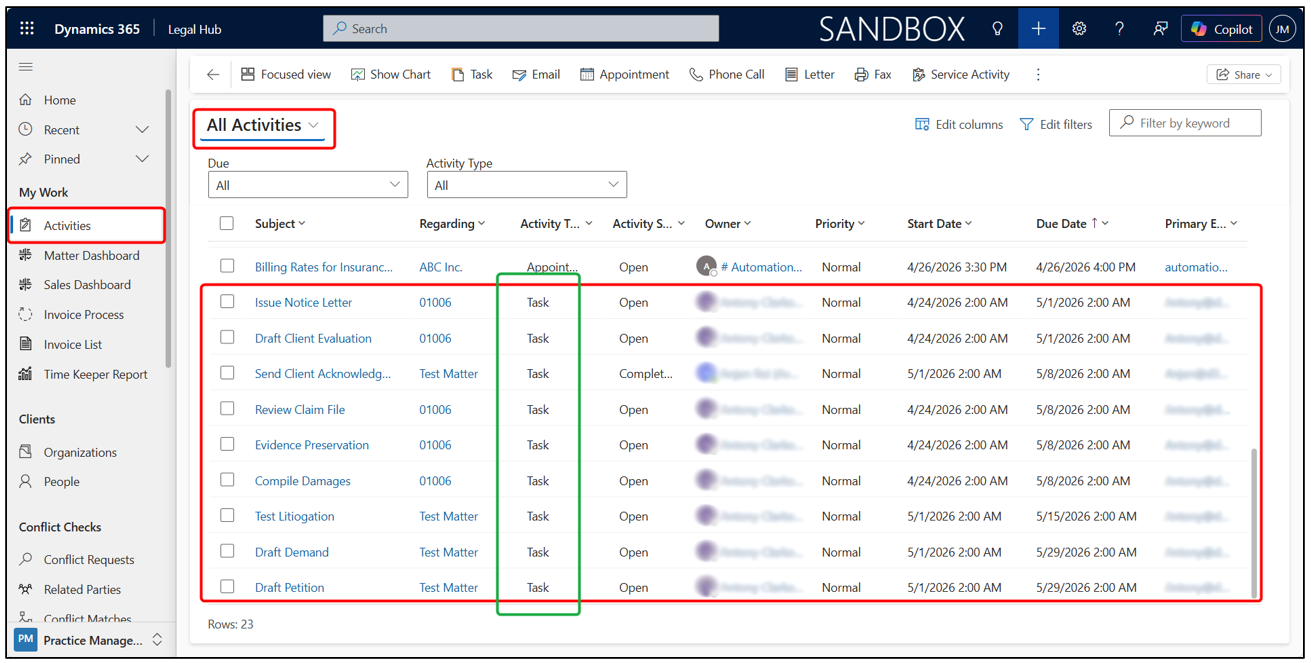
The Activities view provides a centralized list of all tasks across Matters, allowing users to track, filter, and manage their workload in one place.
- Go to My Work in the left-hand navigation.
- Select Activities.
- Open All Activities view to see the list of all activities (including Tasks).
- Task records will display the following information:
- Task Subject
- Matter (Regarding)
- Status
- Assigned Owner
- Start Date & Due Date
How to Complete a Task
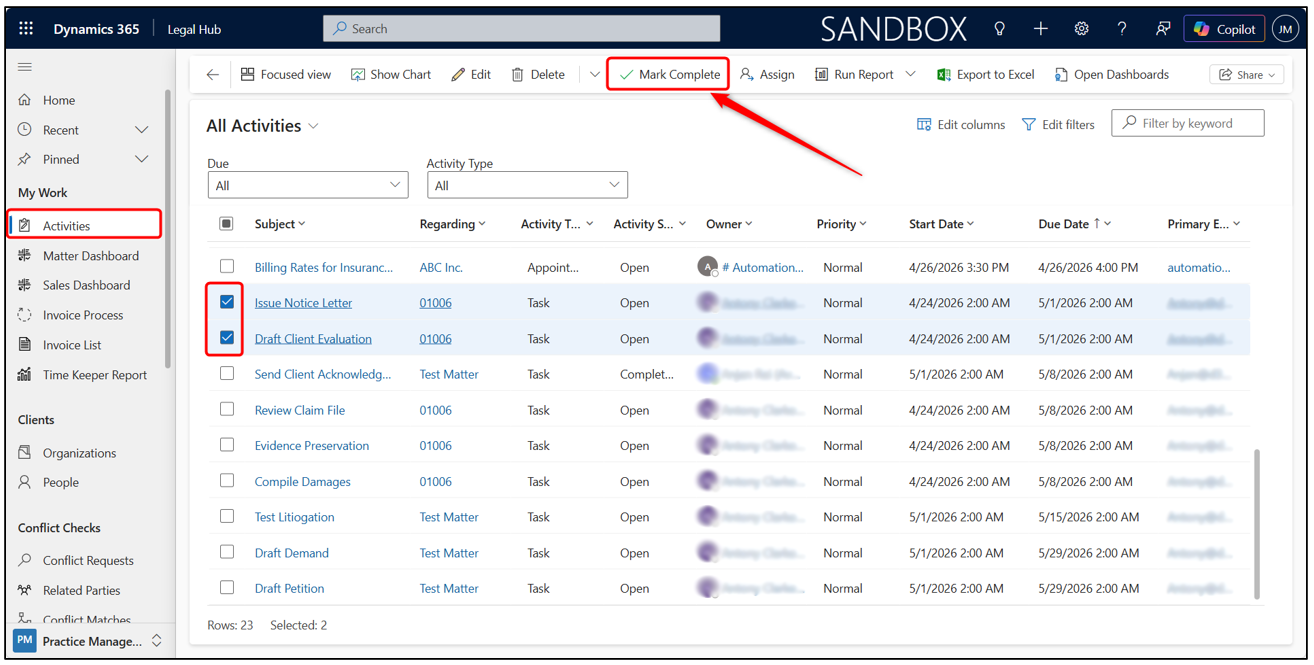
Tasks can be completed directly from the Activities view, allowing users to quickly update progress without opening the Matter record.
- Go to My Work > Activities in the left sidebar.
- Select one or more tasks using the checkbox.
- Click Mark Complete from the top command bar.
- The task status updates to Completed and is removed from the active task list.
Key Matter Fields
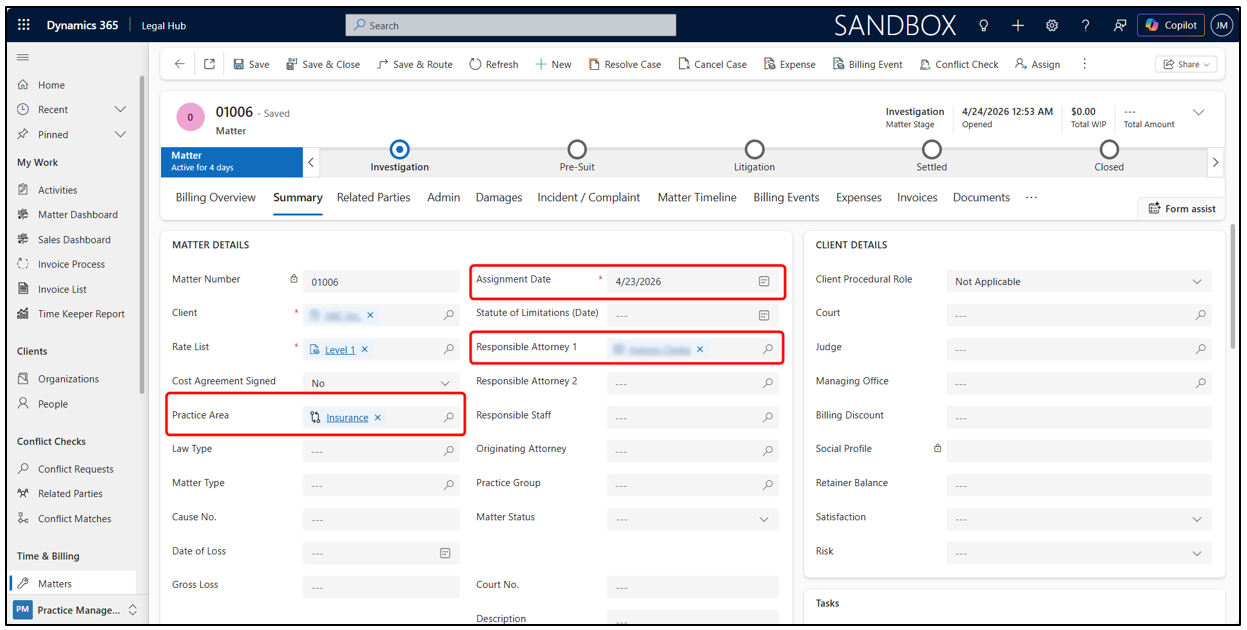
Three key fields on the Matter record control how tasks are created, assigned, and dated. Keep these fields up to date to ensure tasks work correctly.
- Practice Area
- Determines which task templates apply. Must match the template’s Practice Area exactly.
- A Practice Area must be set when creating a Matter for tasks to be generated correctly.
- Assignment Date
- Used to calculate task Due Dates.
- Due Date = Assignment Date + Due In Days from template
- Responsible Attorney 1
- If populated → Tasks are assigned to Responsible Attorney 1.
- If blank → Tasks are assigned to the Matter Owner.
- Updating this field → Reassigns all open tasks automatically.
- Clearing this field → Tasks remain assigned to the previous user until new Responsible Attorney 1 is assigned.
Practice Area → Stage Name → Tasks Auto-Created → Assigned & Dated
ADMIN - Navigate to Task Templates
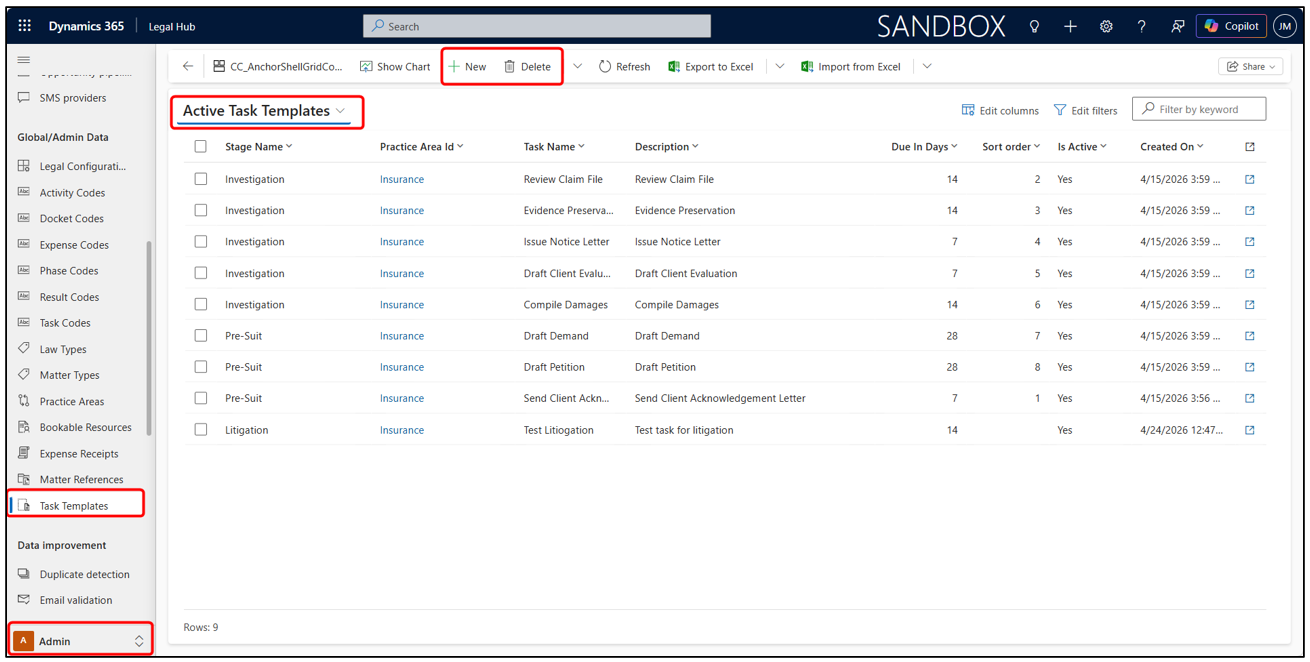
Task Templates define how and when tasks are automatically created for a Matter, based on Practice Area and Stage.
- Go to Admin in the left sidebar.
- Under Global/Admin Data → Select Task Templates.
- The Task Templates list will open.
- Use +New to create a template, or select an existing one to edit or delete it.
Create a New Task Template
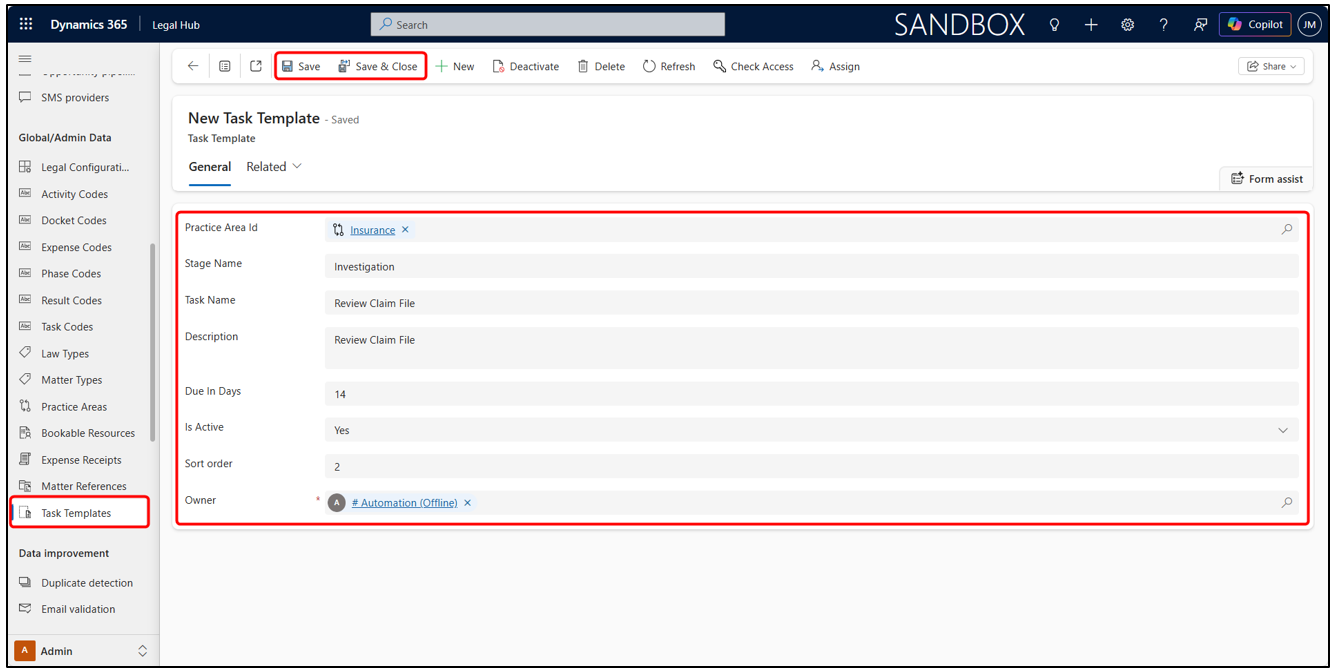
Create Task Templates to define what tasks are generated, when they are triggered, and how they are assigned, ensuring a consistent and automated workflow across all Matters.
Fill In These Fields:
- Practice Area ( a lookup)
- Stage Name (Matter Stage)
- Task Name (Topic)
- Due In Days
- Is Active — Set to Yes to enable auto-creation.
- Then click Save & Close
Assignment Logic:
- Is Responsible Attorney 1 filled?
- YES → Assigned to Responsible Attorney 1
- NO → Assigned to Matter Owner
- Due Date = Assignment Date + Due In Days
- Changing Responsible Attorney 1 reassigns all open tasks automatically.
- Completed tasks remain unchanged when the attorney is changed.
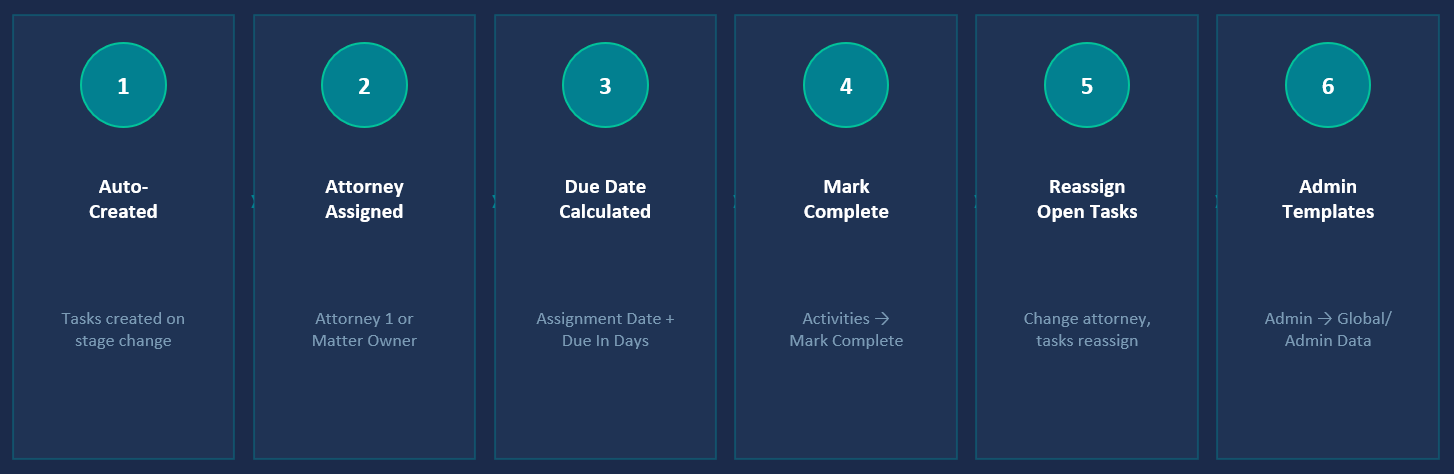
Tasks Management - Key Takeaways
This diagram illustrates everything you need to know about how tasks work in the Legal Hub.