Fixed Assets Basic User Training Guide for Dynamics 365 Business Central
Depreciation Methods and Books
Fixed Asset comes with a default COMPANY Depreciation Book that links the asset ledger with the General Ledger. This depreciation book synchronises asset ledger entries with GL entries (if preferred, the book name can be amended).
To record a separate asset ledger for tax or fiscal reasons, a new Depreciation Book must be created. Each Depreciation Book defines the asset depreciation method, the start depreciation date, and the asset capitalisation value (acquisition).
Defining the Asset Depreciation Book
Navigate to Depreciation Books or Fixed Asset Setup > Depreciation > Depreciation Books to open the Depreciation Books list page. Click on +New to open a new Depreciation Book card.
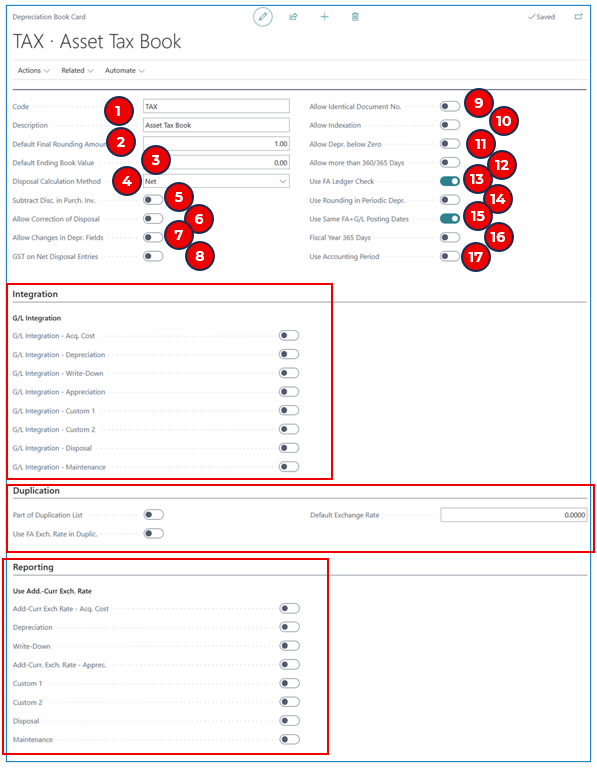
General
-
Code and Description — Enter a depreciation book code and description for the new depreciation book.
-
Default Final Rounding Amount — This is the minimum rounding amount when computing the final asset depreciation or disposal.
-
Default Ending Book Value — This is the minimum book value when book value is computed during depreciation calculations.
-
Disposal Calculation Method — This is the method used to calculate the disposal value (either Net value of asset or Gross value of asset).
-
Subtract Disc. In Purch. Inv. — If this is enabled, the purchase price discount will not be included in the asset acquisition cost.
-
Allow Correction of Disposal — Enable this flag if posted Disposal entries need to be corrected (e.g. an adjustment entry is needed after asset disposal is posted).
-
Allow Changes in Depr. Fields — Enable this if the depreciation fields (under Depreciation Book section in the Asset card) are allowed to be modified AFTER depreciation has been posted to the asset.
-
GST on Net Disposal Entries — If Net disposal calculation method is used, this flag allows GST to be calculated on the net value.
-
Allow Identical Document No. — This flag is enabled if identical document numbers are needed in the Depreciation Book.
-
Allow Indexation — This flag relates to the price-level changes that impact asset entries (e.g. a price-level increase affecting posted acquisition costs). Enable this flag if the price indexing process is allowed for assets.
-
Allow Depr. Below Zero — Enable this flag if depreciation calculation is allowed for assets with book value of zero or below.
-
Allow more than 360/365 Days — The default Fiscal Year is 360 days (used in depreciation calculations). If 365 days is required, enable this flag.
-
Use FA Ledger Check — This is enabled by default. It enables validation checks before asset transactions are posted.
-
Use Rounding in Periodic Depr. — Enable this if period depreciation is to be rounded to whole numbers.
-
Use Same FA+G/L Posting Dates — This is enabled by default. It indicates that the posting date used for Fixed Asset Ledger and General Ledger posting entries is the same.
-
Fiscal Year 365 Days — Enable this to specify that the Calculate Depreciation uses 365 days instead of the default 360 days.
-
Use Accounting Period — Enable this to align the asset Start and Ending Dates (for depreciation calculation) to correspond to the Accounting Periods.
Integration
If these flags are enabled, when posting Fixed Asset G/L Journal, the FA Posting Type entry will be posted to both the General Ledger and the FA Ledger.
Duplication
Part of Duplication List — Enable this flag to duplicate any posted entries in another depreciation book to the current depreciation book.
Use FA Exch. Rate in Duplic. — Enable this flag to specify that the FA Exchange Rate is used when duplicating entries from another depreciation book to the current depreciation book.
Default Exchange Rate — Enter the default exchange rate if the FA Exchange Rate is zero.
Reporting
These flags are used to indicate that the asset transactions are posted in both LCY and the reporting currency.
FA Journal Setup for the Depreciation Book
After the depreciation book is created, define the default journal templates to be used with the depreciation book. Navigate to Related > Depr. Book > FA Journal Setup to open the FA Journal Setup page.
Example:

-
Depreciation Book Code — This is defaulted from the selection.
-
User ID — (optional) This is the user ID to default for all journals created. If blank, the user ID will be determined at the time of processing.
-
FA Jnl. Template Name — This is the template for Fixed Asset Journals.
-
FA Jnl. Batch Name — This is the default batch name for journals using this depreciation book.
-
Gen. Jnl. Template Name — This is the template for Fixed Asset G/L Journals.
-
Gen. Jnl. Batch Name — This is the default batch name for journals posting to the FA and General Ledgers.
-
Insurance Jnl. Template Name — This is the template for posting asset insurance entries.
-
Insurance Jnl. Batch Name — This is the default batch for asset insurance transactions.
NB: If the Depreciation Book has “G/L Integration” flags enabled, the default journal template will be Gen. Jnl. Template. Otherwise, the system will use “FA Jnl. Template” for journals that do not integrate to G/L.
After the depreciation book and default journal templates are defined, the depreciation book can be assigned to the asset in the Asset Card.
If the asset has more than 1 depreciation book, these are assigned in the Depreciation Books tab on the Asset Card.
Example:

Each Depreciation Book Code is assigned with:
-
FA Posting Group — The default posting group and GL accounts.
-
Depreciation Method — The default depreciation method (e.g. a different method can be used for tax depreciation).
-
Depreciation Starting Date — The start date for calculating depreciation.
-
The setup in these fields depends on the Depreciation Method:
-
If Straight-line, the No. of Depreciation Years is entered, and the Depreciation Ending Date is calculated.
-
If Declining Balance, the Declining Balance % is entered for depreciation calculation.
-
-
Book Value — The asset capitalisation book value for each depreciation book.
-
Default FA Depreciation Book — Tick the book that will be the default used in Calculate Depreciation.
Assigning a Depreciation Book to Multiple Fixed Assets
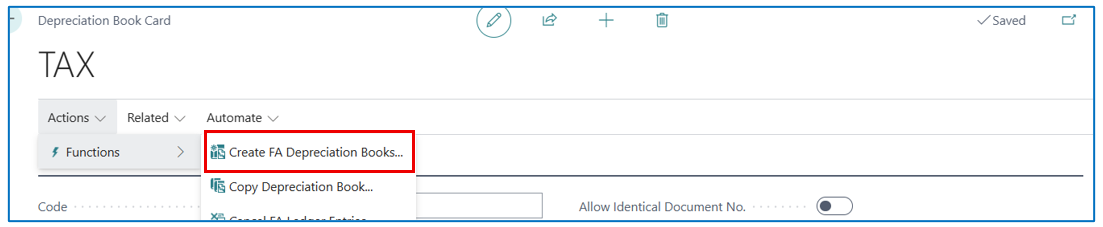
To assign a new depreciation book to several fixed assets in the Depreciation Book card, navigate to Actions > Functions > Create FA Depreciation Books.
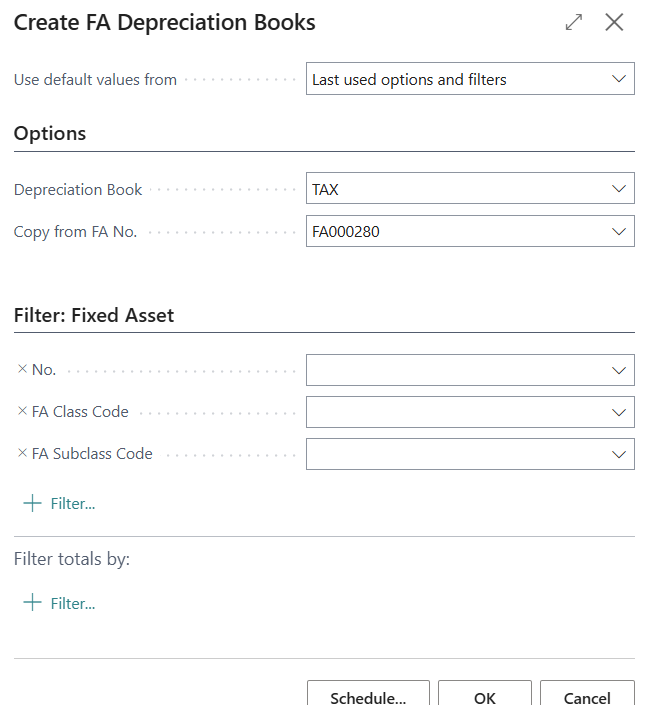
n the prompt, select the Depreciation Book Code to insert to multiple assets. In Copy from FA No., select the asset assigned with the Depreciation Book Code.
In the Filter: section, select the filtering of assets to insert/add the Depreciation Book Code. This can be an asset range or by class/subclass category. (If left blank, the Depreciation Book Code will be added to all assets).
Adding Depreciation Book and Posted FA Ledger Entries
If a new depreciation book is added to an existing asset, the posted FA Ledger Entries of the existing asset can be copied to the new depreciation book (e.g. posted asset acquisition cost).
On the Depreciation Book card, navigate to Actions > Functions > Copy Depreciation Book to open the prompt.
Example: To copy the asset acquisition cost from the COMPANY depreciation book to the TAX depreciation book.
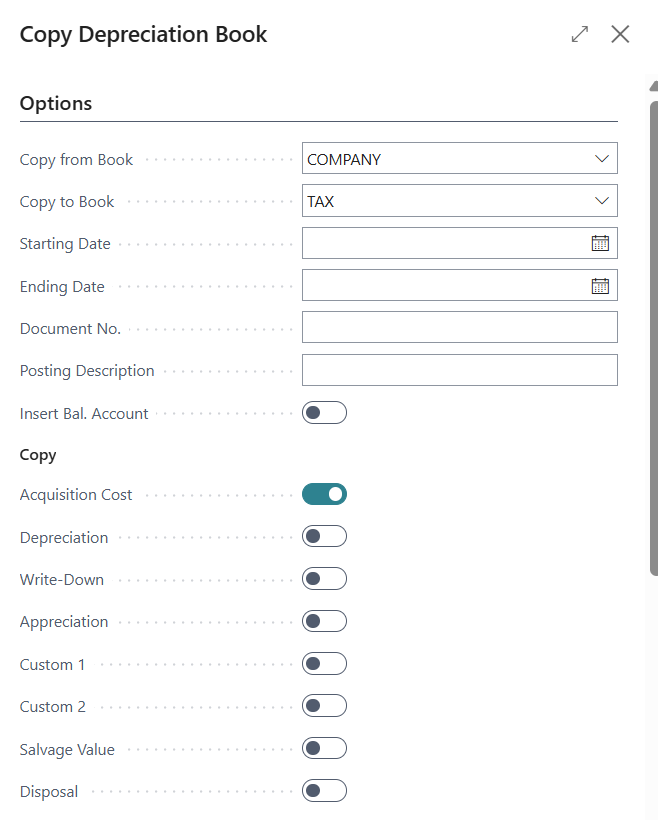
This process creates asset journal lines in the new depreciation book — these must be reviewed and posted.
Depreciation Methods
Business Central provides both Straight-line and Declining Balance methods of depreciation, as well as Manual and User-defined Methods.
Straight-line Depreciation
The Straight-line Depreciation Method calculates the periodic depreciation value based on a ratio of the depreciation days to the days in the year (default is 360 days). The Ending Date of depreciation is computed based on the Starting Date and number of years (asset life).
Depreciation is calculated proportionately for each period over the number of periods in the asset life (No. of Depreciation Years). The asset book value (acquisition cost) is divided by the number of periods/months for the asset life (proportionately by 360 days per year) and depreciation amount is computed based on the number of days depreciation between 2 selected dates.
Declining Balance Depreciation
Declining Balance Depreciation uses the Net Book Value at the beginning of each financial year, and calculation is based on a depreciation % applied against this Net Book Value (for the number of depreciation days).
There are 2 options provided for Declining-Balance:
-
Declining-Balance 1 — Depreciation calculated for the year is applied evenly for each period.
-
Declining-Balance 2 — Depreciation is calculated by semi-annual declining asset value.
-
Calculation Method:
-
BV = Book value
-
ND = Number of depreciation days
-
DBP = Declining-balance percent
-
P = DBP/100
-
D = ND/360
-
-
The formula to calculate the depreciation amounts is:
- DA (Depreciation Amount) = BV x (1 — (1 —P)D)
-
Manual and User-defined Depreciation
When manual method is selected as the Depreciation Method for the asset, the Calculate Depreciation action will exclude this asset. Depreciation must be entered in a Fixed Asset G/L Journal after being manually calculated.
For User-defined Depreciation, Business Central provides a way to define depreciation values based on periodic % (of book value) or on a quantity ratio. These periodic depreciation formulas are defined in Depreciation Tables.
Example:
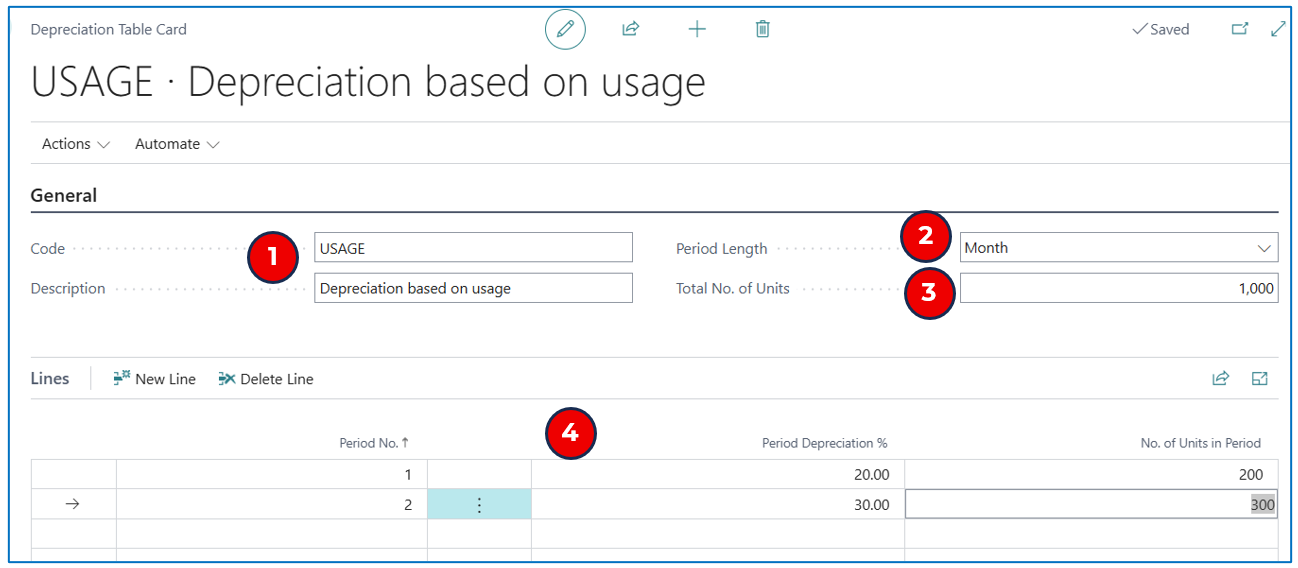
General Tab
-
Code and Description — Enter a code for the Depreciation Table and a description.
NB: the code will be selected for the asset using “User-defined” depreciation method.
-
Period Length — Select either Month, Period, Quarter or Year. This determines the depreciation period for the value computation.
-
Total No. of Units — enter the base measurement units if a ratio formula is used.
Lines Tab
- In the Lines section, indicate the depreciation % or the units (ratio to the Total) for each period of depreciation.
Additional Depreciation Methods
In addition to the above-mentioned depreciation methods, there are also combination of methods: DB1/SL (Declining-Balance 1/Straight-line) and DB2/SL (Declining-Balance 2/Straight-line).
Both these methods calculate depreciation using Declining-Balance and Straight-line methods, and from the output, the system selects the resulting depreciation amount that is largest.
NB: During the asset life, the Net Book Value decreases with periodic depreciation and in later years, Straight-line depreciation amount becomes larger than Declining-Balance amount.
Calculating Depreciation
Other than the Manual depreciation method which requires manual input of periodic depreciation amount in Fixed Asset G/L Journals, the system provides Calculate Depreciation function to compute the period depreciation amount based on the depreciation method selected for the asset.
Seach and navigate to Calculate Depreciation to open the runtime prompt:
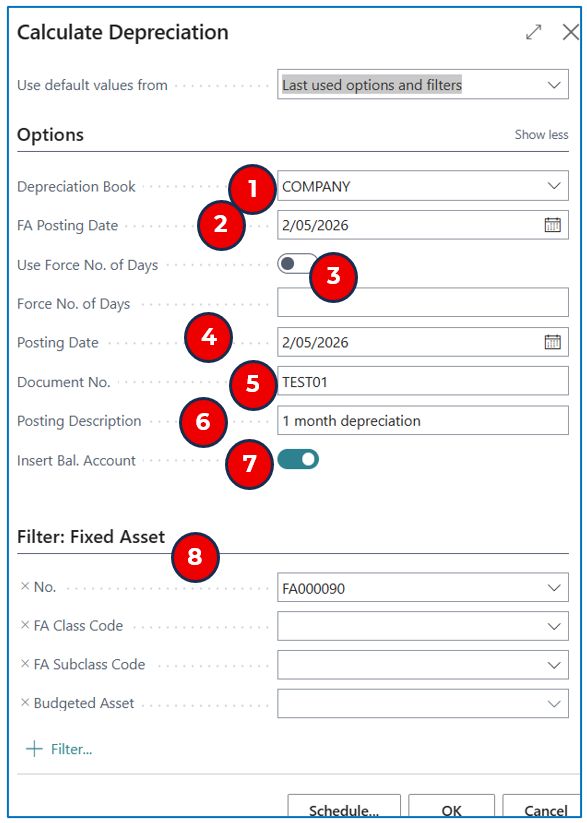
Options
-
Depreciation Book — Select the depreciation book for computing the depreciation amount.
-
FA Posting Date — Select the posting date in the Fixed Asset Ledger.
-
Use Force No. of Days and Force No. of Days — These fields are used in conjunction if you want the depreciation amount to be calculated based on this number of days. Otherwise, the standard default is based on 360 days per year and calculated from the last depreciation FA posting date to the current FA Posting Date (selected).
-
Posting Date — This is the G/L posting date. If the depreciation book setup enabled Use Same FA+G/L Posting Dates, then this date must be the same as the FA Posting Date.
-
Document No. — The journal batch no. series will default a journal number.
-
Posting Description — Enter a description for the journal line.
-
Insert Bal. Account — This is enabled by default so that there is a Bal. Account for the journal line.
-
Filter: Fixed Asset — When calculating depreciation, use filters to select assets by class/subclass or by asset no. range. The batch calculation will result in a depreciation amount for each asset, based on the depreciation method assigned per asset.