Client Portal for Immigration in Legal Solution for Microsoft Dynamics 365
Are you ready to try the solution or have questions?

Introduction
About the Client Portal
The Client Portal for Immigration app gives clients a secure place to view information linked to their legal matters. Staff manage the underlying records in Microsoft Dynamics 365, while clients use the portal to upload and manage documents, review Immigration Records and Applications, track application progress and view invoices. In this guide we will be using the Dynamics 365 Legal Hub.
Outline
Here is an outline:
-
Staff send a portal invitation from the client’s Contact record in Dynamics 365.
-
Clients sign in using their email address and the temporary credentials provided in the invitation email.
-
On first sign-in, the client is prompted to change the temporary password.
-
The portal shows only information made available to that signed-in client.
Note: A Contact must have a valid email address before a portal invitation can be sent.
Send a Client Portal Invitation
Once the client has been created as a Contact in Dynamics 365, staff can create the client portal account and send the invitation directly from the Contact record.
Follow these steps:
-
In Legal Hub, go to Clients > Contacts. Open the Contact record for the client you want to invite
-
From the top command bar, select Send Invite.
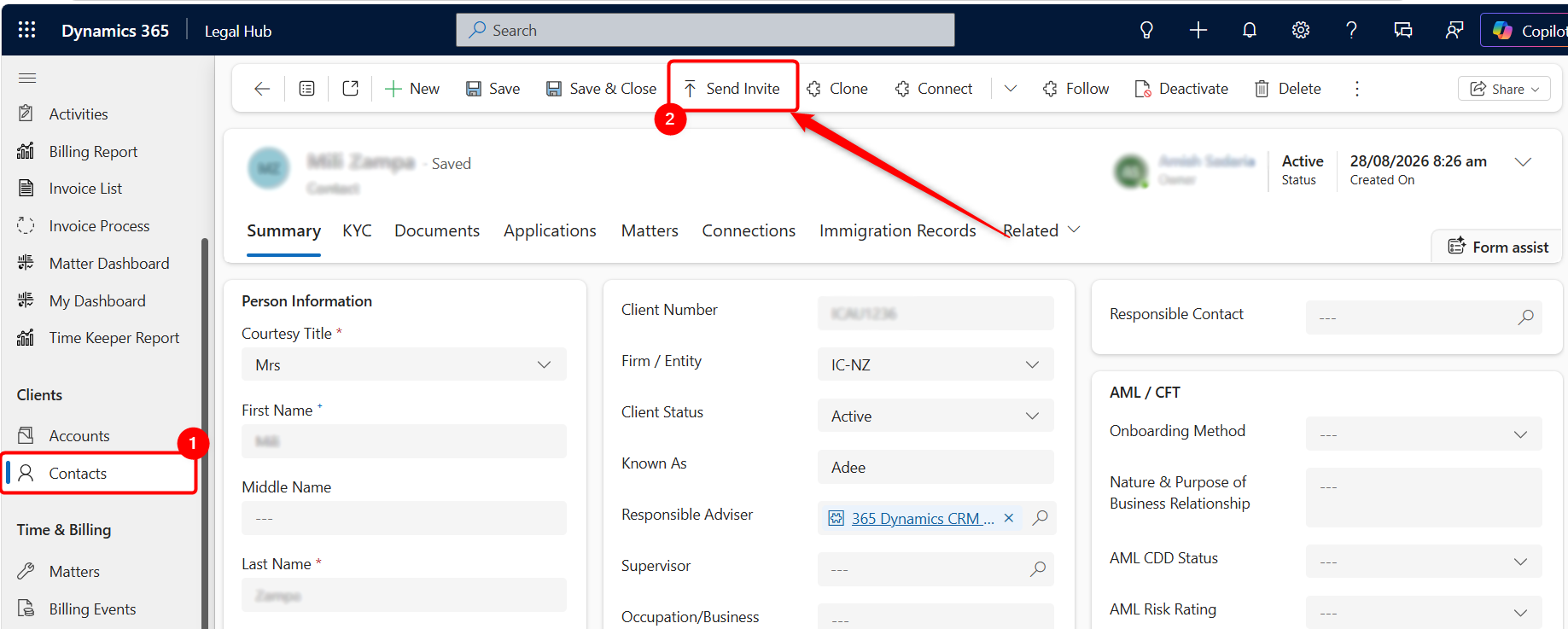
Send Invite is available from the Contact command bar.
- When the confirmation message appears, select OK.
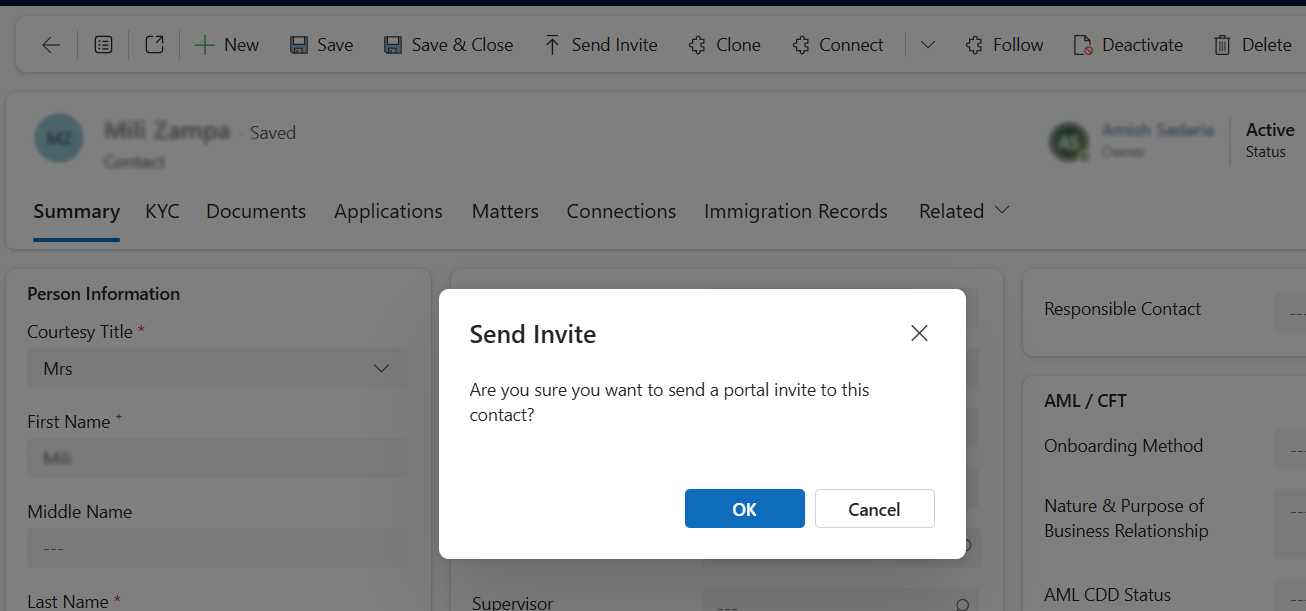
Confirm the portal invitation.
- Dynamics creates the client portal account and sends an invitation email to the Contact’s email address.
The invitation email contains the client portal sign-in link and temporary credentials. For security, the example credentials in this guide have been obscured.
Client Sign-In
The client opens the portal link from the invitation email and signs in using their email address and the temporary credentials provided.
-
Open the Client Portal link from the invitation email.
-
Sign in using the invited email address and temporary credentials.
-
On the first sign-in, follow the prompt to change the temporary password.
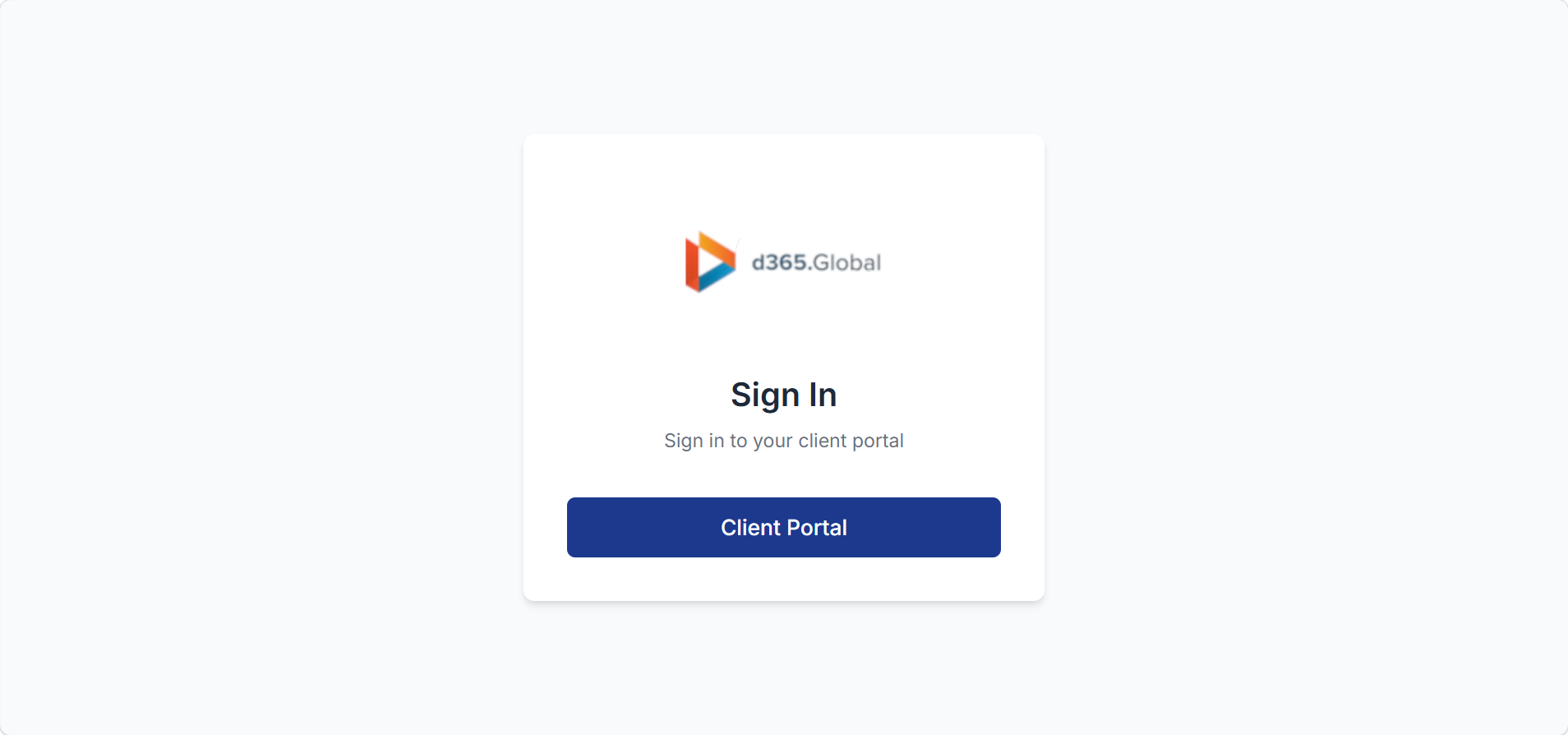
The Client Portal sign-in page.
Dashboard & Navigation
After sign-in, the portal opens to the Dashboard. The top navigation provides access to Dashboard, Documents, Immigration Records, Applications, and Invoices.
The Dashboard provides a quick overview of the client’s information.
Here is a break down of the information:
-
Summary cards show the number of Active Matters, Immigration Records and Applications.
-
Current Applications are displayed directly on the Dashboard.
-
Immigration Records are also displayed below for quick review.
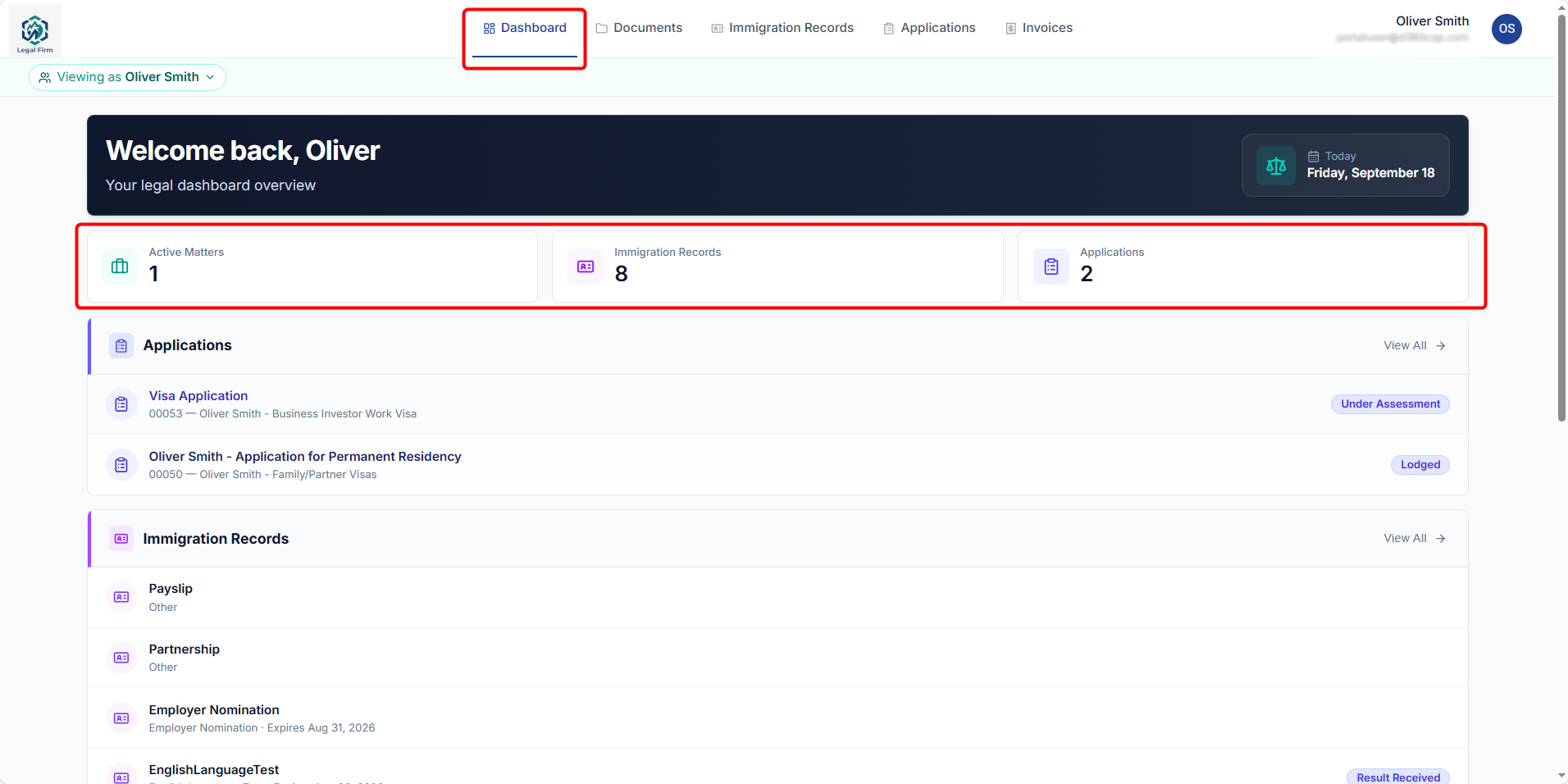
Client Portal dashboard and top navigation.
Managing Related Clients
If a client has been set as the Responsible Contact for another client in Dynamics 365 Contact form, they can access and manage information for that client through the Client Portal. The related client must first be added as a Connection in Dynamics 365 and then be selected as Responsible Contact.
Example
For example, a parent may be set as the Responsible Contact for a child.
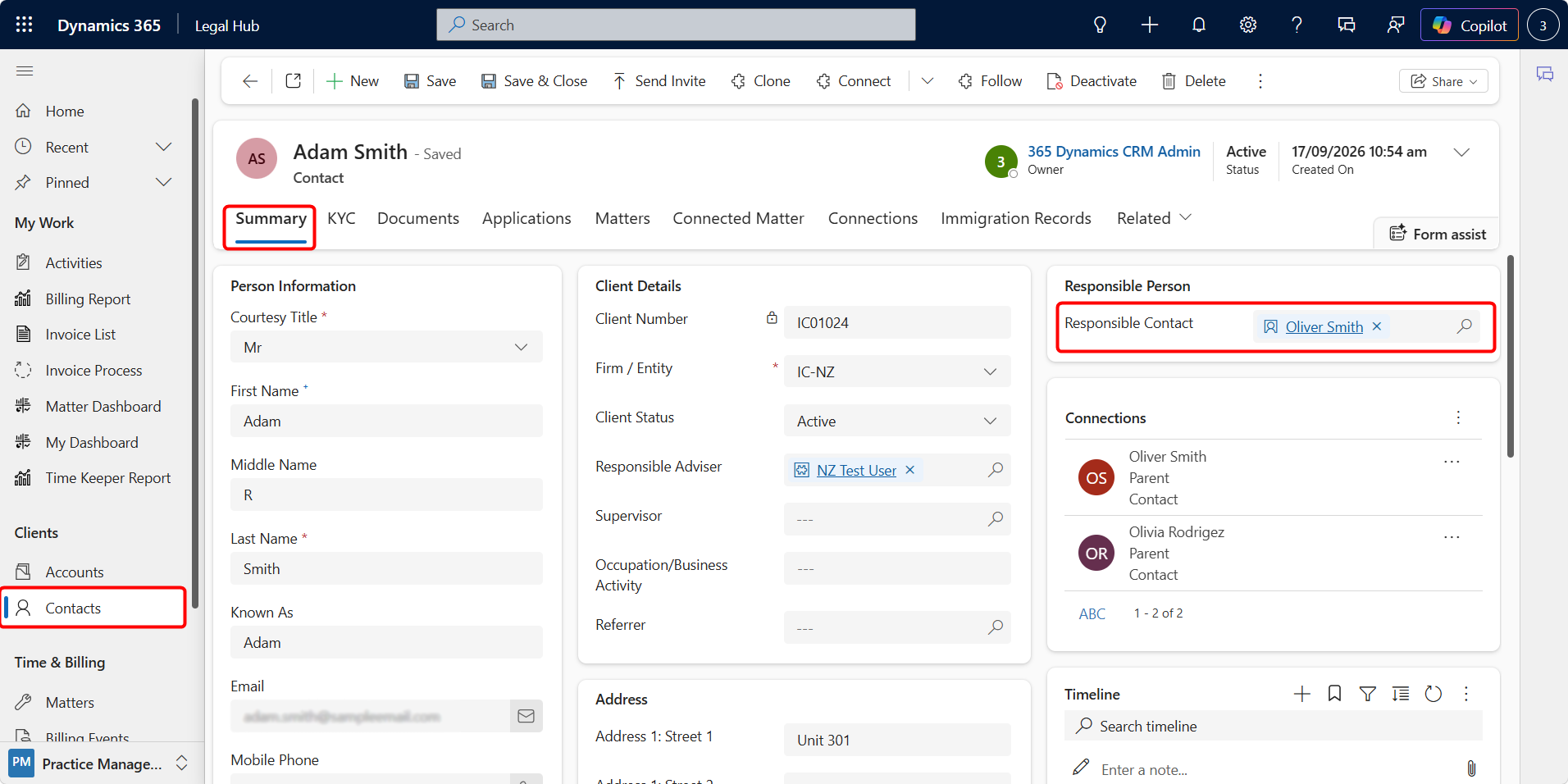
How to Manage Related Contacts
To manage related contacts:
-
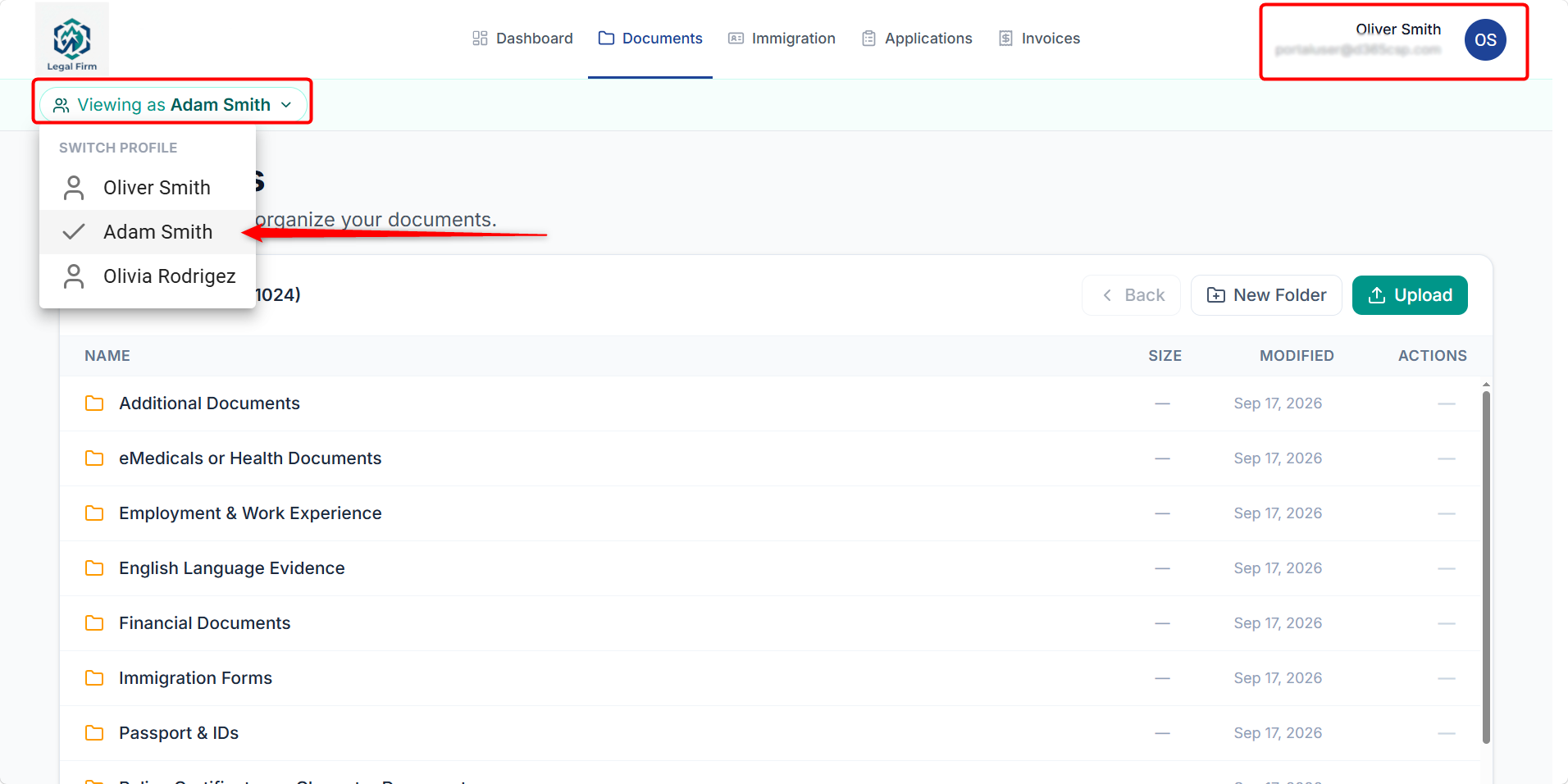
In the Client Portal, select the Viewing as menu.
-
Choose the related client you want to manage.
-
The portal switches to that client’s information.
The Responsible Contact can then review application status, immigration information, and upload or manage documents on behalf of that client.
Note: Only clients who have been linked through a Connection and configured with the signed-in user as their Responsible Contact will appear in the Viewing as list.
Documents
The Documents page is the main area for clients to upload and organise documents that are requested.
How to Upload Documents
-
Select Documents from the top navigation.
-
Open the appropriate folder.
-
Select Upload to add documents.
-
Drag and drop files or browse from the device.
-
Select Upload Files to complete the upload.
-
Select New Folder if an additional folder is required.
Documents uploaded through the portal are stored in SharePoint and are available through the linked Dynamics 365 Client and Matter document areas.
If the client is authorised to manage another family member, use Viewing as first to switch to that person before uploading their documents.
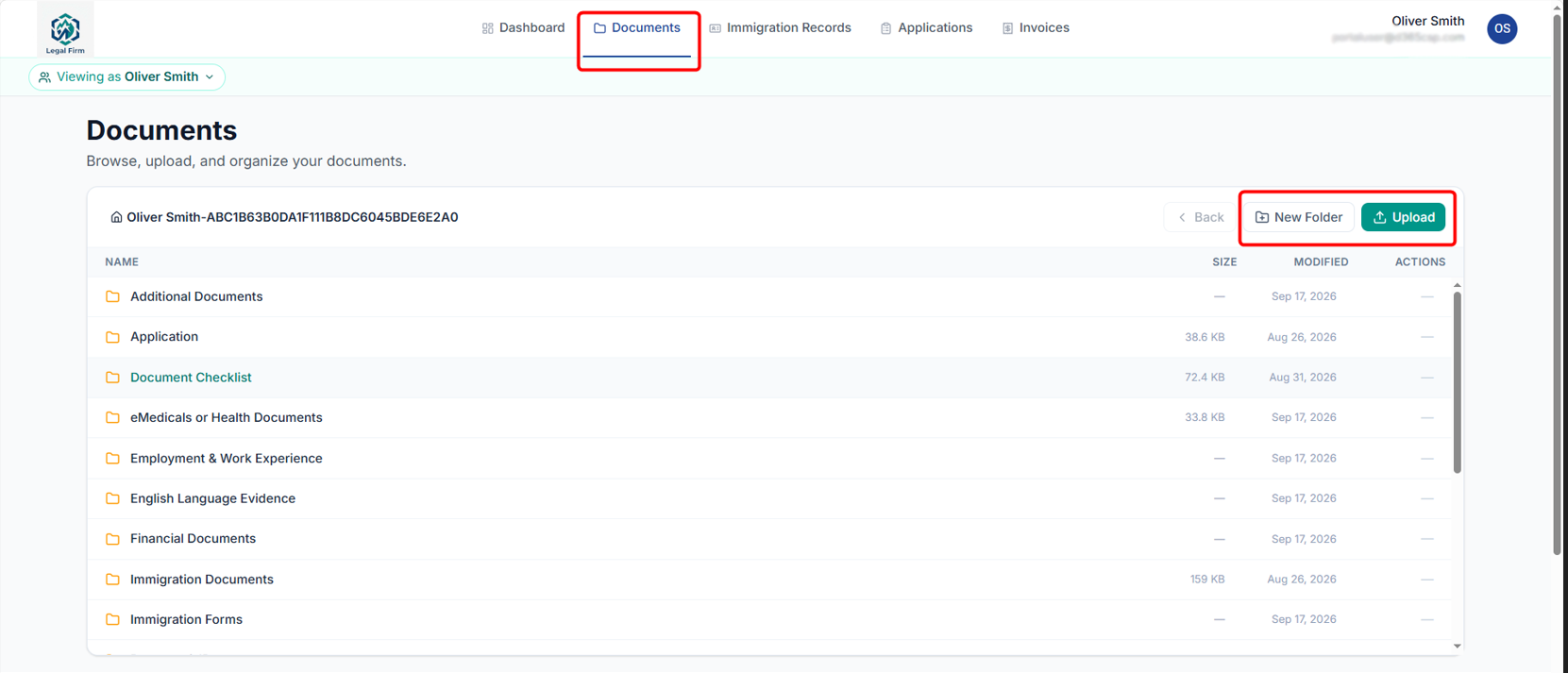
Documents page allows clients to browse folders, create folders and upload files.
Immigration Records
The Immigration Records page allows clients to review immigration-related information maintained by your company/firm/organisation.
Types of Records
Here is a list of the types of immigration-related information:
- Visa
- Passport
- Employment
- Health
- Qualifications
- Other immigration records
How to Review Immigration Record
Follow these steps to review an immigration record:
-
Select Immigration Records from the top navigation.
-
Use the search or type filter to find the required record.
-
Expand the record to review the available information.
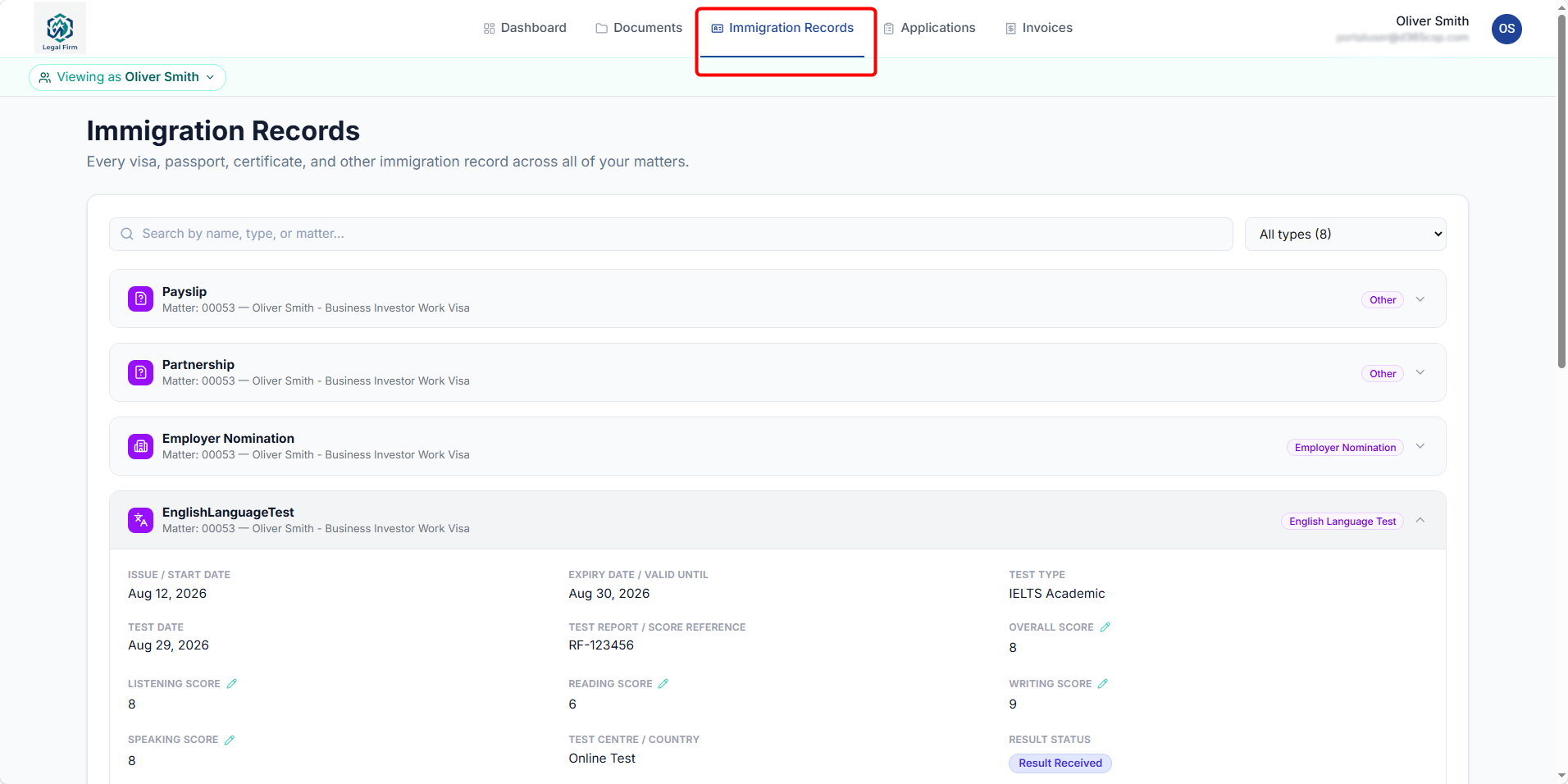
Immigration Records allow clients to review immigration related details.
Note: The Client should contact your support team or staff if they notice information that appears incorrect or requires professional review.
Applications
The Applications page allows clients to review their immigration applications and track their progress.
How to Review an Application
Follow these steps to review an application:
-
Select Applications from the top navigation.
-
Search or filter the list if required.
-
Expand the required application.
-
Use Details to review information such as application number, jurisdiction, visa category/type, pathway, lodgment details and decision/outcome.
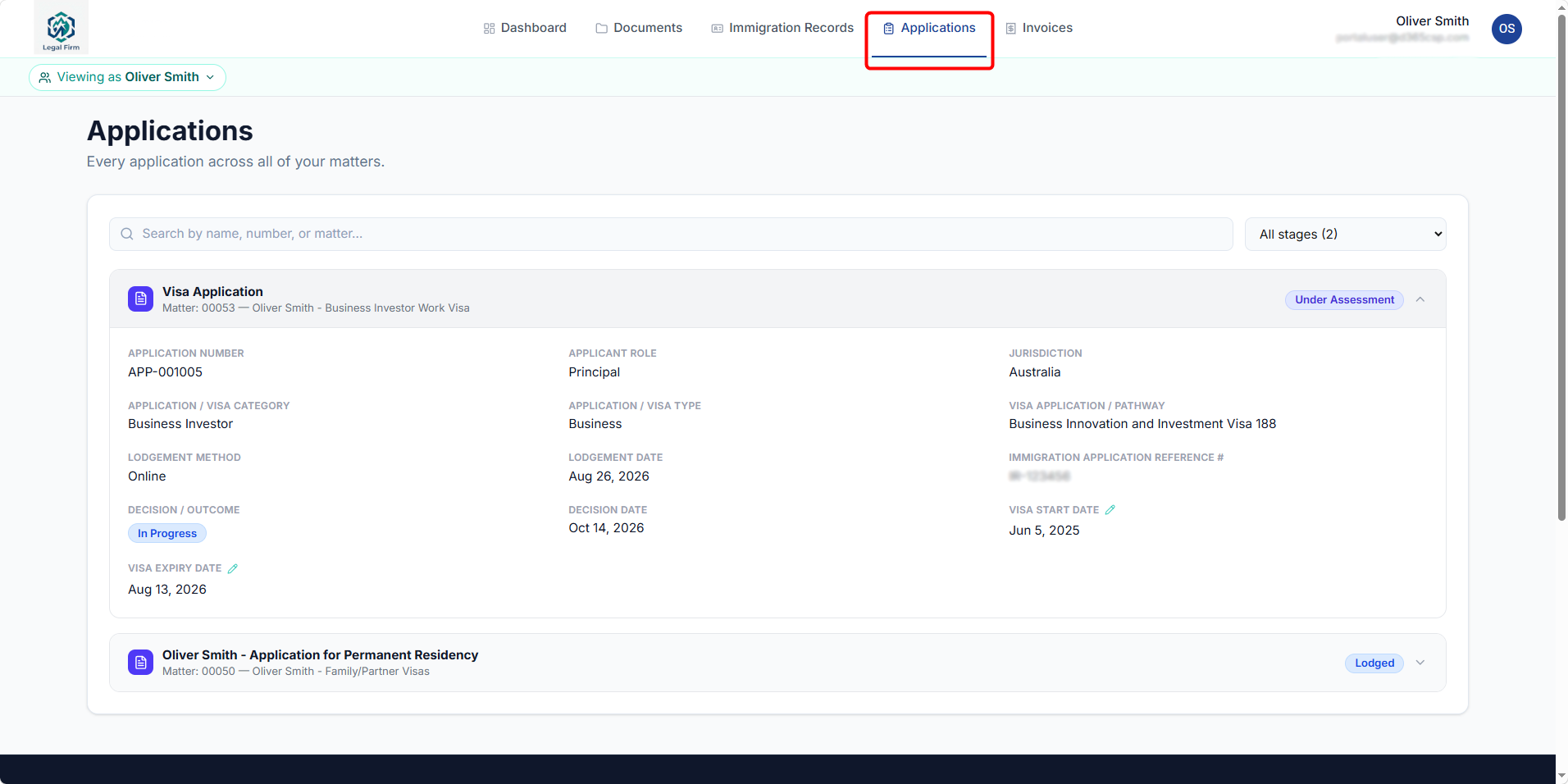
Applications page showing application details and status.
Invoices
The Invoices page gives the client access to invoices associated with their legal services. The list can include active, paid and other invoice statuses.
How to Review an Invoice
-
Select Invoices from the top navigation.
-
Use the search, status filter or sorting controls to find an invoice.
-
Select an invoice record to open the full invoice details.
-
Review the issue date, due date, status, line items, tax and total amount.
-
If an invoice is overdue, an overdue invoice notification appears at the top of the page.
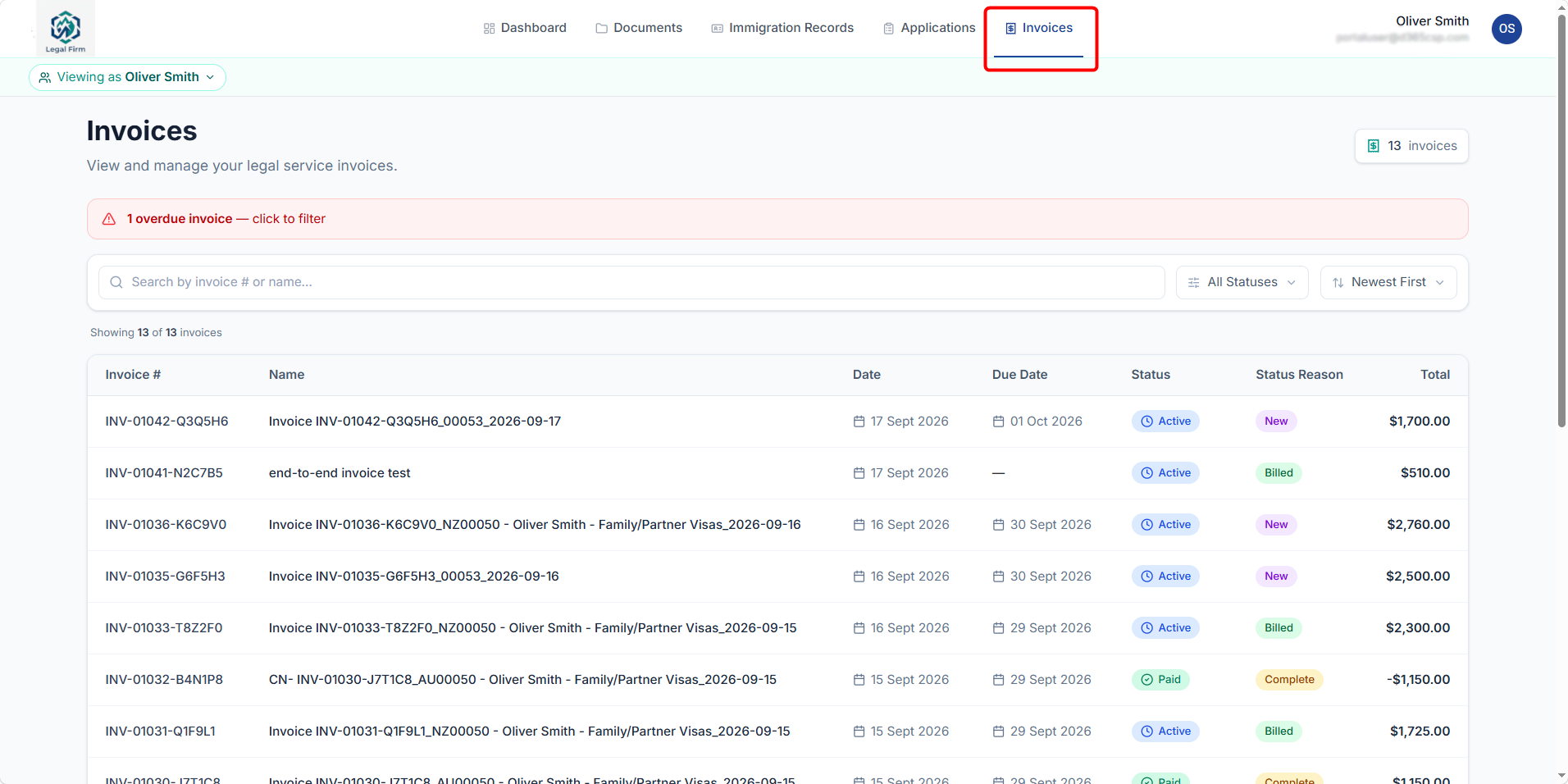
Invoice list with status, due date and total.
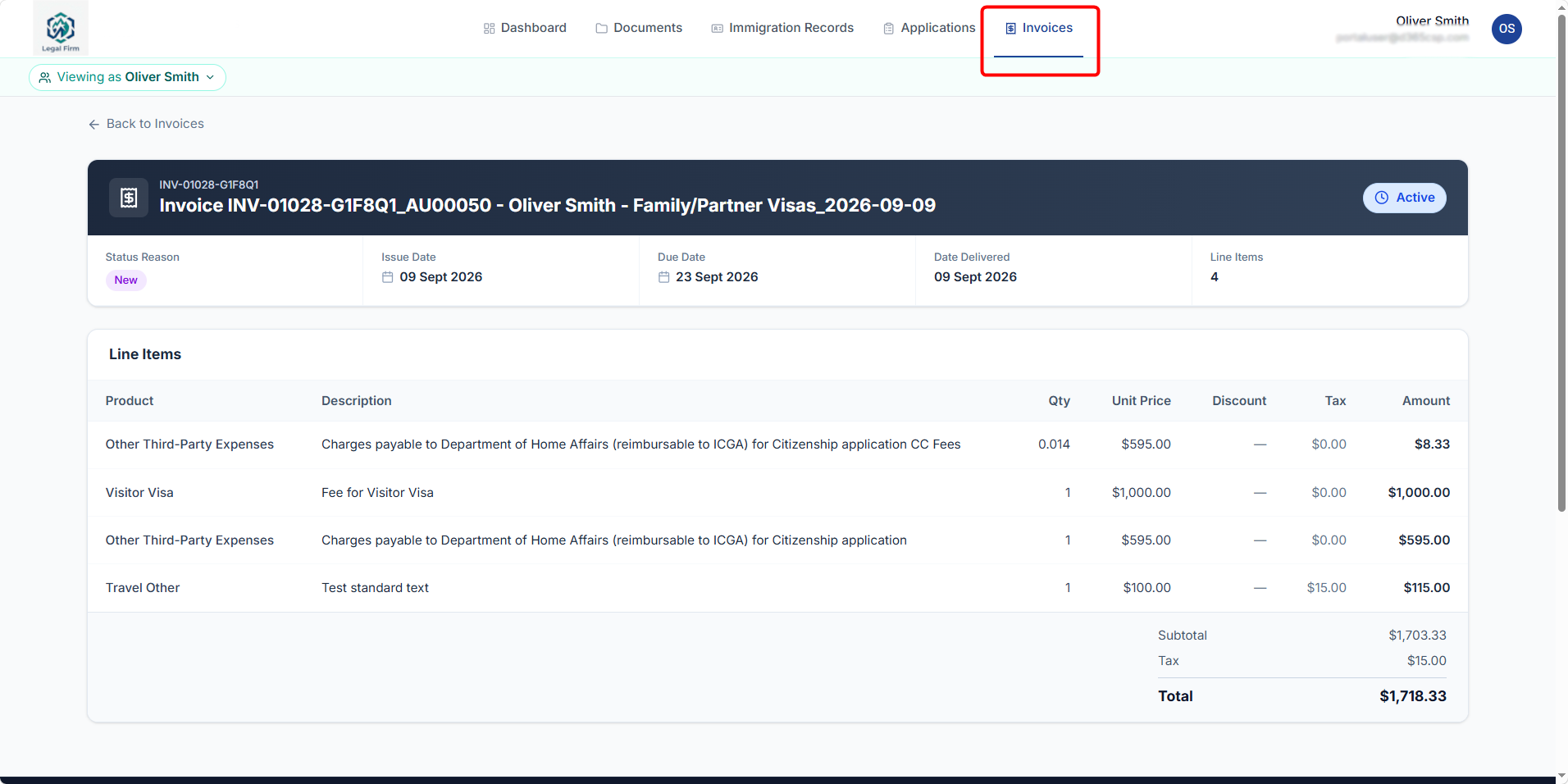
Detailed invoice showing line items and totals.
Profile & Sign Out
Clients can open the profile menu from the top-right corner of the portal.
-
Select Profile to review personal information and available security information.
-
Select Sign Out when finished using the portal, especially on a shared device.
-
If the client needs to change their password later, they can sign out and use the Forgot password option on the sign-in page.
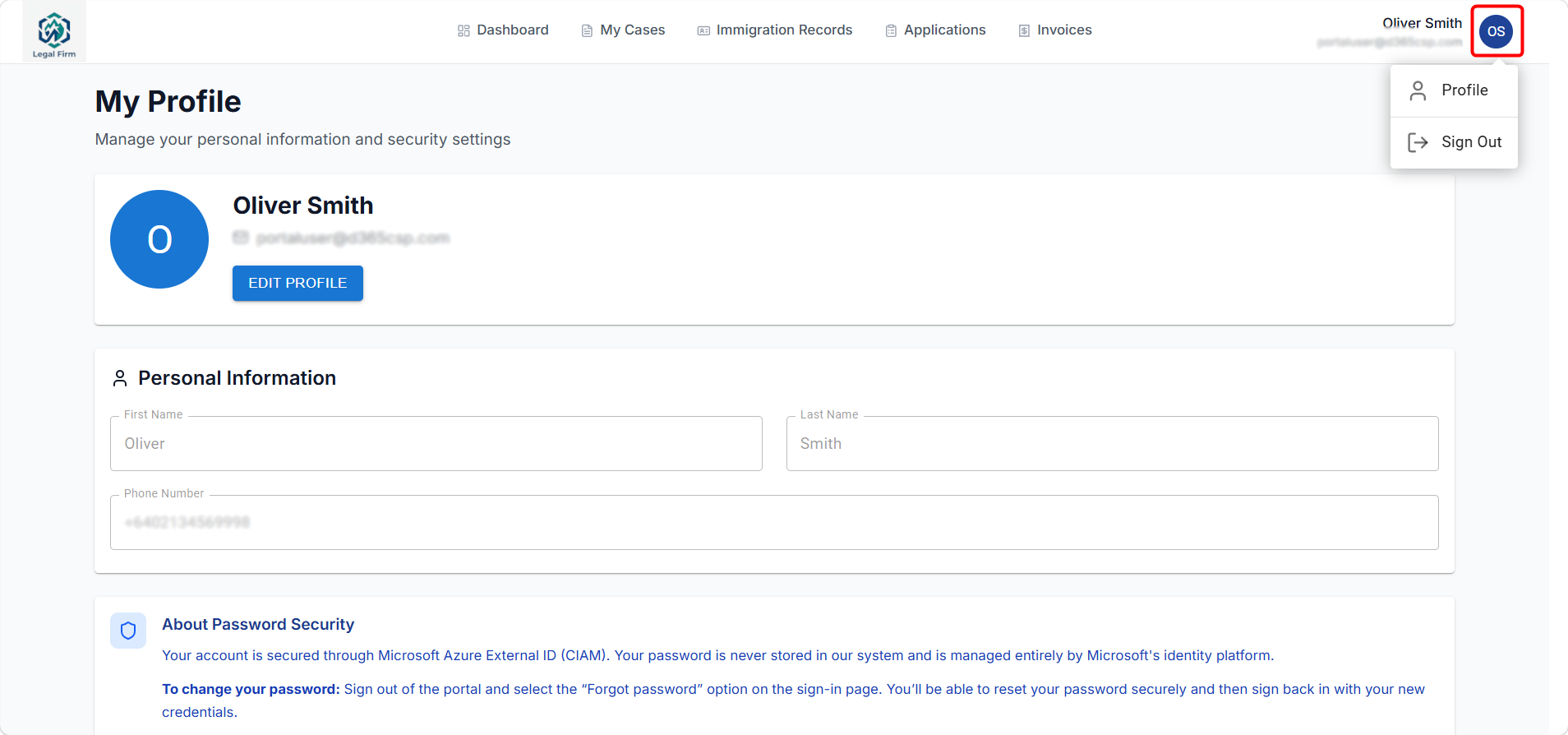
Profile and Sign Out options are available from the top-right menu.
Block Portal Access
If a client’s email account is lost, compromised or should no longer be used for portal access, staff can block the client’s portal access from Dynamics 365.
How to Block Access
-
Go to Clients > Contacts in Legal Hub.
-
Open the client’s Contact record.
-
Select Block Portal Access from the top command bar.
-
Confirm the action when prompted.
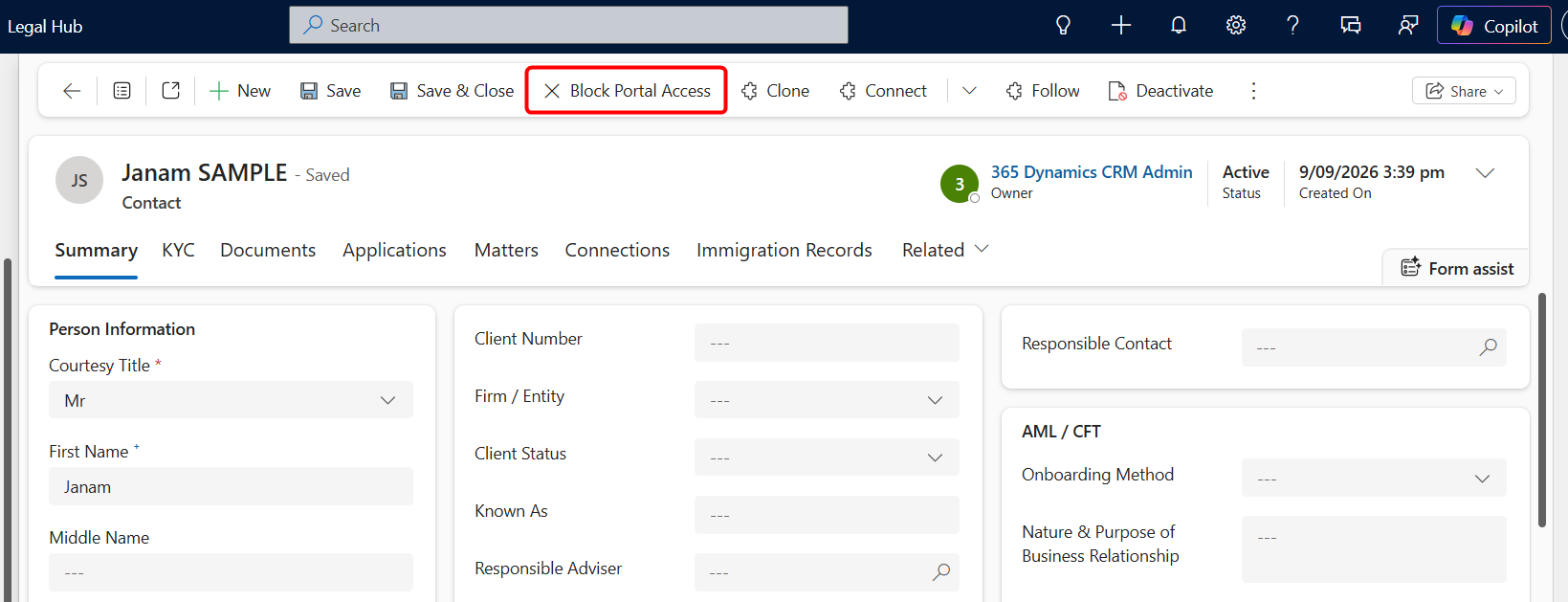
Block Portal Access is available after a portal invitation/account has been created.
Note: The Block Portal Access option is shown only after portal access has been created for that Contact. If the Contact’s email address is changed, the system can provide the option to send a new invitation to the updated email address.
Quick Reference
Here is quick reference of tasks to help guide you.
| Task | Where to do it |
|---|---|
| Send portal invitation | Dynamics 365 > Contact > Send Invite |
| Upload or organize documents | Portal > Documents |
| Review Immigration Records | Portal > Immigration Records |
| Review Application status / details | Portal > Applications |
| View invoices | Portal > Invoices |
| Switch between authorized clients | Portal > Viewing as |
| Review profile / sign out | Portal > top-right profile menu |
| Block portal access | Dynamics 365 > Contact > Block Portal Access |