Microsoft Dynamics 365 for Stock Requisition User Guide
Introduction
General Information about Stock Requisition in Business Central
This Stock Requisition Custom Module in Microsoft Dynamics 365 Business Central is designed to streamline the internal process of requesting, approving, and fulfilling inventory or material requirements across departments or locations.
To get the app module, visit d365 on Microsoft AppSource Stock Requisition for Microsoft Dynamics 365 Business Central
Benefits
The following are the benefits of using the Stock Requisition module.
Improved Inventory Control
-
Prevents overstocking or understocking by capturing internal demand early.
-
Provides clear visibility of requested vs. available stock.
-
Reduces ad hoc or emergency stock movements.
Streamlined Internal Operations
-
Standardizes how departments or locations request inventory.
-
Reduces manual communication (emails, calls) and paper-based request forms.
-
Centralizes requisition processing, improving consistency.
Efficient Approval Workflow
-
Ensures only necessary and budgeted stock requests are fulfilled.
-
Adds accountability and transparency to the request process.
-
Approvals based on department, item category, or value thresholds.
Time and Cost Savings
-
Reduces time spent managing inventory requests manually.
-
Lowers administrative overhead by automating repetitive steps (approvals, order creation, status updates).
-
Minimize costly stockouts and emergency procurement.
Full Traceability and Compliance
-
Audit trail of who requested what, when, and why.
-
Supports internal policies and external audit requirements.
-
Easy reporting on historical requisitions, fulfillment rates, and bottlenecks.
Pre — Requisite Setup
- On the Purchase & Payables Setup we have some no. series and template setup.
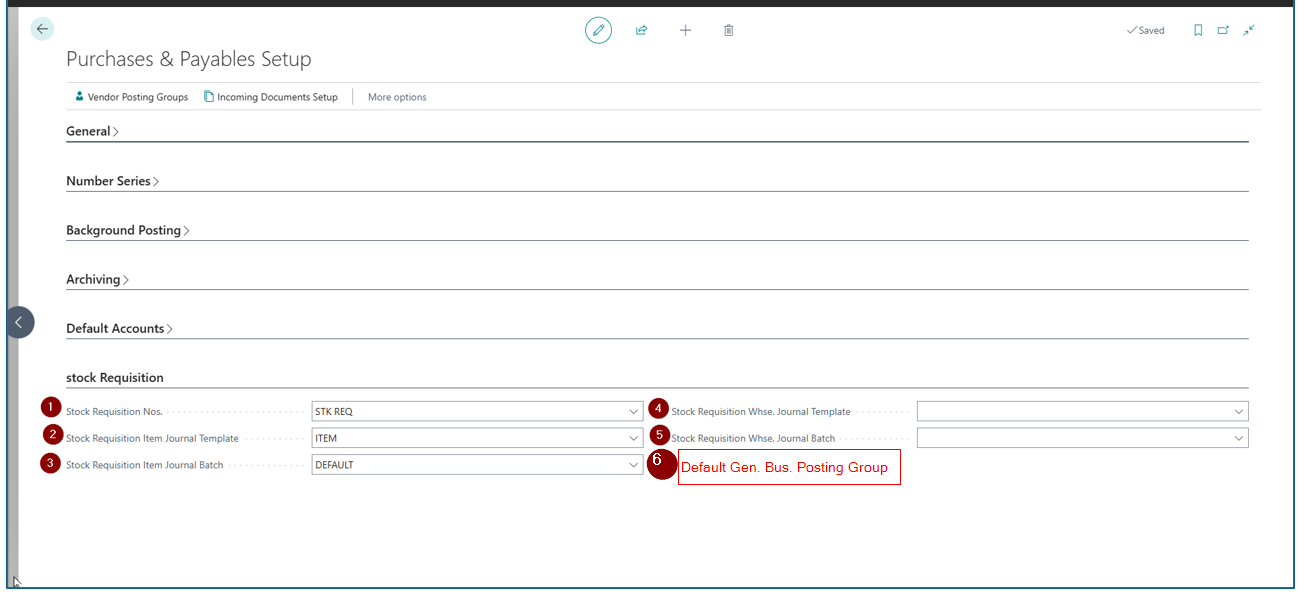
| Sr. No. | Field Name | Tool Tip |
|---|---|---|
| 1 | Stock Requisition No | This is the auto-generated number series. |
| 2 | Stock Requisition Item Journal Template | The Item template defaulted for stock requisition transactions. |
| 3 | Stock Requisition Item Journal Batch | The Item Journal batch defaulted for stock requisition transaction. |
| 4 | Stock Requisition Whse. Journal Template | The Whse. Journal template defaulted for stock requisition transactions in case of advanced warehouse management setup. |
| 5 | Stock Requisition Whse. Journal Batch | The Whse. Journal Batch defaulted for stock requisition transactions in case of advanced warehouse management setup. |
| 6 | Default Gen Bus Posting Group | This helps to default the Gen. Bus. Posting group through which the inventory adjustment account will get impacted. |
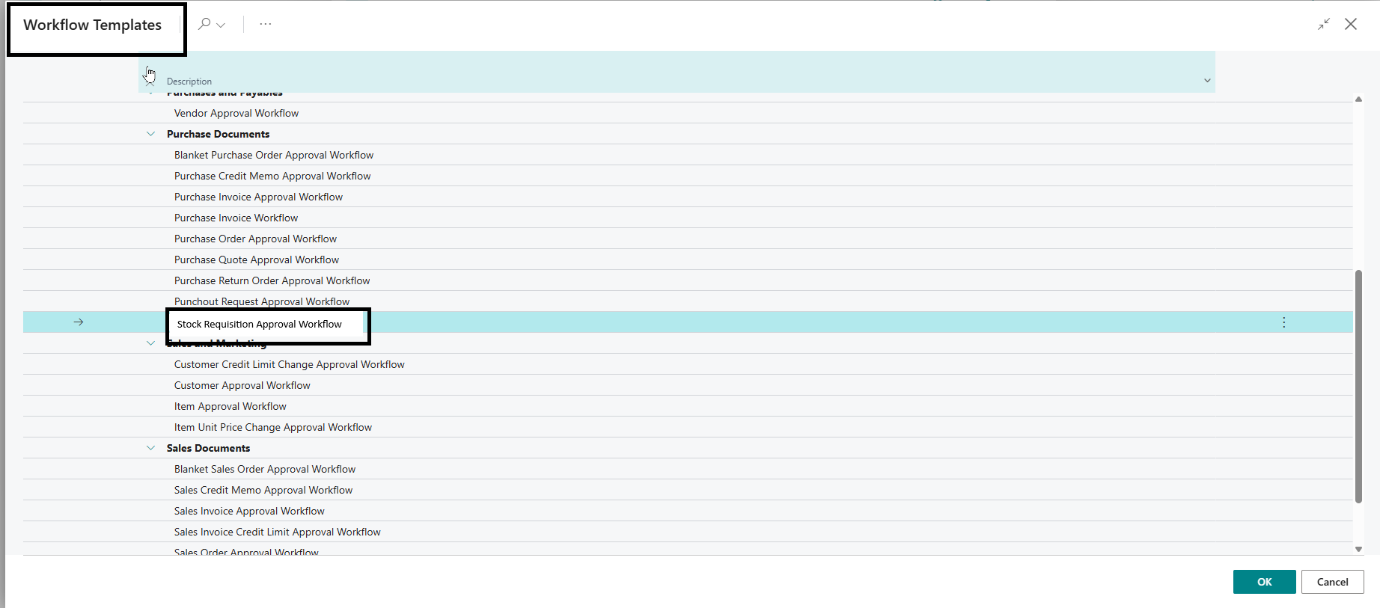
- We can see Stock Requisition Workflow from the workflow templates and configure as per approval user policies. We use the standard Business Central workflow.
- Reason Code on Stock Requisition Item Journal Batch (defined in setup on point 1) is used for audit purposes.

Step-by-Step User Guide
Follow these steps to create and process a stock requisition in Microsoft Dynamics 365 Business Central.
Create a Stock Requisition
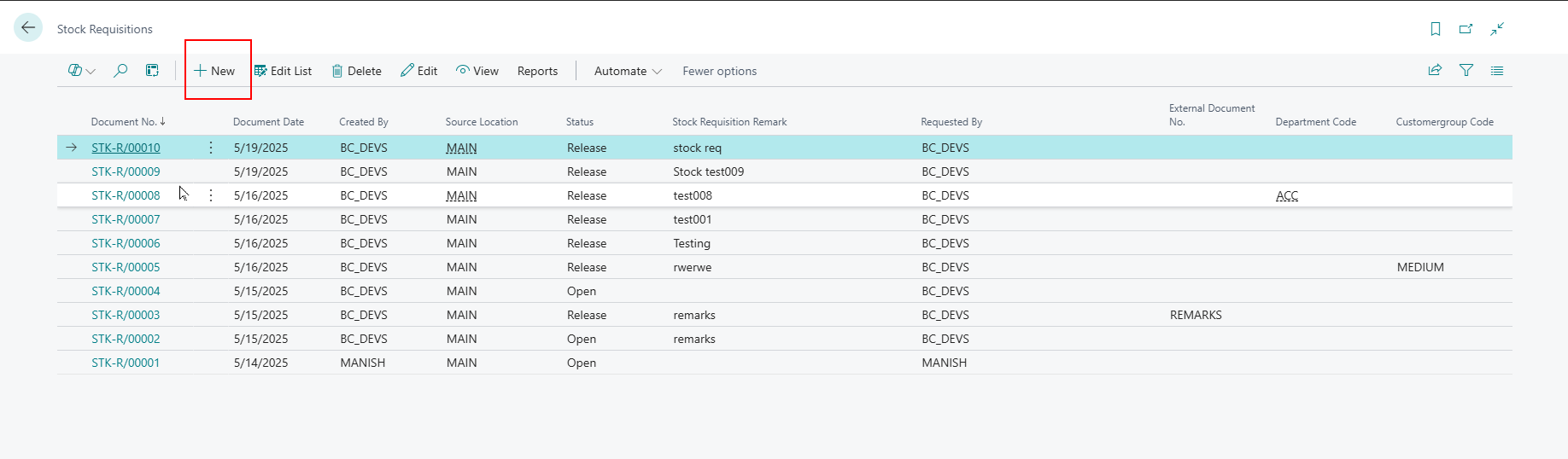
- In Business Central, search for Stock Requisition.

- Click on New to create a new Stock Requisition.
- Fill in the details on the General Tab. The ones marked in a red box are the Global Dimensions 1 and 2.
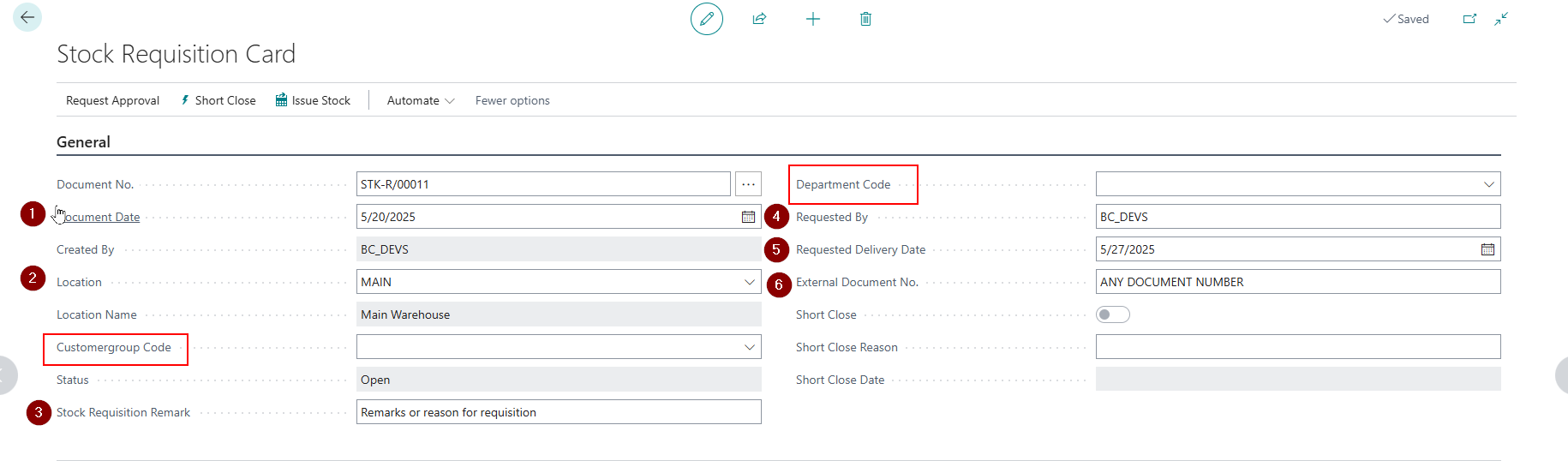
| Sr. No. | Field Name | Tool Tip |
|---|---|---|
| 1 | Document Date | This is the date the requisition is created. |
| 2 | Location | The warehouse/location from where the stock is supposed to be issued. |
| 3 | Stock Requisition Remark | This is where the user can put in comments or remarks. |
| 4 | Requested By | This is the user id that requested the requisition. |
| 5 | Requested Delivery Date | The date on which the material is required. |
| 6 | External Document No. | Add any external document number or reference number. |
Line Details
Here are the details on Stock Requisition Lines:
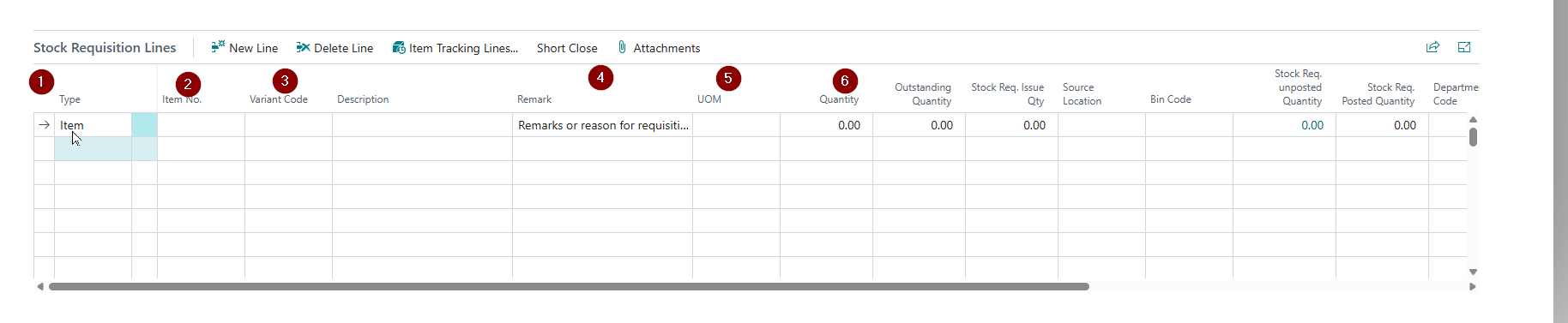
| Sr. No. | Field Name | Tool Tip |
|---|---|---|
| 1 | Type | User can select what is requested (e.g., Item, G/L Account). |
| 2 | Item No | If the type is Item, then the item master lookup opens. |
| 3 | Variant Code | If there is a variant, then the variant can also be selected here. |
| 4 | Stock Requisition Remark | Comments or remarks from the header come automatically onto the line. |
| 5 | UOM | Unit of Measure for the selected item. |
| 6 | Quantity | Total quantity required for the requisition. |
Approval
Send approval for the requisition. User can send approval request to the approver based on the workflow setup.
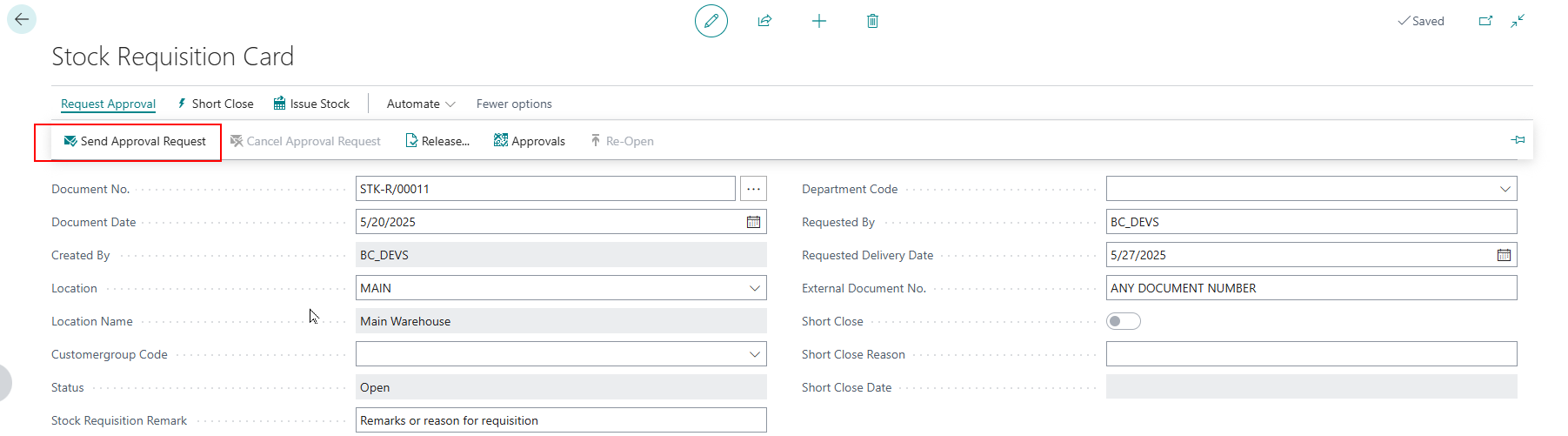
Approver Steps
The approver will update the Stock Req. Issue Qty. This is the approved quantity that needs to be issued.

Once approved, the status changes to released.
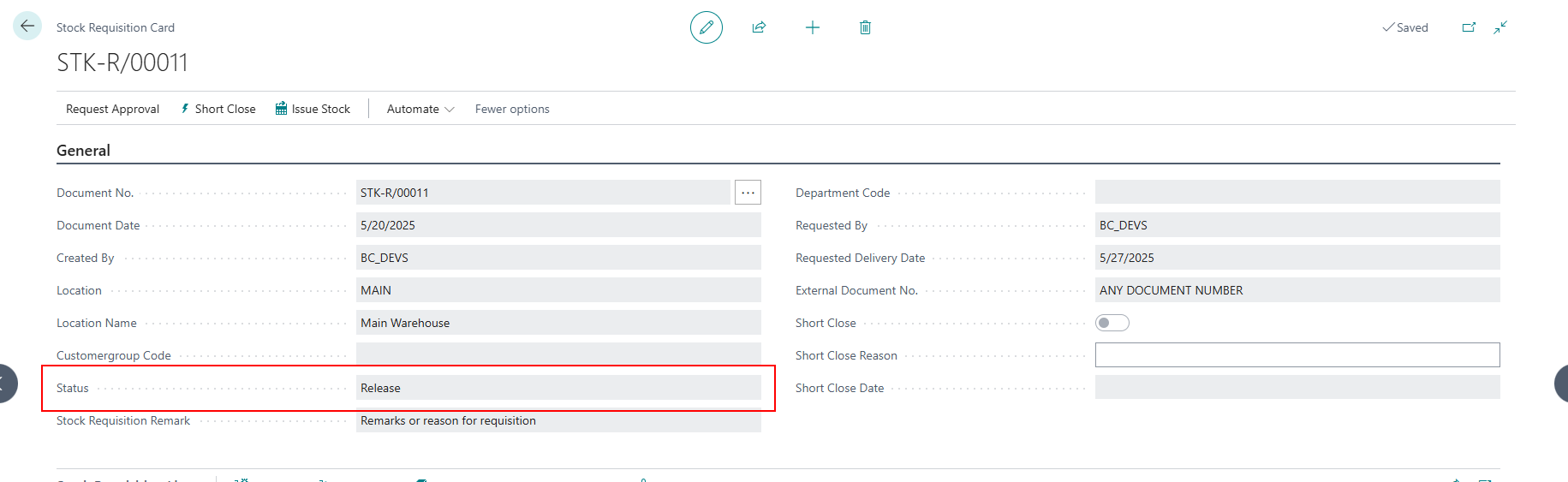
Issue Stock
After approval, the user can now click on Issue Stock which will issue the approved quantity.
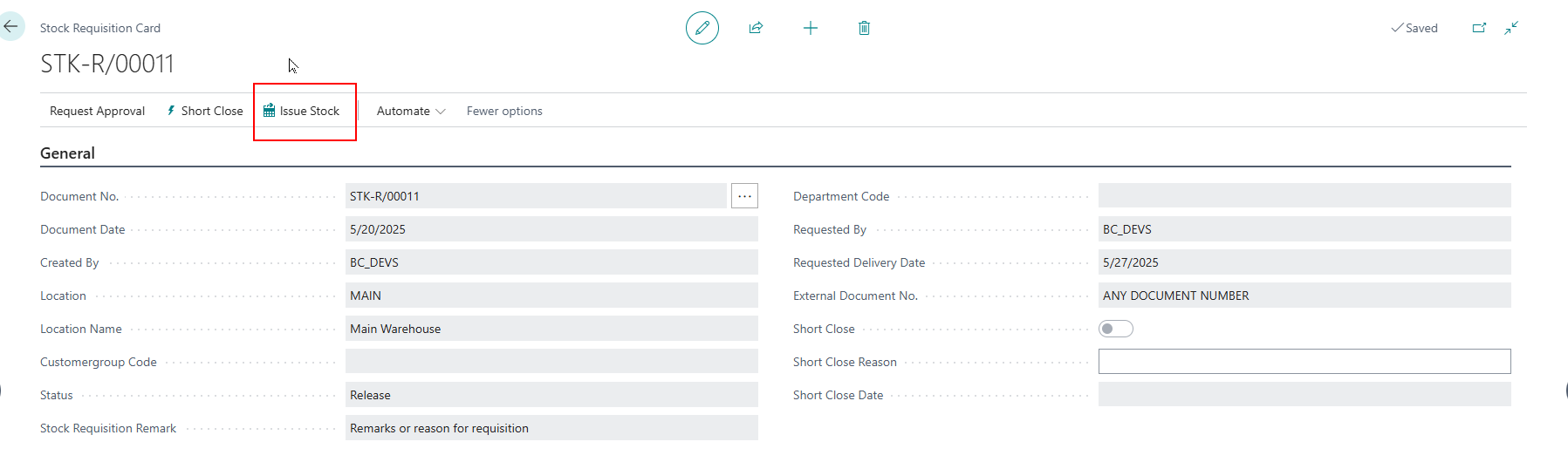
Once the stock is issued, the Outstanding Qty will get updated on the lines.

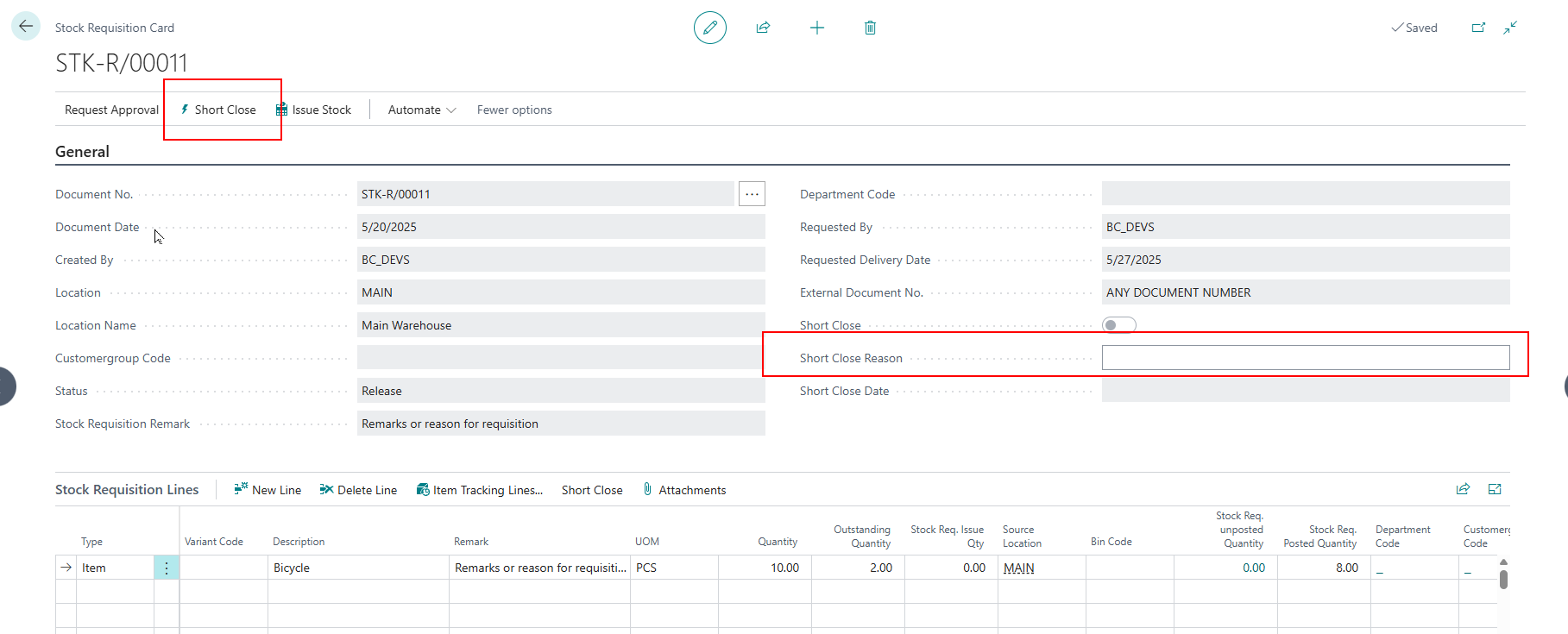
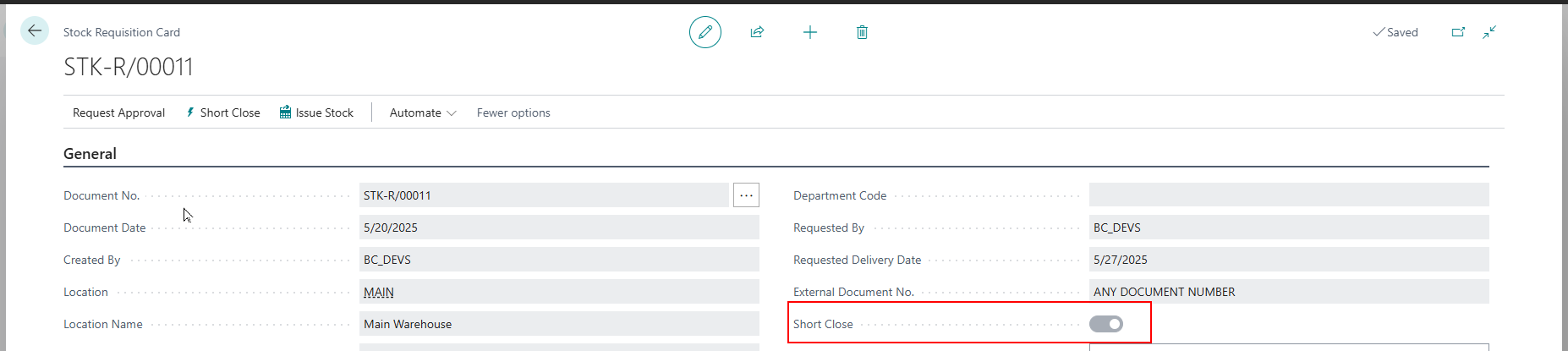
Short Close
If the requisition is no longer required, or the remaining quantity is not to be issued, we can Short Close the requisition, by entering the remarks in Short Clkose Reason (which is mandatory).

Posted Entries of Stock Issue
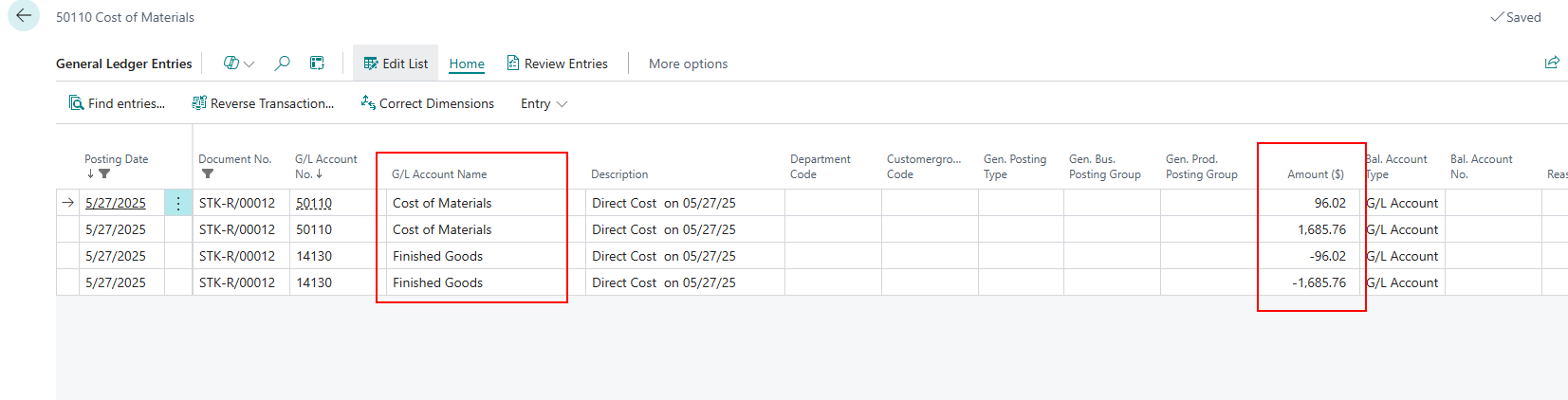
Check for item ledger entries, with entry type = negative adjustment. The following screenshots show the item ledger entries and general ledger entries impacted due to stock issue via stock requisition.