Microsoft Dynamics 365 for Purchase Requisition Deployment Guide
Introduction
This document provides a step-by-step guide to deploying the Purchase Requisition extension for Microsoft Dynamics 365 Business Central. Follow the instructions below to successfully set up and configure the extension in your environment.
Download the Extension
The user needs to download the extension from the link on Microsft AppSource - Purchase Requisition for Microsoft Dynamics 365 Business Central and click on Buy Now.
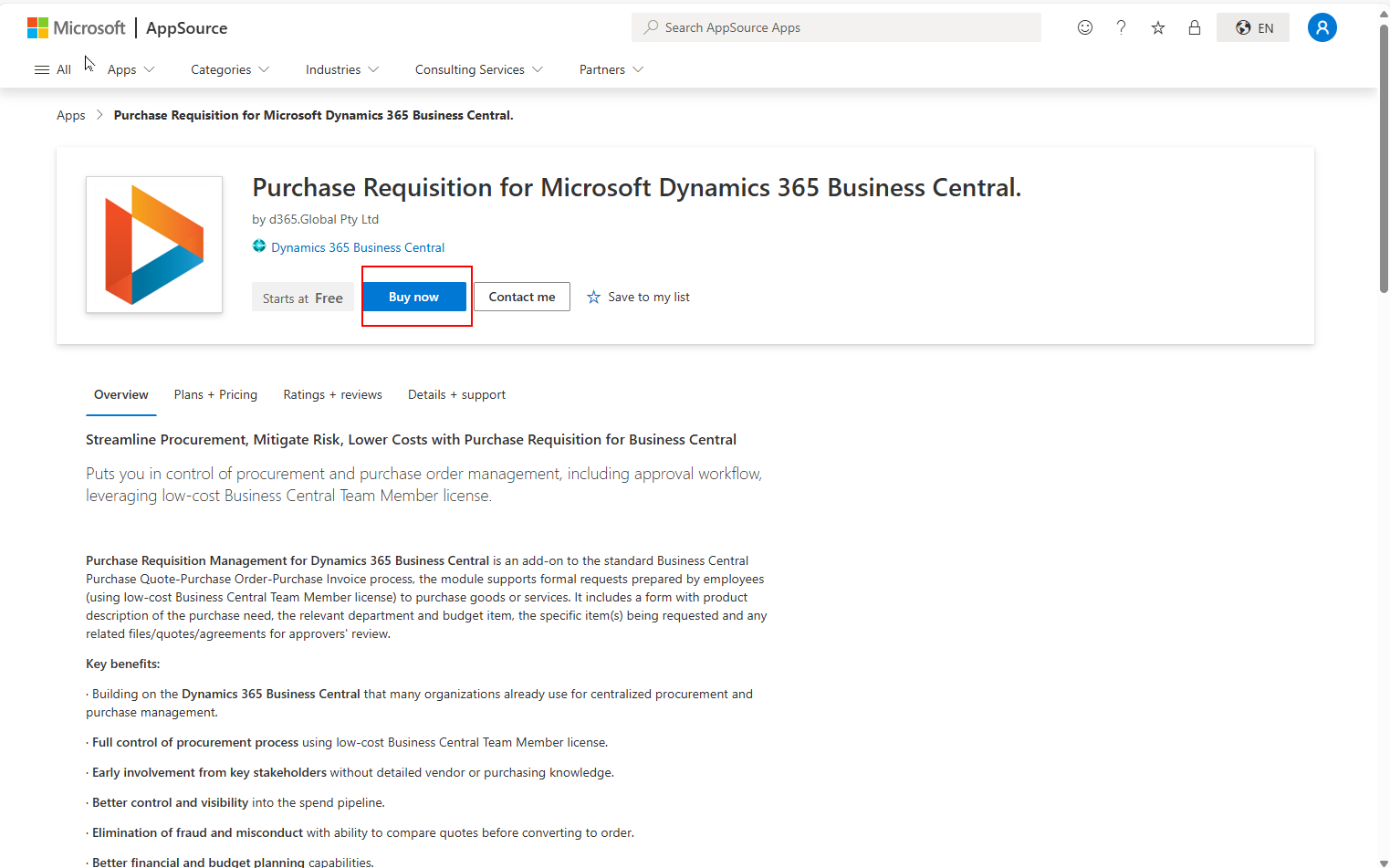
Follow the process of payment and then the extension will be downloaded to the environment as selected.
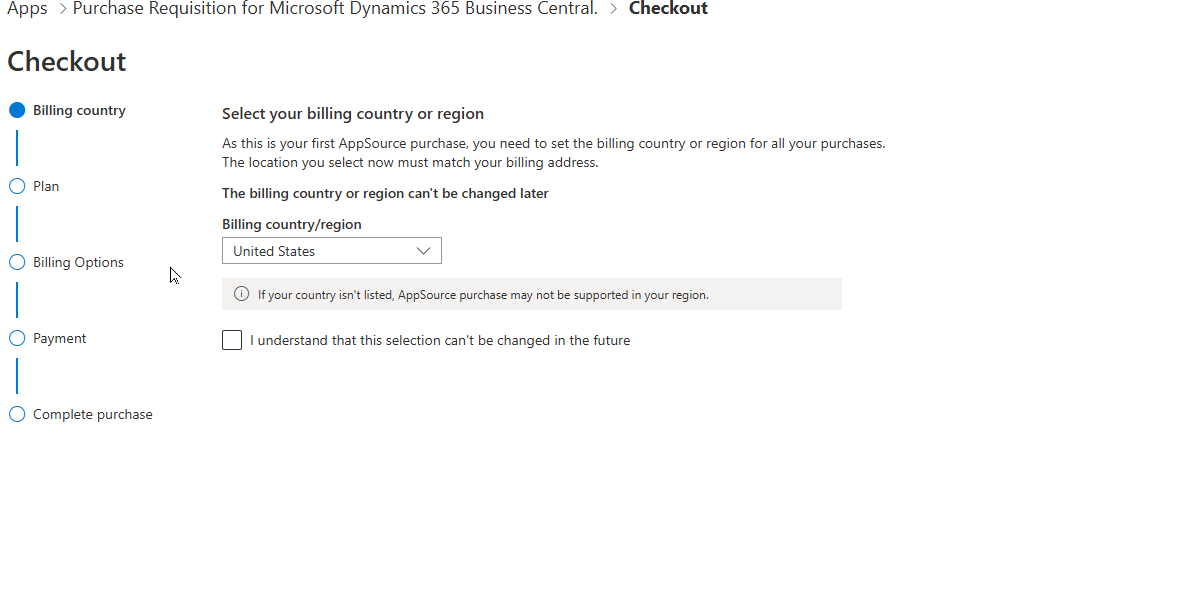
Some Setups for Purchase Requisition
Number Series Setup
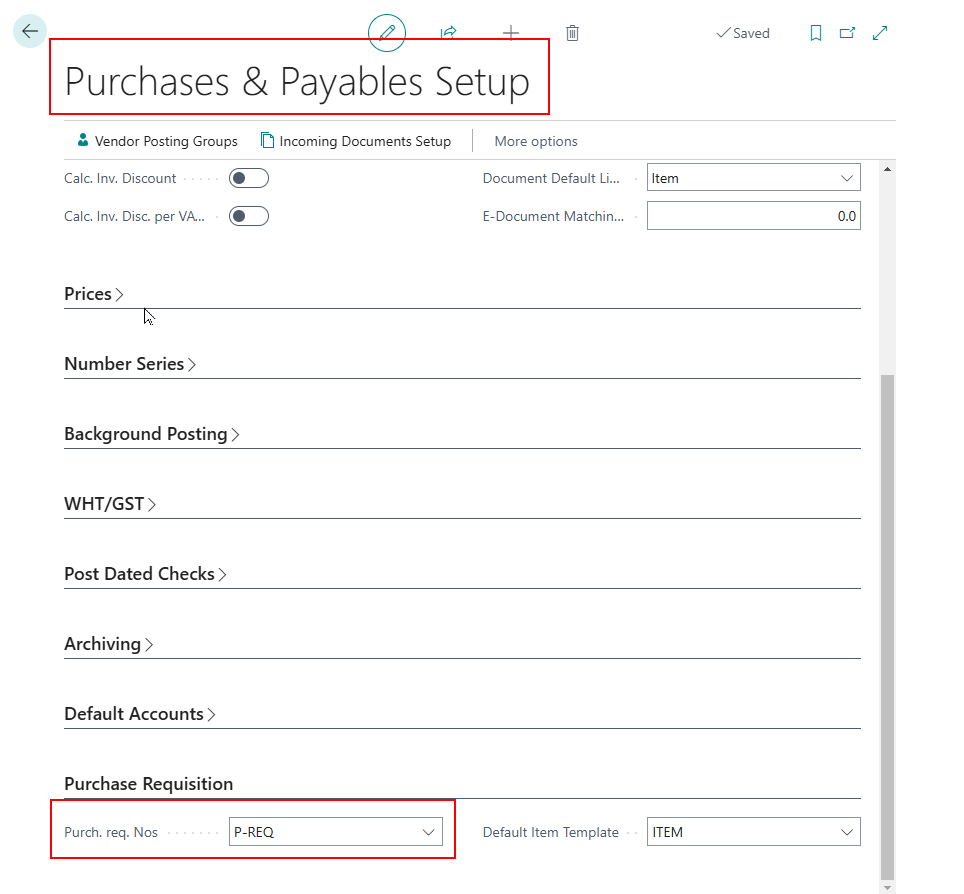
We can setup a number series (Purch. req Nos) based on our requirement. This can be setup under the Purchases & Payables Setup under the requisition tab.
Default Item Template Setup
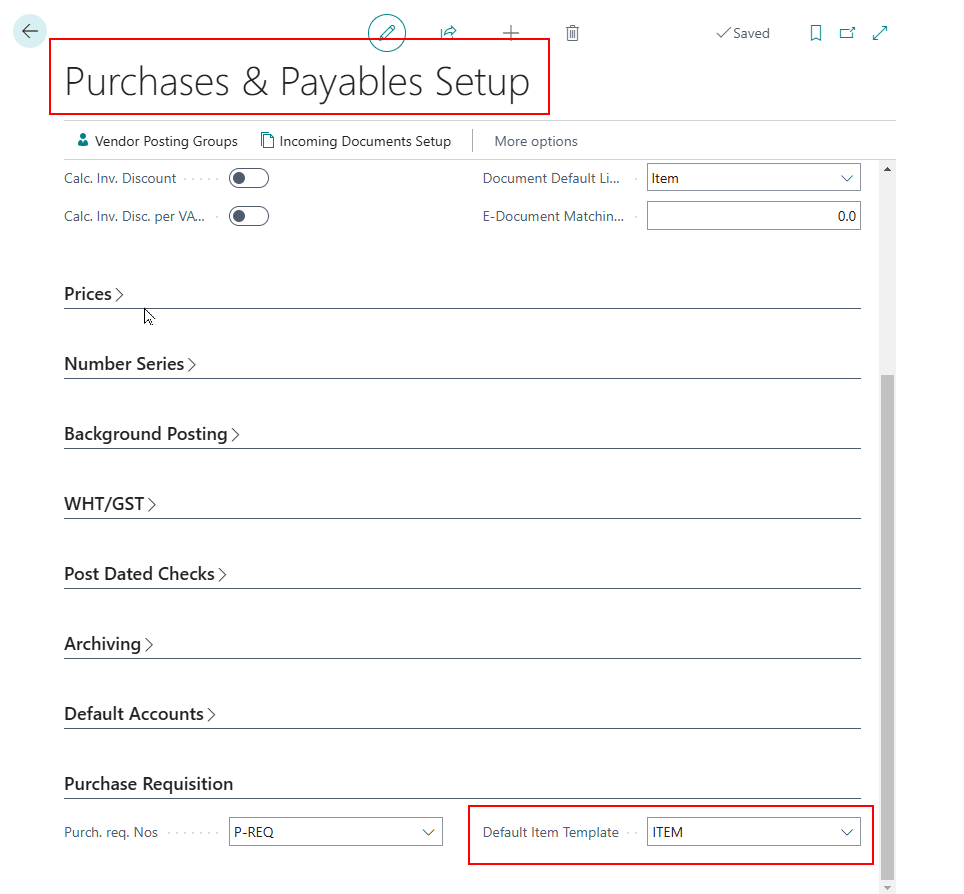
For any new item that is to be procured, we can setup a template that allows use of the default value of the item master (Default Item Template). This way an item can be generated quite easily.
Workflow
We can setup a Purchase Requisition workflow. To do that go to workflow and enable the workflow for Purchase Requisition. We provided a zip file link containing an .xml file with the settings. Unzip the .xml file and import the workflow.
TIP: You can also right-click on the zip file link and select “Save link as…” to download the zip file directly.
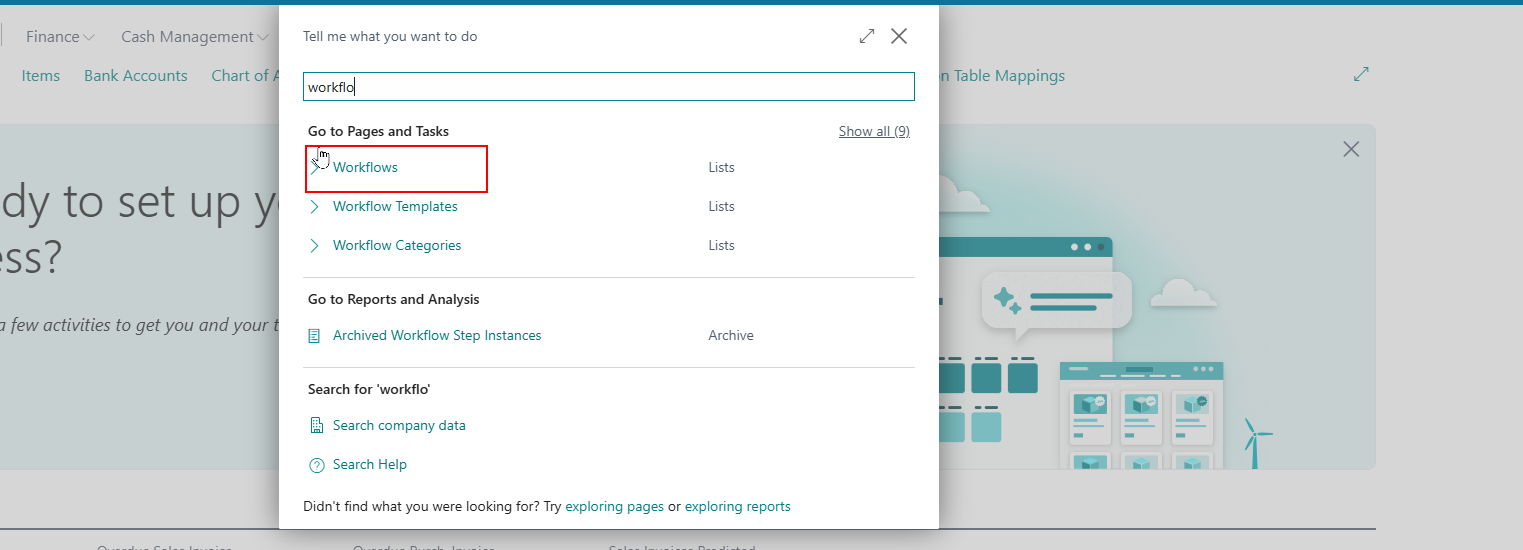
Click on import from file to import the workflow from the .xml file.
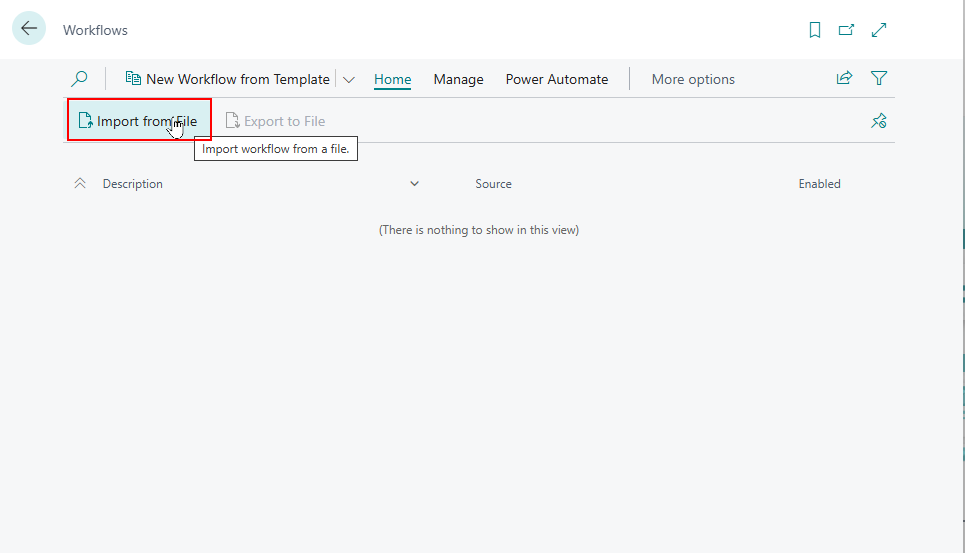
Once the file is imported click on the Purchase Requisition workflow.
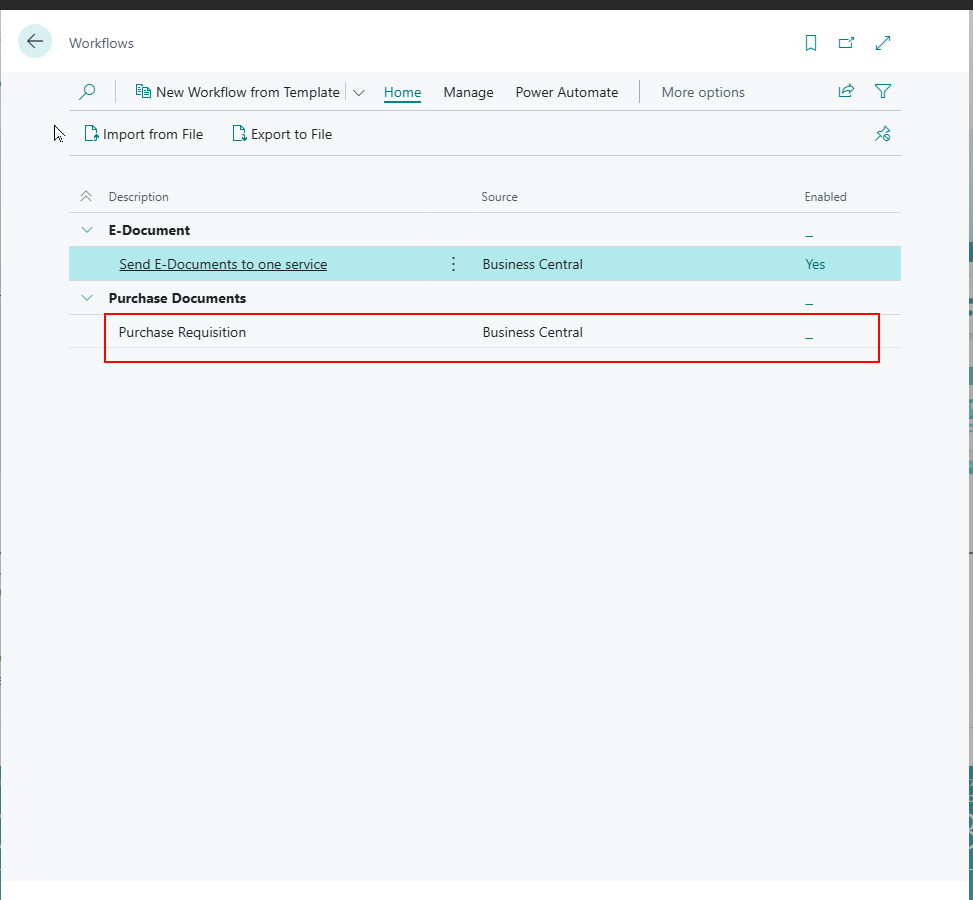
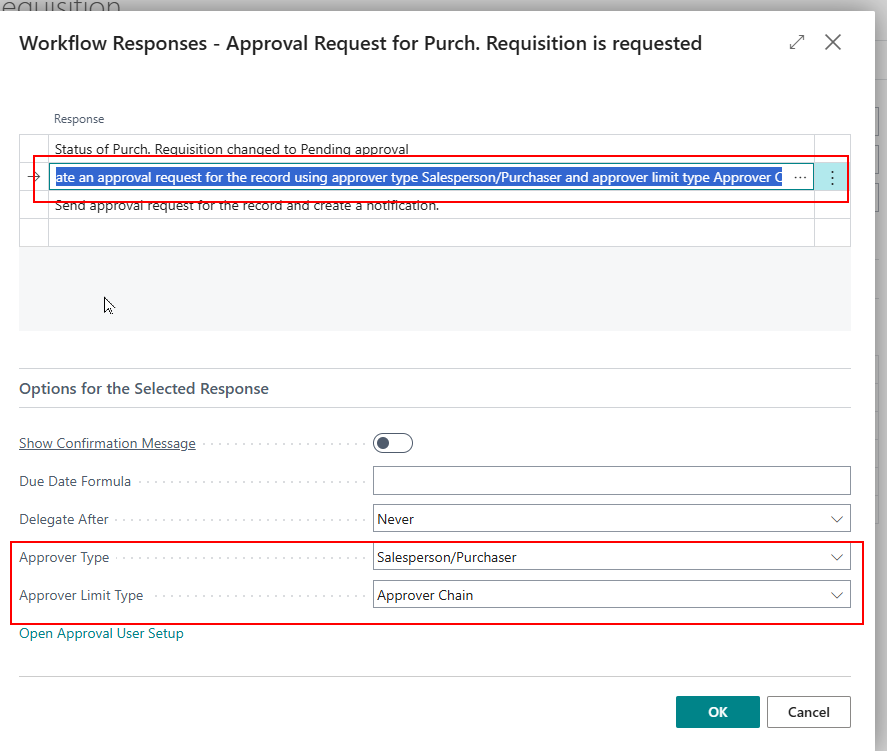
Click on Then Response to set the status of purchase.
The Approver Type and Approver Limit Type must be updated as per the organisation policy and click on the OK button.
Enable the workflow by selecting Enabled.
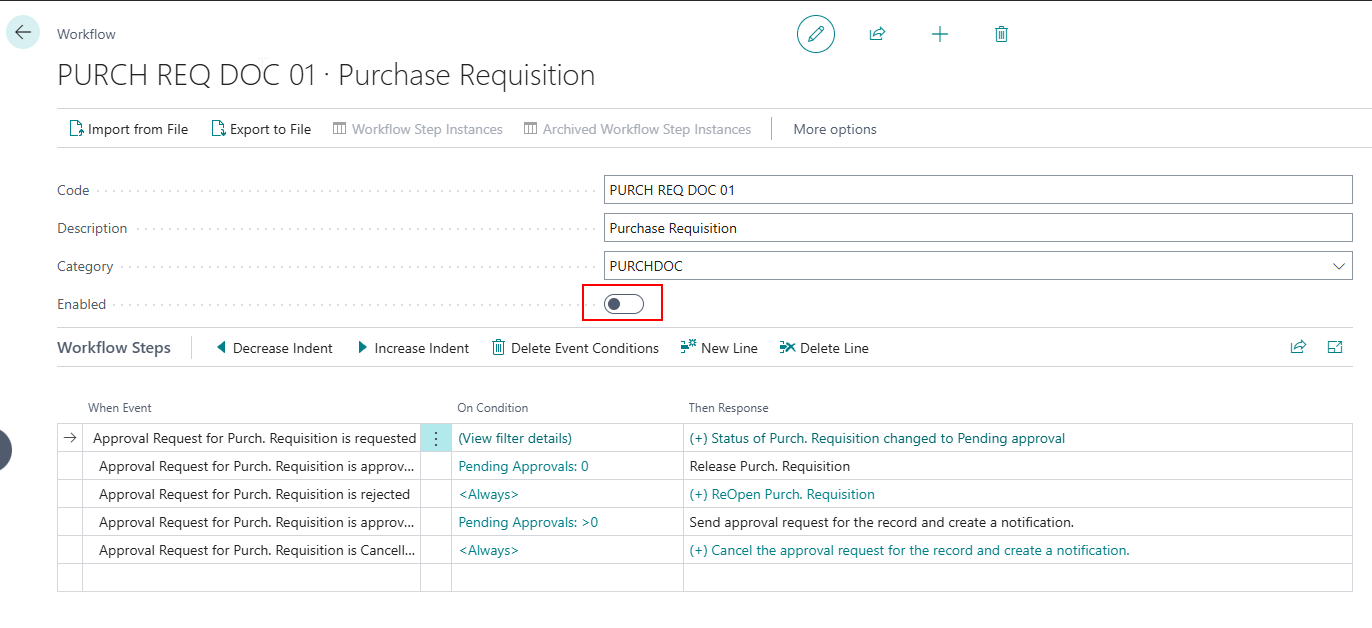
This will enable the workflow for purchase requisition and will be ready to use in production.