Microsoft Dynamics 365 for Stock Requisition Employee Portal User Guide
Introduction
The Stock Requisition Employee Portal in Microsoft Dynamics 365 Business Central provides a user-friendly interface for employees to submit and track their stock requisitions.
Employee Portal
The Employee Portal is accessible once the user logs in. The user can then select the company in which they need to request a stock.
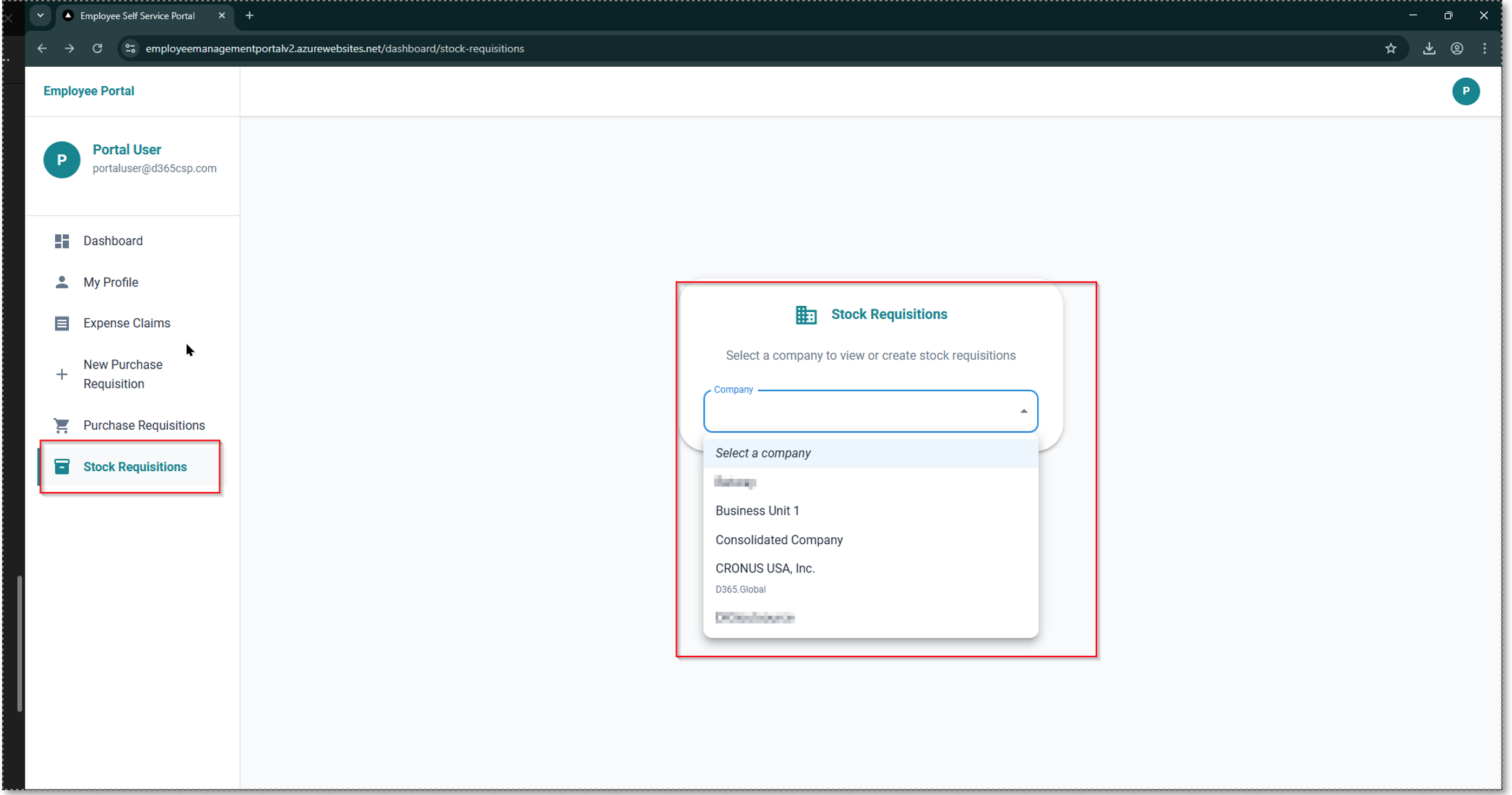
Stock Requisition in Employee Portal
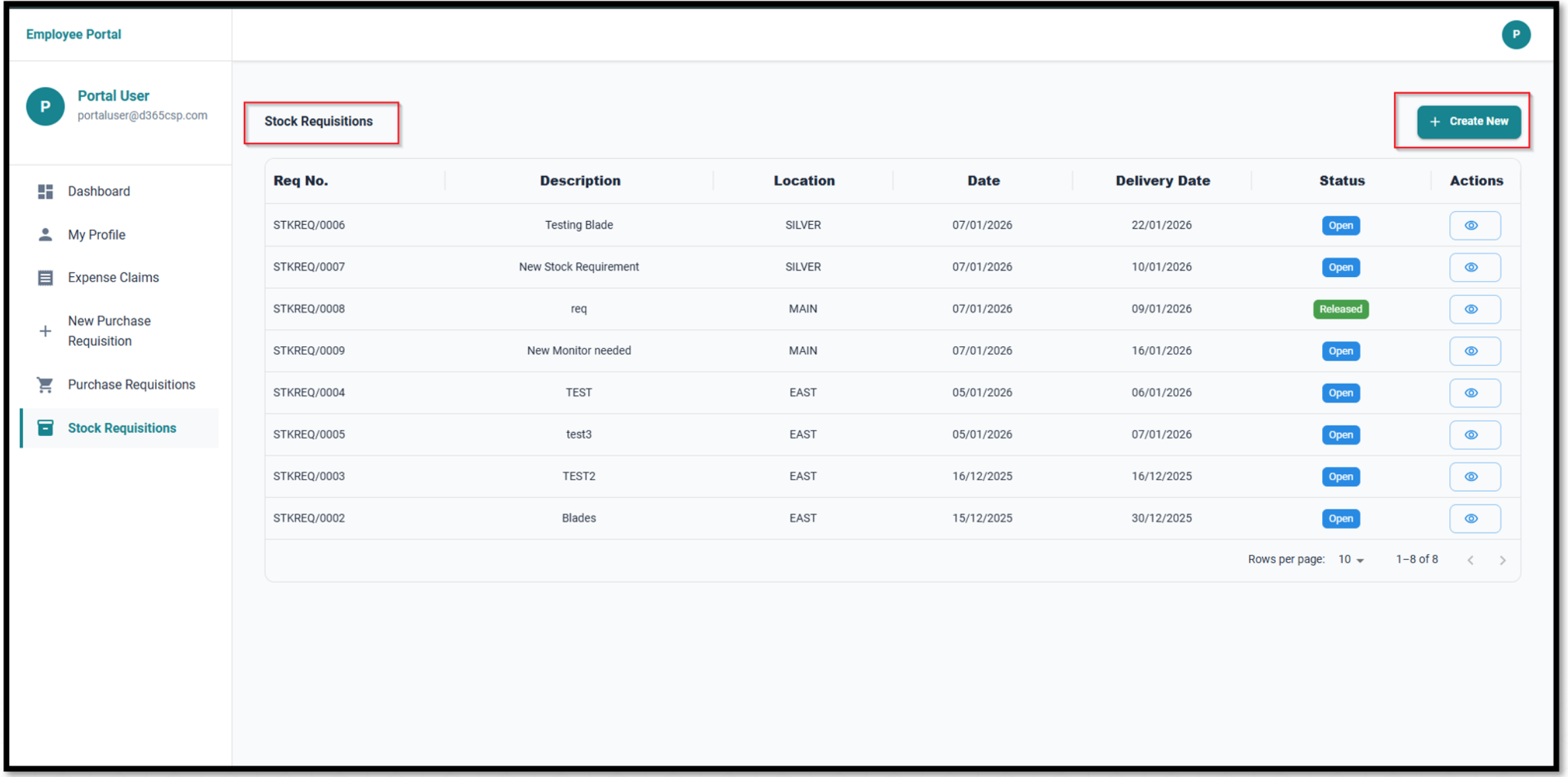
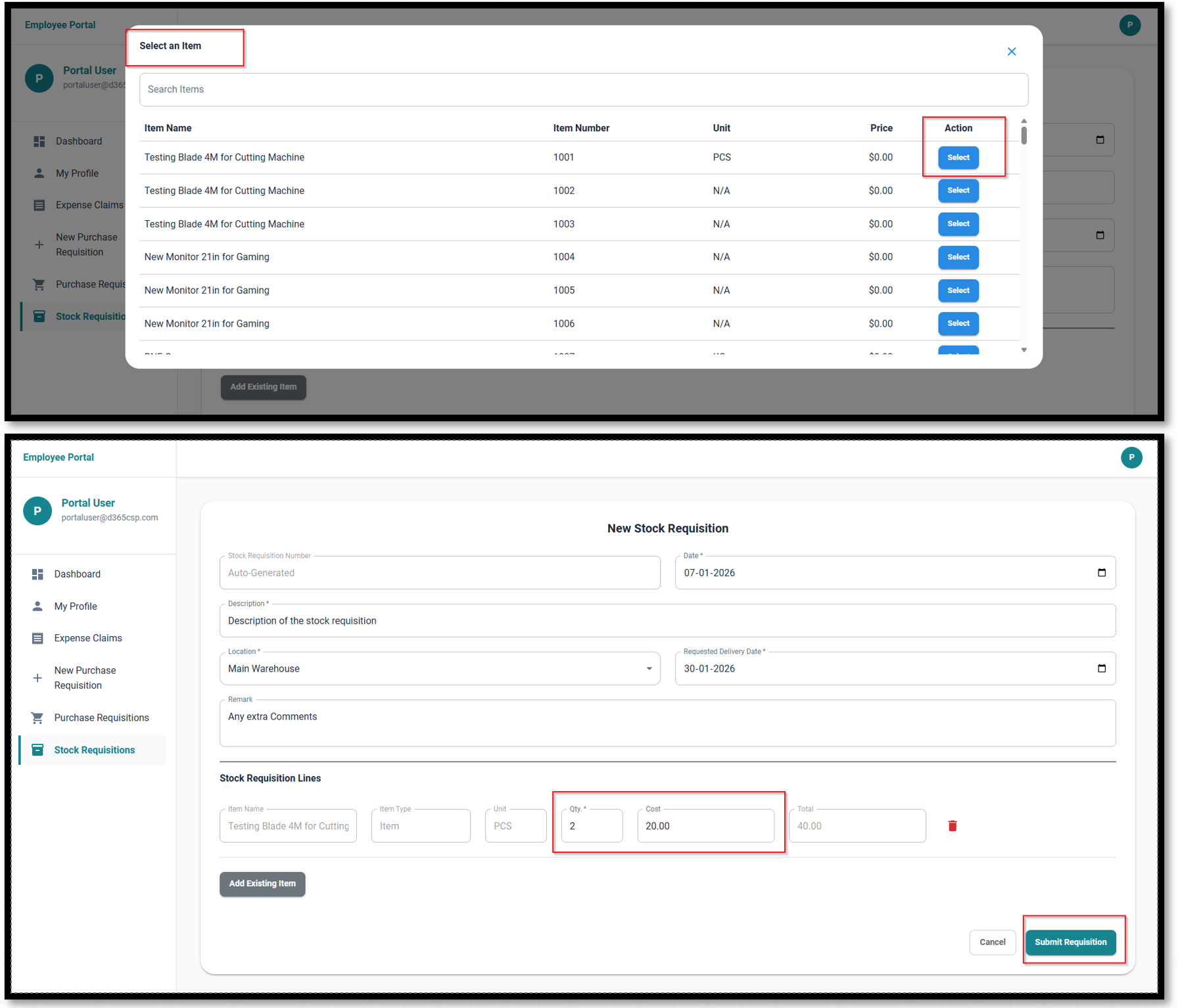
The user can view all the Stock Requisitions created in the list. To create a new requisition, the user clicks on Create New.
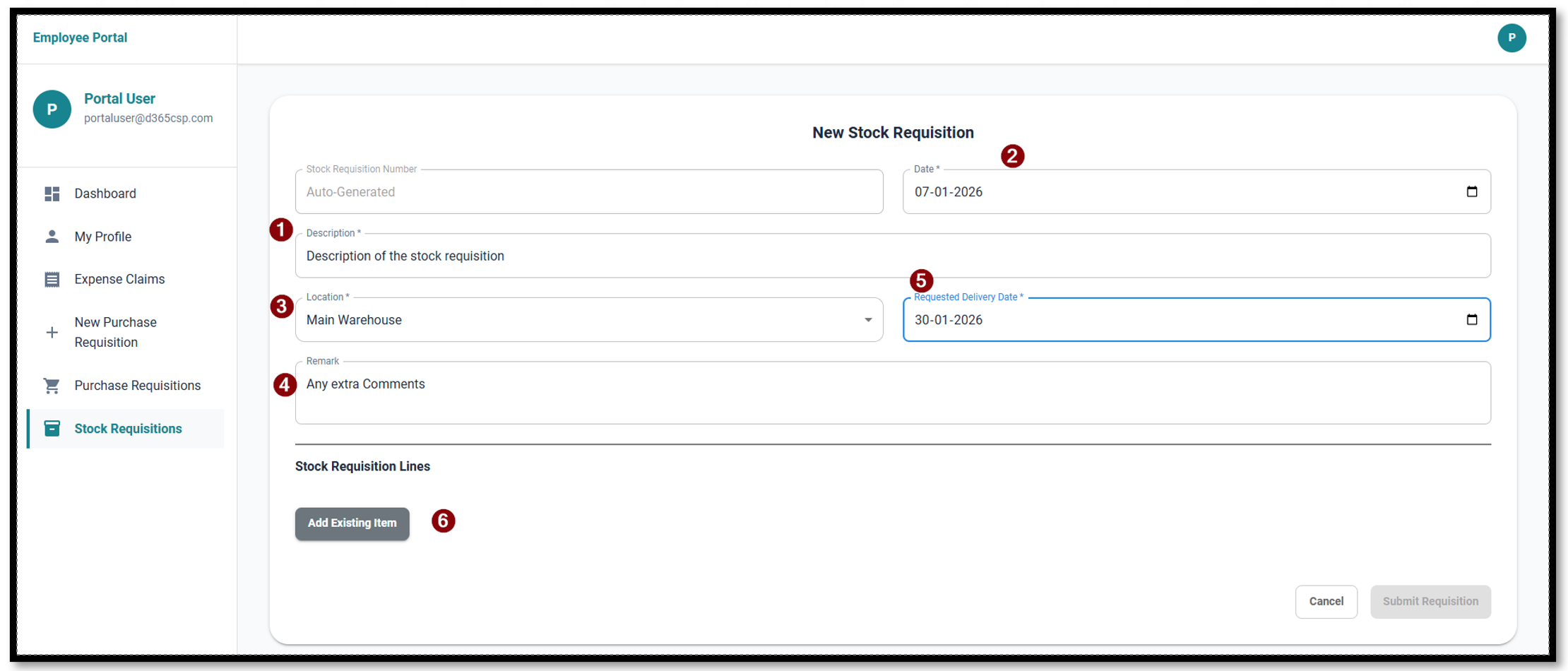
- User can enter the description for the request.
- The date is by default today or the current date.
- User can select the Warehouse (location) from where the stock must be issued based on the location list in Business Central.
- Any extra comments can be entered in the remarks.
- User can also mention the date when the stock is required.
- By clicking on Add Existing Item, the user can add items based on the item master list available in Business Central.
- User can select what item needs to be added in the Requisition.
- User can enter the Quantity, and the cost comes as per the cost of the item as per item master in Business Central.
- User can than click on Submit Requisition.
- This creates a new Stock Requisition in Business Central.
Business Central
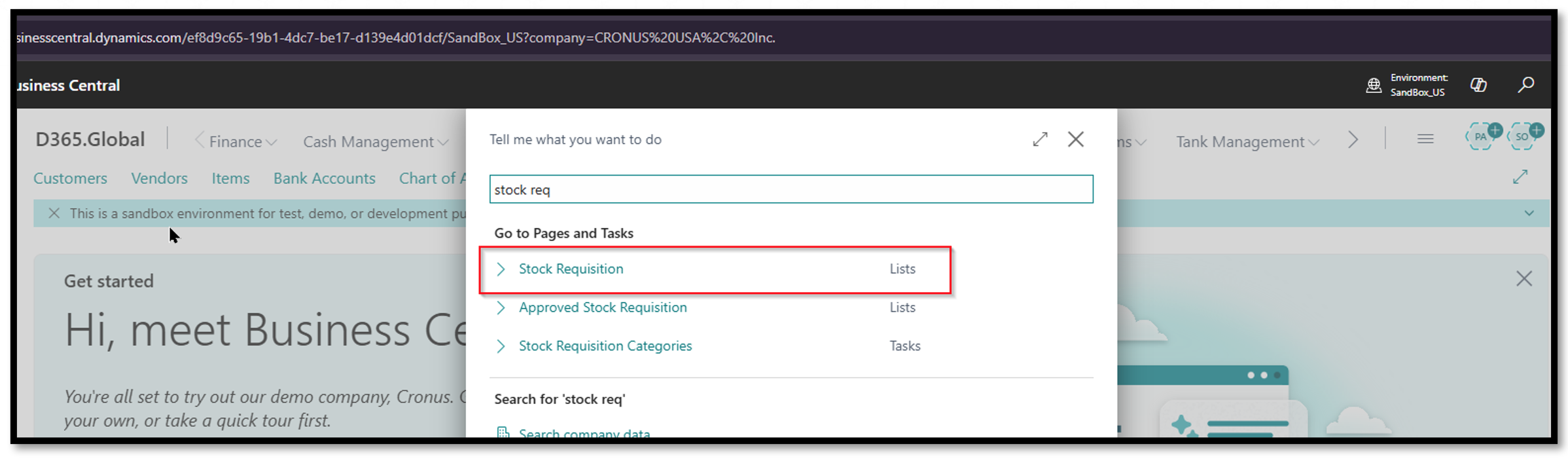
The Stock Requisition created from the portal can be viewed in Business Central. The user can search for Stock Requisition in Business Central and see the list of all the requisitions created including the one from the portal.
Stock Requisition in Business Central
User can search for Stock Requisition in Business Central. It will show the list of all the Requisitions and the new Requisition created from the portal.
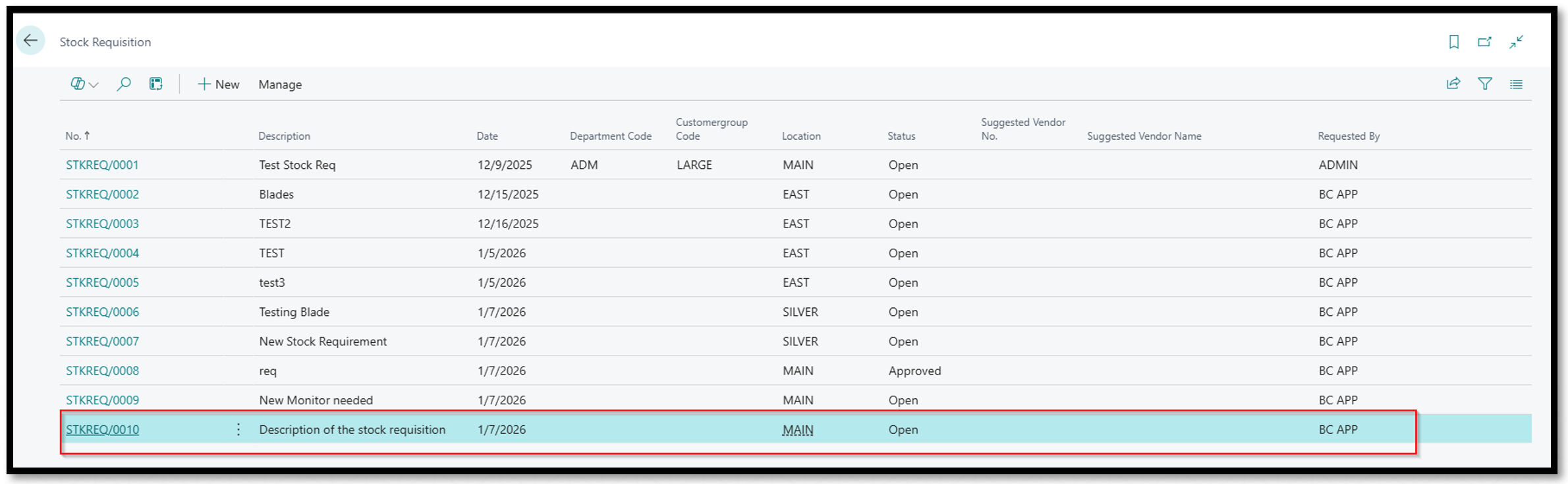
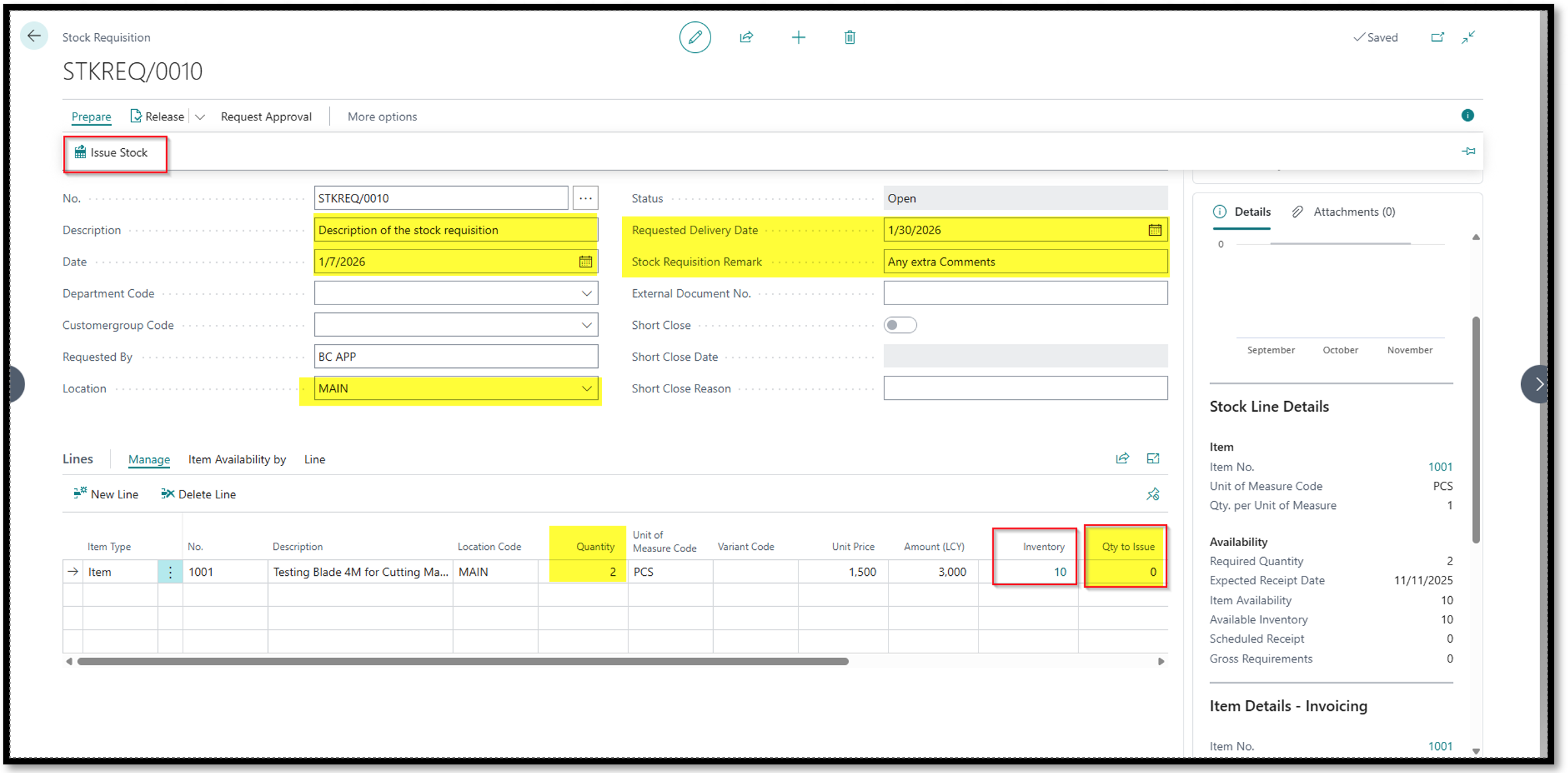
- We can see the data coming from the portal as highlighted here.
- The user can mention the Quantity that needs to be issued in Qty to Issue.
- The system does show the available quantity in stock as per the location to help in issuing correct quantities.
- There can be an approval workflow configured as well for Stock Requisition before anyone can issue the stock
- To issue the stock the user can click on Issue Stock action.
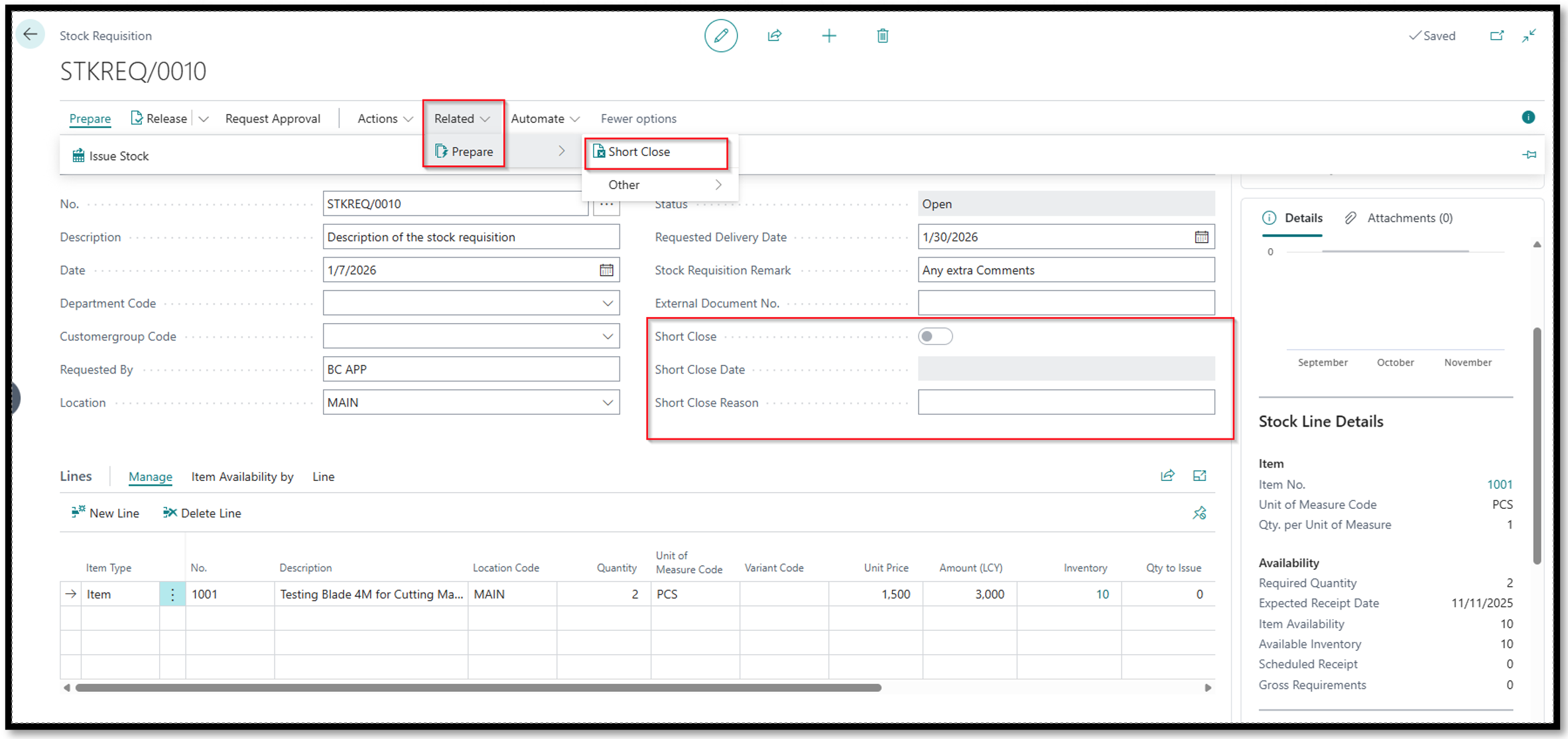
In case the user wants to short close any requisition raised; the user can click on Short Close. The system will ask for the reason for short close and updates the date on when the Requisition was short closed.